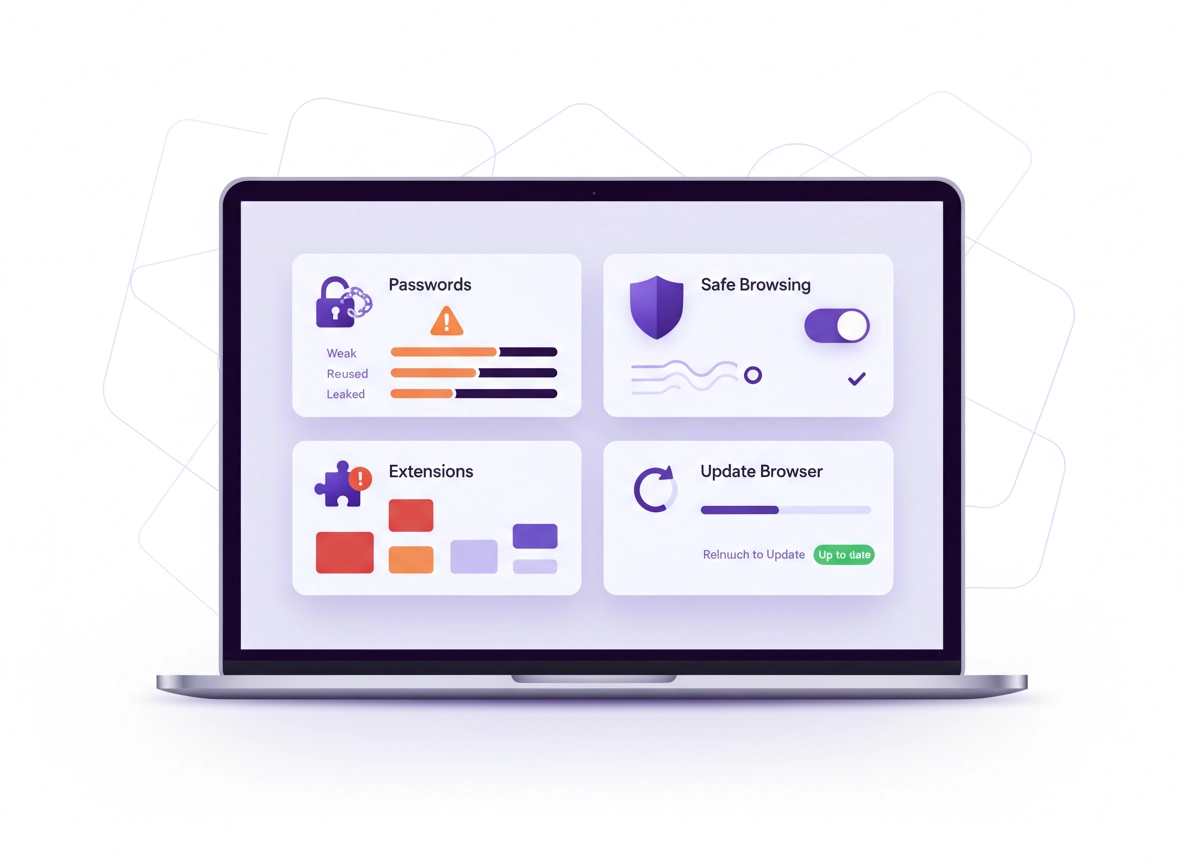
What the Chrome Security Checkup is (and why it matters) .
This guide reflects how modern Chrome surfaces security posture in Settings via “Safety check” / “Security checkup”. Menu labels can vary slightly by device, account state, and whether your browser is managed by an organization.
The Chrome Security Checkup is a built-in review screen that answers one practical question: “Is my browser setup making it easy to get hacked, tracked, or infected?” It’s not a full antivirus scan, and it won’t replace good device security. What it does extremely well is catch the most common, high-impact browser problems that lead to account takeovers and browser malware: outdated Chrome versions, weak/reused passwords, compromised credentials, and extensions that have too much access (or are outright risky).
In Chrome, the Security Checkup usually shows as Safety check under Settings → Privacy and security. You click Check now, and Chrome returns a short list of results. Each result has a direct action button (update Chrome, review passwords, disable an extension, enable protection). That’s why the Security Checkup is perfect for a monthly routine: it’s fast, measurable, and you can see “OK” vs “Action needed” immediately.
Why it matters: most browser compromises aren’t “movie hacking.” They happen because one of these four things is true: (1) you used the same password in multiple places and one site got breached, (2) Chrome is behind on security patches, (3) you installed an extension that can read data on every site you visit, or (4) protective browsing settings were disabled. The checkup is designed to catch those patterns.
Related: If extensions are part of your risk, start here: Chrome Extension Security Check. If passwords are the issue, see Chrome Password Checkup.
What exactly gets checked? .
Chrome’s Safety Check typically evaluates four categories. Depending on device/platform, you may see slightly different labels, but the logic is the same:
- Chrome updates: whether your browser is current (security patches matter).
- Passwords: whether saved passwords are weak, reused, or found in known breaches/leaks.
- Safe Browsing: whether web threat protection is enabled (standard or enhanced).
- Extensions: whether installed extensions are flagged as risky or need review.
Key terms (quick definitions) .
- Safety Check / Security Checkup: A settings screen that summarizes browser safety status and suggests fixes.
- Safe Browsing: Chrome protection that warns about dangerous sites/downloads; can run in Standard or Enhanced mode.
- Leaked password: A password that appears in known breach datasets; if you reused it, other accounts may be at risk.
- Extension host permissions: The websites an extension can access (e.g., “all sites” is high risk).
- Browser profile: Your Chrome profile (history, bookmarks, extensions, saved passwords) tied to your Google account sign-in state.
Before you start (fast checks that prevent wasted time) .
Most “Chrome security” problems turn out to be account state or profile state problems. Do these quick checks first so you don’t troubleshoot the wrong thing.
- Confirm you’re in the right profile: Click your profile icon (top-right). If you have multiple profiles, make sure you’re checking the one you actually use for work/banking/email.
- Know whether the browser is managed: On some devices, Chrome is controlled by work/school policies. If a setting is greyed out or keeps switching back, you’re likely on a managed browser (see Managed browser notes).
- Close “suspicious” tabs: If you’re currently on a pop-up/scam page, close it first. Don’t click “Allow”, “Scan”, or “Update” buttons inside a website.
- Update the operating system if you can: Browser updates are critical, but OS updates matter too. If your device is very old and stuck on an unsupported OS, Chrome may stop receiving updates.
- Don’t ignore extension prompts: If an extension recently requested “Read and change data on all websites,” treat that as a red flag until proven otherwise.
Related: If you’re doing a full privacy + security tune-up, start at Chrome Privacy Settings, then follow with Chrome Security and Privacy Checklist.
Fast “red flag” checks (30 seconds) .
- Chrome keeps redirecting your searches: That’s often a malicious extension or hijacked settings. See Chrome Browser Hijacker Removal.
- Random tabs open by themselves: Often adware/extension behavior. See Chrome Keeps Opening Random Tabs Fix.
- “Your device is infected” warnings inside a webpage: Usually scams. See Chrome Fake Alert Virus Removal.
- Chrome says “suspicious activity detected”: Could be account risk or extension abuse. See Chrome Suspicious Activity Detected Fix.
Step-by-step: run Safety Check on desktop + mobile .
The goal is simple: run the check, then work through each item until you see “OK” across the board. If you’re short on time, prioritize fixes in this order: Update Chrome → Fix leaked passwords → Remove risky extensions → Enable Safe Browsing.
Desktop (Windows, macOS, Linux, Chromebook) .
- 1 Open Chrome → click the three-dot menu (top-right) → choose Settings.
- 2 In the left sidebar, open Privacy and security.
- 3 Click Safety check (or Security checkup on some builds).
- 4 Click Check now and wait a few seconds for results.
- 5 Fix each result using the action buttons (Update / Review / Turn on / Remove). Re-run the check when done.
What “success” looks like: You see a green/neutral status for updates, Safe Browsing, passwords, and extensions (or clear “No issues found” messaging). If any item stays on “Action needed” after you click it, jump to Troubleshooting.
Related: Need screenshots + deeper Safe Browsing options? See Chrome Safe Browsing Settings and Enhanced Safe Browsing in Chrome.
Android (Chrome app) .
Mobile UI changes more often than desktop. The labels below are the most common. If you don’t see “Safety check,” look for “Privacy and security,” “Safety,” or “Passwords” sections.
- 1 Open Chrome on Android → tap the three-dot menu → Settings.
- 2 Scroll to Privacy and security (or Safety depending on build).
- 3 Tap Safety check (or Check passwords + Safe Browsing if listed separately).
- 4 Run the check and follow prompts to update Chrome, change passwords, or review settings.
iPhone / iPad (Chrome for iOS) .
iOS Chrome uses Apple’s platform rules, so some security behaviors differ from desktop/Android. The checkup focus is still passwords + Safe Browsing-style protection + update status via App Store.
- 1 Open Chrome → tap the three-dot menu → Settings.
- 2 Look for Safety check or go into Passwords / Privacy and Security.
- 3 If Chrome needs updating, update via the App Store. Then rerun checks for passwords and protections.
- 4 If a warning points to a password issue, fix it immediately (see Chrome Password Leak Detection).
How to read your results (what Chrome is really telling you) .
After you click Check now, Chrome lists categories with statuses. Here’s how to interpret them in a practical way:
- “Chrome is up to date” = you’re patched against recently fixed browser vulnerabilities. Good. Keep it that way.
- “Update Chrome” / “Relaunch to update” = you’re running old code. The longer you wait, the more likely you hit a known exploit chain. Update today.
- “Passwords found in a data breach” = someone, somewhere has your password (or a close variant). If reused, it’s an account takeover risk. Change it now, starting with email and banking.
- “Weak” / “Reused” passwords = not an immediate breach alert, but a predictable future problem. Fix the top accounts first.
- “Safe Browsing is off” = Chrome won’t actively protect you from known malicious sites/downloads the same way. Turning it back on is a high-value safety win.
- “Remove” / “Review” extension = the extension may be unsafe, newly flagged, or has excessive permissions. Treat unknown extensions like untrusted apps.
Rule of thumb: If Safety Check flags a password or extension, assume it’s urgent until you validate it. False positives are rare, but “I’ll do it later” is how most compromises happen.
Advanced: interpret results like a security pro (and harden Chrome) .
The basic checkup is great, but “secure” depends on what you do in Chrome. Banking? Remote work? Managing staff devices? Below is how to turn Safety Check results into a real security baseline — without breaking websites unnecessarily.
Related: If you want a complete hardening playbook, read Chrome Hardening Guide and Chrome Default Security Settings Guide.
1) Fix “Update Chrome” the right way (and why it sometimes won’t update) .
Updating Chrome is the highest ROI security action because Chrome updates include vulnerability patches. If Safety Check says update:
- Desktop: click the update prompt and relaunch. Many users update but never relaunch, so they keep running the old version.
- Chromebook/ChromeOS: Chrome updates are tied to OS updates. If the OS is behind, Chrome may be behind. Run system update checks.
- Android: update Chrome in Play Store. Then force-close and reopen Chrome.
- iOS: update Chrome via App Store.
2) Password warnings: the correct order to change passwords .
When Safety Check flags passwords, don’t panic — but don’t delay either. The right order matters because your email account is usually the “master key” used to reset everything else.
- 1 Change your email password first (Gmail/Outlook/etc.). Enable 2-factor authentication (2FA) if available.
- 2 Change banking / payment accounts next (including PayPal / card portals).
- 3 Change your Google account password if you use Chrome sync (it protects your bookmarks, passwords, and extensions).
- 4 Change “work identity” accounts: Microsoft 365, Slack, GitHub, domain registrars, hosting, etc.
- 5 For the rest, prioritize accounts where you reused the flagged password.
If you see breach alerts, use this guide: Chrome Password Leak Detection. For a deeper password audit workflow, see: Password Breach Monitoring (Chrome).
3) Extension warnings: how to spot “high risk” extensions fast .
Extensions are the #1 way Chrome users get silently tracked or redirected because extensions can operate across sites. When Safety Check flags an extension: you should assume it has either (a) excessive access, (b) changed ownership/behavior, or (c) was reported/removed for policy reasons.
Quick risk scoring (do this in 60 seconds) .
- High risk: “Read and change all your data on all websites” + unknown publisher + recently updated + poor reviews or weird permissions.
- Medium risk: broad permissions but from a trusted vendor, or a tool you truly need (still limit access).
- Lower risk: minimal permissions, clear purpose, trusted publisher, good update history.
Recommended action sequence:
- 1 Open Chrome → Extensions (or chrome://extensions).
- 2 Disable the flagged extension first (this stops active behavior immediately).
- 3 Click Details and review Site access / Permissions. Set access to On click or On specific sites when possible.
- 4 If you don’t fully trust it, Remove it. Restart Chrome.
- 5 Re-run Safety Check. If the warning persists, see Troubleshooting.
Related: For a deeper extension audit, use Chrome Extension Audit Checklist and Chrome Extension Permissions Guide.
4) Safe Browsing: choose the right mode (Standard vs Enhanced) .
If Safety Check says Safe Browsing is off (or weak), you’re missing a major protection layer. Safe Browsing is designed to warn you about dangerous pages and downloads before you interact with them.
Most users should use Standard protection as a baseline. If you’re frequently targeted (public-facing work, finance, admin accounts, heavy downloading, crypto scams, etc.), consider Enhanced protection for stronger warnings and faster detection.
Related: Choose and configure it here: Chrome Safe Browsing Settings and Enhanced Safe Browsing in Chrome.
Recommended baseline settings by goal .
| Goal | Recommended setting | Tradeoff | Best for |
|---|---|---|---|
| Balanced | Standard Safe Browsing + keep Chrome updated + review extensions quarterly | May miss some “new” threats that Enhanced catches faster | Most users |
| Maximum protection | Enhanced Safe Browsing + strict extension permissions + strong unique passwords | More warnings + slightly more data sharing for threat detection | High-risk users, admins, public Wi-Fi users |
| Compatibility | Standard Safe Browsing + minimal changes, remove only clearly risky extensions | Some threats won’t be blocked as aggressively | Banking / enterprise sites with strict workflows |
5) Add “real hardening” beyond Safety Check (the upgrades that matter) .
Safety Check is the entry point. If you want a stronger browser posture, these are the upgrades that move the needle:
- Lock down site permissions: review camera, mic, location, notifications, and background sync. Start here: Chrome Site Permissions Settings.
- Reduce tracking: control cookie behavior and ad privacy settings. See Third-Party Cookies Settings and Chrome Ad Privacy Settings.
- Secure DNS: enable secure DNS/DoH if appropriate. See DNS over HTTPS Settings and Secure DNS Setup.
- HTTPS-only mode: prefer encrypted connections when browsing. See Chrome HTTPS-Only Mode.
- Sync intentionally: syncing is convenient but increases blast radius if your Google account is compromised. Learn: Chrome Account Sync Settings and Disable Chrome Sync.
Managed browser notes (work/school devices):
If your settings keep reverting, some menu items are missing, or you see messages like “Managed by your organization,” Safety Check may be limited.
In that case, you can still use this guide to understand risk, but IT policy may control the final state. Start here:
Chrome Enterprise Guide and
Chrome Enterprise Security Settings.
Common alternatives users compare .
- Password manager vs Chrome passwords (security, convenience, business features)
- Chrome security tools comparison (what helps vs what’s just noise)
- VPN vs antivirus for Chrome (what each actually protects)
- Best security tools for Chrome (high-intent stack building)
Privacy & security notes (what data is involved) .
Security features often involve a tradeoff: the browser may need to compare something (a URL, a download, a password) to a known threat list. Chrome is designed to do this with privacy protections, but it’s still worth understanding what changes when you enable stronger modes.
Impact: May affect Safe Browsing behavior, password checking, extension access, and site compatibility.
Related: Want to minimize data collection while staying protected? See Chrome Telemetry Settings and Chrome Data Collection Settings.
Recommended baseline (secure without breaking the web) .
- Option A (balanced): Keep Chrome updated + Standard Safe Browsing + remove unknown extensions + fix leaked passwords.
- Option B (maximum protection): Enhanced Safe Browsing + strict extension site access + Secure DNS + password manager + 2FA/passkeys.
- Option C (compatibility): Standard Safe Browsing + minimal extension changes, but still fix leaked passwords and update Chrome.
One important concept: “blast radius” .
Think in blast radius. If your Google account (Chrome sign-in) gets compromised and you use sync, the attacker may gain access to: your saved passwords, browsing history, extension setup, and bookmarks — across devices. That’s why password + 2FA for your primary identity accounts is the most important part of any security checkup.
Troubleshooting .
Related: If your browser is behaving like it’s infected (redirects, popups, strange extensions), go straight to Remove Malware from Chrome.
Safety Check is missing — I can’t find “Safety check” in Settings .
Try these fixes:
- Use Settings search: In Chrome Settings, use the search box and type Safety or Check.
- Update Chrome first: Older builds may show different labels or place it differently.
- Check if it’s managed: If your browser is managed, certain screens can be hidden or locked (see Managed browser notes).
- Mobile split menus: On mobile, Safety Check components may be separate items (Passwords, Safe Browsing, Updates).
It says “Update Chrome” but it won’t update (or keeps saying update) .
Common causes:
- No relaunch: You updated but didn’t relaunch the browser. Close Chrome fully and reopen.
- OS limitation: Your device OS may be too old for new Chrome builds.
- Enterprise controls: An organization may control update cadence or pin versions.
- Store delays (mobile): App store updates can take time to appear. Check again later, or search Chrome directly in the store.
Passwords show as compromised, but I already changed them .
This usually means Chrome still has the old password saved. Fix:
- 1 Open password manager in Chrome and find the flagged site.
- 2 Update the saved password entry to the new value (or delete the old entry and save the new login on next sign-in).
- 3 Re-run Safety Check.
If you need a full walkthrough, use Chrome Password Checkup.
An extension keeps coming back after I remove it .
That can be a sign of malware, a synced reinstall, or enterprise policy. Try:
- Disable sync temporarily: If you suspect sync is reinstalling it, see Disable Chrome Sync.
- Scan for malware: See Chrome Extension Malware Removal.
- Check managed policies: If it’s a work/school device, the extension might be forced by policy.
If you need to reset safely (without losing everything) .
A reset can remove bad settings and disable extensions, but it can also wipe customizations. If you’re seeing heavy hijacking symptoms, use the safer guided approach: How to Reset Chrome After Malware and Chrome Security Reset.
FAQ .
-
helpIs “Safety check” the same as “Chrome Security Checkup”?Yes — most people mean the same feature. Chrome’s label can vary by device and version, but the idea is identical: a built-in dashboard that checks updates, Safe Browsing, saved password risks, and extensions.
-
helpDoes Safety Check scan my computer for viruses?Not like a full antivirus. It focuses on browser-level risks (updates, unsafe browsing settings, passwords, extensions). If you suspect a real infection or adware, use a dedicated malware cleanup workflow: Chrome Malware Cleanup Guide.
-
helpWhy does Chrome warn about leaked passwords — and what should I do first?A leaked password means it appeared in breach datasets. Change it immediately, starting with email, banking, and your Google account (especially if you use sync). Use this step-by-step guide: Chrome Password Leak Detection.
-
helpWhat’s the safest “minimum” setup if I don’t want to tweak everything?Keep Chrome updated, keep Safe Browsing on (Standard at minimum), remove unknown extensions, and fix leaked/reused passwords. If you only do those four things, your risk drops dramatically. For a fuller baseline, see Chrome Security and Privacy Checklist.
Sources & further reading .
- Google Chrome Help: Privacy & security
- Google: Update Google Chrome
- Google: Safe Browsing in Chrome
- Google Account Help: Secure your account
- Chrome Enterprise & management (admin help)
Disclosure: Some pages may mention tools or services. Recommendations are editorial and based on practical testing and user outcomes.