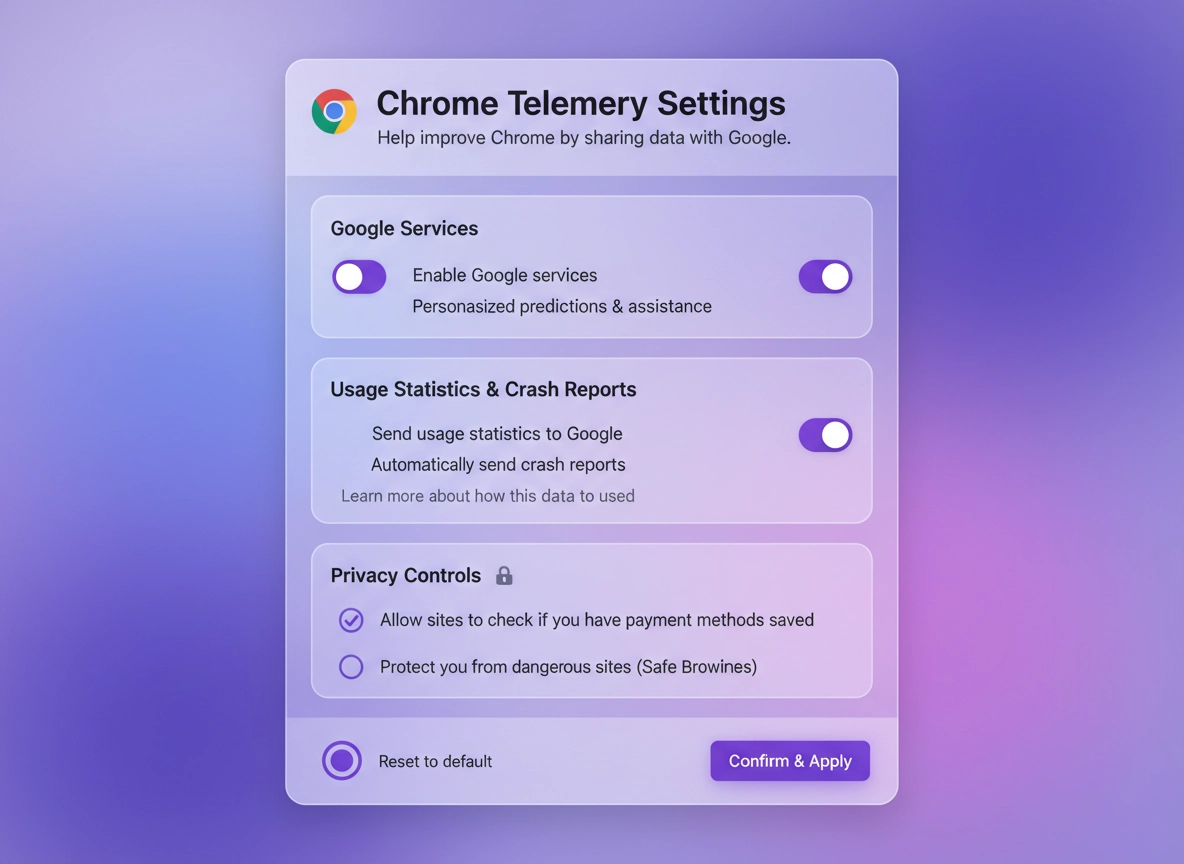
What Chrome telemetry is (and why it matters) .
This guide reflects current Chrome interface behavior and policy design, not legacy versions.
“Telemetry” is a broad term for diagnostic and usage data that software sends back to its vendor. In Chrome, telemetry usually means usage statistics, crash reports, and certain URL-keyed or feature metrics that help Google measure reliability, performance, and feature adoption. Some of it is clearly user-facing (a toggle in Settings). Some of it is policy-controlled (especially in managed environments).
It’s important to separate three things people often mix together: (1) telemetry (diagnostics/metrics), (2) account syncing (your data moving between devices), and (3) security services (Safe Browsing, password leak checks, abuse detection). You can reduce telemetry a lot without turning Chrome into a “security-off” browser—but you do need to know which switches do what.
Why should you care? Because telemetry can contain sensitive context even when it’s not “content.” A crash report can include system state at the time of a crash, and enterprise documentation explicitly notes that crash reports may contain URLs or personal information depending on what was happening. In other words: the risk isn’t always deliberate tracking; it’s that diagnostics can include more context than users expect. That’s why many businesses disable metrics reporting by default, and why security frameworks (like hardening checklists) call it out as a setting to review.
Related: For a bigger picture view of data categories and privacy controls, start with Chrome Data Collection Settings and follow up with How to Stop Chrome Tracking.
Key terms (quick definitions) .
- Usage statistics: Metrics about features and performance (how Chrome behaves, settings and preferences, stability indicators, and general system/browser performance signals).
- Crash reports: Diagnostics created when Chrome crashes or becomes unstable; can include environment/system context and, depending on state, URLs or personal data.
- URL-keyed anonymized data: A category of telemetry where metrics may be tied to URLs in a privacy-preserving way. In Chrome UI, this is commonly associated with “Make searches and browsing better.”
- Google services toggles: A group of switches under You and Google → Google services that control how Chrome interacts with Google (telemetry, spell check improvements, search/browsing metrics, etc.).
- Enterprise policy: An admin-enforced setting that can lock Chrome behavior for users/devices (Windows/macOS/Linux/ChromeOS). If a policy controls telemetry, user toggles may be ignored.
What “telemetry” usually means inside Chrome .
In plain terms, Chrome telemetry answers questions like: “Does this feature help or hurt performance?”, “Are crashes increasing after an update?”, “Which device types are impacted?” and “Which settings are people using?” These are legitimate engineering questions—but the privacy cost depends on what is collected, how it’s processed, and whether it’s tied to your identity or browsing history.
Chrome’s most visible telemetry switch is Help improve Chrome’s features and performance. When enabled, Chrome can send usage statistics periodically, and it’s also the switch most people use to stop automatic crash/diagnostic reporting. On many builds, Chrome also explains that certain URL-keyed metrics are only sent when you enable both Make searches and browsing better and Help improve Chrome’s features and performance, which matters if your goal is to stop URL-associated metrics—not just crash reports.
If you’re auditing your setup end-to-end, pair this page with: Chrome Account Sync Settings and Disable Chrome Sync. Sync is not “telemetry,” but it’s the other major reason people feel Chrome shares too much.
Before you start (fast checks) .
These checks prevent the two most common failure modes: (1) you flip a switch and nothing changes because a policy overrides it, or (2) you turn off something important and blame “telemetry” for the side effect.
- Check 1: Are you on a managed browser? Open
chrome://policy. If you see active policies, your device or profile is managed (work/school, MDM, or enterprise tooling). - Check 2: Are you signed into Chrome? Signed-in Chrome can still be privacy-friendly, but you should treat “You and Google” settings and Sync settings as a connected system.
- Check 3: Do you rely on crash diagnostics? If you troubleshoot frequent crashes, turning off crash reports can make vendor support harder. You may want “balanced” settings first, then tighten later.
- Check 4: Are you changing the right setting? Telemetry toggles live under You and Google → Google services on desktop and most mobile builds.
- Check 5: Are you confusing telemetry with ads? “Ad privacy” controls are separate (see Chrome Ad Privacy Settings).
Related: If Chrome feels slow while troubleshooting, see Performance Optimization and (for deeper tuning) Speed Up Google Chrome.
Fast reality check: what you can and can’t “fully disable” .
With mainstream browsers, there’s always some baseline network activity (updates, certificate checks, safe browsing lists, extension store checks, etc.). This page focuses on the controls that meaningfully reduce diagnostic metrics and optional data sharing. If your goal is “near-zero external calls,” you’re no longer in “Chrome settings” territory—you’re in hardened enterprise builds, isolation, or alternative browsers. For most people and most businesses, the correct goal is: minimize telemetry while keeping security strong.
Step-by-step: turn off telemetry (recommended) .
This section focuses on the settings that have the biggest effect, with the lowest chance of breaking anything. The exact wording can vary slightly between platforms, but the location is consistent.
Desktop (Windows / macOS / Linux) .
- 1 Open Chrome → click the three-dot menu (top-right) → Settings.
- 2 Go to You and Google → click Google services.
- 3 Turn Help improve Chrome’s features and performance Off (this reduces usage statistics + crash report reporting).
- 4 Optional but recommended: turn Make searches and browsing better Off to reduce URL-associated metrics and browsing improvement telemetry.
What “success” looks like: The toggles stay Off after restarting Chrome, and you don’t see “Managed by your organization” forcing them back. If the switches are greyed out or keep reverting, jump to Troubleshooting.
Android .
- 1 Open Chrome → tap ⋮ → Settings.
- 2 Tap Google services.
- 3 Turn Help improve Chrome’s features and performance Off.
- 4 Review nearby toggles like Make searches and browsing better and any “improve”/“enhance” services you don’t want.
iPhone / iPad (iOS) .
- 1 Open Chrome → tap ⋯ → Settings.
- 2 Tap Google services.
- 3 Turn Help improve Chrome’s features and performance Off.
- 4 Optional: review “improve search/browsing” and similar switches if shown on your build.
Related: For a broader “privacy baseline” after telemetry changes, see Chrome Privacy Settings Checklist and Third-Party Cookies Settings.
Common variations (what looks different) .
- Windows / ChromeOS: On some ChromeOS devices, the “help improve” toggle redirects to ChromeOS privacy controls rather than Chrome browser settings.
- macOS: Menu names are the same, but “managed” behavior is common in corporate macOS deployments (MDM + Chrome policies).
- Android / iPhone: The “Google services” panel exists, but the set of toggles shown may differ by region and build.
Advanced: reduce telemetry further (power users) .
If your goal is “as little optional data sharing as practical,” the recommended strategy is: disable telemetry first, then audit adjacent Google service toggles, then (if needed) lock it down with enterprise policy—even for small businesses or family devices.
Related: In managed environments, see Enterprise Chrome Privacy Settings and Secure Configuration: Enterprise Best Practices.
1) Audit adjacent Google services (“quiet telemetry”) .
Chrome groups a lot of “helpful” features under Google services. Some are purely functional. Others are data-sharing by design. After you disable the main telemetry toggle, scan the rest of the page and decide what matches your risk tolerance.
- Improved spell check / enhanced spell check: Often sends text to Google for better suggestions. If you handle sensitive text (legal, health, finance), consider disabling it.
- Make searches and browsing better: A common source of URL-related or browsing improvement metrics. Disable if you want a stricter privacy stance.
- “Help improve Chrome security” style options: Security telemetry can be valuable, but if you’re building a minimal-sharing profile, review these carefully and keep Safe Browsing enabled separately (see next section).
Want a more complete “which switches matter most” map? Use: Google Chrome Privacy Controls and Privacy & Security Settings Overview.
2) Keep security strong while lowering telemetry .
The most common mistake is turning off telemetry and also turning off protections that prevent malware and phishing. You can usually keep the security posture high with minimal telemetry by focusing on the “reporting” switches rather than core protections. If you’re unsure, keep Safe Browsing on and only tighten reporting/diagnostic switches.
- Safe Browsing: Security control. Keep it on unless you have a specific reason and compensating controls. See Safe Browsing Settings and Enhanced Safe Browsing.
- Password leak detection / password check: Useful for account safety. If you disable telemetry, you can still use strong password hygiene: Chrome Password Checkup and Password Leak Detection.
3) Enterprise-grade control: policies that override user toggles .
If you manage devices (even a small office), the cleanest way to control telemetry is policy: you set a rule once, and Chrome enforces it consistently. Google’s enterprise documentation includes explicit policy options to prevent Chrome from reporting usage metrics and crash reports, and administrators are warned that metrics/crash reports can include system information and, depending on circumstances, URLs or personal information.
Start here:
chrome://policy (on a client device) to see what’s applied, and
the Chrome Enterprise policy list to understand what’s enforceable.
Common telemetry-related policies include “metrics reporting” style controls and “URL-keyed anonymized data collection” controls
(often linked to “Make searches and browsing better” behavior).
Related: See Chrome Security Policy Setup, IT Admin Security Settings, and Chrome Enterprise Policy Templates.
4) “Telemetry vs ads”: Ad privacy controls are separate .
A lot of “telemetry fear” is actually ad-related concern. In modern Chrome, ad-related controls often live under Privacy and security → Ad privacy (for example, Topics/interest-based ads). That’s not crash telemetry, but it is data-driven behavior many users want to limit. If your privacy goal includes reducing ad profiling, don’t stop at telemetry—review Ad privacy settings too.
- Chrome Ad Privacy Settings
- Privacy Sandbox Explained
- Chrome Tracking Protection
- Fingerprint Protection
Common alternatives users compare (high-intent) .
- Chrome built-in telemetry controls vs privacy extensions (Privacy Extensions Guide)
- Chrome settings vs enterprise hardening (Chrome Hardening Guide)
- Chrome privacy controls vs DNS privacy (DNS over HTTPS Settings)
- Chrome telemetry reduction vs “incognito” expectations (Incognito Mode Guide)
Privacy & security notes (what you trade off) .
Telemetry settings aren’t “free wins.” They’re risk management. Your goal is to reduce unnecessary sharing while keeping what you need for safety, support, and compatibility. Here’s the practical breakdown of what changes when you disable telemetry.
Impact: Reduces diagnostic and usage reporting. May limit vendor troubleshooting quality and some “improvement” features.
Related: If you suspect infection or hijacking (often mistaken for “telemetry”), see Remove Malware from Chrome and Malware Protection Guide.
Recommended baseline settings .
- Option A (balanced): Turn off Help improve Chrome’s features and performance; keep Safe Browsing on; keep Sync on only if you need it.
- Option B (maximum privacy): Turn off telemetry + Make searches and browsing better; review Ad privacy; consider limiting or disabling Sync.
- Option C (compatibility-first): Turn off telemetry only; keep other “improvement” features if they help your workflow; tighten ads/privacy separately.
Recommended settings by goal .
| Goal | Recommended setting | Tradeoff | Best for |
|---|---|---|---|
| Balanced | Telemetry OFF; Safe Browsing ON; Sync optional | Less diagnostic insight for support | Most users |
| Maximum privacy | Telemetry OFF; “Make searches…” OFF; Ad privacy tightened; Sync minimized | May reduce convenience features & “smart” suggestions | Tracking-sensitive users |
| Compatibility | Telemetry OFF only; keep other toggles as needed | Some metrics may still be shared via other services | Banking / enterprise sites |
Does disabling telemetry stop tracking? .
It helps, but it’s not the whole story. Telemetry is diagnostics/metrics. Tracking usually means identifiers and behavior used for advertising or profiling. For real tracking reduction, combine telemetry changes with: third-party cookie controls, tracking protection, fingerprinting resistance, ad privacy controls, and (if needed) DNS privacy. Use these pages as your “stack”: Third-Party Cookies, Tracking Protection, Privacy Sandbox, and DNS Privacy Guide.
Troubleshooting (policies, profiles, stubborn toggles) .
Related: If permissions or popups are part of your issue, see Chrome Site Permissions.
If the telemetry toggle is greyed out .
This is the classic “managed device” sign. Open chrome://policy and look for policies related to metrics reporting or data collection.
If a policy enforces telemetry, your user-level toggles will be locked.
On work/school devices, the correct fix is admin-side: change the policy at the source (GPO, MDM, Google Admin console, etc.).
If the setting turns itself back on after restart .
This can be caused by: (1) a policy reapplying, (2) a synced preference from another device, or (3) a profile issue. Try this order:
- Step 1: Check
chrome://policy. If anything is enforced, handle policy first. - Step 2: If Sync is on, temporarily pause Sync and re-test. See Sync settings.
- Step 3: Test in a fresh Chrome profile. If it works there, your main profile has a preference conflict.
If you still see network calls and assume telemetry is “still on” .
Chrome will still do baseline network activity (updates, certificate checks, Safe Browsing updates, and extension services). Don’t treat “any traffic” as “telemetry enabled.” Instead, confirm the actual toggles are off, then decide whether you also want to adjust Safe Browsing or other services. If you’re diagnosing suspicious behavior (popups, redirects, random tabs), that’s often malware/adware rather than telemetry—use: Pop-up Virus Removal and Browser Hijacker Removal.
If you need to reset safely .
If your settings are chaotic (extensions, policies, weird defaults), a safe reset approach is: (1) remove suspicious extensions, (2) review policies, (3) reset settings, (4) re-apply privacy baseline. Start with Chrome Security Reset and Reset Chrome After Malware.
FAQ .
-
helpDoes turning off “Help improve Chrome’s features and performance” stop crash reports?In most builds, yes—this toggle is the main control for sending usage statistics and crash reports to Google. If it won’t stay off, check
chrome://policybecause an admin policy can override your preference. -
helpWhat’s the difference between “telemetry” and “Chrome Sync”?Telemetry is diagnostics/metrics about how Chrome behaves (stability, performance, feature usage). Sync is your data (bookmarks, passwords, history, settings) moving between devices tied to your Google account. You can disable telemetry and still keep Sync—or vice versa—depending on your needs.
-
helpWill disabling telemetry break websites?Usually no. Disabling usage statistics and crash reporting rarely affects site compatibility. The bigger compatibility changes come from blocking third-party cookies, strict tracking protection, or certain privacy sandbox/ad controls—not from telemetry toggles.
-
helpWhy can’t I change telemetry settings on my work Chromebook?Work/school Chromebooks are often managed. Admins can enforce telemetry settings at the OS or browser policy level, which locks the UI for users. If you need it changed, you’ll need your administrator to adjust the policy.
Sources & further reading .
- Google Chrome Help: usage statistics + crash reports and “Make searches and browsing better”
- Google Chrome Help: start/stop automatically reporting errors & crashes (desktop)
- Google Chrome Help: start/stop automatically reporting errors & crashes (Android)
- Google Workspace Admin Help: notes on usage stats and crash reports in managed environments
- Chrome Enterprise Admin Help: security & privacy policies (metrics reporting)
- Chrome Enterprise: policy list
Disclosure: Some pages may mention tools or services. Recommendations are editorial and based on testing.