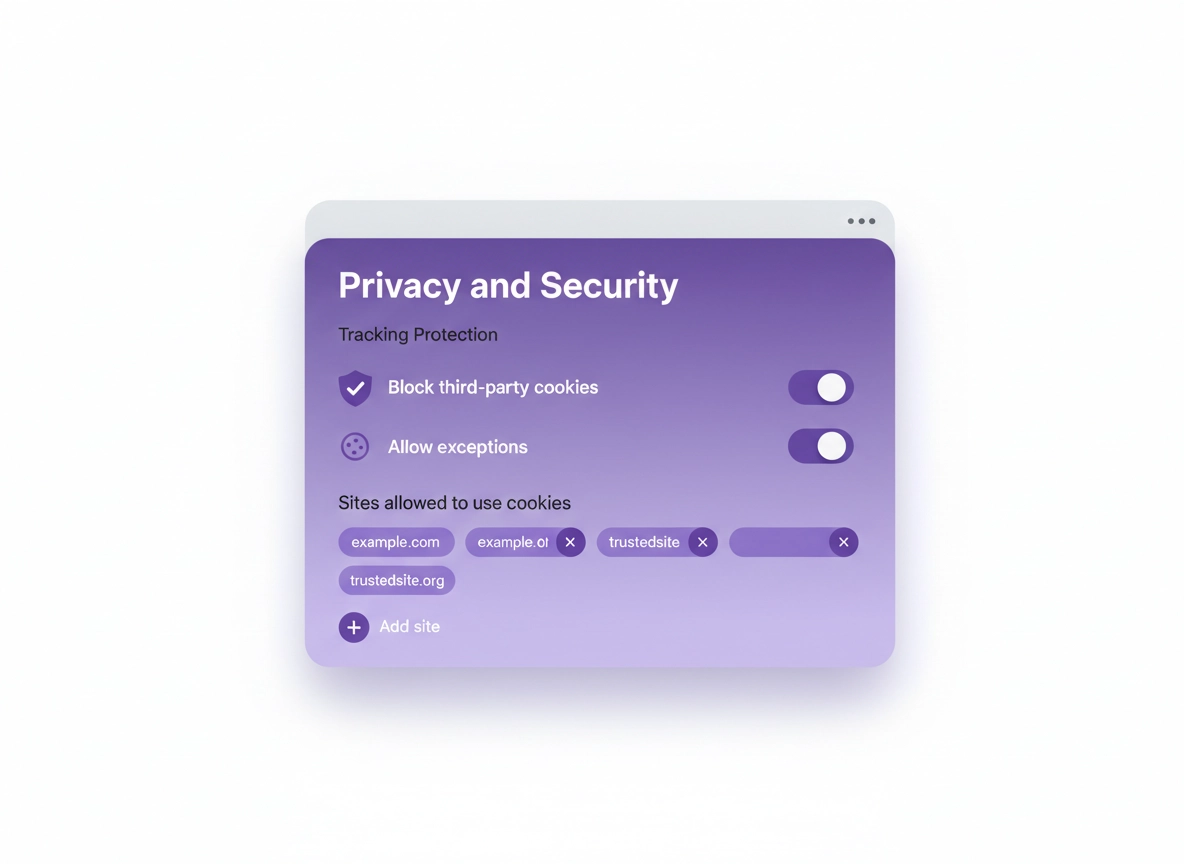
What Tracking Protection is (and what it isn’t) .
Tracking Protection in Chrome is primarily about limiting cross-site tracking by restricting third-party cookies — not a magic “invisible mode.”
When you visit a website, it can store small bits of data in your browser. Some of that storage is first-party (the site you’re actually on), and some is third-party (an embedded service: ads, analytics, chat widgets, payment providers, video players, “login with…” buttons, and more). Third-party cookies have historically been one of the easiest ways to track a user’s activity across many different sites.
Chrome Tracking Protection is Chrome’s UI and behavior for restricting that third-party cookie access. On some Chrome versions you’ll see it labeled as Tracking Protection. On others, it’s grouped under Third-party cookies. The goal is the same: reduce cross-site tracking while keeping the modern web working. The “web working” part is why you also get exception controls (site allow-lists, temporary allowances, and compatibility options).
What it is not: a VPN, an anti-fingerprinting shield, or a guarantee that nothing can track you. Websites can still track you via first-party identifiers (logged-in accounts), device/browser fingerprinting, URL parameters, and network-level logging (ISP, employer, school). Tracking Protection is a high-impact privacy lever — but it’s only one lever.
Related: If you’re trying to reduce fingerprint-based tracking (not cookie-based), read Chrome Fingerprint Protection. If your goal is “stop Chrome tracking me” broadly, start with How to Stop Chrome Tracking.
Key terms (quick definitions) .
- Third-party cookies: Cookies set by a domain different from the site you’re visiting (often embedded services). They enable cross-site tracking and some embedded features.
- Cross-site tracking: Techniques that follow your activity across multiple websites (often for ads, measurement, and profiling).
- Site exceptions (allow-list): A list of websites you explicitly permit to use third-party cookies (usually for sign-in, payments, SSO, or embedded tools).
- Incognito mode: A browsing session that doesn’t save history locally; it does not stop websites or networks from tracking you.
- Privacy Sandbox / Ad privacy: Chrome’s set of privacy-related changes that includes cookie changes and advertising privacy controls. (These are related, but not identical.)
Before you start (fast checks) .
These checks prevent the most common “I changed Tracking Protection but nothing happened” and “I changed it and everything broke” outcomes. Do them in order — it’s faster than troubleshooting blindly.
- 1) Update Chrome first: Chrome privacy UI changes over time. Updating reduces menu mismatch and fixes cookie-related bugs. Use Get or Update Chrome.
- 2) Check if your browser is managed: If you see “Managed by your organization” on your Settings page, your employer/school can enforce cookie policies. In that case, your UI may show “locked” options or revert after restart.
- 3) Identify your goal:
- Privacy: block third-party cookies and remove unnecessary extensions.
- Compatibility: keep cookies blocked by default but allow exceptions for critical sites.
- Debug: temporarily allow cookies to confirm the root cause, then lock it down again.
- 4) Check extensions that can read site data: Some extensions can still “follow” you with their own identifiers. Start with Site Permissions and then Chrome Privacy Extensions Guide.
- 5) Know your “undo” plan: If a site breaks, you’ll either (a) add a site exception, or (b) clear that site’s data and retry login. Keep Clear Browsing Data handy.
Related: If a cookie change makes your sessions reset constantly, consider setting up a cleaner baseline with Auto-Delete Cookies in Chrome (so you control what persists).
Step-by-step: enable Tracking Protection (recommended) .
Chrome’s naming can vary by rollout and platform: you may see Tracking Protection, or you may see Third-party cookies. Don’t worry — both paths lead to the same core controls.
Desktop (Windows, macOS, Linux, ChromeOS) .
- 1 Open Chrome → click the three-dot menu (top-right) → choose Settings.
- 2 In the left sidebar, open Privacy and security.
- 3 Click Tracking Protection (if you see it). If you do not, click Third-party cookies.
- 4 Choose Block third-party cookies (recommended). Chrome applies the change immediately.
- 5 If a trusted site breaks, scroll to Sites allowed to use third-party cookies → Add → enter the site (example:
https://example.com) → Add. - 6 Reload the affected site (Ctrl/Cmd+R). If login is still broken, jump to Troubleshooting.
What “success” looks like: cross-site ad widgets stop “remembering” you on unrelated sites, and you’ll see fewer “follow me everywhere” ad patterns. Your normal logins should still work — and if something breaks, you fix it by allowing cookies only for that site.
Mobile (Android) .
- 1 Open Chrome → tap ⋮ (three dots) → Settings.
- 2 Tap Privacy and security.
- 3 Tap Third-party cookies (some versions show Tracking Protection here).
- 4 Select Block third-party cookies. (Or choose “Block in Incognito” if you want a lighter option.)
- 5 If a site breaks, use Site settings for that domain, or switch to a temporary allowance and retest.
Mobile (iPhone / iPad) .
Chrome on iOS uses Apple’s WebKit engine under the hood, and some privacy controls behave differently than desktop/Android. You’ll still find cookie-related options in Chrome settings, but compatibility and enforcement can vary. If your goal is maximum tracking resistance on iPhone, also review your iOS system privacy settings alongside Chrome.
- 1 Open Chrome → tap ⋯ → Settings.
- 2 Tap Privacy / Privacy and security (label may vary).
- 3 Find the cookie / tracking controls available on your version and choose the most restrictive option that still keeps your key sites working.
- 4 If a site breaks, use exceptions where available or clear site data and retry.
Fast direct links (advanced users) .
- Cookies page:
chrome://settings/cookies - Tracking Protection UI (if enabled):
chrome://settings/trackingProtection
Related: If you’re specifically focused on cookies, see Chrome Third-Party Cookies Settings and How to Block Third-Party Cookies.
Common variations (what you might see) .
- Windows / ChromeOS: Tracking Protection may appear as its own item, or the controls may live inside “Third-party cookies.”
- macOS: Same menu structure as Windows, but some sign-in flows (Apple account services, password managers) can be more sensitive to cookie restrictions.
- Android / iPhone: Mobile Chrome often groups these settings differently; look for “Third-party cookies” first.
Advanced settings: exceptions, testing, and power-user controls .
This is where most people either (a) get maximum privacy without pain, or (b) accidentally create a “whitelist explosion” that defeats the point. The strategy is simple: default deny, then add minimal exceptions, and verify each exception has a real purpose.
Related (enterprise): If you manage devices, see Enterprise Chrome Privacy Settings and Secure Configuration: Enterprise Best Practices.
1) Use site exceptions correctly .
Exceptions should be used for a specific compatibility need: single sign-on (SSO), embedded payment pages, identity providers, or essential widgets you trust. Avoid allowing broad wildcard patterns unless you understand the impact.
- Good exception: your company identity provider or a banking site that fails login when cookies are blocked.
- Bad exception: random ad-tech domains or “fixes” you copy/paste from forums without understanding.
- Best practice: add the minimum number of domains, then retest the workflow from a fresh tab.
2) Temporarily allow third-party cookies for one site .
Chrome may show a cookie/“eye” style indicator in the address bar when third-party cookies are restricted and the page requests them. When available, this is the cleanest workflow: temporarily allow cookies for the current site, complete your login/payment, then let it expire. It’s the difference between “just let tracking back in forever” vs “I needed cookies for 5 minutes.”
3) Pair Tracking Protection with your other privacy controls .
Blocking third-party cookies reduces a lot of cross-site tracking, but advanced tracking also uses fingerprinting, permissions, and ad-topic signals. If you want a strong baseline without turning your browser into a science project, combine these:
- Ad privacy controls: review topic/ad measurement toggles in Chrome Ad Privacy Settings and understand the bigger picture in Privacy Sandbox Explained.
- Fingerprint resistance: Chrome Fingerprint Protection (especially if you browse across many sites without logging in).
- Secure DNS: enable encrypted DNS for network privacy: DNS over HTTPS Settings and Secure DNS Setup.
- Site permissions hygiene: reduce passive data access: Site Permissions Settings.
4) Test like a pro (so you know what changed) .
The easiest way to confirm Tracking Protection is doing something is to test with a clean state: open a new window (or Incognito), sign into a site that embeds third-party services, and observe whether you stay signed in across tabs and embedded frames.
- Test A (baseline): keep third-party cookies blocked and try the workflow.
- Test B (exception): allow third-party cookies only for that site and retry.
- Interpretation: if B fixes it, your breakage is cookie-dependency — you can solve it with a narrow exception.
Common alternatives users compare .
- Chrome built-in Tracking Protection vs privacy extensions (ad blockers, anti-tracking, script blockers)
- Cookie controls vs fingerprint protection
- Blocking cookies vs using a VPN for network privacy
- Manual setup vs enterprise policy management
Related: If you want a full privacy baseline with minimal breakage, use Chrome Privacy Settings Checklist and the hub Chrome Privacy Settings.
Privacy & security notes (tradeoffs) .
Tracking Protection is one of the highest-impact privacy changes you can make in Chrome because it targets a common cross-site identifier: third-party cookies. But cookies also power legitimate features. The right configuration depends on your risk tolerance and what you do online.
Impact: Mainly affects third-party cookies and embedded services (SSO, chat widgets, video players, payments).
Undo: Switch back to “Allow third-party cookies” (temporary) or remove specific site exceptions.
Plain-English summary: Blocking third-party cookies makes it harder for unrelated companies to follow you across websites. If something breaks, don’t turn privacy off globally — just allow cookies for the one site that needs it.
Recommended baseline settings .
- Option A (balanced): Block third-party cookies + allow exceptions only for the few sites that break (banking, SSO, work tools).
- Option B (maximum privacy): Block third-party cookies + limit extensions + review ad privacy settings + prefer private DNS.
- Option C (compatibility): Block third-party cookies in Incognito only (lighter) + gradually tighten when you’re ready.
Recommended settings by goal .
| Goal | Recommended setting | Tradeoff | Best for |
|---|---|---|---|
| Balanced | Block third-party cookies + minimal site exceptions | Some sites may need whitelisting | Most users |
| Maximum privacy | Block third-party cookies + tighten extensions + review ad privacy + secure DNS | More breakage; more tuning | Tracking-sensitive users |
| Compatibility | Block in Incognito only, or allow globally but use auto-delete + selective restrictions | Less privacy against cross-site tracking | Banking / enterprise sites |
Related: If you’re building a secure setup (not just privacy), see Chrome Security & Privacy Checklist and Chrome Hardening Guide.
Troubleshooting (sites that break) .
Most Tracking Protection “breakage” is one of three patterns: (1) login loops, (2) embedded widgets failing, or (3) payments/identity flows failing. Use the fixes below in order — they’re designed to preserve privacy while restoring functionality.
If you get stuck in an infinite login loop .
This usually happens when the sign-in flow uses an embedded third-party frame (identity provider, CAPTCHA provider, payment auth, or cross-site SSO). Fix it by allowing cookies for that site (exception) and clearing only that site’s cookies if needed.
- 1 Add a site exception for the affected site in Tracking Protection / Third-party cookies.
- 2 Open Settings → Privacy and security → Site settings → View permissions and data stored across sites (wording may vary).
- 3 Search for the site → clear data for that site only.
- 4 Retry login in a fresh tab (not the same broken login page).
Related: If you need the “big hammer,” follow Clear Browsing Data — but prefer site-by-site clearing first.
If embedded content is missing (chat, video, forms) .
Some embedded services rely on third-party cookies to remember your session inside the embed (especially customer support chat). First confirm it’s not an extension blocking scripts, then allow cookies for the parent site if you trust it.
- Step 1: Temporarily disable one privacy/ad-block extension and refresh. If fixed, adjust that extension’s rules instead of loosening Chrome globally.
- Step 2: If the embed is essential, add a site exception for the site you’re visiting (not random third-party domains you don’t recognize).
- Step 3: If it’s a work tool, check if your device is managed and policies override your settings.
If payments fail (checkout, 3-D Secure, banking auth) .
Payment flows often bounce through multiple domains for fraud checks and authentication. The privacy-preserving fix is to allow cookies for the merchant site and retry. If it’s still failing, try a fresh window and make sure your clock/timezone is correct (yes, that can break payment auth).
If your setting keeps reverting .
If Chrome says “Managed by your organization,” a policy can lock cookie behavior. In businesses, that’s intentional (compliance and predictable behavior). In home setups, it can indicate a managed profile or unwanted software.
- Work / school device: Ask IT which cookie policy is enforced and whether exceptions are allowed.
- Personal device: Review installed software and extensions. If anything feels off, run a malware check using Remove Malware from Chrome.
If you need to reset safely (last resort) .
If you’ve added many exceptions and the browser feels unpredictable, do a controlled reset: remove unnecessary exceptions, clear site data for only the sites that are failing, and audit extensions. Avoid wiping everything unless you’re okay re-logging into everything.
FAQ .
-
helpIs Chrome Tracking Protection the same as blocking third-party cookies?In practice, yes — the core effect is restricting third-party cookie access to reduce cross-site tracking. Depending on your Chrome version, you may see the feature labeled “Tracking Protection” or the controls may appear under “Third-party cookies.”
-
helpWill blocking third-party cookies break websites?Most sites still work, but some sign-in flows, embedded chat/widgets, and payment authentication can break. The fix is usually to add a site exception for the specific site that needs it, not to disable protection globally.
-
helpDoes Tracking Protection stop fingerprinting?No. Fingerprinting uses signals like device characteristics, browser APIs, and behavior patterns. If fingerprinting is your concern, combine cookie blocking with permission hygiene and fingerprint-focused settings (see our Chrome Fingerprint Protection guide).
-
helpWhat’s the difference between Tracking Protection and “Ad Privacy” settings?Tracking Protection mainly focuses on cookie-based cross-site tracking (especially third-party cookies). Ad Privacy settings control Chrome’s advertising-related signals (topics/measurement/personalization). They’re related but separate controls, and you can tune both.
-
helpIf I use Incognito, do I still need Tracking Protection?Incognito mainly prevents local history/cookies from being saved after you close the window. It does not stop websites or networks from tracking you while you browse. Tracking Protection changes behavior during browsing, so it can still be valuable even if you use Incognito.
-
helpMy browser says “Managed by your organization.” Can I change this?Managed devices can enforce cookie and tracking policies for compliance and security. You may still be able to request exceptions, but you might not be able to override the policy yourself. If it’s a personal device and you don’t recognize the management, review extensions/software and run a safety check.
Sources & further reading .
- Google: Tracking Protection announcement (Privacy Sandbox)
- Chrome Enterprise Help: Tracking Protection / third-party cookies controls
- Privacy Sandbox: cookie blocking and user settings
- Privacy Sandbox: temporary exceptions and enterprise behavior
- Chrome Help: “Do Not Track” request (Desktop)
- Chrome Help: manage cookies (Android)
Disclosure: Some pages may mention tools or services. Recommendations are editorial and based on practical testing and real-world compatibility.