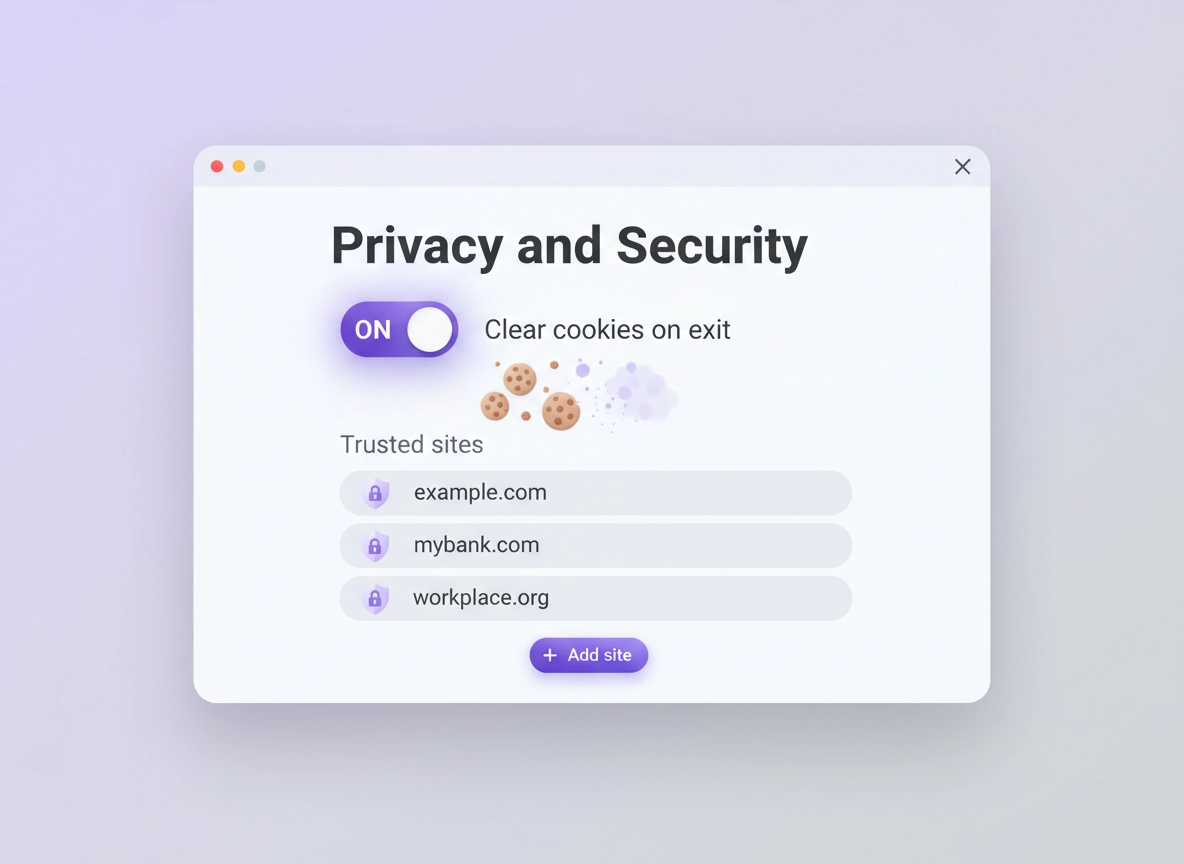
What “auto-delete cookies” means in Chrome.
This guide focuses on Chrome’s built-in “clear cookies and site data when you close all windows” behavior on desktop.
When people say “auto-delete cookies,” they usually mean: every time I close Chrome, I want websites to forget me. That includes login sessions (the “keep me signed in” cookie), tracking identifiers, and the small bits of site storage that keep ads personalized and sessions sticky. Chrome supports this with a setting commonly labeled Clear cookies and site data when you close all windows (sometimes described as “delete data sites have saved…”).
It’s important to understand the scope: cookies are only one slice of the “site data” pie. Many modern websites store session state in a mix of cookies and on-device storage (like local storage, IndexedDB, and cache). Chrome’s clear-on-exit option targets cookies and site storage in a way that makes you look like a new visitor next time you open the browser. That’s great for privacy—until it breaks things like banking logins, single sign-on portals, and some multi-factor flows.
The real “expert move” is not just turning the setting on. It’s turning it on and then building a tiny allowlist of sites that you want to keep stable: your email provider, password manager web vault, work identity provider (SSO), and maybe a trusted shopping site if you prefer convenience. Done properly, you get privacy by default without “why am I signed out again?” rage.
Related: If you’re aiming for a complete privacy tune-up, start at Chrome Privacy Settings, then pair this guide with Block Third-Party Cookies and Clear Browsing Data.
Key terms (quick definitions).
- Cookies: Small pieces of site data used for sessions (logins), preferences, and sometimes tracking identifiers.
- Site data: Cookies plus on-device storage (like local storage / IndexedDB) used by modern web apps.
- Clear on exit: Chrome deletes cookies and site data when you close all Chrome windows on desktop.
- Exceptions / allowlist: A short list of sites you let keep cookies so you stay signed in.
- Third-party cookies: Cookies set by a domain other than the one you’re visiting (often used for cross-site tracking).
- Managed browser / policies: A company or school can enforce settings so you can’t change them (check
chrome://policy).
Before you start (fast checks).
These quick checks prevent the two most common “it didn’t work” outcomes: (1) Chrome is being controlled by a policy, or (2) an extension is clearing data in the background. Spend 60 seconds here and you’ll save 20 minutes later.
-
Check 1: Are you closing all windows?
Clear-on-exit runs when you close all Chrome windows. If you leave one window open (or Chrome keeps a background process alive), some data may persist until the last window closes. -
Check 2: Are you on a managed device?
On work/school devices, settings may be enforced. Openchrome://policyin the address bar and look for policies related to browsing data, cookies, or “clear on exit.” If you see “Managed by your organization,” expect restrictions. -
Check 3: Do you use cleanup/privacy extensions?
Extensions like “cookie cleaners” can override your expectations—sometimes deleting cookies continuously, sometimes keeping them longer than you think. If you’re troubleshooting, temporarily disable the extension and test again. -
Check 4: Decide what you want to keep.
Make a tiny list before you touch settings: Google account, password manager web vault, bank, work SSO. We’ll add exceptions later.
Related: If you’re adjusting multiple privacy controls, use this as your “hub”: Chrome Privacy & Security Settings Overview.
Step-by-step: clear cookies on exit (recommended).
Chrome’s clear-on-exit setting lives in the cookie/site data area. Depending on your Chrome version and rollout, the left sidebar may show Privacy and security and then either Cookies and other site data or Third-party cookies. Both paths can lead you to the same “clear on exit” control.
Desktop (Windows, macOS, Linux, ChromeOS).
- 1 Open Chrome → click the three-dot menu (top-right) → choose Settings.
- 2 In the left sidebar, open Privacy and security.
- 3 Click Cookies and other site data (or Third-party cookies on newer menus).
- 4 Turn on Clear cookies and site data when you close all windows.
- 5 Close all Chrome windows completely. Reopen Chrome and test by visiting a site you were logged into—you should be signed out (unless you add exceptions).
What “success” looks like: After you close all Chrome windows and reopen, sites that normally keep you signed in should treat you as a new session (sign-in prompts return, shopping carts reset, “accept cookies” banners may reappear).
Mobile (Android / iPhone).
On mobile, Chrome’s privacy controls are real—but “clear cookies automatically on exit” is not always exposed as a simple toggle like desktop. Mobile is usually “manual clear” or “Incognito” for short-lived sessions.
- 1 Open Chrome → tap the three-dot menu.
- 2 Go to Settings → Privacy and security.
- 3 Use Delete browsing data to remove Cookies and site data (choose a time range like All time for a full reset).
- 4 For “auto-delete style” behavior, use Incognito tabs for sessions you don’t want stored.
Related: If your real goal is reducing tracking (not constantly resetting sessions), you’ll often prefer Third-Party Cookie Settings over constantly clearing everything.
Keep logins: add exceptions the right way.
Clear-on-exit is blunt by design: it prioritizes privacy and “fresh session” behavior. The smooth, professional setup is: clear everything by default, but keep a few high-trust sites stable. Chrome provides exception lists where you can allow certain sites to keep cookies.
Recommended “keep” list (start small).
- Your Google account sign-in: accounts.google.com (plus mail.google.com if you use Gmail heavily)
- Your password manager web vault: the domain you log into (example: vault.your-provider.com)
- Your bank / fintech login: (often uses multiple subdomains—add only what you actually use)
- Your work identity provider: okta.com / microsoftonline.com / login.* (depends on your org)
- One “daily driver” site you truly trust: optional
Add an exception (desktop).
- 1 Go to Settings → Privacy and security → Cookies and other site data (or Third-party cookies).
- 2 Find the Sites that can always use cookies section.
- 3 Click Add and enter the domain (example:
accounts.google.com). - 4 If offered, tick Include third-party cookies on this site only when absolutely necessary (many sites don’t need it).
- 5 Close all Chrome windows and re-test: you should remain signed in on allowlisted sites, and signed out everywhere else.
Why “include third-party cookies” matters: Allowing third-party cookies for a specific site can fix embedded sign-ins, payments, or identity redirects—but it can also increase tracking surface. Enable it only for sites you truly trust and only if the site breaks without it.
Precision cleanup: clear cookies for one site (without nuking everything).
Sometimes you don’t want an always-on clear-on-exit policy—you just want to fix one broken site (stuck login, endless CAPTCHA, session loop). Do a “surgical reset” for that site:
- 1 Open Settings → Privacy and security → Site settings.
- 2 Open View permissions and data stored across sites (wording varies) or search for Site data.
- 3 Search for the site domain, then click it.
- 4 Click Clear data (or remove stored data) for that one site.
Related: For a full “clean slate” walkthrough (history, cache, cookies), see Chrome Clear Browsing Data.
Advanced options (power users & enterprise).
If you’re here, you’re probably asking one of these “high intent” questions: Can I delete cookies but keep passwords? Can I clear on exit for some people but not others? Can I enforce this at work? What if Chrome won’t show the option? This section covers practical answers without turning into a policy textbook.
Related: If you manage browsers at work (or Chrome says “Managed by your organization”), browse Chrome Enterprise Guide and Chrome Enterprise Security Settings.
Option 1: Clear cookies on exit, keep passwords & autofill.
Clearing cookies/site data does not automatically erase saved passwords, address autofill, or stored payment methods. Those live in separate Chrome storage areas tied to your profile and (optionally) your Google account. What will change is how often websites ask you to sign in again—and whether “stay signed in” works. If you rely on Chrome’s password manager, consider pairing clear-on-exit with a quick review of: Chrome Password Checkup and Password Leak Detection.
Option 2: Reduce tracking with less breakage (recommended baseline).
Many users turn on clear-on-exit because they want “less tracking,” not because they love being signed out. For that goal, this baseline tends to feel better day-to-day:
- Block third-party cookies (big privacy gain, smaller UX cost)
- Leave first-party cookies alone so logins persist on trusted sites
- Use per-site clears when one site misbehaves
- Use Incognito for sessions you want wiped automatically
If you want a guided baseline setup, combine: Safe Browsing Settings, Chrome Security Checkup, and Chrome Tracking Protection.
Option 3: Enterprise enforcement (policy-controlled clear on exit).
In organizations, admins can enforce automatic deletion of specific browsing data types when Chrome closes using policy.
If you’re an admin, the right approach is usually:
define which data types are removed and communicate exceptions (SSO, finance apps, training portals).
Users can check whether policy is involved by visiting chrome://policy.
Common alternatives users compare.
- Clear-on-exit vs Incognito (Incognito isolates sessions without changing your normal profile)
- Clear-on-exit vs block third-party cookies (less breakage; strong anti-tracking)
- Chrome defaults vs privacy extensions (extensions can add control but increase complexity and risk)
- Manual clearing vs enterprise policy enforcement (consistent behavior at scale)
If you’re considering privacy extensions, read: Chrome Privacy Extensions Guide and Chrome Extension Security Check.
Privacy & security notes (what gets deleted).
Clear-on-exit is a privacy feature that trades convenience for control. When it’s enabled, Chrome deletes cookies and site storage after you close all windows—so your next session starts clean. That reduces persistent identifiers that follow you around, but it also removes the “glue” that keeps web apps stable.
Impact: You may be signed out frequently. Shopping carts, preferences, and “remember me” prompts may reset. Some work apps, banking portals, and SSO logins may require extra steps.
Related: If privacy changes trigger strange popups, redirects, or suspicious behavior, see Remove Malware from Chrome and Chrome Extension Malware Removal.
Recommended baseline settings.
- Option A (balanced): Block third-party cookies + keep first-party cookies + clear site data manually when needed.
- Option B (maximum privacy): Enable clear-on-exit + keep exceptions limited to identity-critical sites only.
- Option C (compatibility): Disable clear-on-exit + block third-party cookies + use Incognito for private sessions.
Recommended settings by goal.
| Goal | Recommended setting | Tradeoff | Best for |
|---|---|---|---|
| Balanced | Block third-party cookies + targeted site clears | Some embedded sign-ins may need exceptions | Most users |
| Maximum privacy | Clear cookies & site data on exit + minimal allowlist | Frequent logins / occasional website friction | Tracking-sensitive users |
| Compatibility | No clear-on-exit + third-party block + Incognito when needed | More persistent identifiers in normal browsing | Banking / enterprise apps |
Troubleshooting (sign-outs, breakage, policies).
Related: If this topic connects to your overall privacy setup, see Chrome Privacy Settings and Chrome Account Sync Settings.
If Chrome keeps signing you out of everything.
First confirm whether clear-on-exit is enabled. Go to Settings → Privacy and security → Cookies and other site data and check Clear cookies and site data when you close all windows. If it’s on, this behavior is expected. If you want privacy without constant sign-outs, switch to a third-party cookie block instead.
If you do want clear-on-exit but need stability for a few services, add those services to Sites that can always use cookies (and only enable “include third-party cookies” if required).
If the clear-on-exit option is missing.
The option can be hard to find because Chrome’s cookie UI shifts between “Cookies and other site data” and “Third-party cookies.”
Try opening this directly in the address bar:
chrome://settings/cookies
and scroll for the clear-on-exit section.
If it still doesn’t appear, you may be on a managed device or a configuration where policy controls cookie behavior.
Check chrome://policy and look for anything referencing cookies, browsing data on exit, or site data controls.
If one site breaks (stuck login, endless CAPTCHA, redirect loop).
This usually happens because the site expects an identifier to persist across sessions (or across multiple subdomains). Fix it in this order:
- 1 Clear that site’s data (single-site reset) and try again.
- 2 If clear-on-exit is on, allowlist the site under “Sites that can always use cookies.”
- 3 If the site uses embedded sign-in or payment frames, enable “include third-party cookies” only for that site.
- 4 If it’s a work site, check if your org enforces cookie rules in
chrome://policy.
If you suspect an extension is overriding your settings.
Privacy/cleanup extensions can delete cookies continuously or on a schedule, and that can look like “Chrome won’t stay signed in.” Temporarily disable the extension, restart Chrome, and test again. If the issue disappears, re-enable extensions one at a time to find the culprit.
Related: Audit extensions with: Extension Permissions Guide and How to Check if a Chrome Extension Is Safe.
If you need to reset safely (without losing everything).
If Chrome feels “weird” after privacy changes—sign-outs, slow loading, broken forms—do a measured reset: clear cookies for the affected site first, then clear cache, and only then consider a broader “clear browsing data” run. For malware-like symptoms (fake alerts, redirects, popups), switch to a dedicated cleanup path: Chrome Malware Cleanup Guide.
FAQ.
-
helpDoes “clear cookies on exit” delete saved passwords?No. It deletes cookies and site data for websites, which mostly affects logins and site preferences. Saved passwords, autofill, and payment info are separate. You may be signed out, but your password manager or saved passwords can still fill credentials.
-
helpWhy am I still signed in after turning it on?Most commonly: (1) you didn’t close all Chrome windows, (2) the site is on your “always allow cookies” exception list, or (3) you’re using a sign-in flow that persists via a separate provider domain you allowlisted. Close every window, reopen, then test on a site you did not add to exceptions.
-
helpCan I keep Google signed in but clear everything else?Yes. Turn on clear-on-exit, then add accounts.google.com (and any Google services you use daily) to “Sites that can always use cookies.” Keep the list small and only enable “include third-party cookies” if something breaks.
-
helpWill this stop tracking completely?It reduces persistent identifiers, which is a big privacy win, but it doesn’t “end tracking.” Fingerprinting, network-level tracking, and logged-in tracking can still exist. For better day-to-day results, combine this with blocking third-party cookies and reviewing ad/privacy controls.
-
helpWhy is the option missing on my Chrome?Chrome’s cookie UI shifts across versions. Try
chrome://settings/cookies. If it’s still not present, your device may be managed (policy-controlled) or your org may be enforcing different data retention rules—checkchrome://policy. -
helpIs there a true “auto delete cookies on exit” on mobile?Mobile Chrome typically focuses on manual clearing and Incognito sessions rather than a desktop-style clear-on-exit toggle. For “auto-delete behavior,” use Incognito when you want sessions to vanish after you close the tabs.
Sources & further reading.
- Google Chrome Help Community: locating “clear cookies and site data when you close all windows”
- Google Chrome Help: manage cookies on Android
- Chrome Enterprise: automatically delete Chrome data (policy guidance)
- Chrome Enterprise Policy List
Disclosure: Some pages may mention tools or services. Recommendations are editorial and based on testing.