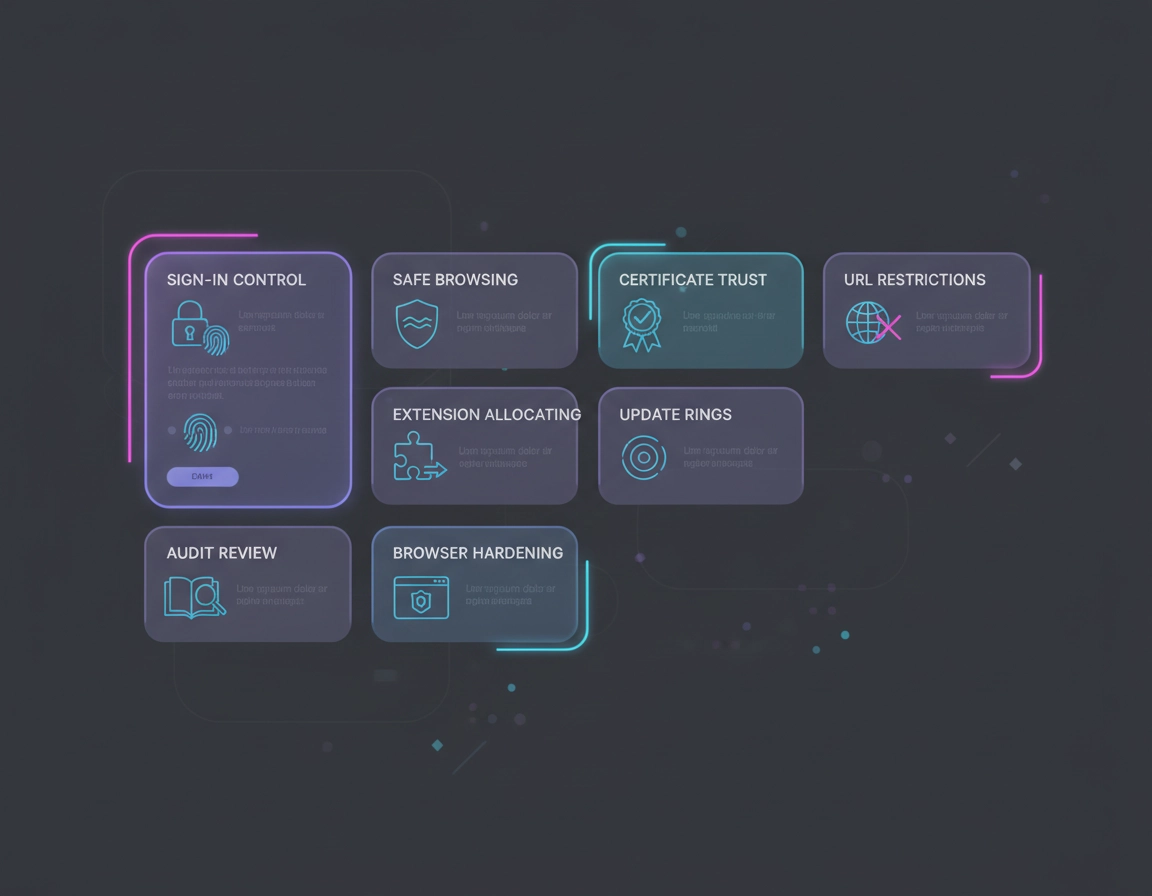
How Chrome Enterprise security settings work in managed environments .
When organizations deploy Google Chrome in enterprise environments, the browser is no longer just a personal web tool. It becomes part of the organization’s broader security perimeter. Chrome Enterprise security settings allow administrators to enforce policies that control how the browser handles downloads, extensions, authentication, network traffic, and sensitive data.
These controls are managed through Chrome Enterprise policies, typically deployed using Active Directory Group Policy, cloud-based management through the Chrome Enterprise bundle, or centralized configuration from the Google Admin Console. Once applied, these policies override local browser settings and ensure that every managed Chrome installation follows the same security standards.
For IT teams, this transforms Chrome into a managed endpoint. Instead of relying on individual users to configure privacy settings correctly, administrators define policies that automatically enforce encryption standards, restrict risky browser behavior, and prevent data exfiltration through extensions or downloads.
A typical enterprise deployment may control dozens—or even hundreds—of security parameters. These can include:
- Blocking unauthorized Chrome extensions
- Enforcing Safe Browsing protections across the organization
- Restricting file downloads or executable content
- Preventing password reuse and credential phishing
- Disabling insecure network protocols
- Controlling which websites employees can access
- Preventing sensitive data from being copied or uploaded
These policies are especially important in regulated industries such as finance, healthcare, and government, where browsers frequently become the primary gateway to cloud applications and internal systems. A single malicious extension, phishing site, or compromised download can expose sensitive corporate data.
Chrome Enterprise security settings reduce this risk by allowing administrators to implement consistent browser hardening across thousands of devices. Because the policies are centrally managed, updates can be deployed immediately whenever new threats emerge or compliance requirements change.
For organizations that rely heavily on SaaS tools, Chrome effectively becomes the secure access layer between employees and the internet. Properly configured enterprise security settings ensure that this access layer remains tightly controlled, monitored, and resistant to common browser-based attack vectors.
Related: Start with Chrome Enterprise Guide, then continue with Chrome Managed Browser Security, Chrome Security Policy Setup, and Chrome Enterprise Security Best Practices.
Key terms worth getting right .
- Managed user policies: settings that follow the managed account and apply when that user signs in.
- Enrolled browser policies: settings that apply to the browser instance even when no managed sign-in occurs.
- Extension governance: the combination of allowlists, force-installs, permission controls, and exception handling.
- Trust exception: a certificate, URL, or workflow allowance that exists for compatibility, not because it is inherently safe.
- Baseline: the minimum secure configuration every covered browser must inherit.
The policy-scope decision that changes everything .
The most important concept in Chrome Enterprise security is scope. Google distinguishes between policies that apply to managed user accounts and policies that apply to enrolled browsers. That is not a minor detail. It determines whether a control travels with the user identity or stays anchored to the browser on the device. If you misunderstand that boundary, you can spend days adjusting security settings that never apply where you think they do.
User-level policy makes sense when you want settings to follow staff across machines. That is useful for organizations that want a predictable experience whenever the employee signs in with a managed account. Browser-level policy becomes more important when you need controls to stay active even if a person is not signed in with that account at the time. That matters in shared workstations, contractor devices, and any environment where you do not want security to disappear just because sign-in state changed.
In other words, security design starts with a scoping question, not with a checkbox question. Do you want to control behavior because the browser belongs to the organization, because the user belongs to the organization, or because the device itself belongs to the organization? Different answers lead to very different policy decisions. Mature admins usually document this before rollout because it explains future exceptions, tickets, and audit outcomes far more clearly than a random list of browser toggles ever will.
Related: See Chrome Enterprise Management, Chrome Enterprise Cloud Management, Chrome Enterprise Group Policy Setup, and Chrome Enterprise Directory Integration.
Why admins get tripped up here .
- They test with a managed user and assume the same result will apply on an unenrolled browser.
- They enroll browsers but still allow work to happen in personal profiles.
- They think “policy exists in the console” means “policy is effective on the endpoint.”
- They forget to verify the live result in
chrome://policy.
A practical enterprise baseline that works .
A good enterprise baseline is opinionated, but it is not punitive. You want the browser to behave consistently for most staff while still supporting real work. The mistake is trying to make Chrome maximally locked down on day one. The better approach is to define a secure baseline that removes the biggest browser-side risks first, then add stricter controls for specific departments, device groups, or roles that need more than the organizational default.
- 1 Enroll the browser or confirm your management path. If the browser is not truly under policy control, everything else is a recommendation, not a baseline.
- 2 Separate browser scope from user scope. Decide which controls must apply regardless of sign-in state and which should follow the managed user.
- 3 Lock down extension behavior early. Extension sprawl causes more real-world enterprise pain than many teams expect.
- 4 Make a deliberate choice on sign-in and sync. Personal identities and uncontrolled data sync weaken the work boundary immediately.
- 5 Standardize updates. A baseline that behaves differently on different versions is not a baseline.
- 6 Document exceptions before rollout. Certificates, internal sites, and older extensions are usually where friction appears.
What success looks like: users still browse normally, but the organization has real control over who can sign in, what can be installed, what can sync, which sites are explicitly trusted, and which policies users cannot weaken locally.
The baseline most businesses should start with .
- Managed browsers: enrolled and verified, not just installed.
- Controlled sign-in: managed accounts for work profiles, with personal profile behavior clearly governed.
- Extension governance: approved set only, with exception workflow instead of open installation.
- Safe Browsing posture: not left to ad hoc user preference.
- Update discipline: stable channel with testing rings instead of random version drift.
- Trust hygiene: certificate and internal site exceptions documented and reviewed.
- Policy verification: effective result checked in
chrome://policy.
| Control family | What strong admins focus on | Why it matters |
|---|---|---|
| Identity boundary | Work sign-in rules, managed profiles, sync restrictions | Prevents work data and unmanaged identities from blending |
| Extension control | Allowlist, force-install, request workflow, permission review | Removes a major browser-side attack and data-exposure surface |
| Web access rules | Use of URLBlocklist and URLAllowlist where needed |
Useful for high-risk categories, kiosks, and constrained environments |
| Password strategy | Clear choice between Chrome save/autofill and approved credential tooling | Reduces user confusion and credential sprawl |
| Update management | Version discipline, rollout rings, rollback preparedness | Keeps behavior predictable and exposure lower |
| Verification | Endpoint validation, not console assumptions | Confirms the policy actually landed |
Related: Pair this page with Chrome Enterprise Policy Hardening, Chrome Enterprise Update Management, Chrome Enterprise Version Control, and Chrome Enterprise Rollback Guide.
The settings that deserve the most admin attention .
Not every Chrome security control deserves equal weight. Some policies are highly visible but low impact. Others are quiet and profoundly important. The controls below are the ones that usually separate a genuinely managed browser posture from a browser that only looks organized on paper.
1) Sign-in boundaries and profile hygiene .
The first job of enterprise browser security is to define who is allowed to use the browser as a work browser. If staff can freely sign in with unmanaged personal identities next to corporate accounts, the browser loses a large part of its control value. Downloads, extensions, bookmarks, saved passwords, and sync behavior become harder to explain and harder to contain. Even before you fine-tune more advanced settings, you should have a clear rule for whether work browsers accept consumer identities, whether personal profiles are tolerated, and how mixed-account scenarios are handled during support.
2) Sync is a data movement decision, not a convenience checkbox .
Teams often underestimate sync because it feels user friendly. In reality, sync is one of the most important enterprise security decisions in Chrome. It determines whether browsing state, tabs, bookmarks, passwords, and related data can move between environments. In low-risk setups, some sync behavior is perfectly reasonable. In regulated or contractor-heavy environments, it may be much safer to narrow what can sync or to disable sensitive categories altogether. The right answer depends on your identity model, device trust, and incident-response expectations.
3) Extension controls should be stricter than most teams expect .
In practice, extension policy is where a lot of mature browser security lives. Extensions can read content, inject scripts, watch browsing activity, and request broad host access that ordinary users do not fully understand. That is why open-ended installation is such a weak default in enterprise environments. Use an allowlist wherever possible. Google documents enterprise controls such as ExtensionInstallAllowlist and the broader ExtensionSettings policy family for exactly this reason. The security value is not just blocking obviously bad extensions. It is removing silent permission creep from seemingly useful productivity tools.
4) Safe Browsing and risky download handling should not be left to culture alone .
Security awareness training matters, but browser guardrails matter too. Teams in finance, procurement, sales, legal, and support all face different levels of exposure to malicious links, fake invoices, spoofed login pages, and weaponized downloads. A consistent Safe Browsing posture helps reduce variation between careful users and rushed users. This is especially important in hybrid environments where some staff work outside the corporate network most of the week.
5) Password saving and autofill should align with your real credential strategy .
Enterprise admins get into trouble when the browser and the company’s approved credential tool tell users different stories. If you rely on a dedicated enterprise password manager, leaving browser password capture wide open often creates overlap, confusion, and weak recovery habits. If you do allow some built-in Chrome credential functionality, do it intentionally and communicate it clearly. Policy documentation around password controls, including items such as PasswordManagerEnabled, matters less as an isolated setting than as part of a larger identity strategy.
6) URL restrictions matter more in constrained environments than general office use .
Most normal office deployments do not need aggressive website allow/block rules for every user. But in kiosks, frontline devices, secure workstations, training terminals, or tightly controlled departments, URL governance becomes extremely useful. Enterprise admins can use policies such as URLBlocklist and URLAllowlist to keep browsing behavior inside a much narrower corridor. The security benefit is greatest when the device serves a limited function, not when it is a general-purpose staff machine expected to handle varied work.
7) Certificates, proxies, and TLS inspection are where sloppy exceptions accumulate .
Browser hardening projects often run smoothly until certificate trust becomes part of the conversation. Then suddenly the project is not just about Chrome. It is about enterprise PKI, internal services, proxies, inspection tools, legacy intranet sites, and undocumented historical workarounds. This is where disciplined admins slow down. They do not throw broad trust exceptions at every complaint. They validate the chain, document the business need, identify the owner of the exception, and review whether the trust decision should still exist three months later.
8) Update management is part of security posture, not a separate operations issue .
It is hard to claim you have one enterprise Chrome security baseline if half the organization runs a different major version with different behavior and different compatibility issues. Good teams standardize channel choice, use testing rings, and keep an explicit rollback plan instead of improvising during break/fix moments. A browser that updates quickly but predictably is safer than one that drifts unevenly and forces emergency exceptions later.
Controls worth knowing by name .
ExtensionInstallAllowlist— lets approved extensions bypass a block-all extension stance.ExtensionSettings— centralizes extension behavior and overrides older extension policy combinations.URLBlocklist/URLAllowlist— useful for restricted browsing patterns, kiosks, and high-control roles.PasswordManagerEnabled— should reflect your actual enterprise credential philosophy, not wishful thinking.chrome://policy— the fastest practical place to verify what the browser believes is in effect on the endpoint.
Related: Read Chrome Enterprise Extension Management, Chrome Extension Allowlist Policy, Chrome Sync Security Risks, Chrome Password Storage Security, Chrome Enterprise Certificate Management, and Chrome Secure Connection Settings.
Rollout sequence, testing, and rollback discipline .
Strong settings fail all the time because the rollout plan is weak. Enterprise browser hardening should move in rings, not in a single blast. The idea is to prove policy behavior on a controlled set of users and devices before the whole company inherits the consequences. This is especially important when extensions, certificates, SSO workflows, or intranet tools are involved.
A rollout order that minimizes drama .
- Management proof: confirm browsers are truly enrolled and policy reach is working.
- Verification proof: inspect live endpoints with
chrome://policy. - Update proof: stabilize version/channel behavior before layered hardening.
- Identity proof: tighten sign-in and sync only after verifying user scope.
- Extension proof: inventory what people rely on before block/allow changes.
- Compatibility proof: test certificate, proxy, and internal-site edge cases.
- Exception governance: assign owners and review dates to every exception.
There is a reason disciplined admins like ring-based rollout. It separates “this policy is wrong” from “this dependency was undocumented.” That distinction helps enormously in post-change review. A policy may be perfectly valid and still be the wrong first move for a department with complicated legacy workflows.
| Rollout stage | What to test | Common failure mode | What to document |
|---|---|---|---|
| Pilot | Policy arrival, sign-in, extension behavior | Assuming console config equals endpoint reality | Live screenshots and policy verification |
| Controlled ring | SSO, internal tools, certificate trust, helpdesk impact | Unexpected legacy app dependencies | Exception owners and scope |
| Broad rollout | Version consistency, user friction, support categories | Too many policy changes landing together | Rollback trigger and communication plan |
Practical rule: never tighten extensions, sign-in, sync, and certificate behavior in the same change window unless the environment is very small. When something breaks, you want one likely cause, not five.
Related: Also see Chrome Enterprise Deployment Guide, Chrome Enterprise for Hybrid Work, Chrome Enterprise for Contractors, Chrome Enterprise Secure Remote Access, and Chrome Enterprise Security Reporting.
The mistakes that make “secure” deployments fragile .
Most weak enterprise Chrome deployments do not fail because the security controls are unknown. They fail because the organization implements them in the wrong order, in the wrong scope, or with no ownership for exceptions. That creates a browser posture that looks mature in a deck and feels chaotic on endpoints.
Common mistakes I would actively avoid .
- Confusing policy presence with policy effect: the setting exists in admin tooling, but no one checked the live browser.
- Leaving extension sprawl for later: this is almost always a bad trade.
- Allowing mixed personal/work identity in the same browser without clear rules: support and data handling both get messy fast.
- Using temporary certificate or site exceptions as permanent compatibility strategy: this becomes long-tail risk.
- Hardening every group the same way: finance, engineering, contractors, and kiosks usually should not inherit identical browser behavior.
- Ignoring release and version discipline: inconsistent versions make policy interpretation harder and audits weaker.
- Not giving users an extension request path: people route around blocked installs when the approval process is nonexistent.
The strongest enterprise teams are not the ones that brag about maximum lockdown. They are the ones that can explain, six months later, why a control exists, where it applies, who owns the exception, and how they confirmed it landed correctly.
Troubleshooting .
Related: You may also need Chrome Enterprise Cloud Management, Chrome Enterprise Activity Logs, Chrome Enterprise Security Alerts, and Chrome Enterprise Audit Preparation.
If users say Chrome became “restricted” overnight .
Check whether the browser was newly enrolled, whether a policy moved from recommended to enforced, or whether the user has started working in a managed profile where personal behavior used to be tolerated. The most useful first step is not guessing. It is checking the effective result in chrome://policy and comparing it to the intended scope. Many overnight “breakages” are actually delayed enforcement finally arriving on the endpoint.
If extensions stop installing or vanish unexpectedly .
Look at extension policy first, especially if you recently moved toward allowlisting or central extension control. A common failure mode is assuming an approved extension remains approved in every OU or group, or forgetting that force-install and allowlist logic may differ between environments. Also confirm that the user is testing in the managed profile rather than a personal one.
If internal sites start showing trust or certificate errors .
Do not immediately blame Chrome updates. Validate the trust chain, proxy behavior, inspection path, and certificate distribution story. A lot of “Chrome broke our intranet” tickets are really “we relied on a trust assumption nobody documented.” Fix the root trust problem instead of widening the exception unless you absolutely must do a short-term bypass.
If users complain about bookmarks, passwords, or tabs not syncing the way they expect .
This is usually not a technical failure. It is a policy and communications failure. The organization either changed sync behavior intentionally or never gave users a clear explanation of what sync is allowed on work browsers. Re-state the rule in plain language, then verify that policy and identity scope are aligned with that message.
If policies look inconsistent across devices .
Scope mismatch is the most likely cause. A user-level policy follows the managed account. A browser-level policy follows the enrolled browser. Device-level ChromeOS controls add another layer. Before chasing phantom bugs, ask a simpler question: are these actually equivalent test conditions?
If you need to back out a change safely .
Roll back one control family at a time and write down why. Undoing extensions, sync, sign-in, and trust changes all at once is fast, but it destroys your ability to learn what truly caused the issue. Good rollback discipline preserves evidence, limits exposure, and keeps the next rollout better than the last one.
FAQ .
-
helpWhat are the first Chrome Enterprise security settings I should review?Start with policy scope, enrolled browser status, extension controls, sign-in rules, sync behavior, Safe Browsing posture, and update management. Those areas define the real security boundary of enterprise Chrome much more than cosmetic or low-risk preference changes.
-
helpShould enterprise Chrome be completely locked down?No. The best setup is not the one with the most restrictions. It is the one that enforces high-risk controls while leaving low-risk preferences flexible enough for normal work. Over-hardening without role awareness usually creates shadow IT and support noise.
-
helpWhy is extension management such a big deal in browser security?Because extensions can read page content, request broad permissions, inject scripts, and persist quietly in daily workflows. In many environments, extension governance has more practical security value than obsessing over minor Chrome settings. That is why allowlisting and controlled requests are such strong enterprise habits.
-
helpHow do I confirm that a Chrome Enterprise policy actually applied?Check the live endpoint, not just the admin console. The quickest practical verification point is chrome://policy, which shows the policies the browser currently sees and how they apply. That step should be part of every important rollout.
-
helpWhat is the biggest mistake in enterprise browser hardening?Trying to harden everything at once without separating user policies from enrolled-browser policies. That usually creates confusion, inconsistent behavior, and poor troubleshooting. Good hardening starts with scope, then identity, then extensions, then compatibility-sensitive controls.
Sources & further reading .
- Google Chrome Enterprise Help: Set Chrome policies for users or browsers
- Google Chrome Enterprise Help: Set Chrome browser policies on managed PCs
- Google Chrome Enterprise Help: Allow or block apps and extensions
- Chrome Enterprise Policy: ExtensionInstallAllowlist
- Google Chrome Enterprise Help: Configure ExtensionSettings policy
- Google Chrome Enterprise Help: View a device's current Chrome policies
- Chrome Enterprise Policy note: URLBlacklist deprecated in favor of URLBlocklist
- Chrome Enterprise and Education release notes
- Chrome Enterprise Policy documentation: Atomic Policy Groups
Disclosure: This page is an editorial and operational guide for admins. It is not legal, compliance, or vendor support advice. Always test enterprise policy changes in a pilot group before broad rollout.