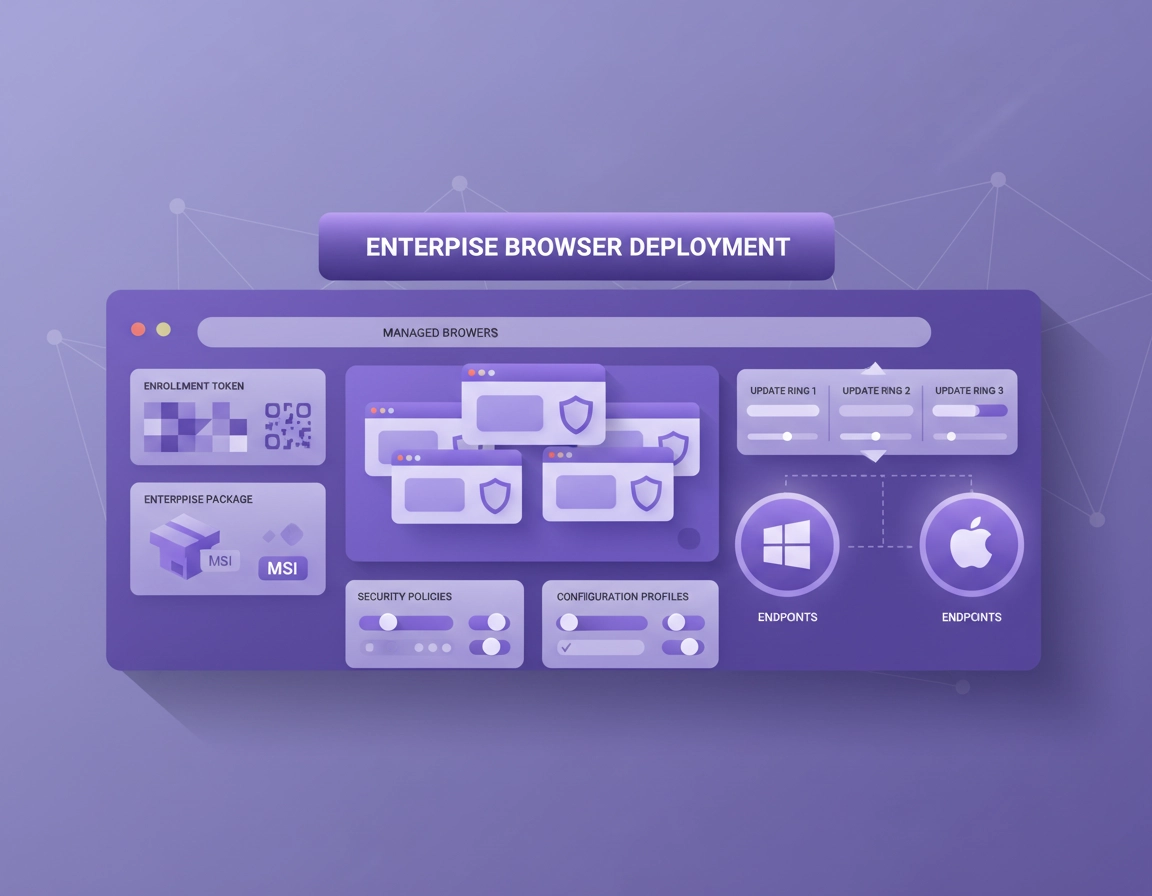
What Chrome Enterprise deployment actually involves inside real organizations .
A lot of teams think they are planning a browser install. In reality, they are planning an enterprise browser operating model.
That distinction matters. A simple app deployment focuses on getting binaries onto endpoints. A real Chrome Enterprise deployment focuses on how the browser behaves after installation: how it updates, where policies come from, how extensions are controlled, how users authenticate, how reporting works, and how the browser fits into your wider endpoint and security stack. If those questions are not answered up front, the project tends to look “done” on deployment day and then become painful during month two, when policy collisions, extension sprawl, and app compatibility issues begin to show up.
In practice, Chrome Enterprise deployment sits at the intersection of endpoint management, browser governance, identity, and release management. A business might use the enterprise MSI on Windows, configuration profiles or MDM on macOS, and policy files or managed repositories on Linux. It might enforce settings through Group Policy, cloud-managed browser policies, or a hybrid approach. It might also need to coordinate with SSO, certificate distribution, proxy inspection, browser extensions, EDR tools, DLP controls, and internal web applications that were built with assumptions about browser behavior.
That is why deployment planning should start with a simple question: what are we actually trying to standardize? If the answer is only “the browser version,” the deployment will stay shallow. If the answer is “installation state, update cadence, browser posture, extension posture, sign-in behavior, and supportability,” the project becomes much more useful. That broader answer is what usually separates a tactical rollout from a mature enterprise browser program.
It also helps to separate deployment from management. Deployment gets Chrome onto the machine. Management determines what Chrome is allowed to do there. Many organizations complete the first task and underestimate the second. They push Chrome everywhere, but never define which extensions are permitted, never establish which users or browsers belong in which organizational units, never decide when a machine should take a new major release, and never train help desk staff to verify live browser policy state. Those are not side issues. They are the reason browser fleets either stay calm or turn noisy.
Start here if you need the cluster overview: Chrome Enterprise Guide, Chrome Enterprise Management, and Chrome Enterprise Installation Guide.
The four business problems this page is really solving .
- Standardized installation: getting Chrome installed as a managed application, not a loose user-level browser.
- Consistent browser behavior: making sure startup, sign-in, extensions, and security controls behave predictably across the fleet.
- Operational visibility: knowing which browsers are enrolled, which policies are live, and which versions are in use.
- Lower long-term support cost: reducing surprise tickets caused by unmanaged installs, unmanaged extensions, and unmanaged updates.
Key terms worth getting right before rollout .
- Enterprise bundle: the enterprise package set that includes MSI installers and policy templates for managed environments.
- Cloud-managed browser enrollment: enrolling Chrome browsers so the Admin console can apply browser-level policies and reporting.
- User-level policy: settings that follow a managed account when that user signs in to Chrome.
- Browser-level policy: settings applied to the enrolled browser itself, even if nobody signs in.
- Pilot ring: a deliberate test cohort used to validate policies, app compatibility, extension posture, and support readiness before broader release.
- Extended Stable: a slower feature cadence used by teams that want fewer major-version jumps while still receiving security fixes.
Choosing the right deployment model .
The right deployment model depends on how your organization already manages endpoints and how much browser control you actually need. A Windows-centric organization with mature Group Policy and software distribution can move very quickly with MSI deployment plus ADMX-backed policy enforcement. A mixed fleet that wants centralized browser reporting and browser-level policies across Windows, Mac, and Linux usually benefits from cloud-managed browser enrollment. A smaller business often lands somewhere in the middle: enterprise packaging, a modest cloud-managed setup, and only a carefully chosen baseline of policies.
The mistake is assuming that one model is “best” in the abstract. What matters is whether your chosen model matches your endpoint tooling, your organizational structure, your security expectations, and your support team’s ability to operate it. If your help desk lives in Microsoft tooling and barely touches the Google Admin console, a pure cloud-first browser model may create unnecessary friction. If you need browser-level enforcement across mixed operating systems and want one control plane for browser reporting, staying purely on-prem may become limiting.
Three common deployment patterns .
| Model | How it works | Best fit | Main tradeoff |
|---|---|---|---|
| Package + Group Policy | Install Chrome enterprise-wide and enforce settings with on-prem Windows policy tooling | Windows-heavy organizations with mature AD/GPO operations | Less elegant for mixed Mac/Linux fleets and cloud-based browser visibility |
| Package + cloud-managed browsers | Deploy Chrome, enroll browsers, then manage browser-level settings and reporting from the Admin console | Mixed fleets and teams that want browser reporting plus OU-based browser governance | Needs deliberate OU design and admin ownership |
| Hybrid model | Use endpoint-native deployment methods while layering cloud-managed browser controls where they add value | Larger enterprises, regional fleets, transitional programs | Requires clear ownership to avoid policy confusion |
Related support pages: Chrome Enterprise Group Policy Setup, Chrome Enterprise Cloud Management, Chrome Enterprise Device Enrollment, and Chrome Enterprise MDM Configuration.
How to decide between user policies and browser policies .
This is one of the most important design decisions in the entire project. If the policy intent should follow the employee, user-level policies make sense. That is useful for sign-in behavior, some browsing preferences, and settings tied tightly to managed identity. If the policy intent should follow the machine or the browser instance itself, browser-level policies are usually the better fit. That is typically where security controls, blocked apps, extension restrictions, and device-level browsing rules belong.
Shared workstations, contractor devices, hybrid endpoints, lab machines, kiosk-adjacent systems, and any environment where sign-in consistency is weak all lean toward browser-level enforcement. Highly identity-centric fleets, especially where users move between trusted devices, may rely more heavily on user-level policy for some use cases. Most mature organizations end up using both, but only after deciding which kinds of controls belong to which layer. They do not leave that split to chance.
Before you start: prerequisites and rollout planning .
Good browser deployment is won before the first machine gets touched. If you skip the planning stage, Chrome may still install successfully, but the rollout will be brittle. The most common symptoms are inconsistent install states, personal Chrome remnants still influencing behavior, legacy policies colliding with new ones, unmanaged extensions surviving the transition, or internal apps breaking because nobody validated the browser’s new trust model against them.
Start by inventorying your current state. Do devices already have user-level Chrome installs? Are there machines pinned to unusual channels? Are there old on-prem policies still hanging around from previous admin teams? Are critical business apps dependent on old auth flows, custom certificate chains, or permissive extension behavior? Do contractors and employees belong in the same policy containers today even though they should not? A rollout designed without those answers is effectively guessing.
Next, define the ring strategy. Never make “all employees” your first real deployment event. A good ring structure usually starts with IT-owned validation devices, then a technical pilot group, then one or two business teams with real workflows, then a broader departmental or regional rollout. That gives you time to test login journeys, federated access, printing, file upload/download behavior, required extensions, certificate prompts, proxy traversal, and help desk readiness without turning the whole organization into a live test bed.
Pre-deployment checklist .
- Confirm install ownership: decide which team owns the browser package, update channel, and rollback trigger.
- Document your critical apps: SSO, HR portals, finance tools, CRM, VDI launchers, internal dashboards, upload-heavy apps, print-heavy apps.
- Inventory extension reality: which extensions are required, which are tolerated, and which should be blocked or reviewed.
- Separate OUs or groups deliberately: pilot, production, contractors, kiosk/shared, sensitive departments, and exception groups should not all live together.
- Decide release posture early: Stable for most, Extended Stable for change-sensitive teams, Beta only for limited testing cohorts.
- Plan your validation method: use
chrome://policy, enrolled-browser visibility, real workflow testing, and help desk runbooks. - Write the rollback rule: define what actually triggers a pause, policy reversal, or version rollback.
Useful internal reads before rollout: Chrome Enterprise Silent Install, Chrome Enterprise MSI Download Guide, Chrome Enterprise Identity Management, Chrome Enterprise Certificate Management, and Chrome Enterprise SSO Configuration.
A practical step-by-step rollout workflow .
The workflow below is designed for real production teams, not just lab environments. It assumes you want a deployment that is audit-friendly, easier to support, and less likely to cause change fatigue when the browser starts receiving new versions on a normal cadence.
- 1 Choose the control plane. Decide whether Chrome will be governed primarily through on-prem policy, cloud-managed browser enrollment, or a hybrid model.
- 2 Acquire the correct package. Use the enterprise bundle or approved platform deployment package rather than relying on unmanaged user installs.
- 3 Create a pilot ring. Start with a small technical cohort and one business cohort.
- 4 Deploy a minimal baseline. Keep first-wave policies focused on startup behavior, sign-in posture, update posture, safe browsing, and extension controls.
- 5 Enroll browsers where central management matters. Apply the enrollment token to the right devices and verify that enrolled browsers appear in the expected OU.
- 6 Validate live state. Use
chrome://policy, Admin console visibility, and business workflow testing before broad rollout. - 7 Widen in controlled waves. Expand by department, region, or risk group while keeping an explicit rollback path.
What “minimal baseline” should mean in practice .
Minimal does not mean careless. It means you start with the settings that create the biggest stability and governance gains without needlessly increasing compatibility risk. For most organizations, that includes the approved homepage or new-tab behavior if required, baseline Safe Browsing and security settings, a default extension posture, update behavior aligned with your support model, and only the highest-confidence mandatory policies. It does not mean importing every hardening idea you have ever collected and forcing all of them on day one.
A strong pilot should answer five questions before you widen the rollout: does the browser install cleanly, do the intended policies actually show up, do required applications still work, do required extensions still work, and can the help desk explain what changed to the user without escalating every other ticket? If the answer to any of those is still fuzzy, you are not ready for the next ring yet.
Related deployment reads: Chrome Enterprise Download, Chrome Enterprise Device Management, Chrome Enterprise Version Control, and Chrome Enterprise Global Deployment.
Success criteria for the pilot ring .
- The browser is installed in the intended state on all target devices.
- Policies visible in
chrome://policymatch what the rollout design expected. - Enrolled browsers appear in the correct organizational unit with clean reporting.
- Required web apps, SSO workflows, uploads, downloads, print flows, and extensions work normally.
- Major user-facing questions are documented for support before production expansion.
Plain-English rollout sequence .
Install first. Confirm browser state second. Apply only the baseline third. Confirm browser enrollment and reporting fourth. Validate business workflows fifth. Expand by ring sixth. Tighten harder security, extension, and governance controls only after you know the baseline behaves correctly. This is not slower. It is faster than trying to unwind a broad deployment that mixed three categories of change and hid the real failure point.
Windows, Mac, Linux, VDI, and hybrid deployment guidance .
Windows deployment: where most enterprise rollouts start .
For many organizations, Windows is the center of gravity. That makes packaging discipline especially important. Using the enterprise MSI gives you a cleaner foundation for managed deployment than relying on loose user-level installs spread across profiles. It also aligns better with the broader enterprise expectation that the browser is a managed application, not a user preference. Once installed, verify live state through chrome://policy on the pilot devices rather than assuming that a successful software deployment tool message means policy landed correctly too.
If you are using Group Policy, treat the ADMX templates as part of the deployment stack, not an afterthought. Test whether the intended settings actually appear and whether legacy registry-based values or older administrative templates are still hanging around. If you are using cloud-managed browser enrollment on Windows, remember that browser management assumptions are cleaner when the browser is installed as a system-level app. That matters during pilot, especially if users already had personal local Chrome footprints before the enterprise rollout.
macOS deployment: follow your existing device-management truth .
On macOS, the most reliable approach is usually to deploy Chrome in the same management pattern you already trust for other business software. If your Mac fleet is already governed through MDM, keep browser rollout inside that reality instead of creating a one-off browser process nobody owns. Test certificate behavior, SSO flows, private access tools, password managers, and any browser extension stack that your users rely on. Mac rollouts often feel smooth until trust prompts or profile-driven settings meet real-world identity workflows.
Linux deployment: predictable if you respect distro reality .
Linux rollouts can be excellent when the environment is standardized and the policy/file-management model is well documented. They can also become messy quickly if the fleet is more heterogeneous than people admit. Test on the actual distributions, local privilege models, packaging assumptions, and network conditions you support. “It worked in our Linux test VM” is not enough if production includes multiple distributions or custom workstation images with different trust and proxy behavior.
VDI and shared-session environments .
VDI and other shared-session environments deserve separate planning. Profile persistence, cache behavior, extension sprawl, and sign-in residue matter more here than on ordinary laptops. Be deliberate about what should persist, what should be wiped, which extensions are allowed, and how updates are validated in the non-persistent image pipeline. If you treat VDI as “just another desktop,” the browser will surface that mistake during scale testing.
Hybrid fleets and regional deployment waves .
Hybrid fleets usually fail when one team assumes that identical policy intent means identical deployment mechanics. It does not. Windows might be MSI plus on-prem or hybrid policy. Mac might be MDM plus browser enrollment. Linux might rely on repository or configuration management tooling. The aim should be consistent policy outcomes, not forced process symmetry. Keep the rollout logic shared, but let the platform mechanics stay platform-appropriate.
Platform-specific cluster pages: Chrome Enterprise VDI Support, Chrome Enterprise for Hybrid Work, Chrome Enterprise for Distributed Teams, Chrome Enterprise for Small Business, and Chrome Enterprise for Enterprise Scale.
Policy strategy, update rings, and extension governance .
Once the browser is installed cleanly, the real quality of the deployment starts showing through policy design. This is where many otherwise competent teams either become too timid or too aggressive. They either leave the browser nearly unmanaged because they are afraid of breaking business workflows, or they apply an oversized hardening package immediately and create a preventable support spike. The better approach is phased enforcement with explicit reasoning behind each policy group.
Phase one policies .
- Baseline sign-in and browser posture rules
- Core Safe Browsing and security defaults
- Known-good extension allow/deny logic
- Predictable startup and home behavior where required
- Update posture aligned to Stable or Extended Stable strategy
- Reporting turned on only after enrollment and scope look clean
Phase two policies .
- Stricter extension governance and approval workflows
- More aggressive security controls for higher-risk departments
- Data handling rules that need application-owner validation
- Department-specific exceptions separated cleanly from the main baseline
- Compliance-oriented policy layers after the browser baseline has proven stable
Release channels and update rings .
Update management should not be bolted on later. It belongs inside the deployment design. Most users should live on Stable. Extended Stable is useful where teams want fewer major-version jumps while still receiving security fixes. Beta should be limited to a small preview group, and Dev or Canary should stay out of broad business use. In a mature deployment, one narrow ring sees new versions first, a wider ring follows, and only then do sensitive departments or regulated teams move. That gives you time to detect compatibility issues before the entire company feels them.
This matters especially for internal apps and brittle legacy web tooling. If finance, operations, or manufacturing teams depend on browser behavior that nobody has documented properly, pushing the whole company to a new major version at once is not discipline. It is optimism. Ring-based release management lets you turn optimism into evidence.
Extension governance is not optional .
Extensions are where otherwise tidy browser programs often get messy. A deployment can look successful on paper while quietly inheriting years of unreviewed add-ons with broad permissions. Do not treat extension policy as a niche security task. It is part of browser deployment itself. Decide which extensions are business-required, which are permitted with review, which are blocked, and which departments need exceptions. Build that into the OU design and policy model early so you are not negotiating extension risk in the middle of production rollout.
Related policy and extension pages: Chrome Enterprise Extension Management, Chrome Enterprise Update Management, Chrome Enterprise Security Architecture, Chrome Enterprise Secure Browsing, and Chrome Extension Installation Policy.
Security, governance, and rollback planning .
Enterprise browser deployment is a security decision as much as an operational one. The browser is where authentication, sessions, extensions, uploads, downloads, clipboard activity, cookies, and web-access risk all meet the user. If the deployment model is weak, the organization ends up with Chrome everywhere but no trustworthy browser standard. If the deployment model is mature, the organization gains a predictable control point that is easier to monitor, support, and audit.
Governance starts with clean separation. Do not put pilot users, production users, contractors, shared systems, and exception-heavy departments inside one giant policy bucket unless you enjoy not knowing why settings differ from expectation. Put your organizational units, groups, or endpoint cohorts in place before you need them. It is much easier to widen cleanly than to untangle a browser fleet that inherited bad structure from the start.
Security posture also improves when rollback is treated as a design element instead of a panic response. The most dangerous browser rollbacks are the improvised ones: removing the browser, revoking policies, changing update state, and deleting enrollment artifacts all in one move. That destroys your ability to isolate the actual cause. Good rollback planning means you know which variable gets reversed first, which ring pauses next, and what evidence justifies a version rollback instead of a simple policy or extension correction.
What belongs in a rollback plan .
- Which app, workflow, or metric triggers a rollout pause
- Who decides whether the fix is policy-level, extension-level, or version-level
- Which group is used as the validation ring after corrective action
- How help desk and department owners are notified
- How rollback steps are documented so the team does not improvise under pressure
Where deployments usually go wrong .
- Combining too many categories of change in the first live wave
- Skipping real workflow validation and trusting installer success alone
- Using one policy container for pilot, production, and exception groups
- Ignoring extension posture until after the browser is everywhere
- Underestimating how disruptive unmanaged personal Chrome history can be during transition
- Not teaching support teams how to read
chrome://policyand version/channel state
| Environment | Recommended posture | Priority concern | Useful cluster follow-up |
|---|---|---|---|
| Small business | Light browser governance, controlled packaging, limited approved extensions | Keeping support overhead low | Small Business |
| Mid-market IT | Cloud-managed browsers plus ringed updates and cleaner OU design | Avoiding policy sprawl | Device Visibility |
| Regulated enterprise | Strict enrollment, documented exception model, reporting, change governance | Audit readiness and change control | Compliance Reporting |
| Contractor-heavy or hybrid | Browser-level enforcement with clear separation from employee policy baselines | Trust boundary design | For Contractors |
Governance follow-up pages: Chrome Enterprise Rollback Guide, Chrome Enterprise Risk Management, Chrome Enterprise Security Reporting, Chrome Enterprise Activity Logs, and Chrome Enterprise Audit Preparation.
Troubleshooting common deployment failures .
Deployment problems are easier to solve when you classify them correctly. Most failures sit in one of five buckets: packaging, policy, enrollment, compatibility, or update behavior. Teams lose time when they treat every browser issue as if it were a generic “Chrome problem.” Usually it is not. It is one of those five buckets hiding behind similar symptoms.
If Chrome installs but expected policies never appear .
Open chrome://policy immediately. If the setting is absent there, the browser never received it in the way you think it did. That usually points to wrong scope, outdated or mismatched templates, the wrong management container, a slow or failed policy refresh, or the wrong assumption about whether the setting should be user-level or browser-level. Do not keep debugging the app experience until you verify the browser policy source of truth first.
If the browser does not show up as enrolled .
Confirm that the enrollment token was applied to the right target devices and that the browser instance is actually in the intended installation state. Then fully exit and relaunch Chrome before deciding that enrollment failed. Also verify that the device landed in the OU you expected, because mistaken OU assignment often looks like missing enrollment when it is really wrong scoping.
If users say the “new managed Chrome” still acts like their personal one .
This often points to transition friction from older local or profile-based Chrome usage. Pilot this carefully on machines that already had years of personal browsing history, saved sign-ins, unusual extensions, or old local preferences. The enterprise install may be correct, but the user experience still feels inconsistent because the migration path was never tested against the messiest real endpoints in your fleet.
If a business app breaks after rollout .
Reduce the issue methodically. Is it version-driven, policy-driven, extension-driven, certificate-driven, proxy-driven, or sign-in-driven? The value of ringed rollout is that you can still answer that question while the blast radius is small. If the app only breaks in the new browser ring and only when a certain policy set is active, you already have the shape of the answer. If you pushed everything at once, you do not.
If security tooling interferes with installation or browser behavior .
Correlate the timing with EDR, anti-virus, network inspection, SSL inspection, and proxy logs. Browser installers and browser update behavior are frequent touchpoints for security tooling, and failed rollouts can look random until you realize a protection stack is intercepting the same phase repeatedly. Always test in the same security environment used by real production machines, not only on a clean IT sandbox.
If you really do need rollback .
Reverse one layer at a time. Back out the suspect policy before backing out the browser version. Back out the problematic extension before rolling back the entire channel. Pause the ring before widening corrective action. A version rollback should be the serious tool, not the first one, because once version rollback enters the picture you are dealing with profile, cache, and revalidation considerations that deserve more care than people usually give them.
Adjacent troubleshooting pages: Chrome Enterprise Rollback Guide, Chrome Enterprise Update Management, Chrome Enterprise Device Visibility, Chrome Enterprise IT Dashboard Guide, and Chrome Extension Security Check.
FAQ .
-
helpWhat is the difference between deploying Chrome and managing Chrome Enterprise?Deployment is getting Chrome onto the device in the correct managed state. Management is what happens after that: applying policies, controlling extensions, assigning release channels, turning on reporting, and keeping browser behavior consistent over time.
-
helpShould I use Group Policy, cloud-managed browser enrollment, or both?Use Group Policy when Windows is your dominant platform and on-prem policy tooling is already mature. Use cloud-managed browser enrollment when centralized browser visibility and browser-level policies across Windows, Mac, and Linux matter more. Use both when each solves a real operational need rather than duplicating the other.
-
helpCan I manage Chrome without forcing every user to sign in?Yes. Browser-level management is especially useful when you want controls to apply when anyone opens Chrome on an enrolled browser, whether or not a managed user signs in.
-
helpWhat is the safest release strategy for a large company?Use rings. Keep most users on Stable, reserve Extended Stable for change-sensitive groups, test upcoming changes with a small preview cohort, and only widen after app compatibility and help desk readiness are confirmed.
-
helpWhat is the biggest mistake in enterprise browser deployment?Mixing too many changes into the first wave. If you combine install-state changes, new browser enrollment, major policy changes, extension restrictions, and update-channel changes all at once, you make root-cause analysis much harder than it needs to be.
Sources & further reading .
- Google Chrome Enterprise Help: Set up Chrome Enterprise Core
- Google Chrome Enterprise Help: Enroll cloud-managed Chrome browsers
- Google Chrome Enterprise Help: Set Chrome policies for users or browsers
- Google Chrome Enterprise Help: Start managing Chrome browser
- Google Chrome Enterprise Help: Chrome browser release channels
- Google Chrome Enterprise Help: Manage Chrome updates (Windows)
- Google Chrome Enterprise Help: Downgrade your Chrome version (Windows)
- Google Chrome Enterprise and Education release notes
- Chrome Enterprise Policy List
- Google Chrome Enterprise Help: End of support for Chrome apps
Editorial note: this page is written as a deployment planning and implementation guide. Validate every package, token, release-channel decision, and rollback step in a pilot environment before broad production release.