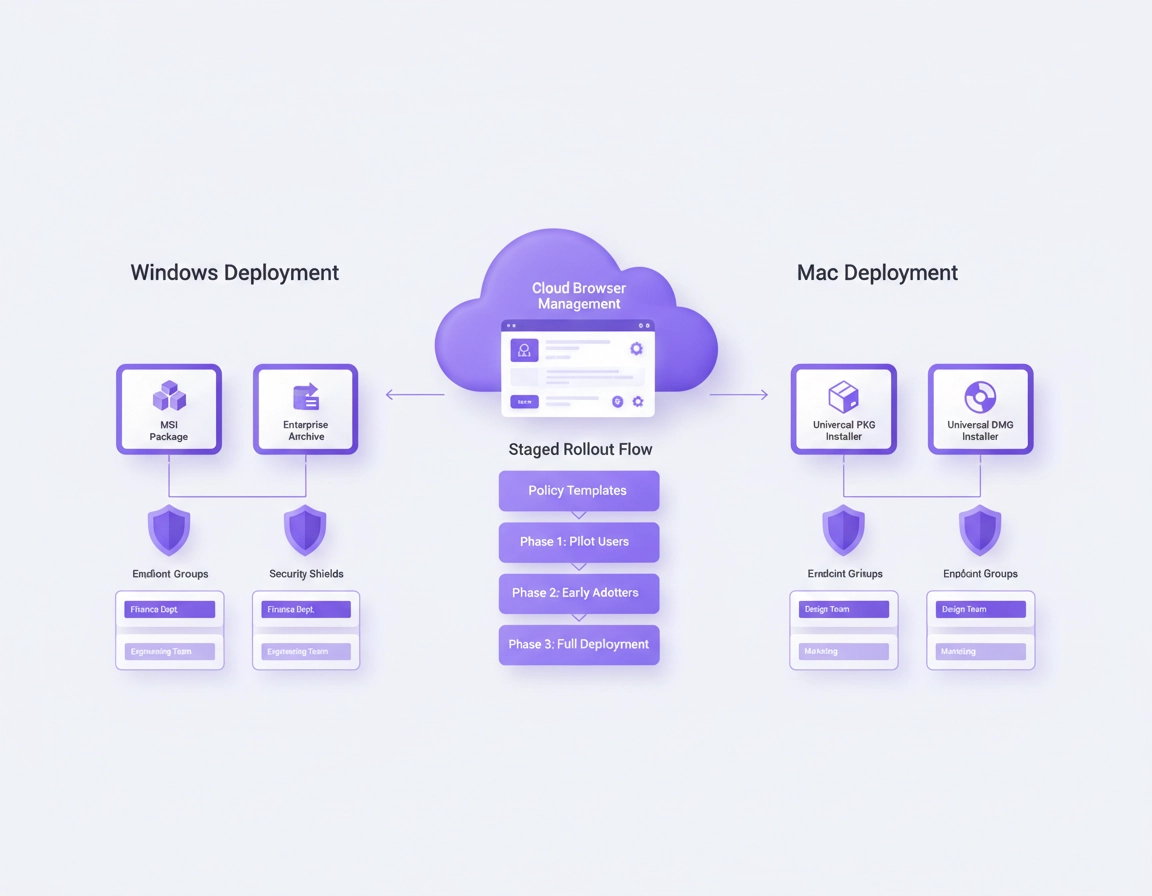
What “Chrome Enterprise download” really means for IT administrators .
A lot of pages on this topic quietly blur together three different jobs: downloading Chrome for business use, downloading Chrome with the supporting files admins need, and starting a managed browser program. They are connected, but they are not the same decision. That distinction matters because most enterprise browser friction starts when a company grabs the first installer that looks right, then tries to bolt governance on after the fact.
In a consumer context, “download Chrome” usually means a fast personal install. In an enterprise context, the download choice is part of a larger control model. You are deciding where Chrome lands, who it installs for, whether it can be pushed through endpoint tooling, how you will define policies, how updates will be governed, and whether the browser will be visible inside a management console after rollout.
Chrome Enterprise itself is not a completely separate browser. Google positions it as the set of enterprise solutions used to deploy, manage, and protect Chrome in organizations. That includes browser packaging, policy control, cloud management, reporting, and optional premium security layers. This is why a strong Chrome Enterprise download page should not read like a consumer installation article with a few business words sprinkled on top. The real topic is controlled deployment.
That controlled deployment angle is also why this keyword has high commercial value. Someone searching for Chrome Enterprise download is often near a buying, rollout, architecture, or standardization decision. They may be comparing managed browsers, evaluating cloud policy management, documenting software distribution standards, or building an approved browser baseline for remote staff. The install file is only the visible tip of that project.
Related: for the wider strategic picture, start with Chrome Enterprise Guide, Chrome for Enterprise Overview, and Chrome Enterprise Features Explained.
What admins are actually trying to solve here .
- Package selection: “Do I want the MSI only, or the whole bundle?”
- Cross-platform consistency: “How should Windows and Mac installs differ?”
- Policy readiness: “Do I already have templates and a policy baseline?”
- Update governance: “Can I stay current without breaking internal apps?”
- Management visibility: “Will these browsers show up in Chrome Enterprise Core or stay functionally unmanaged?”
The official download choices on the page today .
As of the current Chrome Enterprise download page, Windows admins can choose Stable or Beta, pick either Bundle or MSI, and then select 64-bit x86, 64-bit ARM, or 32-bit x86. Mac admins can choose Stable or Beta and then download either the universal PKG or universal DMG. The same page also exposes policy templates and Google Updater management templates, which is a useful clue: Google clearly expects download choice and management choice to be made together, not in isolation.
Windows Bundle
Best when you want the browser plus deployment extras. The official bundle includes the Windows Installer package, ADMX policy and preferences templates, auto-updates template, and legacy browser support files.
Windows MSI
Best when you already know your policy path and simply need a clean enterprise installer to distribute through endpoint tooling.
Mac Universal PKG
Usually the stronger fit for a managed, repeatable deployment path and MDM-oriented packaging work.
Mac Universal DMG
Works for smaller manual installs or testing, but it is not the strongest starting point when you care about consistency at scale.
| Choice | Where it fits best | Why admins use it | Where it goes wrong |
|---|---|---|---|
| Windows Bundle | New or formalized enterprise rollout | Installer plus templates and supporting files | Teams ignore the extra files, then later forget why they downloaded it |
| Windows MSI | Mature Windows deployment path | Fast distribution through software tools | Admins choose it before they are ready with policy and update planning |
| Mac PKG | Managed Mac fleet | Better fit for custom package and MDM workflows | Skipped in favor of DMG out of habit, not because it is the better operational fit |
| Mac DMG | Manual install or ad hoc testing | Familiar for hands-on setup | Creates variation when a company later tries to standardize Mac deployment |
Decision rule: if you are still defining policies, update behavior, or deployment standards, download the more complete package. When you already have those pieces under control, the slimmer installer becomes more attractive.
Windows: bundle vs MSI and when each one wins .
For Windows, this is the most important fork in the road. The Chrome Enterprise bundle contains the Windows Installer package (.msi), policy and preferences templates (.admx), auto-updates template (.admx), and legacy browser support files. That makes it the practical admin package, not just the “larger file.” If you are standing up a fresh browser standard, hardening Chrome, or planning Group Policy from scratch, the bundle is usually the smarter first download.
The MSI, on the other hand, is exactly what many Windows teams want once the broader admin plumbing already exists. Google’s enterprise installer installs Chrome for all users of a computer. It will update the browser for all users as long as the version you install is the same or newer than what is already present. If a user already has a per-profile install, Chrome eventually reconciles that by detecting the machine-wide installation and switching over to the all-users version.
That machine-wide behavior is one of the reasons the MSI is so central to enterprise rollout. It aligns with the way software deployment tools and standard Windows administration expect software to behave. It also explains why the MSI should not be treated like a consumer installer with a fancier name. It changes the ownership model of the browser on the endpoint.
Choose the Windows bundle when .
- You need the MSI and the admin templates in one controlled package
- You are about to configure Group Policy or on-prem policy enforcement
- You want a clean archive of deployment files tied to a change ticket or implementation document
- You expect to test legacy compatibility or need legacy browser support files
Choose the Windows MSI when .
- Your policy templates and update model are already established
- You just need the browser installer for endpoint deployment tooling
- You want a clean silent deployment path for a tested production rollout
- You are standardizing onto the all-users Chrome install model on Windows
msiexec /q /l GoogleChrome.msi.
Related: keep the Windows path tight with Chrome Enterprise MSI Download Guide, Chrome Enterprise Installation Guide, Chrome Enterprise Silent Install, and Chrome Enterprise Group Policy Setup.
Mac: PKG vs DMG and what changes operationally .
On Mac, the question is less about “which one works” and more about “which one fits a managed deployment model.” Google’s enterprise download page offers a universal PKG and a universal DMG. For a formal business rollout, the PKG path is generally the more disciplined choice because Google’s Mac deployment guidance centers on creating and deploying a custom installation package with your chosen MDM tool.
That same Google guidance also makes an important update point: to control Chrome Browser updates on Mac, the deployment package needs both Chrome Browser and the Google Software Update Agent installed at the machine level. That is exactly the kind of detail generic “download Chrome for Mac” articles usually skip, and it is why this page should speak to administrators, not casual installers.
The DMG still has a place. It can be useful for small manual installs, for a one-off admin test machine, or for situations where you need to validate a browser behavior before the formal package is built. The mistake is assuming that because the DMG is easy to click through, it is automatically the right starting point for an organization.
Use the Mac PKG when .
- You are using an MDM or packaging workflow
- You want a repeatable install method across a real fleet
- You care about update control at the machine level
- You do not want every Mac installation story to become slightly different
Use the Mac DMG when .
- You are doing limited manual testing
- You are validating a channel or browser behavior before standardizing
- You are working on a very small set of unmanaged or lightly managed machines
Related: if the Mac side of this project matters, continue with Chrome Enterprise MDM Configuration, Chrome Enterprise Device Management, and Chrome Enterprise Cloud Management.
Checks to make before you download anything .
Good browser rollout work starts before the file lands in your Downloads folder. Most avoidable browser problems are design problems, not installer problems. Before you choose a package, confirm the decisions that surround it.
- Confirm your target platform and architecture. On Windows, the official options include 64-bit x86, 64-bit ARM, and 32-bit x86. Get this wrong and everything after the download becomes noisier.
- Choose your channel deliberately. Stable is the default answer for most production users. Beta exists for forward testing, not casual experimentation in broad production.
- Decide whether policy setup starts now or later. If now, the bundle becomes much harder to argue against.
- Document your management model. Group Policy, Chrome Enterprise Core, MDM, or a blended approach should not be an afterthought.
- Audit current Chrome state. Especially on Windows, know whether users already have local per-profile Chrome installs or you are standardizing a clean machine-wide state.
- Define success before rollout. Installed browser? Managed browser? Controlled updates? Enrolled browser reporting? These are different endpoints.
A cleaner deployment flow that scales past a pilot .
Here is the sequence that tends to produce fewer surprises. It is not flashy, but it is what prevents a browser rollout from becoming a help-desk tax.
- 1 Start on the official Chrome Enterprise download page, not the consumer Chrome page.
- 2 Pick the operating system, then the correct channel, then the correct package type.
- 3 For Windows, decide whether the bundle gives you the templates and support files you will need later.
- 4 For Mac, decide whether you are doing a real managed rollout or just a manual test install.
- 5 Save the package into your software repository or deployment workspace, not an admin’s personal Downloads folder.
- 6 Test on a pilot ring that includes different risk profiles: power users, remote users, finance, internal web-app users, and at least one heavily extended browser environment.
- 7 Validate policies on the machine itself. On Windows, Google explicitly points admins to
chrome://policyand to forcing Group Policy refresh when needed. - 8 Roll out by group or organizational unit, not in one uncontrolled blast.
- 9 Attach ongoing management immediately, whether through cloud management or on-prem policy.
- 10 Treat updates, extension control, and browser visibility as part of the same project, not separate future chores.
What “done” looks like: the right users received the right channel and package, the browser is now visible to your management process, the approved policies are in effect, and you can explain exactly how updates will behave from here forward.
Related: the next pages most admins need after this one are Chrome Enterprise Deployment Guide, Chrome Enterprise Device Enrollment, Chrome Enterprise Update Management, and Chrome Enterprise Policy Templates.
Channels, updates, and Extended Stable reality .
Download choice and update choice belong together. Chrome is not a “set it once and forget it forever” application in an enterprise environment. Google’s current enterprise documentation notes that the Stable channel is on a 2-week release cycle, while Extended Stable ships a new milestone every 8 weeks and continues to receive weekly security refreshes in between. That makes Extended Stable useful for organizations that cannot comfortably absorb the normal Stable cadence, but it is not a free pass to ignore browser maintenance.
Google is also direct about the tradeoff. The 2-week Stable option remains the most secure choice when security matters more than maintenance overhead. Extended Stable is the operational compromise for environments that need a steadier milestone cadence. If your users depend on internal web apps or brittle SaaS integrations, Extended Stable can make sense, but it should still be tested on a smaller group first.
On Windows, Google’s update management guidance lets admins pin Chrome updates temporarily to a major milestone or a specific full version, but the docs are equally clear that version pinning should be temporary. Leave devices pinned too long and they fall behind on critical security updates. In other words, version control is a testing and stabilization tool, not a permanent philosophy.
| Channel or approach | Best for | Main upside | Main caution |
|---|---|---|---|
| Stable | Most production users | Fastest path to normal security and feature updates | Requires organizations to tolerate a quicker release rhythm |
| Extended Stable | Managed Windows and Mac fleets with heavier change control | 8-week milestone cadence with weekly security refreshes | Still needs testing and should not become an excuse for update neglect |
| Beta | Pilot testing and compatibility validation | Early look at upcoming Stable behavior | Not a sensible broad-production default |
| Version pinning | Temporary exception handling | Lets you stabilize around testing or a critical issue | Dangerous if left in place too long |
Related: keep the update side tight with Chrome Enterprise Version Control, Chrome Enterprise Rollback Guide, Chrome Enterprise Security Checklist, and Chrome Enterprise Monitoring Tools.
Where Chrome Enterprise Core fits after installation .
This is the part many download guides barely mention, even though it is where the enterprise value really starts. Chrome Enterprise Core is Google’s centralized, cloud-based browser management tool, and Google positions it as available at no additional cost. It lets IT teams configure and manage browser policies, settings, apps, and extensions across devices and operating systems, while also giving them visibility into versions, apps, extensions, policies, and security events.
That changes how you should think about the download itself. The installer is not the final goal. The final goal is a browser estate you can see, govern, and support. If your organization is already cloud-first, the browser download page and Chrome Enterprise Core belong in the same conversation. If your organization is still more on-prem, the official page also exposes policy templates and updater templates so you can manage Chrome through on-prem processes such as Microsoft Active Directory and Group Policy.
The strongest deployment pattern is simple: choose the right package, install it properly, then connect the browser immediately to the management path you actually intend to use. That can be cloud-based management with Chrome Enterprise Core, on-prem policy through ADMX, or a hybrid model. What you do not want is a polished install followed by six months of unmanaged browser drift.
Related: the natural follow-ons are Chrome Enterprise Cloud Management, Chrome Enterprise Admin Console, Chrome Enterprise Management, Chrome Enterprise Audit Logging, and Chrome Enterprise Compliance.
Troubleshooting and edge cases .
If you are unsure whether the bundle is overkill .
It usually is not. The bundle is overkill only when your policy templates, update model, deployment workflow, and browser governance are already settled. In every other case, the extra files are often what save you from an awkward second round of downloads and documentation later.
If users already installed Chrome themselves on Windows .
This is common and not fatal. Google’s documentation explains that the enterprise MSI installs Chrome for all users and that user-level installs are not directly modified in place. Instead, Chrome detects the machine-wide installation and transitions toward that all-users version. The main lesson is to treat existing installs as a deployment-state issue, not a surprise footnote.
If the MSI will not install cleanly .
Google documents a known issue where antivirus rules can interfere with installation because files are copied to temporary directories and then moved into the install folder. If you hit that problem, check endpoint security rules before assuming the browser package is broken.
If you want Beta for production because Stable changes too often .
That is usually the wrong answer. Beta is a testing channel. If your issue is operational cadence, look at Extended Stable instead of promoting Beta into a role it was never meant to play. Beta should stay in validation rings, not become your default user experience.
If your Mac rollout is already inconsistent .
Reset around one approved path. Standardize which package type is allowed, document how updates are handled, and enroll or manage browsers consistently. Mixed install methods are survivable, but they make support, patching, and compliance reporting more confusing than they need to be.
Related: when deployment pain becomes a bigger project, move next to Chrome Enterprise Endpoint Security, Chrome Enterprise Risk Management, Chrome Enterprise Security Architecture, and Chrome Enterprise Zero Trust.
FAQ .
-
helpIs Chrome Enterprise a separate browser from normal Google Chrome?No. Chrome Enterprise is Google’s enterprise deployment, management, and protection layer around the same Chrome browser. The difference is the packaging, policy control, reporting, and security management model, not a completely separate rendering engine.
-
helpWhat is inside the Chrome Enterprise bundle for Windows?The Windows enterprise bundle includes the MSI, policy and preferences templates, auto-updates template, and legacy browser support files. That makes it the better starting point when you are planning a real enterprise deployment rather than just grabbing the installer.
-
helpShould I use the MSI or the bundle on Windows?Use the MSI when your deployment and policy model are already mature and you only need the installer. Use the bundle when you still need the admin templates or want a fuller deployment package to archive and standardize around.
-
helpWhat is the better Mac option for business rollout, PKG or DMG?For a formal managed rollout, PKG is usually the stronger choice because Google’s Mac deployment guidance centers on building and deploying an installation package with an MDM tool and managing updates at machine level. DMG is more at home in limited manual installs or testing.
-
helpDoes the Chrome Enterprise MSI install for all users?Yes. Google’s update documentation states that the enterprise MSI installs Chrome for all users of a computer. That machine-wide behavior is one of the main reasons it fits standard enterprise deployment workflows so well.
-
helpCan I manage Chrome after installation without paying extra?Yes, Chrome Enterprise Core is positioned by Google as a no-additional-cost cloud management layer for configuring and managing browser policies, settings, apps, and extensions. It also provides visibility into versions, extensions, policies, and other browser data points.
-
helpShould I use Stable, Beta, or Extended Stable?Stable is the normal production answer. Beta is for testing future behavior. Extended Stable is the right conversation when your organization needs a slower milestone cadence on managed Windows or Mac devices without abandoning security refreshes.