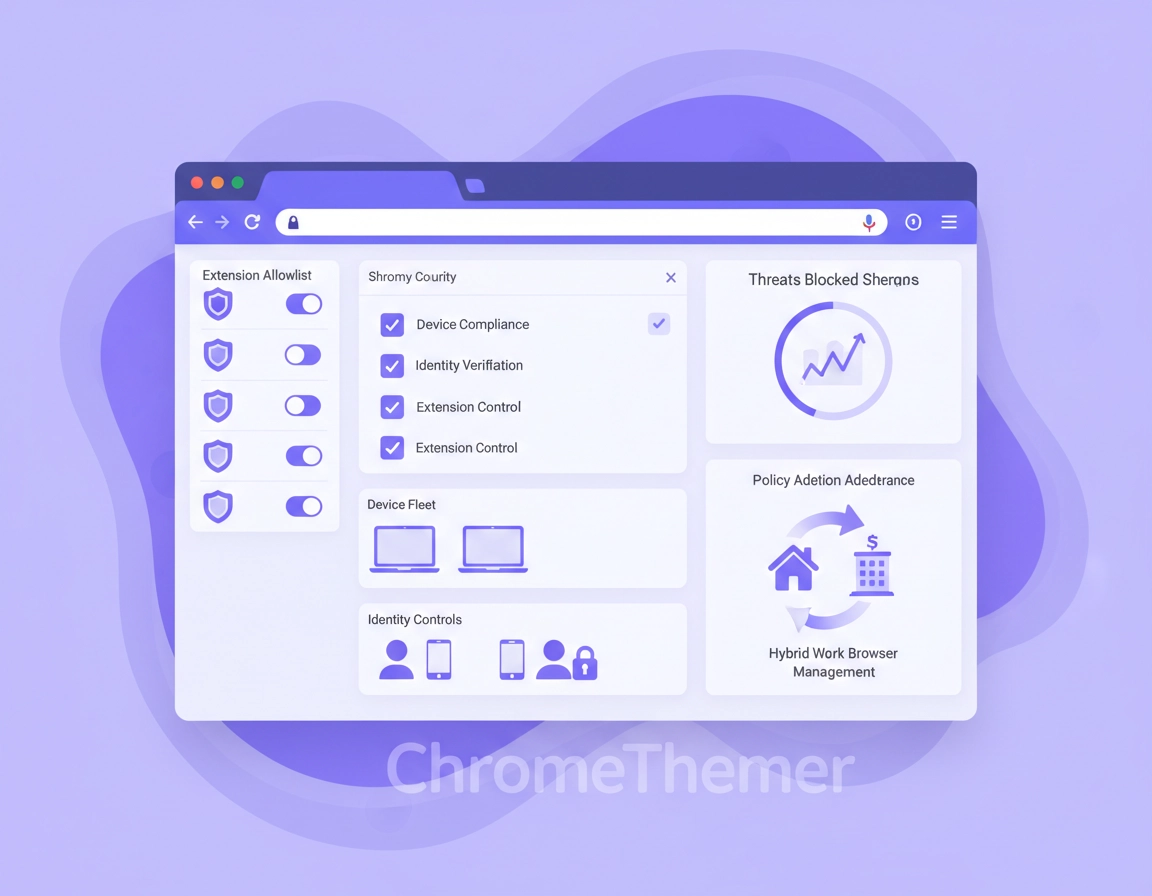
What a Chrome Enterprise security checklist should actually cover .
In most companies, the browser is no longer just a user app. It is the place where users authenticate, handle data, open files, install add-ons, access admin tools, and move between managed and unmanaged web environments all day long.
That is why a weak Chrome rollout is more dangerous than it looks. A browser can appear “managed” while still allowing too much variation between users, too many extensions, too little identity discipline, and too little reporting to know what is happening. You end up with a false sense of control: policies exist in theory, but your organization cannot prove that the right browsers are receiving them or that risky browser behavior is actually being reduced.
A strong checklist does the opposite. It makes you answer the uncomfortable questions before the incident: Which browsers are enrolled? Which users are getting user-level controls? Which extensions are effectively trusted code in the browser? Which downloads are blocked? What happens when a contractor signs in from a personal machine? How do you know a rollback is required instead of just one exception?
The best browser programs are boring in the right way. They have predictable policy scope, a clean extension stance, a clearly defined sign-in model, acceptable sync rules, enough reporting to spot drift, and a support team that knows exactly how to test changes without trashing the whole baseline. That is what this checklist is trying to produce.
Related: For the wider cluster, start with Chrome Enterprise Guide, then build out Chrome Enterprise Management, Chrome Enterprise Security Settings, and Chrome Enterprise Policy Templates.
The browser problems this checklist is meant to reduce .
- Unenrolled or inconsistently managed browsers
- Too many user-installed extensions with no review path
- Weak separation between work identities and personal profiles
- Unsafe download behavior and easy bypasses
- No structured response when a policy breaks a site or workflow
- Version drift that quietly weakens browser-side protections
- Low reporting visibility across remote and hybrid teams
Minimum viable enterprise baseline
- Browsers enrolled and visible
- Policy scope understood
- Extensions governed
- Version drift watched
- Exception path documented
Stronger security posture
- Managed sign-in rules
- Sync decisions by role
- Download restrictions enabled
- Site isolation for sensitive origins
- Retention controls for browser data
Start here: user policies vs enrolled-browser policies .
This is the part many pages skip, and it is exactly why those pages stay generic. Chrome Enterprise does not only have “policies.” It has policy scope. Some controls apply when a managed user signs in to Chrome with their work account. Others apply to an enrolled browser on Windows, Mac, or Linux whether the user signs in or not. If you mix these up, your rollout will look correct on paper and behave inconsistently in production.
User policies are powerful because they follow the managed identity across devices. That is useful when you want browser behavior tied to the person, not just the corporate laptop. Enrolled-browser policies are powerful because they establish control at the browser level before identity enters the picture. That is useful when you care about baseline enforcement on the machine itself, especially for shared systems, contractors, support workstations, and mixed-sign-in environments.
In practice, the cleanest Chrome deployments use both. Browser-level controls establish the floor. User-level controls refine the experience once the managed account is in play. Thinking about it that way helps avoid one of the most common enterprise mistakes: assuming a sign-in-dependent policy will protect a browser that is not properly enrolled, or assuming browser-level management alone fully solves identity-driven policy needs.
| Question | User-level answer | Enrolled-browser answer | Why it matters |
|---|---|---|---|
| When does policy apply? | After sign-in with a managed account | When Chrome starts on the enrolled browser | Determines whether security depends on identity or device/browser state |
| Best fit | Roaming users, BYOD-with-work-profile, account-centered policy | Corporate endpoints, shared systems, baseline enforcement | Helps you design the rollout around actual usage |
| Main risk if misunderstood | Controls fail before users sign in | Identity-specific behaviors never get refined enough | Produces policy blind spots that only show up later |
Related: These pages fit naturally here: Chrome Enterprise Cloud Management, Chrome Enterprise Device Enrollment, Chrome Enterprise Group Policy Setup, and Chrome Enterprise MDM Configuration.
The production-ready rollout checklist .
This is the sequence I would use if I were taking Chrome Enterprise from “we installed it” to “we can defend it.” The order matters because each layer becomes easier to verify once the previous one is stable.
- 1 Inventory the browsers you actually care about. Separate corporate endpoints, shared machines, contractors, privileged admin devices, and BYOD access patterns. Do not build one universal policy set and hope it works everywhere.
- 2 Enroll the browsers you want controlled at the browser level. If Chrome is not enrolled, your hardening plan is partly theoretical.
- 3 Confirm policy scope before changing security settings. Decide which controls must apply on browser launch and which can wait for managed sign-in.
- 4 Create role-based targeting. Standard users, finance, HR, admins, contractors, and shared devices rarely need identical browser freedom.
- 5 Audit extension reality before you restrict anything. Pull reports on what users already have installed, which tools are duplicated, and which ones nobody can justify.
- 6 Set your extension posture. Choose whether the environment should allow all by default, block specific items, run an allowlist, or allow requests with admin review. For serious environments, unrestricted installs are usually too loose.
- 7 Decide whether users must sign in with a managed account. This is not just an identity question; it determines whether user-level browser policies reliably apply.
- 8 Decide whether Chrome Sync is appropriate. The right answer depends on your data placement rules, profile governance, and whether the user experience benefit outweighs the risk for that role.
- 9 Turn on safer download controls. This is one of the easiest ways to reduce low-effort malware exposure and risky file behavior.
- 10 Use site isolation for genuinely sensitive web destinations. Identity providers, admin consoles, privileged internal apps, and high-value portals are where tighter process separation makes the most sense.
- 11 Review browser data retention choices. Some devices benefit from shorter retention windows or automatic clearing behavior, especially shared systems and high-sensitivity roles.
- 12 Verify reporting is usable, not just enabled. You want current visibility into versions, apps, extensions, policies, and security events, not a checkbox that says reporting exists somewhere.
- 13 Control update drift. Security baselines decay when a non-trivial slice of the fleet lags behind.
- 14 Define a rollback rule before rollout. Decide what qualifies as a local exception, a pilot issue, or a true policy defect that justifies broader change.
What “good” looks like: your support team knows which controls are browser-scoped, which ones are user-scoped, which extensions are explicitly allowed, which devices are not checking in, and which groups should receive a policy change first when testing.
Related: Continue with Chrome Enterprise Device Management, Chrome Enterprise Update Management, Chrome Enterprise Version Control, and Chrome Enterprise Rollback Guide.
The 6 checklist categories that matter most .
1) Browser control plane
- Enrollment complete
- Policies targeted correctly
- Reporting visible by role/group
- Version coverage understood
2) Extension governance
- Allow/block/request model chosen
- Unused tools removed
- High-risk permissions reviewed
- Force-installs kept minimal
3) Identity and profile model
- Managed sign-in decision made
- Personal/work mixing minimized
- Sync rules documented
- Role-based exceptions defined
4) Web-risk controls
- Harmful downloads restricted
- Risky browsing defaults not weakened
- Sensitive origins identified
- Site isolation used where justified
5) Data hygiene
- Retention needs mapped by device type
- Shared-device clearing behavior reviewed
- Passwords/cookies/history rules documented
- Exit behavior tested on shared systems
6) Operations and response
- Pilot groups ready
- Rollback logic written down
- Support playbooks updated
- Monthly browser review owned by someone
How the checklist changes by environment .
- Small business: keep it simple but strict on extensions, updates, sign-in discipline, and basic reporting.
- Remote and hybrid teams: prioritize controls that work off-network and visibility that does not depend on users being in the office.
- Shared devices: lean harder on browser-level control, shorter retention, reduced extension freedom, and less profile clutter.
- Privileged admin devices: use the tightest extension stance, strongest identity discipline, and the cleanest exception process.
The controls that reduce the most real-world risk .
Not every browser control offers equal return. Some policies sound important but barely move your real exposure. Others quietly change the entire security profile of the browser estate. These are the areas I would prioritize first if the goal is actual risk reduction rather than policy-count vanity.
1) Extension governance usually delivers the best security ROI .
In many organizations, extensions are the biggest avoidable browser risk because users treat them like convenience tools while admins forget they can inspect pages, modify content, request permissions, and create shadow IT. A mature extension program uses one of three models: strict allowlist, allowlist plus user request workflow, or very limited open installs with aggressive blocklists. For sensitive departments, the answer is rarely “let everyone install what they want and hope the Web Store sorts it out.”
The reason this matters commercially as well as technically is that extensions shape almost every money workflow your audience cares about: password managers, compliance tools, DLP helpers, remote work utilities, SSO helpers, PDF handlers, finance plugins, and productivity overlays. That makes this section one of the strongest high-CPC angles on the page because buyers are not just looking for abstract security advice. They are trying to decide how much governance they need before browser add-ons become a liability.
2) Managed sign-in is really a policy reliability decision .
Forcing sign-in to Chrome with a managed Google Account is often framed as an identity control, but the deeper reason is policy reliability. If your environment depends on user-level Chrome policies, then unmanaged or inconsistent sign-in means inconsistent browser behavior. The issue is not only “who is the user?” It is “can the browser trust the identity context strongly enough to apply the controls the organization expects?”
3) Sync should be intentional, not assumed .
Sync is useful for user continuity, but enterprise teams should not leave it on by habit and call the matter settled. The right answer depends on who is using the browser, what data is being synchronized, how strongly the profile is managed, and whether personal and work identities are being mixed. In lower-risk roles, sync can improve resilience and usability. In higher-risk roles, it can create unnecessary data-placement and governance questions.
4) Harmful download restrictions are a clean baseline hardening move .
Download controls are not glamorous, but they are exactly the kind of practical browser control that reduces low-effort compromise and risky user behavior. If your browser baseline still lets users casually pull down dangerous files or bypass obvious warnings, then you are depending too much on user judgment in the highest-friction moment of browser use.
5) Site isolation belongs where trust boundaries are real .
Site isolation is most valuable when you use it to protect real trust boundaries rather than as a badge of technical sophistication. Think identity flows, admin consoles, sensitive internal portals, finance systems, and privileged operations tools. Those are the places where additional process separation has strategic value. This is also where strong enterprise pages distinguish themselves from generic checklist content: they connect the control to actual business surfaces rather than just repeating the term.
6) Reporting is a security control because invisibility is operational weakness .
One of the biggest advantages in Chrome Enterprise Core is not a single lock-down setting. It is the ability to see versions, apps, extensions, policies, and security-relevant browser information in one management view. That matters because most weak browser programs do not fail from lack of policy options. They fail because nobody notices drift until helpdesk noise or an incident exposes it.
Related: These make strong support-page companions: Chrome Enterprise Security Reporting, Chrome Enterprise Device Visibility, Chrome Enterprise Usage Analytics, Chrome Enterprise Activity Logs, and Chrome Enterprise Risk Management.
| Control | Why it matters | Operational cost | Who should prioritize it |
|---|---|---|---|
| Extension allowlist / request flow | Reduces shadow IT and over-permissioned browser code | Moderate | Almost every business |
| Managed sign-in | Makes user-level policy application more reliable | Moderate | Organizations using managed identities heavily |
| Download restrictions | Blocks risky file behavior | Low to Moderate | Remote, hybrid, and general office fleets |
| Site isolation | Adds protection around sensitive origins | Moderate | Admin, finance, privileged, and regulated roles |
| Browser reporting | Spots drift before incidents do | Low | Everyone serious about browser governance |
Advanced hardening decisions and tradeoffs .
The difference between a decent rollout and a mature rollout usually shows up in the decisions that do not have universal answers. These are the controls where the right choice depends on the type of user, the kind of apps the organization runs, and how much friction the business can tolerate in exchange for reduced browser risk.
How strict should your extension model be? .
For shared devices, privileged roles, and regulated teams, I would start closer to “block by default, then allow what is needed.” For general knowledge workers, a request-based model often works better than a pure allowlist because it preserves agility without giving away the whole browser. The danger zone is the informal middle ground where nobody officially approves extensions but everyone is still expected to “use common sense.” That model scales badly and produces the worst type of environment: permissive enough to be risky, but disorganized enough to be hard to audit.
Should you shorten browser data retention? .
This is especially useful on shared systems, loaner machines, contractor devices, and high-sensitivity workstations. If you do not need long-lived browsing data, cookies, or saved state in those contexts, retaining it by default can be more convenience than value. Shorter retention can be a practical compromise between usability and cleanup discipline, especially when users are not the sole operators of the device.
Should you allow Incognito mode? .
The answer depends on why the device exists. On a shared device, private browsing may reduce cross-user history leakage. On a tightly monitored or highly governed workstation, unrestricted private sessions may work against operational visibility goals. The bigger lesson is that even something as familiar as Incognito should be treated as an environment-specific decision, not a universal default.
How aggressive should you be with site isolation? .
My default advice is targeted use, not blanket enthusiasm. Identify the sites and origins where the value is obvious: identity providers, finance systems, sensitive support tools, internal admin panels, and anything used for elevated operations. That gives you a defensible browser-hardening story without introducing avoidable complexity across every workflow.
When maximum strictness is justified .
- Finance, healthcare, legal, or regulated environments
- High-privilege support desks and admin workstations
- Teams with repeated extension sprawl or shadow-IT history
- Remote-first companies where the browser is a major trust boundary
- Any environment preparing for audit or tighter compliance review
When you should move more gradually .
- Legacy web apps are still fragile and poorly documented
- Support capacity is limited
- The organization has never formally governed extensions before
- Mixed personal/work browser use is still culturally normal
- You do not yet have enough reporting to understand the estate
Related: These pages pair well with this section: Chrome Enterprise Zero Trust, Chrome Enterprise Access Control, Chrome Enterprise Session Management, Chrome Enterprise Data Loss Prevention, and Chrome Enterprise Identity Management.
Monthly review cadence for Chrome Enterprise security .
The browser estate does not stay secure just because you had a strong launch month. Extensions accumulate, exceptions pile up, versions drift, and departments quietly ask for convenience until the original baseline is full of holes. A browser program stays healthy when someone owns a recurring review cycle.
What I would review every month .
- Browsers that have stopped checking in or were never enrolled properly
- Version lag that suggests update friction or unmanaged installs
- Newly installed extensions and extension requests
- Force-installed extensions that no longer deserve special treatment
- Policy exceptions granted during the last month and whether they should be retired
- Shared-device retention behavior and whether residual data is still too sticky
- Whether sensitive apps or admin flows should be added to isolation controls
What I would review quarterly .
- Whether your sign-in model still matches how users actually work
- Whether sync permissions are still appropriate by role
- Whether the extension catalog needs cleanup or reclassification
- Whether the rollout group model still reflects org structure and risk
- Whether helpdesk incidents point to a deeper policy-design problem
Troubleshooting and rollback strategy .
Related: For adjacent incident and hardening topics, see Chrome Enterprise Threat Protection, Chrome Business Security Configuration, Chrome Security Policy Setup, and Chrome Enterprise Security Best Practices.
If users say “the policy is not applying” .
The first thing to check is not the policy name. It is the targeting model. Is the browser enrolled? Is the user in the expected OU or group? Is the control a user policy that only applies after managed sign-in, or a browser policy that should apply on launch? Most “Chrome ignored the setting” complaints turn out to be scope or targeting mistakes, not broken browser behavior.
If a business-critical site breaks after hardening .
Do not immediately weaken your global baseline. Build a tiny test group, reproduce the issue, identify the specific policy that changed behavior, and document whether the problem is caused by a legacy app assumption, an extension dependency, an identity requirement, or an actual browser-policy conflict. The goal is to isolate the minimum necessary exception, not re-open the entire browser estate because one workflow was noisy.
If extension restrictions trigger pushback .
That usually means the old environment depended on informal extension sprawl. Handle it with process, not panic: keep a request path, review the requested permissions, approve genuine business tools, and reject the rest. Users tolerate governance much better when the approval model is fast and consistent.
If version drift keeps returning .
Treat that as a management and ownership issue, not just a patching delay. Determine whether the browsers are truly managed, whether update settings are being applied as intended, whether off-network users are falling outside your normal routines, and whether unofficial Chrome installs are reappearing where you thought the estate was clean.
If you need to roll back .
Roll back narrowly and in layers. Start with the smallest pilot group that reproduces the problem. Reverse only the suspected control. Record what changed, which sites or users were affected, and whether the issue exposed a genuine compatibility gap or just missing stakeholder prep. Good rollback practice is not about moving fast. It is about avoiding a panicked reversion that destroys the hardening you spent weeks putting in place.
FAQ .
-
helpWhat is the single highest-value Chrome Enterprise security control for most businesses?For most organizations, it is extension governance. Browsers are often reasonably secure by default, but unrestricted extensions turn the browser into a moving target. An allowlist or request-based model usually reduces more practical risk than chasing obscure hardening tweaks first.
-
helpWhy do admins get confused by Chrome Enterprise policies?Because “policy enabled” is not the same as “policy applies in the context we care about.” Some settings apply to managed user accounts after sign-in, while others apply to enrolled browsers regardless of sign-in state. If you do not separate those two ideas, the rollout quickly becomes messy.
-
helpShould I force users to sign in to Chrome?Often yes, when your organization depends on managed identities and user-level browser policies. It is especially useful when you want policies to follow the managed user consistently. It is less about convenience and more about predictable policy application and cleaner work-profile governance.
-
helpShould Chrome Sync be disabled in enterprise?Not universally. Sync can be appropriate for some roles and too permissive for others. The better question is whether the user is in a strongly managed profile, which data is being synchronized, and whether that behavior matches the organization’s data-handling expectations.
-
helpHow often should a Chrome Enterprise security checklist be reviewed?At minimum, review it monthly for versions, extensions, reporting visibility, and exceptions. Then revisit the broader model quarterly or whenever you change management approach, org structure, identity posture, or sensitive app access patterns.
Sources & further reading .
- Chrome Enterprise Core
- Chrome Enterprise Policy List
- Set Chrome policies for users or browsers
- Start managing Chrome browser
- Allow or block apps and extensions
- Extension workflows: Let users request extensions
- Chrome app and extension permissions
- Configure ExtensionSettings policy
- Force users to sign in to Chrome browser
- Manage who can sync browser settings
- Prevent users from downloading harmful files
- Protect your data with site isolation
- Automatically delete Chrome data from devices
- View and configure apps and extensions
Editorial note: this page is written for real-world browser management decisions, not just policy-name stuffing. Always test Chrome Enterprise changes in a pilot OU or configuration group before broad rollout.