What a “business security configuration” really means .
Important context: “Secure Chrome settings” for a personal laptop is not the same thing as “secure Chrome” in a company. In business, you care about repeatability, enforcement, and evidence. If you can’t enforce it and audit it, it’s not a real security configuration.
A Chrome business security configuration is a controlled baseline that reduces the most common browser-driven incidents: phishing, credential theft, malicious extensions, drive-by downloads, session hijacking, and accidental data exposure. The configuration is typically deployed using Chrome Enterprise policies (cloud management, Group Policy, MDM, or registry) so settings can’t be silently undone and you can prove what’s applied to each device/profile.
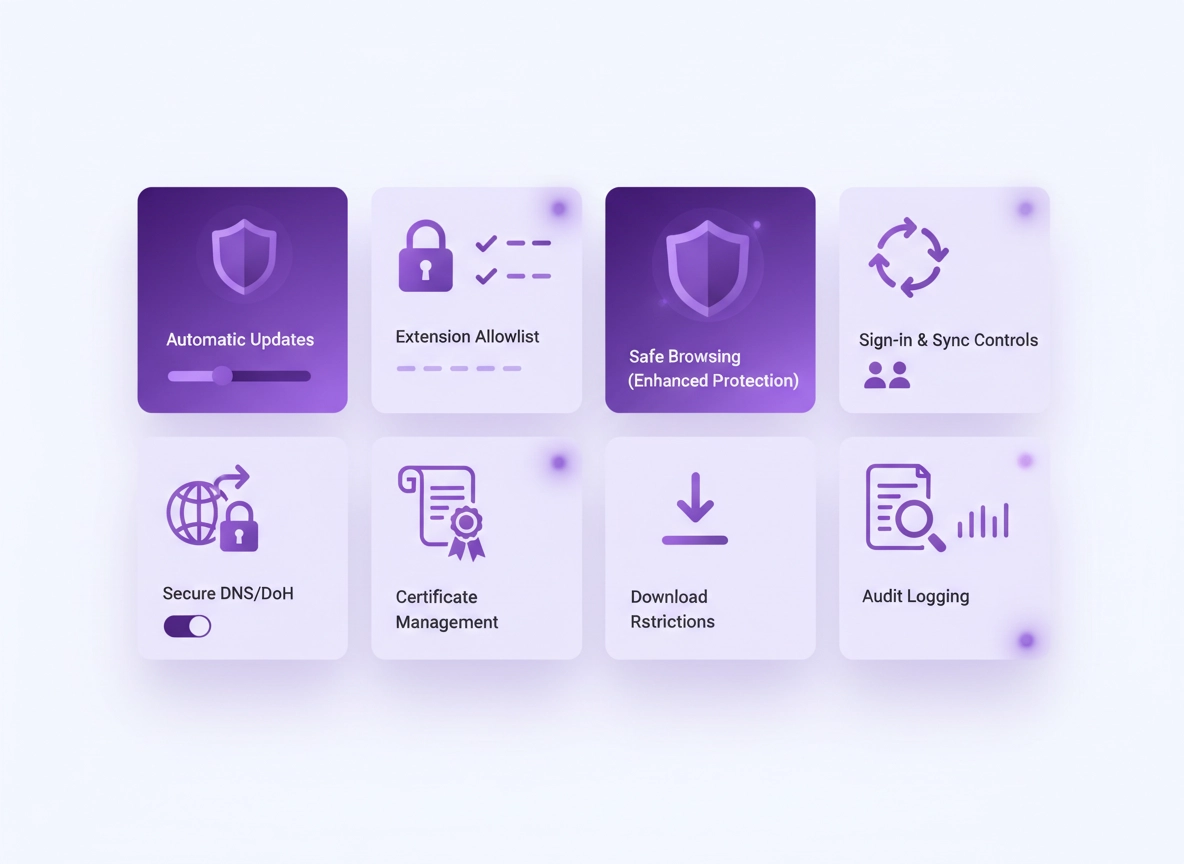
This guide focuses on the highest-value controls first: updates (because unpatched browsers are easy targets), extension management (because extensions can read, modify, and exfiltrate data), phishing & malware protection (because business email and SaaS are constant targets), and identity/sign-in (because your browser is now an identity gateway).
If you’re building a broader program, this page complements: Chrome Corporate Security Guide, Chrome IT Admin Security Settings, and the bigger hub Chrome Enterprise Guide.
Related: If extensions are part of your risk profile, start with Chrome Extension Security Check and Extension allowlist policy.
Key terms (quick definitions) .
- Managed browser: Chrome configured by policy (cloud/GPO/MDM) so security settings are enforced and reportable.
- Policy: An admin-controlled setting that overrides user preferences (for example: extension allowlists, update rules).
- Profile management: Managing Chrome at the user profile level (sign-in, sync, identity controls) rather than only the device.
- Extension allowlist: A controlled list of approved extensions; anything else is blocked or requires approval.
- Attack surface: Features and permissions that expand what an attacker can abuse (extensions, downloads, risky protocols).
- Auditability: Your ability to verify what settings exist, who changed them, and what events occurred (logs and reports).
Before you start (fast checks) .
Before you touch policies, do these quick checks. They prevent 80% of “why didn’t it apply?” headaches and reduce accidental lockouts.
- Know your management path: Are you using Chrome Browser Cloud Management, Windows Group Policy, macOS config profiles/MDM, or “manual settings”? Business security = policy when possible.
- Inventory extensions: Export a list of extensions in use today. Your allowlist should start with what’s already required for work.
- Define identity expectations: Do users sign in with corporate Google/Workspace accounts only, or do you allow personal sign-in?
- Check update status: You want Chrome updating automatically with predictable behavior (stable channel) unless you have a documented reason.
- Decide your baseline “security stance”: Balanced vs high security. You can harden more later, but baseline should be consistent today.
Related: If you need a broader “start here” overview, see Chrome Enterprise Management and Chrome Enterprise Policy Templates.
Fast verification: On any managed machine, open chrome://policy and check that policies appear. If nothing shows up, the device/profile isn’t managed (or policies aren’t landing where you think they are).
Step-by-step baseline (recommended) .
This baseline is designed to be practical for most businesses: it meaningfully reduces risk without breaking common SaaS, banking portals, or typical internal tools. If you want “maximum lockdown,” skip ahead to Advanced hardening.
Baseline goals (what we’re optimizing for) .
- Keep Chrome patched: reduce exposure to browser zero-days and web exploit chains.
- Stop risky extensions: prevent “read and change data” abuse and malicious updates.
- Harden identity: reduce account takeover and session hijacking impact.
- Reduce data leakage: limit uncontrolled sync, credentials storage, and risky downloads.
- Make it auditable: you should be able to show what policies are enforced.
1) Enforce updates (non-negotiable) .
If you only do one thing, do this: ensure Chrome updates automatically across the fleet. Most real-world “browser breaches” become possible when endpoints drift for weeks or months. In business, your update policy is not just “on/off” — it’s also how predictable updates are, whether you allow deferrals, and whether you can temporarily pin or roll back in a controlled way during an incident.
Best practice baseline: Stable channel + automatic updates enabled + controlled relaunch windows (so security fixes actually take effect). If your org needs version control, do it intentionally (documented, time-bound), not by accident.
Operational note: if you use Windows Group Policy for update governance, Google’s admin guidance includes “target version prefix override” for pinning major versions in controlled scenarios. (Use sparingly—pinning increases long-term risk.)
Related: For enterprise rollout patterns, see Chrome Enterprise Update Management and Version control strategy.
2) Lock down extensions (allowlist beats cleanup) .
Extensions are one of the fastest ways to lose control of a “secure browser.” A single extension with broad permissions can read page content, observe form fields, modify websites, inject scripts, and sometimes access cookies or session tokens depending on permissions and architecture. Even “good” extensions can turn bad through updates, acquisitions, or compromised developer accounts.
Baseline recommendation: switch from “anyone can install anything” to one of these models:
- Allowlist model (preferred): only approved extensions can be installed; everything else is blocked.
- Blocklist + approval workflow: block known risky categories, require approval for new installs, and review quarterly.
- Force-install for critical extensions: automatically install required security tools (DLP, password manager, SSO helpers) with policies.
Practical rule: If an extension requests “Read and change all your data on all websites,” treat it like a mini-application that needs vendor review. Your highest-value control is limiting extension installation and controlling updates.
Related: Deep dive here: Chrome Extension Installation Policy, Approval workflow, Permissions guide.
What “success” looks like: users can still do their work, but they can’t randomly add new extensions without your involvement. New installs become a controlled request, not a silent security drift.
3) Strengthen phishing & malware protection .
In most businesses, phishing is the primary browser threat. The browser is where users authenticate to email, documents, HR, finance, and admin consoles. Your goal is to reduce the chance a user ever reaches a malicious destination, and to increase the odds of blocking dangerous downloads and deceptive login pages.
Baseline recommendation: use strong built-in protections, then layer enterprise monitoring/controls if needed. In Chrome, Safe Browsing is a core protection layer. For business environments, consider whether you want the most aggressive protection mode (security benefit) vs additional reporting/telemetry (privacy/compliance considerations).
Related: See Chrome Safe Browsing settings, Enhanced Safe Browsing, and malware protection guide.
Business reality check: If your users regularly handle invoices, wire transfers, or vendor onboarding, treat phishing defenses like a financial control. “One click” incidents are common, and the browser is where the click happens.
4) Control sign-in, sync, and profile behavior .
In 2026, Chrome is an identity surface. Browser sign-in controls can determine whether company credentials are mixed with personal profiles, whether corporate bookmarks/passwords sync to unmanaged devices, and whether users can sign into Chrome with accounts you don’t govern. These aren’t “preference tweaks” — they’re governance decisions.
Baseline recommendation:
- Prefer managed profiles: manage Chrome at the user/profile layer where possible.
- Define sync rules: decide what data can sync (or disable sync in high-risk roles).
- Harden login: require strong account security (2SV/passkeys) and consistent sign-in behavior.
Related: If you’re deciding whether to disable sync, read Chrome account sync settings, disable Chrome sync, and Chrome sync security risks.
5) Harden network basics: HTTPS-first + Secure DNS .
Many browser compromises start with network weakness: downgrade opportunities, insecure Wi-Fi, DNS interception, or users connecting through unknown networks while traveling. You can reduce this risk with a few “boring but powerful” settings: HTTPS preference, strong TLS defaults, and secure DNS where it fits your environment.
- Prefer HTTPS and reduce insecure fallback: helps against some MITM-style scenarios and insecure site habits.
- Use Secure DNS intentionally: avoid DNS manipulation on hostile networks, but consider corporate DNS requirements (split-horizon, internal zones).
- Use proxy/pac policies carefully: corporate proxies can help security visibility, but misconfiguration breaks apps and creates shadow IT workarounds.
Related: HTTPS-Only Mode, Secure DNS setup, Private DNS vs Secure DNS, Proxy settings guide.
6) Reduce credential exposure (passwords, autofill, payments) .
Chrome’s built-in password and autofill features are convenient, but convenience has tradeoffs in business. Your decision here depends on your identity strategy: do you allow browser-stored passwords, do you require a dedicated password manager, and how do you handle shared accounts and admin roles?
Baseline recommendation: If your org uses a dedicated password manager, align Chrome to that choice: reduce duplicate storage, control autofill where sensitive, and ensure your account security stack (2FA/passkeys) is strong. If you do rely on Chrome password storage, you must take account security and device security seriously.
Related: Password storage security, Autofill security settings, Payment method security, Password Checkup.
7) Make configuration verifiable .
“We configured it” is not the same as “it’s configured.” Business security needs verification. Your baseline should include:
- Policy visibility: admins can confirm applied policies and resolve conflicts.
- Ownership: someone owns the baseline, exceptions, and change approvals.
- Evidence: logs, reports, and configuration snapshots exist for audits and incident response.
Operational habit: After any policy change, validate on a test OU/group, then validate on a real endpoint (for example, via chrome://policy and targeted user flows like SSO login and file download).
Common variations .
- Windows / domain-joined: Group Policy can enforce machine-level policies; you’ll likely combine Chrome policies with update governance and endpoint security.
- macOS: configuration profiles/MDM-style management; watch for keychain and certificate workflows.
- Android / iPhone: mobile browser control is more limited; the priority becomes identity, phishing resistance, and managed profiles where supported.
Advanced hardening (zero-trust mindset) .
The baseline above is what most businesses should implement first. Advanced hardening is where you tune Chrome like a security control: tighter extension permissions, stronger isolation patterns, more aggressive download controls, and identity-aware restrictions. This is also where you’ll decide which protections live in the browser vs your network/security stack.
Related: For a bigger picture view, see Chrome Zero Trust Security Guide, Chrome Enterprise zero trust, and security architecture.
A) Create security tiers (not one-size-fits-all) .
A mistake many orgs make is treating all users the same. Your browser risk isn’t uniform. A finance admin who can approve payments, an IT admin with console access, and a contractor with limited SaaS access should not share the exact same controls. Instead, build tiers:
- Tier 1 (Standard users): baseline policies + allowlisted extensions + phishing protection.
- Tier 2 (High-risk users): stricter download controls, reduced sync, more aggressive safe browsing, tighter extension permissions.
- Tier 3 (Privileged/admin): separate browser profile, minimal extensions, dedicated admin workflow, strict session controls, and stronger monitoring.
Practical admin pattern: Give privileged users a separate Chrome profile for admin tasks, with a minimal allowlist and stricter policies. This reduces “daily browsing” risk contaminating admin sessions.
B) Extension governance beyond allowlists .
Allowlisting is the foundation. Advanced extension governance adds: review, scoring, update monitoring, and permission minimization. Even if you only allow 10 extensions, those 10 need periodic review because the web and extension ecosystems change quickly.
- Review cadence: quarterly (or after major incidents) review allowlisted extensions: permissions, ownership, update history.
- Permission minimization: prefer extensions with limited scope (site-specific access) over global “all sites” access.
- Change control: when an extension updates and requests broader permissions, treat it like a software change request.
- Remove unknowns: eliminate “nice-to-have” extensions that don’t support business outcomes.
Related: Permission minimization guide, permission change alerts, risk scoring.
C) Tighten download and file-handling controls .
Downloads are a major threat vector: invoice malware, fake installers, “PDF” social engineering, and credential-stealing payloads. If your workforce frequently downloads documents from email, marketplaces, or third-party portals, tighten this layer.
- Block dangerous file types where possible: especially for high-risk roles.
- Harden “unknown source” behavior: reduce automatic open/execute flows.
- Combine with endpoint controls: browser settings help, but endpoint security and OS controls complete the picture.
Related: Secure download settings and drive-by download protection.
D) Consider “secure browsing” and isolation patterns .
Some organizations adopt stronger controls for risky browsing contexts (contractors, third-party portals, unknown links). This can include separate profiles, browser isolation approaches, or managed browsing experiences. Whether you need this depends on your threat model and how sensitive your workflows are.
- Separate profile strategy: isolate admin and standard browsing.
- Managed browsing strategy: enforce strict policies and monitor events.
- Isolation strategy (when needed): use isolation for unknown sites or high-risk browsing roles.
Related: Browser isolation guide, secure browsing, secure browsing enterprise.
E) Make policy changes controlled and reversible .
Security changes can break workflows. Mature browser management includes safe change practices: test in a pilot OU/group, keep rollback options, and communicate what’s changing. This isn’t just “being nice” — it prevents shadow IT (users installing alternate browsers or risky tools to bypass friction).
- Pilot first: test with a small group and capture issues.
- Document exceptions: if a team needs an extension or relaxed control, record why, who approved it, and when it will be reviewed.
- Keep “undo” paths: know how to remove a policy, reset a profile, or roll back a misconfiguration.
Common alternatives users compare .
- Chrome built-in settings vs enterprise policy enforcement
- Extension allowlists vs “trust users + clean up later”
- Browser-only security vs a full stack (endpoint + email + identity + network)
- Standard Chrome vs managed browser solutions
Related: If you’re comparing stacks, see Best security tools for Chrome and best enterprise browser solutions.
Privacy & compliance notes .
Business Chrome security is not just a technical topic — it intersects with privacy, data governance, and compliance. The biggest friction points usually come from: telemetry/reporting, user data sync, and the extent of monitoring. The goal is to protect users and the business while staying within policy and regulatory expectations.
Impact: Enforced browser policies can affect user behavior, extension availability, data syncing, and reporting visibility. Stronger protections can increase compatibility friction if rolled out without testing.
Related: For privacy-specific enterprise controls, see Chrome Enterprise Privacy Controls and privacy compliance.
Recommended baseline settings .
- Option A (balanced): updates enforced, allowlisted extensions, strong phishing/malware protection, secure DNS where compatible, sensible sync controls.
- Option B (maximum security): stricter extension permissions, reduced sync, tighter download controls, stronger protection modes, higher monitoring.
- Option C (compatibility-first): baseline policies only, minimal restrictions, monitor and gradually tighten based on risk and incidents.
Recommended settings by goal .
| Goal | Recommended configuration focus | Tradeoff | Best for |
|---|---|---|---|
| Balanced | Updates + allowlist + phishing protection + basic identity controls | Some extension requests and rollout work | Most businesses |
| Maximum security | Stricter tiers, minimal extensions for admins, tighter downloads, reduced sync, stronger monitoring | More friction and testing required | Finance/admin/high-risk orgs |
| Compatibility | Start with updates + minimal restrictions, then harden in phases | Higher short-term exposure | Legacy apps / sensitive workflows |
Compliance posture tip: When auditors ask “how do you manage browser risk?”, your best answer is a baseline policy set, evidence it’s enforced, and proof you review changes and exceptions.
Troubleshooting .
Related: If you suspect an infection or a browser hijack, start with Remove Malware from Chrome and Chrome Security Reset.
If policies don’t show up on the device .
First confirm the device/profile is actually managed. Open chrome://policy. If it’s empty, you likely have one of these issues: policies are applied to the wrong scope (user vs device), the machine is not receiving GPO/MDM/config profile updates, or cloud management isn’t enabled for that user profile. Fix the management path first; don’t waste time tweaking “settings” that users can undo.
If a business-critical site breaks after hardening .
Compatibility breakage usually comes from: blocked third-party cookies, aggressive tracking protections, strict download controls, or extension changes. Use a controlled approach: identify exactly which control caused the break, then create a documented exception (site-based exception if possible) rather than weakening the global baseline. For cookie-related issues, see third-party cookies settings.
If users complain “I can’t install my extension” .
That’s expected in a secure environment. The fix is a workflow, not a bypass: create a simple approval process (who approves, what criteria, how long it takes), and make users request the extension with a business justification. If the extension is required, add it to your allowlist and review permissions. If it’s not required, keep it blocked.
If you need to reset safely .
If you suspect corrupted profiles or policy confusion, avoid “random clicking.” Use a measured reset: back up necessary bookmarks (if allowed), remove problematic extensions, clear browser data selectively, and recreate the profile under management. For step-by-step cleanup, see Chrome profile reset guide and clear browsing data.
FAQ .
-
helpDo I need “Chrome Enterprise” to secure Chrome for business?You can improve security with built-in Chrome settings, but a true business configuration is usually policy-driven (enforced + auditable). “Chrome Enterprise” often refers to the management tooling and policy capabilities that make this practical at scale. If you manage more than a handful of devices, policies are worth it.
-
helpWhat’s the single most important Chrome security control?Automatic updates. A patched browser closes known exploit paths. After that, the next highest-impact control is extension restriction (allowlist). If you enforce updates + control extensions, you remove a huge amount of real-world risk.
-
helpWill an extension allowlist break productivity?It can if rolled out without preparation. The safe approach is: inventory current extensions, allowlist what’s required, then introduce an approval workflow for new requests. Most teams adjust quickly once the process is clear and response times are reasonable.
-
helpShould I disable Chrome Sync in a business environment?It depends on your data governance. Sync is convenient, but it can move business data across devices. A common approach is: allow sync for standard users with guardrails, restrict sync for high-risk/admin roles, and ensure identities are protected with strong authentication. Read: Chrome sync security risks.
Sources & further reading .
- Chrome Enterprise Policy List (official)
- Set Chrome app and extension policies (official admin help)
- Manage Chrome policies with Windows registry (official admin help)
- Manage Chrome updates on Windows (official admin help)
- Google Safe Browsing overview
Disclosure: Some pages may mention tools or services. Recommendations are editorial and based on practical security outcomes and common admin patterns.