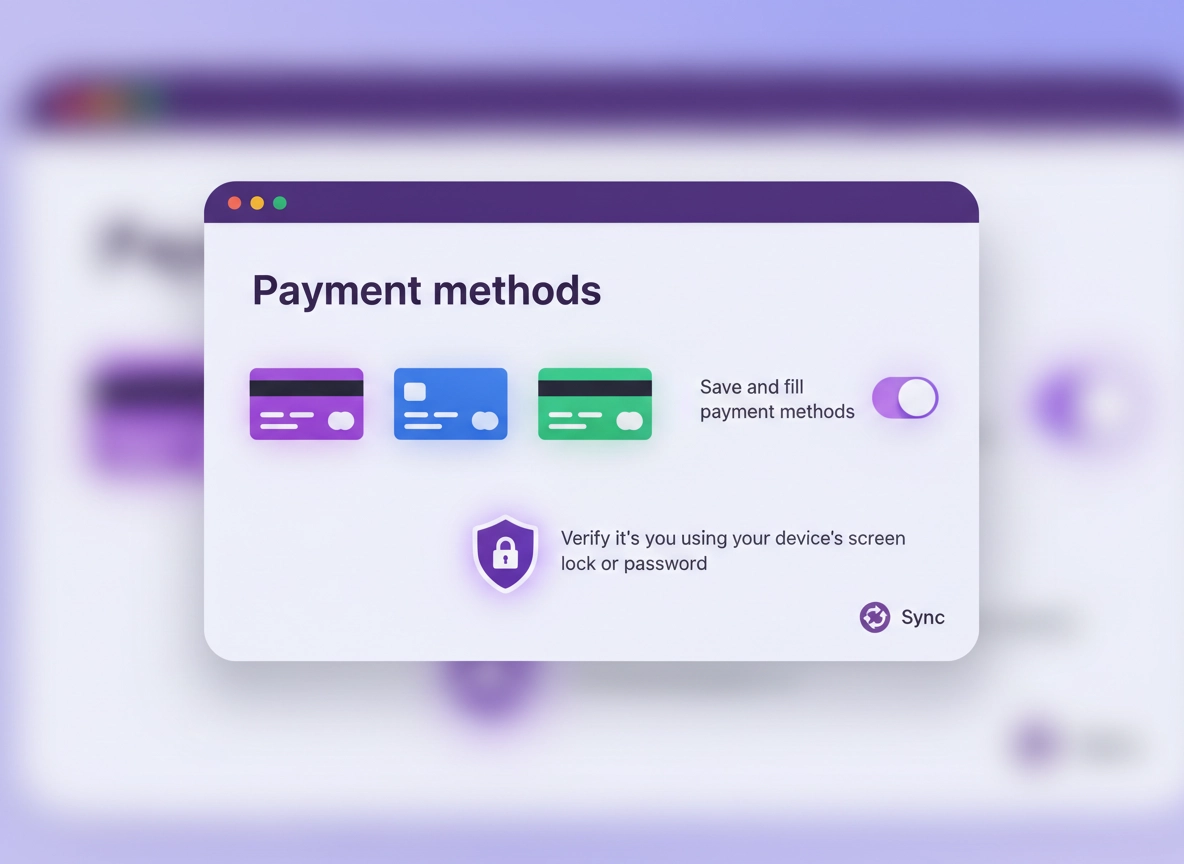
What Chrome “payment methods” actually means .
This guide focuses on browser-stored payment data and checkout behavior—not your bank account itself.
“Chrome payment methods” usually refers to the payment-related data Chrome can save and later fill when you check out online. On most devices this includes saved cards (credit/debit), billing addresses, and payment Autofill preferences. Depending on how you use Chrome, your payment methods can also be tied to your Google account (via sync) rather than being only local to one device.
This is convenient—but it’s also one of the highest-impact Autofill categories. If someone gains access to your browser profile (or your Google account), payment Autofill can reduce friction for unauthorized purchases. Even when merchants still require extra steps (like a bank OTP, 3-D Secure, or a wallet confirmation), saved payment details can turn a “hard” attack into a “fast” one. That’s why payment method security is best treated as a layered control: secure the browser profile, secure the account, secure the device, and reduce what’s stored.
There’s also a second reason this matters: payment Autofill is a privacy surface. A saved card name, a billing address, and a phone number are personal data. If your profile is copied, synced, or exposed through a compromised extension, the blast radius isn’t just “my browsing history”—it can become “my identity data.”
Related: Payment Autofill is part of your broader Autofill risk. If you want the full picture, read Chrome Autofill Security Settings. Also see Chrome Password Storage Security because account takeover often starts with credential theft.
Key terms (quick definitions) .
- Payment Autofill: Chrome’s feature that suggests/fills card and billing details during checkout.
- Local browser profile: Data stored on one device inside your Chrome profile (history, cookies, Autofill, extensions).
- Google account sync: A feature that can keep certain Chrome data consistent across devices (with security tradeoffs).
- Account takeover (ATO): When an attacker gains control of your Google account and uses it to access synced data.
- Extension risk: Extensions can sometimes read/modify page data; unsafe extensions can capture Autofill patterns.
- 3-D Secure / step-up verification: Extra checkout verification (bank OTP, app approval, or similar) that can reduce fraud.
Before you start (fast checks) .
These quick checks prevent wasted time and help you choose the right “security level” for your situation. Don’t skip them—payment settings are tied to your profile and sometimes your Google account.
- Are you signed into Chrome? If you’re signed in, payment methods may be tied to your Google account and available on other devices via sync.
- Is this a shared device? If anyone else uses this computer (family PC, office hot-desk), keep payment Autofill off.
- Do you use a password/lock screen? Without a device lock, a “walk-up” attacker can use your open session to autofill.
- Do you use extensions on checkout sites? Extensions that “read and change data on all sites” can be risky around payment flows.
- Do you travel or use public Wi-Fi? If yes, combine this guide with safer network habits.
Related: If you’re often on public networks, see Chrome Public Wi-Fi Security Tips and Chrome Secure Wi-Fi Browsing. If you use remote work tools, also read Chrome Privacy for Remote Work.
Balanced setup = keep payment Autofill on, but remove unused cards, tighten account security, and reduce sync risk.
High-security setup = keep payment Autofill off, prefer bank apps / wallet confirmations, and treat Chrome as “view-only” for checkout details.
Step-by-step: lock down payment Autofill .
The goal here is simple: store less, verify more, and reduce account-wide exposure. The exact menu wording can vary slightly by platform and Chrome version, but the concepts (Payment methods, Autofill, Sync) are consistent.
1) Open Chrome’s payment settings .
- 1 Open Chrome Settings (three-dot menu → Settings).
- 2 Go to Autofill and passwords (or just Autofill on some builds).
- 3 Select Payment methods.
- 4 Review the “save and fill” option, saved cards, and linked account options.
What “success” looks like: you can see a list of saved cards (or none), a toggle for payment Autofill, and options that control whether Chrome offers to save new payment details.
2) Remove cards you don’t actively use .
The fastest way to reduce risk is to reduce stored data. If a card is expired, rarely used, or only needed for one subscription, it shouldn’t be sitting in your browser profile indefinitely.
- Delete unused cards from the saved list.
- Remove old billing addresses you no longer use (address Autofill can be used for identity theft and account recovery attacks).
- Keep only one “daily driver” card if you insist on using payment Autofill.
3) Decide whether to keep payment Autofill enabled .
Payment Autofill is convenience vs. risk. If you routinely check out on trusted devices and you use strong account security, leaving it on can be reasonable. If you use shared devices, travel frequently, or you’ve had account issues before, turning it off is the safer call.
- Turn OFF payment Autofill if you’re on a shared PC, a work device you don’t fully control, or any device you travel with.
- Keep it ON only if your device has a strong lock screen, you use 2FA on your Google account, and your extension list is clean.
Related: If you want to harden all Autofill categories (addresses, passwords, and payments), use Chrome Autofill Security Settings and Chrome Login Security Best Practices.
4) Tighten your Google account security (this matters even more than the toggle) .
If your payments are tied to your Google account, the single most important control is preventing account takeover. Attackers don’t need physical access if they can get into your account through reused passwords, phishing, or weak recovery settings.
- Enable (or confirm) two-factor authentication for your Google account.
- Review account security settings and recent sign-in activity.
- Use strong, unique passwords—and don’t store them in insecure places.
Do this next: Chrome Two-Factor Authentication Guide, Chrome Account Security Settings, and Chrome Security Checkup.
5) Reduce sync exposure (the “quiet risk”) .
Sync is convenient: you sign in on a new device and everything appears. But convenience can become an attack multiplier. If payment methods or Autofill data syncs, a compromised account can expose the same data across multiple devices.
- Review your Chrome sync settings and disable syncing categories you don’t need.
- If you share a Google account across devices (or with family), be extra strict about what syncs.
- On high-risk devices, consider using Chrome without syncing sensitive data.
Related: Sync is a top security tradeoff. Read Chrome Sync Security Risks and Disable Chrome Sync.
Common variations (Windows, macOS, Android, iPhone) .
- Windows / ChromeOS: Payment settings typically live under Settings → Autofill and passwords → Payment methods. Device security (screen lock) is critical.
- macOS: Similar paths, but device lock and user session protection matter most (don’t leave Chrome running on an unlocked session).
- Android: Payment settings can be influenced by Google account settings. Treat your phone lock screen as the first line of defense.
- iPhone (iOS): Chrome is more sandboxed, but account sync and device lock still matter. Avoid saving payment methods if you hand your phone to others.
Advanced hardening (power users & business) .
The “best” configuration depends on your threat model. A home user on a single locked laptop can tolerate more convenience. A finance team on managed devices should prioritize policy enforcement, auditability, and predictable behavior. This section explains what to change when you care about risk containment, not just convenience.
Related: If you manage devices, start with Chrome Enterprise Guide and Chrome Managed Browser Security.
Advanced goal #1: protect against “walk-up” access .
“Walk-up” risk is when someone uses your already-open session: a coworker in an office, a friend in your home, or someone with brief physical access to a laptop in a cafe. Payment Autofill is especially sensitive here because it saves time for the attacker.
- Never rely on “I’ll just be quick”—lock the device when you stand up.
- Use separate Chrome profiles for different trust levels (e.g., “Work / Finance” vs “General browsing”).
- Keep payment Autofill off in any profile that might be used casually or shared.
Advanced goal #2: reduce extension exposure on checkout pages .
Most legitimate extensions don’t steal payment data. But extensions are a powerful attack vector because they can interact with webpages. A risky extension might capture form fields, modify checkout pages, or quietly inject scripts. If you want payment safety, you want a “clean” extension environment.
- Audit your extensions and remove anything you don’t recognize or no longer use.
- Prefer extensions with minimal permissions; avoid “read and change data on all websites” unless you truly need it.
- Use a dedicated “checkout” profile with only essential extensions.
Related: Use Chrome Extension Security Check, Safe Chrome Extensions, and Chrome Extension Permissions Guide.
Advanced goal #3: treat sync as “data replication” .
Security people think in blast radius. Sync can silently replicate sensitive data across devices: home desktop, work laptop, phone, tablet. That replication is great until one device is lost, one device is shared, or the account is compromised. For payment method security, consider the most conservative approach: don’t sync payment-related data unless you absolutely need it.
- If you use multiple devices: keep payment Autofill off on “secondary” devices.
- If you use a work account: avoid signing personal Chrome profiles into work-managed endpoints.
- If you’re in a regulated industry: prefer policy-managed payments behavior (disallow saving cards, restrict Autofill, enforce strong auth).
Advanced goal #4: harden the full payment flow (browser + account + bank) .
Browsers don’t exist alone. The best payment security happens when you combine browser controls with bank-side protections: transaction alerts, spending limits, virtual cards, and step-up verification. Even if Chrome never saves a card, an attacker can still attempt purchases if they have enough identity data. That’s why “payment method security” is really about identity security.
- Enable purchase alerts in your bank app (push notifications or SMS) to catch fraud early.
- Use virtual cards where available for subscriptions and online merchants you don’t fully trust.
- Use stronger verification (bank app approvals or hardware keys for the Google account) for high-value accounts.
Common alternatives users compare .
- Chrome payment Autofill vs bank/wallet app checkout confirmations
- Saved cards in the browser vs virtual cards for subscriptions
- Chrome sync convenience vs controlled enterprise policy management
- Browser-managed checkout vs dedicated password managers + wallet security
Privacy & security notes (risk model) .
Payment method security isn’t only about fraud—it’s about controlling how much personal data your browser can reveal or reuse. The main risks come from four categories: device access, account compromise, profile compromise, and extension compromise.
Impact: Unauthorized purchases, faster account abuse, exposure of billing identity data, and higher fraud velocity if account takeover occurs.
Related: If you’ve had credential leaks or suspicious logins, use Chrome Password Leak Detection, Chrome Password Checkup, and Chrome Data Breach Protection.
Recommended baseline settings .
- Option A (balanced): Keep payment Autofill ON, delete unused cards, keep a strong device lock, use 2FA, and restrict extension permissions.
- Option B (maximum security): Payment Autofill OFF, no saved cards, minimal extensions, limited sync categories, and strict account protection.
- Option C (compatibility-focused): Payment Autofill ON but only on a dedicated “trusted checkout” profile; keep your everyday browsing profile separate.
Recommended settings by goal .
| Goal | Recommended setting | Tradeoff | Best for |
|---|---|---|---|
| Balanced | Keep payment Autofill on, remove unused cards, tighten account security | Some residual risk if device/profile is compromised | Most single-user devices |
| Maximum security | Disable payment Autofill, keep no saved cards, minimize sync, use strong 2FA | More friction at checkout | Shared devices, travel laptops, high-risk roles |
| Compatibility | Use a dedicated checkout profile with payment Autofill enabled | Needs discipline and profile separation | Users who shop often but want containment |
Troubleshooting .
Related: If you suspect malware, hijacking, or a rogue extension, start with Remove Malware from Chrome and Chrome Extension Malware Removal.
If you can’t find “Payment methods” in Settings .
Chrome’s settings layout varies slightly by platform and version. If “Payment methods” isn’t visible: look for Autofill or Autofill and passwords, then check inside that category. On mobile, some payment behavior may be influenced more heavily by your Google account settings than by a single on-device toggle.
If deleted cards keep coming back .
This usually happens when your cards are connected to your Google account and sync re-introduces them. In that case, you must manage payment methods at the account level and reduce what syncs. Also confirm you’re not signed into multiple profiles or using a second Google account in the same browser session.
Next steps: Review sync behavior using Chrome Account Sync Settings and consider disabling Chrome sync for sensitive categories.
If Chrome offers to save cards and you don’t want it to .
Turn off the option that allows Chrome to save and fill payment methods. Then test by visiting a trusted checkout flow: the “save card” prompt should stop appearing. If it persists, confirm you’re changing the setting in the correct Chrome profile (many users have multiple profiles).
If you see suspicious purchases or checkout behavior .
Treat this as an account and device security incident: change your Google password, enable 2FA, review device sign-ins, remove unknown extensions, and run a malware cleanup. Don’t assume it’s “just Autofill.” The root cause is often account compromise or a malicious extension.
Recommended cleanup path: Chrome Security Audit Guide, Chrome Security Checkup, and Chrome Data Breach Protection.
If you need to reset safely .
A “safe reset” means you remove risky components without nuking everything blindly. Start by removing suspicious extensions, clearing site data for checkout sites, and reviewing sync settings. If you still suspect compromise, consider a clean Chrome profile (new profile, minimal extensions) and re-add only what you trust.
Related: If you think Chrome was infected, use How to Reset Chrome After Malware and Chrome Security Reset.
FAQ .
-
helpIs it safe to save credit cards in Chrome?It can be reasonably safe on a single-user device with a strong lock screen, a clean extension list, and strong Google account security (especially 2FA). The main risk is not “Chrome magically leaks cards,” but that your profile or account becomes easier to abuse if compromised. If the device is shared or high-risk, it’s safer to keep payment Autofill off and store less.
-
helpWill turning off payment Autofill stop all checkout saving prompts?In most cases, yes—disabling the “save and fill payment methods” behavior prevents Chrome from offering to store new payment details and from suggesting saved cards. If you still see prompts, double-check you changed the correct profile and review whether your Google account settings or sync is re-enabling behavior.
-
helpWhat’s the biggest risk: saved cards or sync?Saved cards are a local convenience risk; sync can be a multiplier if your Google account is compromised or if you use multiple devices. A good approach is: store fewer cards, keep payment Autofill off on secondary devices, and treat your Google account security as the master control.
-
helpHow do I secure payments on a work or managed device?For managed environments, consistency matters. Prefer enterprise policy controls that restrict saving payment methods, control Autofill behavior, and limit extension permissions—rather than relying on each user to configure their own browser correctly. Start with enterprise guidance and a hardened baseline configuration.
Sources & further reading .
- Official Chrome Help: settings & Autofill
- Google Safety Center: account and security guidance
- Google Pay Help: payment and security basics
Disclosure: Some pages may mention tools or services. Recommendations are editorial and based on practical testing and security principles.