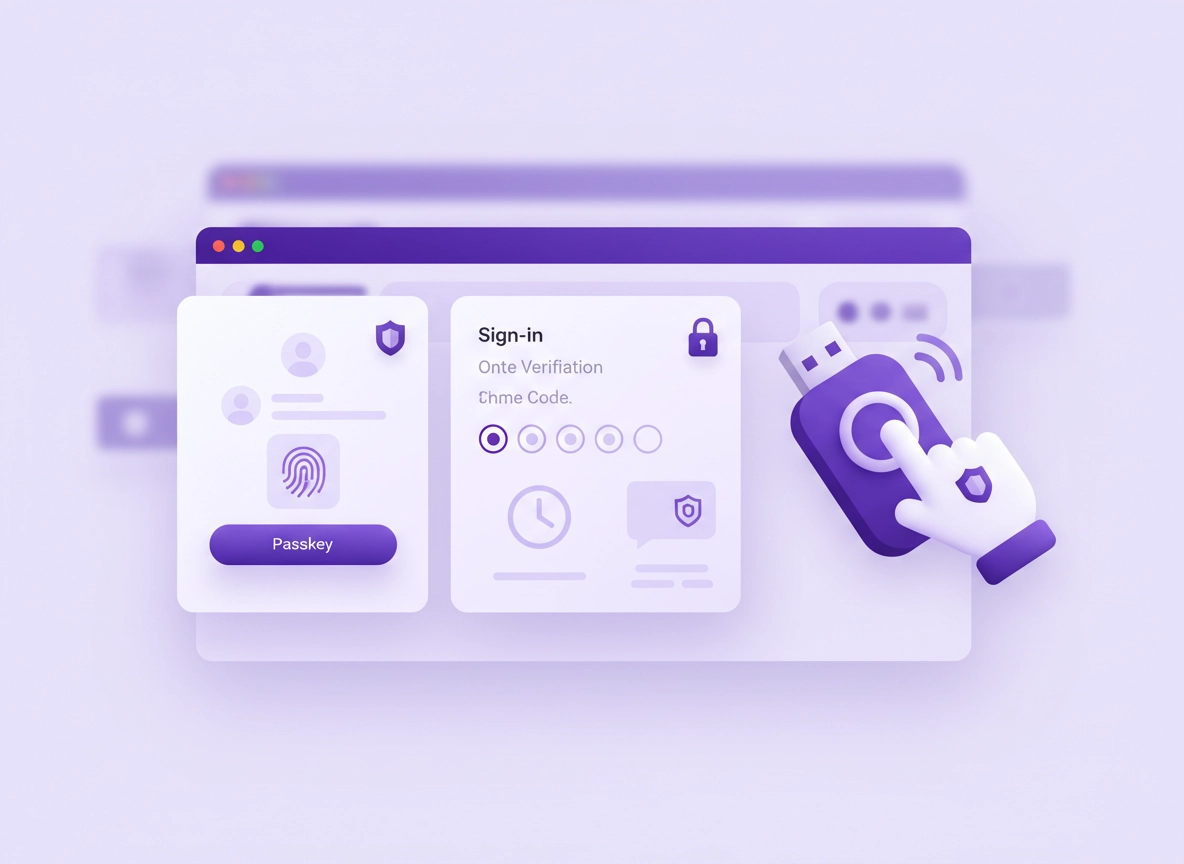
What 2FA is (and why it matters for Chrome) .
Two-factor authentication (2FA) adds a second proof of identity when you sign in. It’s the difference between “someone has your password” and “someone can actually log in.”
Chrome itself is a browser, but many people tie Chrome to a powerful identity: a Google account. That identity controls Sync (bookmarks, passwords, extensions, history), signed-in browsing, saved payment methods, and access to Gmail and Drive. If an attacker takes over your Google account, they often don’t just get “Chrome” — they get the whole ecosystem.
2FA is meant to stop the most common account takeover paths: password reuse from a breach, credential stuffing, phishing pages that harvest logins, and malware that steals cookies or saved passwords. It does not make you invincible, but it forces attackers to defeat an extra barrier — ideally one that can’t be copied (like a passkey or security key).
The key idea: not all “second factors” are equal. An SMS text message is better than nothing, but it’s also the easiest to bypass. A time-based code from an authenticator app is stronger. A passkey or a hardware security key is usually the strongest because it’s designed to be phishing-resistant — it won’t approve a fake site.
keyPasskeys (best default)
Fast sign-in using device biometrics/PIN. Designed to resist phishing. Great for most people.
usbSecurity keys (best for high risk)
Hardware keys (USB/NFC/Bluetooth) for phishing-resistant sign-in. Ideal for admins and sensitive accounts.
dialpadAuthenticator apps (strong fallback)
Time-based codes (TOTP) work offline and avoid SMS risks. Keep recovery options updated.
smsSMS codes (last resort)
Better than password-only, but vulnerable to SIM swap and social engineering. Avoid for high-value accounts.
Related: Want the full privacy baseline first? Start with Chrome Privacy Settings and then build up to your hardened security configuration.
Key terms (quick definitions) .
- 2FA / 2-Step Verification: Any sign-in flow that requires your password plus another proof (something you have or are).
- Passkey: A modern, cryptographic login method tied to your device (biometric/PIN). Typically phishing-resistant.
- Authenticator app (TOTP): Generates time-based codes offline (e.g., 6-digit codes). Stronger than SMS.
- Security key (FIDO2/WebAuthn): Hardware device used to approve sign-in. Excellent for high-risk accounts.
- Recovery options: Backup codes, recovery email, phone, and devices that can help regain access if you lose your primary factor.
- Chrome Sync: Optional service that syncs passwords, bookmarks, extensions, and more across devices (ties browser data to account security).
Before you start (fast checks) .
These quick checks prevent the most common “I enabled 2FA, but I still got locked out” scenarios. Spend two minutes here and you’ll save yourself a painful recovery later.
- Confirm which account matters most: If you use Chrome Sync, focus on your Google account first (that’s the identity behind your browser data).
- Update Chrome: Newer Chrome builds handle passkeys and WebAuthn better. If you haven’t updated recently, do it before troubleshooting sign-in flows.
- Check your device lock: Passkeys rely on a device PIN/biometric. Set a strong device lock and keep your OS updated.
- Get a safe place for backups: You’ll generate backup codes. Decide now where they go (password manager secure note, printed copy in a safe, encrypted vault).
- Identify your “high value” logins: Email, password manager, banking, cloud storage, admin consoles. Enable 2FA there first.
Related: If you store passwords in Chrome, run a leak audit: Chrome Password Checkup and enable Password Leak Detection.
Step-by-step: enable 2FA the right way .
Most “Chrome 2FA” setups really mean Google account 2FA, because that account controls sign-in and (optionally) Sync. The goal here is a layered setup: passkey or security key as your strongest method, authenticator app as a reliable fallback, and backup codes for worst-case recovery.
Part A: Turn on Google 2-Step Verification .
- 1 Open Chrome and go to Google Account settings (search “Google Account” or go to the account page from your profile menu).
- 2 In the left menu, open Security, then find 2-Step Verification.
- 3 Start the setup and choose your strongest available method (prefer Passkey or Security key if offered).
- 4 Add a backup method: authenticator app (recommended) and/or backup codes.
- 5 Confirm a successful test sign-in on a second device or a private window.
What “success” looks like: Next time you sign in on a new device, you’ll be asked for your password and an additional approval (passkey prompt, security key tap, or authenticator code).
Part B: Add an authenticator app (recommended fallback) .
Authenticator apps generate time-based codes on your device, even without network coverage. This avoids SMS interception and works well when you’re traveling or your carrier is unreliable.
- 1 In the same 2-Step Verification area, choose Authenticator app (or “Set up authenticator”).
- 2 Scan the QR code with your authenticator app (or use the manual setup key if needed).
- 3 Enter the first 6-digit code to confirm it’s working.
- 4 Immediately decide how you’ll handle phone loss: second device, secure export, or backup codes stored safely.
Important: Your authenticator app is only as safe as your phone. Use a strong phone PIN/biometric and keep the OS updated. If you share a device, consider a separate secure profile (see Chrome Profile Security Settings).
Part C: Generate and store backup codes (non-negotiable) .
Backup codes are your last-resort lifeline. If you lose your phone, your security key breaks, or you’re traveling with no access to your normal devices, backup codes can keep you from being permanently locked out.
- 1 In 2-Step Verification, choose Backup codes.
- 2 Generate a fresh set and store them offline or in a trusted secure vault.
- 3 Treat each code like a password: anyone with the code can bypass your second factor.
- 4 If you think codes were exposed, regenerate them immediately (old codes become invalid).
Part D: (Best) Add a passkey or security key for phishing resistance .
If you only do one “upgrade” beyond SMS, make it this. Passkeys and security keys are designed so a fake site can’t easily trick you into handing over a reusable secret. This is one of the biggest security leaps available to normal users.
- Choose passkeys if you want convenience and strong protection across your devices.
- Choose security keys if you’re high-risk (admins, creators, business owners, people targeted by phishing).
Related: If you use Sync, read Chrome Account Sync Settings and understand the security implications of syncing passwords/history across devices. For some users, disabling Sync is the safer choice: Disable Chrome Sync.
Common variations .
- Windows / ChromeOS: Hardware security keys typically work best via USB or NFC. Make sure you allow the browser prompt.
- macOS: Passkeys often integrate tightly with the OS. Keep your OS login secure and don’t share your user account.
- Android / iPhone: Passkeys and authenticator apps live on your phone. Phone security (PIN/biometric + updates) becomes part of your account security.
Advanced: passkeys, hardware keys, Sync & enterprise .
This section is where most “high value” security decisions live: how you pick a factor based on real threats, what Chrome Sync means for account takeover, and how teams can enforce stronger authentication. If you’re protecting work accounts, admin dashboards, payment profiles, or sensitive client data, don’t skip this.
Related: For broader hardening beyond 2FA, see Chrome Hardening Guide and the Chrome Privacy Settings Checklist.
How to choose the right factor (threat-based) .
“Best” depends on what you’re defending against. Here’s the simplest way to choose:
- If phishing is your top risk: Prefer passkeys or security keys. These are built to resist fake login pages.
- If phone theft is a concern: Use a strong device lock, keep recovery options off that phone, and consider a security key stored separately.
- If travel/offline access matters: Authenticator apps work without network. Backup codes cover extreme cases.
- If you’re a business/admin: Standardize on security keys or passkeys + conditional access. Reduce “weak fallback” options.
Passkeys explained (what they change) .
Passkeys replace the “shared secret” model (passwords) with cryptography. When you create a passkey, your device creates a unique credential for that service. The service never gets the private key — it only gets a public key. When you sign in, your device proves it has the private key and you confirm locally with a biometric/PIN.
Why this matters in practice: passkeys reduce password reuse risk, shrink the value of leaked credentials, and make phishing dramatically harder because your device won’t usually “sign” for the wrong site.
Pro tip: Treat passkeys like you treat your phone unlock. If your phone PIN is weak, your passkeys inherit that weakness. A strong device lock is part of account security now.
Hardware security keys (FIDO2/WebAuthn) for high-risk accounts .
Security keys are small hardware devices used to approve sign-ins. They can be USB, NFC, or Bluetooth. They are popular with IT teams, journalists, creators, and anyone frequently targeted by phishing.
- Best use: Admin accounts, Google Workspace super admin, payment services, password manager, domain/DNS provider.
- Setup pattern that works: Register two keys (primary + spare). Keep the spare in a safe place.
- Operational win: Keys reduce “prompt fatigue” because you have to physically tap a key.
Chrome Sync and 2FA: what actually gets protected .
If you’re signed into Chrome and using Sync, your browser data becomes an extension of your account security. This can be great (your data follows you), but it increases the blast radius of an account compromise. If an attacker takes your Google account, they may be able to pull synced data onto a device they control.
That’s why 2FA is so important for Chrome users — it protects more than email. It helps protect saved passwords, bookmarks, extensions, and browsing sessions that can reveal personal information. You should also review your Sync settings and consider whether you need everything synced.
Recommended reading: Chrome Account Sync Settings · Chrome Sync Security Risks · Disable Chrome Sync
Enterprise and business environments .
In business settings, the goal is consistency: you want strong authentication across all users, and you want to reduce account recovery abuse. This is where policy and identity platforms shine.
- Standardize factors: Prefer passkeys/security keys for phishing resistance. Avoid SMS for high-privilege roles.
- Limit fallback: Remove weak recovery paths where possible. Strong policy beats “optional best practice.”
- Device trust: Combine strong auth with managed devices and browser policies.
- Audit: Regularly review active sessions and sign-in events; rotate credentials after incidents.
Related: If you manage Chrome at work, see Enterprise Chrome Privacy Settings and Chrome Secure Configuration: Enterprise Best Practices.
Common alternatives users compare .
- Passkeys vs authenticator apps: Passkeys can be simpler and more phishing-resistant; authenticators are universally compatible and work offline.
- Security keys vs passkeys: Keys are excellent for high-risk users; passkeys are easier for most people day-to-day.
- Chrome password manager vs dedicated password managers: Dedicated managers often provide deeper security tooling and cross-platform controls; Chrome is convenient if your Google account is well protected.
- Manual setup vs managed policy: Individuals can follow best practices; organizations should enforce standards and reduce weak fallback options.
Privacy & security notes (real threats + tradeoffs) .
2FA reduces account takeover, but each method has tradeoffs. This section is written from the attacker’s perspective (because that’s how you build defenses that actually hold up).
Impact: Protects login sessions, synced Chrome data, saved passwords, and downstream accounts connected to email recovery.
Related: If you suspect a compromise, don’t just “enable 2FA and hope.” Use an incident playbook: Chrome Passwords Stolen: What To Do and Chrome Browser Data Breach Response.
Threats 2FA helps against (and what it doesn’t) .
- Stops: Credential stuffing (reused passwords), most phishing, and many “password-only” takeovers.
- Helps reduce: Session hijacking damage (because attackers struggle to add new devices without a second factor).
- Doesn’t magically stop: Malware on your device, account recovery abuse, or “approved” attacks where you tap Yes to a fake prompt.
Recommended baseline settings .
- Option A (balanced): Passkey + authenticator app + backup codes.
- Option B (maximum security): Two hardware security keys + authenticator app + backup codes (reduce weak fallback paths).
- Option C (compatibility): Authenticator app + backup codes + (SMS only if no other option works).
Recommended setup by goal .
| Goal | Recommended setup | Tradeoff | Best for |
|---|---|---|---|
| Balanced | Passkey + authenticator + backup codes | Requires device lock hygiene | Most users |
| Maximum security | 2 security keys + authenticator + backups | More setup + you must manage spares | Admins, high-risk accounts |
| Compatibility | Authenticator + backups (+ SMS only if needed) | Less phishing-resistant than keys/passkeys | Older devices / mixed services |
Extra hardening that complements 2FA .
2FA protects the front door. These steps reduce what happens if someone gets past it:
- Use Chrome Security Checkup: It’s a fast way to catch obvious risks (password reuse, unsafe extensions). See Chrome Security Checkup.
- Review extensions: Malicious extensions can steal sessions and data. If you have many extensions installed, audit them: Chrome Privacy Extensions Guide.
- Secure your profile: If your device is shared, separate Chrome profiles and protect them. Start here: Chrome Profile Security Settings.
- Run Safe Browsing properly: Use protective browsing features appropriate to your risk level: Chrome Safe Browsing Settings.
Troubleshooting .
Most 2FA failures are not “mystery bugs.” They’re usually one of these: time drift, wrong account, the wrong device being used, blocked prompts, or recovery paths that are incomplete.
Related: If you suspect malware or browser hijacking, handle that first: Remove Malware From Chrome (Windows) or Remove Malware From Chrome (Mac).
If you don’t get the code or prompt .
First confirm you’re signing into the correct account (many users have multiple Google profiles). Then:
- Authenticator codes failing: Check your device time settings. If your phone clock is wrong, time-based codes won’t match.
- Push prompts not arriving: Confirm the device is online and notifications are allowed. Check “Do Not Disturb” and battery restrictions.
- SMS not arriving: Treat SMS as unreliable. If possible, switch to authenticator or passkey. Also verify your phone number is current.
If your security key is not recognized .
Common causes include browser permission prompts, USB port issues, or using the wrong key. Try these in order:
- Use a different USB port or cable/adapter (especially on laptops/hubs).
- Try a different browser profile/window to rule out extension interference.
- Temporarily disable suspicious extensions (see Privacy Extensions Guide).
- Check whether the account has multiple keys registered and you’re using the correct one.
If you lost your phone (and it had your authenticator) .
This is exactly why you stored backup codes. Use backup codes or a second registered factor (another device/passkey/security key). After you regain access, rotate recovery options:
- Regenerate backup codes (old set becomes invalid).
- Remove the lost device from trusted sign-in approvals.
- Recreate authenticator setup on the new device and test it.
If you think someone is actively trying to take over your account .
Don’t only “turn on 2FA” and stop. Attackers often add recovery methods or create persistent sessions. Do this:
- Change your password to a strong, unique one (use a password manager if possible).
- Review active sessions and remove unknown devices.
- Audit account recovery options (email/phone) for anything unfamiliar.
- Run Chrome Password Checkup and rotate any reused passwords: Chrome Password Checkup.
If you need to reset safely (without losing everything) .
If Chrome is acting strange after security changes, don’t panic-reset everything immediately. First, isolate: try a clean Chrome profile and compare behavior. If needed, review your sync and profile security choices: Account Sync Settings and Profile Security Settings.
FAQ .
-
helpDoes Chrome have a “2FA setting” inside the browser?Usually no. What people call “Chrome 2FA” is typically 2FA on the account you use with Chrome (especially your Google account for Sync). You secure the account, then Chrome inherits that protection when you sign in or sync data.
-
helpIs an authenticator app better than SMS?Yes for most users. Authenticator codes work offline and avoid many SMS weaknesses (SIM swap, carrier social engineering). If you can use passkeys or security keys, those are even better because they’re designed to resist phishing.
-
helpWhat’s the most common way people get locked out after enabling 2FA?They rely on a single device. If the phone is lost/broken, they have no backup codes, no second factor, and outdated recovery email/phone. Fix this by keeping at least two recovery paths: backup codes plus an extra factor (second device, spare security key, or a passkey).
-
helpIf someone steals my Chrome saved passwords, will 2FA stop them?2FA helps prevent account takeover and unauthorized Sync access, but it can’t undo a leak that already happened. If you suspect exposure, rotate high-value passwords, run Chrome Password Checkup, and audit your account sessions and recovery options.
Sources & further reading .
- Google Account Help (sign-in, security, recovery)
- Google Chrome Help (sign-in, Sync, privacy & security)
- Independent reference: WebAuthn / passkeys overview
Disclosure: Some pages may mention tools or services. Recommendations are editorial and based on testing.