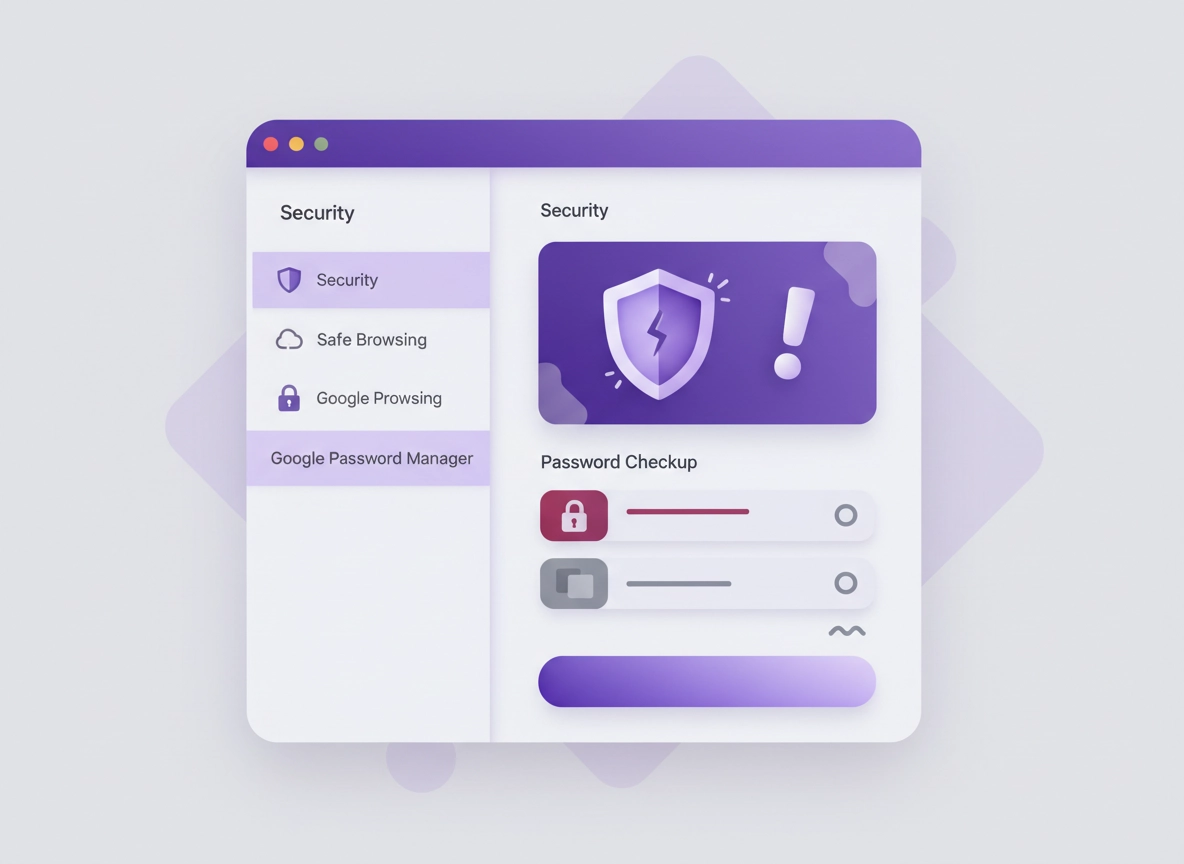
What Chrome Password Leak Detection is (and what it’s not) .
This guide reflects current Chrome + Google Password Manager behavior (not older “flags” era implementations).
Chrome Password Leak Detection is Chrome’s ability to warn you when a password you’re using (or have saved) matches credentials that are known to be exposed in a data breach. In practical terms, it shows up as a warning like: “This password was exposed in a data breach” or “Change this compromised password.”
It’s easiest to think of it as two connected protections: (1) proactive alerts while you browse and sign in, and (2) a periodic audit you can run with Password Checkup inside Google Password Manager. The alert helps you react immediately. The checkup helps you clean up your whole password set—especially reused passwords that turn one breach into multiple account takeovers.
What it is not: it’s not antivirus, it’s not a “live hack” indicator, and it doesn’t mean your device is infected. Most “compromised password” warnings simply mean a website (or app) you used previously had a breach, and the same email/username + password combination you entered appears in breach data. That’s still serious—but it’s usually a credential risk, not a “your computer is hacked” situation.
Related: If you suspect malicious extensions, read Chrome Extension Security Check and How to check if a Chrome extension is safe.
Key terms (quick definitions) .
- Compromised password: A password that matches credentials known to have been leaked in a breach. Change it immediately.
- Password Checkup: A scan that flags compromised, reused, or weak passwords in Google Password Manager.
- Safe Browsing: Chrome’s security feature set. Compromised password warnings depend on Safe Browsing being enabled.
- Credential stuffing: Attackers try leaked username/password combos across many sites to take over accounts.
- 2FA / MFA: A second factor (app, SMS, hardware key) that reduces risk even if a password leaks.
- Passkeys: A phishing-resistant sign-in method (no shared password). Ideal for high-risk accounts.
How it works: alerts, checkups, and what Chrome actually checks .
Chrome’s leak detection has one goal: reduce the time between a breach and your remediation. The shorter that window, the less likely an attacker can successfully reuse your password elsewhere.
1) Compromised password warnings while browsing .
When enabled, Chrome can warn you if a password you enter (or one saved in the browser) is known to be compromised. On desktop, the control is a toggle under Chrome’s Security settings (more on that below). When Safe Browsing is on, Chrome can show a clear, action-oriented prompt to update the password.
2) Password Checkup: scan saved passwords at once .
Password Checkup is the “audit” side. It reviews saved credentials and categorizes them as: Compromised (change now), Reused (change soon), or Weak (upgrade when possible). It’s how you catch the quiet risks: a reused password on a low-value site that could be used to reset a high-value account.
3) Where Google Password Manager fits .
In recent Chrome versions, password management flows through Google Password Manager, which you can access from: Chrome settings, the “Passwords & autofill” area, or directly via Google’s password manager interfaces. Your saved passwords can sync (if you choose) across devices using your Google account, which is convenient—but it also means your Google account security matters a lot. If you manage passwords in Chrome, secure your Google account like it’s your master key.
Related: If you’re comparing options, see Chrome password manager vs third-party and Best password manager for Chrome.
Before you start (fast checks) .
These checks prevent wasted time and help you avoid accidental lockouts while you rotate passwords. Most “leak detection not working” complaints come down to one of: Safe Browsing disabled, you’re in a managed profile, or the password isn’t stored where you think it is.
- Check 1 — Confirm which profile you’re using: In Chrome, click your profile icon (top-right) and verify the correct Google account/profile is active. Passwords are stored per profile. If you changed profiles, you might be checking the wrong vault.
- Check 2 — Confirm Safe Browsing is enabled: Compromised password warnings require Safe Browsing. If it’s off, the toggle may appear missing or ineffective. (See Chrome Safe Browsing settings.)
- Check 3 — Identify where the password lives: Is it saved in Chrome/Google Password Manager, a third-party manager, or your operating system keychain? You can still use leak detection alerts, but checkup results depend on what’s saved in Google Password Manager.
- Check 4 — If this is a work/school device: Chrome policies may control Password Manager features (saving, exporting, breach warnings). If settings look “locked,” you may be managed.
Related: If you’re troubleshooting slowness while doing audits, see Fix slow Chrome (step-by-step).
Enable/disable compromised password warnings (desktop + mobile) .
Chrome’s “warn you if a password was compromised in a data breach” option lives inside the Security area and depends on Safe Browsing being enabled. If you’re not seeing it, go to the Troubleshooting section.
Desktop (Windows / macOS / Linux / ChromeOS) .
- 1 Open Chrome and click ⋮ (top-right) → Settings.
- 2 Go to Privacy and security → Security.
- 3 Under Safe Browsing, choose Standard protection (or Enhanced, if you prefer).
- 4 Turn Warn you if a password was compromised in a data breach On.
- 5 Optional: run Password Checkup immediately to clean up existing issues.
What “success” looks like: Chrome shows warnings during sign-in when it detects a compromised password and prompts you to change it. You can also see compromised items inside Password Checkup.
Android (Chrome + Google Password Manager) .
- 1 Open Chrome → tap ⋮ → Settings.
- 2 Open Google Password Manager.
- 3 Use Checkup to scan for Compromised passwords and follow prompts to change them.
- 4 For browser-level security controls, check Privacy and security where available (device/Chrome builds vary).
iPhone / iPad (Chrome + Google Password Manager) .
iOS integrates heavily with Apple Keychain, but Chrome still supports Google Password Manager flows. If you use Google Password Manager, run checkup and remediate compromised items. If you primarily store passwords in iCloud Keychain, you’ll want to rely on Apple’s checks there as well.
Security note: If you disable compromised password warnings, you’re choosing convenience over visibility. For most people, the better option is to keep warnings on and reduce alert fatigue by eliminating reused passwords.
Related: Pair this with Chrome Security Checkup and Chrome Password Checkup.
Run Password Checkup and prioritize fixes .
Password Checkup is where you get a clean list of what needs attention. Don’t treat every category as equal. Fixing in the right order prevents lockouts and blocks the highest-probability attacks first.
How to open Password Checkup (desktop) .
- 1 In Chrome, open ⋮ → Settings.
- 2 Go to Passwords and autofill → Google Password Manager.
- 3 Select Checkup and run the scan.
- 4 Review results by category: Compromised, Reused, Weak.
How to open Password Checkup (Android) .
- 1 Open Chrome → ⋮ → Settings.
- 2 Tap Google Password Manager → Checkup.
- 3 Follow prompts to change compromised passwords.
- Compromised (especially email + finance + work accounts)
- Reused (because one breach becomes many logins)
- Weak (upgrade gradually—use a generator)
What each status really implies .
- Compromised: Assume the password is already known to attackers. Even if you “never noticed anything,” change it. If the account is important, also rotate recovery email/phone settings and enable MFA/passkeys.
- Reused: Attackers don’t need your device—just a leaked pair. If you reused a password, you’re betting that none of those sites will leak. That bet fails eventually.
- Weak: Usually means short, common, or pattern-based passwords. They can be cracked faster (especially offline after a breach).
Related: If you want a deeper framework, see Chrome login security best practices and Chrome password storage security.
Fix compromised passwords safely (without locking yourself out) .
The biggest risk during password rotation isn’t the attacker—it’s you losing access. A safe remediation process looks like an IT runbook: verify access, rotate credentials, verify again, then clean up.
Step-by-step: the safe rotation workflow .
- 1 Start with your email account. If someone can access your email, they can reset everything else.
- 2 Confirm recovery options before changing passwords. Ensure recovery email + phone are current, and MFA works.
- 3 Change the password on the site/app (not just inside Chrome). Use a generated, unique password.
- 4 Save the new password to Google Password Manager (or your chosen password manager).
- 5 Sign out of other sessions (if the service offers “sign out of all devices”). This is crucial after compromise.
- 6 Enable MFA or passkeys for important accounts.
- 7 Re-run Password Checkup to confirm the item is cleared.
How to generate passwords that don’t create future problems .
A “strong password” isn’t just long—it’s also unique and not reused. The most reliable method is to let your password manager generate a long random string or a long passphrase, then save it automatically. Avoid “clever patterns” (like word + year + punctuation), because patterns scale for attackers.
- Best default: Use a password manager generator and save it immediately.
- If a site restricts length/characters: Use the maximum allowed length and still make it unique.
- Don’t store in notes or spreadsheets: If you must export/import, do it securely and delete the file after (see related below).
Related: If you’re migrating, see Export passwords from Chrome securely and Import passwords into Chrome securely.
What to do if Chrome offers an “automatic change” option .
Some sites may support streamlined “fix it” flows where Chrome helps you update a compromised password quickly. That can reduce friction, but you should still apply the safety workflow: confirm access, update recovery/MFA, and verify the new credential is saved correctly. If you’re in a high-security environment (work, regulated data), manual review may be preferable.
When you should switch to a dedicated password manager .
Chrome’s built-in manager is good for many users, but dedicated managers can offer stronger controls: shared vaults, admin policies, security reporting, SSO/SCIM, device posture checks, and breach monitoring dashboards. If you’re managing a team, compliance requirements, or a lot of accounts, evaluate a dedicated option.
- Good fit for Chrome’s built-in: personal use, a small number of accounts, minimal sharing.
- Good fit for third-party: families/teams, secure sharing, compliance, enterprise reporting, cross-browser workflows.
Related: Start with Best password manager for Chrome and Password breach monitoring in Chrome.
Advanced settings & security hardening (power users + enterprise) .
This is where you turn “leak alerts” into a broader, more resilient identity setup. Leak detection is important—but the best outcome is to reduce password reliance altogether for critical accounts, and to ensure that a leaked password doesn’t lead to a full compromise.
Related: For managed environments, see Chrome Enterprise Guide and Chrome enterprise security settings.
Baseline hardening: do these four things .
- 1) Keep Safe Browsing enabled: Leak warnings depend on it. Choose Standard or Enhanced based on your risk tolerance.
- 2) Turn on MFA or passkeys for high-value accounts: Email, banking, work admin, cloud storage.
- 3) Reduce password reuse to zero: Reuse is the #1 multiplier of breach damage.
- 4) Secure Chrome Sync if you use it: Sync is convenience—protect it with a secure Google account and consider encryption options.
Safe Browsing: Standard vs Enhanced (what to choose) .
The “right” option depends on your threat model. Standard protection is a reasonable default for most people. Enhanced protection can offer stronger, faster detection against dangerous sites and downloads. If you handle sensitive data (finance, admin, healthcare, legal) or you’re frequently targeted by phishing, Enhanced is worth considering—just understand the privacy tradeoffs and your organization’s policies.
Related: Read Chrome Safe Browsing settings and Enhanced Safe Browsing in Chrome.
Chrome Sync and password security .
If you sync passwords across devices, your Google account becomes the security “root.” Protect it with strong MFA, keep recovery options updated, and avoid using the same password as any other service. In enterprise contexts, consider whether sync is allowed, and whether policies require managed profiles or hardware-backed security.
- Personal devices: Sync is usually fine if your Google account is well-protected.
- Shared/public devices: Avoid syncing passwords. Use guest profiles or don’t sign into Chrome.
- Work devices: Follow policy. Use managed profiles and enterprise controls.
Related: See Chrome account sync settings and Chrome sync security risks.
Enterprise controls: what IT should know .
In managed environments, password manager features can be controlled by policy (saving passwords, exporting, and related UX). If users report missing toggles or disabled functionality, check Chrome management policies and whether the profile is managed. The goal in business settings is consistency: predictable storage, controlled sharing, and auditability.
- Policy alignment: Decide whether users may store passwords in browser vs an enterprise password manager.
- Incident response: If a breach is reported, mandate credential rotation + session invalidation for affected systems.
- Training: Teach “compromised vs reused” and why reused is a hidden risk.
Common alternatives users compare .
- Chrome built-in password manager review vs dedicated managers
- Password manager vs built-in browser passwords
- Password manager with 2FA vs relying on site-based MFA only
- Best enterprise password manager for Chrome vs unmanaged storage
Privacy & security notes (what data is used, what’s stored) .
Password leak detection sits at the intersection of privacy and security: it must detect risk without exposing your secrets. While implementation details evolve, the guiding principle is that leak detection should not require Google (or any third party) to “see your password in plain text.” From a user perspective, what matters is: you control whether warnings are enabled, whether passwords are stored, and whether they sync across devices.
Impact: Improves breach visibility; may affect browsing/telemetry depending on Safe Browsing mode; can influence account recovery outcomes.
Related: If you suspect infection, hijacking, or fake alerts, see Remove malware from Chrome and Chrome fake alert virus removal.
Recommended baseline settings .
- Option A (balanced): Safe Browsing Standard + compromised password warnings ON + Password Checkup monthly.
- Option B (maximum security): Safe Browsing Enhanced + warnings ON + unique passwords everywhere + passkeys/MFA on critical accounts.
- Option C (compatibility-first): Standard + warnings ON + focus on email/work/banking rotation first; reduce reuse gradually.
Recommended settings by goal .
| Goal | Recommended setting | Tradeoff | Best for |
|---|---|---|---|
| Balanced | Standard Safe Browsing + warnings ON + checkup monthly | Some manual cleanup required | Most users |
| Maximum security | Enhanced Safe Browsing + warnings ON + passkeys/MFA | Potentially more telemetry; more prompts | High-risk users, sensitive work |
| Compatibility | Standard + warnings ON + prioritize only critical accounts first | Longer cleanup timeline | Enterprise sites, legacy logins |
Related: If you want a broader privacy/security baseline, see Chrome privacy settings and Chrome security & privacy checklist.
Troubleshooting .
Related: For broader security diagnostics, see Chrome Security Checkup.
If you don’t see the “Warn you if a password was compromised” toggle .
This is usually caused by Safe Browsing being off or by a managed policy. Do this:
- Go to Settings → Privacy and security → Security and enable Standard protection or Enhanced protection.
- Restart Chrome after changing Safe Browsing settings.
- If the setting is still missing, check if this profile/device is managed (work/school). Policies can hide or force settings.
If Password Checkup shows nothing (but you’re sure you have passwords) .
Common causes: you’re in the wrong Chrome profile, passwords are stored in a different manager, or syncing is off and your passwords live on another device. Confirm the profile, then open Google Password Manager and search for a known site to verify credentials exist.
If you keep getting breach alerts after changing your password .
This typically happens when:
- The password wasn’t actually changed on the site (you updated only an autofill entry, not the account password).
- Multiple accounts exist (different usernames on the same site), and one still uses the compromised password.
- A reused password remains elsewhere and triggers warnings when used on other sites.
Fix: change the password directly on the website, confirm you can sign in with the new one, then update saved credentials. Re-run checkup and eliminate reuse.
If you suspect the alert is fake .
Real Chrome leak alerts appear within Chrome UI (Password Manager / Security prompts), not as random web popups asking you to “call support” or install software. If the alert is in a webpage and pushes downloads, treat it as a scam. Close the tab, check extensions, and run a malware cleanup flow.
Related: See Chrome tech support scam removal and Chrome browser hijacker removal.
If you need to reset safely .
If your browser feels unreliable (weird redirects, settings changing), do a safe reset: remove suspicious extensions, reset settings, then re-check Password Manager and Safe Browsing. Avoid “nuking” your profile unless you have your passwords safely stored and can sign back into critical accounts.
Related: Use Chrome security reset and How to reset Chrome after malware.
FAQ .
-
helpDoes a “compromised password” alert mean I was hacked?Not necessarily. It usually means the username/password combo you used appears in known breach data. You should treat it as a real risk and change the password immediately—especially if you reused it anywhere else.
-
helpWhy does Chrome require Safe Browsing for leak warnings?Chrome’s compromised password warnings are part of its broader security protections. If Safe Browsing is turned off, those protections can be reduced or unavailable—so the warning toggle may not show or may not function.
-
helpShould I use Chrome’s password manager or a dedicated password manager?For many people, Chrome’s built-in manager is enough if you use unique passwords and enable MFA/passkeys for important accounts. If you need secure sharing, enterprise controls, compliance reporting, or cross-platform workflows, a dedicated password manager is usually better.
-
helpWhat’s the fastest way to reduce risk after a leak alert?Change the compromised password on the site, ensure it’s unique, then enable MFA/passkeys where possible. Next, run Password Checkup and eliminate reuse—because reuse is what turns one breach into many takeovers.
Sources & further reading .
- Google Chrome Help: Manage passwords in Chrome (Desktop) + compromised password warnings
- Google Account Help: Change compromised passwords / start Password Checkup
- Google Password Manager: overview
Disclosure: Some pages may mention tools or services. Recommendations are editorial and based on testing and practical security principles.