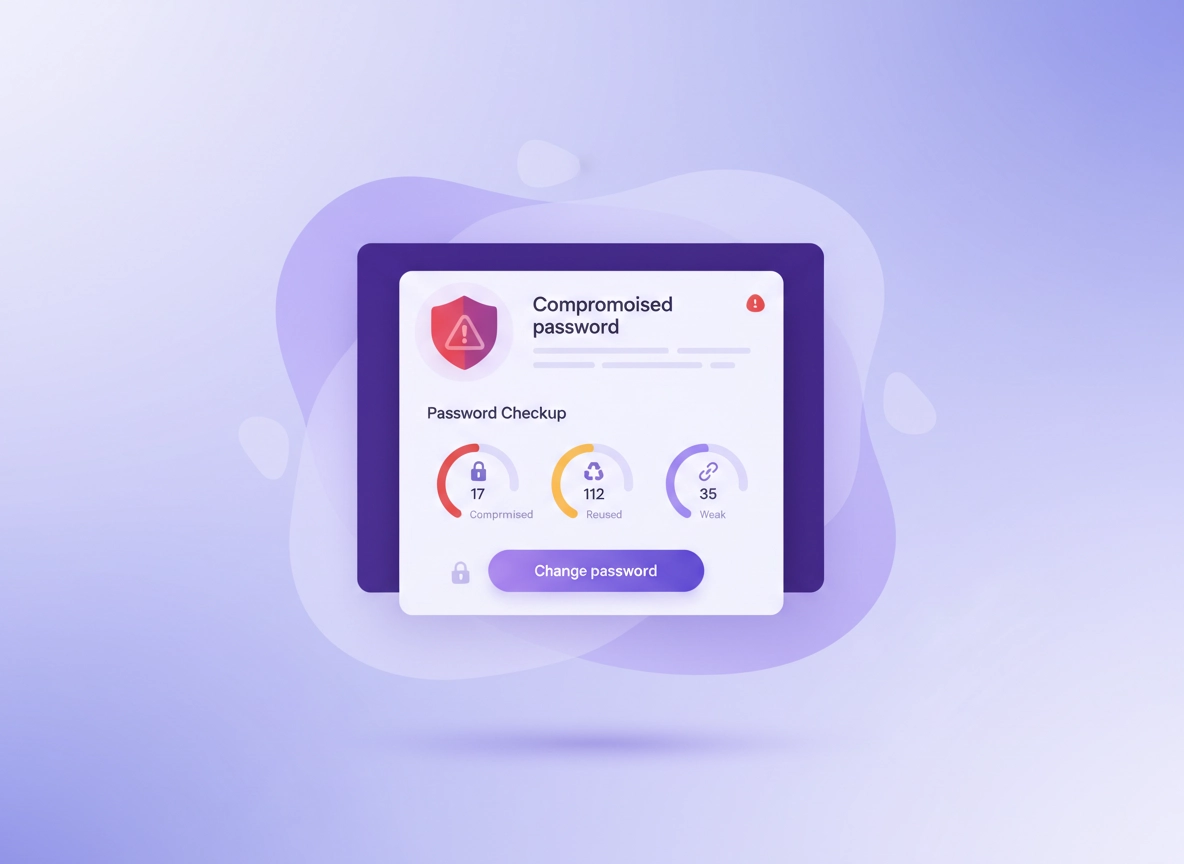
What password breach monitoring is (and what it is not) .
This guide focuses on how Chrome warns you about compromised passwords, and how to use those warnings to reduce real-world account takeover risk.
“Password breach monitoring” in Chrome usually means one of three related things: (1) a warning while you sign in that a username/password pair has appeared in known breach data, (2) a proactive scan of your saved passwords using Password Checkup, or (3) “Safety Check” / “Security Checkup” style prompts that nudge you to fix passwords that are compromised, weak, or reused. The goal is simple: if attackers already have a leaked password, Chrome wants to help you change it before it becomes an account takeover.
What it does not automatically mean: that your computer is hacked, that “Chrome found you on the dark web,” or that a random pop-up on a website is trustworthy. Real Chrome breach warnings are tied to Chrome settings and/or Google Password Manager. If an alert appears on a webpage asking you to install an extension, call a number, or pay for “breach protection,” treat it as suspicious until you verify inside Chrome itself.
Also: breach monitoring is only as useful as your hygiene. If you reuse passwords, one breach can turn into five logins taken over. If you save passwords in multiple places (Chrome + a third-party password manager + a work browser profile), you can miss an alert in one place. This guide will help you set a baseline that is easy to maintain.
Related: For a wider buying guide (with pros/cons), see Best Password Manager for Chrome.
Key terms (quick definitions) .
- Compromised password: A password that matches breach datasets (or a known exposed credential) and should be changed immediately.
- Reused password: The same password used on multiple sites. One breach can cascade into many logins.
- Password Checkup: The tool in Google Password Manager that scans saved passwords for compromise, reuse, and weakness.
- Chrome profile: A separate Chrome “container” (bookmarks, extensions, passwords). Work vs personal profiles can have different password stores.
If you’re here because you saw a notification like “A data breach exposed your password,” your real mission is: confirm it in Password Checkup, change the password on the affected site, and then stop reuse so the next breach can’t domino.
Before you start (fast checks) .
These checks prevent the most common “I can’t find breach monitoring / it’s not working” situations. Do them once, and you’ll usually fix 80% of problems before you even touch Password Checkup.
- Check 1: You’re in the right Chrome profile. Click your profile icon (top right). Breach alerts only apply to the profile that saved the passwords.
- Check 2: Chrome is updated. Go to chrome://settings/help and update/relaunch.
- Check 3: Password saving is enabled. Go to chrome://password-manager/settings and ensure “Offer to save passwords” is on.
- Check 4: Sync is consistent. If you use a Google account, verify sync isn’t paused. A paused sync can hide Password Manager features and delay alerts.
- Check 5: You didn’t disable leak detection. Some users turn off “warn you if passwords are compromised” to silence alerts. We’ll check that setting below.
- Check 6: If this is a work device, policies may control it. Managed Chrome can restrict Password Manager and leak detection.
Related: If you suspect your browser is “acting weird” while you troubleshoot, start here: Remove Malware from Chrome.
One more sanity check: if the only “breach” message you saw was inside a random website banner or a push notification, do not click it. Open a new tab, type passwords.google.com yourself (or use the Chrome menu path below), and verify the issue where Chrome expects it to appear.
Step-by-step: enable alerts + run Password Checkup .
The exact wording in Chrome changes over time, but the “real” workflow stays the same: you enable compromised password warnings, run the checkup, then fix compromised + reused passwords. Here are the most reliable paths.
Part A: Turn on “warn you if passwords are compromised” .
- 1 Open Chrome settings: ⋮ (top right) → Settings.
- 2 Go to Autofill and passwords → Google Password Manager (or “Password Manager”).
- 3 Open Settings inside Password Manager.
- 4 Enable “Warn you if passwords are compromised” (sometimes labeled “Password alerts” or similar).
- 5 If prompted, confirm with your device security (Windows Hello / macOS / phone unlock).
What “success” looks like: You can open Password Manager settings and see the compromised-password warning toggle enabled, and you can run Password Checkup without errors.
Part B: Run Password Checkup (the real “breach monitoring” scan) .
- 1 Open Google Password Manager from Chrome settings (same path as above).
- 2 Tap/click Password Checkup.
- 3 Review the three categories: Compromised, Reused, and Weak.
- 4 Start with Compromised and change each password on the site/app.
- 5 Next, fix Reused passwords by giving every site its own unique password.
- 6 Finally, clean up Weak passwords (short, guessable, or patterns).
If you’re thinking “why reused before weak?” — because reuse is the multiplier. A strong password reused across three sites becomes weak in practice if it’s ever leaked once. Fix compromised first (urgent), then reuse (prevents domino), then weak (overall hygiene).
Related: If you want the deeper security angle (including encryption and where passwords live), see Chrome password storage security.
Part C: Confirm your changes actually “took” .
- Re-run Password Checkup after you change passwords. Compromised entries should drop off once updated (some sites take a moment).
- Verify you changed the password on the right account. If a site has multiple logins, confirm you updated the one that was saved in Chrome.
- Update saved credentials. When you sign in with the new password, Chrome should prompt to update/save.
- Log out of other sessions on critical accounts. If your email or bank was compromised, sign out other sessions (usually in the account security area).
Common variations (Windows, macOS, Android, iPhone) .
- Windows / ChromeOS: You may see Password Manager as its own page. Device unlock might be Windows Hello or your OS password.
- macOS: Password viewing and some edits may require Touch ID / password confirmation.
- Android: Often: Chrome → Settings → Password Manager → Password Checkup. Some options appear under “Privacy and security.”
- iPhone (iOS): Chrome integrates with iOS autofill. You can still use Google Password Manager, but iOS settings can affect autofill behavior.
If your goal is “I want breach alerts everywhere I sign in,” the best move is to keep your passwords in one place: either Chrome/Google Password Manager, or a dedicated password manager that also includes breach monitoring. If you split storage, you split alerts.
Advanced: safer workflows, passkeys, and “dark web monitoring” options .
Password breach monitoring is helpful, but it’s still reactive: it tells you after a password is known to be exposed. The “advanced” win is reducing how often passwords matter in the first place (passkeys/2FA), and building a cleanup workflow that you can repeat in 15 minutes once a month.
Related: If you’re comparing tools, start here: Chrome password manager vs third-party.
1) Upgrade high-value accounts first .
If attackers get into your email, they can reset everything else. Same for your primary cloud identity (Google, Microsoft, Apple). For those accounts, do three upgrades:
- Use a unique password (never reused anywhere).
- Enable 2-Step Verification (authenticator app or security key if possible).
- Adopt passkeys when offered. Passkeys reduce phishing and credential reuse risk.
Even if you keep using passwords for most sites, protecting the “root” account changes the game. It prevents the most damaging recovery-chain attacks.
2) Build a monthly “Password Hygiene Loop” .
The highest-leverage habit is a quick monthly sweep:
- Run Password Checkup.
- Fix anything newly compromised immediately.
- Reduce the “reused” count toward zero over time.
- Delete old accounts you no longer use (less surface area).
3) Dark web monitoring vs password breach monitoring .
People often use “dark web monitoring” to mean “tell me if my email or password got leaked.” Chrome’s Password Checkup mostly focuses on the credentials you’ve saved. Dark web monitoring tools may look for your email address, phone number, names, and other identifiers in breach dumps.
The important part: regardless of where you detect a leak, the response is the same: change passwords, stop reuse, enable 2FA/passkeys, and watch for phishing. Monitoring is only a trigger; the protection comes from what you do next.
4) If you’re in a business / managed environment .
If your Chrome is managed (work laptop, school Chromebook), your admin can enforce policies that: disable password saving, require a specific password manager, restrict sign-in, or manage extensions. If breach monitoring matters for the organization, the better approach is a dedicated tool that supports: admin reporting, enforced 2FA, shared vault controls, and incident workflows.
For a practical “Chrome at work” security baseline, start here: Chrome corporate security guide.
Common alternatives users compare .
Privacy & security notes (data, trust, and scam warnings) .
Breach monitoring is security, but it still touches sensitive data: your credentials. The good news is you don’t need to understand cryptography to use it safely — you just need a few “trust rules” so you don’t fall for fake breach alerts.
Impact: Uses your saved password list to warn about compromise, and nudges you to change passwords on affected sites. Main risks are phishing (“fake breach alerts”) and password reuse (domino takeovers).
Related: If the alert appeared right after installing a new extension, audit it: Chrome extension security check.
How to spot a fake “data breach” warning .
- It appears on a random webpage and not inside Chrome settings/password manager.
- It asks you to call a number, install software, or pay for “breach removal.”
- It uses panic language (“Your device is infected!”) rather than “Change your password.”
- The link is weird (misspellings, odd domains). Real checks are available via Chrome settings or by typing the official site yourself.
Recommended baseline settings .
- Option A (balanced): Enable compromised password warnings + run Password Checkup monthly + unique passwords for important accounts.
- Option B (maximum security): Option A + passkeys/2FA everywhere possible + a dedicated password manager for vault controls.
- Option C (compatibility): Keep alerts enabled, but if a site breaks due to security settings, fix it per-site rather than disabling monitoring globally.
Recommended settings by goal .
| Goal | Recommended setting | Tradeoff | Best for |
|---|---|---|---|
| Balanced | Enable compromised password warnings + monthly Password Checkup | Occasional prompts to update saved passwords | Most users |
| Maximum security | Passkeys/2FA for key accounts + unique passwords everywhere | Initial setup time; some sites feel “slower” to log into | Remote work, finance, high-risk users |
| Compatibility | Keep monitoring on, but troubleshoot per-site and per-profile | More manual fixes when something breaks | Enterprise/banking sites, older workflows |
Troubleshooting (no alerts, false popups, managed devices) .
Related: For broader browser security posture, see Chrome security checkup.
If you can’t find Password Checkup .
Most commonly, you’re in the wrong profile or password saving/sync is off. Try: (1) Switch Chrome profiles, (2) open chrome://password-manager, (3) ensure “Offer to save passwords” is enabled, and (4) update Chrome via chrome://settings/help. If you’re on a managed device, policies may hide it.
If you’re getting “data breach” popups on websites .
Treat them as potentially malicious until proven otherwise. Don’t install anything from the popup. Instead, open Chrome settings → Google Password Manager → Password Checkup and look for compromised items there. If the site tries to force notifications, review site notification permissions and disable suspicious ones: Chrome notification permissions.
If you changed the password but Chrome still flags it as compromised .
This usually happens when the saved password entry wasn’t updated, or the account has multiple logins. Sign in with the new password and accept Chrome’s prompt to update the saved login. Then re-run Password Checkup. If the site uses a separate app password or legacy login, update that too.
If you never get breach alerts, even with reused passwords .
Reuse doesn’t always trigger an “alert” by itself; it’s a risk category. You’ll see it inside Password Checkup. Also, alerts may rely on saved passwords. If you don’t save passwords, Chrome has less to scan. If you use a different password manager, you should use that tool’s breach monitoring instead.
If a work / school device blocks password saving .
That’s normal in many organizations. They may require an enterprise password manager or SSO. Don’t try to “work around” it. Use the approved tool, enable 2FA/passkeys, and consider a separate personal profile on your own device. For admin-oriented setup and policy thinking, see: Chrome enterprise guide.
If you suspect malware or an extension is stealing sessions .
Breach monitoring won’t stop a compromised device. If you see unexpected logins, fake prompts, new extensions you didn’t install, or redirects, run a cleanup flow first: remove malicious extensions, and follow the full guide: remove malware from Chrome.
FAQ .
-
helpIs Chrome “dark web monitoring” the same as Password Checkup?No. Password Checkup focuses on the passwords you’ve saved (compromised, reused, weak). “Dark web monitoring” usually means scanning breach dumps for your email/identity data. They overlap in purpose, but the best protection is still changing compromised passwords quickly and stopping reuse.
-
helpWhy does Chrome say my password was exposed in a breach?It means the password (or a close match) appears in known breach data, and you should change it immediately—especially if it’s reused anywhere else. Confirm inside Google Password Manager → Password Checkup, then change it on the site and update the saved entry in Chrome.
-
helpCan I turn breach alerts off?Yes, but it’s usually a mistake. If alerts annoy you, fix the compromised/reused passwords first—alerts typically calm down once your password list is healthy. If you do turn them off, you’re choosing to find out about compromise later (often via account takeover).
-
helpWhat should I do first if my email password was exposed?Change it immediately to a unique password, enable 2-step verification (or passkeys), and sign out of other sessions in your account security settings. Then run Password Checkup and fix anything reused, because attackers often chain from email into other accounts.
Sources & further reading .
- Google Password Manager: Password Checkup
- Google Account Help: change compromised passwords (Password Checkup guidance)
- Google: Security Checkup
- Guidebooks with Google: take a Password Checkup
Disclosure: Some pages may mention tools or services. Recommendations are editorial and based on practical testing and common security best practices.