
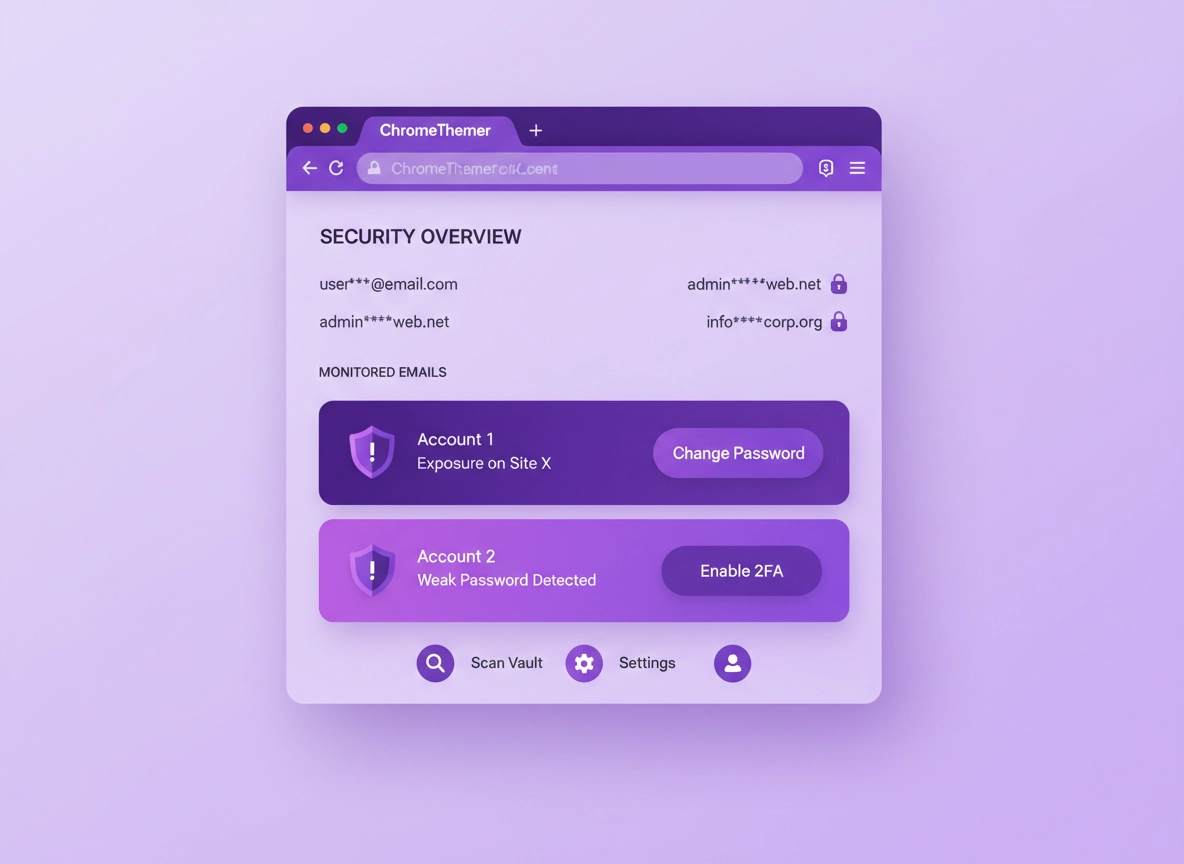
What “dark web monitoring” really means .
Most “dark web monitoring” features are better understood as “breach monitoring + threat-intelligence alerts.”
When a password manager for Chrome says it offers dark web monitoring, it’s usually not “someone manually searching the dark web for your secrets.” In practice, the feature works like this: the provider watches for your identity data (commonly your email address, sometimes a phone number, username, domain, or employee list) to appear in known breach datasets, leaked credential dumps, paste sites, criminal forums, or reseller markets — then it tells you quickly so you can rotate credentials before attackers use them.
The high-value part isn’t the notification — it’s the guided remediation. A good password manager can map an alert to items in your vault, identify reuse, generate strong replacements, update saved logins, and re-check the vault for other weak points. The goal is to cut off the most common attack pattern after a breach: credential stuffing (attackers trying the same email+password on many sites until something works).
In Chrome specifically, “dark web monitoring” usually lives in one of three places: (1) inside your password manager extension (alerts + actions), (2) inside the provider’s web vault or mobile app (more details, history, identity monitoring), and (3) alongside Chrome’s own safety features such as password leak detection / password checks (helpful, but a different scope).
Start here: If you’re still choosing a tool, use Best Password Manager for Chrome and compare security fundamentals before “extra features.”
Key terms (quick definitions) .
- Data breach: A company’s data (emails, password hashes, names, phone numbers, payment details) is stolen and later shared or sold.
- Credential stuffing: Attackers try leaked email+password pairs across many services to find reuse.
- Password hashing: Many sites store a scrambled form of your password (a “hash”). Some hashes can be cracked, especially if weak or unsalted.
- Vault health / password health: A password manager’s audit feature that flags weak, reused, old, or exposed passwords.
- Account takeover (ATO): When an attacker gains control of an account (often starting with your email) and uses it to reset others.
- Passkeys: A modern, phishing-resistant login method tied to your device (often replacing passwords entirely on supported sites).
What it can’t see (and why that matters) .
“Dark web monitoring” sounds like total visibility — but it’s not a magic scanner. Understanding its limits helps you interpret alerts correctly and avoid paying for the wrong thing.
Limit #1: Not every leak becomes “searchable” intelligence .
Some stolen data is sold privately, traded in small circles, or used immediately without ever being published. If your data is part of a targeted breach or an attacker is using it quietly, you might never see a “dark web alert” — even though you’re at risk. That’s why your baseline security (unique passwords, MFA, passkeys, device hygiene) matters more than any alerting feature.
Limit #2: Alerts are identity-based, not account-based .
Most systems monitor identifiers (email/phone) and then try to infer which accounts matter. But an email address appearing in a breach does not always mean your current password was exposed — it might be an old password, a hashed password, or only profile details. You still respond, but you respond intelligently: prioritize your email, financial accounts, and anything reused.
Limit #3: False positives and “old news” happen .
Many people see alerts that refer to very old breaches. That isn’t automatically useless. A 5-year-old leak still matters if the password was reused, if the same email is still active, or if attackers can use profile data for phishing. But it changes your urgency: you’re rotating and hardening, not assuming an attacker is inside your accounts right now.
So what should you do with the limits? .
- Use alerts as a trigger for action, not as a guarantee of safety or compromise.
- Keep the baseline strong: unique passwords, MFA/passkeys, device protection, and safe browsing habits.
- Pair it with vault audits and (for businesses) policy enforcement and logging.
Related: For the broader breach response mindset, see Password Manager Data Breach Protection and Password Manager Hacking Risks.
Before you start: 5 fast checks .
These quick checks prevent the most common “I enabled it but nothing happens” problems — and they also strengthen your protection immediately. Do them in this order (it’s intentionally prioritized for account takeover prevention).
- Check 1: Secure your primary email first. Your email inbox is the master key because password resets land there. Enable MFA (authenticator app or hardware key if possible).
- Check 2: Confirm your password manager account has MFA. If someone gets into your password manager account, monitoring won’t save you.
- Check 3: Verify your monitored identity list. Make sure you’re monitoring the email addresses you actually use to log into sites (personal + work, old aliases included).
- Check 4: Run a vault audit. Look for reused passwords, weak passwords, and old passwords. Monitoring tells you “something happened”; the audit tells you “where you’re exposed.”
- Check 5: Make sure alerts can reach you. Allow notifications in the extension/app, and verify your contact email/phone in your password manager profile.
Related: If you’re working through your security baseline in Chrome, start with Chrome Security Checkup and Chrome Password Leak Detection.
Step-by-step: enable + configure dark web monitoring in Chrome .
The exact menu labels vary by provider, but the workflow is consistent. Use this as a universal setup checklist for Chrome password manager extensions. If your provider offers both “breach monitoring” and “dark web monitoring,” enable both — they usually feed the same alert stream but differ in wording and coverage.
- 1 Open your password manager extension in Chrome → sign in (if needed) → open Settings or Security.
- 2 Find Monitoring, Security alerts, Dark web monitoring, or Breach monitoring and toggle it On.
- 3 Add and verify the identities you want monitored: primary email, secondary emails, and any aliases you still receive mail on.
- 4 Enable notifications for the extension/app, and make sure your browser/OS notifications aren’t blocking it.
- 5 Run a Password Health Check (or Vault Audit). Fix reuse first. Then fix weak passwords. Then fix old passwords.
- 6 (Optional but recommended) Turn on 2FA/MFA for your password manager account and store recovery codes securely.
- 7 Confirm the feature is working by checking for a Monitoring status panel (it should show “Active” and list your monitored identities).
What “success” looks like: Your dashboard shows monitoring as active, lists your monitored emails, and you can see an “alert history” or “security events” screen — even if it’s currently empty.
Related: If your provider includes a vault-wide audit, use Password Manager Password Health Check and Password Generator as your ongoing maintenance loop.
Common variations (desktop vs mobile vs work accounts) .
- Windows / ChromeOS: Extension notifications often depend on OS notification settings. If alerts don’t pop up, check Windows Focus Assist / Do Not Disturb.
- macOS: If you recently installed the extension, macOS may block notifications until you approve them in System Settings.
- Android / iPhone: Identity monitoring details are often richer on mobile apps than inside the Chrome extension UI. Confirm it’s enabled in the app too.
- Work accounts: In some enterprise setups, monitoring features may be admin-controlled. If you don’t see monitoring settings, you may be on a managed plan.
Response checklist: exactly what to do after a dark web alert .
Here’s the calm, repeatable playbook. It’s written so you can follow it whether the alert contains passwords, only an email address, or “personal data exposed.” If you do nothing else, do Steps 1–4.
Step 1: Identify what was actually exposed .
Open the alert details and look for: which identity (email/phone) was found, what data types were included (password, hash, username, address, phone), and when the breach happened (or when it was first seen). This tells you if you’re responding to password risk, phishing risk, identity risk — or all three.
- If a password was exposed: assume credential stuffing will happen (or has already happened).
- If only your email/phone was exposed: phishing and SIM-swap attempts become the bigger risk.
- If “password hash” was exposed: the risk depends on the hash strength and your password strength (weak passwords can be cracked).
Step 2: Secure your email account immediately .
Your email controls resets. If attackers get your email, they can take everything else. Do these in order:
- Change your email password to a unique, long password generated by your password manager.
- Enable MFA (authenticator app or hardware key is ideal; avoid SMS-only if you can).
- Review account recovery options (recovery email/phone) and remove anything you don’t recognize.
- Check forwarding rules and authorized devices/sessions. Sign out of anything suspicious.
Related: If you’re tightening your general browser security at the same time, run Chrome Security Checkup and review your Chrome Account Sync Settings.
Step 3: Fix reuse (this is where most real damage happens) .
In your password manager, run a vault health check and filter for reused passwords. Any password that appears more than once is a priority, especially if it’s tied to high-value accounts (email, banking, payroll, cloud storage, Apple/Google accounts, social accounts).
- Change reused passwords first, starting with accounts that can reset other accounts.
- Then change any “weak” passwords (short, common, or pattern-based).
- Then change old passwords for critical accounts, even if they’re strong (rotation reduces long-term exposure).
Pro move: If your password manager supports it, enable “auto-fill + auto-save” for the update session. You’ll rotate faster and you’re less likely to make mistakes (like reusing a password by accident).
Step 4: Turn on strong MFA and passkeys everywhere you can .
Password changes stop reuse-based attacks, but MFA/passkeys reduce the impact if a password leaks again in the future. Prioritize MFA on email, financial accounts, and your password manager account. If a site supports passkeys, consider migrating to passkeys for that site.
Related: Use Password Manager Two-Factor Authentication Guide and review Master Password Security to make sure you’re not protecting everything with a weak single point of failure.
Step 5: Watch for signs of account takeover (ATO) .
After a breach alert, you don’t need to be paranoid — you need to be observant. For the next 2–4 weeks, watch for: password reset emails you didn’t request, login approvals you didn’t trigger, new devices, new sessions, suspicious “security alerts,” or unusual transactions.
- Review “recent activity” pages on your key accounts (email, banking, cloud storage).
- Set up account alerts where possible (logins from new devices, transfers, purchases).
- If you use SMS-based MFA, contact your mobile provider to add extra account protections (PIN/passphrase).
Step 6: If identity data was exposed, reduce identity risk .
If the alert includes personal data (address, DOB, phone, ID numbers, partial payment info), treat it as a fraud + impersonation risk. Actions depend on country, but the principles are consistent: strengthen authentication, reduce account recovery weaknesses, and increase monitoring.
- Harden bank and mobile carrier security (stronger verification, alerts, account locks where available).
- Be skeptical of inbound calls/texts after the breach (social engineering spikes).
- Use a password manager for secure notes to store “verification answers” that aren’t guessable.
Advanced: evaluating a provider (privacy, coverage, enterprise) .
If you’re comparing tools (or pitching a plan to a team), “dark web monitoring” is only valuable if it’s implemented responsibly. Use the checklist below to separate marketing from meaningful security.
Related: Compare fundamentals first: Password Manager Security Features Comparison and Password Manager Pricing Comparison.
Coverage: what identities and data types are monitored? .
Ask what the provider can monitor, and what it can’t. Common tiers include:
- Email monitoring: baseline for almost everyone (personal + work).
- Phone monitoring: helpful for SIM-swap and phishing risk, but depends on region and provider.
- Usernames: useful if you reuse a handle across sites.
- Domains (business): enterprise monitoring for employee exposure tied to company email domains.
- Banking/identity monitoring: sometimes offered, but often outside the core password manager feature set.
Privacy: what does the provider learn about you? .
Dark web monitoring works by checking your identifiers against datasets. That means you’ll share some identity data with the provider by design. The questions that matter are: how it’s stored, how it’s queried, and how it’s protected.
- Minimization: Do they require only email, or do they pressure you to add excessive personal details?
- Encryption: Are monitored identities encrypted at rest? Are alerts delivered securely?
- Retention: Can you delete monitored identities and history?
- Separation: Is monitoring separate from ad/tracking systems (it should be)?
- Transparency: Do they explain sources and limitations without “scare language”?
Actionability: can the tool actually help you fix the problem? .
The best monitoring systems connect alerts to actions:
- Vault mapping: It can tell you which saved logins relate to the exposed site/service.
- Reuse detection: It can identify reused passwords across your vault.
- Guided updates: It supports quick password changes and safe saving/updating.
- MFA prompts: It nudges you to enable MFA/passkeys on high-risk accounts.
Enterprise & compliance: what security teams should care about .
For businesses, monitoring is part of an exposure management loop. Look for:
- SSO / directory integration: centralized identity, onboarding/offboarding, and policy enforcement.
- Role-based access controls: separate admin duties from vault access (least privilege).
- Audit logs: security teams need activity logs for investigations and compliance reporting.
- Shared vault governance: visibility into who has access to shared credentials and when it changes.
- Response workflows: the ability to notify affected users and track remediation completion.
Common alternatives users compare .
Privacy & security notes .
Dark web monitoring is a signal — it tells you your identifiers appeared in known leak sources. Your security outcome depends on your response: unique passwords stop reuse, MFA/passkeys reduce takeover risk, and good browser/device hygiene reduces compromise risk.
Impact: Helps you react faster to exposure, but does not prevent breaches. Prevention still depends on password uniqueness, MFA, and safe browsing.
Related: If you suspect active compromise (popups, redirects, unknown extensions), see Remove Malware from Chrome and Chrome Extension Security Check.
Recommended baseline settings .
- Option A (balanced): Monitor primary email + enable vault health checks + MFA on email and password manager.
- Option B (maximum protection): Monitor all active emails + rotate reused passwords + prefer authenticator/hardware-key MFA + use passkeys where available.
- Option C (compatibility-focused): Keep monitoring on, but phase changes: fix high-value accounts first to avoid lockouts and friction.
Recommended actions by goal .
| Goal | Recommended action | Tradeoff | Best for |
|---|---|---|---|
| Balanced | Monitor primary email + fix reused passwords + MFA on email | Some setup time | Most users |
| Maximum protection | Monitor all identities + rotate high-value passwords + enable passkeys/MFA everywhere possible | More friction during setup | High-risk users, remote workers |
| Team/enterprise readiness | Domain monitoring + SSO + audit logs + shared vault governance | Requires admin planning | Businesses and IT teams |
Troubleshooting .
Related: If this seems extension-related, check Chrome Privacy & Security Settings Overview and Chrome Extension Security.
If you don’t see a “dark web monitoring” option .
Many providers place monitoring behind a paid tier or behind the web vault (not the extension). First, check your plan features. Then open your provider’s web vault in a new tab and look for Security, Monitoring, or Identity. If you’re on a managed business plan, the admin may need to enable it for your organization.
If alerts never arrive (even though monitoring says “on”) .
Usually this is notifications being blocked. Fix it by:
- Allowing notifications for the password manager extension/app.
- Checking OS “Do Not Disturb” / Focus modes.
- Verifying the monitored email address (some systems won’t alert until verification is complete).
- Confirming you didn’t accidentally monitor a different alias than the one you actually use to log into sites.
If you get an alert but can’t tell which accounts are affected .
Some alerts only show a breach name and the exposed identity. The correct move is to run a vault audit and search for the email address in your stored logins. Then prioritize by value: email → financial → cloud storage → social. If your provider supports “exposed password” mapping, use it — otherwise, treat it as a reuse problem and rotate systematically.
If you changed passwords and now you’re locked out .
Lockouts usually happen due to old auto-fill entries, saved sessions, or account security checks triggered by rapid changes. Slow down, sign out of all sessions, then sign in fresh using the updated credential. If the service supports it, store recovery codes in a secure note in your vault. If you’re worried about recovery security, read Password Manager Recovery Options.
If you need to reset safely .
Don’t “nuke everything” unless you have to. Start with the essentials: secure email + rotate reused passwords + enable MFA. If Chrome itself is behaving strangely (redirects, popups, new extensions), do a controlled clean-up using Chrome Security Reset and a malware scan guide such as Chrome Malware Cleanup Guide.
FAQ .
-
helpDoes a “dark web alert” mean I’ve been hacked?Not necessarily. It usually means your email (and possibly a password or profile data) appeared in a known leak source. The biggest risk is password reuse. Treat it as a trigger to rotate affected passwords, secure your email, and enable MFA — even if there’s no sign of active compromise.
-
helpWhat’s the difference between breach monitoring and dark web monitoring?In most password managers, the terms overlap. “Breach monitoring” usually refers to known breach datasets and credential dumps. “Dark web monitoring” is often the same thing marketed with scarier language, sometimes with broader “threat intel” sources. What matters is coverage, speed, and whether the tool helps you fix reuse quickly.
-
helpCan dark web monitoring see inside encrypted chats or private forums?No. Monitoring relies on data becoming accessible to the provider through known datasets, partners, crawls, or public/redistributed sources. If stolen data is traded privately and never published, you might not receive an alert — which is why unique passwords and MFA are still the real defense.
-
helpIf the breach is old, do I still need to do anything?Yes — but you can respond calmly. Old breaches still matter when passwords were reused, when your email is still active, or when the leaked data can be used for phishing. Rotate any reused passwords, secure your email with MFA, and treat identity exposure as a “be more skeptical of inbound messages” warning.
-
helpIs Chrome’s built-in password checking enough?Chrome’s password safety tools can help you identify compromised or weak passwords, but they don’t replace a full password manager’s vault governance, sharing controls, enterprise features, or identity monitoring workflows. If you manage many accounts, share credentials, or need auditing, a dedicated manager is usually stronger.
-
helpWhat should a business do when employee emails appear in breaches?Treat it as exposure management: enforce MFA, rotate reused passwords, reduce shared credential sprawl, and track remediation completion. Ideally you want SSO, role-based access, and audit logs so security teams can verify policy compliance and respond consistently.
Sources & further reading .
- Google Chrome Help Center
- Google Account Help (security, suspicious activity, recovery)
- Have I Been Pwned (breach awareness resource)
- NIST Digital Identity Guidelines (MFA and authentication fundamentals)
- FTC consumer guidance (fraud and identity protection basics)
Disclosure: Some pages may mention tools or services. Recommendations are editorial and based on practical testing and security best practices.