What “corporate Chrome security” really means .
This guide targets modern Chrome deployments: cloud-managed browsers, enterprise policies, and security controls designed for real-world corporate risk.
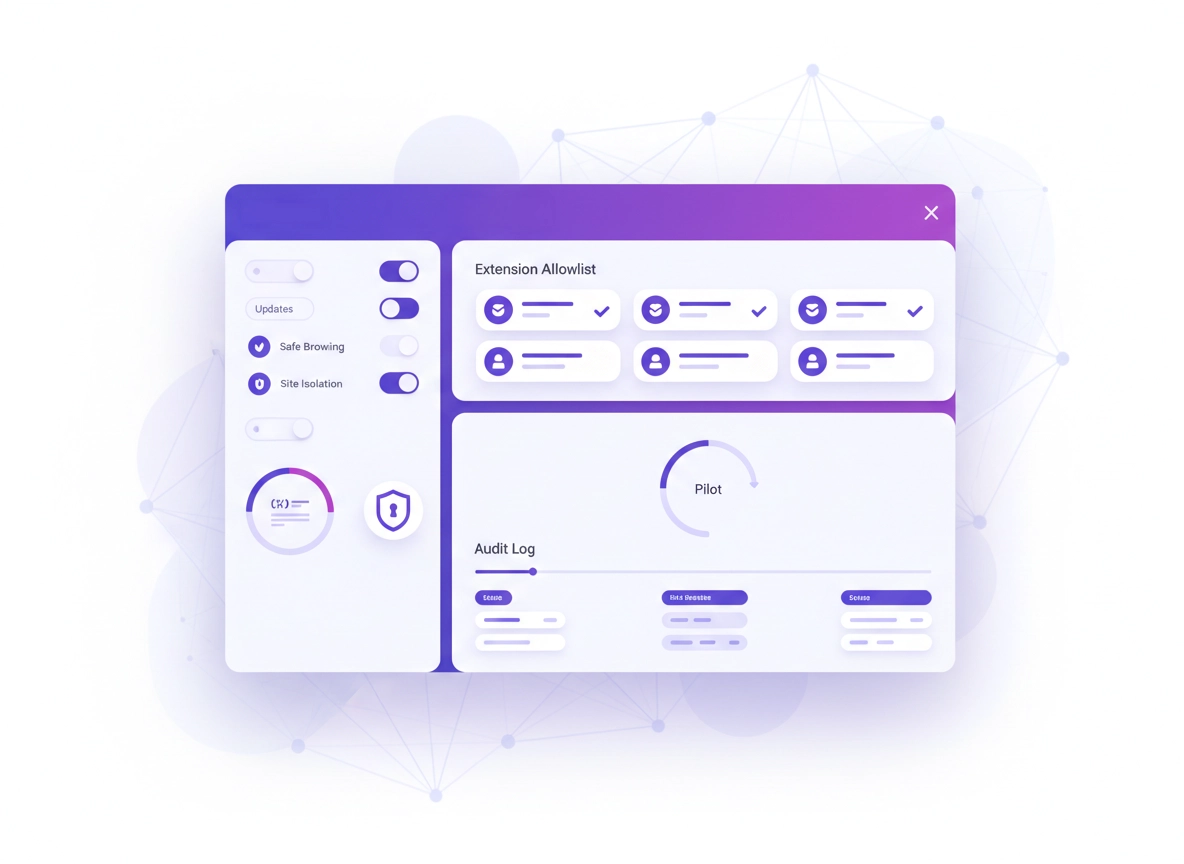
“Corporate security” in Chrome is not one setting. It’s a system built from multiple layers: policy enforcement (who can change what), protective features (anti-phishing, isolation, safer downloads), extension governance (the biggest browser supply-chain risk), identity & session controls (who is signed in and what data syncs), and visibility (logs and signals that help you detect and investigate).
The browser is now the place where your data actually lives and moves: cloud apps, SSO portals, HR systems, finance tools, customer data, internal dashboards, admin consoles. That means attackers target browsers with: phishing, credential theft, malicious extensions, session hijacking, drive-by downloads, and social engineering. If you secure Chrome like a consumer app, the enterprise loses the control points that keep data and identities safe.
A solid corporate posture looks like this: admins define a baseline, users get a consistent and secure experience, updates roll out quickly, extensions are controlled, risky behaviors are blocked, and security teams have enough audit signal to respond. You don’t need perfection—you need a baseline that is enforceable, observable, and maintainable.
Recommended next reads: Chrome Enterprise Guide · Chrome IT Admin Security Settings · Chrome Security Policy Setup
Key terms (quick definitions) .
- Chrome policies: Admin-enforced rules that lock or configure browser behavior at scale (cloud, GPO, MDM).
- Extension allowlist / blocklist: A controlled list of what users may install (or may never install). In corporate security, allowlist-first is common.
- Safe Browsing: Chrome’s built-in anti-phishing and malware protections with multiple levels (standard vs enhanced).
- Site Isolation: A security architecture feature that isolates sites into separate processes to reduce cross-site data exposure during attacks.
- Managed browser: A Chrome instance controlled by organization policy, often with reporting, enforcement, and identity integration.
Before you start (fast checks for admins) .
Before you change anything, confirm the environment and decide how you’ll enforce controls. Corporate Chrome security fails most often for a boring reason: policy scope (who is covered) and policy precedence (which policy “wins”). Do these checks first to avoid wasted time.
- Know your management path: Are you using Chrome Browser Cloud Management, Windows Group Policy, macOS plist, or an MDM?
- Confirm “managed” state: Make sure the browser is actually receiving enterprise policies (test on a pilot OU/device group).
- Inventory extensions: Export a list of installed extensions (including their permissions) before you lock installs.
- Map business-critical apps: Identify the web apps that cannot break (SSO portal, HR/payroll, finance/banking, CRM, ERP).
- Decide your baseline goal: “Balanced security” vs “maximum control” vs “high compatibility.” Your org may need different baselines per department.
Related: For a wider browser security baseline, see Chrome Security Audit Guide and Chrome Browser Hardening Checklist.
Baseline strategy: pick your “control style” .
Every corporate Chrome deployment ends up choosing one of these styles. There’s no universally “best” option— the right one depends on risk, compliance pressure, and how standardized your workforce is.
| Control style | How it works | Pros | Cons | Best for |
|---|---|---|---|---|
| Balanced baseline | Secure defaults + limited locks; allow most sites; allow listed extensions, but not overly strict | Low support burden; fast adoption | Some residual risk from user choices | Most organizations |
| Allowlist-first | Extensions and risky features are locked down; only approved tools are allowed | Huge risk reduction; easier compliance story | Higher admin workload; change requests | Finance, healthcare, regulated orgs |
| High-control / kiosk-like | Strong restrictions; limited browsing; strict identity and session rules | Very strong data control | Breakage risk; user friction | Frontline, shared devices, contact centers |
Step-by-step: a deployable Chrome corporate security baseline .
This baseline is designed to be practical. You can roll it out to a pilot group first, measure impact, then expand to your wider org. If you’re already using Chrome Enterprise, combine this with: Chrome Enterprise Security Settings and Chrome Enterprise Policy Hardening.
- 1 Choose your enforcement channel: Cloud management, Windows GPO, macOS plist, or MDM. Start with one and keep it consistent.
- 2 Define update and version strategy: set an update “ring” (pilot → broad), short deadlines for critical updates, and rollback only as a controlled exception.
- 3 Enable core protections: Safe Browsing, stronger download protection, and site-level isolation protections where possible.
- 4 Lock extension installs: move to an allowlist-first posture (or block known-risk categories) and remove legacy unmanaged extensions.
- 5 Standardize profiles and sign-in: reduce “shadow profiles,” prevent risky sync behaviors, and make identity consistent with your org policy.
- 6 Harden sensitive areas: cookies, site permissions, certificate handling, DNS/security settings, and safe browsing experience levels.
- 7 Turn on visibility: configure reporting and logs so the security team can investigate incidents (phishing, extension changes, anomalous behavior).
- 8 Document “break glass”: define how exceptions are approved (temporary allowlist, per-OU policy, time-limited access).
What “success” looks like: Chrome shows as “managed,” users cannot install random extensions, protections are active, updates are predictable, and IT has a reliable baseline that doesn’t change based on individual user choices.
Related: Chrome Managed Browser Security · Chrome Enterprise Threat Protection · Chrome Business Security Configuration
Baseline module 1: Updates & patch reliability .
Corporate browser security collapses when updates drift. Attackers exploit known issues quickly, and browsers are a high-value target. Your goal is fast, controlled patching with minimal “surprise” for business apps.
- Create update rings: Pilot group (IT + security) → early adopters → broad workforce.
- Set deadlines: Use short compliance windows for critical updates, longer for non-critical changes.
- Plan rollback: Rollback is for emergencies only. If rollback is routine, you have compatibility governance issues.
- Measure: Track version distribution and lag. If you can’t measure it, you can’t fix it.
Operational rule: Your “pilot ring” should include the business apps that usually break first (SSO, finance portals, internal dashboards). Security baselines that ignore compatibility become political fights. Baselines that anticipate breakage become trusted.
Baseline module 2: Core protections (phishing, downloads, isolation) .
Chrome includes strong built-in protections, but corporate deployments often weaken them unintentionally: users disable warnings, install risky extensions that override protections, or work in unmanaged profiles. Start by making protections consistent and non-optional where policy requires it.
- Safe Browsing: Choose an appropriate protection level and keep it consistent across the org.
- Download protections: Keep warnings enabled; risky downloads should trigger hard friction.
- Site Isolation: Use isolation protections to reduce cross-site data exposure during attacks.
- HTTPS discipline: Encourage secure connections and reduce “click through” behaviors.
Deep dives: Chrome Safe Browsing Settings · Enhanced Safe Browsing · Chrome HTTPS-Only Mode
Baseline module 3: Extension control (your biggest risk lever) .
Extensions are powerful. In corporate environments, that’s a blessing and a threat. Extensions can read and change what users do on websites, interact with sessions, inject scripts, and access sensitive data. Even “legitimate” extensions can become risky if ownership changes, permissions expand, or update channels are compromised.
The corporate baseline approach is usually: block random installs, approve business extensions, monitor permission changes, and remove anything unmanaged. If your org is not ready for allowlist-first, start with “block the worst” (unknown publishers, risky permissions, legacy extensions), then mature into allowlisting as your governance improves.
- Move to allowlist-first: Users can only install approved extensions.
- Force-install critical tools: Security-approved extensions can be auto-installed (e.g., DLP, password manager, approved SSO helpers).
- Restrict host permissions: “Read and change all data on all sites” should be rare in enterprise.
- Review updates: Permission increases are a common risk moment—treat them like a security review trigger.
Extension security cluster: Chrome Extension Security Check · Extension Permissions Guide · Extension Risk Analysis
Baseline module 4: Identity, profiles, and session consistency .
Corporate browser security requires stable identity. If users can create unmanaged profiles or sync corporate data into personal accounts, you get data sprawl, compliance risk, and incident response headaches. Your baseline should define: what a corporate profile is, how sign-in works, and what data is allowed to sync.
- Standardize sign-in behavior: Make it clear when users are signed in with a corporate identity.
- Control sync: Sync is convenient, but it can also replicate sensitive data broadly. Decide what can sync in corporate contexts.
- Prevent shadow profiles: Reduce “profile drift” that bypasses policies.
- Use strong authentication: Pair browser policy with modern identity controls like MFA and device posture checks.
Helpful: Chrome Account & Sync Settings · Chrome Sync Security Risks · Chrome 2FA Guide
Common variations (OS & device differences) .
- Windows / ChromeOS: Best enterprise control typically comes from cloud management + directory controls; Windows environments often integrate with GPO paths.
- macOS: Use managed configuration profiles/plist policies; focus on consistency across fleets.
- Android / iPhone: Policies exist, but corporate-level control depends heavily on MDM capabilities and account enforcement.
Advanced settings: Zero Trust, DLP, isolation, and monitoring .
Once your baseline is in place, the “advanced” layer is where corporate security programs earn their keep: stopping data leaks, reducing session risk, isolating untrusted browsing, and enabling detection and investigation. This is also where high-intent buyers research solutions, so we’ll be honest about tradeoffs and operational cost.
Related: Chrome Zero Trust Security Guide · Chrome Enterprise Zero Trust · Chrome Enterprise Monitoring Tools
Advanced 1: Build an “extension approval workflow” that scales .
A strict allowlist is great… until the business needs 50 tools tomorrow. Mature organizations solve this with an approval workflow: request → risk review → approve for a specific OU → monitor → promote to global allowlist (or deny).
- Define approval tiers: “Approved globally,” “Approved for teams,” “Temporary exception,” “Denied.”
- Use permission-based risk scoring: The more access an extension has, the more scrutiny it needs.
- Watch for ownership and permission changes: These are high-risk events; treat them like change control.
- Prefer minimal-permission alternatives: Often there’s a safer extension that does 80% of what the risky one does.
Practical policy mindset: You’re not trying to eliminate all risk. You’re trying to ensure that the risk is intentional, reviewed, and traceable. That’s what auditors and incident responders care about.
Advanced 2: Site Isolation and “untrusted browsing” segmentation .
Site Isolation strengthens the browser’s security boundary by separating sites into different processes. In corporate terms, this matters because the browser is exposed to untrusted inputs constantly: links, ads, drive-by content, compromised sites. Isolation reduces the chance that a successful renderer attack can pivot into cross-site data exposure.
The corporate play is segmentation: define what is “trusted” vs “untrusted,” then apply policy. For example: company apps (trusted) versus general web browsing (less trusted). If you go further, you can add isolation and inspection tools for untrusted browsing while keeping productivity high for trusted apps.
- Enforce isolation where feasible: Don’t let users disable it in managed contexts.
- Isolate sensitive origins: Add extra protections for critical apps (admin consoles, payroll, finance portals).
- Use separate profiles: One profile for corporate work apps, one for general browsing (with stricter restrictions for general web).
Enterprise-friendly network security: Secure Connection Settings · Chrome TLS Settings Guide · Chrome DNS-over-HTTPS Settings
Advanced 3: Data protection (DLP thinking without the buzzwords) .
Most corporate browser data loss is not “hackers.” It’s normal behavior: copying data into personal tools, uploading documents to unapproved apps, syncing passwords to unmanaged accounts, saving sensitive files to personal cloud storage, or installing “productivity” extensions that can access everything.
A practical DLP posture focuses on the highest-impact paths: credential data, customer data, financial data, and sensitive documents. You reduce the “easy leak” routes with policy and governance, then you use monitoring for anomalies.
- Protect credentials: Hardening + password manager strategy matters (enterprise password managers often win in corporate environments).
- Limit risky autofill exposure: If users store payment methods or sensitive fields, decide what’s allowed in corporate profiles.
- Control clipboard and downloads: Some orgs require stricter handling on shared devices or regulated teams.
- Reduce shadow IT: If the approved path is painful, people leak data into the easiest path.
More: Chrome Password Storage Security · Chrome Autofill Security Settings · Chrome Payment Method Security
Advanced 4: Monitoring, audit logging, and incident response readiness .
Policies prevent many incidents. Logs reduce the damage of the incidents that still happen. When an employee reports “my account looks weird,” the difference between panic and control is whether you can answer: What changed? When? From where? Was an extension installed? Was a new profile created?
- Track policy state: Confirm the machine/profile actually received the intended baseline.
- Track extension events: Installs, removals, updates, and permission changes matter.
- Use security reporting: Central reporting enables “fleet-level” detection instead of “ticket-by-ticket” firefighting.
- Practice response: Write a short playbook for extension incidents and phishing incidents. Drill it twice a year.
Helpful: Chrome Enterprise Audit Logging · Chrome Security Incident Response Guide · Chrome Browser Data Breach Response
Common alternatives users compare (and why) .
- Chrome built-in controls vs third-party security platforms: Built-in policies handle baseline; platforms add analytics, DLP, and advanced controls.
- Chrome Password Manager vs enterprise password managers: Enterprises often need admin controls, audits, sharing rules, SSO, and recovery workflows.
- VPN vs browser controls: VPN protects traffic paths; browser controls reduce phishing/extension/data risks inside the session.
- Standard Chrome vs managed browser solutions: Managed browsers add enforcement and visibility layers beyond consumer defaults.
Privacy & security notes (data exposure tradeoffs) .
Corporate Chrome security always involves tradeoffs. Stronger protection often means more telemetry, more enforcement, and less freedom for users. Weak enforcement often means more data sprawl and more security incidents. The goal is to make these tradeoffs explicit so the organization can choose intentionally.
Impact: Affects extension capability, browsing privacy expectations, site compatibility, and operational overhead (approval workflows + support).
Related: If you’re managing privacy and compliance in parallel, see Chrome Enterprise Privacy Controls and Chrome Enterprise Privacy Compliance.
Recommended baseline settings .
- Option A (balanced): Managed policies + Safe Browsing + basic extension governance (deny high-risk, approve common tools).
- Option B (maximum security): Allowlist-first extensions + enforced protections + stronger identity rules + strict profile controls + monitoring.
- Option C (compatibility-first): Keep protections on, but use lighter restrictions and rely more on monitoring and rapid response.
Recommended settings by goal .
| Goal | Recommended setting focus | Tradeoff | Best for |
|---|---|---|---|
| Balanced | Policies + Safe Browsing + controlled extension installs + stable update rings | Some user flexibility remains | Most companies |
| Maximum security | Allowlist-first extensions, stricter profile control, enforce isolation protections, centralized reporting | Higher admin workload; exception requests | Regulated teams, high-risk roles |
| Compatibility | Keep protections on; avoid breaking legacy apps; use monitoring and rapid patching | More exposure if users install risky tools | Legacy enterprises |
Troubleshooting (policy conflicts, breakage, bypass) .
Related: If you suspect malware or browser hijacking, start here: Remove Malware from Chrome and Chrome Suspicious Activity Detected Fix.
If policies don’t apply (Chrome looks unmanaged) .
This usually means the device/profile isn’t in scope, the management channel is misconfigured, or a different policy source is overriding your setting. Corporate Chrome management can be “right” in the console but “wrong” on the endpoint if the enrollment path is incomplete.
- Verify the user/device is in the correct OU/group.
- Check for multiple management sources (cloud + GPO + MDM) fighting each other.
- Test on a clean profile to avoid legacy state hiding the problem.
If business apps break after hardening .
Most breakage comes from cookie restrictions, blocked third-party storage, or extensions that were doing “helpful” work. Don’t undo the entire baseline—apply targeted exceptions: allow a specific domain, restore a specific cookie path, or approve a specific extension for the affected OU.
- Identify the failing app’s domain list (main domain + auth domains + embedded services).
- Check cookie and site-permission behavior (camera/mic/notifications/popups).
- Confirm the correct certificate/trust chain (corporate TLS inspection sometimes causes false alarms).
If users bypass controls (new profiles, portable installs, personal accounts) .
Bypass usually indicates a boundary problem: the org expects corporate control but the user can move to an unmanaged context. Solutions include limiting unmanaged profiles, standardizing sign-in, and ensuring “work browsing” happens in the managed profile.
- Define what is allowed for personal browsing on corporate devices (policy and HR alignment matters).
- Use profile strategy: managed corporate profile for work apps; optional separate profile for personal use.
- Remove unmanaged extension installs so users can’t “recreate” risk with a few clicks.
If you need to reset safely (without losing governance) .
A reset can help when users have corrupted profiles or persistent extension issues, but in corporate environments you must keep enforcement. Reset the profile, remove unmanaged extensions, and re-enroll / reapply policy scope so the baseline returns automatically.
FAQ .
-
helpWhat’s the single most important Chrome corporate security control?In most organizations, it’s extension control. A managed allowlist (plus removal of unmanaged extensions) reduces a huge amount of silent risk, because extensions can access sessions, modify pages, and interact with sensitive web apps.
-
helpShould we enable Enhanced Safe Browsing in corporate environments?Enhanced protection can improve detection for phishing and malicious behavior, but it may involve more telemetry. The right choice depends on your privacy posture and compliance requirements. Many orgs adopt enhanced protection for high-risk roles or in high-risk regions and use standard protection elsewhere.
-
helpDoes a VPN replace browser security policies?No. A VPN mainly protects network traffic paths; it doesn’t stop users from installing risky extensions, falling for phishing pages, or leaking data into unapproved web apps. Browser policies and extension governance handle risks that happen inside the browsing session.
-
helpHow do we avoid breaking internal apps when locking down Chrome?Use update rings, pilot with your most fragile apps first, and apply targeted exceptions instead of rolling back the baseline. Most breakage comes from cookies, storage restrictions, and legacy extensions—solve those with scoped allow rules.
Sources & further reading .
- Chrome Enterprise: Policy list & management
- Google Chrome Help: Safe Browsing protection levels
- Chrome Enterprise Help: Site Isolation controls
- Chrome Enterprise Help: Allow/block apps and extensions
- Chromium design doc: Site Isolation
- NIST SP 800-53 Rev. 5: Security & Privacy Controls (catalog)
Disclosure: Some pages may mention tools or services. Recommendations are editorial and based on practical security outcomes (governance, enforceability, and investigation readiness).