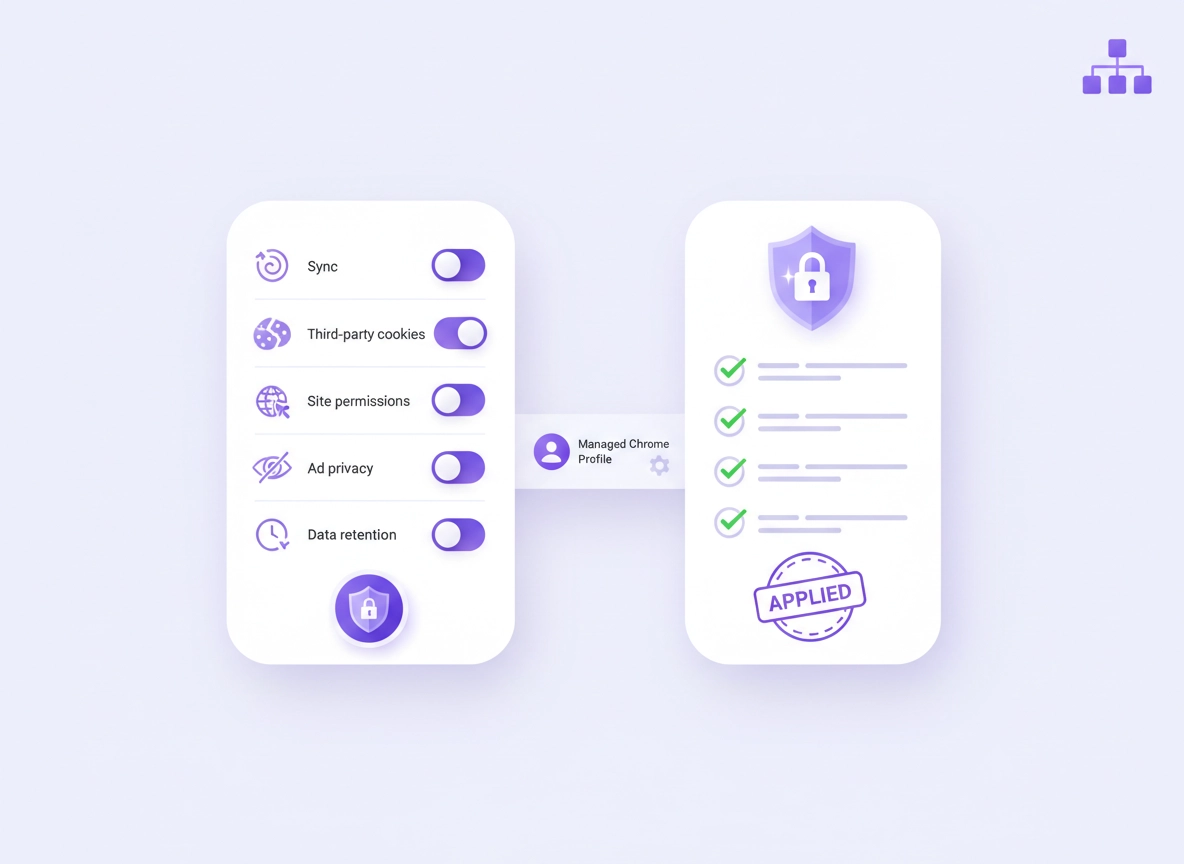
What this is (and why it matters) .
This guide targets modern managed Chrome environments (policy-driven), not “best effort” user-by-user settings.
In most organizations, the browser is the front door to sensitive systems: email, HR portals, payroll, accounting, healthcare apps, customer databases, internal dashboards, and admin consoles. The browser also sees more personal data than almost any other tool: identifiers, cookies, tokens, session state, autofill values, extension access, and sometimes even downloads that include confidential documents.
“Privacy compliance” in the browser is not about chasing one checkbox. It’s about operating a consistent system of controls that answers three questions auditors and privacy teams keep asking:
- What data can the browser collect or transmit? (sync, telemetry, cookies, permissions, extensions)
- How do you enforce it across users and devices? (policies, managed profiles, identity restrictions, device management)
- How do you prove it happened? (logging, reporting, retention, change management, review evidence)
Chrome Enterprise can support strong compliance outcomes, but only if you treat it like an enterprise platform: centralized policy, controlled extensions, deliberate data flows, documented exceptions, and routine reviews. If you rely on “we told employees to…” you will eventually fail an audit or lose control after a browser update.
Related: For a broader baseline, start here: Chrome Enterprise Compliance. For privacy-specific admin knobs, see Chrome Enterprise Privacy Controls.
Key terms (quick definitions) .
- Managed browser: Chrome where key behaviors are enforced via policies (not optional user preferences).
- Browser profile: The identity + settings container (cookies, history, extensions, sync state, certificates, etc.).
- Sync: A feature that can replicate browsing data across devices; useful for users, risky in regulated contexts.
- Telemetry: Diagnostic/usage signals. Some are essential for security; others can be minimized for privacy.
- Third-party cookies: Cookies set by domains other than the one in the address bar; often used for tracking or embedded services.
- Extension access: Browser add-ons that can read page content, intercept traffic, or access storage depending on permissions.
- Audit evidence: Logs, exports, screenshots, policy dumps, and reports that prove controls exist and were reviewed.
Why privacy compliance fails in real life .
Most browser compliance failures don’t happen because an org “did nothing.” They happen because the org did some things but missed one of the hidden gaps:
- Split ownership: IT owns deployment, Security owns risk, Privacy owns policy, and nobody owns the browser as a system.
- Unmanaged edge cases: BYOD, contractors, kiosk devices, shared workstations, VDI, or personal profiles used for work.
- Extensions drift: A harmless extension update adds new permissions, or an unapproved extension spreads organically.
- Sync surprises: Employees sign into Chrome and unknowingly sync browsing artifacts across devices.
- Evidence gaps: Controls exist, but you can’t prove review cadence, exceptions, or enforcement coverage.
The rest of this guide is a practical blueprint to close those gaps without turning Chrome into a “no-fun” browser that breaks business apps.
Before you start (fast checks) .
Before writing policies, verify your management plane, your scope, and your current state. This prevents the classic mistake: building a beautiful baseline that only applies to 40% of browsers.
- Confirm how Chrome is managed: Google Admin / Chrome Browser Cloud Management, Windows GPO/ADMX, macOS profiles, MDM, or a mix.
- Define “in-scope” browsers: corporate laptops, BYOD, contractor devices, ChromeOS, VDI sessions, shared devices, kiosks.
- Inventory identities: which Google accounts are permitted, whether consumers accounts are blocked, and what “primary browser account” means for your org.
- List critical web apps: payroll, finance, EMR/health apps, customer support portals, SSO/IdP, internal tools—these drive compatibility decisions.
- Snapshot your baseline: export your current policy configuration and extension list so you can prove improvement over time.
Related: If you need the “big picture” secure configuration baseline first, use Secure Configuration (Enterprise Best Practices) and then come back here to sharpen privacy controls.
Define your privacy “control boundaries” .
Privacy compliance gets easier if you define boundaries in plain language. Here’s a good starting template:
1) Work browsing must occur in a managed Chrome profile bound to a corporate identity.
2) Sync of browsing artifacts (history, extensions, passwords, open tabs) is disabled or tightly controlled.
3) Third-party tracking is minimized: third-party cookies restricted, risky permissions restricted, and extension access governed.
4) Security telemetry may be enabled where necessary, but collection is minimized to what is required for security and support.
5) All exceptions (legacy apps, special teams, contractors) are documented, time-bounded, and reviewed quarterly.
This statement becomes your “north star.” Every policy decision becomes a simple question: Does this move us toward or away from the boundary?
Step-by-step compliance blueprint (recommended) .
This is the practical blueprint used by teams that actually pass audits. It’s written in a way that fits multiple frameworks (GDPR-style principles, HIPAA-style safeguards, SOC 2/ISO-style controls, and NIST-style governance), without pretending this page is legal advice. Your legal team defines requirements; your job is to build enforceable controls and evidence.
- 1 Map browser data flows (what the browser can store and transmit)
- 2 Create a privacy baseline policy set (enforcement)
- 3 Lock identity + profile boundaries (who can use what)
- 4 Govern extensions (reduce “silent data access”)
- 5 Control web tracking surfaces (cookies + permissions + DNS)
- 6 Add logging, auditing, and evidence collection (prove it)
- 7 Create an exceptions + review process (keep it true over time)
What “success” looks like: You can hand an auditor (or your privacy lead) a single pack that includes: (1) the enforced baseline, (2) an inventory of managed browsers, (3) an extension allowlist, (4) a logging/report snapshot, and (5) a quarterly review record showing drift was detected and corrected.
Related: If you want the “policy plumbing” first, read Chrome Security Policy Setup and Chrome Enterprise Management.
Step 1: Map browser data flows (the audit-friendly way) .
Browser data flows are where compliance teams get nervous because they’re hard to visualize. Your job is to turn them into a short, readable map. Focus on the “big buckets” first:
- Identity: which account is signed in, what “primary account” means, and whether personal accounts can be used.
- Sync: whether browsing artifacts replicate to Google services or other devices.
- Local storage: cookies, cache, local storage, IndexedDB, service workers, and saved site data.
- Credentials: passwords, passkeys, and autofill details (especially payment methods).
- Extensions: which extensions can read pages, intercept requests, or access storage.
- Security signals: Safe Browsing, download scanning, and optional enhanced protection telemetry.
- Network signals: DNS behavior (DoH), proxy routing, certificate trust, and TLS inspection constraints.
Your map can be a one-page internal doc, but it should be consistent across teams. The key is describing “what can happen” and “what we enforce.” If you need a structured approach, use your own policy page as a reference point: Chrome Privacy Policy Guide.
Step 2: Create a privacy baseline policy set (enforcement) .
A baseline is a set of enforced choices that represent your organization’s minimum acceptable privacy posture. The trick is balancing privacy and compatibility: too strict, and business apps break; too loose, and you can’t justify compliance. The best approach is to define tiers:
- Tier A (standard workforce): strong defaults, minimal disruption.
- Tier B (high sensitivity): finance, HR, legal, healthcare, security—tighter controls, more restrictions.
- Tier C (legacy exceptions): narrowly scoped temporary carve-outs with documented expiry dates.
If you’re starting from scratch, build Tier A first and prove it works for the main apps. Then add Tier B policies for high-risk teams. For a practical starting point, also see: Chrome Privacy Best Practices and Chrome Hardening Guide.
A) Identity & profile boundaries
B) Sync and account data replication
C) Tracking surfaces (cookies, permissions, ad privacy)
D) Extension controls (allowlist/blocklist, host permissions)
E) Security protections (Safe Browsing level, downloads, phishing)
F) Network privacy (DNS/DoH, proxies, certificates)
G) Data retention / deletion rules (clear on exit, lifetime policies, ephemeral profiles)
H) Logging and audit readiness (events, exports, review cadence)
Step 3: Lock identity + profile boundaries .
Most privacy compliance problems become easy when work browsing is restricted to a managed identity and managed profile. The most common failure mode is “employees use a personal profile for work,” which breaks control coverage: extensions, cookies, sync, and settings are no longer guaranteed.
Your goal is to ensure: (1) corporate identities are the primary identities for work profiles, (2) personal accounts are restricted or separated, and (3) sign-in and sync behavior is predictable.
Related: If you’re designing this as a full enterprise boundary, also read Chrome Enterprise Identity Management and Chrome Enterprise Access Control.
Privacy compliance isn’t always “disable sign-in.” In many orgs, identity is essential for control and security reporting. Instead, focus on restricting sign-in to approved accounts and controlling what data is allowed to roam. If your environment is regulated, consider treating sync like a privileged feature: off by default, allowed only where justified. For sync risk context, see: Chrome Sync Security Risks and Disable Chrome Sync.
Step 4: Govern extensions (your biggest “silent data access” risk) .
In audits, extensions are where reviewers raise their eyebrows—because extensions can read page content, see identifiers, and sometimes even modify traffic. You can have perfect cookie settings and still leak data through an over-permissioned extension.
A compliance-friendly extension program typically includes:
- Allowlist by default: only approved extensions can run.
- Documented approval workflow: request → review → decision → periodic re-review.
- Permission minimization: limit “read and change all data” and broad host permissions unless truly required.
- Update risk awareness: monitor when extensions change ownership, add new permissions, or introduce unusual behavior.
- Separation of duties: the team approving extensions should not be the same team that benefits from approving everything instantly.
Related: Use these as your extension governance spine: Chrome Extension Security Check, Extension Audit Checklist, and Extension Allowlist Policy.
If you need a simple “starter set” for an allowlist, begin with extensions that: (1) are required for your SSO/IdP or core workflows, (2) have minimal permissions, and (3) have a clear business owner. Everything else should be requested and reviewed.
Step 5: Control web tracking surfaces (cookies + permissions + DNS) .
This is the part most people think of as “privacy settings,” but in enterprise compliance it needs structure. The safest pattern is reduce cross-site tracking by default, then allow what your apps require by exception.
- Cookies: restrict third-party cookies; allow exceptions for known business apps (SSO flows, embedded services) using allowlists.
- Site permissions: limit camera/mic/location by default; allow per app where required; restrict notifications to reduce phishing and social engineering.
- DNS: use Secure DNS (DoH) where it aligns with your network design and monitoring requirements; document choices.
- Ad privacy features: align to your org’s privacy stance; many regulated orgs prefer disabling ad personalization features.
Related: Deep dives that help you set rules without breaking apps: Third-Party Cookies Settings, Site Permissions, DNS over HTTPS, and Ad Privacy Settings.
The goal is not “maximum privacy at all times.” The goal is “a defensible default + controlled exceptions.” This matters because auditors don’t punish exceptions—they punish undocumented exceptions.
Step 6: Add logging, auditing, and evidence collection .
A compliance program is only as good as your ability to prove it. Evidence is what turns “we think we’re compliant” into “we can demonstrate compliance.” Your evidence strategy should include:
- Policy exports: a versioned snapshot of enforced settings (baseline + tier variations).
- Managed inventory: count of managed browsers, by platform and organizational unit/team.
- Extension evidence: allowlist + current installed list + review record.
- Audit logs: key security and admin actions recorded in a searchable system (and retained).
- Review cadence: quarterly or monthly reviews of drift, exceptions, and key controls.
Related: If you’re building an “audit-ready” program, use: Chrome Enterprise Audit Logging, Compliance Reporting, and Audit Preparation.
Step 7: Create an exceptions + review process .
Even the best baseline will face exceptions: a legacy ERP app that needs third-party cookies, a call center tool that needs mic access, a finance portal that breaks with aggressive tracking protections, or a contractor who can’t enroll a device. Exceptions are normal. The compliance failure is when exceptions become invisible and permanent.
Build a lightweight process:
- Exception request: what is needed, why, which users/devices, and for how long.
- Risk review: what privacy/security risk is introduced; what compensating controls exist.
- Approval + owner: who approved, who owns the business justification.
- Expiry: date and re-approval requirement (don’t allow indefinite exceptions).
- Quarterly review: remove what is no longer required; reduce scope where possible.
This single step is often what separates “we are trying” from “we have a program.”
Common variations .
- Windows / ChromeOS: Most enterprise controls are easiest here due to consistent management options.
- macOS: Prefer managed configuration profiles or cloud management; avoid relying on user settings.
- Android / iPhone: Mobile often requires different enforcement models; focus on managed accounts and app-level controls.
Advanced controls (policy hardening + evidence) .
This section is where compliance programs get “real.” These are the controls that reduce audit stress, prevent drift, and keep privacy outcomes stable even when Chrome updates or business teams change tools.
Related: If you’re hardening for enterprise scale, also read Policy Hardening and Managed Browser Security.
Advanced control 1: Create “atomic” policy bundles .
A common problem: you set one policy, but the feature still behaves unpredictably because related settings weren’t aligned. The fix is to treat privacy features as bundles: identity + sync + data retention, cookies + exceptions + SSO requirements, etc. Internally, document each bundle as a single control with a single owner.
Advanced control 2: Enforce data retention rules .
In regulated environments, retention is where privacy and security meet. Keeping browsing artifacts forever is a privacy risk. Deleting everything instantly may be a security risk if you need evidence for investigations. The “right” answer is usually a tiered approach:
- Standard workforce: reasonable retention; minimize persistent tracking artifacts.
- High sensitivity teams: shorter retention; more restrictive storage.
- Investigations: separate logging/audit systems hold security evidence with proper access control and retention rules.
If you’re looking for a more hands-on privacy setup flow, see: Chrome Privacy Compliance Setup and Clear Browsing Data.
Advanced control 3: Control password and autofill surfaces .
Password and autofill choices are often part of privacy compliance because they control how credentials are stored and synced. In some orgs, the requirement is “use an enterprise password manager.” In others, Chrome’s built-in manager is allowed but must be governed.
- Decide where credentials live: browser vs enterprise vault.
- Control exports: define who can export passwords and when.
- Use risk-based restrictions: high sensitivity teams often need stricter limits.
Related: Password Storage Security, Autofill Security Settings, and Payment Method Security.
Advanced control 4: Treat DNS and proxies as compliance controls .
DNS and proxy decisions change what third parties can see and how traffic is inspected. Your compliance posture should be documented: what DNS resolver is used, whether Secure DNS is enabled, and how that interacts with security monitoring.
Related: Secure DNS Setup, Proxy Settings Guide, and Private DNS vs Secure DNS.
Advanced control 5: Upgrade your “proof” with automated reporting .
If your program depends on one person manually checking settings, it will fail during vacations, incidents, or growth spurts. Mature teams automate evidence where possible: inventory snapshots, policy exports, extension lists, and compliance drift detection.
A simple automation model:
- Monthly: export policy configuration + extension inventory + compliance dashboard screenshot.
- Quarterly: re-approve allowlist, review exceptions, run a privacy baseline test on a sample device group.
- After major Chrome updates: check release notes for policy deprecations and UI changes that affect guidance.
Common alternatives users compare .
- Chrome built-in controls vs enterprise browser isolation
- Managed Chrome policies vs “secure browser” products
- Extension allowlisting vs endpoint DLP alone
- Browser-only privacy hardening vs SASE / secure web gateway stacks
Related comparisons: Best Enterprise Browser Solutions and Best Chrome Compliance Tools.
Privacy & security notes (risk model) .
Privacy compliance is not “privacy at any cost.” It’s a disciplined approach to limiting unnecessary collection and exposure, while preserving the security controls you need to prevent phishing, malware, and account takeover. This section gives you a practical risk model to explain decisions to both privacy and security stakeholders.
Impact: Affects identity boundaries, browsing artifact replication (sync), tracking surfaces (cookies/permissions), and audit readiness (logs + retention). Poor choices can increase data exposure or break critical business apps.
Recommended baseline settings .
- Option A (balanced): managed identity, restricted sign-in, limit sync, block/restrict third-party cookies, allowlist extensions, standard Safe Browsing.
- Option B (maximum privacy): strict sync limits, shorter retention, tighter site permissions, stricter extension governance, more restricted exceptions.
- Option C (compatibility): allow third-party cookies only for documented business apps (exception allowlist), keep strict extension controls, maintain audit evidence.
Recommended settings by goal .
| Goal | Recommended setting | Tradeoff | Best for |
|---|---|---|---|
| Balanced | Restrict sign-in + constrain sync + restrict 3P cookies + allowlist extensions | Some SSO/embedded apps need exceptions | Most organizations |
| Maximum privacy | Shortest retention, strict permissions, aggressive tracking limits, tight exception control | More breakage risk and admin effort | Regulated/high-risk teams |
| Compatibility | Documented cookie allowlists + less disruptive defaults + strict extension governance | More tracking surface if exceptions sprawl | Legacy-heavy environments |
Important: If you suspect a compromise or malicious extensions, stop and triage first: Remove malicious extensions and Security Incident Response.
Troubleshooting .
When privacy compliance changes “break something,” the fix is usually not to roll back the entire baseline. Instead, isolate the surface: cookies, permissions, identity, extensions, or network controls.
Related: A fast way to debug permission issues is: Site Permissions Settings.
If SSO or embedded apps stop working .
Most often this is a cookie boundary issue. Many SSO flows and embedded tools rely on third-party cookies or cross-site storage. The compliance-friendly fix is not “enable everything,” but “allow only what’s required.”
- Identify the exact domains involved in the SSO flow (IdP + app domain + embedded domains).
- Add a narrow allowlist exception for those domains only.
- Document the exception with owner + expiry date.
If users keep signing into personal accounts .
This is an identity boundary failure. Fix it by enforcing managed profile expectations: restrict which accounts can be primary, and make work browsing happen inside the managed identity context. Also consider user training: “work profile only” is a simple, enforceable message.
If you need identity scaffolding, see: Session Management.
If privacy extensions cause weird behavior .
Some privacy extensions do deep request manipulation and can conflict with corporate tools, SSO, or security protections. In compliance programs, prefer fewer extensions and more policy-driven controls. If extensions are required, allowlist only vetted ones and avoid broad “all sites” permissions where possible.
If you need to reset safely (without losing evidence) .
Resets are useful, but do them in a controlled way:
- Export policy state and extension inventory first (evidence).
- Reset the profile only for affected users/devices.
- Re-apply managed policies automatically.
Related: For safer cleanup guidance: Chrome Security Reset and Chrome Profile Reset Guide.
FAQ .
-
helpIs “Chrome Enterprise privacy compliance” the same as GDPR/HIPAA/SOC 2 compliance?Not exactly. Legal and audit frameworks define requirements; Chrome Enterprise provides technical controls that help you meet them. Think of this as a browser control program: enforce privacy-relevant behaviors, reduce unnecessary data exposure, and maintain evidence of controls and review cadence.
-
helpShould we disable Chrome Sync for compliance?In many regulated environments, yes—or you tightly control it. Sync can replicate browsing artifacts across devices and services. A common approach is: disable by default for the workforce, allow for specific roles only with documented justification, and review exceptions quarterly. For context, see Sync security risks.
-
helpWhat is the biggest privacy risk in enterprise Chrome?Extensions. Over-permissioned or unvetted extensions can access page content, identifiers, and storage. Start your program with extension allowlisting and periodic reviews, then refine cookies, permissions, and identity boundaries.
-
helpHow do we prove compliance to an auditor?Evidence. Provide a policy baseline export, managed browser inventory, extension allowlist + installed list, audit logs (or reports), and a review record that shows drift and exceptions were detected and corrected. If your program has owners, expiry dates, and quarterly review notes, audits become dramatically easier.
Sources & further reading .
- Chrome Enterprise: Policy list (official)
- Google: Set Chrome policies for users or browsers
- Google: Chrome Enterprise release notes
- Google: Chrome Policy API
- Google: Safe Browsing protection levels
Disclosure: This guide is educational and focused on technical configuration and audit readiness. Your legal and compliance teams should validate requirements and interpretations for your organization.