What “Chrome privacy policy” actually means .
Most people search for “Chrome privacy policy” because something feels unclear: ads feel too personal, a site asks for permission, or you want to know what’s being collected.
Here’s the confusing part: Chrome is a browser, Google is a company, and every website you visit is its own data controller with its own privacy policy. So when someone says “Chrome privacy policy,” they could mean three different documents and three different layers of control.
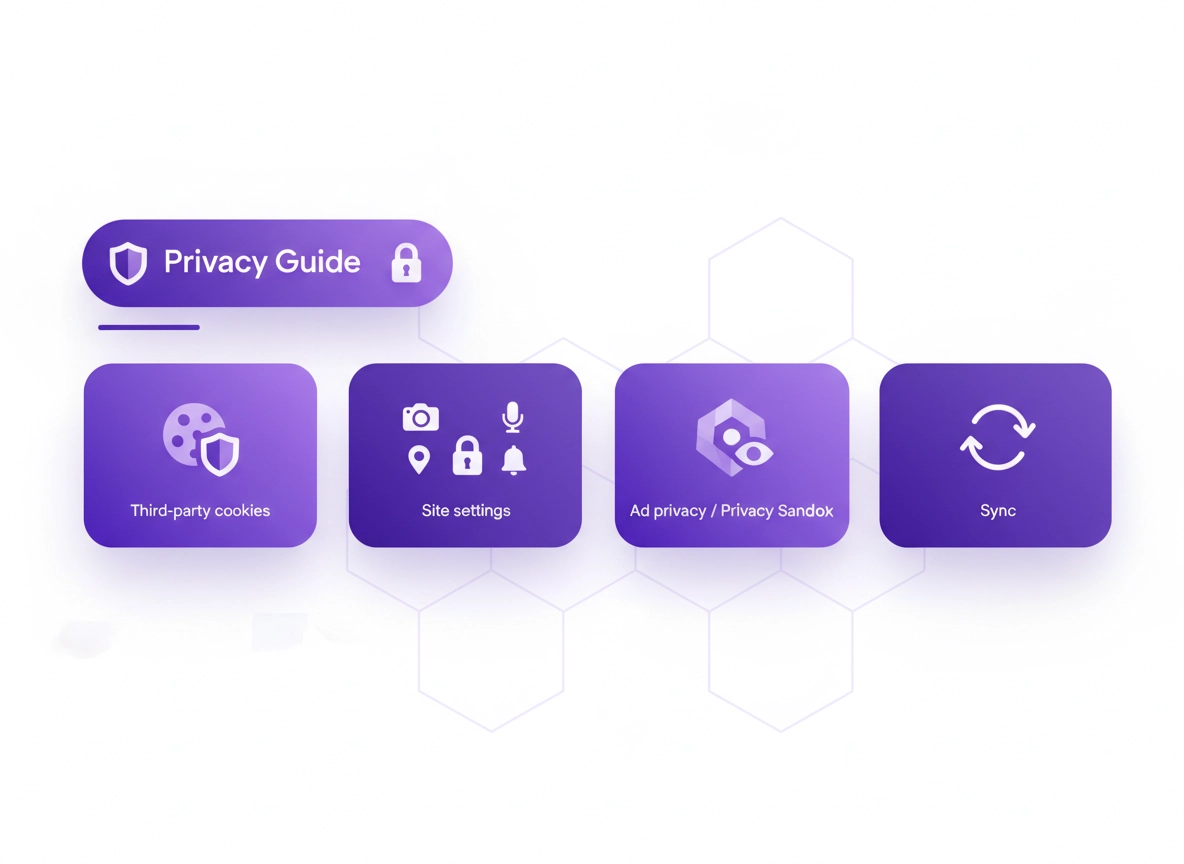
This guide gives you a simple way to think about it: policy pages tell you the rules, but Chrome settings decide the behavior. If you only read a policy without checking your settings, you’ll miss the biggest levers: cookies, permissions, ads features, and syncing.
You’ll also see why two people can have wildly different privacy outcomes using “the same Chrome”: one person is signed in with sync enabled on five devices, while another uses a separate profile with hardened permissions and blocks third-party cookies. Same browser—completely different data footprints.
Start here: If you want the full privacy hub (settings + explained), open Chrome Privacy Settings.
Key terms (quick definitions) .
- Google Privacy Policy: The company policy for Google services (applies when you use Google products/services and related tech).
- Website privacy policy: A site’s own rules about what it collects (forms, analytics, ads, payments, support chat).
- Cookies & site data: Storage that helps websites remember logins and preferences; can also be used for tracking.
- Third-party cookies: Cookies set by domains other than the site you’re visiting—commonly used for cross-site tracking and ad tech.
- Site permissions: Access you grant to features like camera, microphone, location, clipboard, notifications, and file downloads.
- Privacy Sandbox / ad privacy: Chrome features that aim to support ad relevance while limiting certain forms of cross-site tracking.
- Sync: When Chrome saves and shares browsing data/settings across devices via your Google account (varies by what you choose to sync).
- Managed device: A school/company-controlled browser/device where admins can enforce policies and override user settings.
Policy map: Google vs Chrome vs websites .
If you want to “understand the privacy policy” in a way that actually helps you, use this map. It answers the most practical question: who controls what?
| Layer | What it covers | What you can control | Where to control it |
|---|---|---|---|
| Websites you visit | Forms, logins, analytics, ads, payments, support chat, embedded video | Cookie consent choices, account settings, opt-outs (varies by site) | That site’s privacy policy + account settings |
| Chrome browser settings | Cookies, permissions, privacy features, security protections, autofill | Block/allow cookies, restrict permissions, limit ad features, control data deletion | Chrome → Settings → Privacy and security |
| Google account | Account-level data controls for Google services and devices | Web & App Activity, personalization, history, and account privacy tools | Google Account → Data & privacy |
| Device / OS | System permissions, device identifiers, network settings, DNS, VPN | Location access, microphone/camera at OS level, VPN/DNS settings | Windows/macOS/Android/iOS settings |
| Network / ISP | Traffic metadata, DNS queries (depending on configuration) | Use secure DNS, VPN, HTTPS-only where possible | Chrome + router + VPN provider settings |
| Enterprise policy | Admin-enforced settings, logging, extensions, access controls | Sometimes none (depends on admin policy); you can still verify what’s enforced | Chrome policy page + IT documentation |
Quick check: If you’re on a work/school device, it may say “Managed by your organization.” In that case, read the enterprise section below because your settings may be overridden.
Related: If you want the “big picture” of Chrome privacy controls, see Chrome privacy & security settings overview.
Before you start (fast checks) .
These checks take 60 seconds and prevent the most common “false conclusions” people make when reading privacy policies. You’re basically confirming context: which profile, which account, and which device you’re actually using.
- Check 1 — Which profile is active? Click your profile icon (top-right). If multiple people use this device, you might be in the wrong profile.
- Check 2 — Are you signed in + syncing? If sync is on, your browsing settings and certain data can travel across devices.
- Check 3 — Is the device managed? Look for “Managed by your organization.” If yes, some toggles won’t truly be yours to change.
- Check 4 — Any privacy extensions? Ad blockers, anti-tracking, VPN extensions, and cookie managers change behavior (sometimes for the better, sometimes breaking logins).
- Check 5 — Do you need compatibility? Banking, SSO, and video calls often require cookies/permissions. Plan for exceptions instead of going “scorched earth.”
Related: If you suspect tracking via third-party cookies, read Chrome third-party cookies settings and how to block third-party cookies.
Step-by-step: a practical privacy policy audit .
This is the “do it once, benefit forever” section. You’re going to walk through the settings that typically appear in privacy policies: cookies, permissions, advertising/personalization, and account syncing.
- 1 Open Chrome and go to Settings → Privacy and security. (Fast path: type chrome://settings/privacy in the address bar.)
- 2 Review Third-party cookies. Start with Block third-party cookies, then add site exceptions only where needed (banking, SSO, embedded video, support portals).
- 3 Open Site settings and tighten permissions: Camera, Microphone, Location, Notifications, and any “high-risk” permissions you never use.
- 4 Check Ad privacy / Privacy Sandbox options (names vary by region/version). Decide whether you want “interest-based” features enabled, and understand the tradeoffs.
- 5 Review Sync. If you share a device or it’s a work machine, consider disabling sync or limiting what syncs (especially history, passwords, and open tabs).
- 6 Set a retention habit: configure Auto-delete behavior where available, and set a schedule for clearing browsing data (or use separate profiles for different purposes).
What “success” looks like: You can explain (1) whether third-party cookies are blocked, (2) which sites have special permission access, (3) what ad/personalization features are enabled, and (4) whether your browsing setup is tied to a synced Google account. If you can answer those four, privacy policies stop being vague and start being actionable.
Related: For a broader setup, start with Chrome privacy settings beginner’s guide and then use the privacy settings checklist.
Common variations .
- Windows / ChromeOS: The “Privacy and security” section is consistent; enterprise devices may lock options.
- macOS: Similar menu paths; some permission prompts also appear at the OS level (System Settings).
- Android / iPhone: Chrome settings exist, but OS permissions can override (Location/Microphone/Camera). Always check both.
Permissions: camera, mic, location, notifications (the “quiet” privacy risk) .
Website privacy policies talk about “collecting information you provide” and “device information.” Permissions are where that becomes literal: you’re granting access to sensors and features on your device. Permissions can be legitimate (Zoom needs mic/camera), but they should be rare, purposeful, and revocable.
High-signal permissions to audit first .
- Location: Needed for maps and delivery; unnecessary for most sites. Prefer “Ask” or “Block” by default.
- Camera & Microphone: Grant only to known meeting apps; remove old grants from random tools.
- Notifications: Most abuse comes from “Allow notifications” prompts—block by default, allow only for trusted services.
- Background sync: Can keep data flowing in the background; disable unless you truly benefit from it.
- Clipboard / file access: Useful for web apps, but powerful. Keep it limited to the apps you trust.
Related: Step-by-step permission guides: site permissions, camera, microphone, location, notifications, background sync.
Ads, Privacy Sandbox, and “interest-based” features .
This section is where high-intent readers usually land: “Why am I seeing these ads?” or “Is Chrome tracking me?” The honest answer is: advertising is an ecosystem. There are site trackers, ad networks, analytics, account personalization, and browser-level features. Chrome’s newer privacy features try to reduce certain forms of cross-site tracking while still enabling ad relevance in some way.
In Chrome, you may see settings under labels like Ad privacy, Privacy Sandbox, or similar. Depending on region/version, these can include controls for interest-based features and measurement-related behavior. The “best” choice depends on your goal: maximum privacy, compatibility, or a balanced approach.
What to do if you want fewer personalized ads .
- In Chrome: Review Ad privacy / Privacy Sandbox toggles and turn off what you don’t want.
- In Google Account: Review personalization controls (account-level). If you’re signed in, account settings can matter as much as browser settings.
- At the cookie layer: Block third-party cookies; this reduces cross-site ad recognition.
- At the extension layer: Use privacy extensions carefully—some are helpful, some are data-hungry.
Related: Get the Chrome-specific breakdown: Chrome ad privacy settings, Privacy Sandbox explained, fingerprint protection, how to stop Chrome tracking.
Sync, accounts, and what changes when you sign in .
A lot of privacy confusion comes from mixing up browser behavior with account behavior. When you use Chrome without sign-in, the browser still stores data locally (history, cookies, cache). When you sign in and enable sync, some categories of data can be stored and shared across devices—depending on what you enable.
Why sync matters for privacy .
- More surface area: Data can exist on multiple devices instead of one.
- Shared devices risk: A family laptop with sync can leak browsing context to other signed-in devices if profiles are mixed.
- Work devices: Your employer may have policies around sync, extensions, and logging.
- Recovery vs exposure: Sync is convenient (passwords/tabs), but convenience increases the importance of good account security (2FA, passkeys).
Related: Chrome account sync settings, disable Chrome sync, sync security risks, sign-in security settings, two-factor authentication guide.
Advanced settings (power users + business) .
This section is for readers who want stronger privacy without breaking everything—and for businesses who need auditability. Think of it as “privacy engineering”: you’re controlling data flow, not just flipping a switch.
Related: If you’re in a managed environment, start here: enterprise Chrome privacy settings and privacy controls for managed devices.
When you should change advanced controls .
- You handle sensitive data: finance, healthcare, legal, customer PII, admin portals.
- You share devices: family PCs, shared student laptops, public computers.
- You manage a team: you need consistent behavior across machines (policies, allowlists, logging).
- You want a privacy baseline: consistent cookies, permissions, and data retention rules.
When you should NOT go “maximum lockdown” .
- SSO-heavy workplaces: aggressive cookie blocking can break authentication loops.
- Video conferencing: blocking mic/camera permissions by default is fine—just plan the “allow” flow.
- Customer support portals: embedded widgets may depend on third-party storage.
- Banking: some banks use strict security flows that can break with certain privacy extensions or disabled storage.
Power-user moves that matter .
- Secure DNS (DoH): reduces DNS leakage on untrusted networks. (See: DNS over HTTPS settings and secure DNS setup.)
- HTTPS-only mode: helps prevent downgrade attacks and increases privacy in transit. (See: HTTPS-only mode.)
- Hardening checklist: convert privacy intent into a repeatable config. (See: Chrome hardening guide and browser hardening checklist.)
- Privacy audit template: document what you changed and why (useful for teams). (See: privacy audit template.)
Common alternatives users compare .
- Chrome built-in settings vs third-party privacy extensions
- Chrome password manager vs dedicated password managers
- Free VPN extensions vs premium VPN services
- Manual configuration vs enterprise policy management
Related: If you want extension-level privacy, start here: Chrome privacy extensions guide and Chrome extension security check.
Privacy & security notes (risk + baselines) .
Privacy policies often sound like legal language because they need to cover many cases. The practical approach is to translate policy topics into a risk level and a baseline configuration. Use the baselines below as your “default,” then add exceptions where you genuinely need them.
Impact: Your choices affect cookies, ad personalization behavior, extension data access, site permissions, and what can sync to your account.
Related: If you’re tightening privacy because you suspect something is wrong (pop-ups, redirects, weird extensions), start here: Remove Malware from Chrome.
Recommended baseline settings .
- Option A (balanced): Block third-party cookies, allow needed exceptions; permissions on “Ask”; keep sync on but limit categories; clear browsing data periodically.
- Option B (maximum privacy): Block third-party cookies; disable interest-based ad features; strict permissions; minimal extensions; separate profiles; disable sync on shared devices.
- Option C (compatibility): Allow third-party cookies only for specific “must work” business sites; keep strong permissions discipline; consider a trusted password manager and strong account security.
Recommended settings by goal .
| Goal | Recommended setting | Tradeoff | Best for |
|---|---|---|---|
| Balanced | Block third-party cookies + permission prompts | Occasional site exceptions required | Most users |
| Maximum privacy | Disable interest-based features + strict permissions + limited sync | More “break/fix” moments on complex sites | Tracking-sensitive users |
| Compatibility | Targeted exceptions for business/banking sites | More data may be available to trusted third parties | Enterprise + critical workflows |
Related: A complete baseline hardening workflow: security & privacy checklist and default security settings guide.
Troubleshooting .
Related: If your issue is “permissions feel random,” start here: site permissions settings.
If blocking third-party cookies breaks login or payments .
This usually happens when authentication or embedded services rely on third-party storage (common with SSO, embedded checkout, chat widgets). The fix is exceptions, not disabling privacy entirely: keep third-party cookies blocked globally, then allow them for that specific site (or related sites) you trust. If it’s a work portal, confirm with IT which domains should be allowlisted.
If you keep getting spammy notification prompts .
Set notifications to “Don’t allow sites to send notifications” (or similar wording) and remove existing “Allowed” sites you don’t recognize. Many scam sites rely on notification abuse because it persists after you close the tab. If your browser is already showing spam notifications, clear the permission and run a quick extension audit.
If “Ad privacy” settings are missing .
Features can vary by region, Chrome version, and rollout phase. If you don’t see a specific label, look for privacy controls under: Settings → Privacy and security → Privacy guide or Ad privacy / Privacy Sandbox. Also check if the browser is managed—enterprise policy can hide or lock options.
If you need to reset safely .
A safe reset is not “delete everything.” It’s a controlled process: remove suspicious extensions, reset permissions, clear site data for problem domains, and review startup/search settings. If you suspect malware or browser hijacking, follow the dedicated removal flow.
Related: security checkup, security audit guide, extension malware removal.
FAQ .
-
helpIs there a single “Chrome privacy policy” page?Not in the way most people mean it. There’s Google’s Privacy Policy (company-level), and there are Chrome privacy controls (settings-level). Websites also have their own privacy policies, which are separate from Chrome. Use this guide to map policy claims to settings you can verify.
-
helpDoes Incognito mode stop tracking?Incognito mainly limits what’s stored on your device (like local history and cookies after the session ends). It doesn’t make you anonymous to websites, your network, or services you log into. If your goal is reduced cross-site tracking, focus on third-party cookie blocking and permission discipline. See: Incognito mode guide.
-
helpWhat’s the difference between blocking cookies and clearing cookies?Blocking changes future behavior (prevention). Clearing removes existing stored data (cleanup). A good privacy setup does both: block unnecessary tracking mechanisms (like third-party cookies) and periodically clean up old site data where it makes sense.
-
helpIf I disable Chrome sync, am I “more private”?You reduce the spread of data across devices and accounts, which can be a privacy win—especially on shared or work devices. But privacy also depends on cookies, permissions, extensions, and your Google account settings. Consider limiting sync categories instead of disabling everything if you rely on the convenience.
-
helpShould I use a VPN for privacy in Chrome?A VPN can reduce network-level visibility (especially on public Wi-Fi) and change what your ISP can see, but it doesn’t automatically fix cookies, permissions, or account personalization. Think of a VPN as one layer in a stack. For browsing privacy fundamentals, start with cookies + permissions + sync controls.
Sources & further reading .
- Google Privacy Policy
- How Google uses cookies (technologies overview)
- Understand privacy in Chrome
- Manage cookies in Chrome (official help)
- Privacy Sandbox (official overview)
Disclosure: Some pages may mention tools or services. Recommendations are editorial and based on testing.