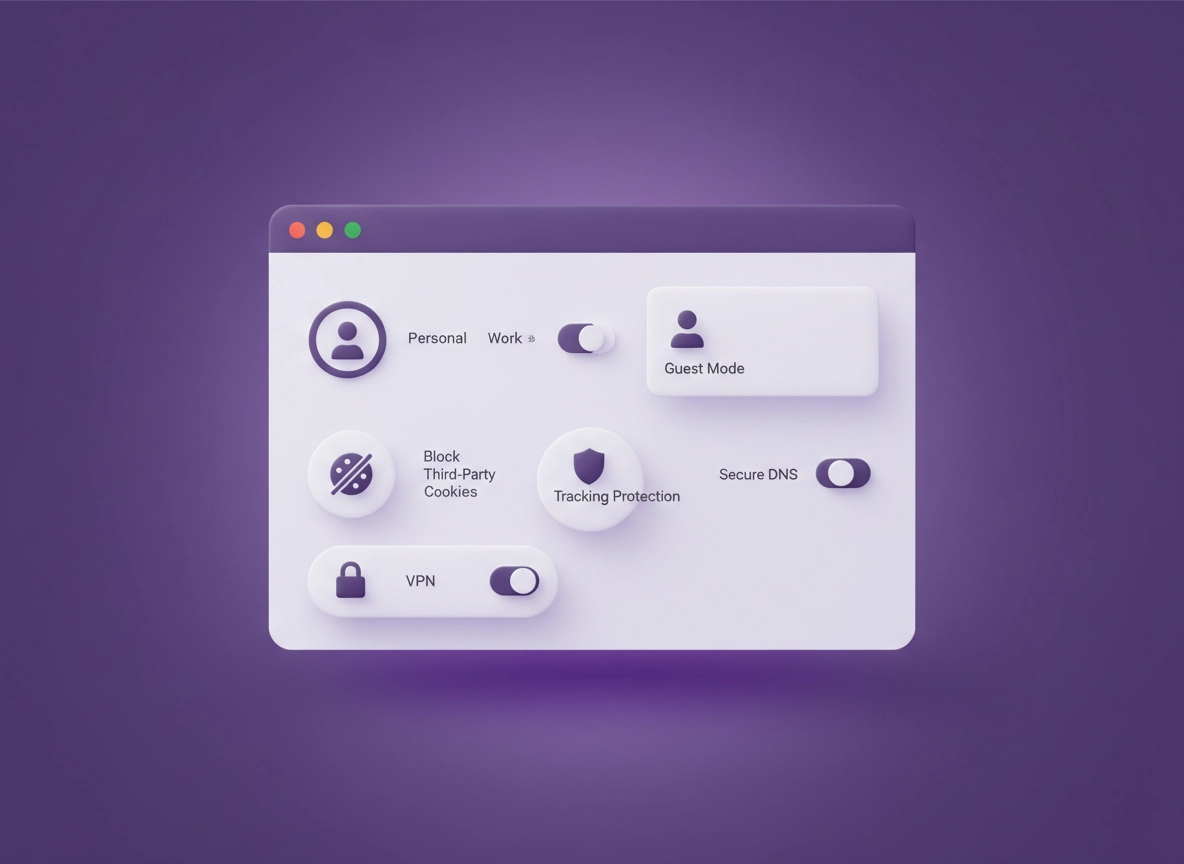
What “private browsing” actually means .
Incognito is a local privacy mode — it is not anonymity, and it is not a “do not track” switch.
Most people use the phrase private browsing to mean: “Don’t let anyone see what I did.” But there are multiple “anyones,” and each one requires a different privacy tool. Chrome’s Incognito Mode is designed to reduce local traces on the device (like history and cookies after you close the window). It does not magically hide you from websites, your network, your ISP, your school, your employer, or the services you log into.
A better way to think about private browsing is as three separate problems: (1) Local privacy (other people using your device), (2) Tracking privacy (sites and advertisers linking your activity), and (3) Network privacy (what your Wi-Fi, ISP, and upstream networks can see). Incognito mainly helps with (1), and partially with (2) if you don’t sign into accounts and you close the window. If you care about (2) and (3), you need alternatives or add-ons.
This guide gives you practical, Chrome-friendly alternatives to “Incognito-only” thinking: Guest mode, separate profiles, cookie auto-delete, tracking protection, Secure DNS, privacy-focused configuration, and—when it’s justified—commercial tools like VPNs and password managers. The goal is not perfection; it’s meaningful privacy improvement with controlled tradeoffs.
Start here first: If you haven’t read the full privacy hub yet, begin with Chrome Privacy Settings and then come back here for alternatives beyond Incognito.
Key terms (quick definitions) .
- Incognito Mode: A Chrome window that discards history and cookies after you close it (local privacy, not anonymity).
- Guest Mode: A temporary Chrome session that isn’t tied to your profile (stronger isolation from your normal profile).
- Browser Profile: A separate Chrome “container” with its own cookies, logins, extensions, bookmarks, and history.
- Third-party cookies: Cross-site identifiers commonly used for advertising/analytics tracking across many domains.
- Fingerprinting: Identifying you based on device/browser signals (fonts, GPU, screen size, etc.) even without cookies.
- Secure DNS (DoH): Encrypts DNS lookups to a resolver to reduce DNS-level snooping and tampering.
- VPN: Encrypts traffic between your device and a VPN provider (helps with network privacy; trust shifts to the VPN).
Before you start (fast reality checks) .
These checks prevent wasted time—and help you pick the correct tool. Most “private browsing” disappointment happens when someone uses the wrong tool for the wrong threat.
- Reality check #1 — Incognito does not hide you from the website. The site still sees your IP, browser fingerprint signals, and any login you use.
- Reality check #2 — Signing into Google or any account ends “privacy” from that service. Incognito won’t stop account-based tracking.
- Reality check #3 — Your network can still see destinations. HTTPS encrypts page content, but DNS and connection metadata can still reveal where you went.
- Reality check #4 — Extensions can still matter. Some extensions run in Incognito (if allowed), and extensions can be the biggest privacy risk if mismanaged.
- Reality check #5 — “Private” vs “Secure” are different. Private browsing reduces traces; security reduces compromise risk. You want both. Use Security Checkup as your baseline.
Related: If you’re focusing on “don’t track me,” start with How to Stop Chrome Tracking and Chrome Tracking Protection.
Pick your goal (the tool depends on this) .
Choose the goal below that matches your situation. You can mix goals, but start with one so you don’t break sites unnecessarily.
- Goal A — Hide local history from other people on the same device: Use Guest mode or a separate profile.
- Goal B — Reduce cross-site tracking and ad profiling: Block third-party cookies, tighten site permissions, limit fingerprinting, and reduce persistent identifiers.
- Goal C — Reduce network visibility on Wi-Fi/ISP: Enable Secure DNS; use a VPN when you need it (public Wi-Fi, travel, sensitive work).
- Goal D — Separate identities (work/personal/client): Use multiple profiles plus per-profile extensions and logins.
- Goal E — Business compliance / managed browsing: Use Chrome Enterprise policies, managed profiles, and audited extensions.
Best private browsing setup (recommended stack) .
This is the best “private browsing alternative” for most people: a layered stack that improves privacy without turning Chrome into a fragile mess. You’ll end up with a Private profile that is isolated from your daily profile, has tighter tracking controls, and avoids accidental logins.
Desktop steps (recommended “Private” profile) .
- 1 Open Chrome → click your profile icon (top-right) → choose Add (or Add new profile).
- 2 Create a profile named Private (or Sensitive). Skip signing in for this profile if your goal is privacy from account-based tracking.
- 3 In the Private profile, open Settings → Privacy and security → set Block third-party cookies. (If you need it, allow exceptions only for sites you trust.)
- 4 Still in Privacy and security, review Site settings and reduce “always allowed” permissions (camera, mic, location, notifications). Start strict and loosen per-site only when needed.
- 5 Enable or review Tracking Protection (where available) and tighten privacy controls. If you’re unsure, use the baseline in Chrome Privacy Settings Checklist.
- 6 Set up Secure DNS (DoH): Settings → Privacy and security → Security (or Network/Privacy section depending on version) → Use Secure DNS. Follow: Chrome DNS over HTTPS Settings.
- 7 Add one “privacy essential” only if you truly need it: a reputable password manager and (optionally) a VPN. Start here: Best Password Manager for Chrome and Best VPN for Chrome.
- 8 Optional but powerful: turn on Auto-delete cookies / “clear on exit” behavior for sites you don’t trust. Use: Auto-Delete Cookies in Chrome.
What “success” looks like: When you browse in the Private profile, you are not logged into your normal accounts, your cookies don’t follow you from your daily browsing, and trackers have fewer persistent IDs to link across sites. Your DNS lookups are encrypted (Secure DNS), and you have a clean “workbench” for sensitive browsing.
Mobile steps (Android / iPhone) .
Mobile Chrome doesn’t always mirror desktop features (and profile workflows can differ). Your best mobile approach is: tight privacy settings + clear data / cookies + Secure DNS (where available) + VPN (when needed).
- 1 Open Chrome → ⋮ menu → Settings → Privacy and security.
- 2 Review cookies and related tracking controls. If you want lower tracking, prefer blocking third-party cookies and restricting ad/privacy personalization controls.
- 3 Use Clear browsing data when you’re done with sensitive sessions (especially if you signed into anything). Guide: Chrome Clear Browsing Data.
- 4 If you’re on public Wi-Fi, use a VPN (mobile OS-level VPN is typically stronger than “VPN extension only”).
Common variations (what changes by platform) .
- Windows / ChromeOS: Profiles and Guest mode are very consistent. Great choice for isolation.
- macOS: Similar to Windows, but keychain and system DNS settings can affect how passwords and DNS behave.
- Android / iPhone: Privacy controls exist, but isolation is less “profile-driven.” Clear data and use network-level protections when needed.
Related: If your privacy goal is “stop Chrome from syncing everything,” read Chrome Account Sync Settings and Disable Chrome Sync.
Incognito alternatives (what to use when) .
Below are the most practical private browsing alternatives inside (or alongside) Chrome. Think of these like tools in a toolkit: pick the one that matches your threat model.
1) Guest Mode (best for shared devices) .
Guest mode is the simplest alternative when the main risk is other people using your device. It starts a clean session that is not connected to your main profile. That means your bookmarks, extensions, and signed-in accounts don’t automatically carry over.
- Best for: Borrowed computers, family PCs, public machines, quick sensitive browsing without touching your profile.
- What it protects: Strong isolation from your normal Chrome profile.
- What it doesn’t: Network visibility, ISP visibility, website tracking via IP/fingerprinting (unless you add other layers).
Practical rule: If you’re thinking “I don’t want this to mix with my normal Chrome,” use Guest or a separate profile—not Incognito.
2) Separate profiles (best for identity separation) .
Profiles are Chrome’s most underrated privacy feature because they create real separation: different cookies, different logins, different autofill, different extensions, and different browsing history. If you do client work, manage multiple brands, or you have “personal vs work” boundaries, profiles are the cleanest approach.
- Best for: Work vs personal, client accounts, shopping vs finance, research vs daily browsing.
- What it protects: Prevents “account collisions” and reduces accidental cross-account tracking.
- Tradeoff: You must be disciplined: use the correct profile on purpose.
Related: If you’re building a privacy-first profile, make sure you cover cookies and site permissions: Third-Party Cookies Settings, Block Third-Party Cookies, and Site Permissions Settings.
3) Auto-delete cookies (best for “short memory” browsing) .
If your goal is: “I want sites to forget me after I’m done,” cookie auto-delete is one of the highest-impact alternatives to Incognito. This can be done using Chrome settings (where supported) and strict cookie policies, or through a privacy workflow: allow cookies for the session, then clear them automatically at exit.
- Best for: Researching, travel planning, price-checking, or browsing that you don’t want building a long-term profile.
- What it protects: Reduces long-lived identifiers like cookies and local storage.
- Tradeoff: You may need to sign into sites more often.
Guide: Auto-Delete Cookies in Chrome and Chrome Clear Browsing Data.
4) Tracking protection + fingerprint reduction (best for ad tracking) .
Modern tracking is not only cookies. It’s also fingerprinting, storage APIs, link decoration, and cross-site identity stitching. Chrome’s privacy features have improved, but the most consistent wins are still: block third-party cookies, tighten site permissions, and avoid installing “free” extensions that monetize your browsing.
- Best for: Reducing targeted ads, reducing cross-site profiling, reducing “I searched this once and now it follows me.”
- What it protects: Makes cross-site correlation harder.
- Tradeoff: Some logins and embedded services can break until you allow exceptions.
Go deeper: Chrome Fingerprint Protection, Chrome Privacy Sandbox Explained, and Chrome Ad Privacy Settings.
5) Secure DNS (DoH) (best for DNS privacy + tamper resistance) .
Secure DNS encrypts DNS lookups between Chrome and your DNS resolver. That reduces DNS-level snooping and makes it harder for networks to tamper with or redirect DNS queries. It does not hide your traffic from the destination site, and it does not replace a VPN. But it’s a smart baseline for most people.
Setup: Chrome DNS over HTTPS Settings and Chrome Secure DNS Setup.
6) VPN (best for network privacy — but only if you trust the provider) .
A VPN can be a legitimate “private browsing” layer—but you should understand the tradeoff: you’re shifting trust from your ISP/Wi-Fi network to the VPN provider. Used correctly, a VPN can protect you on public Wi-Fi, reduce ISP visibility, and help when traveling. Used incorrectly, it can add a new party that sees your traffic metadata.
- Best for: Public Wi-Fi, travel, high-risk networks, remote work, geo-based security concerns.
- What it protects: Encrypts traffic between you and the VPN; reduces local network snooping.
- Tradeoff: You must trust the VPN, and performance can change. Some sites may challenge logins more frequently.
Start here: Best VPN for Chrome and VPN vs Private DNS Comparison.
7) Password manager (best for private browsing safety) .
A password manager isn’t “private browsing” in the strict sense, but it is one of the most important upgrades people make when they start taking privacy seriously. Why? Because privacy workflows often involve multiple profiles, fewer persistent logins, and more sign-ins. A reputable password manager makes that safe and consistent, and helps prevent account takeover (which is the most permanent privacy loss).
- Best for: Multi-profile setups, secure logins, passkeys/2FA workflows, families, remote teams.
- What it protects: Reduces password reuse and phishing success; supports stronger authentication.
- Tradeoff: You must choose a reputable provider and secure the vault with a strong master password and MFA.
Guide: Best Password Manager for Chrome and Are Password Managers Safe for Chrome?.
Advanced privacy layers (power users + business) .
Once you’ve got the baseline stack working, the advanced layers are about reducing the “hard-to-see” leaks: account sync, extension permissions, background connectivity, and managed-device realities. This is where high-value privacy and security overlap with business requirements like compliance, logging, and policy enforcement.
Related: In managed environments, see Chrome Enterprise Guide and Enterprise Chrome Privacy Settings.
Layer 1: Control account sync (stop identity bleed) .
Sync is convenient, but it also creates identity continuity. If your “private browsing” profile is signed into the same Google account as your daily profile, a lot of separation disappears. For stronger isolation, use: (a) an unsigned profile, or (b) a separate Google account for the private profile, or (c) sync minimized to essentials only.
- Baseline: Review what syncs and disable what you don’t need.
- Strong isolation: Don’t sign in on your “Private” profile at all.
- Business approach: Use managed accounts and policy-controlled sync and extension installs.
Do this next: Chrome Account Sync Settings, Disable Chrome Sync, and Chrome Sync Security Risks.
Layer 2: Extension hygiene (the most common privacy leak) .
Many users install “privacy extensions” and accidentally make privacy worse. Extensions can read page content, see URLs, inject scripts, and sometimes access data on every site you visit. That can be fine for reputable tools—dangerous for unknown or ad-funded extensions.
Your private browsing setup should follow a simple rule: Fewer extensions, higher trust, least permissions. If you must install extensions in the Private profile, keep them to a short allowlist: password manager, maybe one tracker blocker, and nothing else unless you can justify it.
- Audit: Remove extensions you don’t actively use.
- Minimize permissions: Prefer “On click” or “On specific sites” instead of “On all sites.”
- Separate: Keep risky extensions (downloaders, coupon tools) out of your Private profile entirely.
Audit guides: Chrome Extension Security Check, Extension Permissions Guide, and Chrome Privacy Extensions Guide.
Layer 3: Background connectivity and site permissions (quiet tracking) .
Even with cookies controlled, browsers can leak data through background behaviors and over-permissive site settings. If you want a “private browsing alternative” that’s consistently clean, reduce background behaviors and tighten permissions in the Private profile: notifications, location, camera, mic, and background sync.
- Background sync: Can keep sites active in the background. Review: Chrome Background Sync Settings.
- Notifications: A common abuse vector and annoyance. Review: Chrome Notification Permissions.
- Location / Camera / Microphone: Only allow when needed: Location, Camera, Microphone.
Layer 4: Security baseline (private browsing is useless if you’re compromised) .
If a device is infected or a browser is hijacked, “private browsing” becomes cosmetic. Before you invest in advanced privacy tweaks, confirm the security baseline: run Chrome’s Security Checkup, review Safe Browsing, remove suspicious extensions, and consider a full malware scan if behavior is abnormal.
Baseline: Chrome Security Checkup, Safe Browsing Settings, and Remove Malware from Chrome.
High-intent comparisons (what users really mean by “private browsing”) .
If you’re shopping solutions, it helps to name the comparison correctly. Here are the most common “money-intent” paths users take:
- VPN vs Private DNS: DNS privacy vs full tunnel privacy. Read: VPN vs Private DNS Comparison.
- VPN vs Proxy: Different threat models and trust boundaries. Read: Best VPN vs Proxy for Chrome.
- Password manager vs browser passwords: Security and privacy implications: Password Manager vs Built-in Browser Passwords.
- Chrome privacy vs other browsers: If your goal is “default privacy,” compare: Chrome Privacy vs Firefox.
- Business / compliance: If you need policy control, logging, and extension governance, explore: Chrome Enterprise Guide.
Privacy & security notes (what each layer hides) .
This section is the “truth table” that most Incognito explanations skip. Private browsing is not one setting; it’s a set of layers. Each layer hides different data from different parties.
Impact: Affects cookies, tracking behavior, account separation, extension access, DNS visibility, and site compatibility.
Recommended baseline settings .
- Option A (balanced): Separate profile + block third-party cookies + Secure DNS + tighten site permissions.
- Option B (maximum privacy): Private profile (not signed in) + aggressive cookie auto-delete + strict permissions + minimal extensions + VPN on untrusted networks.
- Option C (compatibility): Private profile signed in (separate account) + block third-party cookies with exceptions + Secure DNS + password manager only.
Recommended settings by goal .
| Goal | Recommended setting | Tradeoff | Best for |
|---|---|---|---|
| Local privacy | Guest mode or separate profile | Less convenience | Shared devices, quick sessions |
| Less ad tracking | Block 3rd-party cookies + permission hygiene | Some embeds break | Most users |
| Network privacy | Secure DNS; VPN on untrusted networks | Trust shifts; performance changes | Public Wi-Fi, travel, remote work |
| Identity separation | Multiple profiles (work/personal/client) | More management | Professionals, creators, agencies |
| Business control | Chrome Enterprise policies + allowlisted extensions | Admin overhead | Teams, compliance environments |
What Incognito does vs doesn’t do (the real answer) .
- Does: Avoid saving local history to your profile; discards cookies and site data after the window is closed; isolates session state from your regular profile.
- Doesn’t: Hide your IP address; stop websites from identifying you; prevent employer/school network visibility; prevent account-based tracking; guarantee fingerprint resistance.
Want the Incognito deep dive? Read Chrome Incognito Mode Guide and pair it with Chrome Privacy Myths.
Troubleshooting .
Related: For permission-related issues, see Chrome Site Permissions Settings.
If sites keep logging you out .
This is expected if you block third-party cookies aggressively or auto-delete cookies. Some login systems rely on third-party cookies for embedded auth flows. Fix it by adding an exception only for the domain you trust (usually the login provider), or by switching from “maximum privacy” to “balanced” for that site. The best approach is to use exceptions sparingly rather than disabling privacy features globally.
If pages look broken or embeds don’t load .
Broken embeds (video players, comment widgets, payment forms) often depend on third-party storage or scripts. Try these steps in order: (1) allow third-party cookies for that site only, (2) disable one extension in the Private profile, (3) check site permissions, (4) clear site data for that specific site and reload. Use: Clear Browsing Data.
If you’re still seeing personalized results or “it knows it’s me” .
Common causes: you’re signed into a Google account, you’re using the same profile, you have sync enabled, or you’re reusing long-lived cookies. Fix it by using a separate profile that is not signed in, and confirm sync is disabled or minimized. Read: Account Sync Settings. Also review fingerprinting: Fingerprint Protection.
If your VPN causes CAPTCHA spam or login challenges .
Some VPN exit IPs are “noisy” because many users share them. Websites may trigger more CAPTCHAs or extra verification. Solutions: switch servers, use a less congested location, disable VPN for low-risk browsing, or use VPN only for network-risk scenarios. If you’re using a browser “VPN extension,” consider a full device VPN app for better stability.
If you suspect malware, hijacking, or “weird Chrome behavior” .
Don’t chase privacy settings if the browser is compromised. Run Security Checkup, remove unknown extensions, and use your OS security tools. Start here: Remove Malware from Chrome and Chrome Security Checkup.
If you need to reset safely (without losing everything) .
The safest reset is often profile-based: create a new “Private” profile, install only essential extensions, and migrate nothing except bookmarks you trust. Avoid exporting and reimporting unknown settings from extensions. If you must reset Chrome itself, do it only after you’ve confirmed you don’t have malicious extensions reinfecting the profile.
FAQ .
-
helpDoes Incognito hide my IP address?No. Incognito mainly reduces local traces (history/cookies after closing). Websites still see your IP address, and your network can still see destinations. If you need network privacy on untrusted Wi-Fi, use Secure DNS as a baseline and a reputable VPN when justified.
-
helpWhat’s better: Guest mode or Incognito?For isolation from your normal Chrome profile, Guest mode is usually better. It doesn’t carry your bookmarks/extensions/logins by default. Incognito is fine for “don’t save local history” inside the same browsing environment, but it’s not a strong separation tool.
-
helpWill blocking third-party cookies break websites?Sometimes. Most browsing works fine, but some embedded logins, payment widgets, and media players may need exceptions. The best practice is to keep third-party cookies blocked globally and add a site exception only when you understand what’s breaking and you trust the domain.
-
helpDo I need a VPN for private browsing?Not always. A VPN is most valuable for network-risk situations (public Wi-Fi, travel, sensitive work). For everyday privacy, profiles + cookie controls + tracking protection + Secure DNS usually provide a better balance of privacy and compatibility.
Sources & further reading .
- Google Chrome Help Center
- Chrome: Browse in private (Incognito mode)
- Manage cookies and site data in Chrome
- Chrome Safety Check / Security features
- Secure DNS (DNS over HTTPS) in Chrome
Disclosure: Some pages may mention tools or services (VPNs, password managers, enterprise solutions). Recommendations are editorial and based on practical testing, common security models, and compatibility tradeoffs.