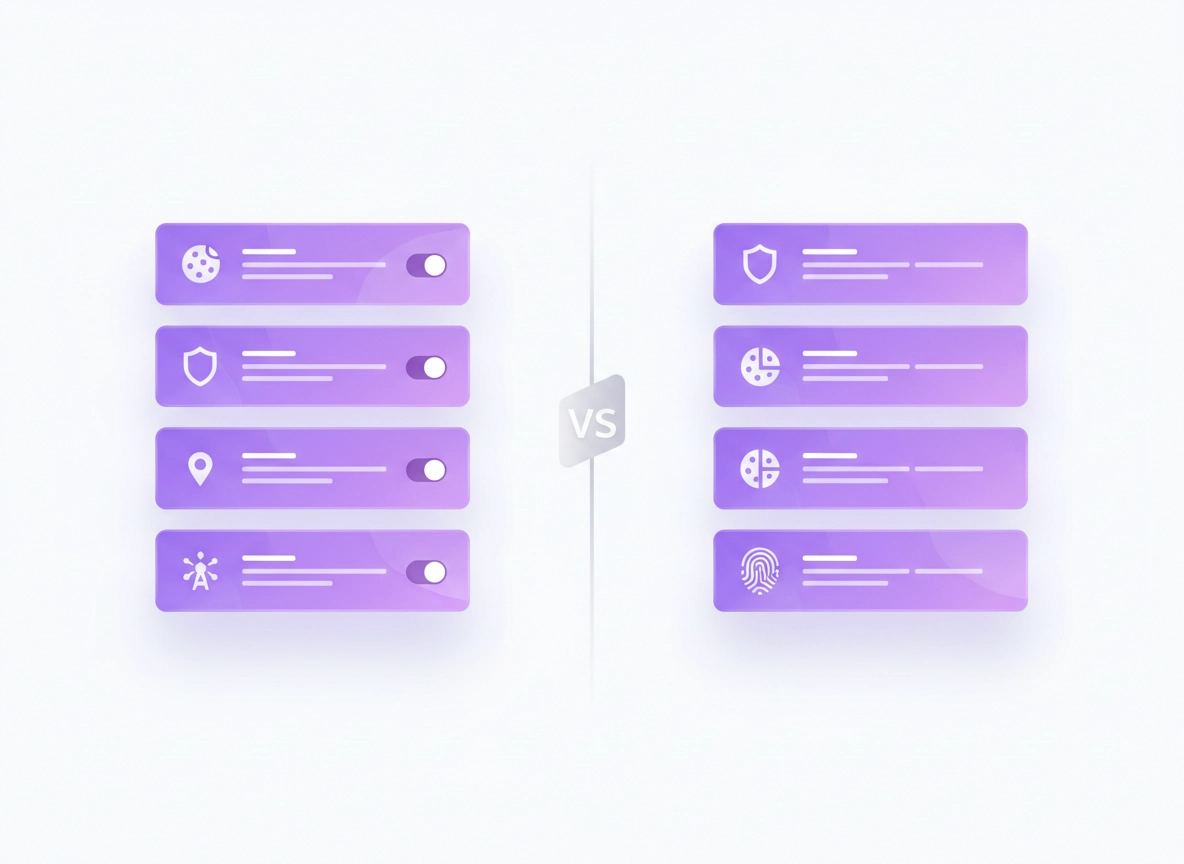
What “browser privacy” actually means .
Privacy isn’t one switch. It’s a pile of defaults, settings, and business incentives.
When people say “Chrome vs Firefox privacy,” they usually mean one of these four things: (1) tracking prevention (stopping adtech from following you across sites), (2) data minimization (how much the browser collects, stores, or shares by default), (3) fingerprinting resistance (how unique your device looks to websites), and (4) network privacy (what your ISP/Wi-Fi provider can see, and how DNS is handled).
The tricky part: a browser can be “private” in one area and weak in another. For example, blocking trackers might reduce targeted ads, but it doesn’t automatically stop your DNS queries from being logged, your extensions from reading pages, or your browser profile from storing identifiers. That’s why this comparison is settings-first: you’ll see what matters, what to change, and what tradeoff you pay.
Start here: If you want the full Chrome privacy control map, use Chrome Privacy Settings as your hub page, then come back to this comparison.
Key terms (quick definitions) .
- Third-party cookies: Cookies set by a different domain than the site you’re visiting (classic cross-site tracking fuel).
- Cross-site tracking: Linking your visits across many websites into a single profile (often for ads, analytics, attribution).
- Partitioned storage: Keeping cookies/local storage “separate per site” so trackers can’t reuse identifiers across domains.
- Fingerprinting: Identifying you via device/browser traits (fonts, canvas, WebGL, screen size, time zone, etc.).
- Telemetry: Browser diagnostic/usage data sent back to the vendor (can be privacy-safe or privacy-invasive depending on design).
- Sync: Cloud syncing of history, passwords, bookmarks, tabs, settings—great convenience, but a privacy boundary to manage.
Baseline comparison (defaults) .
Here’s the fastest way to understand the difference: Firefox ships with stronger tracking protection enabled by default, while Chrome ships with stronger “security hardening + safe browsing” defaults and a very large ecosystem tied to Google services. You can make either browser private, but the number of changes required is usually higher in Chrome.
| Area | Firefox (default) | Chrome (default) | What it means |
|---|---|---|---|
| Tracker blocking | On (ETP Standard) | Limited (varies; relies more on site controls) | Firefox reduces cross-site tracking with fewer steps. |
| Cookie isolation | Strong isolation options (Total Cookie Protection modes) | Block 3rd-party cookies available; behavior evolving | Both can do it, but Firefox pushes harder by default. |
| Fingerprinting resistance | Built-in protections + stronger modes available | Some protections; stronger hardening requires care | Firefox tends to offer more “privacy posture” controls. |
| Telemetry / data sharing | Telemetry exists but more user-visible controls | Tightly integrated with Google services if signed in | Both collect some data; Chrome privacy depends heavily on account/sync choices. |
| Security features | Strong, but different ecosystem approach | Very strong Safe Browsing + security stack | Security and privacy overlap but aren’t identical. |
| Extension ecosystem | Good | Huge | Chrome has more extensions (which can help privacy… or destroy it). |
Important: “Default privacy” matters most for normal users and families. If you’re willing to change settings and run a clean setup, Chrome can be locked down. But if you want strong privacy with minimal effort, Firefox usually wins.
Fingerprinting resistance (and why it breaks stuff) .
If cookies are the “name tag” trackers use, fingerprinting is the “face recognition.” Even if you block cookies, a website can still guess who you are by collecting many small signals: installed fonts, WebGL renderer, canvas output, audio stack, screen size, time zone, language, hardware concurrency, and more.
Fingerprinting protection is hard because the web is also built on those signals. Some sites use them for fraud prevention, bot detection, and performance tuning. When you reduce fingerprinting surface, you can trigger: login loops, CAPTCHA storms, payment failures, or “suspicious activity detected” prompts. That doesn’t mean you shouldn’t enable protections. It means you should enable them with a plan.
Firefox: better built-in posture for anti-fingerprinting .
Firefox is often chosen by privacy-focused users because it offers a more obvious path to reducing fingerprinting. The best practice is usually: keep “normal browsing” in a hardened mode, but maintain a “compatibility profile” for sites that punish anti-fingerprinting. That way, you don’t end up turning protections off globally just because one banking site gets grumpy.
Chrome: protections exist, but you must avoid breaking your own workflow .
Chrome has been adding privacy protections over time, but most users still rely on: cookie controls, site isolation behavior, Incognito defaults, and careful extension choices rather than aggressive global fingerprinting defenses. If you push Chrome too hard with experimental flags or random privacy extensions, you often get a browser that “feels private” but leaks in unexpected ways (because the extension has broad access, or because you created a unique fingerprint by adding rare anti-fingerprint features).
Practical fingerprinting rule .
The goal is not “be invisible.” The goal is “be less trackable without being uniquely weird.” The biggest mistake is stacking five privacy extensions that each modifies fingerprints in different ways, creating a rare signature. Fewer changes + more common configurations often beats a Frankenstein setup.
Telemetry, accounts, and sync .
This is where most people accidentally lose the privacy battle. You can block cookies and trackers perfectly… then sign into the browser and sync everything, including history and open tabs, across devices. Sync is not “bad.” It’s just a privacy boundary: data that leaves your device is now stored elsewhere.
Chrome: your privacy result depends on sign-in + sync choices .
Chrome can be used without signing in, and that is the simplest way to reduce account-linked data. If you do sign in, treat sync like a menu, not a checkbox. Ask: do you really want to sync history and open tabs, or do you only need bookmarks and passwords? Many privacy-conscious users do: no history sync, no open tabs sync, and carefully manage passwords with a dedicated password manager.
Do this next in Chrome: Review Chrome account sync settings, and if you want a strict boundary, follow Disable Chrome Sync.
Firefox: still has accounts, but the posture is more “privacy brand aligned” .
Firefox also offers accounts and sync. The privacy difference is not “Firefox has no cloud.” It’s that Firefox’s brand incentive is aligned with privacy-first defaults. Still, the same rule applies: only sync what you must. Your browsing history is extremely sensitive.
Local privacy: profiles matter more than people think .
If you share a computer (family PC, school device, office hot desk), your biggest privacy risk might be local, not online. Separate profiles prevent accidental cross-contamination: logins, auto-fill, cookies, and extensions bleeding into each other. In Chrome, profiles are excellent for separating “work” and “personal.” In Firefox, you can isolate with containers/profiles and keep a clean boundary too.
DNS + network privacy (DoH, Secure DNS, IP leaks) .
Even if your browser blocks trackers, your network still sees things. The two big buckets are: (1) your IP address (where you’re connecting from), and (2) DNS (which domains you look up). HTTPS encrypts page content, but DNS can still leak “what you tried to reach” unless you use secure DNS (DoH/DoT).
Chrome: Secure DNS is a must if you care about privacy on shared Wi-Fi .
If you browse on a café Wi-Fi, hotel network, or school network, secure DNS is one of the highest ROI privacy upgrades. It reduces passive DNS logging and certain forms of manipulation. Chrome calls this “Secure DNS.”
Do this next: Use Chrome DNS over HTTPS settings or the deeper guide: Chrome Secure DNS setup.
Firefox: DoH exists, but the “who do you trust?” question remains .
Firefox supports DNS over HTTPS as well. The privacy question is not “DoH good or bad.” The question is: which resolver handles your DNS queries, and what is their data policy? If you use your ISP resolver, your ISP sees DNS. If you use a third-party resolver, that provider sees DNS. The win is encryption + policy, not magic invisibility.
Related (high intent): If your goal includes IP privacy, start with the hub Best VPN for Chrome and read VPN vs Private DNS.
Extensions: the privacy boost… and the biggest risk .
The fastest way to improve privacy is often an extension (ad blocker, tracker blocker, password manager). The fastest way to destroy privacy is also an extension (because extensions can read pages, capture form input, and see tokens). This is why “more extensions” is not a privacy strategy.
How to evaluate an extension like a security person .
- Permissions: Avoid “Read and change all your data on all websites” unless it’s essential (and you trust the vendor).
- Business model: If it’s free with vague funding, assume data monetization risk until proven otherwise.
- Update behavior: Extensions can change owners. A safe extension today can become risky tomorrow.
- Scope: Prefer tools that work on specific sites rather than globally.
- Reduce overlap: One quality blocker beats four competing blockers that create weird fingerprints.
Use this cluster: If you want to do extension privacy properly, start with Chrome Extension Security Check and then read Extension permissions guide.
Recommended privacy stack (minimal, sane) .
For most users, the best privacy stack looks like this: (1) one reputable content blocker, (2) one reputable password manager, and (3) nothing else unless it solves a real problem. If you add “privacy tool #7,” you probably added a tracking surface or broke something that forces you to disable protections.
Harden Chrome and Firefox (checklists) .
This section is the “do it now” part. Pick your goal: Balanced (works everywhere), Privacy-First (blocks most tracking), or High-Risk (strong privacy even if you accept breakage). The cleanest approach is often: use Firefox as your private daily browser, keep Chrome as a compatibility browser for sites that punish strict privacy.
Step-by-step: Balanced privacy setup (works for most people) .
- 1 Decide your “identity boundary” Most important If you browse while signed in and syncing, accept that your browser activity is more identity-linked. If you want more privacy, keep a “no-sign-in” profile or a separate browser for private browsing.
- 2 Harden cookies and site data In Chrome: block or restrict third-party cookies and review exceptions. Use: Third-party cookies settings. In Firefox: use Standard or Strict tracking protection depending on breakage tolerance.
- 3 Lock down site permissions Default-deny camera, mic, location, notifications; allow only on sites you trust. Start with Chrome site permissions.
- 4 Enable Secure DNS (DoH) on networks you don’t trust Use Chrome DNS over HTTPS or Secure DNS setup.
- 5 Use fewer extensions, not more Install one reputable blocker + one reputable password manager (optional), then stop. Audit permissions regularly with Extension security check.
What “success” looks like: You see fewer “follow-you-everywhere” ads, fewer trackers loaded per site, fewer permission popups, and you keep compatibility for banking, shopping, and SSO.
Chrome hardening checklist (privacy-first, still usable) .
Chrome can be extremely private when configured carefully. The goal is to reduce: (1) cross-site identifiers, (2) background data sharing, and (3) over-broad permissions. Use this as a “baseline harden” that still works for normal life.
- Cookies: Block third-party cookies (and keep exceptions minimal). Use block third-party cookies.
- Ad privacy: Review and minimize. Start with Chrome ad privacy settings and understand Privacy Sandbox.
- Tracking protection: Learn the current state and what it does in your version: Chrome tracking protection.
- Permissions: Default-deny and use per-site allow. Use site permissions plus camera, microphone, location, notifications.
- Sync boundary: If you sign in, reduce what you sync. Use account sync settings or disable sync.
- Clear data: Use targeted clears; don’t nuke everything daily (it can increase fingerprint uniqueness). See clear browsing data.
- Secure DNS: Use DoH settings (especially on public Wi-Fi).
- Safe Browsing: Consider your threat model. See Safe Browsing settings and Enhanced Safe Browsing.
- Fingerprinting: Use a stable setup and avoid stacking “randomize everything” extensions. See fingerprint protection.
Firefox hardening checklist (strong privacy, lower tracking) .
Firefox usually needs fewer changes to get strong privacy. The biggest decision is: how strict do you want tracking protection to be, and do you accept occasional breakage? A smart compromise is to keep Strict protection for daily browsing, then disable protection per-site only when needed.
- Tracking protection: Start at Standard; move to Strict if you want less tracking (expect occasional breakage).
- Cookie isolation: Prefer strong cookie isolation modes and avoid allowing cross-site tracking cookies.
- Fingerprinting: Enable stronger protections if you’re privacy-sensitive; keep a fallback profile for “fragile” sites.
- DoH: Use DNS over HTTPS with a resolver you trust; remember you’re shifting trust from ISP to resolver.
- Extensions: Same rule as Chrome: fewer, higher quality, minimal permissions.
Decision guide: which browser should you pick? .
Pick based on your real life. Not your ideology. Here are the three common user profiles and the best browser choice for each.
1) “I want more privacy, but everything must work.” .
Use Chrome hardened for everyday life, because compatibility is rarely a problem and security features are excellent. Then use Firefox Strict for “privacy sessions” like researching sensitive topics, shopping without retargeting, or browsing on public Wi-Fi. This two-browser approach avoids the common trap: disabling privacy because a single site breaks.
2) “I want the most private default experience.” .
Use Firefox as your main browser. Keep it clean, keep extensions minimal, use strict tracking protection if you can tolerate it, and treat exceptions as temporary. Keep Chrome installed for the rare compatibility site (some enterprise portals, niche webapps).
3) “I’m high-risk (journalist, activist, sensitive investigations).” .
Neither browser alone is a full anonymity solution. You’ll want: a hardened browser profile, minimal extensions, strict permissions, secure DNS, and often a network-layer privacy tool (VPN or other) depending on your situation. Consider a dedicated “high-risk” profile that you only use for that purpose.
Common alternatives users compare .
Troubleshooting (breakage, logins, captchas) .
The most common “privacy setup” failure is when a site breaks, and the user disables privacy globally. The better approach: diagnose the cause and apply the smallest exception possible.
Related: If you suspect something is hijacking your browser, use the malware hub: Remove malware from Chrome.
If a site won’t log in (SSO loops, “cookies required”) .
This is usually a cookie/storage issue. Start by temporarily allowing third-party cookies for that site only (Chrome), or disabling tracking protection for that site (Firefox). If it works, don’t leave it “open forever.” Add a site-specific exception and keep your global setting strict.
Chrome fix path: Review third-party cookie settings and keep your allowlist tiny.
If you get endless CAPTCHAs or “suspicious activity detected” .
This can happen with strict anti-tracking, aggressive blockers, VPNs, or anti-fingerprinting. Try: (1) disable one extension at a time, (2) use a clean profile, (3) reduce fingerprinting changes, and (4) avoid stacking multiple blockers.
If embedded video/comments/widgets don’t load .
Social embeds often depend on cross-site scripts. Decide if you actually want them. If you do, allow that embed provider on that site only. Otherwise, enjoy the privacy win: fewer trackers.
If your browser feels slower after “privacy hardening” .
Too many extensions can slow everything down. Also, constantly clearing data forces websites to re-download assets and re-auth. Start with a clean extension list, then use targeted clearing instead of daily nukes. If Chrome is slow, use Speed up Google Chrome.
FAQ .
-
helpIs Firefox always more private than Chrome?Firefox is usually more private by default because it blocks more cross-site tracking out of the box. Chrome can be configured to be very private, but it typically requires more deliberate settings choices (cookies, ad privacy, sync, permissions) and a tighter extension setup.
-
helpDoes Incognito mode make Chrome “private”?Incognito mainly reduces local traces (history/cookies after you close the window) and has stricter cookie behavior than standard mode. It does not hide your IP from websites, and it doesn’t magically stop fingerprinting. It’s useful, but it’s not anonymity.
-
helpShould I block third-party cookies everywhere?For most users: yes, it’s a strong privacy baseline. The tradeoff is occasional breakage on login/SSO flows or embedded services. The best practice is: block by default, then add a tiny allowlist for “must-work” sites.
-
helpWhat’s the biggest privacy mistake people make?Installing too many extensions and granting broad permissions. Extensions can see page content and sometimes sensitive tokens. A minimal setup (one blocker, one password manager) beats a pile of “privacy” tools that overlap and create new risks.
Sources & further reading .
- Mozilla Support: Enhanced Tracking Protection (ETP)
- Mozilla Support: Third-party cookies and tracking protection
- Google Help: Allow or restrict third-party cookies (Chrome)
- Privacy Sandbox: Next steps and tracking protections (Chrome)
- Privacy Sandbox: Update on plans for technologies
Disclosure: Some pages may mention tools or services. Recommendations are editorial and based on testing and practical risk tradeoffs.