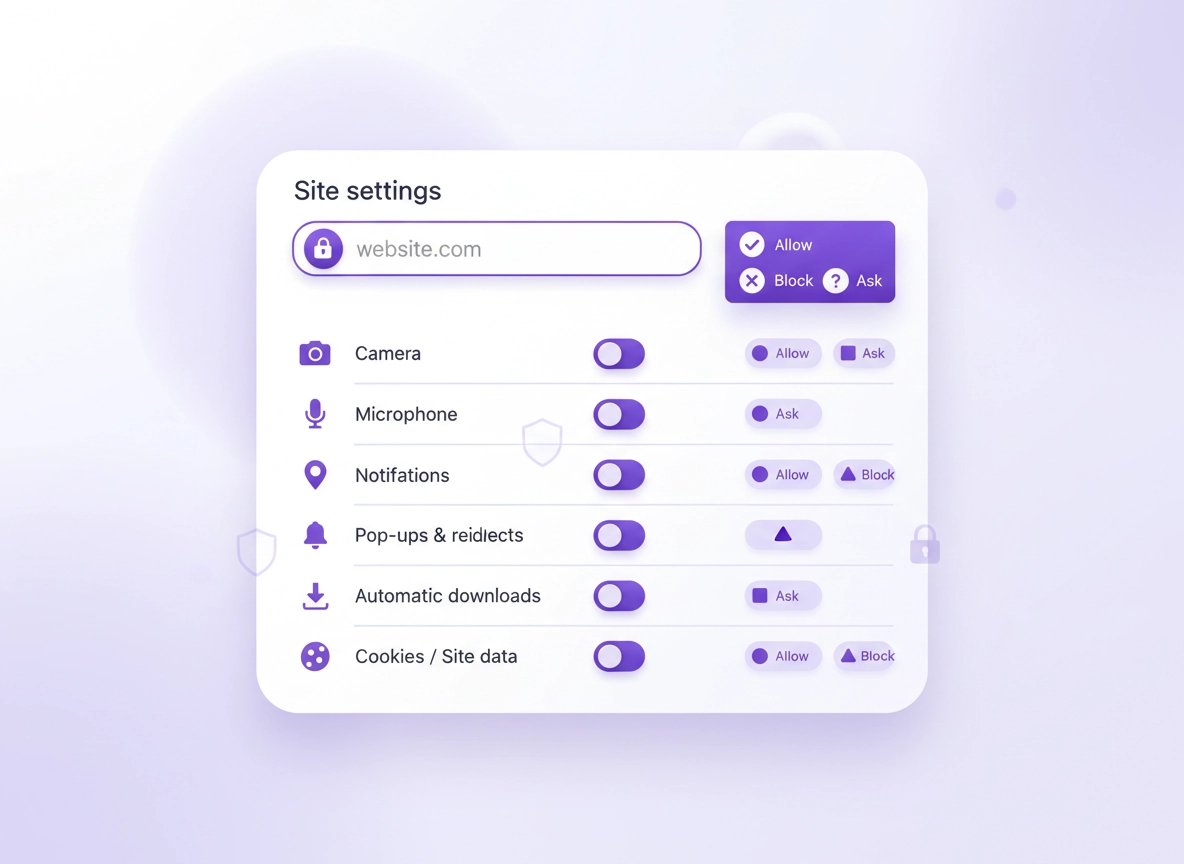
What Chrome site permissions are (and why they matter) .
This guide reflects current Chrome interface behavior and modern permission controls — not legacy menus.
Chrome site permissions are the browser-level rules that decide what a website can do on your device. They cover obvious access like camera, microphone, and location — but they also include high-impact controls like notifications, pop-ups and redirects, automatic downloads, clipboard access, and site-specific data storage.
The reason permissions matter isn’t just privacy in the abstract — it’s attack surface. A website that can send notifications can run “permission spam” campaigns. A website that can use your microphone can capture audio if you accidentally allow it. A website that can keep persistent data (cookies, local storage) can re-identify your browser across visits. The good news: Chrome gives you a precise control panel that most people never fully use.
Chrome uses a default rule + exceptions model: you set the global default (“Ask”, “Block”, or “Allow”), then you create exceptions for specific sites. When you troubleshoot a broken web app — or when you harden privacy — success usually comes from choosing sane defaults and then allowing only what you need for sites you actually trust.
Start here if your goal is privacy: Chrome Privacy Settings explains how permissions fit into a full tracking-reduction setup (cookies, ad privacy, DNS, Safe Browsing, and more).
Key terms (quick definitions) .
- Site permissions: Browser controls that govern what a site can access (sensors, notifications, storage, device APIs).
- Default permission: The global rule for all sites (Ask/Allow/Block), unless you add an exception.
- Per-site exception: A custom rule for one website (for example, allow camera only on your video-call site).
- Site data: Storage a site keeps on your device (cookies, cache, local storage) used for login, preferences, and tracking.
- Auto-revocation: Chrome can revoke some permissions from sites you don’t interact with (varies by permission and platform).
- Managed browser: A work/school Chrome profile controlled by admin policies that can lock or preconfigure permissions.
What permissions can (realistically) expose .
Some permissions are “low drama” (like images) and mostly affect usability. Others are high-signal for privacy and security. Here’s a practical lens:
- High risk: camera, microphone, location, notifications, pop-ups/redirects, automatic downloads, clipboard, device access (USB/Bluetooth/serial)
- Medium risk: background sync, sound autoplay, ads measurement-related settings, cross-site tracking mechanisms
- Lower risk: images, JavaScript (still important for security, but breaking it breaks most sites), fonts
If you’re operating in a higher-risk environment (shared computer, public computer, workplace device, remote work, or travel), your best move is to keep defaults conservative and build a small allowlist of sites you truly rely on.
Also useful: If you want to understand how extensions interact with site permissions, read Chrome Extension Permissions Guide (extensions can override or effectively bypass some site-level privacy assumptions).
Before you start (fast checks) .
Before you change anything, do these quick checks. They prevent 80% of “I changed the permission but it still doesn’t work” issues.
- Check you’re in the right profile: Chrome permissions are per profile. If you have a work profile and a personal profile, changes don’t cross over.
- Confirm the site origin: Permissions are stored by site (origin).
https://app.example.comcan have different rules thanhttps://example.com. - Close the tab (sometimes required): Camera/mic changes often require a refresh, and some web apps require a full tab restart.
- Check OS-level permissions: macOS/Windows/Android/iOS can block Chrome’s access to camera/mic/location even if Chrome is set to “Allow”.
- Look for a “blocked” indicator: Chrome often shows a small icon in the address bar if a permission was blocked.
- Disable “helper” extensions temporarily: Privacy blockers, script blockers, or enterprise extensions can break prompts.
Related: If Chrome becomes sluggish while you test and refresh settings, see Speed up Google Chrome or the focused guide Fix Slow Chrome (step-by-step).
Step-by-step: manage permissions the right way .
There are two “correct” workflows depending on what you’re trying to do: (A) change a permission for one website, or (B) change the default for all websites. The best practice is to keep defaults safe and then grant exceptions only where needed.
A) Change permissions for a specific site (fastest) .
- 1 Open the website that needs access (for example, a video meeting app).
- 2 Click the lock / site info icon next to the address bar (left side in most layouts).
- 3 Find the permission (Camera, Microphone, Location, Notifications, etc.) and set it to Allow or Block. If you see Ask (default), that means no exception exists yet.
- 4 Refresh the page. For camera/mic, you may need to fully restart the tab or rejoin the call.
- 5 When you’re done, consider removing the permission again (set back to Ask or remove the site exception in settings).
What “success” looks like: The website should re-prompt you (or immediately begin working) after a refresh. If it still fails, your OS-level permission or a device selection issue is likely the cause — jump to Troubleshooting.
B) Change default permissions for all sites (recommended baseline) .
- 1 Open Chrome → click the three-dot menu → Settings.
- 2 Go to Privacy and security → Site settings.
- 3 Under Permissions, choose the permission you want (for example, Notifications).
- 4 Set the default behavior: Ask (recommended), Allow (usually not recommended), or Block (best for high-abuse permissions like notifications).
- 5 Scroll down to the site list to manage exceptions (Allow list / Block list).
Find and edit all stored permissions for every site .
In the Site settings area, Chrome also provides a “master list” view so you can review everything you’ve ever granted: look for an option like View permissions and data stored across sites (wording may vary slightly by version). This is the best place to do a periodic cleanup and remove “permission drift” (sites you allowed once and forgot).
Privacy win: Many users don’t realize permissions accumulate over time. A 2-minute quarterly cleanup meaningfully reduces passive exposure. If you want a structured way to do this, use Chrome Privacy Audit Template.
Common variations (Windows, macOS, Android, iPhone) .
- Windows / ChromeOS / Linux: Settings → Privacy and security → Site settings. Most permissions behave consistently; device selection happens inside the web app (or system settings).
- macOS: Even if Chrome is set to “Allow”, macOS can block the camera/microphone at the OS level. You must allow Chrome in macOS Privacy settings.
- Android: You can change permissions via Settings → Site settings, and also from the site info icon. Android may also require app-level permissions for Chrome itself.
- iPhone/iPad (iOS): Some permissions are more restricted by iOS design. If something doesn’t exist as a toggle, it may be controlled by iOS system privacy settings rather than Chrome.
Related deep dives: Camera: Chrome Camera Permission Settings · Microphone: Chrome Microphone Permissions · Location: Chrome Location Permissions · Notifications: Chrome Notification Permissions
Advanced settings (power users + enterprises) .
Once you understand the default + exception model, the next step is to build a permissions strategy. This is where you stop playing whack-a-mole and start using Chrome like a controlled environment: fewer prompts, fewer surprises, less tracking, and fewer “why is this site suddenly able to do that?” moments.
Managed environments: If Chrome is signed into a work/school account, policies may lock or override permissions. See Enterprise Chrome Privacy Settings and Chrome Enterprise Guide.
Recommended “secure by default” permission baseline .
The goal is not to block everything. The goal is to block what’s commonly abused, “ask” for sensitive access, and allow only when it makes sense. Here is a practical baseline that works for most users without breaking daily browsing:
- Camera: Ask
- Microphone: Ask
- Location: Ask (or Block if you never use maps/ride-share in Chrome)
- Notifications: Block (then allow only trusted apps you genuinely want notifications from)
- Pop-ups and redirects: Block (allow exceptions only for sites that require it — often payment flows or legacy enterprise portals)
- Automatic downloads: Block or Ask (especially useful against “download loops”)
- Background sync: Ask / default (adjust if you’re hardening a work device)
- Sound: Allow (then mute per-site if needed)
- Ads / tracking-related controls: Keep conservative (see Chrome Ad Privacy Settings)
Permission hygiene: avoid “permission drift” .
Permission drift happens when you grant access once, then forget it exists. Months later, you visit a compromised page or a site changes ownership, and your old “Allow” still applies. You don’t need paranoia — you need a habit:
- Review site permissions quarterly (or monthly if you’re in a high-risk role).
- Remove permissions from sites you no longer use.
- Keep “Allow” lists small, especially for camera/mic/location/notifications.
- Use separate Chrome profiles: one for personal browsing, one for work, one “clean” profile for banking/admin tasks.
Profiles matter: A “secure profile” is one of the highest-leverage moves you can make. See Chrome Profile Security Settings and Chrome Secure Profile Setup.
When you should change advanced permission types .
- You manage a shared device: Block notifications, tighten pop-ups, restrict downloads, and consider stricter site data cleanup.
- You work with sensitive client data: Avoid granting device access permissions broadly; prefer known, audited web apps.
- You troubleshoot broken web apps: Temporarily allow a permission, validate functionality, then revert.
- You’re dealing with scammy behavior: Immediately block notifications + pop-ups + redirects; then review extensions and site data.
When you should not (or should be cautious) .
- Don’t globally allow camera/mic: It’s almost never necessary and creates avoidable risk.
- Don’t allow notifications “to be safe”: Most sites don’t need them; scams do.
- Don’t disable JavaScript everywhere: It can break logins, payments, and security controls on modern sites. Use targeted tools if needed.
- Be careful with exceptions on “all subdomains”: If you allow a large platform’s subdomain ecosystem, you may unintentionally trust more than you think.
Enterprise / admin notes: locking defaults with policies .
In managed Chrome environments (work or school), admins can enforce permission defaults using Chrome Enterprise policies. That’s the right approach when you need consistent security behavior — because relying on users to click the “right” prompt is not a strategy.
Practical examples admins commonly enforce:
- Notifications default: deny by default, allow only approved domains (reduces spam + productivity loss).
- Geolocation default: ask or deny except for approved business apps.
- Pop-ups and redirects: block globally, allow exceptions for legacy enterprise workflows.
- USB / device access: restricted to reduce data exfiltration vectors.
For IT admins: Start here: Chrome Security Policy Setup, then review Chrome IT Admin Security Settings.
Common alternatives users compare .
- Chrome built-in permissions vs privacy extensions (ad blockers, script blockers, permission managers)
- Chrome prompts vs OS-level privacy controls (macOS/Windows/Android)
- Manual per-site configuration vs enterprise policy management
- Default Chrome behavior vs hardened “secure profile” setups
Privacy & security notes (real-world risk) .
Permissions are one of the few controls that directly reduce both privacy risk and security risk. Tracking is not just ads — it’s also profiling, behavioral targeting, and correlation across sites. And scams don’t need malware to win; they often win with a permission prompt and a moment of user fatigue.
Impact: Affects device access (camera/mic/location), interruptions (notifications), unwanted actions (pop-ups/downloads), and data persistence (cookies/site storage).
Related: If you suspect infection, hijacking, or fake system alerts, use the malware workflow: Remove Malware from Chrome → Browser Hijacker Removal → Tech Support Scam Removal.
Recommended baseline settings .
- Option A (balanced): Ask for camera/mic/location + Block notifications + Block pop-ups/redirects + Ask/Block automatic downloads.
- Option B (maximum privacy): Block notifications + Ask camera/mic + Block location unless needed + tighten site data cleanup + consider stricter tracking controls (DNS, cookies, ad privacy).
- Option C (compatibility): Ask for most permissions (not block), allow exceptions for business apps; avoid global “Allow”.
Recommended settings by goal .
| Goal | Recommended setting | Tradeoff | Best for |
|---|---|---|---|
| Balanced | Ask for camera/mic/location; Block notifications; Block pop-ups; Ask/Block auto downloads | Occasional prompts | Most users |
| Maximum privacy | Block notifications; Ask camera/mic; Block location by default; aggressively prune site exceptions | Some sites need manual exceptions | Tracking-sensitive users |
| Compatibility | Ask for most; build an allowlist for trusted business apps; avoid global “Allow” | More “yes/no” decisions | Banking / enterprise / legacy apps |
How permissions interact with cookies and tracking .
Permissions control capabilities (device access, notifications), while cookies/site data control persistence (sessions and tracking). If your goal is to reduce tracking without breaking logins:
- Start with site permissions (especially notifications and pop-ups).
- Then tighten third-party cookies and review site data policies.
- Use exceptions only for sites you need (banking, work portals, trusted productivity apps).
Next steps: Third-Party Cookies Settings · How to Block Third-Party Cookies · Clear Browsing Data · Auto-Delete Cookies
Troubleshooting (when prompts don’t appear) .
If a site permission is set correctly but it still fails, the root cause is usually one of these: (1) OS-level permission blocked, (2) wrong input device selected, (3) site data corrupted, (4) extension interference, or (5) managed policy restriction.
Related: If the issue involves extensions or “read and change site data” warnings, see Chrome Extension Security Check.
If Chrome never asks for permission .
This usually means the permission is already set to Block (or it was blocked once and remembered). Fix: open the site → click the lock icon → set the permission back to Ask or Allow → refresh. If the lock icon doesn’t show the permission, go to Settings → Privacy and security → Site settings and check the global default and site exceptions.
If camera or microphone still doesn’t work after allowing it .
Two high-probability causes: (1) the wrong device is selected inside the web app (for example, your webcam vs an external capture device), or (2) your operating system blocked Chrome. On macOS and Windows, you must allow Chrome itself to access the camera/mic in system privacy settings. After changing OS-level access, fully quit and reopen Chrome, then try again.
Deep dive guides: Camera fixes · Microphone fixes
If location is wrong or stuck .
Location can fail because of VPNs, incorrect Wi-Fi geolocation, disabled system location services, or a previously saved “Block”. Fix: ensure the site permission is “Ask/Allow”, then confirm your device location services are enabled. If you’re using a VPN, test with it disabled or set location to “Ask” temporarily and retry.
Related: If you browse with a VPN, see Best VPN for Chrome and VPN vs Private DNS.
If notifications keep appearing even after you block them .
First confirm you blocked the correct site (origin matters), then remove any existing “Allow” exceptions in Notifications settings. Next, check if the notifications are coming from an installed web app (PWA) or another browser/app entirely. If you see scam-like notifications, also run a quick extension audit and malware check workflow.
Next steps: Notification Permissions · Tech Support Scam Removal
If pop-ups are blocked but the site “needs” them .
Some payment flows, SSO portals, and older enterprise tools use pop-ups. Best practice: keep pop-ups blocked globally, then add a single-site exception only for the site you trust. Do not switch the global default to “Allow” unless you enjoy pop-up roulette.
If settings look locked or you can’t change them .
If Chrome is managed by your organization, policies can lock permissions. You’ll usually see a “managed” indicator in Chrome settings or the toggle will be greyed out. Fix: contact your IT admin, or move the activity to an unmanaged personal profile if allowed by policy.
For admins: Enterprise Privacy Controls · Chrome Enterprise Management
If you need to reset safely .
If permission troubleshooting is spiraling, do a safe reset in this order: (1) remove the site’s permissions + site data, (2) test in Incognito (extension-free), (3) test in a fresh Chrome profile, then only (4) consider a broader Chrome reset if you suspect corruption or malware. This avoids wiping good settings unnecessarily.
Related: Chrome Security Checkup · Chrome Security Reset · Reset Chrome After Malware
FAQ .
-
helpWhere are Chrome site permissions located?On desktop, go to Settings → Privacy and security → Site settings. For a specific site, open it and click the lock/site info icon next to the address bar to change permissions instantly.
-
helpShould I block notifications in Chrome?For most people, yes — block notifications by default and allow only a few trusted apps. Notification permission is heavily abused by spam and scam sites, and most websites don’t need it to function.
-
helpWhy does Chrome say my camera/mic is blocked when it’s allowed?The most common cause is OS-level privacy settings blocking Chrome (especially on macOS/Windows). The second most common cause is the web app selecting the wrong device. After you fix OS access, fully restart Chrome and refresh the site.
-
helpHow do I reset site permissions for one website?Open the site → click the lock/site info icon → set permissions back to Ask (or remove the exception in Site settings). If the site is still broken, also clear that site’s stored data (cookies/site storage) and reload.
Sources & further reading .
- Google Chrome Help: Change site settings permissions
- Google Chrome Help: Use your camera and microphone
- Google Chrome Help: Block or allow pop-ups
- Chrome Enterprise: Policy list
- Chrome Enterprise Policy: DefaultNotificationsSetting
Disclosure: Some pages may mention tools or services. Recommendations are editorial and based on testing.