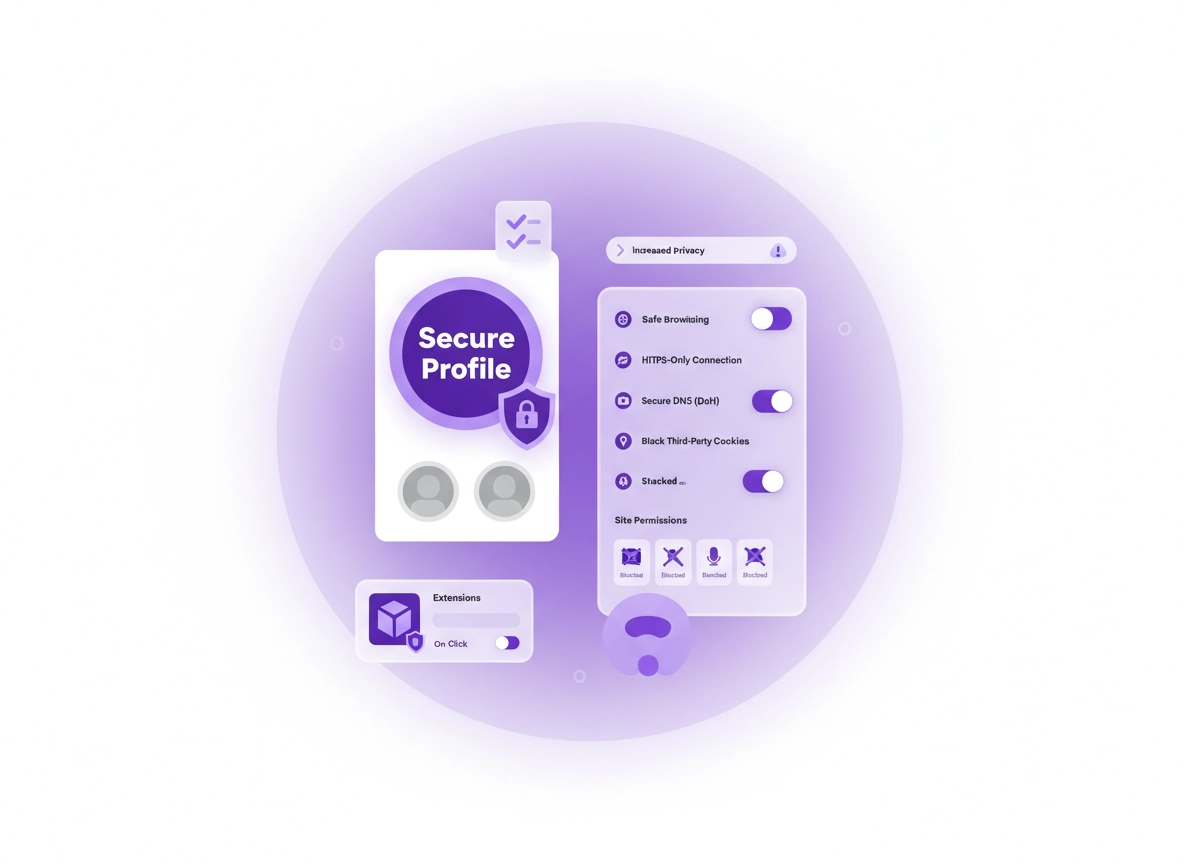
What a “secure profile” actually means .
Security isn’t one toggle in Chrome. A secure profile is a set of decisions that reduce risk where it matters most.
A Chrome profile is a self-contained browser environment. It has its own bookmarks, history, cookies, saved passwords, extensions, permissions, and sign-in state. That matters because most real-world account compromises don’t come from “Chrome being insecure”—they happen through session theft, extension abuse, phishing, weak account recovery, reused passwords, or risky site permissions.
A secure profile is simply a profile you treat like a “clean room”: you keep it separate from entertainment, shopping, and random browsing, and you minimize what can silently access sensitive data. Practically, that means: profile separation (so you don’t mix cookies/sessions), strict permissions (camera/mic/location blocked unless needed), extension minimalism (only vetted tools), hardened Sync (or no Sync), and safer network defaults (Secure DNS + HTTPS-only).
When you should use a secure profile .
Key terms (quick definitions) .
- Browser profile: A separate Chrome “container” for cookies, sessions, extensions, and browsing state.
- Session cookie: The token that proves you’re logged in. If it’s stolen (or shared across contexts), attackers can sometimes skip your password.
- Site permissions: Controls for camera, microphone, location, notifications, clipboard, downloads, pop-ups, and “additional permissions.”
- Secure DNS (DoH): DNS over HTTPS—helps reduce DNS eavesdropping and some ISP-level tampering on supported networks.
Related: If you want the bigger picture first, start at Chrome Privacy & Security Settings Overview and then come back to this page for the “secure profile” build.
Related: For profile-level privacy (what Sync shares, what sign-in does), read Chrome Profile Privacy Setup.
Before you start (fast checks) .
These checks save time. A secure profile is only as strong as the device and account behind it. You don’t need to be paranoid—you just want to remove “easy wins” for attackers.
- Update Chrome: use the built-in update flow so you’re not securing a browser that’s already behind. See Get or Update Chrome.
- Run Security Check (Chrome): it flags risky extensions, leaked passwords, and unsafe settings. See Chrome Security Checkup.
- Check saved passwords for leaks: if the secure profile will store passwords, do this first. See Chrome Password Checkup and Chrome Password Leak Detection.
- Decide on Sync: Sync is convenient, but it expands your “blast radius” if your Google account is compromised. If this profile is for banking/admin, you may want limited Sync or no Sync at all.
- Know your “must work” sites: list the sensitive sites you’ll use (banking, payroll, ads, hosting). That way, if a setting breaks something, you can quickly test and adjust.
Related: If Chrome feels slow while you set this up (too many tabs/extensions), see Speed Up Google Chrome.
Pick your baseline goal (choose one) .
Choose the goal that matches your situation. You can always tighten later.
Step-by-step secure profile setup .
This is the practical setup that makes the biggest difference. The core idea is: separate profile → account hardening → extension discipline → strict permissions → safer network defaults → recovery plan.
1) Create a new profile (the isolation step) .
- 1 Click your profile icon (top-right) → Add (or Manage profiles → Add).
- 2 Name it something obvious like Secure, Banking, or Work Admin, and choose a distinct color.
- 3 If you share the computer: enable “separate shortcut” so you always launch the right profile.
- 4 Open the new profile window and keep it clean—don’t import extensions “because it’s convenient.”
What “success” looks like: You can close your daily profile, open the Secure profile, and you’re not signed into random sites. Your secure profile should feel “empty” at first—that’s the point.
Related: If you want a privacy-first profile setup (Sync decisions, sign-in behavior, better defaults), see Chrome Profile Privacy Setup.
2) Decide: sign in with a Google account or keep it local .
Signing into Chrome enables Sync (bookmarks, passwords, history, extensions—depending on what you allow). That can be great, but it also means one compromised Google account can affect more than one device. For high-risk use (banking/admin), many people choose one of these:
- Option A (recommended for most): Sign in, but limit Sync categories and protect the account strongly (2FA/passkeys).
- Option B (maximum isolation): Don’t sign in. Keep the secure profile local to the device and use a separate password manager if needed.
- Option C (work/admin): Sign in with a dedicated work/admin account, not your casual personal Google account.
If you sign in: go to Settings → You and Google → Sync and Google services and choose a conservative configuration (we’ll do that in step 4).
Related: If you’re worried about the security impact of Sync, read Chrome Sync Security Risks and Disable Chrome Sync.
3) Turn on the protections that block “common wins” .
These settings cut down phishing success, unsafe downloads, and some dangerous browsing patterns. In your secure profile, go to Settings → Privacy and security and work through:
- Safe Browsing: Use Enhanced protection if this profile is for sensitive browsing and you’re comfortable with extra protection signals. If you prefer a more minimal data-sharing approach, Standard is still useful. (Deep dive: Chrome Safe Browsing Settings and Enhanced Safe Browsing.)
- Security Check: Run it once now and then monthly. It catches “obvious” problems: risky extensions, leaked passwords, outdated Chrome. (Guide: Chrome Security Checkup.)
- Always use secure connections (HTTPS-first / HTTPS-only): Turn this on for a secure profile. It pushes sites toward HTTPS and warns on HTTP where possible. (Guide: Chrome HTTPS-Only Mode.)
4) Harden Sync (or turn it off) for the secure profile .
Sync is not “bad,” but you should treat it as a deliberate choice. In a secure profile, you want to avoid syncing anything that (a) reveals sensitive history, (b) spreads risky extensions automatically, or (c) makes recovery messy.
Go to Settings → You and Google → Sync and Google services. Then:
- Turn off “Sync everything” and pick categories manually.
- Passwords: Only sync passwords if your Google account has strong 2FA/passkeys and you actively monitor recovery methods.
- Extensions: Consider disabling extension sync for this profile. It prevents accidental “extension creep.”
- History: For a banking/admin profile, many people keep history syncing off.
- Review “Google services” toggles: In a secure profile, turn off non-essential personalization and speculative services.
Related: If you want a detailed privacy-first walkthrough of Sync controls, see Chrome Account Sync Settings.
5) Extension discipline: the secure profile rule .
This is where most “secure profiles” fail in real life: people clone their daily setup and install 12 extensions that can read and change data on every site. Your secure profile should be boring.
Open Extensions → Manage Extensions and audit:
- Remove anything you don’t need for banking/work/admin.
- Site access: set critical extensions to On click or On specific sites, not “On all sites.”
- Permissions: watch for “Read and change all your data on websites you visit” and “Manage your downloads.”
- Updates: if an extension suddenly requests new permissions, treat it as a red flag until reviewed.
Related: For a deep, practical audit flow, use Chrome Extension Security Check, plus the detailed Extension Permissions Guide.
Related: If you suspect a malicious extension, go straight to Chrome Extension Malware Removal.
6) Lock down site permissions (quiet data leaks) .
Site permissions are an easy place to leak data without noticing: notifications spam, location tracking, microphone access, background sync, clipboard reads. In a secure profile, you want a strict default stance: Block by default, allow only when needed.
Go to Settings → Privacy and security → Site settings. Then apply these defaults:
- Camera / Microphone: Block by default. Only allow for a known video call site (and ideally not in the secure profile).
- Location: Block by default. Banking/admin rarely needs it. (Guide: Chrome Location Permissions.)
- Notifications: Block by default. This kills a huge amount of scammy behavior. (Guide: Chrome Notification Permissions.)
- Pop-ups and redirects: Block. Allow only for specific sites that need it (some payment flows).
- Background sync: Turn off unless you truly need it. (Guide: Background Sync Settings.)
- Automatic downloads: Block. Permit per site if required.
Related: If you want a full map of what each permission does (and how to audit a site that keeps asking), read Chrome Site Permissions Settings.
7) Cookies + tracking: tighten without breaking everything .
For a secure profile, you care about two things: (1) protecting the session cookies that keep you logged in, and (2) reducing cross-site tracking that can increase risk and clutter.
Go to Settings → Privacy and security → Third-party cookies (or Cookies settings, depending on UI).
- Recommended baseline: Block third-party cookies (or “Block in Incognito” if you need compatibility). (Guide: Third-Party Cookies Settings and Block Third-Party Cookies.)
- Allow exceptions carefully: Some identity providers and embedded login flows require third-party cookies. If a work portal breaks, add a site exception instead of disabling globally.
- Clear on exit (optional): For an admin/banking profile, you usually don’t want to clear everything on close because it forces constant re-auth, but you can configure targeted auto-delete patterns. See Auto-Delete Cookies in Chrome.
8) Network hardening: Secure DNS + safe connection defaults .
A secure profile should be resilient on public Wi-Fi and less dependent on whatever DNS defaults your network hands you. DNS isn’t the only risk, but it’s a classic “quiet layer” that can be observed or tampered with on some networks.
- Enable Secure DNS (DoH): Go to Settings → Privacy and security → Security → enable Secure DNS and choose a reputable provider (or your organization’s if required). Guides: DNS over HTTPS Settings and Secure DNS Setup.
- HTTPS-first / HTTPS-only: Keep it enabled (from step 3). It reduces accidental HTTP exposure and makes downgrade behavior more obvious.
- Watch for proxy/VPN policies: In corporate environments, you may be required to use a proxy or a secure gateway. If so, follow your org policy. (Helpful context: Chrome Proxy Settings Guide and Secure Connection Settings.)
Related: If you frequently work on public Wi-Fi, read Chrome Public Wi-Fi Security Tips and Secure Wi-Fi Browsing.
9) Passwords, passkeys, and account recovery (the “real security” layer) .
A secure browser profile helps, but your account security is where most compromises succeed or fail. For your secure profile, make sure your key accounts (Google, bank, hosting, ads, password manager) are protected with modern auth.
- Use a strong password manager strategy: either Chrome’s manager with strict account protection, or a dedicated manager. If you’re evaluating options, start here: Best Password Manager for Chrome.
- Enable 2FA or passkeys: For Google accounts, prefer passkeys or a security key, then an authenticator app. Avoid SMS where possible (it’s better than nothing, but not ideal for high-value accounts).
- Reduce recovery risk: Review recovery email/phone settings and remove anything you don’t control. Attackers love weak recovery paths.
- Run password checks: Do it monthly on accounts tied to this profile. See Chrome Password Checkup.
Expert tip: For the secure profile, consider a “no email links” rule. If a bank or admin tool sends a “magic link,” open the site directly and log in—don’t click links from email. It’s a simple habit that prevents a ton of phishing success.
10) Final verification: test your must-work sites (and lock the profile) .
Now test your small list of critical sites. If something breaks, don’t disable protection globally. Fix it with targeted exceptions:
- Login breaks: check third-party cookie blocking. Add a site exception for the identity provider.
- Payment popups blocked: allow pop-ups for that site only.
- Video call required: allow mic/camera only for that specific domain (and consider using a separate work profile instead).
- Downloads fail: allow automatic downloads only for the vendor portal, then revoke later.
Optional but useful: Pin the secure profile shortcut to your taskbar/dock and rename it clearly. The main “security failure mode” is accidentally doing admin work in your casual profile.
Common variations (Windows, macOS, Android/iPhone) .
- Windows / ChromeOS: Most settings match exactly. Device-level security (BitLocker / ChromeOS verified boot) strengthens the whole setup.
- macOS: Same Chrome menus. Ensure your macOS user account is protected (password + FileVault if available).
- Android / iPhone: Profiles work differently on mobile. Focus on account hardening, safe browsing habits, and permission discipline. If mobile is your main device, consider keeping sensitive tasks inside the same minimal Chrome install and avoid installing “utility” browsers.
Advanced hardening (power users) .
This section is where you optimize for high-risk use cases: admin accounts, business operations, compliance, and reduced blast radius. Don’t do everything blindly—pick the controls that match your risk.
Related: If you’re in a managed environment (policies, fleets, device controls), start with Chrome Enterprise Guide and Chrome Enterprise Security Settings.
A) Create a “two-profile” workflow: daily + secure .
The strongest practical setup for most people is not “one perfect profile,” it’s two profiles with different rules: Daily (normal browsing) + Secure (critical accounts). You don’t need to constantly police yourself—you just choose the right window when it matters.
- Daily profile: normal extensions, browsing, shopping, social, experiments.
- Secure profile: critical sites only, strict permissions, minimal extensions, hardened Sync, safer DNS/HTTPS rules.
B) Tighten “Ad privacy” and tracking signals (optional) .
If you’re using a secure profile, you usually want less personalization and fewer cross-site signals. Consider reviewing Chrome’s ad/privacy controls and disabling anything you don’t want in this profile: Chrome Ad Privacy Settings and Privacy Sandbox Explained.
Practical note: This is mostly about privacy and “ambient tracking,” not direct account security. Focus first on extensions, permissions, Sync discipline, and account protection.
C) Enable “clean session” habits (high value) .
A secure profile is strongest when your sessions are predictable:
- Close the secure profile when you’re done. Don’t leave admin sessions open for days.
- Use bookmarks for critical sites. Avoid typing domains from memory. This reduces typo-squatting risk.
- Don’t install “one-off” extensions. If you need a tool once, prefer a web tool or a temporary workflow.
- Use separate email for admin accounts (where possible). It reduces phishing overlap with casual inbox traffic.
D) Consider a dedicated password manager strategy .
If the secure profile is your “critical operations” profile, password hygiene matters. Chrome’s built-in manager is convenient, but some people prefer dedicated managers with extra controls (vault policies, emergency access, admin controls). If you’re deciding, see: Chrome Password Manager vs Third-Party and the hub page Best Password Manager for Chrome.
Common alternatives users compare .
- Chrome secure profile vs Incognito mode (Incognito is not a security sandbox; it mainly changes local history/cookies behavior)
- Chrome built-in settings vs third-party privacy extensions (extensions can increase risk if over-permissioned)
- Chrome password manager vs dedicated password managers (policy + recovery + admin controls)
- Secure DNS vs VPN (DNS protection is not the same as traffic encryption; choose based on threat model)
Related: If you want to go deeper on hardening Chrome overall, see Chrome Hardening Guide and Chrome Browser Hardening Checklist.
Privacy & security notes (what changes behind the scenes) .
This section explains why the setup works—so you can make smart tradeoffs when something breaks. Most settings fall into one of four buckets: session protection, permission minimization, extension risk reduction, and network safety.
Impact: Changes cookies, tracking behavior, extension exposure, site permissions, and connection safety. The biggest “breakage risk” comes from third-party cookie blocking and HTTPS-only mode on legacy sites.
Recommended baseline settings .
- Option A (balanced): Block third-party cookies, strict permissions, limited Sync, Enhanced/Standard Safe Browsing, Secure DNS enabled.
- Option B (maximum security): No Sync (or very limited), minimal extensions, HTTPS-only on, strict site allowlists for exceptions.
- Option C (compatibility): Standard Safe Browsing, third-party cookies blocked with a few exceptions, HTTPS-first with fewer strict rules.
Recommended settings by goal .
| Goal | Recommended setting | Tradeoff | Best for |
|---|---|---|---|
| Balanced | Block 3rd-party cookies + strict permissions + limited Sync | Some login flows need exceptions | Most users |
| Maximum security | No Sync + minimal extensions + HTTPS-only + Secure DNS | More friction, more site tuning | High-risk accounts |
| Compatibility | Standard Safe Browsing + cookie blocking with targeted exceptions | More ambient tracking | Banking + enterprise portals |
Related: Want a systematic audit approach? Use Chrome Privacy Audit Template.
Troubleshooting .
Rule of thumb: Don’t disable protections globally to fix one site. Use site-specific exceptions so your secure profile stays secure for everything else.
If a login page loops or SSO won’t complete .
This is often third-party cookie blocking (or strict tracking protection) interacting with an identity provider. Fix it by adding a site exception for the specific login domain or IdP used by your organization, rather than turning off cookie blocking entirely.
Helpful guides: Third-Party Cookies Settings · Block Third-Party Cookies
If a site says “unsupported browser” or refuses to load .
First confirm Chrome is updated and disable any extension that modifies pages (ad blockers, script tools, privacy rewrites). Next, test the same site in the secure profile with all extensions off. If it works, you’ve found the conflict. If it still fails, check HTTPS-only mode settings or corporate proxy requirements.
Related: HTTPS-Only Mode · Proxy Settings
If notifications and pop-ups keep appearing .
In a secure profile, notifications should be blocked by default. Go to Site Settings and confirm notifications are blocked, then remove any site that was granted permission. This is also a common sign of shady sites—if it’s persistent, run a security check and audit extensions.
Related: Notification Permissions · Extension Security Check
If you suspect your profile is compromised .
Don’t panic. Do the high-signal steps first: remove unknown extensions, run Security Check, change critical passwords from a trusted device, and review account recovery. If you think malware is involved, use a malware removal guide before rebuilding the secure profile.
Related: Remove Malware from Chrome · Security Checkup
If you need to reset safely (without losing everything) .
If your secure profile becomes messy, you have two safe reset options: (1) remove extensions and clear site permissions one category at a time, or (2) create a fresh secure profile and migrate only what you trust (bookmarks for critical sites). If you want a full “reset after infection” workflow, follow: How to Reset Chrome After Malware.
FAQ .
-
helpIs a secure profile the same as Incognito mode?No. Incognito mainly changes what’s saved locally (history, cookies after you close it). A secure profile is persistent isolation: separate cookies, separate extensions, separate permissions, and a consistent set of hardened settings. Incognito is useful, but it’s not a security sandbox.
-
helpShould I sign into Chrome in my secure profile?It depends on your risk and convenience needs. Signing in enables Sync, which is helpful—but it also means your Google account becomes a higher-value target. For banking/admin profiles, many people either limit Sync heavily or keep the profile local. If you do sign in, protect the account with strong 2FA/passkeys and review recovery methods.
-
helpWhat’s the #1 mistake that makes a “secure profile” unsafe?Installing too many extensions—especially ones with “read and change data on all sites” permissions. In a secure profile, keep extensions minimal and set site access to “on click” or “specific sites” whenever possible.
-
helpMy bank site breaks when I block third-party cookies. What do I do?Don’t turn off cookie blocking for the entire profile. Add a targeted exception for the specific login/identity domain the bank uses. Many banks rely on embedded identity or fraud protection flows. A small exception is a better tradeoff than a global downgrade.
Sources & further reading .
- Google Chrome Help: Settings overview
- Google Account Help: Security & sign-in protection
- Google Safe Browsing: concept overview
Disclosure: Some pages may mention tools or services. Recommendations are editorial and based on testing and practical security principles.