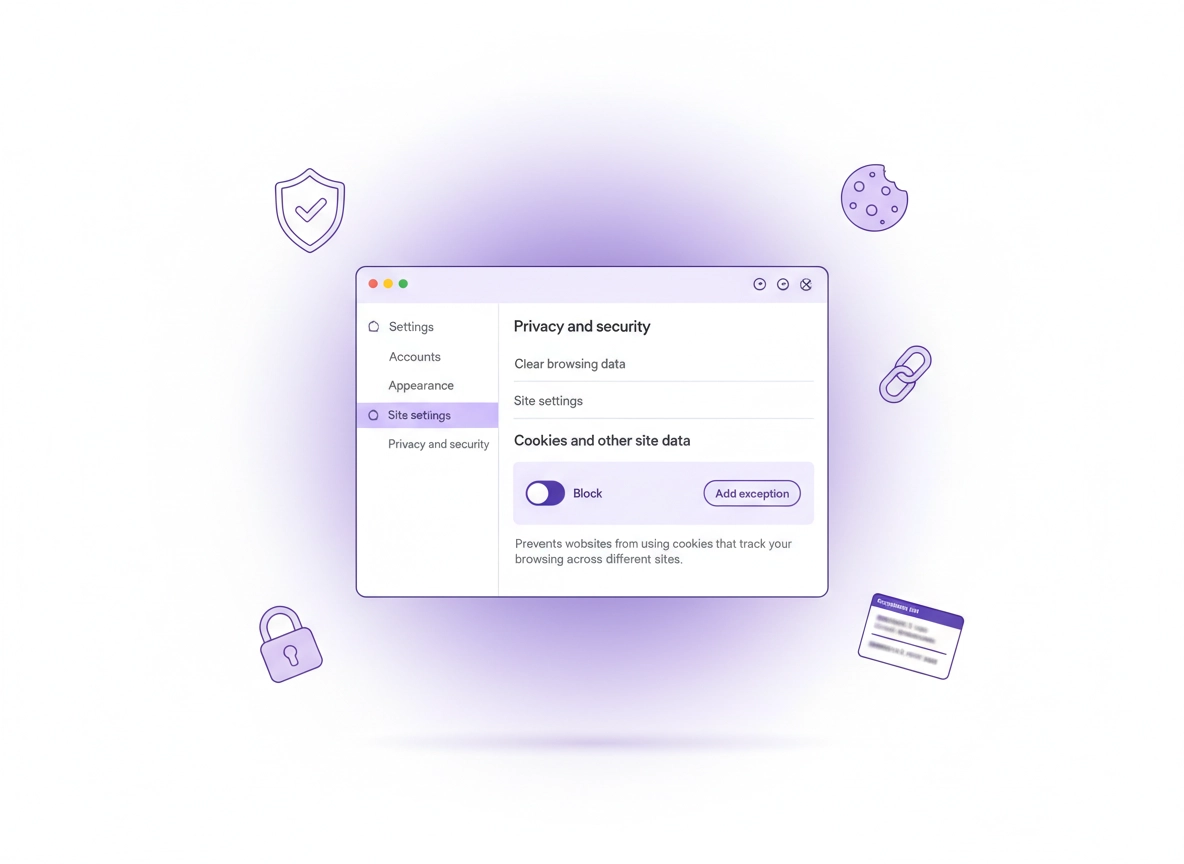
What third-party cookies are (and why they matter) .
Third-party cookie controls are one of the highest-impact privacy settings in Chrome because they affect cross-site tracking and ad measurement—without changing how the web “looks.”
A cookie is a small piece of data stored by your browser so a website can remember you. Cookies are used for legitimate things (keeping you logged in, saving preferences, maintaining a shopping cart) and for less user-friendly things (building a profile of what you read, buy, and watch across many sites).
The key distinction is who set the cookie: first-party cookies are created by the site you’re actively visiting (the “top-level” site in the address bar), while third-party cookies are created by other domains that load inside the page—commonly ad platforms, analytics scripts, embedded media players, customer support widgets, payment providers, federated sign-in services, and marketing tools.
When third-party cookies are allowed, a tracker embedded on multiple sites can recognize your browser from site to site, linking visits into a cross-site browsing history. This is why third-party cookies are strongly associated with behavioral advertising, retargeting, and cross-site identity graphs. Blocking them doesn’t “turn off ads,” but it can meaningfully reduce the ability to follow you around the web.
Start here if you want a full privacy baseline: Chrome Privacy Settings (hub), plus Chrome Ad Privacy Settings and Privacy Sandbox explained.
Key terms (quick definitions) .
- Third-party cookies: Cookies set by a domain that’s not the one you’re actively visiting (often embedded scripts, ads, or services).
- Cross-site tracking: The ability for the same third party to recognize your browser on many different websites and link those visits together.
- Site exception: A rule that allows or blocks cookies for a specific website (or group of sites) regardless of your global default.
- Cookie partitioning: A privacy approach where third-party cookies (or storage) are isolated per top-level site, reducing cross-site correlation.
- “Related sites” / site groups: A Chrome feature that can allow certain closely related domains to share state (useful for sign-in or embedded workflows).
Before you start (fast checks) .
These quick checks prevent the most common “I changed it but nothing happened” cases. Do them first if you’re troubleshooting a broken site or login flow.
- Confirm your Chrome profile: Are you changing settings on the same profile you use to browse? (Work profiles, guest mode, and separate Chrome profiles have separate cookie settings.)
- Check for “Managed by your organization”: If your browser is managed, an admin policy may override third-party cookie choices (common in schools and businesses).
- Restart Chrome after changes: Many cookie-related issues resolve only after a full restart (not just closing a tab).
- Try the failure in a clean session: Use an Incognito window to test whether extensions or existing cookies are causing the issue.
- Know your goal: “Maximum privacy” and “maximum compatibility” are different—choose the strategy section below that matches your intent.
Related: If you suspect extensions are interfering with logins or embedded tools, review Chrome Extension Security and the extension permissions guide.
Related: If you want a clean reset without wiping everything, use Clear browsing data or auto-delete cookies (targeted cleanup).
Step-by-step: change the setting (recommended) .
Chrome’s cookie controls are designed around a default choice (allow vs block) plus exceptions. For most people, the best privacy-to-compatibility balance is: Block third-party cookies and then add exceptions only when necessary.
Desktop (Windows, macOS, Linux, ChromeOS) .
- 1 Open Chrome and click the three dots (top-right) → Settings.
- 2 In the left sidebar, select Privacy and security.
- 3 Click Third-party cookies (or open chrome://settings/cookies directly).
- 4 Choose one option:
- Allow third-party cookies (maximum compatibility, least privacy)
- Block third-party cookies (best privacy baseline; may break some sign-in/embedded tools)
- 5 If you block third-party cookies, scroll to Sites allowed to use third-party cookies and add exceptions for only the sites you trust.
- 6 Restart Chrome and re-test the site that was failing.
What “success” looks like: You stay logged in on the sites you use, embedded services load normally, and “infinite login loops” stop—while your browser allows fewer third parties to recognize you across unrelated sites.
Related: Want the “full baseline” across settings? Use Chrome Privacy Settings Checklist and how to stop Chrome tracking.
Android (Chrome app) .
On Android, Chrome may surface third-party cookie controls under Privacy and security or Site settings, depending on version and device. Use this path first:
- 1 Open Chrome → tap the three dots → Settings.
- 2 Tap Privacy and security → Third-party cookies.
- 3 Choose one:
- Allow third-party cookies
- Block third-party cookies in Incognito (privacy only in Incognito)
- Block third-party cookies (strongest privacy control)
iPhone / iPad (important note) .
On iOS, Chrome is required to use Apple’s WebKit engine. Cookie behavior and many privacy controls are constrained by iOS-level rules, and Chrome on iPhone may not expose the same granular third-party cookie UI you see on desktop or Android. If you’re troubleshooting third-party cookie issues on iPhone/iPad, focus on: clearing site data, testing in a clean session, or switching to an authentication method that doesn’t require third-party cookies.
Common variations (what you might see) .
- Different menu labels: Some users still see older grouping like “Cookies and other site data.” Newer builds surface Third-party cookies more directly.
- Incognito behavior: Chrome commonly blocks third-party cookies in Incognito by default. Your normal profile setting may be different.
- Enterprise-managed devices: Settings can be locked or forced by policy. See the advanced section below.
Add exceptions safely (so sites still work) .
The most important skill with third-party cookie privacy is using exceptions correctly. A global “Allow” reopens cross-site tracking for everything. A targeted exception fixes one workflow while keeping the rest of the web tighter.
When you typically need an exception .
- SSO / federated login loops: “Sign in with Google/Microsoft/Okta” can fail if the identity provider needs cross-site state.
- Embedded tools: Support chat widgets, scheduling tools, forms, training platforms, or embedded dashboards may rely on third-party cookies.
- Payment providers: Checkout flows can involve third-party domains for fraud checks, payment authorization, or identity verification.
- Cross-domain products: A service that uses multiple domains (app.example.com + login.example.net) can require controlled “related site” behavior.
Desktop: add a site to “allowed” exceptions .
- 1 Open Settings → Privacy and security → Third-party cookies.
- 2 Under Sites allowed to use third-party cookies, click Add.
- 3 Add the top-level site you’re visiting (the one in the address bar), not a random third-party domain you saw in dev tools.
- 4 Re-test the workflow (login, checkout, embedded content) in a new tab.
Why “top-level site” matters: People often paste in a third-party domain (like a CDN or analytics host) and nothing improves. The exception is most effective when it’s applied to the site where the user journey occurs.
Privacy-friendly exception strategy .
- Prefer temporary exceptions: If you only need access for one project or short period, remove the exception after.
- Prefer per-site cleanup: If a site is stuck in a broken login loop, clear site cookies for that site only (see troubleshooting).
- Prefer trusted domains: Only allow third-party cookies for sites you trust (banking, work platforms, reputable SaaS). Avoid exceptions for random content sites.
Related: If you want a “block it everywhere” workflow, also read Block third-party cookies in Chrome.
Advanced: privacy + compatibility strategy .
This section is for power users, professionals, and teams who need to balance privacy controls with real-world workflows: identity, access, analytics, compliance, and productivity tools. The goal is not “privacy theater.” The goal is a configuration that reduces tracking risk while keeping core sites reliable.
Related: If you’re doing this as part of a broader hardening plan, use Chrome hardening guide and browser hardening checklist.
Pick a baseline that matches your goal .
| Goal | Third-party cookies default | Exception strategy | Best for |
|---|---|---|---|
| Balanced privacy | Block third-party cookies | Add exceptions only for trusted sites that break | Most users, remote work, students |
| Maximum privacy | Block third-party cookies | Minimal exceptions + frequent per-site cleanup | Tracking-sensitive users, journalists, security teams |
| Maximum compatibility | Allow third-party cookies | Use additional privacy controls elsewhere | Legacy apps, some enterprise portals |
Understand what “breakage” really is .
When third-party cookies are blocked, “breakage” usually isn’t the main site failing. It’s a dependency failing—something embedded or delegated. Common patterns:
- Auth bounce loop: You sign in, you get redirected, then you’re asked to sign in again (the IdP can’t persist state cross-site).
- Embedded app “blank box”: The embed can’t establish a session cookie, so it never loads content.
- Payments fail silently: Fraud detection or a payment widget can’t maintain a secure state, so it errors out.
Enterprise & managed devices (policies you should know) .
In business environments, third-party cookie behavior may be controlled by policy. If you see “Managed by your organization,” you may not be able to change the setting, or your changes may revert.
- BlockThirdPartyCookies: Forces third-party cookie blocking.
- CookiesAllowedForUrls / CookiesBlockedForUrls: Allowlist/blocklist specific sites.
- ClearBrowsingDataOnExitList: Automatically clears data on browser exit, which can mimic “login won’t stick.”
Related: If you’re doing policy-level control, start at Enterprise Chrome privacy settings, plus Chrome security policy setup and Chrome Enterprise management.
Common alternatives users compare .
- Chrome settings vs privacy extensions: Extensions can help, but they also add risk. Start with native settings first.
- Blocking cookies vs blocking trackers: Cookie blocking reduces one tracking method; fingerprinting and link tracking can still exist.
- Incognito vs hardened profile: Incognito is not “anonymous.” A dedicated hardened profile is more reliable for repeat private workflows.
- Browser-only privacy vs network privacy: For ISP-level privacy, you may need secure DNS or VPN tooling (depending on your threat model).
Related: For network privacy hardening, see Secure DNS setup and DNS over HTTPS settings.
Privacy & security notes (tracking, compliance, risk) .
Third-party cookies sit at the intersection of privacy, advertising, analytics, and identity. If you’re here for privacy reasons, blocking third-party cookies is a high-leverage move. If you’re here because a site is broken, the most professional approach is to fix the one workflow with a targeted exception, then keep the privacy baseline intact.
Impact: Affects cross-site tracking, embedded services, sign-in widgets, and some payment/identity flows.
Recommended baseline settings .
- Option A (balanced): Block third-party cookies + allow exceptions for trusted sites that need it.
- Option B (maximum privacy): Block third-party cookies + minimize exceptions + clear site data regularly.
- Option C (compatibility): Allow third-party cookies + tighten privacy elsewhere (ad settings, permissions, extensions, DNS).
Recommended settings by goal .
| Goal | Recommended setting | Tradeoff | Best for |
|---|---|---|---|
| Balanced | Block third-party cookies + exceptions | Occasional site fixes needed | Most users |
| Maximum privacy | Block third-party cookies + minimal exceptions | More breakage risk (SSO, embeds) | High privacy needs |
| Compatibility | Allow third-party cookies (temporarily if possible) | More tracking exposure | Legacy / enterprise sites |
Related: For broader tracking controls, see tracking protection, fingerprint protection, and Incognito mode guide.
Related (security): If you’re changing cookie settings because something feels “hijacked” (fake popups, redirects, strange logouts), check Remove malware from Chrome and browser hijacker removal.
Troubleshooting (login loops, embeds, payments) .
Quick diagnostic: If the issue disappears in Incognito (or a fresh profile), it’s often an extension conflict or corrupted cookies—not the third-party cookie toggle itself. See privacy audit template if you want a structured approach.
If you get stuck in a sign-in loop .
Sign-in loops usually happen when an identity provider (IdP) or embedded auth frame can’t store or read the state it needs. Fix it in this order:
- Add a site exception for the top-level site you’re signing into (not the IdP domain you see in a redirect).
- If still broken, clear cookies for that site only (Settings → Privacy and security → See all site data and permissions → search site → Delete).
- Temporarily disable extensions that interact with pages (ad blockers, script blockers, “privacy” toolbars) and retest.
- As a last resort for a single critical login, temporarily switch to “Allow third-party cookies,” complete the login, then revert and use an exception.
If an embedded tool shows a blank frame (chat, forms, video, dashboards) .
Many embeds are third-party by design. Blocking third-party cookies can prevent the embedded service from creating a session. Try:
- Allow the top-level site you’re visiting (exception).
- If it’s a work tool, consider allowing the vendor domain only if you trust it (and your organization approves it).
- Check whether the vendor supports a “cookie-less” embed mode (some do via modern storage APIs or token-based sessions).
If payments fail or checkout won’t complete .
Payment flows can involve multiple domains for fraud prevention and authorization. If checkout breaks after blocking third-party cookies:
- Add an exception for the merchant site.
- Try the checkout in a clean window (Incognito) to isolate extension conflicts.
- Ensure your clock/timezone is correct (some security flows fail on time mismatch).
- If it’s an enterprise device, confirm a policy isn’t blocking required domains.
If “Allow” is selected but a site still says cookies are blocked .
This happens when another layer is blocking storage:
- A privacy extension is blocking cookies or scripts.
- You’re in Incognito and your Incognito cookie behavior differs.
- Your browser is managed and policy overrides your UI selection.
- You’re using “clear cookies on exit” or an auto-cleanup tool.
If you need to reset safely (without nuking everything) .
Don’t start with “clear all browsing data” unless you’re comfortable logging back into everything. Prefer:
- Per-site deletion: delete cookies/site data for only the site that’s broken.
- Try a clean profile: create a new Chrome profile for work tools and keep it hardened.
- Review permissions: misconfigured site permissions can look like cookie failures. See site permissions settings.
FAQ .
-
helpWill blocking third-party cookies break websites?Some sites may break—especially sign-in widgets, embedded tools, and payment flows—because those features often load from third-party domains. The best fix is to keep third-party cookies blocked globally and add a site exception only for the site you trust that needs it.
-
helpWhat’s the difference between first-party and third-party cookies?First-party cookies are set by the site in your address bar and are commonly used for logins and preferences. Third-party cookies are set by other domains embedded inside the page (ads, analytics, embeds) and are frequently used for cross-site tracking. Blocking third-party cookies reduces that cross-site correlation.
-
helpHow do I allow third-party cookies for just one site?Go to Settings → Privacy and security → Third-party cookies, keep the global default set to Block, then add the site under Sites allowed to use third-party cookies. Re-test in a new tab and remove the exception later if you no longer need it.
-
helpDoes Incognito mode stop tracking if I block third-party cookies?Blocking third-party cookies reduces one major tracking method, but it doesn’t make you anonymous. Websites can still track you via accounts, fingerprinting, and network-level identifiers. For a broader privacy setup, pair cookie controls with permission hardening and ad privacy settings.
Sources & further reading .
- Google Chrome Help: Delete, allow, and manage cookies (Desktop)
- Google Privacy Sandbox: Cookie blocking basics
- MDN Web Docs: Third-party cookies
Disclosure: Some pages may mention tools or services. Recommendations are editorial and based on testing and real-world troubleshooting patterns.