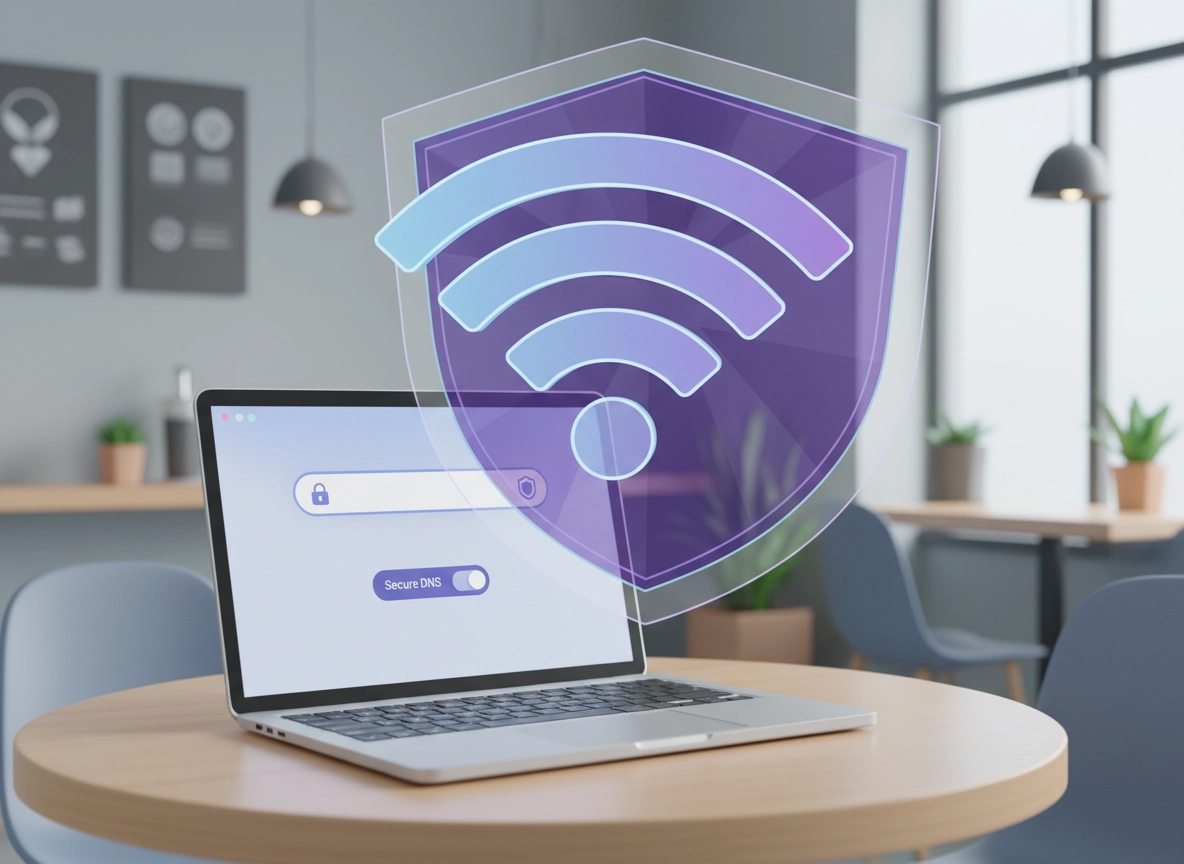
What “public Wi-Fi risk” actually means in 2026 .
Public Wi-Fi isn’t automatically “unsafe,” but it is untrusted. The risk isn’t just someone “reading your passwords.” Modern HTTPS encrypts most web traffic—so a random person on the same network can’t simply see your login password if the site is properly secured. The real danger is that public networks create extra opportunities for attacks around the edges: tricking your device into talking to the wrong hotspot, forcing you onto insecure pages, intercepting DNS lookups, hijacking captive portal flows, or probing your laptop for exposed services.
Think of public Wi-Fi as a hostile neighborhood for your network stack. Even if you’re careful about which websites you visit, your device still broadcasts and receives lots of “background” traffic: DNS queries, certificate checks, extension updates, sync, push notifications, and app calls. On a trusted network at home, that background traffic is usually fine. On an untrusted network, you want to reduce what leaks, force secure defaults, and close easy doors.
Chrome’s built-in security controls help most when you use them as a bundle. A single toggle rarely “solves public Wi-Fi.” The best approach is layered:
- Force encryption (HTTPS-First / “Always use secure connections”) so accidental HTTP doesn’t happen.
- Protect DNS (Secure DNS / DoH) so the network can’t easily rewrite where you’re trying to go.
- Block dangerous sites (Safe Browsing) and strengthen download / phishing protection.
- Reduce high-risk surfaces (extensions, auto sign-in, saved credentials prompts, sharing, and device exposure).
- Use a VPN when the stakes are high (banking, admin, corporate apps)—especially if you can’t trust the Wi-Fi operator.
Start here: If you want a full baseline beyond public Wi-Fi, see Chrome Security & Privacy Checklist and Chrome Browser Hardening Checklist.
Key terms (quick definitions) .
- HTTPS-First Mode / “Always use secure connections”: Chrome tries HTTPS first and warns before loading HTTP pages that aren’t encrypted. (Desktop + mobile use similar wording.)
- Secure DNS (DoH): Encrypts DNS lookups so the network can’t easily see or tamper with your domain requests.
- Safe Browsing: Chrome’s anti-phishing / anti-malware system; Enhanced mode adds stronger proactive checks with more data sent to Google.
- Captive portal: A “login page” Wi-Fi networks use (hotels, airports). It’s a common place for trickery and misdirection.
- Rogue hotspot / Evil twin: A fake Wi-Fi network with a familiar name (“Airport Free Wi-Fi”) created to lure victims.
- Attack surface: The set of ways your device can be interacted with or tricked—extensions, permissions, auto-connect, open ports, background services.
Chrome’s security area includes Always use secure connections and Safe Browsing controls. (Chrome Help explains the HTTPS upgrade behavior and warning flow.)
Before you start (2-minute preflight checks) .
Do these quick checks before you touch deeper settings. They prevent most public Wi-Fi “I did everything and it still feels risky” situations:
- Update Chrome first. Many real-world Wi-Fi attacks rely on old browser bugs. Go to Get or Update Chrome and install the latest stable build.
- Confirm you’re on the right network. Ask staff for the exact SSID (network name). Rogue hotspots often copy the same name with a subtle character change.
- Turn off “auto-join” for unknown networks. Auto-connecting is how many people join the wrong Wi-Fi without noticing.
- Use a standard browser profile for public Wi-Fi. If you’re doing high-stakes work, consider a separate hardened profile (or Incognito for sessions you don’t want saved). See Chrome Secure Profile Setup.
- Pause sensitive logins until after the portal is done. Finish the captive portal flow first. Don’t enter bank credentials on the “login to Wi-Fi” page (ever).
Related: For the bigger picture on Chrome’s defenses and what they actually do, start with Chrome Browser Security Basics.
Fast checks most people skip (but shouldn’t) .
- Kill “background apps” if you don’t need them. In Chrome Settings → System (desktop), background apps can keep activity running after closing Chrome. On public Wi-Fi, fewer background calls = fewer opportunities.
- Review extension risk quickly. Extensions with “read and change all your data on all websites” are the opposite of public Wi-Fi-friendly. Use a stricter extension mode on travel days: see Chrome Privacy Extensions Guide and Chrome Extension Security Check.
- Don’t accept certificate warnings. If Chrome shows “Your connection is not private,” stop. A public network can’t “fix” that. It’s a hard red flag.
Step-by-step: the Chrome public Wi-Fi checklist .
These steps are ordered from highest impact to “nice to have.” If you do only three things, do steps 1–3.
-
1
Force secure connections (HTTPS-first).
Do this first Open chrome://settings/security → turn on Always use secure connections (or HTTPS-First Mode depending on your build). Chrome will try HTTPS and warn you before loading non-HTTPS pages.Why it matters: accidental HTTP on public Wi-Fi is where snooping and injection become realistic. Chrome explicitly describes this behavior in its security settings help. -
2
Turn on Secure DNS (DNS over HTTPS).
Open chrome://settings/security → find Use Secure DNS → choose a reputable provider or keep “With your current service provider” if available.
Why it matters: on many public networks, DNS is the easiest thing to tamper with. Secure DNS reduces the chance of being silently redirected by a manipulated resolver.
Deep dive: DNS over HTTPS settings and Secure DNS setup. -
3
Set Safe Browsing to Standard or Enhanced.
Go to Settings → Privacy and security → Security (desktop) or Settings → Privacy and security → Safe Browsing (Android/iOS) and choose:- Standard protection for most users (strong baseline).
- Enhanced protection if you want more proactive phishing/malware defense (best for travel days and public Wi-Fi). This shares more browsing data for analysis.
Related: Safe Browsing settings and Enhanced Safe Browsing. -
4
Harden permissions (especially location, camera, mic, notifications).
Open Settings → Privacy and security → Site settings. On public Wi-Fi, the “soft” attacks often look like permission prompts:- Notifications: set to “Don’t allow sites to send notifications” unless you truly need them.
- Location: set to “Don’t allow” or “Ask” (never “Allow” globally).
- Camera/Microphone: keep “Ask” and remove stale allowances.
-
5
Limit extension access on “unknown networks.”
Public Wi-Fi isn’t the direct reason extensions are risky—but it increases the cost of one bad prompt or one compromised site. Do a quick extension hygiene pass:- Remove extensions you don’t recognize or no longer use.
- For powerful extensions, change “Site access” to On click or On specific sites.
- Avoid “Allow in Incognito” unless you have a clear reason.
-
6
Reduce “credential exposure” prompts.
On public Wi-Fi, avoid saving new passwords or payment methods. Use Password Manager carefully:- Run Password Checkup (before travel), not during a captive portal session.
- Turn on warnings for compromised passwords.
- Use 2FA for important accounts.
-
7
Use a VPN when stakes are high (banking, admin, work apps).
A VPN encrypts traffic between your device and the VPN provider, which helps reduce local-network snooping on public Wi-Fi. It doesn’t magically make unsafe websites safe—but it’s a strong layer when you can’t trust the Wi-Fi operator.Related: Best VPN for Chrome and Secure VPN for Chrome. -
8
Clear “travel residue” after the session.
After you’re done (especially on shared or borrowed devices), clear site data for the network portal domain and log out of sensitive apps:- Settings → Privacy and security → Clear browsing data (use “Advanced” carefully).
- Prefer targeted cleanup: site data for the portal domain, not “nuke everything” unless needed.
What “success” looks like: On public Wi-Fi, you should see more HTTPS by default, fewer random permission prompts, fewer “surprise” downloads, and fewer risky redirects. If a site tries to open on HTTP, Chrome should warn you before proceeding (when HTTPS-First / Always use secure connections is enabled).
Related: For the broader network-focused hardening set, see Chrome Secure Wi-Fi Browsing, Network privacy settings, and Secure connection settings.
Common variations (Windows, macOS, Android, iPhone) .
- Windows / ChromeOS: Most controls are under Settings → Privacy and security → Security. The direct shortcut chrome://settings/security usually lands you in the right place.
- macOS: Same menu structure, but your VPN and DNS may also be set at the OS level. Chrome’s Secure DNS still matters for Chrome traffic.
- Android / iPhone: Safe Browsing and security controls are still there, but the menu names can be slightly different. On Android, Safe Browsing lives under Settings → Privacy and security → Safe Browsing (Chrome Help documents the path).
Advanced hardening (power users + business) .
If you travel often, work with client credentials, or manage a small team, these upgrades make public Wi-Fi less stressful. This section is also where the “high intent” security stack decisions live: VPN vs proxy, DNS vs VPN, and what to do on managed devices.
Related: If you’re managing devices at scale, start with Chrome Enterprise Guide and Chrome Enterprise Security Settings.
1) Use a travel profile (separate cookies, extensions, and risk) .
A separate Chrome profile is one of the highest-leverage “non-technical” protections. It reduces cross-contamination if a portal or sketchy site drops persistent cookies, storage, or pushes you into a questionable extension flow.
- Create a “Travel” profile and keep extensions minimal.
- Disable auto sign-in and extra sync if you don’t need it during travel days (especially on shared laptops).
- Use Incognito for captive portal steps if the portal behaves weirdly—just remember Incognito doesn’t encrypt traffic by itself.
Guides: Profile security settings, Profile privacy setup, Incognito mode guide.
2) Lock down DNS and know when to disable it (captive portal reality) .
Secure DNS (DoH) is great—until the network requires a captive portal login and doesn’t behave well with encrypted DNS or with strict HTTPS-first behavior. This is common in hotels and airports.
- Disconnect/reconnect Wi-Fi (force the portal trigger)
- Try opening the portal in a fresh Incognito window
- Temporarily switch Secure DNS off (or to “With your current provider”) only until you complete login
- Only if absolutely necessary, temporarily disable “Always use secure connections” to complete portal login, then turn it back on
Why this works: captive portals often rely on redirects and DNS interception to push you to their login page. Strict HTTPS-first and encrypted DNS can block that redirect trick. You don’t want to leave protection off—you just want the portal login finished quickly, then re-enable your secure settings.
If you need deeper DNS guidance: DNS privacy guide and Private DNS vs Secure DNS.
3) Prefer HTTPS-only behavior for public sites .
Chrome’s “Always use secure connections” setting upgrades requests and warns before loading sites that don’t support HTTPS. This matters more on public Wi-Fi because the network is untrusted. Google has been actively increasing HTTPS-default behaviors over time, and Chrome’s settings explicitly document the upgrade and warning behavior.
Related: HTTPS-only mode and TLS settings guide.
4) Use a VPN wisely (and avoid the common traps) .
On public Wi-Fi, a VPN helps most against local-network visibility and manipulation. But there are common mistakes:
- Mistake: using random “free VPN” extensions with unclear ownership.
Better: choose a reputable provider with clear policies (and preferably a full VPN app, not just an extension). - Mistake: thinking VPN replaces HTTPS.
Better: use VPN + HTTPS-first + Safe Browsing as layered protection. - Mistake: leaving WebRTC leaks and DNS leaks unchecked.
Better: understand your VPN’s DNS handling and keep Secure DNS configured appropriately.
Related comparisons: VPN vs Proxy for Chrome, VPN vs Private DNS, VPN vs built-in Chrome security.
5) Enterprise/IT: public Wi-Fi controls that matter most .
If you manage devices, the biggest wins are policy-enforced defaults and reducing user choice at the riskiest points:
- Enforce Safe Browsing level and protect users from turning it off.
- Enforce HTTPS-first behavior where possible, especially for public browsing contexts.
- Lock down extensions with allowlists and restrict “all sites” access.
- Use managed browser profiles and restrict sign-in / sync on unmanaged devices.
- Consider secure browsing / isolation for high-risk travel roles (finance, execs, contractors).
Enterprise guides: Managed browser security, Security policy setup, Enterprise threat protection, Enterprise secure browsing.
Common alternatives users compare .
- VPN for Chrome vs “just use HTTPS”
- Proxy settings vs VPN (and when a proxy is not enough)
- Secure DNS vs VPN (they solve different problems)
- Privacy extensions vs built-in Chrome security controls
- Enterprise Chrome vs managed browsers
Privacy & security notes (what each toggle changes) .
This section is designed for high-intent readers: people who want to understand the tradeoffs. Public Wi-Fi security always sits between three forces: privacy, compatibility, and convenience. The best settings depend on what you’re doing (banking vs browsing news), and what the network looks like (hotel captive portal vs a coworking network you trust).
Impact: Affects how Chrome connects (HTTPS), how domains resolve (DNS), and how Chrome blocks threats (Safe Browsing). Can also affect captive portal login flows.
Related: If you suspect hijacking, redirects, or malicious popups after using public Wi-Fi, see Remove Malware from Chrome and Chrome redirect virus fix.
Recommended baseline settings .
- Option A (balanced): Always use secure connections + Secure DNS (default provider) + Safe Browsing (Standard) + tighter notifications permissions.
- Option B (maximum safety for travel days): Always use secure connections + Secure DNS (trusted provider) + Safe Browsing (Enhanced) + VPN for high-stakes sessions + minimal extensions.
- Option C (compatibility first): Keep Always use secure connections ON, but be ready to temporarily relax Secure DNS during captive portal login; use Standard Safe Browsing; avoid heavy extension changes mid-trip.
Recommended settings by goal .
| Goal | Recommended setting | Tradeoff | Best for |
|---|---|---|---|
| Balanced | HTTPS-first + Secure DNS + Safe Browsing (Standard) | Rare site/captive portal quirks | Most users |
| Maximum safety | HTTPS-first + Secure DNS + Enhanced Safe Browsing + VPN for sensitive sessions | More warnings + more data sharing for threat checks | Travel, remote work, high-risk roles |
| Compatibility | HTTPS-first ON, Safe Browsing Standard, Secure DNS flexible during portal login | Slightly more exposure during portal setup | Hotels/airports with stubborn portals |
What public Wi-Fi attackers actually try (and what stops it) .
- Rogue hotspot (“evil twin”): They want you on their network. Counter: confirm SSID, disable auto-join, use VPN for sensitive work.
- DNS manipulation: They want “bank.example” to resolve somewhere else. Counter: Secure DNS (DoH) + certificate warnings awareness.
- Portal trickery: They want you to log into a fake page. Counter: treat portals as network access only; never enter bank/email passwords into Wi-Fi portal screens.
- HTTP injection: They want to modify unencrypted pages. Counter: Always use secure connections (HTTPS-first), avoid HTTP, heed warnings.
- Phishing on the web: They want one bad click. Counter: Safe Browsing (Standard/Enhanced), cautious permissions, fewer extensions.
Troubleshooting (captive portals, DNS, VPN issues) .
Related: For deeper network and connection settings, see Chrome Secure Connection Settings and Chrome Network Privacy Settings.
If the Wi-Fi login page (captive portal) won’t open .
This is the most common “public Wi-Fi security” problem. Many portals rely on intercepting your first request and redirecting you. If you force HTTPS everywhere and encrypt DNS, the portal may fail to “catch” you.
- Step 1: Disconnect/reconnect Wi-Fi, then open a new Chrome tab.
- Step 2: Try an Incognito window and navigate to a simple site.
- Step 3: Temporarily set Secure DNS to off (or “with current provider”) until you complete portal login, then re-enable.
- Step 4 (last resort): Temporarily disable “Always use secure connections” to complete portal login, then turn it back on immediately afterward.
If Chrome shows “Your connection is not private” on a site you trust .
On public Wi-Fi, treat certificate warnings as “stop signs,” not speed bumps. A misconfigured hotel network, broken time settings, or captive portal interference can trigger warnings. Don’t bypass the warning for sensitive sites.
- Fix the basics: confirm your device date/time are correct (wrong time breaks TLS validation).
- Finish the portal login first (if you’re mid-portal, you can get certificate errors until you’re fully online).
- Switch networks if it persists—use mobile hotspot for sensitive sessions.
If the VPN connects but nothing loads .
Some networks block VPN protocols or require captive portal login before allowing VPN traffic.
- Complete portal login first, then connect VPN.
- Try a different VPN protocol (if your VPN supports it).
- Temporarily disable Secure DNS to see if DNS routing is conflicting, then re-enable once stable.
- Try a different network (mobile hotspot is often the fastest way to validate it’s the Wi-Fi, not your device).
If you suspect you clicked something risky on public Wi-Fi .
Don’t panic—do a targeted cleanup:
- Run Chrome Security Checkup and review warnings.
- Check extensions for anything new or unfamiliar: How to check if an extension is safe.
- Review downloads and remove anything suspicious; keep Safe Browsing enabled.
- If you entered credentials on a sketchy page, change the password on a trusted network and enable 2FA.
If you need to reset safely (without breaking your whole setup) .
If things feel “off” after public Wi-Fi (redirects, popups, weird permissions), avoid full resets unless necessary. Start small: clear site data for the affected domain, revoke site permissions, and remove suspicious extensions. Full reset guidance: Chrome security reset and How to reset Chrome after malware.
FAQ .
-
helpIs it safe to use public Wi-Fi if the website uses HTTPS?HTTPS greatly reduces the risk of someone reading or altering your connection to a properly secured site. But public Wi-Fi still adds risk through rogue hotspots, DNS manipulation attempts, captive portals, and device exposure. Use HTTPS-first behavior, Secure DNS, and Safe Browsing—then add a VPN for high-stakes sessions.
-
helpShould I use a VPN on public Wi-Fi?Yes for sensitive logins and work accounts. A VPN helps protect traffic from local-network visibility and some manipulation, especially when you don’t trust the Wi-Fi operator. It doesn’t replace HTTPS or Safe Browsing—think of it as an extra layer on top of Chrome’s security settings.
-
helpWhy won’t the Wi-Fi login page open when I enable secure settings?Captive portals often rely on intercepting DNS and redirecting early web requests. Secure DNS (DoH) and HTTPS-first behavior can block that redirect trick. Temporarily complete the portal login (Incognito helps), then turn secure settings back on.
-
helpWhich Chrome settings matter most for public Wi-Fi?Start with “Always use secure connections” (HTTPS-first), Secure DNS (DoH), and Safe Browsing (Standard or Enhanced). Then tighten site permissions (notifications/location), reduce extension access on unknown networks, and avoid saving new credentials on public Wi-Fi.
Sources & further reading .
- Chrome Help: Manage safety & security (includes “Always use secure connections” behavior)
- Chrome Help: Choose your Safe Browsing protection level
- Google Security Blog: HTTPS by default (context on HTTPS-first behavior and settings)
- Chrome Safety: Safe Browsing overview
Disclosure: Some pages may mention tools or services. Recommendations are editorial and based on practical testing and common risk models.