What “browser security” actually means .
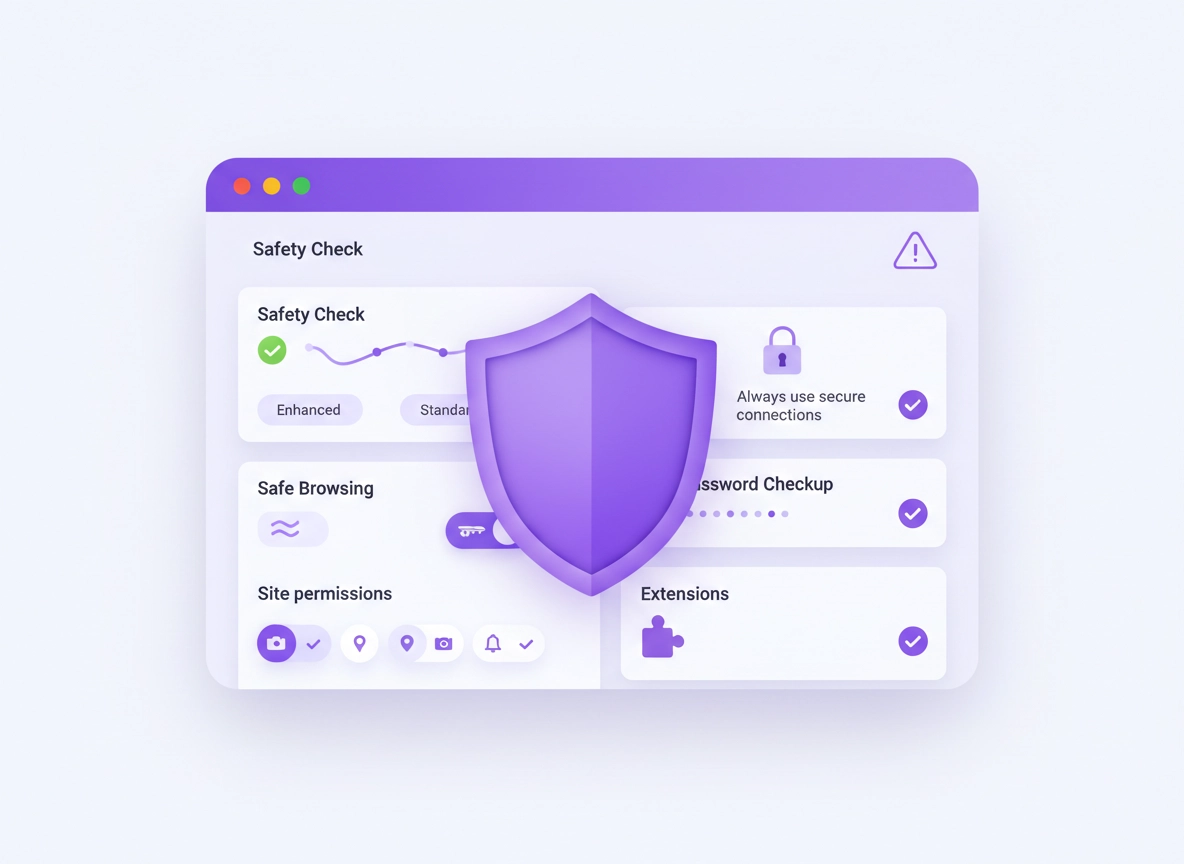
Browser security isn’t one setting—it’s a stack. Chrome protects you in layers: the sandbox isolates sites from each other, Safe Browsing warns about known scams, and secure connections help stop snooping on public Wi-Fi. But your settings and habits still decide how exposed you are to the most common attacks: phishing, fake downloads, malicious extensions, credential theft, and “permission abuse” (camera/mic/location/notifications).
This page is a practical baseline you can use on any device. We’ll focus on changes that reduce real-world risk without breaking websites. When a setting has a downside (compatibility, privacy tradeoff, or performance impact), you’ll see it clearly called out—plus a safe way to roll back.
Security basics are especially important now because modern scams are optimized for the browser: fake “support” popups, bogus payment pages, password reset traps, and “download this update” tricks. The biggest wins come from two areas: keeping Chrome updated and reducing your attack surface (extensions + permissions + risky downloads).
Related: For a full hardening approach (beyond basics), see Chrome Hardening Guide and the Chrome Browser Hardening Checklist.
Key terms (quick definitions) .
- Attack surface: All the ways your browser can be exploited—extensions, permissions, downloads, saved credentials, and outdated components.
- Phishing: A page that tricks you into typing credentials or payment data. It usually “looks right,” but the domain is wrong or the flow is suspicious.
- Safe Browsing: Chrome’s built-in protection that warns about dangerous sites, downloads, and extensions (Standard or Enhanced).
- HTTPS-first (secure connections): Chrome tries to use encrypted HTTPS and warns when a site only supports insecure HTTP.
- Permissions: Site access to camera, mic, location, notifications, clipboard, file system, USB/Bluetooth, etc.
- Profile: A separate Chrome “workspace” with its own history, passwords, extensions, and settings—useful for isolation.
Your threat model in 60 seconds .
Most people don’t get hacked because a Hollywood villain targeted them. They get compromised because something common happened:
- They logged in on a fake page (phishing) after clicking an urgent email or SMS link.
- They installed a “helpful” extension that can read all sites or intercept form data.
- They clicked a fake download (“update your browser,” “download invoice,” “your file is ready”).
- They reused a password that was leaked elsewhere (credential stuffing).
- They allowed notifications and got spammed into scams on every device.
- They used public Wi-Fi and accepted insecure pages without noticing.
So your goal is simple: make these attacks harder. That means (1) reduce what can run in your browser, (2) make connections safer, and (3) make Chrome warn you earlier.
Before you start (fast checks) .
These quick checks prevent wasted effort. If any of these fail, fix them first, then continue.
- Check 1: You’re on an updated Chrome build. Outdated browsers are the easiest target. Go to Menu → Help → About Google Chrome and let it update fully.
- Check 2: You’re not using an unknown proxy/VPN. A misconfigured proxy can break HTTPS and cause “Your connection is not private” errors. If you’re unsure, read Chrome Proxy Settings Guide.
- Check 3: You know which Google Account is signed in. Mixed accounts (personal + work) create confusion and accidental data sharing. We’ll cover isolation with profiles later.
- Check 4: You have 10 minutes of quiet. Security is boring until it’s urgent—do it once properly, then forget about it.
Related: If Chrome feels slow while troubleshooting, see Speed Up Google Chrome or Fix Slow Chrome (Step-by-Step).
Baseline security checklist (recommended) .
This is the default-safe setup I recommend for most Chrome users. It avoids extreme settings that break websites, while removing the most common browser risks.
| Area | Baseline | Why it matters | Tradeoff |
|---|---|---|---|
| Updates | Chrome fully updated | Fixes exploited security bugs | Rare UI changes |
| Safety Check | Run monthly | Detects risky settings & extensions | None |
| Safe Browsing | Enhanced (or Standard) | Blocks phishing/malware/scams earlier | Enhanced shares more data for protection |
| Secure connections | Always use secure connections | Reduces Wi-Fi snooping and downgrade attacks | Some legacy sites warn |
| Downloads | Keep protection on | Catches risky files before you open them | Occasional false positives |
| Passwords | Password Checkup + leak warnings | Stops reused/leaked credentials | Needs sign-in for full sync benefits |
| Extensions | Less is more; restrict site access | Extensions can read/change data on sites | Some convenience loss |
| Permissions | Notifications: Ask / Block spam sites | Notification spam drives scams | Must allow trusted sites manually |
| Profiles | Separate work/personal | Limits cross-contamination & risk | Switching friction |
Want a faster version? Use the Chrome Security & Privacy Checklist as a one-page audit.
Step-by-step: secure Chrome in ~15 minutes .
This sequence is ordered to deliver maximum security quickly. You can stop after step 5 and still be meaningfully safer than “default everything.”
- 1 Run Safety Check and fix anything flagged.
- 2 Set Safe Browsing to Enhanced (or keep Standard if you prefer less sharing).
- 3 Enable Always use secure connections (HTTPS-first) and understand the warning behavior.
- 4 Tighten site permissions (notifications, location, camera/mic, popups, redirects).
- 5 Audit extensions and remove anything you don’t fully trust.
- 6 Turn on password leak alerts and run Password Checkup.
- 7 Optional: split work/personal with profiles for isolation.
What “success” looks like: Chrome warns you earlier (bad sites, unsafe downloads, insecure connections), fewer sites can nag you via notifications, and your extensions no longer have “read everything everywhere” access by default.
Common variations .
- Windows / ChromeOS: Most options are in Settings → Privacy and security plus Security.
- macOS: Same menus; certificate/keychain prompts are handled by macOS.
- Android / iPhone: Many controls exist, but some advanced items (like certain flags) aren’t available on iOS.
Related: If you want the default “best settings” view, also read Chrome Default Security Settings Guide.
Safety Check: what it verifies and why it matters .
Safety Check is Chrome’s built-in audit. It’s designed to catch the “easy to miss” issues: outdated browser builds, compromised passwords, dangerous extensions, and security settings that drifted over time.
Desktop: run Safety Check .
- Open Chrome.
- Click the 3-dot menu ⋮ (top right) → Settings.
- Go to Privacy and security → Safety Check → Go to Safety Check.
- Fix each item Chrome flags (update, passwords, extensions, safe browsing, etc.).
Mobile: where Safety & security lives .
On mobile, you’ll usually find equivalent controls under Settings → Privacy and security. Don’t worry if labels differ slightly—focus on the goals: Safe Browsing, secure connections, and permission hygiene.
Related: If Safety Check flags passwords, continue with Chrome Password Checkup and Chrome Password Leak Detection.
Safe Browsing: Enhanced vs Standard (tradeoffs) .
Safe Browsing is Chrome’s main defense against phishing, malware, and scam pages. The two important options are:
- Standard protection: the default, protects against known dangerous sites and files.
- Enhanced protection: more proactive protection, faster warnings on suspicious behavior, and more coverage across risky downloads/extensions.
The tradeoff is privacy: Enhanced protection generally shares more security-related browsing data with Google to detect new threats faster. If you’re highly privacy-sensitive, Standard protection is still much better than turning Safe Browsing off.
Desktop: change Safe Browsing .
- Open
chrome://settings/security - Under Safe Browsing, select Enhanced protection or Standard protection.
- Leave No protection off (not recommended).
Mobile: change Safe Browsing .
- Menu ⋮ (or … on iOS) → Settings
- Privacy and security → Safe Browsing
- Select Enhanced or Standard
Plain-English summary: Safe Browsing is your “don’t let me walk into obvious danger” layer. Enhanced is like turning on a more sensitive smoke detector—more detection, more data used to detect it.
Related: If you want a deeper breakdown, see Chrome Safe Browsing Settings and Enhanced Safe Browsing in Chrome.
HTTPS-first & secure connections .
HTTPS encrypts the data between your browser and the website. It helps protect against snooping, session theft on compromised networks, and “downgrade” attacks that push you onto insecure HTTP.
Chrome’s control for this is commonly labeled Always use secure connections (HTTPS-first behavior). When enabled, Chrome attempts to upgrade to HTTPS and warns you before loading a site that only supports insecure HTTP.
Enable HTTPS-first (desktop) .
- Open
chrome://settings/security - Scroll to Advanced / Always use secure connections
- Turn it On
- If you hit a legitimate internal tool that only supports HTTP, add an exception (if available) or turn it off temporarily, then turn it back on.
Enable HTTPS-first (Android) .
- Chrome → Menu → Settings
- Privacy and security → Always use secure connections
- Turn it On
Related: For connection-level tightening, also read Chrome Secure Connection Settings, Chrome HTTPS-Only Mode, and Chrome TLS Settings Guide.
Site permissions you should tighten .
If extensions are the biggest “installed risk,” permissions are the biggest “accidental risk.” One bad click on “Allow” can turn into:
- Endless scam notifications (“Your PC is infected!”)
- Location leakage
- Camera/microphone prompts you didn’t expect
- Popups and redirects that chain into malware
Notifications: your #1 permission to control .
Most people should keep notifications on Ask and be extremely picky. Only allow notifications for apps you genuinely use (calendar, email, messaging, task tools). Block everything else.
- 1 Open Settings → Privacy and security → Site settings
- 2 Open Notifications
- 3 Remove suspicious sites from “Allowed” and add them to “Blocked”
- 4 Consider disabling notification prompts if you never want them
Deep dive: Chrome Notification Permissions and Chrome Site Permissions Settings.
Camera, microphone, and location .
Use a “default deny” mindset. Allow only trusted domains you recognize (video calls, conferencing tools) and prefer “Ask” instead of “Allow by default.”
- Camera: Camera Permission Settings
- Microphone: Microphone Permissions
- Location: Location Permissions
Pop-ups, redirects, and downloads .
Popups aren’t always evil (some payment flows use them), but “Allow popups everywhere” is a classic foot-gun. Keep popups blocked and allow per-site only when necessary.
Rule of thumb: If a website needs 3 permissions to work, it’s probably not a website you should trust.
Passwords, passkeys, and leak alerts .
In real-world incidents, the “browser hack” is often a password reuse problem. Attackers buy leaked credentials, then try them on email, banking, shopping, and social sites. If you reuse passwords, it’s not a matter of if—it’s when.
Minimum safe baseline .
- Enable password breach alerts (warn if credentials are exposed)
- Run Password Checkup to find reused, weak, or compromised passwords
- Turn on 2-step verification for your Google Account (and any financial accounts)
- Prefer passkeys where available (they resist phishing better than passwords)
Run Chrome Password Checkup .
- Open Chrome → Settings
- Go to Passwords and autofill → Google Password Manager
- Open Checkup and resolve compromised/reused passwords
Related: Chrome Password Checkup, Chrome Password Leak Detection, and Chrome Password Storage Security.
Extension security basics (highest-risk area) .
Extensions can be amazing—and also dangerous. Many people don’t realize that a single extension with broad permissions can:
- Read and change content on every site you visit
- Access form fields (including logins, addresses, sometimes payment flows)
- Track browsing behavior across domains
- Inject scripts or redirect pages
That’s why extension security is the most important “basics” topic. If your Chrome setup has 15+ extensions, you should assume your attack surface is bigger than it needs to be.
Fast extension audit (5 minutes) .
- 1 Open
chrome://extensions - 2 Remove anything you don’t recognize or no longer use (not disable—remove)
- 3 For what remains, open Details → set Site access to On click or On specific sites
- 4 Watch for red flags: “Read and change all your data,” new owners, sudden permission changes, weird reviews
- 5 Restart Chrome and confirm nothing breaks
Start here: Safe Chrome Extensions and Extension Permissions Guide
Profiles, Sync, and account hygiene .
Chrome profiles are an underrated security tool. Think of a profile as a container: its own extensions, cookies, logins, history, and settings. If you do work + personal browsing in the same profile, you increase risk of cross-contamination:
- Work extensions seeing personal logins (or vice versa)
- Mixed autofill data and payment methods
- Confusing sign-in state (“Why is this account logged in here?”)
- Harder incident response if something goes wrong
Recommended profile split .
- Profile A (Personal): email, shopping, social, entertainment
- Profile B (Work): SaaS logins, admin dashboards, finance tools
- Profile C (Testing): new extensions, unknown sites, experiments
If you use Sync, understand what it does: it can sync passwords, history, extensions, and settings across devices. That’s great for convenience, but you should lock your Google Account down with strong 2FA and review what you’re syncing.
Related: Chrome Account Sync Settings, Disable Chrome Sync, and Chrome Sync Security Risks.
Advanced settings (power users) .
This section is where you get “enterprise-grade” outcomes without turning Chrome into an unusable brick. Don’t apply everything blindly—use the guidance by goal.
Related: In managed environments, see Enterprise Secure Configuration Best Practices and Chrome Enterprise Security Settings.
Secure DNS (DoH) and network privacy .
DNS is the “phonebook” of the internet. Traditional DNS can leak what domains you’re looking up to networks/ISPs. Chrome supports DNS over HTTPS (DoH) to encrypt those lookups with supported resolvers.
- Start here: DNS over HTTPS Settings
- Setup guide: Chrome Secure DNS Setup
- Deep read: Chrome DNS Privacy Guide
When you should change this .
- You travel and use public Wi-Fi often
- You manage sensitive logins (banking, invoices, admin tools)
- You want fewer “network-level” privacy leaks
When you should not .
- You’re on a corporate network with mandated DNS filtering (ask IT first)
- Your country/ISP environment requires specific DNS behavior for content filtering (compatibility matters)
Security flags (use carefully) .
Chrome flags can unlock extra protections, but flags are experimental. If you rely on Chrome for work, avoid “random” flags and stick to known security improvements.
Read first: Chrome Security Flags Guide and Chrome Flags Privacy Settings.
Common alternatives users compare .
- Chrome built-in protections vs dedicated endpoint security
- Chrome password manager vs dedicated password managers
- HTTPS-first + DoH vs using a premium VPN
- DIY hardening vs enterprise policy management
Comparison intent: Start with Best Security Tools for Chrome and VPN vs Antivirus for Chrome.
Privacy & security notes .
Security settings often have privacy implications. The “best” choice depends on your risk profile:
- If you’re targeted by scams frequently, choose stronger protection even if it shares more security telemetry.
- If you’re privacy-sensitive and already strict with links, Standard protection plus strong hygiene can be enough.
- If you use Chrome for business, consider separating profiles and tightening extension policy first.
Impact: These settings affect phishing detection, download safety, extension behavior, and connection security. Some choices can slightly increase data shared for threat detection.
Related: If you want a deeper privacy-first setup, start with Chrome Privacy Settings and the Privacy & Security Overview.
Recommended baseline settings .
- Option A (balanced): Standard Safe Browsing + HTTPS-first + strict permissions + minimal extensions
- Option B (maximum security): Enhanced Safe Browsing + HTTPS-first + locked-down extensions + separate profiles
- Option C (compatibility): Standard Safe Browsing + HTTPS-first off only if required for legacy sites (temporary)
Recommended settings by goal .
| Goal | Recommended setting | Tradeoff | Best for |
|---|---|---|---|
| Balanced | Standard Safe Browsing + HTTPS-first + strict permissions | Less proactive detection than Enhanced | Most users |
| Maximum security | Enhanced Safe Browsing + HTTPS-first + extension lockdown | More security data used for detection | Banking/work logins, high-risk users |
| Compatibility | Keep protections on, add per-site exceptions where needed | Exceptions increase risk on those sites | Legacy enterprise/intranet tools |
Troubleshooting .
Related: If this feels like malware/hijacking, start here: Remove Malware from Chrome and Browser Hijacker Removal.
If websites break after you enable HTTPS-first .
This usually happens with older sites or internal tools that still run on HTTP. First, confirm the site is legitimate. If it’s a work intranet, ask IT to enable HTTPS on their end. As a temporary workaround, you can disable HTTPS-first briefly, finish your task, then turn it back on.
If you keep getting scam notifications .
Go to Site settings → Notifications and remove anything suspicious from “Allowed.” Then review installed extensions. Scam notifications are a “permission abuse” problem 90% of the time.
If Chrome says “Managed by your organization” on a personal PC .
This can be legitimate (work-managed profile) or a sign of unwanted policies. If it’s your home device and you didn’t enroll it, treat it seriously and follow an inspection/removal guide. Start with your extensions and run a full malware cleanup.
If you need to reset safely .
Resetting Chrome can fix hijacks and broken settings, but it also removes some customizations. Use a “surgical reset” approach: remove bad extensions first, clean notifications, clear browsing data, and only then consider a reset.
Reset guide: Chrome Security Reset and How to Reset Chrome After Malware.
FAQ .
-
helpIs Chrome safe to use for banking?Yes—if Chrome is updated and you use Safe Browsing, HTTPS-first, strong account security (2FA), and a clean extension set. The biggest banking risks are phishing pages and reused passwords, not Chrome itself.
-
helpShould I turn on Enhanced Safe Browsing?If you want stronger, more proactive protection against scams and dangerous downloads, Enhanced is a great choice—especially on devices used for payments and work. The tradeoff is that Enhanced generally uses more security-related browsing data to detect new threats faster.
-
helpWhat’s the #1 security mistake Chrome users make?Installing too many extensions and leaving them with “All sites” access. A small, trusted extension set with restricted site access is one of the biggest security upgrades you can make.
-
helpWill HTTPS-first break websites?Most modern sites already support HTTPS, so it usually won’t. The main issues are older intranet tools and legacy device admin pages. Use temporary exceptions where needed, but prefer fixing the site to support HTTPS long-term.
Sources & further reading .
- Google Chrome Help: Manage Chrome safety and security (Desktop)
- Google Chrome Help: Choose your Safe Browsing protection level
- Google Chrome Help: Manage Chrome safety and security (Android)
- Google Account Help: Password Checkup
- Chromium Blog: Towards HTTPS by default
- Google Security Blog: Advancing protection in Chrome (HTTPS-first behavior & enterprise policies)
Disclosure: Some pages may mention tools or services. Recommendations are editorial and based on testing.