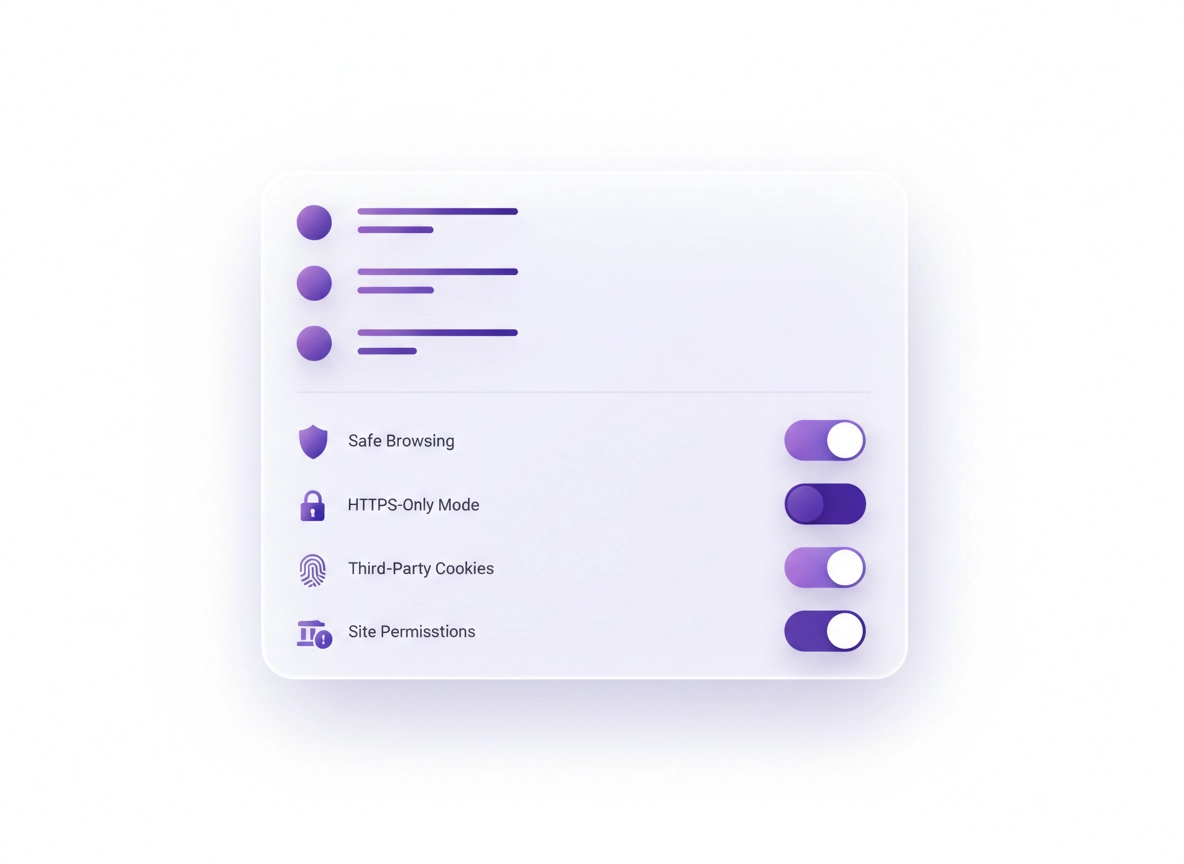
What this checklist is (and what it isn’t) .
This page is designed to be practical. It prioritizes settings that measurably reduce risk in the real world.
“Chrome security and privacy” usually gets oversimplified into one of two extremes: either flip every privacy toggle and hope nothing breaks, or do nothing and rely on luck. Neither approach is great.
This checklist is the middle path: a high-impact, low-regret setup you can apply on a personal laptop, a shared family PC, a school device, or a business workstation. It focuses on the most common threat models: phishing, malicious downloads, extension abuse, cookie-based tracking, permission creep (camera/mic/location), and account takeover (saved passwords, sync, weak recovery).
It’s also honest about tradeoffs. Some settings improve privacy but can cause friction on banking portals, enterprise SSO, payment pages, or embedded video/collaboration tools. So each step includes what it protects, what might break, and how to undo it without creating a mess.
Start here if you want the “big picture” first: Chrome Privacy & Security Settings Overview .
Key terms (quick definitions) .
- Safety Check: Chrome’s built-in scan for updates, password issues, unsafe extensions, and key security warnings.
- Safe Browsing: Protection against phishing/malware sites and dangerous downloads (Standard vs Enhanced).
- Third-party cookies: Cookies set by “other domains” used for cross-site tracking and ad attribution.
- Site permissions: Controls for what websites can access (camera, mic, location, notifications, popups, etc.).
- Secure DNS (DoH): Encrypts DNS lookups so networks can’t easily see (or tamper with) which sites you request.
- HTTPS-Only Mode: Forces secure connections when possible and warns you before insecure pages load.
- Sync: Chrome feature that syncs bookmarks/history/passwords across devices — powerful, but it changes your risk profile.
Before you start (2-minute baseline) .
Before you touch settings, make sure you’re not hardening a browser that’s already unstable. These quick checks prevent 80% of “I changed a setting and now everything’s broken” situations.
- Update Chrome first: Most security features improve with newer builds. Use Get or Update Chrome.
- Know which profile you’re editing: Chrome profiles can look the same but behave differently. See Chrome Profile Security Settings.
- Decide your goal: “Maximum privacy” is different from “maximum security.” This guide helps you pick a balanced default.
- If you suspect infection: Stop and run a malware-focused flow first: Remove Malware from Chrome.
Related: If Chrome feels slow while you test changes, use Speed Up Google Chrome or the performance cluster at Performance Optimization.
The checklist (do this in order) .
This is ordered for maximum impact with minimum breakage. If you stop halfway through, you still end up significantly safer than default.
verified_user 1) Run Chrome Safety Check (foundation)
Safety Check catches the low-hanging fruit: pending updates, compromised passwords, unsafe extensions, and key warnings. It’s the fastest “security ROI” you can get in Chrome.
shield 2) Set Safe Browsing to “Enhanced” (stronger phishing + download protection)
Safe Browsing is your phishing and malware front line. Enhanced mode provides more proactive protection, but it may send additional security signals to Google for analysis. Choose based on your threat model.
lock 3) Enable HTTPS-Only Mode (secure connections by default)
HTTPS-Only Mode upgrades requests to HTTPS when possible and warns you before loading a site that can’t do HTTPS. This blocks a whole class of “network tampering” risks on public Wi-Fi.
dns 4) Turn on Secure DNS (DoH) (privacy + integrity upgrade)
DNS is the “phonebook lookup” your browser does before connecting to a site. Without encryption, networks can observe and sometimes manipulate those lookups. Secure DNS encrypts DNS traffic and reduces some tracking.
cookie 5) Reduce cross-site tracking (cookies + “tracking protection”)
Cross-site tracking usually happens through third-party cookies and related techniques. Blocking third-party cookies is one of the highest-impact privacy changes, but it can break logins and embedded services on some sites. Start with a balanced approach, then tighten.
ads_click 6) Review Ad privacy / Privacy Sandbox settings (privacy + transparency)
Chrome’s “Ad privacy” controls relate to ad topics and measurement features. Whether you disable or keep them, the key is understanding what they do and choosing intentionally.
tune 7) Tighten site permissions (camera, mic, location, notifications)
Site permissions are the most “quietly dangerous” Chrome settings. Once a site is allowed camera/mic/location or notifications, it can create ongoing risk without being obvious.
password 8) Secure passwords, passkeys, and breach alerts (account takeover defense)
Browser compromise is bad. Account compromise is worse. Password hygiene and breach monitoring are among the highest value security steps because they reduce impact even if something else fails.
sync 9) Audit Chrome Sync and profile boundaries (privacy + containment)
Sync is convenient, but it changes what “one compromised device” can expose. If you use Chrome for both personal life and work, separating profiles is one of the cleanest security improvements you can make.
extension 10) Extension security pass (permission minimization)
Extensions can read and modify web pages, access cookies, inject scripts, and exfiltrate data. That’s why extension governance is a top enterprise security concern — and it matters for personal users too.
What “success” looks like: You can browse normally, log into your important sites, and your browser now blocks common phishing routes, reduces tracking by default, minimizes permissions, and limits extension risk. If one site breaks, you fix it with a narrow exception — not by disabling all protections.
Common variations (Windows, macOS, Android, iPhone) .
- Windows / ChromeOS: Most settings appear under “Privacy and security,” with Security and Site settings as the main submenus.
- macOS: Same layout, but OS-level privacy prompts (camera/mic) may also appear in System Settings.
- Android: Some items appear as separate menu entries (e.g., “Safety check”). Paths are similar but condensed.
- iPhone (iOS): Chrome shares some behaviors with iOS platform restrictions; permission prompts may be managed in iOS Settings too.
Advanced hardening (power users + enterprise) .
If you’ve completed the checklist above, you’re already ahead of most users. This section is for people who want stronger containment, reduced data exposure, and more predictable behavior across devices — especially for business, contractors, or shared environments.
Enterprise & IT: If you manage devices, you’ll want policies and standardization. Start here: Chrome Enterprise Guide and Chrome Enterprise Security Checklist.
1) Adopt “profile isolation” as a security control .
Think of a Chrome profile like a container: it has its own cookies, sessions, extensions, and history. Profile separation reduces blast radius. A common pattern:
- Work profile: Only work extensions, work bookmarks, and work accounts. No random browsing.
- Personal profile: Social, shopping, entertainment. Your normal daily browsing.
- Testing profile: For new extensions, suspicious links, or “I need to open this but I don’t trust it.”
If you want an even stronger model, run sensitive tasks in a dedicated “locked down” profile: strict permissions, third-party cookies blocked, minimal extensions, no password storage.
2) Consider a “security stack” for higher-risk users .
Chrome’s built-in security is strong, but some users need extra layers: journalists, finance teams, healthcare workers, executives, or anyone frequently targeted by phishing. A reasonable stack may include:
- Password manager: reduces reuse, supports passkeys and strong sharing controls. Start at Best Password Manager for Chrome.
- VPN (situational): helpful on public Wi-Fi, travel networks, or to reduce ISP-level visibility. See Best VPN for Chrome.
- Endpoint protection: on Windows especially, a reputable AV/EDR adds last-line defense against downloads and droppers. Explore Best Antivirus for Chrome.
3) Use a hardening guide if you want a full “secure browser setup” .
This checklist is intentionally compact. If you want the extended version — deeper tradeoffs, stronger containment, and a “policy-like” baseline — use these next:
- Chrome Hardening Guide
- Chrome Browser Hardening Checklist
- Chrome Secure Browser Setup Guide
- Chrome Security Flags Guide (advanced users only)
Common alternatives users compare (high-intent) .
- Chrome built-in protections vs third-party privacy extensions
- Chrome password manager vs dedicated password managers
- VPN extensions vs full VPN applications
- Manual user setup vs enterprise policy management
If you’re deciding between browsers, also see: Chrome vs Edge Privacy and Chrome vs Firefox Privacy.
Privacy & security notes (tradeoffs) .
The best browser setup depends on your threats, not your aesthetics. “Maximum privacy” can be a valid goal, but if it breaks your work logins, you’ll disable it when you’re stressed — and that’s how risk sneaks back in. This section helps you choose a baseline you’ll keep.
Impact: Affects phishing protection, download safety, cookie tracking, extension exposure, and account takeover risk.
Related: If you suspect infection, hijacking, or malicious popups, use: Chrome Infected With Malware: What To Do and Chrome Pop-up Virus Removal.
Recommended baseline settings .
- Option A (balanced, recommended): Enhanced Safe Browsing + HTTPS-Only + Secure DNS + block notifications + third-party cookies blocked if tolerable.
- Option B (maximum privacy): Standard Safe Browsing + strict permissions + third-party cookies blocked + ad privacy toggles off + minimal sync.
- Option C (compatibility-first): Standard Safe Browsing + HTTPS-Only + Secure DNS + cookies allowed but cleaned regularly + strict permissions.
Recommended settings by goal .
| Goal | Recommended setting | Tradeoff | Best for |
|---|---|---|---|
| Balanced | Enhanced Safe Browsing + HTTPS-Only + Secure DNS + strict permissions | Slightly more prompts, rare site warnings | Most users |
| Maximum privacy | Block third-party cookies + ad privacy toggles off + minimal extensions | Some sites may require exceptions | Tracking-sensitive users |
| Compatibility | Standard Safe Browsing + HTTPS-Only + Secure DNS, cookies allowed | More tracking exposure | Banking / enterprise portals |
If you’re managing a business environment, also consider: Enterprise Chrome Privacy Settings and Secure Configuration: Enterprise Best Practices.
Troubleshooting (when sites break) .
A good hardening setup doesn’t mean “nothing ever breaks.” It means you fix breakage with precise exceptions rather than undoing your entire setup. Here are the most common issues after tightening privacy and security controls.
Related: Permission issues are usually solved in Site Permissions Settings.
If a site won’t stay logged in .
This is commonly caused by blocking third-party cookies (or aggressive cookie cleanup). Fix it safely:
- Confirm third-party cookies are blocked.
- Add an exception for the affected site only (allow cookies for that domain).
- Reload, sign in again, then re-check the “Allowed” list is minimal.
Use these guides: Third-Party Cookies Settings and Block Third-Party Cookies.
If camera or microphone doesn’t work in meetings .
This is almost always a permission mismatch. Fix order:
- Check the browser address bar permission icon (allow camera/mic for that site).
- Then check Chrome Site settings allowed list for camera/mic.
- On macOS/Windows, check OS-level privacy permissions too.
Guides: Camera and Microphone.
If a site warns about “insecure connection” (HTTPS-Only) .
HTTPS-Only Mode warns you before loading a site that can’t upgrade to HTTPS. If this is a trusted legacy site:
- Verify the URL carefully (phishing sites love “almost the same” domains).
- Only continue if you trust the network and the site is expected (e.g., device admin page on local LAN).
- Do not continue for login pages or payment pages without HTTPS.
More: HTTPS-Only Mode.
If Chrome behaves oddly (popups, redirects, “new tabs” you didn’t open) .
Treat this as a potential extension hijack or adware issue. Do not “just ignore it.” Use: Extension Malware Removal, Browser Hijacker Removal, and Reset Chrome After Malware.
If you need to reset safely (without losing everything) .
Resetting Chrome can be a valid option after cleanup, but do it with intent:
- Export bookmarks (if you’re not syncing).
- Write down which extensions you truly need.
- Reset settings, then reapply this checklist from the top — slowly.
FAQ .
-
helpWill blocking third-party cookies break websites?Sometimes. The best approach is “block by default, allow by exception.” If a login or embedded service breaks, allow cookies only for that specific site. This keeps tracking reduced across the rest of the web.
-
helpIs Enhanced Safe Browsing worth it?For most people, yes: it improves proactive protection against phishing, dangerous sites, and malicious downloads. The tradeoff is that additional security-related signals may be used to detect threats faster. If you’re privacy-maxing, choose Standard and compensate with stricter extension and permission controls.
-
helpDo I need a VPN for Chrome security?A VPN can help on public Wi-Fi, travel networks, or if you want to reduce ISP-level visibility, but it’s not a substitute for Safe Browsing, HTTPS-Only Mode, Secure DNS, and good password hygiene. If you’re considering one, compare options here: Best VPN for Chrome.
-
helpWhat’s the single most important security step?If you can only do one thing: enable strong account protection (Password Checkup + unique passwords + 2FA) and remove risky extensions. Account takeover and extension abuse cause outsized damage compared to many “settings tweaks.”
Sources & further reading .
- Google Chrome Help: Manage Chrome safety and security
- Google Safe Browsing: overview
- Privacy Sandbox: third-party cookies & testing guidance
- Google: how cookies are used
Disclosure: Some pages may mention tools or services. Recommendations are editorial and based on testing.