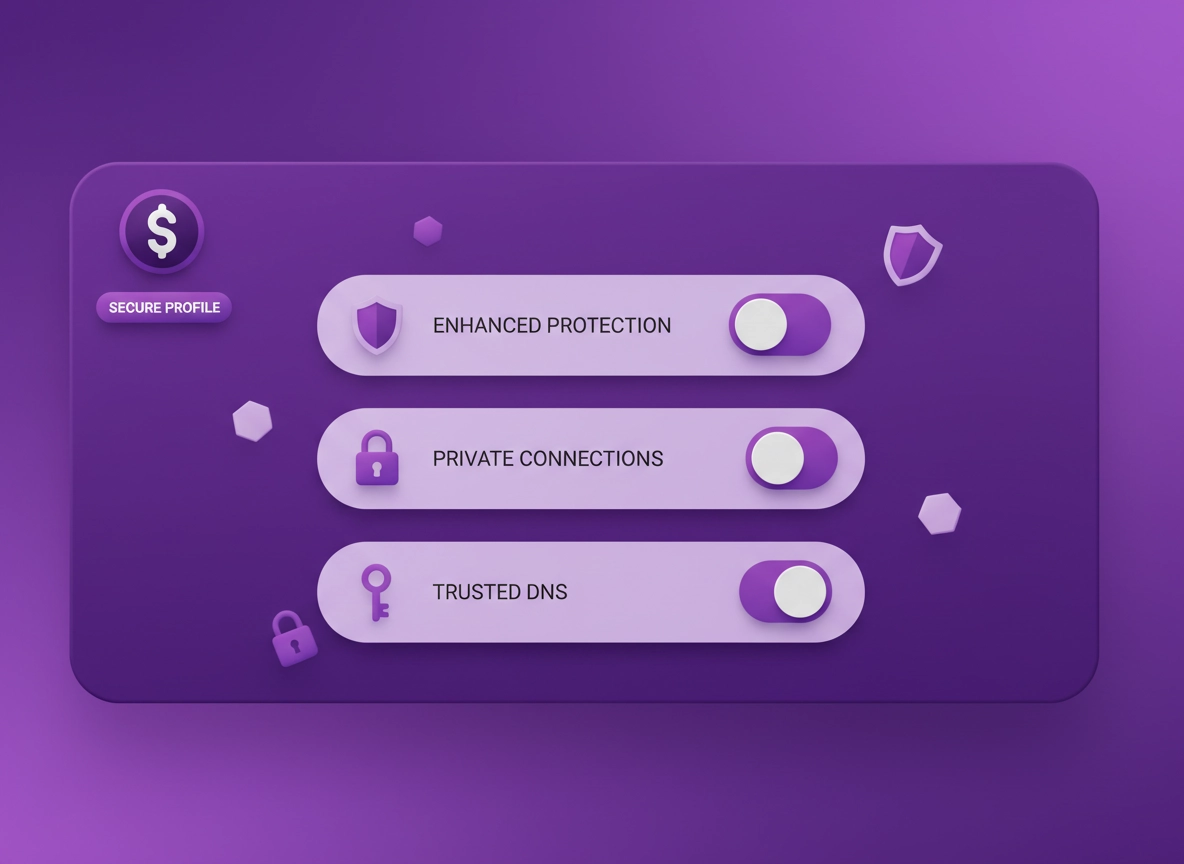
What a “secure browser setup” really means .
This guide focuses on practical security—what reduces real risk in real browsing—rather than extreme configurations that break common websites.
A secure browser setup is a set of browser, profile, and network choices that reduce the most common ways people get compromised online: phishing pages that steal logins, malicious downloads, dangerous extensions, permission abuse (camera/mic/location), and unsafe connections that can be tampered with on untrusted networks.
The key idea is that your browser is not “just an app.” It’s an identity portal. If someone gets access to your browser session, saved passwords, cookies, or synced account, they can often access email, banking, social media, cloud storage, and work tools without needing your device password. That’s why a “secure Chrome setup” is mostly about reducing trust by default, isolating risk, and making dangerous behavior harder.
This guide is written for two types of readers: (1) people who want to harden Chrome for personal use, and (2) professionals who need a reliable baseline that is compatible with business sites, identity providers, and secure authentication flows. If you want a broader overview of Chrome’s privacy controls, start here: Chrome Privacy Settings.
Related: If extensions are part of your risk model, read Chrome Extension Security Check and How to check if a Chrome extension is safe.
Threat model (plain English) .
Security people love the phrase “threat model.” Here’s a simple one that fits most Chrome users:
- Phishing and fake sign-in pages (the #1 real-world browser risk)
- Malicious or overly-permissive extensions (silent data access)
- Drive-by downloads / “clean-looking” malware installers
- Unsafe connections on public Wi-Fi (DNS tricks, downgrade attacks, interception attempts)
- Permission abuse (notifications spam, camera/mic prompts, location tracking)
- Account takeover (weak passwords, reused passwords, no MFA, synced sessions)
Key terms (quick definitions) .
- Enhanced Safe Browsing: Chrome’s stronger Safe Browsing mode that provides more proactive warnings against dangerous sites and downloads.
- HTTPS-first / Always use secure connections: Tells Chrome to try HTTPS before HTTP and warn you when a site won’t support secure connections.
- Secure DNS (DoH): Encrypts DNS lookups so networks can’t easily see or tamper with what sites you’re trying to reach.
- Site permissions: Per-site access controls (camera, mic, location, notifications, clipboard, popups, etc.).
- Profile isolation: Keeping sensitive browsing (work/banking) separate from “everything else” reduces cross-risk via cookies, extensions, and history.
Before you start (fast checks) .
Don’t harden Chrome on top of a broken foundation. These checks prevent 80% of “I changed settings and now everything is weird” problems. Think of them as your baseline health scan.
Related: If you want a “security-first” overview of Chrome’s menus, see Chrome Privacy & Security Settings Overview.
- Update Chrome first: Use Get or Update Chrome so the menus match this guide and you have current security fixes.
- Run Chrome Security Checkup: This finds compromised passwords and risky extensions quickly. See Chrome Security Checkup.
- Inventory extensions: If you have more than ~10 extensions, assume you have permission risk. Do an extension audit: Chrome Extension Audit Checklist.
- Decide your “secure profile” goal: Is this for banking? Work? Kids? Remote travel? Your goal determines how strict you should be.
- Know your recovery path: If something breaks, your escape hatch is a clean profile or a controlled reset. See Chrome Profile Reset Guide.
Step-by-step secure Chrome setup .
This is the core checklist. Do it in order. Each step builds on the previous one and keeps compatibility high. If you only do a few steps, do #1, #2, #3, #5, and #7.
- 1 Create a dedicated “Secure” Chrome profile (isolates risk)
- 2 Update Chrome and run Security Checkup (baseline hygiene)
- 3 Turn on Enhanced Safe Browsing (phishing + malicious download protection)
- 4 Enable HTTPS-first / Always use secure connections (secure transport by default)
- 5 Enable Secure DNS (DNS over HTTPS) (protects DNS lookups)
- 6 Tighten site permissions (camera/mic/location/notifications)
- 7 Lock down extensions (allowlist mindset)
- 8 Choose a safe plan for passwords + sign-in (passkeys/MFA)
- 9 Apply cookie & tracking settings that match your goal
- 10 Add a safe troubleshooting protocol (so you can undo without panic)
What “success” looks like: You have one Chrome profile that you use for sensitive work (banking, email, cloud apps) with a short extension list, strict permissions, encrypted DNS, and strong warnings against dangerous sites. It still loads normal websites without constant breakage.
1) Create a dedicated secure Chrome profile .
Profiles are the most underrated security feature in Chrome. A dedicated profile isolates: extensions (and their permissions), cookies/sessions, saved passwords, browsing history, and auto-fill. That means your “fun browsing” cannot easily contaminate your “banking/work browsing.”
Desktop steps (Windows/macOS/Linux/ChromeOS):
- Click your profile icon (top right) → Add (or + Add).
- Name it something obvious like Secure or Work Secure.
- Optional but recommended: choose a distinct color so you can spot the secure profile instantly.
- Sign in only if you intend to sync (we’ll cover safe sync choices below).
Why this matters: Most “Chrome got hacked” stories are actually “a risky extension got installed” or “a session cookie got abused.” Profile isolation reduces the blast radius. For deeper profile setup, see Chrome Secure Profile Setup.
2) Update Chrome + run Security Checkup .
Before you harden, remove existing weak points. Updates patch browser vulnerabilities and Security Checkup catches common account risks.
- Update Chrome safely: Get or Update Chrome
- Run the built-in audit: Chrome Security Checkup
- Check password exposure: Chrome Password Checkup
- Enable password leak detection warnings: Chrome Password Leak Detection
If Security Checkup flags an extension as unsafe or “no longer supported,” treat that as a signal—not a suggestion. Remove it, then only reinstall it if you can justify why it needs the access it asks for.
3) Turn on Enhanced Safe Browsing (phishing & scam protection) .
If you only enable one security feature, make it this one. Enhanced Safe Browsing improves how Chrome warns you about phishing, dangerous downloads, and high-risk pages. It’s specifically designed for the most common browser threats normal people face.
Desktop path: Chrome menu (⋮) → Settings → Privacy and security → Security → Safe Browsing → choose Enhanced protection.
Android path: Chrome (⋮) → Settings → Privacy and security → Safe Browsing → choose Enhanced protection.
Related: Full deep dive: Chrome Safe Browsing settings and Enhanced Safe Browsing in Chrome.
Compatibility: Enhanced protection rarely breaks sites. The most common “issue” is that it blocks or warns on genuinely risky downloads (which is usually the point). If you work in environments that distribute internal tools, use official internal distribution channels and verify signatures rather than turning protection off.
4) Enable HTTPS-first (Always use secure connections) .
HTTPS encrypts your connection to a website. In modern browsing it’s expected, but HTTPS-first mode is how you push Chrome to be stricter: it prefers HTTPS and warns you before loading sites that only support insecure HTTP.
Path: Settings → Privacy and security → Security → enable Always use secure connections.
Related: Step-by-step page: Chrome HTTPS-only mode and deeper transport hardening: Chrome secure connection settings.
5) Enable Secure DNS (DNS over HTTPS) .
DNS is the “phone book” of the internet. Without Secure DNS, many networks can see what sites you’re trying to reach and can sometimes tamper with DNS results (redirect you, inject ads, or push you to phishing clones). Secure DNS encrypts DNS queries using DNS over HTTPS (DoH).
Desktop path: Settings → Privacy and security → Security → Use secure DNS (enable) → choose a provider or keep “current service provider.”
Android path: Settings → Privacy and security → Security → Use secure DNS (enable).
Related: Chrome DNS over HTTPS settings, Chrome Secure DNS setup, and the tradeoffs: Private DNS vs Secure DNS.
Best practice: If you’re in a business environment with managed DNS (filtering, internal domains), coordinate with IT before forcing a custom DoH provider. For personal devices, enabling Secure DNS is usually a net win.
6) Tighten site permissions (camera, mic, location, notifications) .
Site permissions are where modern browser abuse lives. A normal-looking website can ask for notifications and then spam you with scams. A random web app can request mic/camera access and hope you click “Allow” once. A permission strategy is not paranoia—it’s how you avoid “death by prompts.”
Path: Settings → Privacy and security → Site settings.
Recommended defaults .
- Notifications: set to Don’t allow sites to send notifications (then allow only the few you truly need).
- Location: Ask (or block by default if you never use location in Chrome).
- Camera / Microphone: Ask (only allow for trusted meetings apps, then remove exceptions periodically).
- Pop-ups and redirects: Blocked (allow only on the exact sites that require it).
- Automatic downloads: Ask (prevents multi-file download abuse on shady sites).
Related: Permissions deep dives: Chrome site permissions settings, Chrome camera permission settings, Chrome microphone permissions, Chrome location permissions, Chrome notification permissions.
7) Lock down extensions (allowlist mindset) .
Extensions can be powerful, but from a security standpoint they’re also code that runs inside your browser, often with broad access. The secure rule is simple: fewer extensions, fewer permissions, fewer surprises.
What to do in your secure profile:
- Remove everything you don’t truly need.
- For each remaining extension, open its permissions and ask: “Does it need access to every site?”
- Prefer extensions that support “On click” or specific sites only rather than All sites.
- After updates, re-check permissions changes (some extensions quietly expand scope).
Related: Chrome Extension Permissions Guide, Host permissions explained, All sites permission risk, and removal steps: Remove malicious Chrome extension.
Best practice: In a high-security profile, the “default” is no extensions unless you have a clear benefit. If you need an ad blocker for safety (malvertising), pick a reputable one and keep it updated—but still keep the rest minimal.
8) Passwords, passkeys, and sign-in security (don’t skip) .
Browser security is not separate from account security. A perfectly hardened Chrome setup won’t help if your email password is reused and you approve random login prompts. Your browser is where identity lives—treat it like your front door.
- Enable password warnings and checks: Chrome Password Checkup and Chrome data breach protection.
- If you’re deciding between Chrome’s manager vs a dedicated one, start here: Password manager vs Chrome Passwords.
- If you’re in a business context, read: Best enterprise password manager for Chrome.
Minimum secure standard: Unique passwords + MFA on email + MFA on your password manager (if you use one). For high-risk users (finance teams, executives, admins), a hardware security key is worth considering because it blocks most phishing by design (it won’t “sign in” to a fake domain).
9) Cookies & tracking settings (balanced vs maximum privacy) .
Tracking protection is important, but the secure goal is: reduce unnecessary tracking while keeping important sign-in flows reliable. For most people, the best approach is block third-party cookies (or limit them) and keep site compatibility with targeted exceptions.
- Third-party cookies settings: Chrome third-party cookies settings and Block third-party cookies in Chrome.
- Tracking protection: Chrome tracking protection.
- Ad privacy controls: Chrome ad privacy settings.
If you want maximum privacy (and accept breakage), you can go further: stricter cookie blocking, aggressive permission defaults, and careful extension use. If you need a “privacy without pain” approach, use the balanced recommendations in the next section.
10) Build your “undo” plan (so security doesn’t become chaos) .
The easiest way to abandon secure settings is to get stuck in a broken-site loop: “I can’t log in, so I turned everything off.” Your undo plan keeps you calm and methodical.
- Undo order: site exception first → permission change second → extension disable third → global toggle last.
- Use the secure profile as your stable base: Do experiments in a secondary “Testing” profile instead.
- If things are seriously corrupted: use a safe reset process: Chrome security reset or Chrome profile reset guide.
Common variations .
- Windows / ChromeOS: Most settings paths match the desktop steps. Enterprise-managed devices may lock some options.
- macOS: Similar menus, but certificate prompts and keychain behavior can differ in corporate environments.
- Android / iPhone: Some settings exist but are labeled differently; Safe Browsing and Secure DNS are the two most important to enable where available.
Advanced hardening (power users & businesses) .
The steps above are the “secure baseline.” Advanced hardening is what you do when your risk is higher: you handle sensitive client data, you’re in a regulated environment, or you manage multiple devices. This section covers changes that can increase security, but may add friction.
Related: Enterprise context: Chrome Enterprise Guide and security policy pages: Chrome Security Policy Setup.
Advanced move #1: Treat extensions like software installs .
In high-safety environments, an extension is not a “tiny add-on.” It is software with update channels, supply chain risk, and data access. That means:
- Prefer extensions with a clear vendor reputation and transparent privacy posture.
- Avoid “bundled tool” extensions that do multiple unrelated things.
- Prefer the smallest scope version of a tool (least permissions).
- Re-check permissions after every major update.
Related: Chrome extension risk analysis and extension update security risks.
Advanced move #2: Strengthen identity protection (MFA, passkeys, hardware keys) .
Most serious compromises end with account takeover. If you want “secure Chrome,” you also want secure identity. Chrome can warn you about compromised passwords, but it cannot stop you from approving a fake login. Strong MFA and phishing-resistant methods are where risk drops sharply.
- Use MFA on your primary email and critical apps.
- Prefer passkeys or hardware keys for high-value accounts when available.
- If you manage a team, standardize and document the identity policy.
Related: Chrome two-factor authentication guide and Chrome identity protection guide.
Advanced move #3: Reduce sync risk (and know what sync does) .
Sync is convenient, but it increases the value of account takeover because it can replicate data and sessions across devices. The secure approach is not “never sync”—it’s “sync intentionally.”
- If you don’t need sync in the secure profile, turn it off: Disable Chrome sync.
- If you do need sync, ensure your Google Account is locked down (MFA) and treat it as critical infrastructure.
- Understand the risks: Chrome sync security risks.
Advanced move #4: Layer your security stack (browser + endpoint + network) .
A secure browser is one layer. In business environments, the high-CPC, high-impact tools are usually the layers around it: endpoint protection (EDR), DNS filtering/secure web gateways, identity security, and device management. This doesn’t mean you need a giant corporate stack—but it does mean you should understand the roles.
- Browser layer: Safe Browsing, HTTPS-first, permissions, extension control.
- Identity layer: MFA, conditional access, phishing-resistant auth.
- Endpoint layer: malware prevention, device encryption, patching.
- Network layer: secure DNS, VPN or ZTNA where appropriate, web filtering.
Enterprise & managed environments (what changes) .
If your device is managed by an organization, Chrome settings may be enforced by policy. That can be good (consistent security), but it also changes how you troubleshoot. In managed environments, focus on:
- Policy-driven extension allowlists and permission controls
- Centralized update management
- Audit logging and security reporting
- Device management and compliance posture
Related: Chrome managed browser security, Chrome enterprise security settings, and a hardening view: Chrome enterprise policy hardening.
Common alternatives users compare .
- Chrome built-in security vs third-party privacy extensions
- Chrome password manager vs dedicated password managers
- Secure DNS vs VPN vs “private DNS” solutions
- Manual configuration vs enterprise policy management
- Standard Chrome vs managed/enterprise browser solutions
Related comparisons: Chrome privacy vs Edge comparison and Chrome privacy vs Firefox comparison.
Privacy & security notes (tradeoffs) .
“Secure” and “private” overlap, but they are not identical. Security is about resisting compromise. Privacy is about reducing tracking, collection, and exposure. This setup aims for secure-by-default with optional privacy tightening.
Impact: Primarily affects phishing protection, DNS privacy, HTTPS enforcement, extension permissions, and site compatibility.
Undo: You can revert safely by adding per-site exceptions instead of disabling global protections.
Related: If you suspect infection or hijacking, see Remove Malware from Chrome and the checklist: Chrome full malware cleanup checklist.
Recommended baseline settings .
- Option A (balanced): Enhanced Safe Browsing + HTTPS-first + Secure DNS + block third-party cookies + notifications off by default.
- Option B (maximum privacy): Balanced + stricter site permissions + tighter cookie rules with exceptions + minimal extensions only.
- Option C (compatibility): Enhanced Safe Browsing + Secure DNS + HTTPS-first, but keep cookie rules looser for enterprise/banking sites and rely on per-site controls.
Recommended settings by goal .
| Goal | Recommended setting | Tradeoff | Best for |
|---|---|---|---|
| Balanced | Enhanced Safe Browsing + HTTPS-first + Secure DNS + block 3rd-party cookies | Occasional login/embedded widget issues | Most users |
| Maximum privacy | Balanced + stricter permissions + minimal extensions + tight exceptions only | More site breakage, more manual approvals | Tracking-sensitive users |
| Compatibility | Balanced, but use per-site exceptions for SSO, banks, and internal tools | More tracking exposure on allowed sites | Banking / enterprise sites |
What not to do (common mistakes) .
- Don’t install “security” extensions blindly. If it needs “Read and change data on all sites,” treat it like a serious decision.
- Don’t disable protections globally when one site breaks. Add a per-site exception and keep the baseline strong.
- Don’t ignore password warnings. If Chrome flags a password as compromised, treat it like a real incident.
- Don’t pile on random Chrome flags. Flags are experimental and can reduce security or stability. Keep them minimal.
Related: Flags safety: Chrome security flags guide and privacy flags: Chrome flags privacy settings.
Troubleshooting (when security breaks sites) .
Related: Permission-related issues start here: Chrome site permissions settings.
If a site won’t load after enabling HTTPS-first .
Some legacy sites still behave poorly on forced HTTPS, or they redirect in strange loops. Don’t disable HTTPS-first immediately. First, confirm you typed the correct domain and that you aren’t following a sketchy redirect chain. If it’s a legitimate site that truly requires HTTP (rare), use the browser’s warning flow and proceed only if you understand the risk. For businesses, this is often a sign the site or internal app needs modernization.
If Secure DNS causes connectivity issues .
Secure DNS can conflict with corporate DNS, internal domains, or network filtering. Fix it safely:
- Try “With your current service provider” instead of a custom provider.
- If you’re on a managed network, ask IT whether DoH is supported or blocked.
- If you need internal domains, consider leaving Secure DNS on but using the organization’s supported DNS approach.
If you need a dedicated walkthrough, use: Chrome Secure DNS setup.
If logins break after blocking third-party cookies .
This is the most common “privacy breaks stuff” scenario. Many sign-in experiences rely on third-party cookies for embedded identity flows. The secure way to fix it is to add an exception for the specific service you use (bank, SSO provider, work app) rather than disabling cookie protection globally. Start here: Chrome third-party cookies settings.
If Chrome feels unstable after changing lots of things .
Use the “secure profile baseline” approach:
- Disable extensions first (most instability comes from extensions).
- Revert experimental flags (if you changed any).
- Clear site data for the specific broken site (not “everything” unless necessary).
- If needed, do a controlled reset: Chrome profile reset guide.
Related: If you suspect hijacking, read: Chrome search engine hijacked fix and Chrome browser hijacker removal.
FAQ .
-
helpIs Chrome actually secure enough for banking and work?Yes—if you keep Chrome updated and use the right baseline: Enhanced Safe Browsing, HTTPS-first, Secure DNS, strict permissions, and a minimal extension list. Most compromises happen from phishing, unsafe downloads, or risky extensions—not from “Chrome itself.” The secure profile approach in this guide is designed specifically for banking and high-value logins.
-
helpWhat’s the single most important Chrome security setting?For most users, it’s Enhanced Safe Browsing because it directly reduces phishing and malicious download risk. If you pair that with HTTPS-first and Secure DNS, you cover the most common browser attack paths without breaking everyday sites.
-
helpShould I use a VPN for a “secure browser setup”?A VPN can help on untrusted networks and for privacy, but it’s not a substitute for browser hardening. If your goal is secure-by-default browsing, start with Safe Browsing, HTTPS-first, Secure DNS, and permissions control. Then decide whether a VPN fits your needs and threat model.
-
helpWill blocking third-party cookies make Chrome “more secure”?It can improve privacy and reduce some cross-site tracking, but it may break certain login flows and embedded services. The best approach is to block third-party cookies by default and add exceptions only for the specific services you truly need.
Sources & further reading .
- Google Chrome Help: Manage Chrome safety and security (desktop)
- Google Chrome Help: Manage Chrome safety and security (Android)
- Chromium Blog: Towards HTTPS by default
- Google Security Blog: HTTPS by default
- Google Safety: Chrome privacy & security (Safety Check overview)
Disclosure: Some pages may mention tools or services. Recommendations are editorial and based on testing and real-world compatibility.