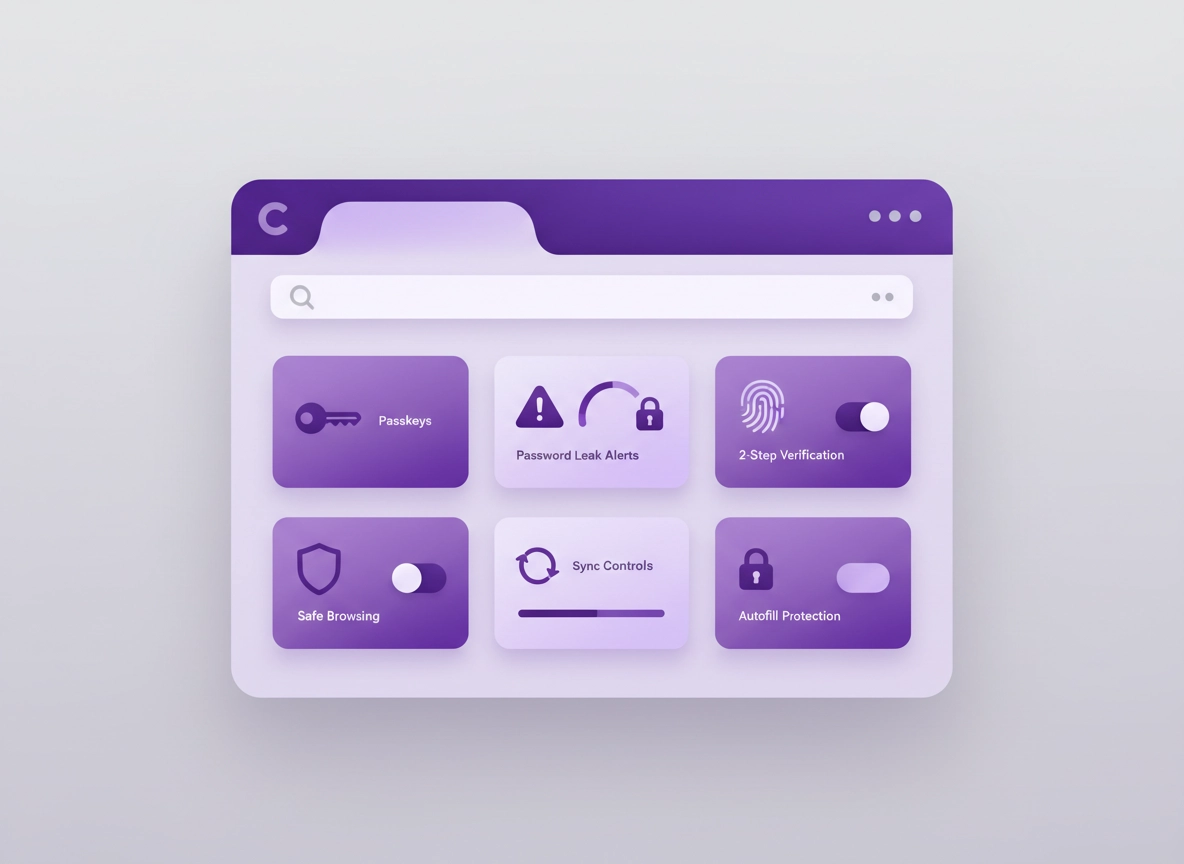
What identity protection in Chrome really means .
This guide focuses on preventing account takeover (ATO), identity abuse, and “login surface” risks—using Chrome settings and common best practices.
“Identity protection” in Chrome isn’t one magic toggle. It’s a set of small controls that decide whether your browser saves credentials, autofills them, shares them across devices via sync, and warns you when a password is exposed or a page looks suspicious. Attackers don’t always “hack” you directly; most real-world identity incidents start with stolen credentials, phishing, or session hijacking after you sign in on a compromised device or network.
The good news: Chrome has mature security features (like Safety Check, Safe Browsing, and password compromise alerts) that can shrink your risk dramatically—especially when you pair them with strong sign-in methods (passkeys or 2-step verification) and a clean extension setup. The best identity protection setup is the one you can keep running daily, without breaking your banking, work apps, or school portals.
Related: If you want the privacy foundation first, start at Chrome Privacy Settings and then come back here for identity-specific protection.
Key terms (quick definitions) .
- Account takeover (ATO): When someone logs into your account using stolen credentials, hijacked sessions, or MFA bypasses.
- Credential stuffing: Automated attempts to reuse leaked username/password pairs across many sites.
- Password leak detection: Alerts that a password you use appears in known breach datasets (helps stop reuse-driven ATO).
- Passkey: A modern sign-in method using device-based cryptographic keys (harder to phish than passwords).
- Sync: Chrome feature that can share passwords, bookmarks, history, and settings across devices—great for convenience, risky if a Google account is compromised.
- Session cookie: A token stored by the browser after login; if stolen, it can sometimes bypass passwords.
Threat model: what you’re protecting against .
Identity protection works best when you’re clear about the threats that actually happen in Chrome-based workflows. Here are the most common “identity loss” paths, and which Chrome controls reduce them.
1) Password reuse + breach exposure .
If the same password is used on multiple sites, one leak can become many compromises. Chrome can help by checking for compromised passwords and encouraging stronger ones (including leak detection and Safety Check). For enterprise or managed environments, Google documents how password leak detection works and what it checks. (This is also why a password manager is one of the highest-ROI security tools.)
Deep dive: Chrome Password Checkup and Chrome Password Leak Detection.
2) Phishing pages that steal fresh credentials .
Phishing often looks like a normal login page, but it’s hosted on a look-alike domain. Safe Browsing + “always use secure connections” can reduce exposure, and passkeys make phishing much harder because the cryptographic credential won’t “work” on the wrong domain.
Related: If you want a stronger protective baseline, see Chrome Safe Browsing Settings and Chrome HTTPS-Only Mode.
3) Malicious or over-permissioned extensions .
An extension with broad “read and change data on all sites” permission can see what you type and what pages you load—exactly what an identity thief wants. Your strongest move here is a smaller extension list, fewer host permissions, and a quick audit after each update.
Related: Chrome Extension Security Check and Chrome Extension Permissions Guide.
4) Sync compromise (Google account is the “master key”) .
If your Google account is compromised, it can expose synced passwords, browsing history, and saved payment methods depending on what you sync. Your identity protection plan must include: Google account security + Chrome sync controls + device hygiene.
Related: Chrome Account Security Settings, Chrome Sign-In Security Settings, and Chrome Sync Security Risks.
5) Unsafe networks + session hijacking .
Public Wi-Fi is not automatically “evil,” but it increases your odds of captive portals, fake hotspots, and unsafe redirects. Chrome security features help, but your habits matter: avoid signing into high-value accounts on unknown networks, prefer VPN on public Wi-Fi, and keep DNS secure.
Related: Chrome Public Wi-Fi Security Tips, Chrome Secure Wi-Fi Browsing, and Chrome Secure DNS Setup.
Before you start (fast checks) .
These checks prevent wasted time. If you do nothing else, do Safety Check + a quick password/extension review today. Google’s Chrome help docs describe Safety Check as a core security feature for desktop and mobile. (It’s meant to surface the “obvious wins” quickly.)
- Update Chrome: Go to ⋮ → Help → About Google Chrome and apply updates, then relaunch. (Older versions miss security fixes.)
- Run Safety Check: Chrome → Settings → Privacy and security → Safety Check (desktop) or Safety check (mobile).
- Confirm Safe Browsing: Ensure Safe Browsing is on. Enhanced protection is strongest but has extra telemetry; standard is a solid baseline.
- Check sign-in state: If you’re signed into Chrome, verify it’s the correct Google account (work vs personal mixing creates risks).
- List high-value accounts: Email, banking, payments, cloud storage, social media, and shopping accounts with stored cards—these deserve passkeys or 2-step verification.
Related: If you suspect your device was exposed, read Chrome Data Breach Protection and then run Chrome Security Checkup.
Step-by-step identity protection checklist (recommended) .
This checklist is ordered by impact. Do the top half first; it covers the most common identity-loss paths. The steps include both desktop and mobile menu names (Chrome changes labels slightly depending on platform).
- 1 Run Safety Check and fix every finding.
Desktop: ⋮ → Settings → Privacy and security → Safety Check → Check now.
Android/iPhone: ⋮ → Settings → Safety check → run the scan.
Safety Check surfaces: outdated Chrome, compromised passwords, unsafe extensions, and more depending on platform. - 2 Turn on password leak alerts (and review compromised passwords).
In Chrome, go to Google Password Manager and look for password checks/alerts. On Android, Chrome’s security pages also reference “warn you if a password was compromised in a data breach.”
Goal: you want Chrome to warn you when a password you use appears in known leak data. - 3 Upgrade critical accounts to passkeys or 2-step verification.
Passkeys are ideal where supported (phishing-resistant). For Google accounts, Security Checkup + 2-step verification remains a strong baseline. In Chrome mobile, passkeys are managed through Google Password Manager settings.
Start with email + banking + payments + cloud storage. These accounts “unlock” the rest. - 4 Harden Chrome sign-in and Sync.
Decide what you actually need to sync. If you don’t need passwords synced, don’t sync them. If you do sync passwords, protect the Google account with 2-step verification and consider a separate profile for high-risk browsing. - 5 Reduce autofill attack surface.
Review saved addresses, payment methods, and “auto sign-in” behavior. Attackers love autofill because it turns one successful login into a cascade of saved identity data. - 6 Audit extensions: remove, restrict, or isolate.
Remove anything you don’t use weekly. For the rest, reduce site access/host permissions where possible. Treat permission changes after updates as a “review required” moment. - 7 Enable a strong anti-phishing baseline.
Make sure Safe Browsing is on. Consider Enhanced protection if you’re frequently targeted (public-facing role, finance access, admin accounts). Pair with HTTPS-Only mode if it fits your browsing compatibility needs. - 8 Secure DNS (optional but recommended on public networks).
Use secure DNS (DoH) so DNS lookups are harder to tamper with on untrusted networks. This helps reduce some forms of redirection and surveillance. - 9 Confirm “success signals.”
You should see: zero Safety Check issues, no compromised passwords, passkeys/2-step enabled on critical accounts, and a smaller extension list with limited site access.
What “success” looks like: Chrome Safety Check shows no urgent issues, your password manager shows no compromised/reused passwords, critical accounts use passkeys or 2-step, and you have few extensions with minimal site access.
Related: For detailed sign-in and account lockdown, follow Chrome Login Security Best Practices and Chrome Two-Factor Authentication Guide.
Common variations (by device) .
- Windows / ChromeOS: Best place to start is ⋮ → Settings → Privacy and security → Safety Check, then Google Password Manager.
- macOS: Same menu paths as Windows; consider an extra layer: separate Chrome profile for work/finance vs general browsing.
- Android / iPhone: Look for Safety check under Settings, and manage passkeys via Google Password Manager inside Chrome settings.
Advanced hardening (power users) .
If you want “stronger than average” identity protection, the next level is mostly about reducing silent trust: fewer auto-actions (auto sign-in, broad autofill, broad extensions), fewer shared surfaces (sync everything), and fewer opportunities for credential interception (phishing pages, unsafe networks, compromised devices).
Related: In managed environments, see Enterprise Chrome Privacy Settings and Chrome Managed Browser Security.
1) Use separate Chrome profiles (identity isolation) .
Chrome profiles are a practical “soft sandbox” for identity: separate cookies, separate password manager state (depending on sign-in), separate extensions, separate history. If you keep a Finance / Admin profile with: (a) no risky extensions, (b) strict site permissions, (c) passkeys/2-step accounts only, you massively reduce accidental cross-contamination.
- Profile A (Daily): normal browsing, media, casual sign-ins, non-critical accounts.
- Profile B (High trust): banking, payments, email, admin consoles, password manager admin tasks.
- Profile C (Testing): new extensions, unknown sites, temporary logins, troubleshooting.
Related: If you want the cleanest baseline, use Chrome Secure Profile Setup and Chrome Profile Security Settings.
2) Re-think Sync: convenience vs “master key” risk .
Sync is a productivity feature, but it expands the blast radius of a single account compromise. If someone gets into your Google account, they may gain access to synced data depending on what you enable. The safest setup is: sync what you need, protect the Google account aggressively, and avoid syncing sensitive data to devices you don’t fully trust.
- Most secure: Disable syncing passwords and payment info to shared devices; keep high-value logins isolated.
- Balanced: Sync bookmarks + settings, but limit passwords to a dedicated password manager and high-trust devices.
- Most convenient: Sync everything—but only if your Google account has strong 2-step + recovery options configured.
Related: Disable Chrome Sync and Chrome Account Sync Settings.
3) Tighten autofill (addresses, payments, and “auto sign-in”) .
Autofill is helpful, but it can also be a leakage path: it can reveal personal data on the wrong page (or to a malicious extension). Treat saved addresses and payment methods as identity assets. If you rarely need them, reduce or remove them.
- Addresses: Keep only current addresses; remove old ones that attackers can use for verification or fraud.
- Payments: If you store cards, ensure device lock is enabled and consider using payment methods that require extra verification.
- Auto sign-in: If enabled, it can create surprises on shared devices. Disable if you ever share your device.
Related: Chrome Autofill Security Settings and Chrome Payment Method Security.
4) Extension governance: “least permission” or remove .
Extensions are the #1 identity risk amplifier in Chrome because they can sit in the browser all day. Your rule of thumb: if an extension needs access to “all sites” and you can’t clearly explain why, it doesn’t belong in your high-trust profile.
- Remove: anything unused, anything redundant, anything with unclear ownership/updates.
- Restrict: site access to “On specific sites” where possible.
- Isolate: run risky extensions only inside a separate profile.
Related: Chrome Extension Audit Checklist and Chrome Extension Risk Analysis.
5) Prefer passkeys for phishing-resistant identity .
Passkeys are one of the strongest “everyday” upgrades because they reduce phishing success: the credential is bound to the legitimate domain, so a fake look-alike page can’t simply “steal a password.” Chrome supports passkey management through Google Password Manager on desktop and mobile.
Practical rollout plan: Start passkeys with (1) your Google account, (2) your primary email provider, (3) your password manager account, then (4) banking and payments where supported. Leave the rest on strong unique passwords + 2-step.
Common alternatives users compare .
- Chrome built-in password tools vs a dedicated password manager
- Passkeys vs passwords + 2-step verification
- Free “security extensions” vs a smaller, audited extension set
- Consumer settings vs enterprise policy-based control
Related: For enterprise-grade options and comparisons, see Best Security Tools for Chrome and Best Managed Browser for Enterprise.
Privacy & security notes (tradeoffs) .
Identity protection features sometimes change what Chrome sends to Google or how it warns you about risky pages and credentials. A good setup is transparent: you know what you enabled, why you enabled it, and how to undo it. Chrome’s own help documentation positions Safety Check and Safe Browsing as core safety features for a more secure browsing experience.
Impact: Affects passwords, autofill, account sync, extension exposure, phishing detection, and site compatibility.
Related: If you suspect infection, hijacking, or fake alerts, start here: Remove Malware from Chrome.
Recommended baseline settings .
- Option A (balanced): Safety Check + Standard Safe Browsing + password leak alerts + 2-step on Google account + limited extensions.
- Option B (maximum protection): Enhanced Safe Browsing + passkeys for critical accounts + strict profile separation + minimal autofill + restricted extension site access.
- Option C (compatibility first): Standard Safe Browsing + passwords (unique) + 2-step, but keep autofill limited and audit extensions monthly.
Recommended settings by goal .
| Goal | Recommended setting | Tradeoff | Best for |
|---|---|---|---|
| Balanced | Safety Check + Standard Safe Browsing + leak alerts + 2-step on Google account | Some warnings and occasional “extra step” during sign-in | Most users |
| Maximum protection | Enhanced Safe Browsing + passkeys for critical accounts + strict extension minimization | More telemetry and occasional site friction; more setup time | Targets of phishing / high-value accounts |
| Compatibility | Standard Safe Browsing + unique passwords + 2-step; keep autofill minimal | Higher phishing risk than passkeys; relies more on user judgment | Banking / enterprise sites with strict flows |
Reality check: No browser setting can compensate for a compromised device. If your OS is infected, attackers can steal sessions, cookies, and typed credentials. If you suspect that, prioritize a device scan and a password reset plan.
Troubleshooting .
Related: If the issue looks like “Chrome is acting weird,” pop-ups, redirects, or unknown toolbars, start with Chrome Malware Cleanup Guide.
If Safety Check won’t run or keeps spinning .
This is usually a stuck update, a broken profile state, or a restricted environment (managed device policies). Try: (1) relaunch Chrome, (2) update Chrome via About page, (3) disable suspicious extensions temporarily, (4) test in a fresh Chrome profile. In enterprise environments, your admin may control some security settings by policy.
If Chrome says your password is compromised but you don’t see where .
“Compromised” usually means the password appears in breach datasets, not necessarily that your specific account was accessed today. Change the password on that site immediately, then check for reuse. If you reused it anywhere else, change those too. Use Password Checkup to locate and prioritize fixes.
If passkeys aren’t available on a site .
Passkeys require site support. If a site doesn’t support passkeys yet, the next-best setup is: a unique strong password + 2-step verification (prefer app-based prompts or hardware keys where supported). Keep watching your password manager’s checkups and reduce risk elsewhere (extensions, autofill, sync).
If banking sites break after tightening settings .
Some banking and enterprise sites rely on third-party cookies or strict tracking defenses. If a site breaks, don’t drop your overall security posture. Instead, use a targeted exception: allow that site only, in a dedicated high-trust profile, with no extra extensions installed. Learn the compatibility tradeoffs in Third-Party Cookies Settings.
If you suspect your Google account is compromised .
Treat this as urgent because it may unlock Chrome sync. Immediately: (1) change your Google password, (2) review Security Checkup, (3) remove unknown devices/sessions, (4) enable 2-step verification, (5) review recovery email/phone, and (6) rotate passwords for your most important accounts.
Related: Follow Chrome Account Security Settings and Chrome Data Breach Protection.
If you need to reset safely (without losing everything) .
Start with the least destructive changes: remove suspicious extensions, clear site-specific permissions, and reset autofill/payment settings. If you must reset Chrome, do it after you’ve secured accounts (passwords + 2-step), so you don’t accidentally lock yourself out. See Chrome Security Reset.
FAQ .
-
helpIs Chrome good enough for identity protection?Chrome can be very strong if you use it intentionally: Safety Check, leak alerts, Safe Browsing, and passkeys/2-step for critical accounts. The biggest risks usually come from password reuse and risky extensions—not Chrome itself. A clean profile setup can be “good enough” for most people.
-
helpWhat’s the single best thing I can do today?Run Safety Check and fix everything it flags, then change any compromised/reused passwords. After that, enable 2-step verification on your Google account and move your most important account(s) to passkeys if available.
-
helpAre passkeys safer than passwords?In most cases, yes—passkeys are designed to be phishing-resistant because they’re tied to the real domain. If a site supports passkeys, it’s one of the best identity upgrades you can make. If not, use a unique strong password plus 2-step verification.
-
helpShould I sync passwords in Chrome?Syncing passwords is convenient but increases your “master account” risk. If you sync passwords, protect your Google account with strong 2-step verification and recovery options, and avoid signing into Chrome on devices you don’t fully trust. If you don’t need password sync, keep sync limited to bookmarks/settings.
Sources & further reading .
- Google Chrome Help: Manage Chrome safety and security (Desktop)
- Google Chrome Help: Manage Chrome safety and security (Android)
- Google Chrome Help: Manage passkeys in Chrome (Desktop)
- Google Chrome Help: Manage passkeys in Chrome (Android)
- Chrome Enterprise: Password Leak Detection (how it works)
- Google Security Blog: Better password protections in Chrome (technical overview)
- Google Account: Security Checkup
- Chrome Releases Blog: Stable channel updates (version context)
Disclosure: Some pages may mention tools or services. Recommendations are editorial and based on practical testing and common security best practices.