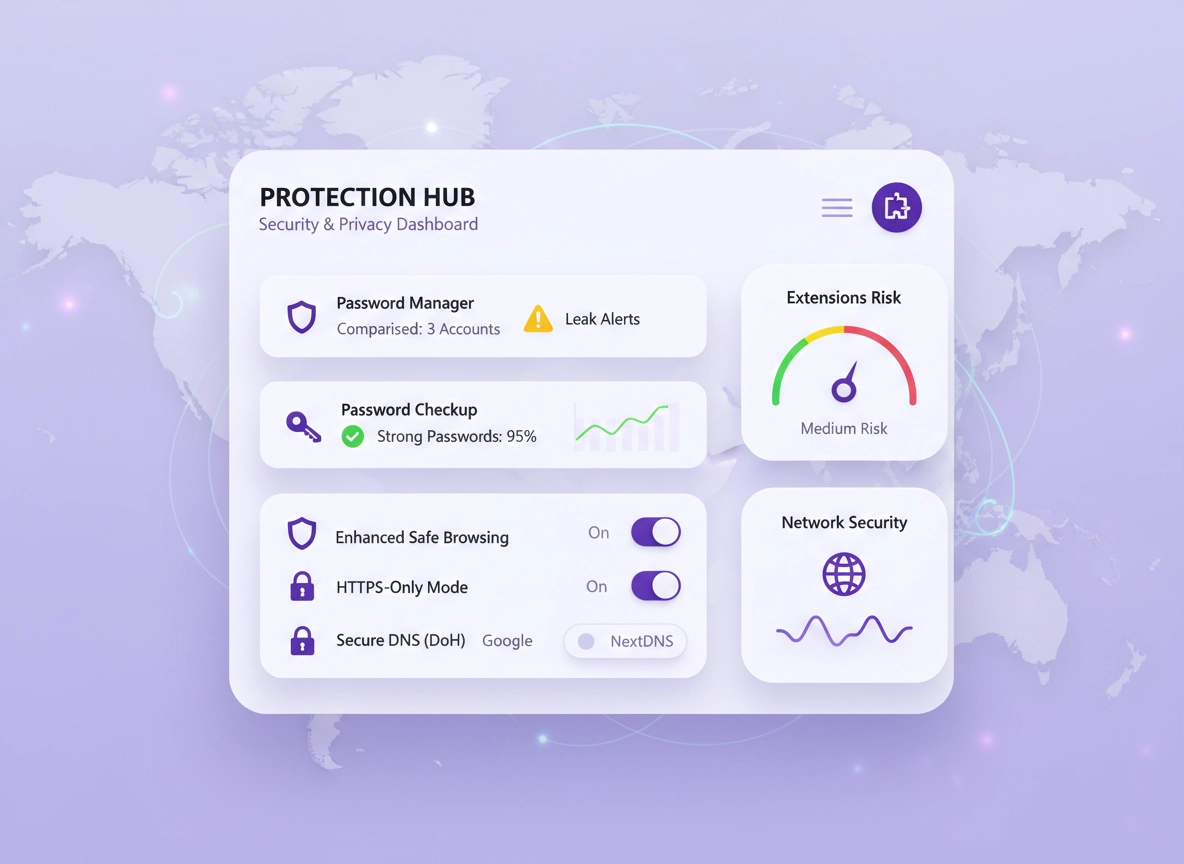
What “data breach protection” means in Chrome .
This guide focuses on the most common real-world breach outcomes: stolen passwords, session theft, malicious extensions, phishing, and unsafe connections.
A “data breach” usually starts outside your browser: a website you use gets hacked, a database leaks, or an employee account is compromised. But the damage often spreads through the browser because Chrome is where you sign in, store passwords, approve 2FA prompts, and keep long-lived sessions for email, banking, social accounts, and work tools. That makes Chrome both a target (attackers want your sessions) and a control point (you can reduce the impact by hardening settings and habits).
Chrome can’t “prevent breaches” from happening to third-party services, but it can help you detect and reduce the fallout: it can warn you about password leaks, block known dangerous sites, reduce risky tracking and permission exposure, enforce safer connections, and help you quickly rotate credentials when something is compromised. The goal is simple: make it harder to steal your accounts and make it easier to recover when something goes wrong.
Think of breach protection as a stack with four layers: (1) credential hygiene (unique passwords or passkeys), (2) browser protections (Safe Browsing, HTTPS-Only, Secure DNS), (3) attack-surface reduction (extensions and permissions), and (4) incident readiness (backup access, recovery steps, logging). You don’t need “maximum everything” to be safe—but you do need a coherent baseline.
Start here: If you want the broader context for privacy/security setup, see Chrome Privacy & Security Settings Overview.
Key terms (quick definitions) .
- Credential stuffing: Automated login attempts using leaked username/password combos from other sites.
- Password Checkup / leak alerts: Chrome warns if a saved password appears in known breach datasets or is weak/reused.
- Session cookie: A “proof you’re logged in” token stored by the browser—steal the cookie, steal the session.
- Phishing: Fake login pages that trick you into giving away passwords, MFA codes, or recovery info.
- Extension attack surface: Extensions can read pages, capture form data, and sometimes access sensitive sites.
Before you start (fast checks) .
These checks prevent wasted time and help you spot “silent failures” like old Chrome versions, compromised extensions, or profiles syncing risky settings across devices.
- Update Chrome: Use Get or Update Chrome and restart. Many security features are version-dependent.
- Run Security Checkup: Go to Settings → Privacy and security → Security Checkup (or use this guide: Chrome Security Checkup).
- Review saved passwords: Open Settings → Autofill and passwords → Password Manager and look for reuse or unknown entries.
- Audit extensions: Remove anything you don’t actively use. Start with Chrome Extension Security Check.
- Know your profile situation: If you’re signed into Chrome Sync, changes may propagate to other devices (see Chrome Account & Sync Settings and Chrome Sync Security Risks).
Related: If you suspect anything shady (popups, redirects, new toolbars), use Chrome Suspicious Activity Detected (Fix) and the broader Remove Malware from Chrome hub.
Fast risk score (30 seconds) .
If you answer “yes” to any of these, prioritize the step-by-step stack below:
- Do you reuse passwords across multiple websites?
- Do you have more than 10 extensions installed?
- Do you stay signed into email/social accounts on shared devices?
- Do you click “Allow” on notification prompts often?
- Do you browse on public Wi-Fi without thinking about it?
Step-by-step protection stack (recommended) .
This is the highest ROI order: it reduces the most common breach fallout first (credential theft and phishing), then hardens connections and reduces the browser attack surface. Each step includes what it protects and what to watch out for.
- 1 Run Chrome Security Checkup and fix everything it flags: Step-by-step Security Checkup.
- 2 Turn on Password leak detection (Password Checkup) and resolve compromised passwords: Password Leak Detection + Chrome Password Checkup.
- 3 Upgrade protection: set Safe Browsing to the level that matches your risk: Safe Browsing Settings and Enhanced Safe Browsing.
- 4 Enforce safer connections: enable HTTPS-Only Mode and Secure DNS (DoH): HTTPS-Only + Secure DNS Setup.
- 5 Reduce attack surface: remove risky extensions, tighten permissions, and stop “All sites” access: Extension Permissions Guide + Site Permissions Settings.
- 6 Hardening your identity layer: enable 2FA/passkeys, secure sign-in, and isolate profiles for work vs personal: 2FA Guide + Sign-in Security + Secure Profile Setup.
What “success” looks like: Chrome warns you about compromised credentials, phishing attempts are blocked more often, your connections prefer HTTPS + secure DNS, and your extensions don’t have broad access to sensitive sites like email, banking, and admin consoles.
Related: If you want a clean baseline in one pass, use Chrome Secure Browser Setup Guide and then come back here to add the breach-response plan.
Step 1: Security Checkup (the fastest baseline) .
Chrome’s Security Checkup is designed to catch “basic but costly” issues: unsafe browsing level, compromised passwords, outdated Chrome, and suspicious extensions. It’s not perfect, but it’s a strong first pass because it’s easy to repeat after Chrome updates or after installing extensions.
- Where it is: Settings → Privacy and security → Security Checkup (desktop). On mobile, it may live under Safety check.
- What to fix immediately: outdated Chrome, “compromised password” warnings, extensions you don’t recognize, and “protection is off” items.
- Why it matters: attackers rely on stale, unfixed weaknesses. Checkup makes the basics repeatable.
Step 2: Password leak detection (this is where most breaches become takeovers) .
When a website is breached, attackers often test those credentials everywhere else. If you reused the password, your email or banking can fall next—even if those services were never breached. That’s why password leak detection and cleanup is the #1 practical step.
Start here: Chrome Password Leak Detection. Then run Chrome Password Checkup and resolve issues in this order:
- Compromised: Change these first. Assume the password is known by attackers.
- Reused: Unique passwords stop credential stuffing from chaining breaches together.
- Weak: Short or common passwords are guessable (especially if you use personal details).
Important: If your email password is compromised, treat it like a master key. Change it first, enable 2FA, and review “signed-in devices” on your email provider.
If you prefer deeper detail on storage and autofill risk, read: Chrome Password Storage Security and Chrome Autofill Security Settings.
Step 3: Safe Browsing (phishing and malicious download defense) .
Most “breach” experiences feel like phishing: a fake login page, a fake invoice, a malicious extension page, or a poisoned download. Safe Browsing helps by warning/blocking known dangerous destinations. You can tune it based on your risk tolerance:
- Standard protection: Good default for most users.
- Enhanced protection: Stronger, earlier warnings and more proactive protections (especially if you’re targeted or handle money/work admin).
- No protection: Not recommended unless you’re in a controlled testing environment.
Use Chrome Safe Browsing Settings and, if appropriate, enable Enhanced Safe Browsing.
Reality check: Safe Browsing can’t block every new phishing site instantly. Your best defense is still: unique passwords + 2FA + not granting broad permissions to extensions.
Step 4: HTTPS-Only + Secure DNS (protect the path, not just the destination) .
If your connection is downgraded or intercepted, attackers can sometimes steal or manipulate data in transit. Modern sites typically use HTTPS, but “mixed environments” (public Wi-Fi, captive portals, old links) still create opportunities for downgrade tricks or unsafe redirects. HTTPS-Only mode pushes Chrome to use HTTPS whenever possible.
- Enable HTTPS-Only: Follow Chrome HTTPS-Only Mode.
- Enable Secure DNS (DoH): Follow Chrome Secure DNS Setup or read DNS over HTTPS Settings.
- Why this matters: DNS is often the “quiet weak link.” Secure DNS reduces DNS hijack and some spoofing risks on hostile networks.
Using public Wi-Fi? Combine this with the practical advice in Chrome Public Wi-Fi Security Tips and Secure Wi-Fi Browsing.
Step 5: Extensions + permissions (stop silent data access) .
Extensions are one of the most common “quiet breach amplifiers.” Even legitimate extensions can be sold, updated, or compromised. And many extensions request permissions that are far broader than users realize. If an attacker gets extension-level access, they can potentially read content on pages you visit, capture form data, or inject scripts.
Start with Chrome Extension Security Check. Then use Extension Permissions Guide to reduce risk.
What to do (practical) .
- Delete what you don’t use: If you haven’t used it in 30 days, remove it. You can always reinstall.
- Avoid “Read and change all your data on all websites”: Prefer “On specific sites” or “On click.”
- Separate profiles: Keep “banking + email” in a minimal-extension profile (more on that in Step 6).
- Watch permission changes: If an extension suddenly asks for more access after an update, treat that as a red flag.
Also tighten site-level permissions. Many attackers use “notification spam” to trick users into installing malware or giving access. Review: Chrome Site Permissions Settings. If you need specifics: Notification Permissions, Camera, Microphone, Location.
Step 6: Identity hardening (2FA, sign-in security, profile isolation) .
Breach protection isn’t only “browser settings.” The best Chrome setup still fails if an attacker can log in with your credentials. The modern baseline is: unique password (or passkey) + 2FA on important accounts (email, password manager, banking, cloud storage, work admin, and social accounts with ads access).
- Enable 2FA: Use Chrome Two-Factor Authentication Guide.
- Secure Chrome sign-in: Review Chrome Sign-in Security Settings and Account Security Settings.
- Consider passkeys: When a service supports passkeys, you reduce phishing and credential stuffing risk dramatically (because there’s no reusable password).
- Separate profiles: Create a “high-trust” profile for banking/email with minimal extensions, and a “daily browsing” profile for everything else: Chrome Secure Profile Setup.
Profile rule: Your “high-trust” profile should have no experimental extensions, no random coupon tools, and no “free VPN” add-ons. Treat it like a clean room for critical logins.
Common variations .
- Windows / ChromeOS: You may see additional OS-level integrations (Windows credential prompts, ChromeOS managed policies). If policies are enforced, see Chrome Enterprise Guide.
- macOS: Keychain and system prompts can affect password storage behavior. If you’re comparing security postures, see Password Storage Security.
- Android / iPhone: Mobile Chrome uses different menu names, but the goals are the same: safety check, safe browsing, HTTPS, and password alerts.
Advanced hardening (power users + business) .
The steps above protect most people. Advanced hardening is about tightening the last 20%: limiting data exposure, reducing sync risk, preventing silent persistence, and preparing for incident response. This is also where business/enterprise users typically see the biggest benefit (and where security tooling CPC tends to be higher).
Related: If you manage devices, start with Chrome Enterprise Security Settings and the larger Chrome Enterprise Guide.
1) Control Sync (useful, but it can spread mistakes) .
Sync is convenient: bookmarks, passwords, extensions, settings follow you. But that means a bad extension, a risky setting, or a compromised session can spread faster too. This doesn’t mean you must disable Sync; it means you should use it intentionally.
- Audit Sync data: Review what’s syncing in Account & Sync Settings.
- Consider disabling Sync temporarily during an incident: See Disable Chrome Sync.
- Understand risk: Read Chrome Sync Security Risks for threat modeling.
2) Harden cookie behavior and tracking exposure .
Breaches and tracking are different problems, but they overlap: the more third parties can see, the easier it is to profile targets and craft convincing phishing. Also, cross-site tracking and third-party cookies increase your general exposure. For a practical baseline:
- Review Third-Party Cookies Settings and consider blocking where possible.
- Use Chrome Tracking Protection and Fingerprint Protection to reduce passive profiling.
- Understand ad controls: Ad Privacy Settings and Privacy Sandbox Explained.
3) Tighten TLS/connection settings (when you need stronger transport guarantees) .
Most users don’t need to touch TLS settings directly, but if you operate in regulated environments or you’re troubleshooting insecure connection behavior, these guides help you understand what Chrome negotiates and why some older sites break:
4) Enterprise-grade baseline (what to standardize) .
If you’re an IT admin or managing a small business, breach protection is partly a policy problem: you want consistent settings across users and fewer “one-click mistakes.” A sane baseline usually includes:
- Managed Safe Browsing: Strong phishing/malware protection, with monitoring if available.
- Extension allowlist: Only approved extensions; block risky categories.
- Profile separation: Work profiles with controlled sync and limited access to personal accounts.
- Update control: Regular patching and predictable rollouts.
- Incident playbooks: A defined response when a user reports suspicious login or a breach alert.
Next steps: For business security configuration, use Chrome Business Security Configuration and Chrome Security Policy Setup.
Common alternatives users compare (and what matters for breaches) .
- Chrome built-in password manager vs dedicated password managers: Dedicated tools often offer stronger sharing controls, organization features, and admin controls for teams (see Best Password Manager for Chrome).
- Free VPN extensions vs premium VPN services: Free “VPN” extensions may be proxies with unclear logging; if privacy is a priority, compare options from Best VPN for Chrome.
- Manual user setup vs enterprise management: If you need consistency, policy management beats “please configure it correctly” every time (start with Chrome Enterprise Management).
- Chrome vs other browsers: If you’re deciding for a business environment, see Chrome vs Edge (Privacy) and Chrome vs Firefox (Privacy).
Privacy & security notes (tradeoffs) .
“More protection” sometimes means “more prompts” or “more compatibility issues.” The best setup is one you’ll keep enabled. This section helps you choose wisely and understand what each layer actually changes.
Impact: Affects password alerts, phishing protection, HTTPS enforcement, DNS behavior, extension permissions, and site compatibility.
Related: If you suspect infection or browser hijacking, use Chrome Browser Hacked (How to Fix) and Chrome Extension Malware Removal.
Recommended baseline settings .
- Option A (balanced): Standard Safe Browsing + Password Checkup + HTTPS-Only + Secure DNS + minimal extensions.
- Option B (maximum protection): Enhanced Safe Browsing + HTTPS-Only + Secure DNS + strict extension/site permissions + separate “clean” profile for critical logins.
- Option C (compatibility-first): Standard Safe Browsing + Password Checkup + Secure DNS; enable HTTPS-Only but allow exceptions only for trusted legacy sites (rare).
Recommended settings by goal .
| Goal | Recommended setting | Tradeoff | Best for |
|---|---|---|---|
| Balanced | Password Checkup + Standard Safe Browsing + HTTPS-Only + Secure DNS | Occasional warnings/prompts | Most users |
| Maximum protection | Enhanced Safe Browsing + strict extensions + separate clean profile for banking/email | More prompts; some privacy/telemetry tradeoffs depending on settings | High-risk / targeted / admins |
| Compatibility | Standard Safe Browsing + Secure DNS; HTTPS-Only with limited exceptions | Higher exposure on legacy sites | Legacy apps / older intranets |
Troubleshooting + breach response plan .
Related: If your concern is specifically “browser data leak” behavior, see Chrome Data Leak Detection and Passwords Stolen (What to Do).
If Chrome says a password is compromised .
Treat “compromised” as urgent—even if you “never noticed anything.” Attackers often wait. Do this:
- Change the password on the website itself (not just in Chrome). Use a unique, long password (or a passkey if offered).
- Enable 2FA on that account immediately. If possible, prefer authenticator apps or hardware keys for critical accounts.
- Log out of other sessions on that service (many sites provide “log out of all devices”).
- Update your recovery options (backup email/phone). Attackers often change these after login.
If you see “Managed by your organization” and can’t change security settings .
This usually means a policy is enforcing settings (common on work/school devices). Your options:
- Don’t fight policy: Ask IT what baseline is enforced and what you can control (passwords, 2FA, extensions).
- Use a separate personal device/profile for personal accounts if policy restricts privacy expectations.
- Admins: Use Chrome IT Admin Security Settings and Enterprise Security Checklist.
If HTTPS-Only breaks a site .
This typically happens on old, non-HTTPS sites or misconfigured internal tools. The safer approach is: fix the site if you control it. If you don’t control it, only create an exception if you fully trust the context (and understand the risk).
- Verify the site is legitimate (bookmark the correct URL; avoid search ads for logins).
- If it’s an internal tool, talk to IT about HTTPS enablement rather than bypassing permanently.
- If you must create a temporary exception, remove it after you’re done.
If you suspect a malicious extension (or Chrome behavior suddenly changed) .
Red flags include: new tabs opening, search engine changes, strange ads, permission prompts, or logouts/reauth prompts at weird times. Follow this path:
- Remove extensions you don’t recognize (start with the newest installs).
- Review “site access” for remaining extensions and restrict to “On click” or “specific sites.”
- Run a full cleanup workflow: Extension Malware Removal and Chrome Malware Cleanup Guide.
- Consider a clean profile reset if symptoms persist: How to Reset Chrome After Malware.
Breached? Use this 12-step Chrome-focused response plan .
If you received a breach email, saw suspicious logins, or Chrome flagged compromised passwords, use this plan. It’s written to minimize “panic clicks” and maximize recovery speed.
- Start with your email account: change password/passkey, enable 2FA, review recent logins, and log out other sessions.
- Run Password Checkup: fix compromised passwords first, then reused, then weak.
- Log out of all devices on critical services (email, banking, password manager, social, cloud storage).
- Update recovery info: phone numbers, backup emails, recovery codes. Store recovery codes securely (not in a random note).
- Check for forwarding rules in email (attackers add hidden forwarders).
- Review Chrome extensions: remove anything unnecessary; verify the rest. Use a “clean” profile for critical logins.
- Check Chrome Sync: if you suspect Sync spread risk, consider temporarily disabling it: Disable Chrome Sync.
- Turn on Enhanced Safe Browsing during the incident window if you’re being targeted: Enhanced Safe Browsing.
- Enable HTTPS-Only + Secure DNS to reduce network-layer risk while you clean up: HTTPS-Only + Secure DNS.
- Review payments & autofill: remove old cards/addresses you don’t need: Payment Method Security.
- Monitor for 7–14 days: attackers often return after you “fix it.” Watch for password reset emails you didn’t request.
- Document what happened: especially for business accounts. It improves future prevention (and can help support teams restore access).
FAQ .
-
helpCan Chrome warn me if my passwords were in a data breach?Yes. Chrome’s Password Manager can alert you about compromised, reused, or weak passwords. Use Password Checkup to review them and change compromised credentials first. Start with Chrome Password Checkup.
-
helpIs Enhanced Safe Browsing worth enabling for breach protection?Enhanced Safe Browsing can reduce phishing and malicious download risk, which are common ways breaches turn into account takeovers. If you handle payments, admin tools, or you’ve been targeted recently, it’s usually worth it. Learn the tradeoffs and setup here: Enhanced Safe Browsing in Chrome.
-
helpWhat’s the biggest mistake people make after a breach?Reusing passwords and “fixing the wrong account first.” If your email account is compromised, attackers can reset everything else. Secure email first, then rotate compromised/reused passwords, then lock down Chrome extensions and sessions.
-
helpDo extensions really increase breach risk?They can. Extensions may request broad access (“read and change data on all websites”), and even legitimate extensions can become risky after updates or ownership changes. Keep a minimal set, restrict site access, and separate profiles for high-trust logins. Start here: Extension Security Check.
Sources & further reading .
- Google Chrome Help: Settings & Privacy/Security
- Google Chrome Help: Safe Browsing & security warnings
- Google Account Help: Security basics and 2-Step Verification
Disclosure: Some pages may mention tools or services. Recommendations are editorial and based on testing.