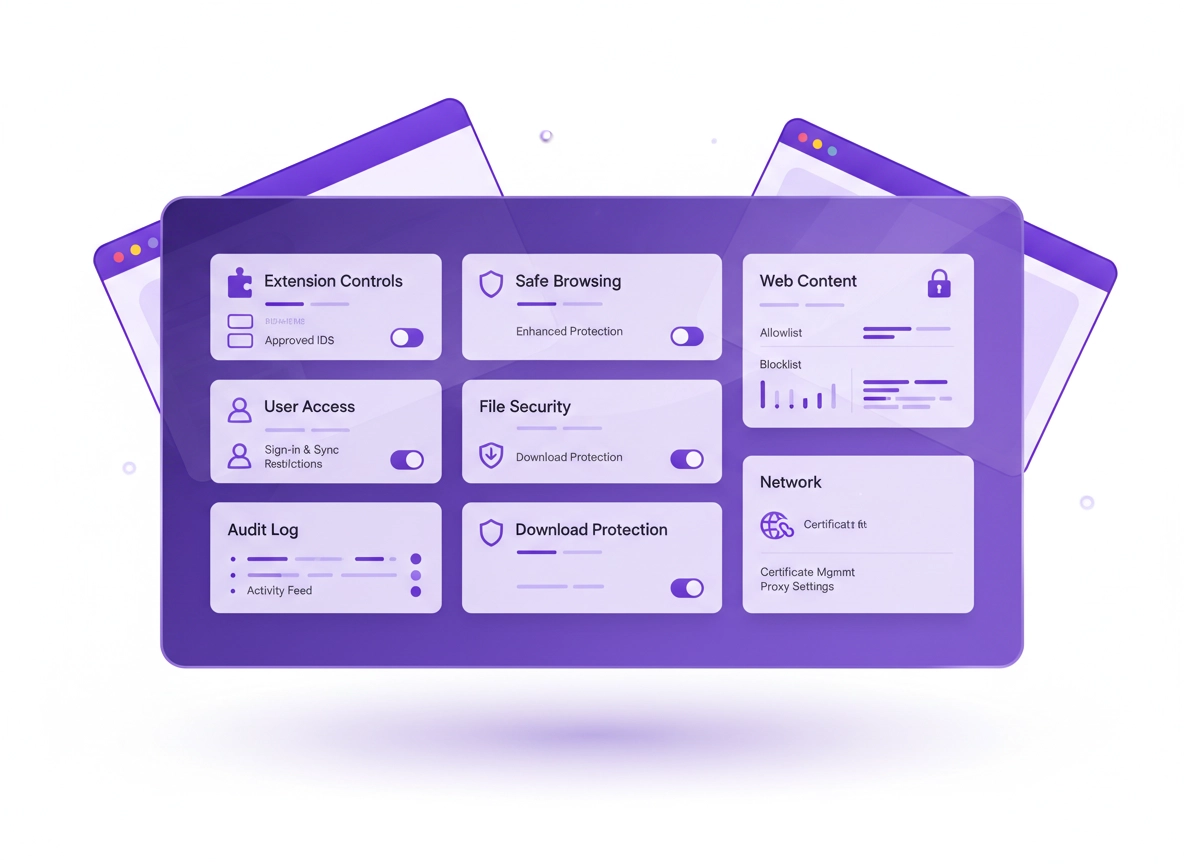
What “Chrome IT admin security settings” really means .
In enterprise, “settings” means enforceable policy — not a checklist of toggles users might change back tomorrow.
When people say “Chrome IT admin security settings,” they usually mean a mix of three things: (1) security controls inside the Chrome browser (Safe Browsing, downloads, passwords, site permissions), (2) enterprise policy management (Admin console, cloud management, Group Policy, MDM), and (3) security outcomes (reduced phishing, fewer malicious extensions, less data leakage, better audit evidence). The key shift is this: in a managed environment, your goal isn’t “teach users to be careful.” It’s to reduce what’s possible and make secure behavior the default.
Chrome is already a security-hardened browser, but organizations get compromised in the “gaps”: unreviewed extensions, users signing into personal Google accounts, password reuse and weak autofill hygiene, unsafe downloads, unmanaged profiles, and web apps that quietly expand permissions (camera, mic, clipboard, file system). Policy hardening closes those gaps while keeping the business running.
This guide is written for practical deployment. You’ll see recommended policies grouped by the questions IT teams actually ask: “How do I stop risky extensions?” “How do I force Safe Browsing?” “How do I prevent personal sign-in and sync?” “How do I block dangerous categories of sites?” “How do I prove it’s enforced?” Each section includes a verification step so you can produce evidence (screenshots, exports, policy dumps) without guesswork.
Related: If extensions are your biggest risk, start here: Chrome Extension Security Check and Chrome Extension Security Policy.
Key terms (quick definitions) .
- Chrome policy: An admin-enforced rule that configures or restricts browser behavior. Users can’t override “mandatory” policies.
- Cloud management: Managing Chrome browsers from the Google Admin console (or Chrome Browser Cloud Management), often across multiple OSes.
- GPO / MDM: Windows Group Policy / macOS MDM used to set policies on managed endpoints (often with device-based enforcement).
- Extension allowlist: Only approved extension IDs can run; everything else is blocked by default.
- Policy verification: Confirming what Chrome actually applied via
chrome://policy, plus endpoint/console-side evidence.
Before you start (policy model + fast checks) .
Before you touch any security toggle, get clear on your management model — because “where the policy lives” affects enforcement strength, troubleshooting, and how you prove compliance.
Pick your enforcement model (in plain English) .
- Cloud (recommended for mixed OS fleets): policies follow managed users or enrolled browsers from the admin console, even across devices.
- Device (GPO/MDM): policies apply because the computer is managed — great for kiosks, shared devices, and strict endpoint posture.
- Hybrid: common in real orgs: cloud policies for user controls + device policies for network/certificates/installation controls.
Fast checks that prevent wasted time .
- Confirm the device is actually managed: If you expect device-level enforcement, verify the endpoint is in the correct OU / MDM profile / GPO scope.
- Check policy visibility in Chrome: open
chrome://policyon a target machine and confirm policies appear (not “No policies set”). - Check sign-in state: if your model depends on managed account sign-in, confirm users are signing into Chrome with the correct managed identity.
- Establish your rollback: document what you’ll revert first if something breaks (usually URL filtering or extension policies).
chrome://policy showing the applied policies,
and keep a dated export of your admin-console policy configuration. You’re proving “enforcement,” not just “intent.”
Step-by-step: deploy a secure baseline (recommended) .
This baseline is designed to stop the most common enterprise Chrome incidents: phishing/malicious sites, risky extensions, credential leakage, and “shadow IT” sign-in behavior. Apply it to a pilot OU first, verify, then roll out broadly.
- 1 Define a pilot group (OU / group) and a rollback plan (what you’ll revert first if apps break).
- 2 Enforce an extension allowlist baseline (block unknown extensions by default, allow only approved IDs).
- 3 Turn on Enhanced Safe Browsing and prevent bypass (“proceed anyway” controls where appropriate).
- 4 Lock down sign-in and sync behavior (managed identity, disable personal sign-in, control profile creation).
- 5 Apply URL filtering for high-risk categories (and a targeted allowlist for business-critical apps).
- 6 Harden passwords/autofill and credential workflows (policy choice depends on your password manager strategy).
- 7 Verify enforcement in
chrome://policyand test “real work” scenarios (SSO apps, SaaS, file downloads, meetings).
What “success” looks like: Unapproved extensions can’t install, phishing links are blocked more aggressively, users can’t silently sync to personal accounts, and your highest-risk sites/categories are blocked without breaking core business apps.
Baseline policy set (practical defaults) .
Think of this as the “minimum viable hardening” you can defend in front of security leadership: it addresses execution risk (extensions), phishing risk (Safe Browsing), identity drift (sign-in/sync), and web exposure (URL controls).
- Extension controls: block by default, allowlist approved extensions, restrict developer mode, control update sources, require review for new IDs.
- Safe Browsing: set Enhanced protection where feasible; disable user bypass for risky categories if your org tolerates the friction.
- Sign-in + profiles: restrict Chrome sign-in to managed accounts, limit profile creation, prevent “Add person” on shared/regulated endpoints.
- Sync: either disable sync entirely for high-security environments, or allow sync only for approved data types and managed identities.
- URL filtering: use blocklists for known high-risk categories (malware, newly registered domains, certain file hosts), plus allowlists for core apps.
- Downloads: block dangerous file types where appropriate, enforce scan/download warning policies, and treat unknown executables as high-risk.
Common variations (by OS / environment) .
- Windows: GPO can be used for device enforcement (great for kiosk/shared devices). Cloud policies still work for enrolled browsers.
- macOS: MDM profiles are the cleanest device-level option; combine with cloud policies for user-based enforcement.
- Linux: local policy JSON files are common for device enforcement; verify in
chrome://policyafter deployment. - ChromeOS: management is very mature; treat extension control and URL filtering as default, not optional.
- VDI: prioritize extension restrictions, download controls, and policy stability; test performance impacts after hardening.
Advanced hardening (identity, network, DLP, logging) .
Once your baseline is stable, “advanced hardening” is where you align Chrome controls with enterprise security programs: zero trust access, data protection, and audit visibility. The theme is consistent: reduce trust in the open web, tighten identity boundaries, and make sensitive actions policy-gated.
Related: For a bigger strategic view, see Chrome Secure Configuration: Enterprise Best Practices and Chrome Zero Trust Security Guide.
1) Extension governance (the highest ROI control) .
In real incidents, extensions are often the “hidden admin.” A powerful extension can read page content, inject scripts, access cookies, and exfiltrate data. Even legitimate extensions can become risky after an update, a change of ownership, or a newly-added permission. Treat extension governance like you treat endpoint software: approved catalog, change control, least privilege.
- Allowlist-only model: block all extensions by default, then allow only specific extension IDs.
- Pin what matters: if you force-install approved extensions, consider pinning or at least standardizing user visibility.
- Review permissions: require “least host access” where possible (avoid “Read and change all data on all websites”).
- Change control: establish a process: request → review → pilot OU → rollout.
2) Identity: sign-in, sync, profiles, and “account drift” .
A huge chunk of enterprise risk comes from identity ambiguity: users sign into the browser with one account, then sync to another; they use personal Gmail inside a work profile; they create new profiles to bypass controls. Your goal is to keep the browser “inside the fence” of corporate identity.
- Restrict browser sign-in: allow only managed identities to sign into the browser (or enforce “no sign-in” for kiosk/shared models).
- Control profile creation: block “Add person” on regulated endpoints; allow only where it’s required for business use.
- Decide your sync stance: in strict environments, disable sync; in productivity-first environments, allow sync but only under managed identity.
- Prevent shadow profiles: don’t allow unmanaged profiles to become a bypass route for extensions and risky browsing.
Related: If you’re balancing productivity and risk, see Chrome Account & Sync Settings and Chrome Sync Security Risks.
3) Web threat protection: Safe Browsing, downloads, and risky destinations .
Safe Browsing is one of the most important “built-in” protections Chrome offers. For enterprise admins, the key is to treat it like a security control you can standardize: consistent settings, consistent user experience, and reduced bypass opportunities.
- Enhanced Safe Browsing: stronger real-time protection against dangerous sites and downloads (best for most organizations).
- Bypass controls: in strict security environments, reduce the ability for users to “proceed anyway” on dangerous warnings.
- Download controls: combine browser warnings with endpoint security controls; treat unknown executables and scripts as high-risk.
- URL filtering: block known high-risk categories; allowlist critical business apps and identity providers.
4) Network + certificate controls (enterprise-grade hygiene) .
If your org handles sensitive data, the browser is part of your network boundary. The most common enterprise needs: enforce secure connections, reduce MITM exposure, standardize proxy behavior, and manage certificates cleanly. These controls can also be critical for regulated industries (finance, healthcare) where you need predictable TLS behavior.
- HTTPS-first posture: where possible, prefer “secure connections” and reduce mixed-content behavior.
- DNS controls: if you use Secure DNS/DoH, configure it intentionally (and test internal domains).
- Proxy policy: enforce or standardize proxy settings on managed devices (avoid user-level proxy overrides).
- Certificate strategy: manage enterprise roots carefully; avoid “just install a cert” without a change-control record.
Related: For deep network/privacy angle, see Chrome Secure Connection Settings, HTTPS-Only Mode, and DNS-over-HTTPS Settings.
5) Data protection (DLP mindset): clipboard, uploads, file access .
Most “browser data leaks” aren’t dramatic hacks — they’re normal work actions (copy/paste, downloads, uploads) flowing to the wrong place. Advanced browser security programs treat those actions as policy decisions. If your environment requires DLP-like controls, consider layering secure browsing solutions and identity-aware access rules.
- Restrict high-risk web destinations: block common exfiltration routes (new file-sharing domains, unknown paste sites, etc.).
- Limit risky permissions: file system access, clipboard access, camera/mic permissions should be deliberate.
- Use managed profiles: keep corporate data inside managed sessions and block “personal profile” workarounds.
6) Logging & audit readiness (prove control, not just configuration) .
Security teams care about outcomes: “Can we detect and respond?” Compliance teams care about evidence: “Can we show policies are enforced, on time, and reviewed?” Your browser program should be able to answer: what’s enforced, where, for whom, and since when.
- Baseline evidence: policy exports + OU mappings + dated screenshots of
chrome://policyfrom representative endpoints. - Change logs: track who changed extension allowlists and URL controls (these are “security-impacting”).
- Incident readiness: document how to “pause rollout,” revert policies, and isolate compromised profiles.
Common alternatives admins compare .
- Chrome built-in protections vs secure enterprise browsing solutions
- Manual configuration vs centralized policy management (cloud + GPO/MDM)
- Extension allowlisting vs “monitor-only” extension audits
- URL filtering in-browser vs network secure web gateway controls
- Disable password storage vs using a dedicated enterprise password manager
Related: If you’re evaluating “best of breed” tools around Chrome, see Best Security Tools for Chrome and Chrome Security Tools Comparison.
Privacy & security notes (tradeoffs + threats) .
Enterprise browser hardening is always a trade: you reduce risk by removing flexibility. The right approach is to be explicit about what you’re protecting against, then choose controls that match your environment’s tolerance for friction.
Impact: Affects extensions, downloads, sign-in & sync behavior, URL access, permissions, and user workflow.
Related: If you suspect your fleet is already compromised (hijackers, rogue extensions), see Remove Malware from Chrome and Chrome Extension Malware Removal.
Recommended baseline settings (three practical profiles) .
- Option A (balanced): allowlist extensions, Enhanced Safe Browsing, managed sign-in, URL filtering for high-risk categories, allow business apps.
- Option B (maximum security): strict allowlist, disable bypass, restrict Incognito and profile creation, disable sync, tighten downloads and risky permissions.
- Option C (compatibility-first): allowlist extensions + managed sign-in, standard Safe Browsing, light URL filtering, minimal restrictions that avoid breaking legacy apps.
Recommended settings by goal .
| Goal | Recommended setting focus | Tradeoff | Best for |
|---|---|---|---|
| Balanced | Extension allowlist + Enhanced Safe Browsing + managed sign-in + basic URL controls | Some user friction (blocked extensions / warnings) | Most orgs |
| Maximum security | Strict allowlist, reduced bypass, restricted profiles/Incognito, tighter downloads, limited sync | Higher support load and app exceptions | Regulated / sensitive data |
| Compatibility | Managed identity + minimal restrictions, phased hardening, targeted URL filtering | Higher residual risk | Legacy apps / change-averse orgs |
Troubleshooting .
Related: For deeper policy hardening context, see Chrome Enterprise Security Settings and Chrome Enterprise Security Checklist.
If policies don’t show up in chrome://policy .
This usually means the device isn’t in scope or the user isn’t managed in the way you expect. Confirm OU/group targeting, device enrollment status, and whether you’re using user policies (require managed sign-in) versus browser/device policies (apply regardless of sign-in). Then force a policy refresh (relaunch Chrome, reboot if needed), and check the policy status again.
If a business-critical SaaS app breaks after hardening .
Start by checking URL filtering and extension restrictions. Many apps depend on third-party domains for identity, CDN assets, or embedded services. Create targeted allowlist entries for required domains, and only then expand compatibility options. Avoid “turn everything off” rollbacks; instead, revert the last changed policy category and retest.
If users complain “Chrome won’t let me install my extension” .
That’s expected in an allowlist model. Provide an internal request process: user submits extension ID + business need, IT reviews permissions and vendor reputation, then approves into a pilot OU before wider rollout. This turns “random installs” into controlled change management.
If you need to reset safely (without losing evidence) .
Avoid wiping profiles as a first step — you’ll lose valuable context.
Instead: export policy evidence (screenshots of chrome://policy, list installed extensions, known affected URLs),
then roll back the most recent policy change. If you suspect a compromised extension, remove it via policy and block its ID.
FAQ .
-
helpWhat is the single most important Chrome security policy for IT admins?For most organizations, it’s extension allowlisting. Unreviewed extensions are a high-impact risk because they can read or modify web content, capture credentials, and access sensitive data flows. Pair allowlisting with Enhanced Safe Browsing for the best “fast risk reduction.”
-
helpShould we disable Chrome sync in a business?It depends on your risk posture. In strict environments, disabling sync reduces data sprawl and “account drift.” In productivity-first environments, allow sync only for managed identities, and document which data types are permitted. If you allow personal accounts, sync becomes a bypass path.
-
helpIs Enhanced Safe Browsing worth it for enterprises?Generally yes. It strengthens protection against phishing and malicious downloads, especially for fast-moving threats. The tradeoff is that it can share additional security-related telemetry to improve detection, so your privacy/compliance team should review the implication for your environment.
-
helpHow do I prove Chrome policies are enforced during an audit?Keep (1) a dated export or screenshots of your admin-console policy configuration for the scoped OU/group, and (2) evidence from representative endpoints showing applied policies in
chrome://policy. Auditors care that controls are enforced, not only documented.
Sources & further reading .
- Chrome Enterprise: Policy list (official)
- Chrome Enterprise: Security and privacy policies (official guide)
- Set Chrome policies for users or browsers (official)
- Set Chrome browser policies on managed PCs (official)
- Allow or block access to websites (URLBlocklist/URLAllowlist) (official)
- Chrome Enterprise Premium documentation (Google Cloud)
- Chrome Policy API (official reference)
Disclosure: Some pages may mention tools or services. Recommendations are editorial and based on practical admin/security best practices.