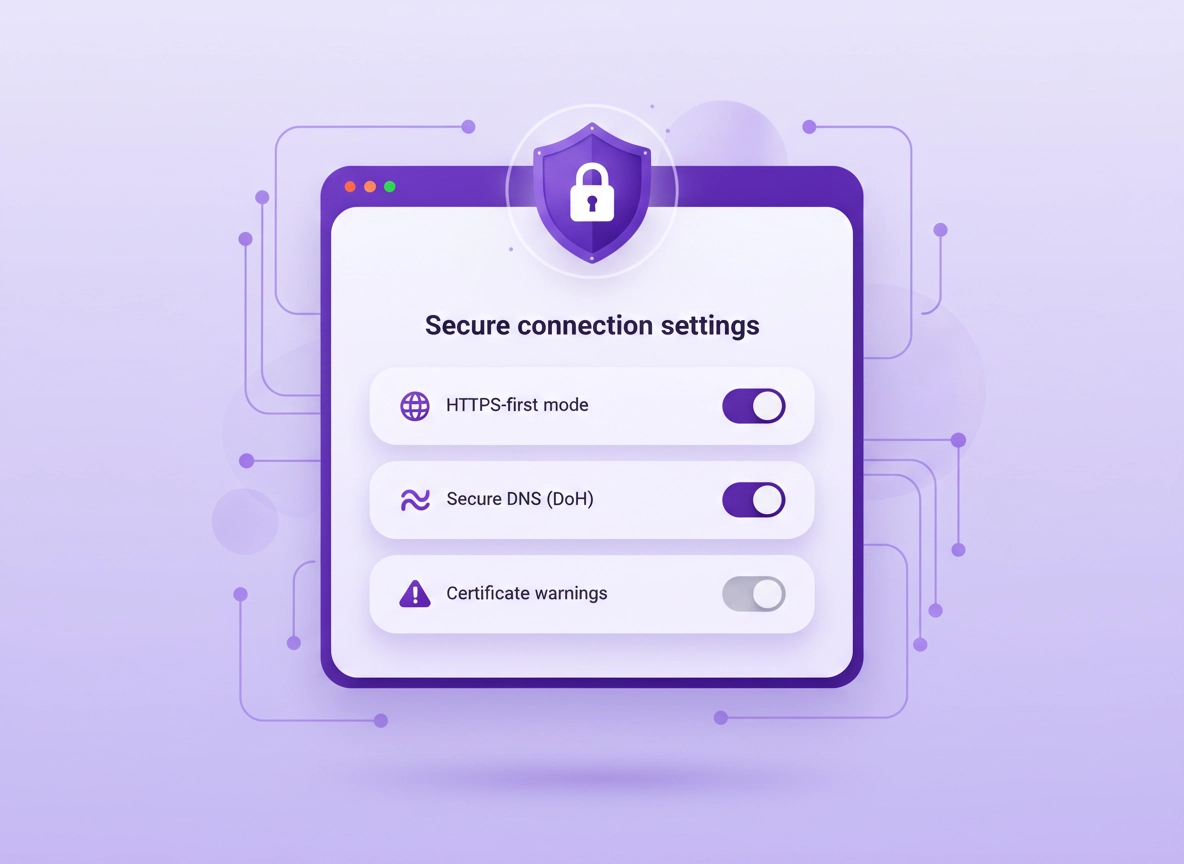
What “secure connection settings” means in Chrome .
In Chrome, “secure connection settings” isn’t one single toggle—it’s a set of controls that decide how your browser negotiates trust with websites and networks.
When you type a site address (or click a link), Chrome has to answer a few critical questions fast: Is this the real site? Is the connection encrypted? Is anyone trying to downgrade or intercept it? The answers come from HTTPS, certificate validation, TLS negotiation, and the DNS lookups your device makes to find servers. Your secure connection settings are simply the browser-level dials that influence those decisions.
The practical goal is simple: make it hard to accidentally browse insecurely and make it obvious when a warning is legitimate. The biggest wins usually come from two places: HTTPS-first mode Secure DNS (DoH) These raise your baseline safety without requiring extra software or paid tools.
Where this gets high-impact (and high-CPC) is when the browser is used for anything valuable: banking, shopping, client portals, admin dashboards, SaaS logins, healthcare portals, HR systems, accounting tools, or remote work apps. On those sites, “close enough” security is not a strategy. A single downgrade to HTTP, a fake Wi-Fi login page, or a certificate warning you ignore once can be enough to lose an account.
Related: This page pairs well with Chrome HTTPS-Only Mode and Chrome Secure DNS Setup.
Key terms (quick definitions) .
- HTTPS: The encrypted version of HTTP. It protects data in transit and uses certificates to authenticate sites.
- TLS: The encryption protocol HTTPS uses. “TLS settings” usually refers to which versions/ciphers are allowed.
- Certificate: A signed identity card for a site. Chrome verifies it against trusted certificate authorities and rules like validity dates.
- HSTS: A rule that forces HTTPS for a site. If a site is in HSTS mode, Chrome won’t let you bypass certain warnings.
- Secure DNS / DoH: Encrypts DNS lookups so intermediaries can’t easily read or tamper with which sites you’re requesting.
- Captive portal: A Wi-Fi network “login” page (common in hotels/airports) that can disrupt HTTPS until you authenticate.
- Proxy: A network middleman your organization (or software) uses to route traffic. Can be legitimate—or risky if unknown.
Before you start (fast checks that prevent false alarms) .
A surprising number of “secure connection” problems are not caused by Chrome settings. They’re caused by time/clock issues, captive portals, antivirus HTTPS inspection, corporate proxies, or an outdated OS trust store. These quick checks keep you from changing the wrong thing.
- Check your device time & time zone: If your clock is wrong, certificates look “expired” or “not yet valid.” Fixing time resolves many certificate errors instantly.
- Try a different network: If a warning happens only on one Wi-Fi, suspect captive portals, DNS tampering, or a compromised router.
- Update Chrome: Old builds can have outdated root stores and weaker defaults. Use Get or Update Chrome.
- Test in a fresh profile: Profiles can accumulate risky extensions, custom proxies, and policy artifacts. If needed, follow Chrome Secure Profile Setup.
- Watch for “security” software doing HTTPS inspection: Some antivirus products install a local root certificate and intercept HTTPS. This can be legitimate in enterprise—but risky on personal machines if you didn’t intend it.
- Rule out extension interference: VPN/proxy extensions and “coupon” extensions can change routing. If in doubt, start with Chrome Extension Security Check.
Related: If Chrome feels slow or unstable while you test changes, see Fix Slow Chrome (Step-by-Step).
Step-by-step: recommended secure connection baseline .
This baseline is the “sweet spot” for most people: strong protection against common interception and downgrade attacks, with minimal site breakage. If you manage devices at work, you can still apply these settings via policy later—but first it helps to understand what each control actually does.
Step 1: Enable HTTPS-first mode (Always use secure connections) .
- 1 Open Chrome Settings → Privacy and security → Security.
- 2 Find Always use secure connections (sometimes labeled “HTTPS-first mode”). Turn it On.
- 3 Chrome will attempt HTTPS first when you visit sites. If a site doesn’t support HTTPS, Chrome should show a warning and let you proceed (unless the site is forced via HSTS).
- 4 Optional: If a specific legacy site breaks, use site exceptions (see Step 4) rather than turning the feature off globally.
What “success” looks like: When you type a domain without https://, Chrome quietly upgrades to HTTPS and the lock icon shows a secure connection. You’ll see fewer accidental HTTP loads, especially on older bookmark lists or internal link pages.
Why this matters: without HTTPS-first, it’s possible for an attacker (especially on public Wi-Fi) to attempt a downgrade to HTTP for a site that still answers insecure requests. Even if you personally “always use HTTPS,” mixed habits and old links create gaps. HTTPS-first closes those gaps by default.
Related: Deep dive with screenshots: Chrome HTTPS-Only Mode.
Step 2: Turn on Secure DNS (DNS-over-HTTPS) .
- 1 Go to Settings → Privacy and security → Security.
- 2 Find Use secure DNS. Turn it On.
- 3 Choose With your current service provider (simplest) or With a custom provider (more control).
- 4 Test a few sites. If corporate networks break, switch back to “current provider” or follow the enterprise notes in the Advanced section.
DNS is the part most people forget. Even with HTTPS, your DNS requests can leak which domains you’re trying to reach—or worse, be tampered with on insecure networks. Secure DNS encrypts those lookups, reducing surveillance and tampering risk. It also helps against some “hotel Wi-Fi” style injection where DNS is used to redirect you.
Expert tip: If you travel or use coffee shop Wi-Fi, Secure DNS is one of the highest ROI toggles in Chrome. Pair it with HTTPS-first, and you’ve eliminated two of the most common “easy interception” points attackers rely on.
Related: Step-by-step provider guidance: DNS-over-HTTPS settings and Chrome Secure DNS setup.
Step 3: Learn the 2 certificate warnings you should never ignore .
“Your connection is not private” looks dramatic, but Chrome uses it for multiple causes. Some are fixable in minutes. Others are a strong sign of interception. These two are the ones you should treat as a stop sign unless you’re on a known internal system:
- Authority / trust errors (e.g., NET::ERR_CERT_AUTHORITY_INVALID): Chrome can’t validate who issued the certificate. This can be a fake site, interception, or an untrusted corporate inspection certificate.
- HSTS hard failures (HSTS warning page): If Chrome says the site uses HSTS and you can’t proceed, it’s intentionally blocking a bypass because a downgrade would be dangerous.
What to do instead of clicking through: confirm the URL, switch networks, verify your clock, update Chrome, and check whether a security product installed a root certificate for HTTPS inspection. If you’re in a workplace environment, ask IT whether HTTPS inspection is expected and how trust roots are managed.
Step 4: Use site exceptions carefully (don’t weaken everything) .
Some older intranet apps, device admin panels, or legacy services still don’t support HTTPS properly. If HTTPS-first breaks a specific site, the goal is to scope the exception to the smallest surface area possible.
- 1 Go to Settings → Privacy and security → Security.
- 2 Find the HTTPS-first section and look for Sites that can always use insecure connections / exceptions.
- 3 Add only the exact hostname you need (avoid wildcards). Example: add http://printer.local rather than a whole domain, if possible.
- 4 Re-test. If the exception list grows, that’s a sign you should modernize the environment or use enterprise controls.
Related: If you’re securing a whole browser environment, start with Chrome Secure Browser Setup Guide and Chrome Browser Hardening Checklist.
Common variations (desktop vs mobile) .
- Windows / ChromeOS: Most settings are identical, but certificate stores and “clear SSL state” actions are OS-specific.
- macOS: Certificates live in Keychain Access; enterprise trust roots often show up there.
- Android / iPhone: Settings exist, but network certificate/trust behavior may be influenced by device profiles (MDM), VPN apps, or system-level DNS.
Advanced settings: TLS, certificates, QUIC, proxies & enterprise policies .
This section is for power users and IT-minded readers who want to understand what Chrome is enforcing and why. If you only apply one idea from here, make it this: most “secure connection” problems come from trust and routing, not from a single magical toggle.
Related: Network-focused deep dives: TLS settings guide, Network privacy settings, and Proxy settings guide.
TLS in plain English: what Chrome negotiates .
HTTPS is “HTTP over TLS.” TLS is the secure tunnel protocol that decides encryption, integrity, and server authentication. Chrome doesn’t give you a simple “TLS version” slider because it enforces sane defaults and updates them frequently. But TLS behavior still matters because it drives:
- Compatibility: Older servers that only support outdated TLS may fail to connect.
- Security: Modern TLS reduces downgrade and weak cipher risks.
- Performance: Newer TLS versions and features reduce connection setup cost (faster handshakes).
Certificate trust: where “Connection is secure” really comes from .
Chrome validates certificates against trusted certificate authorities (CAs) and policy rules. Your OS also contributes a trust store, and enterprise environments may add custom roots. When the system trust changes, Chrome’s trust decisions change—even if you never touched a browser setting.
Common legitimate reasons you’ll see new trust roots: corporate security gateways, secure web gateways, endpoint protection suites, and “HTTPS inspection” tools. These can be valid in managed environments (for malware scanning and data loss prevention), but on personal devices it’s something you should be aware of, because it means a third party can decrypt and re-encrypt your traffic.
Related: If you’re setting enterprise-grade rules, see Enterprise secure configuration best practices and Managed browser security.
QUIC / HTTP/3: when fast can look like broken .
Chrome uses modern transport features (like QUIC/HTTP/3) when possible to speed up web connections. Some older firewalls and strict networks mishandle this traffic. The symptom can be “some sites hang” or “random timeouts,” especially on corporate Wi-Fi, hotels, or restrictive ISPs.
If you suspect transport issues, test the same site on a different network or through a trusted VPN, and compare. Do not start disabling experimental flags as a first move—use network comparison and rule out proxies first. If you do work with flags, do it intentionally and document what you changed. (See: Chrome Security Flags Guide.)
Proxies and VPNs: secure routing vs hidden interception .
“Secure connection” isn’t just about encryption; it’s also about where your traffic goes. A proxy can be a legitimate enterprise control or a malicious redirect. A VPN can protect you on public Wi-Fi—but a low-quality VPN can also introduce tracking and DNS issues.
- If you’re in business/enterprise: proxies are often normal. Your goal is consistency: documented proxy policy, known inspection roots, and clear user guidance.
- If you’re on a personal device: a proxy you didn’t set is a red flag. Check system proxy settings and any “network” extensions.
- If you use a VPN: verify DNS handling (DNS leaks) and ensure Secure DNS doesn’t conflict with your VPN’s DNS policy.
Related: High-intent comparisons: VPN vs Proxy and Best VPN vs Proxy (buyers guide).
Enterprise policy mapping (for admins) .
If you manage Chrome via enterprise policies (Google Admin Console, GPO, MDM), the browser UI is only half the story. Policies can enforce secure DNS, force HTTPS-first behavior, and restrict user bypasses. Even if you’re not deploying policies today, it helps to understand that “users can’t change it” might be by design.
Common alternatives users compare .
- Chrome secure connection settings vs a full VPN (better on public Wi-Fi, but different threat coverage)
- Secure DNS (DoH) vs “private DNS” (system-level) vs VPN DNS (who you trust changes)
- Built-in Chrome protections vs secure browser/enterprise browser solutions
- Manual configuration vs managed policy enforcement for teams
Related: If you’re evaluating “secure browser” options for work, see Best Secure Browser for Business and Best Enterprise Browser Solutions.
Privacy & security notes (threat model + tradeoffs) .
The secure-connection controls in Chrome sit at the center of three common threat scenarios: (1) downgrade and interception on untrusted networks, (2) DNS tampering and tracking, and (3) “trusted” interception in managed environments. Each scenario has different tradeoffs.
Impact: Affects HTTPS upgrades, certificate warnings, DNS privacy, and site compatibility—especially on legacy or heavily filtered networks.
Related: If you suspect hijacking, pop-ups, or suspicious redirects, use Browser hijacker removal or the full malware cleanup checklist.
Recommended baseline settings .
- Option A (balanced): HTTPS-first ON + Secure DNS ON (current provider) + no bypassing certificate warnings.
- Option B (maximum privacy): HTTPS-first ON + Secure DNS ON (custom provider you trust) + strict extension hygiene + consider a reputable VPN for travel.
- Option C (compatibility): HTTPS-first ON but use targeted exceptions + Secure DNS “current provider” + avoid changing flags unless you can revert.
Recommended settings by goal .
| Goal | Recommended setting | Tradeoff | Best for |
|---|---|---|---|
| Balanced | HTTPS-first ON + Secure DNS ON (current provider) | Rare legacy sites may need exceptions | Most users |
| Maximum privacy | HTTPS-first ON + Secure DNS ON (custom provider) + strong extension controls | Some corporate networks may block DoH or require policy alignment | Tracking-sensitive users, travelers |
| Compatibility | HTTPS-first ON with scoped exceptions + Secure DNS “current provider” | Slightly less DNS privacy; some traffic patterns remain visible to intermediaries | Banking/enterprise sites, legacy systems |
If your main concern is public Wi-Fi, also read: Public Wi-Fi security tips and secure Wi-Fi browsing. These cover the “network reality” side that browser toggles can’t fully solve.
Troubleshooting common errors (NET::ERR_CERT…, HSTS, captive portals) .
Troubleshooting secure connections works best when you isolate variables: network, profile, extensions, and time. The fixes below are ordered by how often they solve the problem without causing new ones.
Related: If you’re doing a full security pass, start with Chrome Security Checkup and malware protection settings.
If “Your connection is not private” appears everywhere .
If multiple trusted sites fail at the same time, the issue is almost never “that site.” It’s typically: device time/clock, captive portal, antivirus HTTPS inspection gone wrong, or a network doing interception.
- Fix 1: Correct date/time/time zone; restart Chrome.
- Fix 2: Open a non-HTTPS captive portal login page by visiting a known HTTP-only test page or simply disconnect/reconnect Wi-Fi, then complete the Wi-Fi login.
- Fix 3: Temporarily disable VPN/proxy extensions and retry.
- Fix 4: Try a mobile hotspot. If it works there, the original network is the problem.
If you see NET::ERR_CERT_DATE_INVALID .
This is commonly a clock problem. Certificates are time-bound. If your device clock is behind or ahead, certificates appear invalid. Fix the time, then reload. If the time is correct and it persists on one network, you may be behind a proxy that’s presenting an incorrect certificate chain.
If you see NET::ERR_CERT_AUTHORITY_INVALID .
This means Chrome can’t verify the certificate authority chain. Possible causes: a fake site, a captive portal intercepting, a corporate HTTPS inspection certificate not properly installed, or a security product doing TLS interception incorrectly.
- On personal devices: Do not bypass this warning on sensitive sites. Switch networks and run an extension audit.
- On corporate devices: Ask IT whether HTTPS inspection is enabled and which trust roots should be present.
If Chrome says “HSTS” and won’t let you proceed .
HSTS is a safety mechanism that prevents downgrades and bypasses. If Chrome refuses to proceed, it’s because proceeding would be unsafe or defeats the purpose of HSTS. Typical fixes:
- Correct device time
- Switch networks (captive portals are common here)
- Disable or replace suspicious proxy/VPN layers
- Update OS trust store and Chrome
If only one site fails (and everything else works) .
When a single site fails, it’s often a server-side certificate misconfiguration or a broken intermediate chain. Your best move is to verify the domain carefully, wait, or contact the site owner. If this is a business-critical app, your IT/security team should treat it as an incident until validated.
If Secure DNS (DoH) causes issues on a corporate network .
Some organizations rely on internal DNS names, split-horizon DNS, or DNS-based security controls. If DoH breaks internal apps, switch to “Use your current service provider” or let IT enforce a compatible policy. For personal devices used on corporate Wi-Fi, avoid forcing a custom DoH provider if it breaks internal resolution.
If you need to reset safely (without wiping everything) .
Don’t jump straight to a full reset. First, isolate: test in Incognito (extensions usually off), test in a new profile, and test on another network. If you truly need a reset, follow: Chrome profile reset guide and only then consider broader cleanup if malware is suspected.
FAQ .
-
helpDoes HTTPS-first mode slow down browsing?For most sites, no. Chrome simply tries HTTPS first, which modern sites already support. You might notice an extra warning step only on older sites that still rely on HTTP. If you hit a legitimate legacy system, use a scoped exception instead of turning the feature off globally.
-
helpWhat is Secure DNS (DoH) and should I enable it?Secure DNS encrypts DNS lookups so intermediaries can’t easily read or tamper with them. Most people should enable it. If you’re on a corporate network with internal domains, use “current provider” or follow your organization’s policy guidance. For a full walkthrough, see Secure DNS setup.
-
helpIs it safe to click “Proceed (unsafe)” on certificate warnings?On sensitive sites (logins, payments, work apps), treat certificate warnings as a stop sign unless you fully understand the cause. Many warnings indicate interception, fake sites, or broken trust. If Chrome shows an HSTS warning and won’t allow bypass, do not try to work around it—fix the root cause instead.
-
helpWhy do certificate errors happen only on public Wi-Fi?Public Wi-Fi often uses captive portals and sometimes insecure DNS behavior. Until you complete the Wi-Fi login, HTTPS may fail. Also, some networks inject ads or do traffic shaping that can break secure connections. Try a hotspot to confirm, and keep HTTPS-first + Secure DNS enabled for better protection.
Sources & further reading .
- Google Chrome Help Center
- Google Safe Browsing overview
- Chrome Developers (platform behavior and updates)
Disclosure: Some pages may mention tools or services. Recommendations are editorial and based on testing.