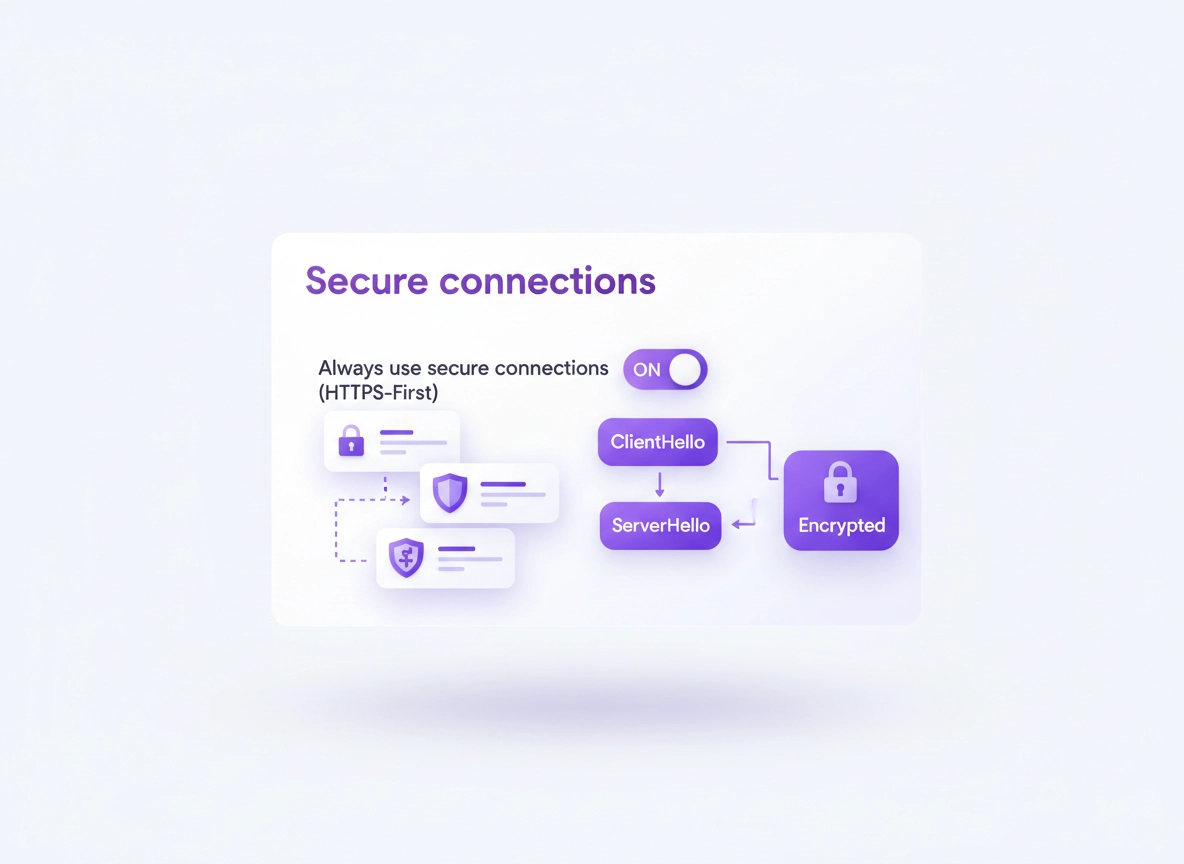
What TLS is (and why Chrome “settings” are different in 2026) .
TLS is not a single toggle — it’s the negotiation that makes HTTPS private and tamper-resistant.
TLS (Transport Layer Security) is the cryptographic protocol that protects data moving between your browser and a website. When it’s working correctly, TLS prevents “in the middle” attackers from reading your traffic, swapping downloads, stealing logins, or silently redirecting you to look-alike pages. In everyday Chrome language, TLS is the difference between a page that is secure (HTTPS) and one that is exposed (HTTP or broken HTTPS).
Here’s the big modern change: Chrome doesn’t expose a simple “TLS version picker” for normal users because forcing older versions (TLS 1.0 / 1.1) is unsafe, and forcing newer versions is mostly a server-side responsibility. In practice, your best “TLS settings” in Chrome are: (1) forcing HTTPS wherever possible, (2) validating certificates correctly, and (3) avoiding downgrade / interception scenarios that make secure connections fail.
That’s why this guide focuses on what actually moves the needle in 2026: HTTPS-First / HTTPS-Only mode, certificate and hostname validation, enterprise policies that enforce HTTPS, and troubleshooting the handful of root causes behind almost every TLS error users see.
Related: If you want a bigger security baseline first, start with Chrome Browser Security Basics and then use the Security & Privacy Checklist.
Key terms (quick definitions) .
- HTTPS: HTTP over TLS. It encrypts content and authenticates the site via certificates.
- TLS 1.2 / TLS 1.3: Modern TLS versions you want. Older TLS versions are considered unsafe or legacy.
- Certificate (cert): Proof a site is who it says it is. Issued by a trusted Certificate Authority (CA).
- Certificate chain: The site cert + intermediate certs + a trusted root CA that completes trust.
- TLS handshake: The negotiation phase where client/server agree on version and cipher suite and verify identity.
- MITM / TLS inspection: A device (AV, proxy, enterprise gateway) decrypts and re-encrypts traffic using its own certs.
- HSTS: A rule that forces HTTPS for a domain (and prevents fallback to HTTP).
- HTTP/3 (QUIC): Modern transport that can affect connection behavior (rarely the cause, but relevant for debugging).
Before you start: 6 fast checks that fix most TLS issues .
If you’re here because something broke (“Your connection is not private”, “ERR_SSL_VERSION_OR_CIPHER_MISMATCH”, “handshake failed”), do these first. They prevent wasted effort and fix a surprising number of cases.
- 1) Check system time + time zone: If your clock is wrong, certificates look “expired” or “not yet valid”. Fixing time fixes TLS instantly.
- 2) Try a different network (or hotspot): Captive portals, restrictive Wi-Fi, or enterprise gateways often trigger TLS failures.
- 3) Disable VPN / proxy temporarily: VPNs and proxies can change handshake behavior. (You can re-enable after testing.)
- 4) Test in Incognito: Incognito reduces extension interference. If the site works there, you likely have an extension or cached state problem.
- 5) Update Chrome: Modern TLS behavior changes over time. Use Get or Update Chrome.
- 6) Check if it’s only one site: If only one domain fails, it’s often a server-side TLS config issue (legacy cipher suite, broken chain, wrong hostname).
Related: If you’re on public Wi-Fi, it’s worth reading Public Wi-Fi Security Tips and Secure Wi-Fi Browsing in Chrome.
Step-by-step: the practical TLS hardening path .
This is the “do it once, benefit everywhere” approach. We’ll enforce HTTPS-first browsing, verify negotiated TLS, and then lock in the high-value fixes that prevent most future TLS errors.
Step 1: Turn on HTTPS-First (Always use secure connections) .
Chrome’s most important user-facing “TLS setting” is Always use secure connections (often called HTTPS-First Mode / HTTPS-Only Mode). When enabled, Chrome tries HTTPS first and shows a warning before loading a site insecurely.
- 1 Open Chrome → click ⋮ (menu) → Settings.
- 2 Go to Privacy and security → Security.
- 3 Under Secure connections, enable Always use secure connections.
- 4 Choose the mode that matches your reality: Warn for insecure public sites (balanced) or warn for all insecure sites (strict).
What “success” looks like: when you type a site, Chrome upgrades to HTTPS automatically. If a site only supports HTTP, you get a warning prompt instead of silently loading an insecure page.
Related: This guide pairs well with Chrome HTTPS-Only Mode and Chrome Secure Connection Settings.
Step 2: Verify the actual TLS version (TLS 1.2 vs TLS 1.3) .
If you’re hardening Chrome for security or compliance, don’t guess — verify. Chrome exposes negotiated protocol details in DevTools.
- 1 Open the website you want to test.
- 2 Open DevTools (F12 or Ctrl+Shift+I / Cmd+Option+I).
- 3 Go to the Security tab.
- 4 Look for the Connection section (it typically shows the TLS version and cipher).
Step 3: Confirm certificate trust and the issuer chain .
TLS isn’t just encryption — it’s identity. If Chrome can’t validate the certificate chain, you’ll see one of the “Your connection is not private” errors. The fix depends on why trust failed.
- 1 Click the lock icon in the address bar (or the “tune” icon depending on UI).
- 2 Open certificate details / connection details.
- 3 Check the issuer, the domain name, and expiry dates.
- 4 If it’s a corporate device, look for a company/AV issuer (a sign of TLS inspection).
Shortcut diagnosis: If the issuer is your employer, your antivirus, or a proxy product, you are likely behind TLS inspection. That can be legitimate (enterprise DLP) but it’s also a common reason for certificate errors when the inspection cert isn’t installed correctly.
Step 4: Lock in network privacy helpers that reduce TLS failures .
Some “TLS problems” are really DNS or network interference problems. These settings don’t change TLS versions directly, but they reduce the conditions that cause TLS errors (misroutes, hijacks, insecure fallbacks).
- Secure DNS (DoH): Use DNS over HTTPS settings or follow the Secure DNS setup guide.
- Proxy sanity: If you use a proxy, configure it intentionally (don’t “inherit” mystery settings): Chrome Proxy Settings Guide.
- Network privacy: If you’re optimizing for privacy + fewer weird network edge cases, see Chrome Network Privacy Settings.
Common variations (Windows, macOS, Android, iPhone) .
- Windows: Many TLS-related “checkbox” tutorials you’ll find online are actually Windows Internet Options settings (legacy). For Chrome, focus on HTTPS-First mode and certificate trust.
- macOS: System keychain/certificate state can cause trust issues. If it’s one device and one network, check for profiles or security products injecting certificates.
- Android: Chrome exposes “Always use secure connections” in Security settings. Captive portals are extremely common causes of TLS errors on mobile.
- iPhone (Chrome on iOS): Chrome uses iOS networking stack constraints; certificate trust problems often live in device profiles, VPN apps, or iOS trust settings.
Advanced: certificates, interception, HTTP/3, HSTS, enterprise policies .
This is the “high value” part: understanding why TLS breaks and how to harden without destroying compatibility. If you manage devices, do incident response, or deal with compliance, this section saves hours.
Related: For enterprise environments, start with Chrome Enterprise Guide and then review Enterprise Security Settings.
1) TLS versions: what you can (and can’t) force in Chrome .
If you came here looking for a way to “turn on TLS 1.0/1.1” or “force TLS 1.3”, here’s the practical truth: modern Chrome intentionally limits user controls because enabling legacy protocols creates downgrade risk, and forcing newer protocols can break sites that must be fixed server-side anyway.
What Chrome does let you control effectively is whether it will fall back to insecure HTTP. That’s why HTTPS-First mode is the highest-value setting for most users and for many compliance programs.
2) Enterprise control: enforce HTTPS-Only Mode with policy .
In managed environments, you can enforce HTTPS-Only Mode (Always use secure connections) via policy. This is useful for compliance, phishing resistance, and reducing plaintext credential leaks on mixed networks.
Admin sanity check path: chrome://policy → Reload policies → search for HttpsOnlyMode
If you’re diagnosing a device that “won’t let me toggle HTTPS-Only Mode,” it’s often because the policy is disabled or forced on by your organization.
Good to know: Chrome’s own documentation describes three practical modes: allow user control, disallow enabling, or force enable HTTPS-Only Mode. (This matters when users complain “Chrome changed.”)
3) TLS inspection (MITM): when the lock icon lies (and when it’s expected) .
TLS inspection is when a security product decrypts HTTPS traffic, inspects it, then re-encrypts it. Enterprises do this for DLP, malware scanning, or policy enforcement. Consumer antivirus products sometimes do it too. The browser still shows “HTTPS,” but the certificate issuer changes (often to your employer or security product).
When TLS inspection is configured correctly, it can be stable. When it’s misconfigured, you get: invalid certificate warnings, handshake failures, “NET::ERR_CERT_AUTHORITY_INVALID”, or weird behavior on only some sites.
If you’re a user on a managed device, you usually can’t “fix” inspection in Chrome — it’s a policy/cert deployment issue. If you’re an admin, the fix is to deploy the correct root CA and keep interception lists sane (bypass sites that break).
4) HTTP/3 (QUIC) and weird handshake behavior .
HTTP/3 runs over QUIC (UDP). Most of the time it improves performance and is invisible. But in some restrictive networks (firewalls, hotels, old routers), QUIC can be blocked in strange ways. That doesn’t “break TLS” directly, but it can change how a site connects.
Diagnostic approach: if a site fails only on one network but works elsewhere, test with a different network (hotspot) first. If that fixes it, your network is the variable — not Chrome’s TLS stack.
5) HSTS: why some sites “refuse” to load over HTTP .
HSTS is a security rule that tells browsers: “always use HTTPS for this domain.” It prevents silent downgrade attacks. When a site uses HSTS, Chrome will not allow you to “just try HTTP” to bypass a bad certificate. That’s a feature.
If you see certificate errors on an HSTS domain, the right fix is to correct the certificate problem (wrong hostname, expired cert, missing intermediates, interception) — not to hunt for a bypass.
Common alternatives users compare (high-intent) .
- HTTPS-First mode vs “just use a VPN” (VPN helps, but it doesn’t fix broken certificates or insecure HTTP sites)
- Chrome built-in protections vs privacy/security extensions (extensions can help but can also break TLS flows)
- Corporate TLS inspection vs endpoint security (inspection adds visibility; endpoints reduce interception complexity)
- Proxy vs VPN vs secure DNS (each solves different parts of the “network trust” problem)
Privacy & security notes (what changes, what breaks, what to choose) .
TLS changes are always a trade: stronger protection versus compatibility with legacy sites and weird networks. Here’s how to choose settings without turning Chrome into a “nothing works” browser.
Impact: Primarily affects HTTP → HTTPS upgrading, certificate validation flow, and whether you can proceed to insecure sites. Compatibility issues show up on older intranet apps or legacy servers.
Related: If you’re doing broader hardening, see Chrome Hardening Guide and the Browser Hardening Checklist.
Recommended baseline settings .
- Option A (balanced): Enable Always use secure connections but only warn for insecure public sites.
- Option B (maximum privacy): Enable HTTPS-Only Mode for all sites + secure DNS (DoH) + disable unknown proxies.
- Option C (compatibility): Keep HTTPS-First on, but allow exceptions for specific internal apps (enterprise policy or internal guidance).
Recommended settings by goal .
| Goal | Recommended setting | Tradeoff | Best for |
|---|---|---|---|
| Balanced | HTTPS-First (warn on public HTTP) + normal browsing | Some warnings on legacy sites | Most users |
| Maximum privacy | HTTPS-Only (strict) + Secure DNS + audit extensions | More breakage on old intranets | Tracking-sensitive users |
| Compatibility | HTTPS-First + exception process for internal apps | Some internal sites remain HTTP | Enterprise / legacy tooling |
Extension reality check: “Privacy extensions” can help, but they can also add new TLS failure points (blocked scripts, modified headers, injected content). If a site breaks after hardening, test in Incognito first. Then review extension permissions in Chrome Extension Security Check.
Troubleshooting (error-by-error) .
The fastest way to fix TLS is to map the exact error to the underlying cause. Use the blocks below like a decision tree. If you’re doing incident response, test one variable at a time: device, profile, network, proxy/VPN, then certificate chain.
Related: If you suspect infection, hijacking, or weird popups during secure browsing, use Remove Malware from Chrome and the Malware Protection Settings Guide.
“Your connection is not private” (NET::ERR_CERT_*) .
This family is almost always certificate trust or time. First: fix system time. Second: check issuer and chain.
- ERR_CERT_DATE_INVALID: fix device date/time/timezone; check if your network forces a captive portal login page.
- ERR_CERT_AUTHORITY_INVALID: the issuer isn’t trusted. Common causes: TLS inspection without proper root cert, or a truly bad certificate.
- ERR_CERT_COMMON_NAME_INVALID: cert doesn’t match the domain (wrong hostname, misconfigured server, or interception).
- ERR_CERT_REVOKED: cert was revoked; sometimes triggered by interception products. Try another device/network to confirm.
“ERR_SSL_VERSION_OR_CIPHER_MISMATCH” .
This usually means the server is offering legacy TLS or unsupported cipher suites. Chrome can’t safely negotiate a secure connection. If this is your site: update TLS configuration (TLS 1.2+ and modern ciphers). If it’s someone else’s site: there’s nothing “in Chrome settings” that fixes it safely.
“ERR_SSL_PROTOCOL_ERROR” / “handshake failed” .
This is often caused by interception, a broken intermediate certificate, or a network device that’s interfering. Try these in order:
- Try Incognito (extension interference test)
- Disable VPN/proxy temporarily
- Switch networks (hotspot test)
- Check certificate issuer (look for enterprise/AV)
Only fails on public Wi-Fi (hotels, airports, cafés) .
Captive portals often break TLS because they expect you to open an HTTP page for login. If HTTPS-First is enabled, you may see warnings before you can authenticate. The clean pattern:
- Open a known captive portal trigger page (many networks redirect automatically) and complete the login.
- After login, reload the HTTPS site. TLS should normalize.
- If it keeps failing, use a hotspot or VPN (after portal auth) for sensitive logins.
If you need to reset safely (without nuking everything) .
If Chrome’s secure connections are “weird everywhere” and you’ve ruled out time/network, reset in a controlled way:
- Clear browsing data (targeted): start with cached images/files + cookies for the affected site. See Clear Browsing Data.
- Check extensions: disable the last 1–3 extensions you installed/updated and retest.
- Profile-level issues: if only one profile fails, create a clean test profile and try again. Then review Profile Security Settings.
FAQ .
-
helpCan I enable TLS 1.0 / TLS 1.1 in Chrome in 2026?For normal browsing, modern Chrome intentionally restricts legacy TLS because it’s unsafe and prone to downgrade attacks. If a site requires TLS 1.0/1.1, the correct fix is updating the site/server configuration to TLS 1.2+. In managed environments, your organization may provide temporary compatibility paths, but long-term the server must be fixed.
-
helpWhat is the best “TLS setting” for most Chrome users?Enable Always use secure connections (HTTPS-First / HTTPS-Only mode). It forces HTTPS wherever possible and warns before loading insecure HTTP pages. Pair it with Secure DNS (DoH) for a stronger, cleaner network baseline.
-
helpHow do I check whether a site is using TLS 1.2 or TLS 1.3?Open the site, open DevTools (F12), go to the Security tab, and check the Connection details. Chrome will show the negotiated protocol and whether there are certificate or mixed-content issues.
-
helpWhy do I see certificate warnings on a corporate laptop but not at home?Many organizations use TLS inspection (a secure proxy) that re-issues certificates on the fly. If the corporate root certificate isn’t deployed correctly (or a security product is misbehaving), Chrome can’t validate trust and shows NET::ERR_CERT_* errors. The fix is usually IT-side: correct CA deployment or bypass lists.
Sources & further reading .
- Google Chrome Help: Manage Chrome safety and security (Desktop)
- Chrome Enterprise Policy: HttpsOnlyMode (HTTPS-Only Mode)
- Chrome Enterprise Help: Set Chrome policies (includes HTTPS-Only Mode)
- Google Security Blog: HTTPS by default
- Chrome Developers: DevTools Security panel
Disclosure: Some pages may mention tools or services. Recommendations are editorial and based on testing.