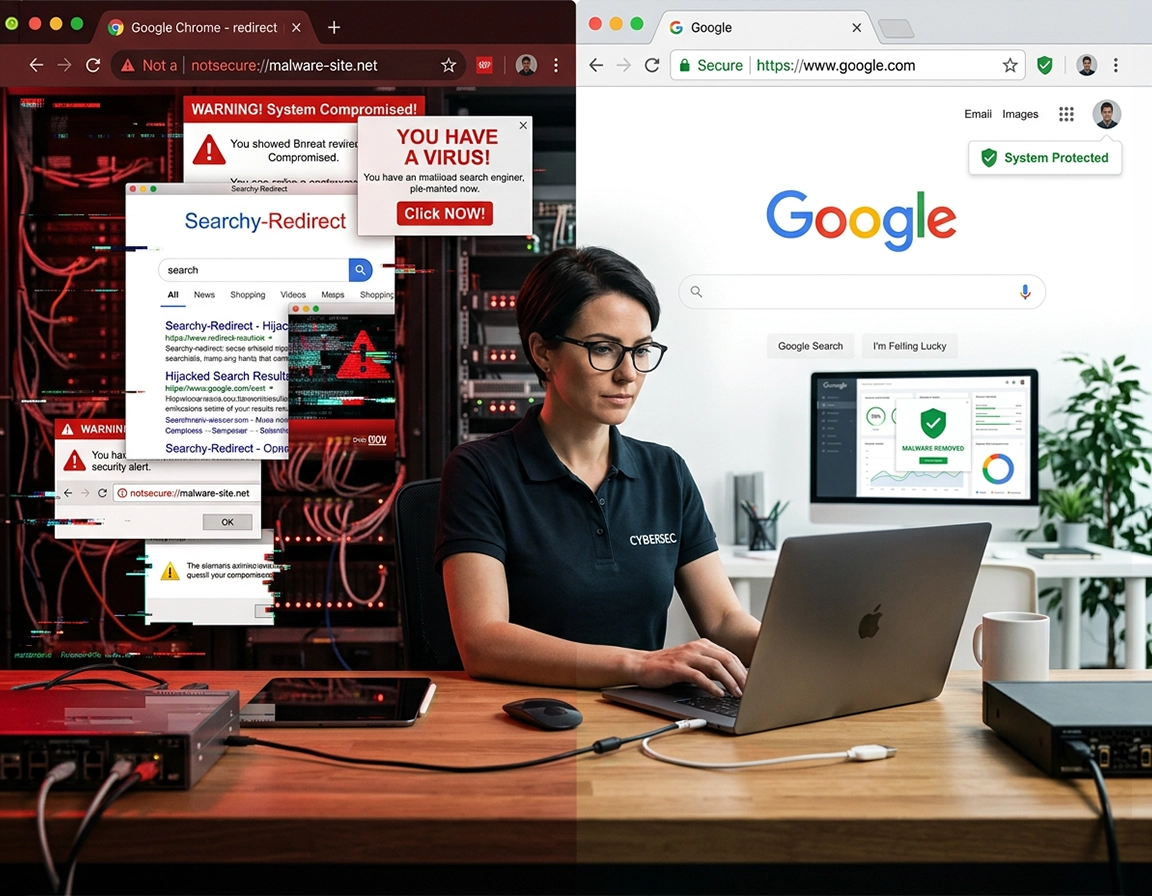
How redirect hijacks work inside Chrome .
Most “redirect virus” cases are not classic self-replicating viruses. They are usually browser hijackers, malicious extensions, deceptive site permissions, adware bundles, or policy-backed settings changes that reroute your traffic without meaningful consent.
A redirect hijack changes the path between what you intended to open and what Chrome actually opens. That can happen in several places. The address bar search provider can be swapped so every search query is monetized. A startup page can be planted so Chrome always launches to a spam page, coupon portal, fake search engine, or scam-heavy tab. A rogue extension can intercept requests and inject affiliate redirects or force a detour through an unfamiliar domain. In lighter cases, a bad website abuses notification permission or pop-up behavior so the browser feels infected even though the deeper browser core is intact.
That distinction matters because the correct fix depends on the control point. If the redirect happens only when you search from the address bar, start with the search engine layer and extensions. If it happens only when Chrome opens, inspect startup pages, home button targets, and the operating-system shortcut used to launch Chrome. If the “virus” looks like endless warnings in the lower-right corner of Windows or as push alerts on Android, that is often notification abuse rather than a full browser takeover. Cleaning the wrong layer wastes time and makes the issue look more mysterious than it is.
Redirect hijacks are also more serious than they look. They can route you through tracking infrastructure you never approved, inject fake update prompts, push scareware, expose you to phishing pages, and train you into clicking unsafe recovery buttons. Even when the visible page is “just ads,” the hidden risk is that your browser trust model has already been broken. A browser that no longer takes you where you chose is a browser that should be treated as compromised until proven clean.
The patterns below are the ones that show up most often in real cleanup cases:
- Search hijack: the address bar sends searches to Yahoo, a fake search portal, a white-label engine, or an unfamiliar domain.
- Startup hijack: Chrome opens to the same unwanted page every launch.
- New-tab replacement: opening a tab lands on a monetized portal or ad-heavy dashboard.
- Click-through redirect: a normal result opens, then bounces through another domain first.
- Notification abuse: Chrome keeps showing fake virus warnings, betting alerts, or scam messages after permission was granted to a bad site.
- Shortcut or policy tampering: your visible settings look normal, but Chrome is launched or controlled from outside the normal settings path.
If your symptoms overlap with broader malware behavior, keep these companion guides open as well: Chrome browser hijacker removal, Chrome browser hacked: how to fix, Chrome keeps opening random tabs fix, and Chrome pop-up virus removal.
Related: Redirects are often extension-driven. For the security side of that problem, read Chrome Extension Security Check, Chrome extension malware removal, and Chrome remove malicious extensions.
Terms that matter during cleanup .
- Browser hijacker: software or an extension that changes browser behavior to reroute traffic, inject ads, or force settings without clear consent.
- Default search engine: the provider Chrome uses from the address bar. Hijackers target it because every search becomes traffic they can monetize.
- Startup pages: the page or pages Chrome opens on launch. A bad entry here can make a redirect reappear forever.
- Site permissions: per-site controls for notifications, pop-ups, redirects, location, camera, and more. Wrong permissions can mimic infection symptoms.
- Managed policy: a Chrome policy applied by an organization or, in suspicious cases, by leftover unwanted software. Policies can force settings back after you change them.
- Potentially unwanted program (PUP): a bundled app, toolbar, “optimizer,” PDF helper, or downloader that is not always flagged as outright malware but still causes harmful browser changes.
Before you start: the checks that prevent wasted effort .
Run these checks before you start deleting things. They tell you whether the problem lives in Chrome itself, one specific browser profile, an extension, or the wider device.
Related: If Chrome is also slow, unstable, or overheating the machine while this is happening, see fix slow Chrome browser step by step, Chrome browser slow after virus fix, and Chrome keeps crashing fix.
- Test the problem in Incognito. If the redirect disappears, a normal extension is a strong suspect because extensions are limited in Incognito unless specifically allowed.
- Try a second Chrome profile. If a clean profile behaves normally, the problem is usually inside your existing Chrome profile rather than across the whole machine.
- Check whether the redirect triggers on launch, search, or click-through. That single detail often tells you where to look first.
- Note the exact destination domain. A repeated destination is evidence. It helps you spot startup entries, search-engine replacements, and notification abuse patterns that keep reusing the same domain family.
- Review recent installs. Most redirect cases start within a short window after a “free” converter, shopping extension, media tool, VPN clone, PDF utility, sidebar helper, or browser customization add-on was installed.
- Check whether Chrome says “Managed by your organization.” On a personal device, unexpected management deserves investigation before you trust what the settings screen seems to show.
- Do not interact with scareware. If the page claims your device is infected and offers a phone number or urgent scan, close the tab instead of clicking “clean now.”
Also decide whether the device is personal, shared, school-issued, or company-managed. On a managed machine, policy-backed settings may be legitimate and locked for good reason. On a personal machine, those same controls can be a sign that an unwanted app altered Chrome at a deeper level. If your case involves business devices, use remove malware from managed Chrome devices and Chrome IT admin malware removal alongside this guide.
A final practical tip: close every unnecessary tab before cleaning. Redirect infections often hide in tab clutter. Starting from a quiet browser session makes it far easier to confirm whether each fix worked or whether a background tab is still calling the same bad domain.
Step-by-step cleanup sequence that fixes most redirect cases that fixes most redirect cases .
The safest sequence is: remove the likely control point, restore Chrome’s routing settings, clean the device if needed, then reset the browser only after the source has been removed. Doing it in this order stops the common “it came back after restart” problem.
1) Remove suspicious extensions before changing anything else .
Open Extensions > Manage Extensions and review everything installed. Disable anything recently added, anything you do not clearly recognize, and anything that requests broad access such as reading and changing data on all sites. Redirect infections frequently come from extensions dressed up as shopping helpers, PDF tools, theme boosters, search tools, coupon finders, media downloaders, “AI assistants,” VPN clones, or browser utilities that promise speed or safety.
Do not just disable the obvious offender and move on. Remove it fully if you do not trust it. Then restart Chrome. If the redirect disappears right there, you have probably found the active control point.
2) Restore the address-bar search engine and remove rogue search entries .
Go to Settings > Search engine and set the provider you actually want. Then open Manage search engines and site search and remove or deactivate suspicious entries. This second part matters. Many hijacks leave multiple fallback entries behind so the visible default can be switched back later. Google’s current help flow confirms that search engines and site-search shortcuts can be managed from this section.
Look for engines with odd names, typo domains, white-label branding, or entries you never created. A legitimate browser setup rarely contains mystery engines you cannot explain.
3) Clean startup pages, home button targets, and new-tab traps .
Go to Settings > On startup and remove unfamiliar pages under “Open a specific page or set of pages.” If you want the cleanest state, switch to Open the New Tab page. Then check Appearance and confirm the Home button is not set to a rogue URL. Google’s current help still separates homepage and startup controls, so review both instead of assuming one change fixed the other.
This is where many redirect cases hide. Users change the homepage, but the startup list still contains the attacker’s page, so the browser reopens the bad destination on the next launch and creates the impression that nothing worked.
4) Revoke bad notification, pop-up, and redirect permissions .
Open Settings > Privacy and security > Site settings. Review notifications first. Remove any site sending fake virus alerts, adult spam, push-scam messages, betting ads, or urgent “system” warnings. Then review the pop-up and redirect permissions area. Chrome’s current support documentation confirms site permissions remain the correct place to review and change this kind of behavior.
This is a big one because notification abuse often survives after the original bad page is closed. The browser looks haunted when it is really just honoring a permission that should never have been granted.
5) Remove unwanted programs outside Chrome .
If the redirect keeps returning, step outside the browser. Google’s own malware cleanup guidance explicitly recommends removing unwanted programs on the computer before relying on a browser reset. On Windows, review Settings > Apps > Installed apps; on Mac, review the Applications folder and remove unknown utilities.
Pay attention to anything installed around the time the problem began. Adware-style bundles often arrive with vague names, generic icons, or utilities you never intentionally chose.
6) Run a full device scan, not just a browser tidy-up .
Use a reputable security product to scan the whole machine. This catches persistence mechanisms that Chrome cannot remove: helper apps, launch items, scheduled tasks, adware bundles, and shortcut tampering. If you want a tool-selection angle, use Chrome malware scan with antivirus, Chrome malware protection software, and best antivirus for Chrome.
7) Reset Chrome only after the source is gone .
If the browser still behaves strangely, use Settings > Reset settings > Restore settings to their original defaults. Google’s current help confirms this path and notes that extensions may need to be manually turned back on afterward.
Reset is powerful, but it is not a substitute for source removal. If a hijacker is still present outside Chrome, the redirect can return after reset and make the browser look impossible to clean when the real problem is still upstream.
- 1 Remove suspicious extensions and restart Chrome.
- 2 Restore the default search engine and clean out rogue search entries.
- 3 Fix startup pages, home button targets, and any forced launch destinations.
- 4 Revoke abusive site permissions, especially notifications and pop-up behavior.
- 5 Remove unwanted programs, scan the full device, then reset Chrome if the redirect still survives.
What success looks like: searches stay on the provider you selected, Chrome launches to the page you chose, fake alerts stop, new-tab behavior returns to normal, and the problem does not come back after a reboot.
Related: For the parts people usually forget, keep these open too: Chrome search engine hijacked fix, Chrome homepage keeps changing fix, Chrome unwanted extensions removal, how to reset Chrome after malware, and Chrome browser redirect removal guide.
Platform notes that change the cleanup path .
- Windows: inspect the Chrome shortcut target and pinned taskbar shortcut. A bad launch URL here can recreate the redirect even after Chrome settings are cleaned.
- macOS: check login items, recently installed “helper” apps, and application bundles that arrived with freeware. Browser symptoms are often only half the story.
- Android: focus on recently installed apps, site permissions, notification abuse, and whether the problem disappears in Chrome after clearing app-level junk and revoking bad permissions.
- iPhone and iPad: true deep hijacks are rarer, but recurring bad tabs, pop-up loops, and notification abuse can still mimic a redirect infection.
Advanced fixes for redirect cases that keep surviving normal cleanup .
This section is for the cases that make people think Chrome is “possessed”: you clean the obvious pieces, the browser looks normal for a while, and then the redirect returns after sync, reboot, or the next launch. Those cases usually involve a control layer outside the obvious settings screen.
Related: On work devices, pair this section with Chrome business malware response plan, Chrome enterprise threat removal guide, and Chrome security incident response guide.
Investigate policy-backed settings if changes will not stick .
If your search engine, homepage, or other settings revert immediately, something with higher authority may be in control. On a managed business or school device, that can be normal. On a personal device, it is a clue that an unwanted app or leftover policy may still be enforcing settings behind the scenes. The important mindset shift is this: a setting that “won’t stay changed” is usually not a Chrome bug. It is usually a control problem.
Inspect the Windows shortcut or pinned launcher .
One of the most overlooked redirect causes is shortcut tampering. If Chrome only opens the rogue site when launched from a certain desktop icon or taskbar pin, recreate that shortcut from a trusted Chrome installation path instead of trusting the existing one. This specific symptom is often what separates a startup-page issue from an operating-system launch issue.
Use a clean Chrome profile as a diagnostic tool, not just a workaround .
Creating a fresh profile is useful because it answers a key question quickly: is the redirect trapped inside one profile, or is it system-wide? If a clean profile behaves normally, your fastest route may be to rebuild the affected profile carefully rather than endlessly repairing a polluted one. This is especially useful when the old profile has years of saved site permissions, unknown extensions, legacy search entries, and sync residue.
Review sync before trusting it to carry a clean state .
Sync is valuable, but it can also reintroduce settings or profile baggage you thought you removed. If a redirect disappears and then returns after sign-in or resync, stop and clean the bad state fully before syncing again. For that angle, use Chrome account sync settings, Chrome sync security risks, and disable Chrome sync.
Harden Chrome after the cleanup so the same route cannot be abused again .
Once Chrome is clean, take two minutes to make reinfection harder. Review Chrome Safe Browsing settings, Enhanced Safe Browsing in Chrome, Chrome secure download settings, Chrome browser security basics, and Chrome security settings malware protection guide. Google’s current guidance still treats Safe Browsing as a front-line control for warning users about risky sites and downloads.
When to stop doing browser-only cleanup .
- If multiple browsers are redirecting, treat it as a device-level problem, not a Chrome problem.
- If you entered passwords or payment details on suspicious redirected pages, move immediately into account protection and credential changes.
- If unexpected management or policies appear on a personal machine, investigate that before trusting any browser setting you see.
- If the machine belongs to work or school, do not work around policy controls blindly. Escalate through the correct admin process.
Security products and cleanup approaches users compare at this stage .
- Browser cleanup alone vs endpoint protection
- Free antivirus vs paid malware-removal suites
- Extension-based protection vs desktop security tools
- Manual hardening vs managed browser policy enforcement
That comparison is sensible because redirect cases sit right on the boundary between browser security and endpoint security. If you want that buying and deployment perspective, continue with antivirus vs browser protection for Chrome, free vs paid antivirus for Chrome, browser-level malware protection tools for Chrome, and endpoint security for Chrome users.
What a redirect hijack exposes after the visible annoyance starts .
Redirect infections are not just noisy. They alter trust. Once the browser starts routing you through destinations you did not choose, you can no longer assume that a page, prompt, or download offer reached you directly. Search queries may be harvested. Results may be rewritten. Clicks may be passed through affiliate or analytics domains you did not authorize. Fake antivirus prompts and “update now” pages can be injected precisely because the attacker knows you are already primed to believe something is wrong.
That is why redirect cleanup belongs inside a security workflow, not just a convenience workflow. A hijack can be the front door to phishing, scam subscriptions, malicious downloads, notification spam, and credential theft. Even a redirect that appears to land on a harmless shopping or news page can still be collecting behavioral data or training you into unsafe clicks.
Impact: Can affect search privacy, extension safety, download trust, account security, and exposure to phishing or scam content.
Related: If the redirect episode involved suspicious sign-ins, stolen passwords, or account warnings, continue with Chrome browser passwords stolen: what to do, Chrome account security settings, and Chrome data breach protection.
Post-cleanup security baseline that makes reinfection less likely .
- Balanced baseline: keep Safe Browsing active, block unknown notification sites, keep pop-ups and redirects blocked by default, and review extensions monthly.
- Stronger baseline: run with fewer extensions, use stronger browsing protections, avoid “free tool” download sites, and treat every unexpected prompt as suspect until verified.
- Shared-device baseline: use separate browser profiles, avoid saving permissions casually, and audit startup/search settings after any new software install.
Recommended settings by use case .
| Use case | Recommended setting posture | Main tradeoff | Best for |
|---|---|---|---|
| Home user cleanup | Standard Safe Browsing, minimal extensions, blocked pop-ups/redirects, routine extension review | Requires occasional manual checking | Most personal devices |
| High-risk user | Stronger Safe Browsing, very small extension set, strict download discipline, separate profiles for risky testing | Less convenience for experimentation | Shared PCs, family devices, less technical users |
| Managed environment | Policy-enforced search, startup, extension allowlists, endpoint protection, centralized incident response | Lower user freedom | Business, school, and enterprise deployments |
Troubleshooting redirect behavior that refuses to die .
Related: For adjacent symptoms, use Chrome suspicious activity detected fix, Chrome fake alert virus removal, Chrome tech support scam removal, and Chrome internal security scan explained.
If the search engine keeps switching back after you fix it .
The search setting is probably not the true source. Re-check extensions, look for rogue search entries, inspect unexpected management or policy indicators, and review recently installed programs. A search engine that reverts on its own is almost always being rewritten by something with higher control.
If Chrome opens the bad site only when launched from one icon .
That points to shortcut tampering or a bad launcher rather than a settings-only issue. Delete the pinned shortcut or desktop icon and recreate it from the trusted Chrome application entry. This specific symptom is far more common than people realize.
If the “virus alerts” keep appearing after the page is gone .
You are probably dealing with push notification abuse. Go straight to site notification permissions, remove the site, and stop interacting with the fake warnings. Once the permission is revoked, the alerts usually stop without any dramatic malware-removal steps.
If the redirect returns after a browser reset .
That is a strong sign the problem lives outside Chrome: an unwanted app, launcher tampering, sync residue, or a policy-backed setting. At that point, reset should no longer be your main tactic. Shift to device cleanup and control-source investigation.
If multiple browsers are affected .
Stop troubleshooting it as “a Chrome issue.” Scan the full machine, remove unknown programs, inspect startup items, and assume the problem sits upstream of the browser layer. Cross-browser symptoms are one of the clearest escalation signals you can get.
If you suspect credentials were exposed during the redirect episode .
Change passwords from a clean state, starting with your email account, password manager, financial logins, and major identity accounts. Then review sign-in history and turn on stronger account protections where available. Cleaning the browser without securing the accounts leaves the most important part unfinished.
If you need a safe reset path without losing your bearings .
Before you reset, note your trusted startup pages, list the extensions you genuinely use, and make sure you know which search engine you want afterward. Then reset Chrome, sign back in only when you are confident the local state is clean, and re-enable extensions one by one. For a structured version of that process, use Chrome security reset and Chrome profile reset guide.
FAQ .
-
helpIs a Chrome redirect virus always a real virus?No. Many cases are browser hijackers, malicious extensions, permission abuse, or unwanted software rather than a traditional virus. The practical response is similar: remove the source of control, restore browser settings, and scan the wider device if the behavior persists.
-
helpWhy does Chrome keep redirecting me to Yahoo, Bing clones, or another search page?Usually because your default search provider was changed by an extension, unwanted program, or policy-backed hijack. Simply picking your preferred engine again may not hold if the controlling component is still present. Remove suspicious extensions and inspect search engine entries before assuming the setting itself is broken.
-
helpWill resetting Chrome remove a redirect hijacker?It can remove browser-level changes, but it will not always solve the case if the real source is outside Chrome. If an unwanted app, policy, or launch item is still in control, the redirect can return after reset. That is why reset works best as a late-stage step, not the first step.
-
helpCan a Chrome redirect steal passwords or personal data?Potentially, yes. Redirects can funnel you to phishing pages, fake login forms, or scam sites that try to collect credentials and payment data. If you entered passwords on suspicious pages during the hijack, change those passwords from a clean device or after cleanup is complete, and review your account security activity.
Sources & further reading .
- Google Chrome Help: remove unwanted ads, pop-ups and malware
- Google Chrome Help: block or allow pop-ups and redirects
- Google Chrome Help: set your homepage and startup page
- Google Chrome Help: default search engine and site search shortcuts
- Google Chrome Help: reset Chrome settings to default
- Google Chrome Help: choose your Safe Browsing protection level
- Google Chrome Help: change site settings and permissions
Disclosure: This page is educational and editorial. It focuses on practical cleanup paths, not scare tactics. If a device is managed by an employer or school, work within the approved admin process.