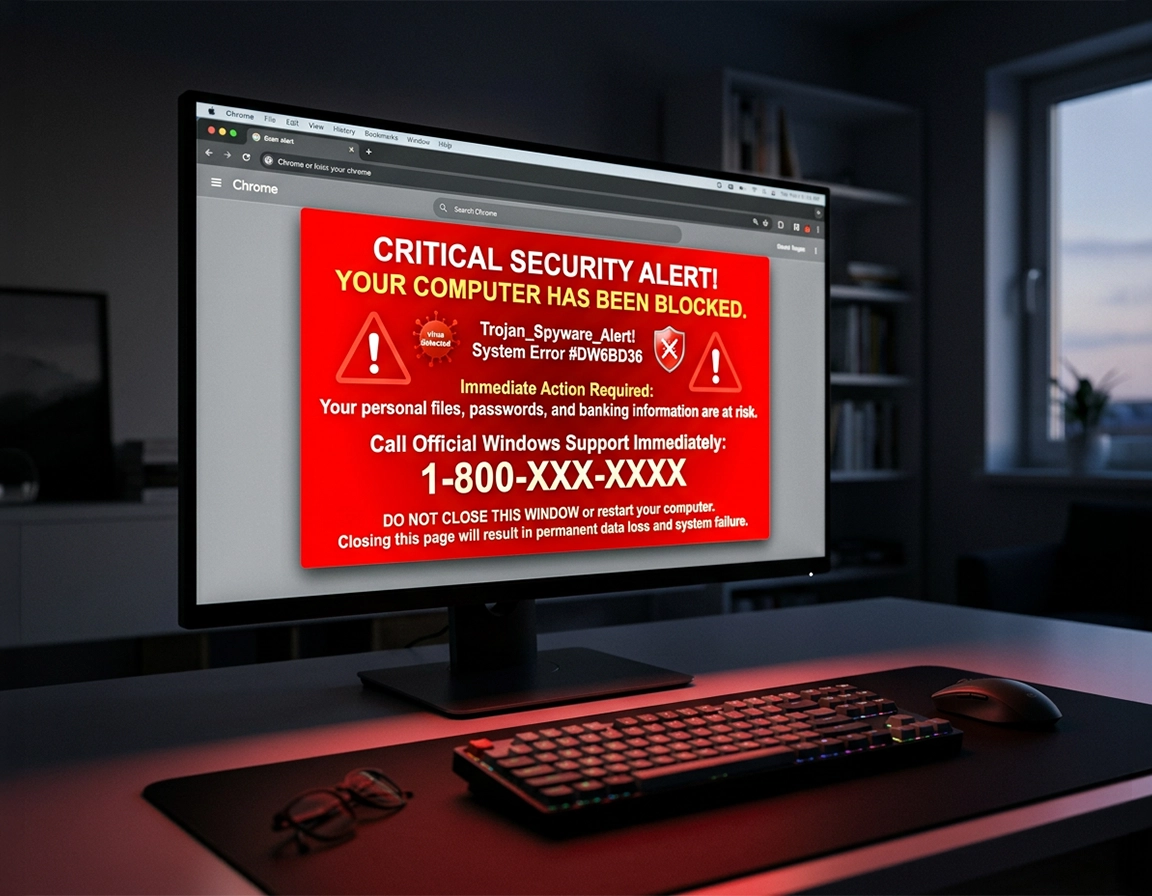
What a Chrome tech support scam looks like when it hits .
These pages are engineered to feel bigger than a browser tab. They borrow the language of operating systems, antivirus dashboards, and enterprise security tools even though the browser itself has not performed a real diagnostic.
A typical victim lands on the scam from a search result, a bad ad redirect, a cracked-download page, an adult site with hostile ad inventory, or a push notification they previously allowed without noticing. Within seconds the page switches into theater mode: large red warnings, a fake scan animation, an alarm sound, repeated JavaScript dialogs, and text telling the user not to shut down the device because “critical system files are compromised.” The visual trick is deliberate. It reduces the chance that the user treats it as an ordinary webpage.
The page may claim that Chrome detected spyware, that Windows Defender blocked a trojan, that your banking session is under attack, or that a browser subscription expired and immediate phone verification is required. None of that language proves a system infection. The real objective is conversion. The scam wants one of three outcomes: you call the number, you install a remote-access tool, or you pay for fake cleanup. The browser tab is the funnel, not the final product.
There is a specific reason these scams feel harder to dismiss than ordinary popups. The bad page can trigger alert loops, request fullscreen mode, abuse back-button behavior, spawn extra tabs, or keep focus trapped with onbeforeunload prompts. A user experiences that as “Chrome is locked,” but the lock is usually page logic plus panic, not deep malware. That distinction matters because the cleanup path for a hostile webpage is different from the cleanup path for an actual infostealer or remote-control compromise.
When the scam says “call certified support now,” the page is trying to move you from a browser incident into a phone scam. Once that phone call happens, the risk profile changes sharply. Call-center operators often ask for AnyDesk, TeamViewer, Quick Assist, or similar remote software. At that point, the browser scare graduates into a device-security event because you may have handed access to files, passwords, saved cards, email, or business systems.
Related: If the page presents itself as a virus alert rather than a support desk message, compare it with Chrome Fake Alert Virus Removal.
Signals that point specifically to a tech support scam page .
- Phone-number urgency: The page wants live human contact because a scam agent can take the interaction much further than the webpage can.
- Fake authority badges: Microsoft, Google, McAfee, Norton, or “security partner” branding is often copied into the layout without proving any real relationship.
- Repeated dialog boxes: Endless popup prompts are meant to create the feeling that the browser cannot be closed safely.
- Remote-access instructions: Any push toward screen-sharing or remote software installation means the scam is moving from fear marketing into active takeover territory.
Before you start: triage the situation correctly .
Start by classifying the incident, because not every “browser virus” complaint is the same thing. If you only saw one aggressive page, never called the number, and the bad screen appeared right after opening a sketchy site, you may be dealing with nothing more than a malicious tab plus permission abuse. If you called the number, granted remote access, or paid the operator, you are no longer doing simple browser cleanup. You are doing fraud containment.
Look at the last five minutes of activity instead of staring at the warning itself. Did Chrome open normally and then suddenly switch to the scam page after a click? Did the machine slow down before that? Did new tabs begin appearing over the last few days? Did you recently install a coupon extension, video downloader, “PDF helper,” driver updater, cracked software bundle, or browser performance tool? Those details determine whether the trigger is a one-time malicious page, a bad extension, adware on the device, or startup manipulation.
The most useful first question is this: does the scam return after Chrome is force-closed? If the answer is no, the browser itself may be fine and the trap lived only inside the current tab. If it reappears every launch, session restore, notification abuse, startup pages, extensions, or device-level adware are the better suspects. Users often waste time scanning the whole PC first when the real fix is clearing one site’s notification permission and refusing to restore the trapped tab session.
Related: If Chrome has been acting strangely beyond this incident, inspect Chrome Suspicious Activity Detected Fix and Chrome Malware Symptoms Guide.
- Case A: one trapped tab, no phone call, no downloads. Usually a malicious webpage. Focus on safe closure, session recovery, permission cleanup, and extension review.
- Case B: bad page returns at startup. Check session restore, on-startup pages, notifications, and shortcut tampering.
- Case C: redirects, homepage changes, search-engine hijacks. Add extension and adware checks immediately.
- Case D: you called or gave remote access. Freeze payments, remove remote software, rotate passwords, and treat the device as exposed.
Step-by-step removal .
Do not negotiate with the page. Don’t click its “close,” “OK,” “repair now,” “contact support,” or “run scan” elements, because many scam pages are scripted so that any interaction deepens the loop. The safest sequence is blunt, external, and boring: kill the browser process, reopen cleanly, clear the source, then inspect anything that could force the page back.
- 1 Force-close Chrome from outside the page. On Windows, press Ctrl + Shift + Esc, open Task Manager, select Chrome, and choose End task. On macOS, use Command + Option + Escape and force quit Chrome.
- 2 Reopen Chrome carefully. If Chrome offers to restore the previous session, decline it. Restoring the trapped session is the quickest way to reload the scam page.
- 3 Check active tabs and recent history. Remove the exact page, note the domain if visible, and avoid visiting it again just to “test.”
- 4 Clear the scam site’s data and permissions. Go to chrome://settings/content/all, search the suspicious domain, and delete its stored data.
- 5 Review notifications. Go to chrome://settings/content/notifications and remove or block unknown sites that may keep pushing scare messages to the desktop.
- 6 Inspect extensions at chrome://extensions/. Remove anything unfamiliar, recently installed, off-brand, or permission-heavy.
- 7 Review startup behavior at chrome://settings/onStartup. If “Open a specific page or set of pages” contains a suspicious URL, delete it.
- 8 Run Chrome reset if behavior persists. Use chrome://settings/reset and restore settings to original defaults.
What “success” looks like: Chrome opens to a normal new tab or your expected startup page, no fake warnings reappear, notification spam stops, and no unknown extension or startup page remains in settings.
Step 1 matters because hostile scripts can block the ordinary close path. Once you move outside the page and terminate the browser process, the loop loses its leverage. Users sometimes restart the entire computer instead, but that can be slower and less precise, especially if Chrome is set to continue where you left off. Force-closing the app first gives you a clean fork in the road: reopen without reloading the trap.
Step 4 is where many partial cleanups fail. Scam pages often request notification permission at some earlier point in the browsing journey. The victim clicks “Allow” because the site disguised the prompt as a captcha, a video-play requirement, or an “I am not a robot” step. Days later the browser begins sending fake infection alerts that look like system messages. That behavior is not solved by closing the page once. It is solved by revoking the permission and deleting the site data tied to the abusive domain.
Step 6 deserves patience. Bad extensions rarely introduce themselves with names like “steal your data.” They look ordinary: PDF converter, search helper, weather panel, video speed controller, coupon notifier, safe browsing assistant. The giveaway is usually a mismatch between the feature offered and the reach requested. An extension that only changes the new-tab page does not need broad access to every site you visit. If it has that reach, remove it and watch whether the scam behavior stops.
Related: For a deeper extension audit, use Chrome Unwanted Extensions Removal, Chrome Remove Malicious Extensions, and Chrome Extension Permission Abuse Detection.
Common variations you may run into .
- Windows: The scam may reference Windows Defender or registry corruption to sound more believable, but the browser cleanup steps are still centered in Chrome first.
- macOS: Scam copy often swaps in “Apple Security” language and may push fake support numbers with Safari-style styling even while you are in Chrome.
- Android: Tech support scams are more likely to rely on notification spam, redirects, and fake cleaning prompts than a classic desktop-style remote-access sales pitch.
- Shared office devices: A user may reintroduce the same scam through synchronized extensions or a reused Chrome profile if profiles are not cleaned properly.
Advanced cleanup when the scam keeps returning .
Sometimes the page does not die with the tab. That changes the investigation. A recurring scam page usually means one of four things is rebuilding the problem: session restore is replaying the tab state, an extension is redirecting traffic, Chrome startup pages were modified, or software outside Chrome is reopening the browser with a malicious URL.
Related: Nearby problems often overlap with Chrome Browser Redirect Removal Guide, Chrome Search Engine Hijacked Fix, and Chrome Homepage Keeps Changing Fix.
Look for startup and session traps .
Open Chrome’s startup settings and inspect them line by line. If “Open a specific page or set of pages” contains an unfamiliar domain, remove it. Then review whether Chrome is resuming prior browsing state in a way that keeps reviving the tab. One malicious page can seem immortal simply because the browser is faithfully reopening it after every launch.
Check the Chrome shortcut itself .
On Windows, right-click the Chrome shortcut, open Properties, and inspect the Target field. A clean shortcut ends with the Chrome executable path. If you see a URL appended after the executable, the browser may be launching directly into a malicious page every time you click the icon. That is not a Chrome setting. It is shortcut tampering.
Look beyond Chrome if remote software entered the picture .
If the victim called the number and installed AnyDesk, TeamViewer, UltraViewer, RustDesk, Quick Assist, or another remote-support tool, remove that software only after you have documented what happened and changed passwords from a separate trusted device. A scam operator with remote access may have viewed saved credentials, copied files, or configured persistence. Browser cleanup alone is too narrow in that scenario.
Run a device-level malware scan when browser symptoms stack up .
Use a reputable system scanner when the tech support scam coincides with unwanted software, rogue services, search hijacks, spontaneous tab opening, or a sudden flood of ads outside the original site. The clue is accumulation. One trapped page is often just a bad page. A trapped page plus homepage changes plus silent extension installs points to broader compromise.
Profile-specific contamination .
Chrome profiles can carry damaged settings, extensions, permissions, and synced garbage from one device to another. If the behavior vanishes in a brand-new local profile but survives in the old one, the profile itself is the container of the problem. That is when Chrome Profile Reset Guide and How to Reset Chrome After Malware become more useful than another round of tab-by-tab cleanup.
When the incident graduates from nuisance to high-risk event .
- You paid the operator for cleanup, warranty, antivirus, or “network protection.”
- You gave card details, banking access, or one-time codes.
- You granted remote control or screen sharing.
- You allowed the operator to open password managers, email, accounting tools, or company dashboards.
- The machine now opens extra tabs, runs slower, or contains newly installed software you did not add.
Common alternatives users compare after a scare .
- Chrome’s built-in cleanup and reset path vs a dedicated malware scanner
- Browser notification blocking vs full browser reset
- Removing one extension vs creating a new Chrome profile
- Free antivirus scan vs paid endpoint protection after remote-access exposure
Privacy, payment, and account security after the scare .
The browser page is only the visible part of the incident. The real damage usually starts when the victim follows instructions that move the interaction outside Chrome. A fake “security engineer” on the phone can ask the user to open saved passwords, online banking, tax records, crypto wallets, payroll portals, or corporate VPN tools. Even if nothing obvious was stolen in the moment, exposure counts. If sensitive material was visible on screen or accessible during the session, assume it may have been observed or recorded.
Impact: Can escalate from nuisance popups into card fraud, account takeover, identity misuse, business compromise, and persistent device tampering.
Related: If the scare intersects with password exposure or account reuse, continue with Chrome Browser Passwords Stolen: What to Do, Chrome Data Leak Detection, and Chrome Browser Data Breach Response.
Recommended recovery actions by severity .
- Low exposure: Close Chrome safely, clear the site, revoke permissions, remove suspicious extensions, and run Safety Check.
- Moderate exposure: Add a full malware scan, inspect installed apps, review startup items, and change passwords for accounts used in Chrome.
- High exposure: Contact your bank, dispute charges if needed, remove remote software, change passwords from a clean device, enable stronger sign-in protection, and review business accounts for unauthorized access.
Recommended actions by goal .
| Goal | Recommended action | Tradeoff | Best for |
|---|---|---|---|
| Fast containment | Force-close Chrome, decline restore, clear site data and notifications | May miss a malicious extension or startup change | One-time scam page with no other symptoms |
| Complete browser cleanup | Extension review, startup review, permissions cleanup, Chrome reset, Safety Check | Takes longer and may remove useful custom settings | Recurring scam pages or redirect patterns |
| Incident response | Device scan, remote-tool removal, password rotation, payment review, account monitoring | Higher effort and more disruption | Anyone who called, paid, or granted remote access |
There is also a psychological cleanup step people forget. Victims often keep re-opening the history entry to confirm the problem is gone. Don’t do that. Scareware pages rely on repeat exposure because the second visit happens after the user is already worried. Once you have the domain and the evidence you need, keep it blocked and move forward with cleanup and recovery instead of poking the trap again.
Troubleshooting stubborn cases .
Related: For wider cleanup sequences, continue with Chrome Full Malware Cleanup Checklist, How to Scan Chrome for Malware, and Chrome Malware Scan With Antivirus.
If the fake alert comes back every time Chrome launches .
That pattern usually means startup configuration, session restore, or shortcut manipulation. Inspect On startup settings, decline restore prompts, remove suspicious pages, then verify the Chrome desktop shortcut does not append a URL after the executable path. If you are on a managed business machine, also check whether a policy or extension deployment is reintroducing the behavior.
If popups stopped but desktop notifications keep shouting about viruses .
That is often a permissions issue, not an active infection. Visit Chrome’s notification settings and delete every site you do not recognize, especially domains with random words, fake streaming themes, “allow to continue” bait, or country-code variants you never intentionally trusted. A lot of users think the operating system is infected when the real culprit is a site they allowed months ago just to watch a clip or download a file.
If Chrome no longer shows the scam page but browsing still redirects .
Switch focus to extensions, default search engine settings, and recently installed apps on the device. Redirect chains that survive page cleanup often indicate a browser hijacker, adware bundle, or extension with broad host permissions. In that branch of the investigation, Chrome Browser Hijacker Removal is more relevant than another attempt to clear one domain.
If the victim already paid money to the scammer .
Stop treating the event as a browser annoyance. Contact the payment provider, describe it as a tech support scam, preserve receipts and phone numbers, and review whether recurring charges were set up. Some operators sell a “one-year protection plan” and then use that billing relationship to keep charging. Others install remote software and promise follow-up service calls, which becomes an open door rather than a finished transaction.
If you need to reset safely without losing the essentials .
Chrome reset is useful because it disables extensions, resets startup and search configuration, and restores core defaults without wiping bookmarks and saved passwords outright. It is still smart to export or verify anything critical before major cleanup if the profile contains important work data. On badly contaminated profiles, the cleaner long-term move can be creating a new profile and migrating only trusted essentials instead of trying to preserve every old customization.
FAQ .
-
helpIs a Chrome tech support scam the same thing as a real browser virus?No. A tech support scam page is often just a malicious webpage using fear, fake branding, audio warnings, and popup loops to push you into calling a phone number. It can lead to real damage if you install software or give the operator remote access, but the page itself is not proof that Chrome found a genuine infection.
-
helpWhy did the browser feel frozen if it was only a webpage?Because the page can abuse JavaScript dialogs, fullscreen requests, navigation traps, and repeated prompts that make ordinary tab controls unreliable. Users experience that as a lock screen. The safest response is to close Chrome from outside the tab rather than trying to out-click the script.
-
helpDo I need to change passwords after seeing one of these pages?If you only saw the page and closed it safely, password changes are usually not the first priority. If you called the number, typed credentials into anything the scammer sent, opened sensitive accounts during a remote session, or suspect saved passwords were visible, change those passwords from a separate trusted device.
-
helpCan Chrome’s built-in protections help reduce this kind of scam?Yes. Safe Browsing, Safety Check, popup controls, and notification management all reduce exposure to abusive pages, malicious downloads, and scam-driven prompts. They are preventive layers, though, not a guarantee that a victim who calls the fake support number will stay safe.
Sources & further reading .
- Chrome Help: remove unwanted ads, pop-ups, and malware
- Chrome Help: reset Chrome settings to default
- Chrome Help: block or allow pop-ups and notifications
- Chrome Help: choose your Safe Browsing protection level
- FTC: how to spot, avoid, and report tech support scams
Disclosure: This page focuses on removal, fraud containment, and browser recovery. If the incident involved payments, remote access, or work accounts, recovery may require steps outside Chrome.