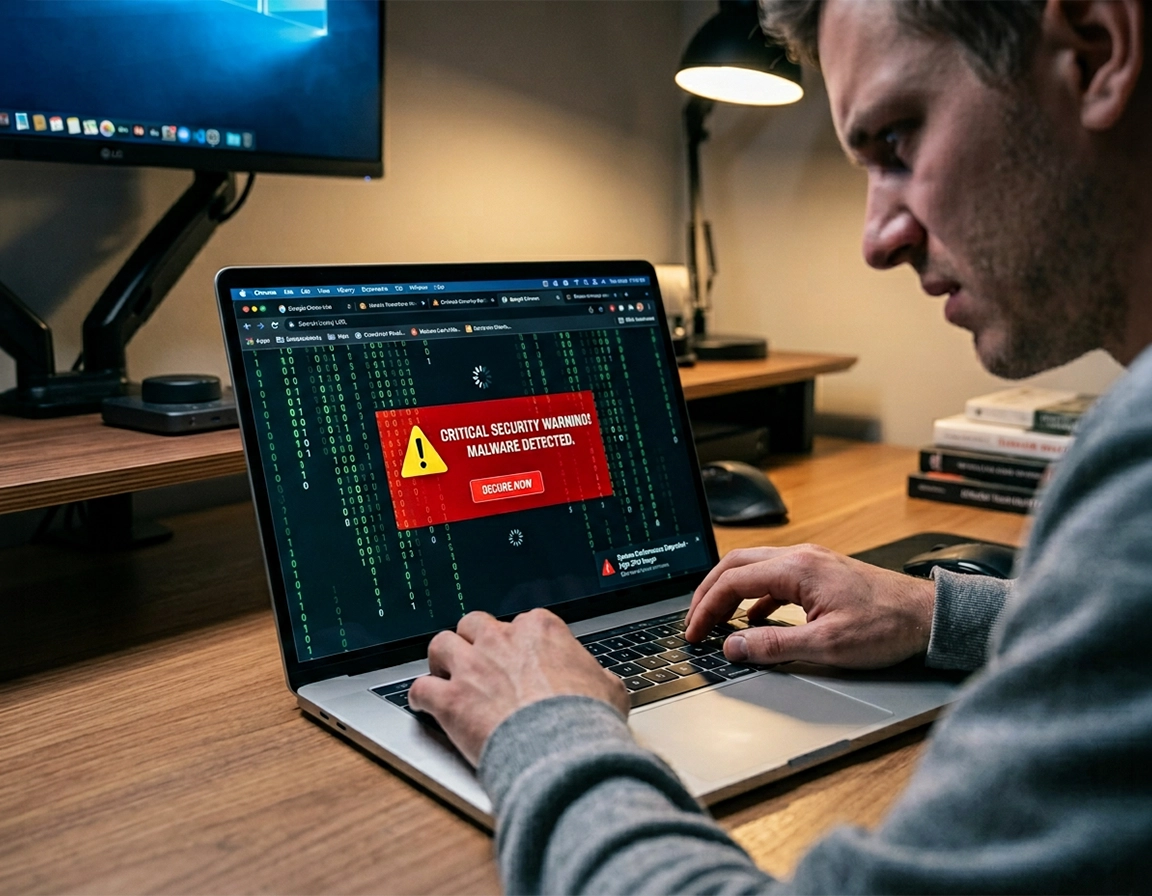
Why Chrome stays slow after the virus is “gone” .
A post-virus slowdown is usually a residue problem, not a headline problem. The obvious infection may be removed while the browser remains full of side effects.
The pattern is easy to recognize once you have seen it a few times. Before the infection, Chrome opened instantly, tabs felt normal, scrolling was smooth, and video playback did not make the laptop sound like it was preparing for takeoff. Then a fake alert, bundled installer, malicious extension, search hijacker, or “free utility” got involved. You removed the obvious culprit, but Chrome still launches slowly, takes several seconds to load a blank new tab, or freezes every time a site tries to open ads, notifications, or background scripts. That second stage is what this page is about.
Malware that targets browsers rarely damages just one thing. A browser hijacker might swap your default search engine, inject a startup page, add an extension with broad host permissions, change notification permissions, and write a proxy rule or DNS change outside the browser. Adware often leaves behind cached junk, orphaned service entries, scheduled tasks, or profile files that force Chrome to keep processing bad settings even after the main malicious file is deleted. That is why users say, “The virus is gone, but Chrome still feels infected.” In many cases, they are describing performance drag caused by leftovers rather than an active payload running in plain sight.
Slow Chrome after malware removal can also be self-inflicted in a different way: the security stack becomes overloaded. A real-time antivirus engine, browser protection module, DNS filtering layer, HTTPS inspection, and a “web shield” extension can all hook into the same traffic path. If the browser profile is already corrupted, each page load may trigger repeated scanning, certificate checks, extension script injection, and cache rebuilds. The result feels like an underpowered computer even on a machine that was fast last week.
The crucial distinction is this: a normal performance guide starts with memory savers and tab cleanup. A post-virus repair guide starts with trust. You first need to confirm that Chrome is not still being manipulated, then remove the browser-level residue, and only after that do you tune speed. That order matters. Optimizing a dirty browser profile usually just makes the symptoms slightly less annoying while the underlying problem continues to write itself back into the browser.
Related: If the slowdown came with changed search results, forced homepages, or sketchy redirects, go to Chrome Search Engine Hijacked Fix and Chrome Homepage Keeps Changing Fix.
What “slow after virus” usually looks like in the real world .
- Delayed startup: Chrome sits on a white window for several seconds before tabs render.
- Hot CPU with light browsing: One or two tabs cause fans to spin up or battery drain abnormally.
- Typing lag: Search boxes and webmail fields pause half a second behind your keyboard input.
- Random traffic spikes: Task Manager or antivirus logs show Chrome talking to domains you do not recognize.
- Performance collapse after reopening: Chrome seems fine immediately after a reset, then degrades again after sync or extensions return.
Fast checks before you change anything .
A sloppy cleanup can destroy the evidence you needed. Before resetting half the browser, spend five minutes confirming where the slowdown actually lives. That short diagnostic pass prevents two common mistakes: wiping a healthy browser when the operating system is still infected, and blaming malware when the real cause is a single heavy extension or damaged user profile.
Related: If you are not yet sure whether the machine is clean, run through How to Check if Chrome Has Virus and How to Scan Chrome for Malware.
- Check Chrome Task Manager first: Press
Shift + Escinside Chrome and sort by CPU and memory. If one extension process, subframe, or tab is consistently consuming resources while you are idle, you already have a lead. - Test Incognito with all extensions disabled: An Incognito window without extension access is not a perfect malware test, but it quickly reveals whether the slowdown is tied to extension scripts or to the broader profile.
- Try a new Chrome profile: Create a fresh local profile and open only one tab. If the new profile is fast while the old one crawls, the damage is usually inside profile data, sync residue, or extension state.
- Watch for system-wide symptoms: If Edge, Firefox, or Safari are also slow, the infection or security overhead is below Chrome, not inside it.
- Check proxy and DNS settings: A malicious proxy or broken DNS resolver can make every site feel slow without visibly “infecting” the Chrome window.
Also pause long enough to think about timing. Did Chrome become slow only after you re-enabled your synced extensions? Only after you signed back into Chrome? Only after you installed a supposedly protective browser extension? That sequence matters. Browser infections often hitch a ride on sync or extension reinstall behavior. Users clean one machine, sign back into Chrome, and unknowingly restore the same contaminated extension set and startup behavior within minutes.
Complete repair sequence .
The sequence below is arranged to isolate the most common post-infection bottlenecks without forcing a total reinstall on the first move. The goal is to stop persistence, repair the profile, correct network-level damage, and only then bring back the pieces you actually trust.
- 1 Update Chrome before testing performance. Open
chrome://settings/helpand let Chrome pull the latest build. If you are running an old version while security software is trying to compensate for known browser vulnerabilities, performance often degrades further. - 2 Disable every extension that is not essential. Go to
chrome://extensions. Toggle everything off, especially coupon tools, PDF converters, search helpers, video downloaders, “safe browsing” clones, wallpaper add-ons, and anything with “Read and change all your data on all websites.” Restart Chrome and retest. - 3 Inspect startup, search, and notifications. In Settings, check On startup, Search engine, and Site settings for suspicious entries. Remove domains you do not recognize from notifications and pop-up permissions. Leftover browser abuse often hides in these areas even after the main malware file is gone.
- 4 Run another system scan, not just a browser scan. Use your primary antivirus for a full scan. If possible, follow with a reputable second-opinion scanner. Post-virus slowness is frequently caused by the operating system still cleaning up scheduled tasks, proxy hooks, or download folders.
- 5 Reset Chrome settings to defaults. Open
chrome://settings/resetand restore settings to their original defaults. This does not erase bookmarks or saved passwords, but it can disable extensions, reset startup pages, search engine choices, content settings, and temporary profile customizations that keep the browser unstable. - 6 Clear cached junk strategically. Delete cached images and files, site data for suspicious domains, and recent browsing data tied to the infection period. A bloated cache alone does not usually cause severe lag, but corrupted cached content and malicious service-worker leftovers can produce repeated loading stalls.
- 7 Check the operating system proxy and DNS path. On Windows, inspect proxy settings and network adapter DNS configuration. On macOS, check network details and login items. If traffic is being routed through a malicious proxy or a dead resolver, Chrome will appear broken even with a clean profile.
- 8 Create and test a brand-new Chrome profile. If the original profile is still slow after reset, add a new profile without importing extensions. Load a few trusted sites. A fast new profile is a strong sign that the original profile holds the damage.
- 9 Reintroduce sync and extensions slowly. Sign back in only after the clean profile behaves normally. Bring back extensions one at a time. If the slowdown returns after a specific extension or synced setting arrives, you have identified the reinfection channel.
- 10 Use reinstall only when the profile or application files remain suspect. Uninstalling Chrome can help if application files were damaged, but it is not magic. If you reinstall without fixing the profile, extensions, or system-level settings, the same slowness can come back immediately.
What success looks like: Chrome launches without hesitation, idle CPU drops back to normal, blank tabs open instantly, the fan settles down, and trusted sites load at the same speed they do in another browser on the same connection.
Step 2 is where many real fixes happen. Malicious or low-quality extensions can remain “installed” even after a user believes the virus was removed because the infection used the extension as the delivery method in the first place. One extension with aggressive content scripts running on every page can block rendering, flood background requests, and create the illusion that the whole browser engine is damaged. On machines that were perfectly usable before the incident, extension removal is often the turning point.
Related: If extensions are central to the slowdown, continue with Chrome Unwanted Extensions Removal, Chrome Remove Malicious Extensions, and Chrome Suspicious Extension Detection.
What not to restore immediately .
- Everything from sync: Sync is convenient, but it can also bring back bad extensions, startup URLs, or permission state faster than you notice.
- Browser “cleaner” extensions: Many claim to speed up Chrome while adding more script overhead than they remove.
- Notification permissions from unknown sites: Push spam operations often linger here long after the original scam page disappeared.
- Old profile folders copied by hand: Reusing corrupted profile data defeats the whole repair.
Platform notes that change the outcome .
- Windows: Scheduled tasks, startup entries, unwanted services, and proxy settings are more commonly involved. A browser-only cleanup is less likely to be sufficient.
- macOS: Check Login Items, Profiles, launch agents, and unusual configuration profiles if Chrome keeps reverting to bad behavior after resets.
- Android: Chrome slowdowns after malicious redirects are often tied to notification abuse, cached site data, or a broader device-level adware problem rather than classic extensions.
Deeper fixes when the slowdown is stubborn .
If Chrome is still dragging after the main repair sequence, stop thinking in broad browser terms and start thinking in layers. There are only a handful of places where persistent slowness survives a real cleanup: the user profile, the network path, the security stack, or storage. The trick is to identify which layer is still forcing Chrome to do extra work on every request.
Related: For pure speed tuning after cleanup, pair this page with Fix Slow Chrome Browser Step by Step and Speed Up Google Chrome.
Layer 1: damaged profile data .
A damaged Chrome profile can feel deceptively “normal” because bookmarks and history still show up, yet every background process is heavier than it should be. You may notice that the browser opens all the right tabs but hesitates before drawing them, or that settings pages load slowly even with the network disconnected. In that case, profile corruption is more likely than web-based malware. A clean profile test is the fastest way to prove it. If the new profile is snappy and the old one is not, migrate only what you need instead of dragging the old profile wholesale into a fresh install.
Layer 2: broken network settings .
Browser hijackers and scareware installers sometimes alter proxy or DNS behavior because controlling traffic is more valuable than changing the browser theme or home page. The side effect is latency. Every address lookup can stall, every HTTPS connection can take longer to negotiate, and some security suites will then scan the already-delayed traffic again. The symptom cluster is distinctive: all pages feel slow, developer tools show long waiting times, and another browser on the same machine is either equally bad or only slightly better. That is when you inspect proxy, DNS, VPN residue, and traffic-filtering software instead of endlessly clearing cookies.
Layer 3: security tools fighting each other .
After an infection scare, people often install multiple browser guards at once: an antivirus extension, a secure DNS utility, a traffic filter, a shopping extension with “safe deal” scanning, and a privacy tool that injects code into every page. Chrome is then asked to render the site, modify the site, inspect the site, block parts of the site, and rescan the encrypted connection. The machine feels infected even though the system is technically clean. If CPU use remains high with only trusted sites open, audit overlap rather than adding more “protection.”
Layer 4: disk and cache stress .
On older laptops and shared office machines, post-virus Chrome slowness can become much worse because the repair process itself fills the disk. Quarantine files, multiple scan logs, browser cache rebuilds, and system restore points all compete for storage. When free disk space falls too low, Chrome can stall while writing profile data or rebuilding caches. That is why some users report that Chrome becomes slower after they “cleaned everything.” They removed the malware but left the device starved for working space.
When a reinstall is justified .
- The browser is slow in a fresh profile and after extensions are disabled.
- Chrome application files appear damaged, or updates repeatedly fail.
- The system is clean, but Chrome crashes or misbehaves differently from other browsers.
- You can export what matters and want a clean baseline faster than manual surgery allows.
When a reinstall is a waste of time .
- The slowdown only appears after you sign back into sync.
- The problem tracks one specific extension or startup URL.
- Proxy, DNS, VPN, or system-wide malware symptoms remain unresolved.
- Other browsers on the same device are also slow.
High-intent comparisons users usually make here .
Security implications of a half-clean browser .
A slow browser after a virus is not only an annoyance problem. It is a trust problem. If Chrome remains burdened by leftover permissions, injected startup behavior, altered search defaults, or silently restored extensions, you may still be leaking browsing data, credential traffic, or behavioral signals even while the obvious pop-ups have stopped. Users often relax the moment the fake alerts disappear. That is precisely when a quieter persistence mechanism can stay in place.
Impact: Leftover browser abuse can keep reading page content, redirecting searches, restoring scam domains, harvesting browsing patterns, or weakening trust in downloads and login flows.
Related: If you still see redirects, fake warnings, or scam pages, continue with Chrome Browser Redirect Removal Guide, Chrome Fake Alert Virus Removal, and Chrome Tech Support Scam Removal.
Recommended baseline after cleanup .
- Balanced baseline: Updated Chrome, Safe Browsing enabled, only trusted extensions installed, notifications restricted, startup pages reviewed, and sync restored gradually.
- Maximum caution baseline: New Chrome profile, manual extension reinstallation, passwords changed on sensitive accounts, downloads folder audited, and system scan logs reviewed.
- Compatibility baseline: Minimal extension set, default network settings, and only business-critical exceptions reintroduced after performance is stable.
Best repair path by situation .
| Situation | Best first move | Main risk if ignored | Usually points to |
|---|---|---|---|
| Slow startup and hot CPU | Disable all extensions and retest | Background scripts keep running across every site | Extension abuse or bad sync restore |
| All websites slow, even trusted ones | Inspect proxy, DNS, VPN, and security filters | Traffic remains routed through hostile or broken settings | Network-level residue |
| Fresh profile is fast, old one is not | Migrate to the clean profile selectively | Corrupted state keeps reintroducing lag | Profile damage |
| Slowdown returns after sign-in | Pause sync restoration and audit extensions | Bad settings are synced back instantly | Reinfection through account-linked browser state |
One last security point matters more than most users expect: change passwords only after you trust the browser again. If credentials were typed into Chrome while the infection or extension abuse was active, rotate important passwords from a clean device or a confirmed clean browser session. Doing it too early from a still-dirty environment can turn a cleanup step into another credential exposure.
Troubleshooting unusual cases .
Related: If Chrome is still unstable rather than merely slow, check Chrome Browser Keeps Crashing Virus Fix and Chrome Malware Cleanup Guide.
Chrome is only slow on the first launch of the day .
That usually points to startup burden rather than raw browsing load. Chrome may be reopening too many old tabs, waiting on a broken extension, validating a modified startup URL, or competing with antivirus startup scans. Test by setting Chrome to open a new tab page only, disabling all extensions, and launching with a clean profile. If cold start improves dramatically, the slowdown lives in restored session state or startup configuration rather than in your general browsing.
Chrome is fast in Incognito but slow in normal mode .
That is a classic sign that the problem is tied to the normal browsing profile. Extensions are the first suspect, but site data, service workers, and synced settings matter too. Because Incognito often runs with fewer persistent features and extension access disabled, it can feel healthy while the standard profile remains polluted. Do not stop at “Incognito works.” Use that difference as proof that the old profile deserves cleanup or replacement.
Chrome stayed slow even after reinstalling .
Reinstallation only replaces the application files. It does not automatically fix hostile DNS settings, remove bad scheduled tasks, clean your download folder, or stop sync from restoring suspect extensions. When reinstalling changes nothing, look outside the installer. Check whether the browser became slow again only after you signed in, restored tabs, or re-enabled security add-ons. That pattern usually explains the “I already reinstalled Chrome and it did nothing” complaint.
Chrome is slow only on one account on a shared computer .
Shared-device cases often expose profile-specific damage. One user account carries the contaminated browser state while another account on the same PC or Mac works fine. In that scenario, rebuilding the affected Chrome profile is usually smarter than changing system-wide settings for everyone. The faster you isolate the bad profile, the less likely you are to spread the problem through sync or copied browser data.
You need to reset safely without losing everything .
Export or verify what actually matters first: bookmarks, saved passwords you still trust, and any important autofill data you cannot easily recreate. Then reset Chrome settings, create a fresh profile if needed, and bring back only trusted essentials. The biggest mistake at this stage is emotional over-restoration: users immediately reinstall every old extension and reconnect every synced setting because the browser finally feels fast again. That is how the same slowdown returns before lunch.
FAQ .
-
helpWhy is Chrome still slow after my antivirus says the virus is removed?Because the browser can stay damaged after the malicious file is gone. Leftover extensions, altered startup pages, proxy settings, cached junk, and corrupted profile data can all continue slowing Chrome even when the antivirus no longer detects an active threat.
-
helpWill resetting Chrome delete my bookmarks and passwords?A Chrome reset normally restores settings such as startup pages, search engine defaults, pinned tabs, cookies, temporary site data, and extension state, but it does not usually delete bookmarks or saved passwords. You should still verify critical data before doing a deeper profile cleanup.
-
helpIs reinstalling Chrome better than creating a new profile?Not always. If a brand-new profile is fast, the application itself is probably fine and the old profile is the real problem. Reinstalling Chrome without fixing the profile or sync residue can leave you exactly where you started.
-
helpCan a malicious extension keep Chrome slow even after I remove malware?Yes. A malicious or low-quality extension can inject scripts into every page, alter searches, spam network requests, and create constant background activity. In many post-virus cases, the extension becomes the reason Chrome still feels infected.
-
helpShould I sign back into Chrome sync immediately after cleanup?No. Test Chrome in a clean state first. If the browser is fast until sync restores extensions or settings, sync is showing you exactly where the problem returns from.
-
helpDo I need to change passwords after a browser infection?If the infection may have captured credentials, yes, especially for email, banking, password managers, and your Google account. Change them from a trusted clean environment after you are confident the browser and device are no longer compromised.
Sources & further reading .
- Google Chrome Help: remove unwanted ads, pop-ups and malware
- Google Account Help: remove malware or unsafe software
- Google Chrome Help: manage Chrome safety and security
- Google Chrome Help: performance tools and related cleanup resources
- Google Chrome Help: choose your Safe Browsing protection level
- Google Chrome Safety overview
- Chrome Releases: Stable Channel Update for Desktop
Disclosure: This page focuses on cleanup logic, browser behavior, and official recovery paths. Recommendations should always be checked against your device, account, and security software setup.