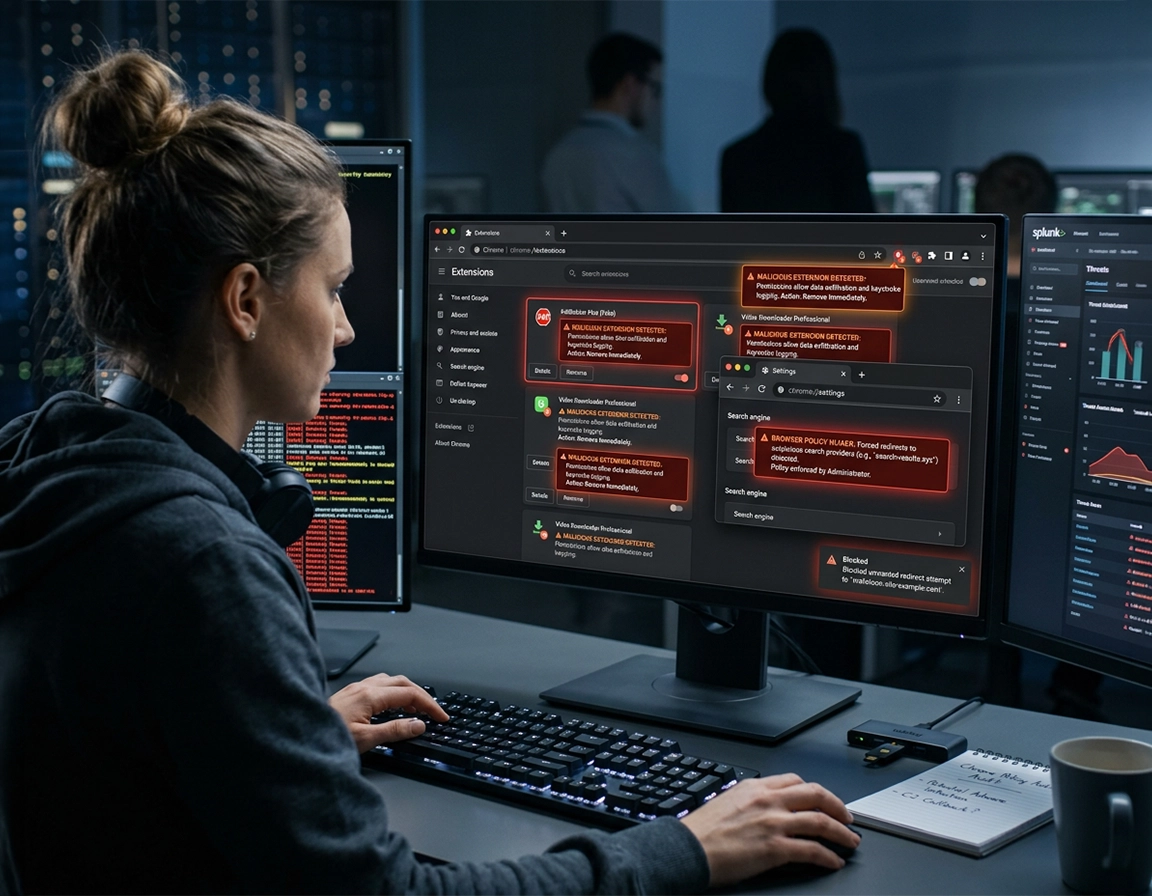
Malware behaviors Chrome cleanup tools must detect before anything else .
The best performer in this category is not the product with the biggest promise box. It is the one that removes the persistence layer that keeps putting Chrome back into a compromised state after each restart.
Chrome malware comes in several shapes, and they do not all live inside Chrome. One case is obvious: you install a “coupon finder” or “PDF converter,” then your search bar starts sending queries to a strange engine with extra ad blocks above the results. Another case feels random at first: Chrome opens a casino-looking tab on startup, the browser asks you to allow notifications on a file-sharing site, and then fake McAfee or “your PC is infected” warnings follow you from page to page. The third case is the one that wastes the most time: you remove the extension, reset the browser, clear the profile, and the hijack still returns because an app, scheduled task, policy, or background service re-seeds Chrome on launch.
That is why the phrase best malware removal tool for Chrome should not be treated like a simple product ranking. A Chrome-only symptom can be triggered by a malicious extension, a notification permission, a manipulated search setting, a Windows program writing Chrome policies, a macOS login item, or a credential-stealing payload that has already moved beyond the browser. If a tool only scans extensions, it misses the app that re-installs them. If a tool only looks for classic viruses, it may miss browser hijackers and potentially unwanted programs that cause the user pain but do not behave like ransomware or a traditional worm.
The strongest category for most users is a dedicated anti-malware scanner with good detection for adware, browser hijackers, malicious browser helpers, policy abuse, and PUPs. Chrome’s built-in controls still matter. Google documents that Safety Check reviews browser security issues, while Safe Browsing and Enhanced Safe Browsing focus on dangerous sites, downloads, and extensions. Those protections are valuable, but they are not a replacement for a device-level scan when the infection keeps returning after you “fix” Chrome once. A browser reset can remove altered startup settings. It cannot uninstall the unwanted Windows app that rewrites them every boot.
Related: start with the cluster hub at Remove Malware from Chrome if you need the broader cleanup flow before comparing tools.
What a good Chrome cleanup tool should detect .
- Browser hijackers: search engines, homepages, and new-tab URLs that change without your consent or reappear after reset.
- Potentially unwanted programs: installers bundled with video downloaders, fake driver updaters, or free utilities that alter browser behavior for ad revenue.
- Malicious or abusive extensions: add-ons requesting “read and change all your data on all websites,” then injecting redirects, fake coupon overlays, or clipboard theft logic.
- Persistence mechanisms: scheduled tasks, login items, policy entries, background services, launch agents, or managed-browser settings that stop a normal Chrome reset from sticking.
- Credential and data risk indicators: signs that saved passwords, cookies, autofill data, or session tokens may have been exposed during the infection window.
Which class of tool fits which symptom .
| Symptom | Best tool category | Why it works | Weak point |
|---|---|---|---|
| One suspicious extension, no reinfection | Chrome extension review + Safety Check | Fastest path when the damage is still inside the browser profile | Misses the app that installed the extension |
| Search hijack returns after restart | Dedicated anti-malware scanner | Better at catching PUPs, policy abuse, bundled installers, and persistence | May still require manual Chrome reset after detection |
| Fake antivirus pop-ups and notification spam | Site permission cleanup + anti-malware scan | Stops the browser-side spam and checks for the installer that caused it | Users often clear tabs but forget notification permissions |
| Personal device says “Managed by your organization” | Policy inspection + system cleanup | Helps expose registry or management entries forcing settings | Can require admin access and deeper manual removal |
| Suspected credential theft | Full security suite or EDR-grade response | Broader visibility into processes, downloads, and follow-on payloads | More than most home users need for simple adware |
Before you install anything .
A common failure pattern starts with panic-installing multiple “cleanup” utilities from ads or download portals. That muddies the timeline and can add more low-quality software to a device that is already unstable. Use a controlled sequence instead. Close the scare tab without clicking inside it. Do not press the oversized “Scan now,” “Install antivirus,” “Enable notifications,” or “Update player” button. Those prompts are often the delivery mechanism, not the remedy. The most useful early signal is the exact symptom you saw first: a forced search engine, a notification prompt, a startup tab, a new extension, or a fake infection banner.
Related: if the infection started with a fake login page or scare page, pair this guide with Chrome Anti-Phishing Settings.
- Check Chrome version first: go to Help → About Google Chrome and install pending updates before you trust any new scan result. A relaunched, updated browser closes obvious exposure gaps.
- Check whether Chrome is managed: if the browser menu shows Managed by your organization or
chrome://managementlists controls on a personal machine, assume policy abuse is part of the problem until proven otherwise. - Document the visible symptoms: note whether the issue is a search redirect, startup tab, fake pop-up, extension reinstall, or account sign-in anomaly. The tool choice changes based on that detail.
- Disconnect the infection path: uninstall the sketchy download manager, “PC optimizer,” coupon helper, cracked software launcher, or extension pack installed shortly before the browser changed.
- Keep one cleanup lane: use one browser-side review and one reputable device-level malware scan first. More tools do not always equal a better result.
Timing matters. If Chrome opens cleanly before sign-in, then the bad search engine, homepage, or extension returns minutes after sync finishes, investigate synced extensions, synced settings, and other devices on the same Google account. If the hijack is present before you sign in, focus on the local machine first. That split tells you whether you are chasing account-level contamination or host-level persistence.
Step-by-step: choosing the right cleanup path .
The wrong cleanup order produces a loop most users know too well: remove the extension, clear a setting, relaunch Chrome, watch the same redirect come back. The right order separates visible browser damage from the mechanism restoring it. Start with Chrome-side inspection, confirm whether policy or management is involved, then pick the tool category that matches the evidence instead of buying a heavyweight suite for a lightweight notification problem.
- 1Run Chrome’s built-in checks. Open Settings → Privacy and security → Safety Check. Review security warnings, bad extensions, password alerts, and stale site permissions. Then inspect Extensions → Manage extensions for anything you did not install on purpose.
- 2Check for policy or management abuse. Look at the bottom of the Chrome menu for “Managed by your organization.” Open
chrome://managementandchrome://policy. On a personal machine, unexpected policies are a red flag that a normal browser reset will not be enough. - 3Choose the tool class. If the issue is limited to one extension or one spammy permission, start with Chrome cleanup. If settings revert after restart, use a dedicated anti-malware scanner that targets PUPs, hijackers, and persistence. If you suspect password theft, session hijacking, or repeated payload downloads, use a fuller security suite and treat the event as an account-security incident.
- 4Scan the operating system, not just the browser. A Chrome-focused extension checker will not see the installer under Windows Installed Apps, the launch agent on macOS, or the scheduled task that fires at sign-in. The scan must cover the host system.
- 5Reset Chrome settings after detection. Once the source is removed, use Settings → Reset settings → Restore settings to their original defaults. This clears altered startup behavior, search settings, and some injected permissions without deleting bookmarks or saved passwords.
- 6Clean up the leftovers. Revoke bad notifications, remove unknown search engines, audit sign-in state, and rotate passwords for accounts used while the infection was active, especially email, banking, password manager, and social logins.
What success looks like: Chrome opens cleanly, your preferred search engine stays set after reboot, no unknown extension returns, no random tab opens at launch, and notification spam stops without coming back after the next restart.
How to choose the best tool by scenario .
Use: Safety Check + extension audit + site permission cleanup
If the browser started acting up right after one extension install and the damage stops when that extension is removed, this is the cheapest path. It works best when there is no persistence beyond the profile.
Use: Dedicated anti-malware remover
This is the strongest fit when a Yahoo-style redirect, a fake “powered by” search provider, or a new-tab hijack returns after you remove the extension. In many cases the trigger is not Chrome alone but a bundled installer, updater stub, or policy-writing app that keeps reseeding the browser.
Use: Notification revocation + malicious site cleanup + scan
Many fake antivirus pop-ups are browser notifications and abusive tabs, not proof that the device has already been deeply infected. The correct tool removes both the permission and any software that led you there.
Use: Broader security suite or incident-response workflow
If the browser signed you out unexpectedly, autofilled passwords disappeared, unknown sessions appeared, or clipboard-stealing behavior is suspected, simple adware cleanup is not enough. Treat the browser as one affected surface, not the whole event.
Related: if you want the full scan sequence before shopping for tools, see How to Scan Chrome for Malware and Chrome Malware Scan with Antivirus.
Common variations .
- Windows: the highest-yield checks are Installed Apps, startup entries, scheduled tasks, and policy abuse that forces Chrome settings.
- macOS: look for bad login items, launch agents, and apps in Applications that arrived with a video converter, downloader, or “cleaner.”
- Android: Chrome pop-up problems often come from site permissions or a malicious app overlaying the browser rather than a classic desktop-style extension hijack.
- iPhone and iPad: full browser hijackers are less common, but bad permissions, profile installs, scam pages, and account compromise still matter.
Advanced diagnosis: when Chrome is only the visible part of the infection .
The hardest cases arrive after the obvious repairs fail. The user deleted the extension, reset Chrome, sometimes uninstalled Chrome, then opened the browser after reboot and found the same redirect, the same new-tab page, or the same fake search provider waiting. That pattern changes the diagnosis. Chrome is no longer the origin point. It is the surface where a deeper persistence mechanism becomes visible.
Google notes that Chrome can automatically restore certain important settings to safe defaults when it detects unwanted changes. That is useful, but it also creates a false sense of closure. A user may see the search hijack disappear and assume the machine is clean, only to find the same redirect back after reboot because the helper app that wrote the policy or injected the extension is still present. In practical terms, the best malware removal tool for persistent Chrome problems is the one that sees beyond the Chrome profile directory.
Related: for the browser-specific half of that work, keep these open: Chrome Remove Malicious Extensions, Chrome Search Engine Hijacked Fix, and Chrome Security Reset.
Signals that the infection lives outside Chrome .
- The bad search engine or startup page comes back after every restart.
- An extension reappears even after you remove it and sign out of sync.
- Your personal device suddenly shows Managed by your organization.
- The browser opens a different malicious page only after Windows or macOS login, not every time you open a tab.
- Chrome behaves normally in one user account but not another, pointing to account or profile persistence.
- Reinstalling Chrome does nothing because the launcher, policy, or helper app simply rewrites the new install.
When a free malware remover is enough .
A free, reputable anti-malware scan is often enough for noisy adware: search redirection, pop-up loops, browser notification abuse, shopping helper hijacks, and low-grade bundled junkware. In these cases, what matters most is detection quality against PUPs and browser hijackers. The winning scan finds the bundle you forgot about, not just the obvious infected file. This is where people overspend. They buy a full premium suite for a problem that a focused scan and a careful browser reset could have handled.
When a paid suite earns its cost .
The cost starts making sense when the incident moves from nuisance to exposure. Examples include downloaded payloads beyond the browser, repeated detections across reboots, suspected credential theft, malicious documents opened after a fake download warning, or a household device that mixes Chrome browsing with banking, saved cards, and password-manager autofill. In those cases, you want broader telemetry, scheduled protection, and stronger remediation depth than a one-off cleaner provides.
Where Chrome’s own protections fit .
Chrome is not blind. Google’s documentation says Safety Check reviews security issues and that Enhanced Safe Browsing can provide faster, proactive protection against dangerous sites, downloads, and extensions. Safe Browsing also warns about sites associated with malware, abusive extensions, phishing, intrusive ads, and social engineering. Those are preventive and diagnostic strengths. They reduce the chance of the next infection and highlight damage already visible to Chrome. They do not replace the class of scanner built to rip out the bundled app or persistence hook sitting below the browser.
Common alternatives users compare .
- Chrome reset vs anti-malware scanner: reset repairs browser state; the scanner hunts the thing that keeps corrupting it.
- Free anti-malware vs paid security suite: free is often enough for hijackers and junkware; paid makes more sense when account, file, and endpoint risk are broader.
- Antivirus extension vs desktop antivirus: an extension may block risky pages, but it cannot uninstall the Windows or macOS program rewriting Chrome settings.
- Browser-level protection vs endpoint protection: browser tools protect the session; endpoint tools protect the machine that launches the session.
Related: compare the tradeoffs in Antivirus Extension vs Desktop Antivirus, Free vs Paid Antivirus for Chrome, and Browser-Level Malware Protection Tools for Chrome.
Privacy and security consequences after cleanup .
Cleanup is not complete the moment Chrome stops opening junk tabs. That only tells you the browser is quieter. It does not tell you what the malicious code observed before removal. An extension with permission to read and change data on all websites may have seen search queries, page content, checkout flows, copied text, and session activity across multiple services. If the incident involved login lookalikes, coupon overlays, fake support pages, or repeated redirects through ad-heavy domains, treat the event as a privacy exposure question as well as a malware-removal task.
Impact: Can affect saved passwords, cookies, autofill data, search history, session tokens, and trust in future downloads or permissions prompts.
Related: lock down future exposure with Chrome Secure Download Settings, Protect Chrome Against Drive-By Downloads, and Malicious Browser Behavior Detection.
Recommended baseline response after removal .
- Balanced: update Chrome, remove the source, reset Chrome settings, review extensions, revoke bad notifications, and change your primary email password.
- Stronger: do the above, then rotate passwords for banking, shopping, work accounts, and your password manager, plus review signed-in sessions.
- Maximum caution: perform a full device scan, change passwords from a known-clean device, invalidate sessions, and monitor financial accounts if fake payment or login pages were involved.
Recommended response by infection severity .
| Infection type | Recommended tool | Follow-up action | Best for |
|---|---|---|---|
| Notification spam / fake alerts | Chrome permission cleanup + light scan | Block the site, clear permissions, update Chrome | Users hit by scare pages |
| Search hijacker / unwanted extension | Dedicated anti-malware cleaner | Reset Chrome, check policies, audit extensions | Users with recurring redirects |
| Persistent policy or account-linked abuse | System cleanup + manual policy review | Inspect chrome://policy, sign-in state, other synced devices |
Hard-to-remove browser changes |
| Possible credential theft | Broader endpoint security workflow | Rotate passwords, revoke sessions, review account alerts | High-value personal or business accounts |
Troubleshooting stubborn Chrome malware cases .
Related: for a deeper recovery flow, keep Chrome Full Malware Cleanup Checklist and Chrome Browser Hacked: How to Fix open in a second tab.
If your search engine keeps changing back .
This is one of the clearest signs that Chrome is not the only component involved. Remove unknown extensions first, then inspect chrome://management and chrome://policy. On Windows, check Installed Apps and startup-related entries for software added around the same date the hijack began. On macOS, check Applications, Login Items, and suspicious helpers installed alongside “free” utilities. If you reset Chrome before removing the source program, the browser may behave for one session and then flip back on the next launch. In that pattern, the better tool is the one that catches PUPs, hijackers, and persistence artifacts rather than focusing only on classic file-infecting malware.
If fake virus pop-ups keep appearing even after closing tabs .
Many of these alerts are not proof that a trojan is chewing through the operating system. They are browser notifications granted to a deceptive site after a misleading “Click Allow to continue” prompt. Remove the permission at the site level or through Chrome’s Site Settings, then check Safety Check for unsafe settings and suspicious extensions. If the alerts began right after you installed a “security” extension, a browser cleaner, or a video downloader, run a host-level scan as well. Clearing the notification stops the symptom, but it does not answer how you were funneled there in the first place.
If Chrome says it is managed on your personal computer .
Treat this as a separate investigation, not a cosmetic annoyance. A managed browser can have extensions pushed into it, features disabled, settings locked, and browsing behavior shaped by policy. On a personal machine, the explanation may be harmless, such as an old work profile or a security product that registers policy keys. It can also point to junk software abusing Chrome policy controls to make a hijack harder to remove. Verify whether a work or school profile is still connected, then review chrome://policy. If management remains without a legitimate source, remove the policy origin before you spend time reinstalling the browser.
If the browser is clean but your accounts still look unsafe .
At that stage, the browser repair worked but the incident response is unfinished. Change passwords from a known-clean device, not the machine you just disinfected five minutes ago. Start with your primary email account because it is the recovery path for everything else. Then review active sessions, saved payment methods, and password-manager vault access. A user who solves the redirect but leaves compromised sessions alive has only completed half the job.
If you need to reset safely .
Chrome’s reset path restores startup page, new-tab page, search engine, and pinned tabs to defaults while disabling extensions. It does not erase bookmarks or saved passwords. That makes it a useful middle step after the malicious source has been removed. Do not use reset as your first and only answer for a persistent hijacker. Use it after the scan, not instead of the scan, otherwise you end up cleaning the stage while leaving the actor backstage.
FAQ .
-
helpWhat is the best malware removal tool for Chrome for most users?For most people, the best choice is a reputable desktop anti-malware scanner with strong detection for browser hijackers, adware, and potentially unwanted programs. That category catches the software changing Chrome outside the browser itself. Chrome’s Safety Check is still useful, but it is a companion step rather than a full remover.
-
helpCan Chrome remove malware by itself?Chrome can warn about dangerous sites, downloads, and abusive extensions, and it can help you reset altered browser settings. It cannot fully replace a device-level malware scan when the infection is coming from an installed app, policy, scheduled task, or other persistence method outside the browser profile.
-
helpIs a free malware remover enough for Chrome hijackers?Often, yes. A free reputable scanner is frequently enough for adware, junkware bundles, unwanted browser helpers, and recurring search hijackers. Paid tools become easier to justify when the incident includes repeated detections, broader endpoint risk, or possible credential theft.
-
helpWhy does the Chrome virus or redirect keep coming back after I remove the extension?Because the extension is sometimes only the visible layer. A Windows app, Mac launch item, policy entry, or synced setting can restore the bad browser state after restart. That is the sign to switch from a browser-only fix to a host-level scan and policy review.
Sources & further reading .
- Google Chrome Help: Remove unwanted ads, pop-ups & malware
- Google Chrome Help: Manage Chrome safety and security
- Google Chrome Help: Check if your Chrome browser is managed
- Google Account Help: Manage Enhanced Safe Browsing for your account
- Google Chrome Help: Update Google Chrome
- Google Chrome Help: Block or allow pop-ups in Chrome
- Google Chrome Help: Manage warnings about unsafe sites
Disclosure: This page focuses on choosing the right class of malware-removal tool for Chrome symptoms. Browser cleanup steps and product categories are discussed editorially; users should verify current licensing, support scope, and detection features before purchasing any security software.