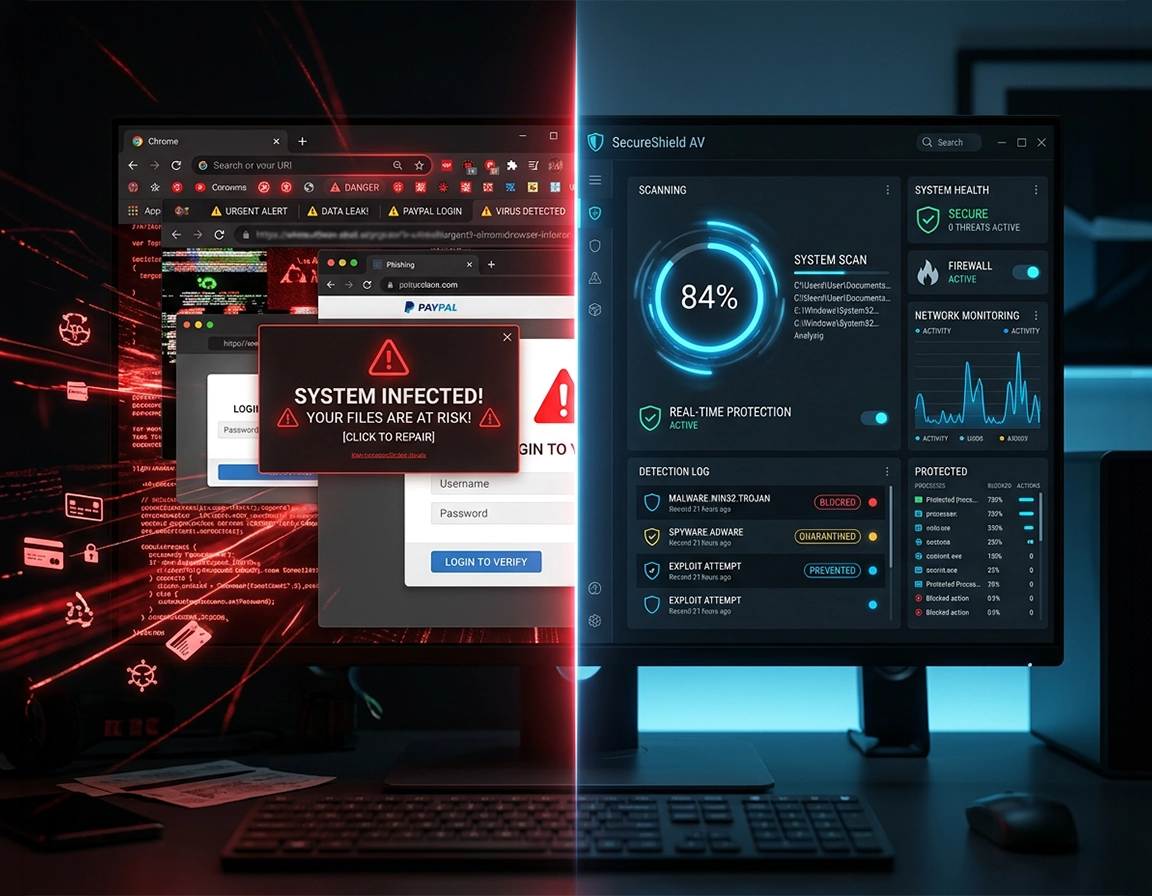
Where the boundary sits between browser scanning and system scanning .
Most comparison pages flatten this topic into a brand fight. That misses the operational question. The useful distinction is what the product can observe, when it can intervene, and what remains visible after Chrome hands work to the operating system. A Chrome security extension lives in the browsing context. It can help score URLs, flag phishing pages, warn on deceptive search results, inspect some request patterns, and sometimes add reputation checks to downloads before a user opens them. That makes it strongest at the decision moment inside the tab.
Desktop antivirus starts later in the chain and sees more of the machine. It can inspect files written to disk, monitor extraction from archives, evaluate parent-child process launches, watch for suspicious memory behavior, and keep protecting the device after Chrome is closed. That matters because many incidents users describe as “Chrome gave me a virus” are not caused by page rendering alone. The damage begins after a browser action causes something else to happen: a dropped executable starts, a script launches a system process, a document opens in another app, or a hijacker reappears after reboot because persistence was planted outside the browser profile.
The easiest way to keep the model straight is to divide the attack chain into phases. Before the click, an extension or Chrome Safe Browsing can steer you away from a hostile destination. At download time, both browser-level reputation and local scanning may contribute. After the file is saved, unpacked, opened, or executed, desktop antivirus becomes the primary control. Once you think in phases instead of marketing labels, the overlap becomes smaller and the gaps become easier to spot.
Related: For the wider protection cluster, continue with browser-level malware protection tools for Chrome, best Chrome malware protection extensions, and Chrome malware scan with antivirus.
The short comparison without vendor language .
| Question | Antivirus extension | Desktop antivirus |
|---|---|---|
| Can it warn before you open a hostile page? | Often yes. This is one of its best jobs. | Sometimes, but usually with less visible in-tab feedback. |
| Can it evaluate a file after download? | Limited, inconsistent, and product-dependent. | Yes. File inspection is core coverage. |
| Can it detect malware already active on the machine? | Usually no. | Yes, subject to engine quality and settings. |
| Can it help with malicious extensions, injected shopping overlays, or search-result manipulation? | Often yes, because it works near the browser surface. | Sometimes indirectly, but not with the same browser-context visibility. |
| Can it recover a system that stays infected after reboot? | No. | It is the more relevant layer for that job. |
| Can it replace the other category completely? | No. | Closer to yes for broad device defense, but still weaker at browser-first social engineering prevention. |
Where each layer fails when used alone .
An antivirus extension on its own leaves a specific blind spot: it can improve your odds before a mistake, yet become nearly irrelevant once the mistake turns into a system event. Picture a fresh scam domain pushing a fake document portal. The extension may not know the domain yet. You download a password-protected ZIP, extract it, and open a file that spawns a local process. The important control is no longer the badge inside Chrome. It is the scanner watching the archive, the unpacked file, the child process, and any follow-on persistence attempt.
Desktop antivirus on its own has the opposite weakness. It often enters the story after the user has already interacted with a credential theft page, granted risky extension permissions, or been manipulated by a scare prompt inside the browser. No file needs to land on disk for the user to lose an account, approve a malicious OAuth screen, or hand a hostile extension permission to read and change page data. Those are browser-session losses, not classic “virus on the hard drive” events.
Chrome users also confuse three different problem types: malware, browser abuse, and annoying but non-malicious clutter. Malware is the classic device-level threat. Browser abuse includes search hijacking, aggressive extension behavior, injected affiliate overlays, tab manipulation, and deceptive permission prompts. Clutter is the pile of coupon tools, “safe search” helpers, and pseudo-privacy add-ons that make browsing feel polluted without looking like a virus alert. Desktop antivirus is strongest against the first category. Extension review and browser policy hygiene matter more in the second and third.
A second blind spot appears when users treat the browser as the whole computer. If a hijacker returns after restart, if the homepage snaps back even after Chrome reset, or if odd network behavior appears outside Chrome, the machine probably has a persistence element beyond the profile folder. In that state, installing another security extension is like replacing a door chain while the lock cylinder is already broken.
Related: If symptoms point to extension abuse, read Chrome extension permission abuse detection and Chrome extension security check. If the concern is active infection, move to how to check if Chrome has a virus and how to scan Chrome for malware.
Single-layer mistakes that cause the most bad outcomes .
- “I use a security extension, so I do not need antivirus.” That fails the moment a download is saved, unpacked, opened, or relaunched after reboot.
- “I already have desktop antivirus, so any extension is fine.” That ignores browser-level data access, page manipulation, and permission abuse.
- “Chrome blocked one unsafe file before, so it will catch everything.” Safe Browsing is strong, but it is still one layer in a larger chain.
- “This extension has millions of installs, so the permission scope is harmless.” Popularity does not shrink host permissions, cookie access, or update risk.
Six real Chrome scenarios and which layer matters most .
Scenario 1: a search result leads to a convincing fake login page .
This is browser-first territory. The danger is not a file; it is credential capture inside a page that looks legitimate enough to fool a rushed user. Chrome Safe Browsing and a reputable browser-layer reputation tool matter more here than disk scanning. A desktop engine may never see a malicious executable because there is none.
Scenario 2: a download looks harmless until you extract the archive .
Now the center of gravity shifts. An extension may help with early reputation signals, but the decisive layer is the one evaluating the archive, the extracted files, and any process that launches from them. This is where desktop antivirus earns its keep, especially on machines used for installers, invoices, templates, cracked software, or random utilities from forums.
Scenario 3: Chrome feels hijacked, but other apps look normal .
The browser opens sponsored redirects, shopping pages show injected comparison widgets, and the default search engine keeps drifting back. That symptom pattern often points to extension abuse, profile tampering, or a browser hijacker that began in Chrome. Start with extension inventory, permission review, site notification cleanup, and profile settings. Run a full system scan as well, but the most legible evidence is usually still inside Chrome.
Scenario 4: a file runs once and the computer slows down after restart .
This is no longer a browser-comparison question. Once symptoms survive browser restart, affect other applications, or come back after extension removal, the browser is only one visible casualty. The relevant control is desktop antivirus or broader endpoint tooling, not an extension store add-on.
Scenario 5: you manage a work laptop with an endpoint agent already installed .
In managed environments, consumer-style security extensions often add less value than buyers expect. Endpoint scanning, policy controls, extension allowlists, and Safe Browsing configuration may already cover the highest-value controls. The better question becomes whether a browser extension adds a meaningful phishing or reputation signal without introducing extra permissions, user confusion, or alert fatigue.
Scenario 6: you care more about data leakage than classic malware .
This is where many comparison pages go off track. A privacy-sensitive user can be harmed by a “security” extension that reads every page more than by a traditional malware sample they are unlikely to download. If the main risk is browsing-data exposure, a minimal extension footprint plus strong desktop protection is often cleaner than layering multiple browser add-ons that all want access to every site.
Related: For adjacent comparisons, continue with free vs paid antivirus for Chrome, antivirus vs browser protection for Chrome, best malware removal tool for Chrome, and endpoint security for Chrome users.
Which layer should carry the budget and trust burden .
If you have to choose where the serious protection budget goes, desktop antivirus should win for almost every home user who downloads files, opens attachments, installs software, or shares a device with less cautious users. It covers the broader consequence space. An extension can lower exposure upstream, but it does not own the machine after something crosses into local execution.
That does not make the extension category unimportant. It means its role should be framed more precisely. A good security extension is an early-warning control, not a recovery engine. It is useful when you want clearer phishing signals, sharper page reputation cues, or an extra decision checkpoint before entering credentials or clicking through suspicious interstitials.
The strongest everyday setup for most Chrome users is not “as many security products as possible.” It is a layered arrangement with clear job boundaries: Chrome Safe Browsing enabled, a restrained extension only when it provides a concrete browsing advantage, and a reputable desktop engine handling files, processes, and post-download behavior. That combination reduces both click risk and cleanup risk without turning the browser into a stack of overlapping monitors.
Recommended setups by user profile .
| User profile | Best baseline | Why it fits | Main caution |
|---|---|---|---|
| Light browser user | Chrome Safe Browsing + reputable desktop antivirus | Covers common phishing and download risk without extra extension clutter. | Do not mistake low download volume for low credential risk. |
| Frequent downloader | Desktop antivirus as primary, extension as secondary | Archive handling, file reputation, and runtime scanning matter most. | Password-protected archives and bundled installers sharply increase risk. |
| Shopping / coupon-heavy browsing | Desktop antivirus + strict extension hygiene | This profile is heavily exposed to affiliate injection, sketchy overlays, and search redirection. | Avoid stacking page-modifying extensions. |
| Managed business device | Endpoint protection + extension policy management | Governance and fleet controls beat random add-ons. | Consumer security extensions can create compliance and visibility gaps. |
| Privacy-sensitive user | Desktop antivirus + minimal extension footprint | Reduces both malware exposure and unnecessary browser data access. | Some security extensions collect more browsing data than users expect. |
When a browser extension earns its place .
- You want earlier warnings on risky pages, typo domains, deceptive search results, and suspicious forms.
- You are on a managed device where endpoint protection already exists and the browser layer is the main gap.
- You can explain the extension’s permissions and accept its data-access tradeoff.
When desktop antivirus is not optional .
- You download installers, scripts, ZIP files, Office documents, templates, mods, or utilities from mixed sources.
- You suspect a problem survives reboot or affects more than Chrome.
- You support other users on the same machine and cannot rely on perfect click judgment every time.
How to judge an antivirus extension before you install it .
The quality of an antivirus extension is tied less to its branding than to its access pattern. Broad host permissions, web-request visibility, content-script injection, and cookie-related access can all be defensible in the right design. They can also be overreaching. The core question is whether the vendor explains why each permission is necessary and whether the claimed benefit matches the level of access being requested.
A practical red flag is an extension that promises generic “AI protection” while asking for permanent access to all sites without a clear explanation of what data is inspected, where it is processed, and which parts are optional. A more trustworthy product will distinguish between page reputation, phishing detection, download reputation, permission review, and any local desktop component rather than blurring them into one vague shield icon.
Another useful signal is whether the vendor is candid about limits. Products that admit “this extension helps with malicious websites and phishing pages, but full malware cleanup requires the desktop application” are usually easier to trust than those implying the add-on alone is a complete anti-malware platform.
- Does the vendor explain why it needs access on all sites?
- Is there a privacy policy specific enough to match the scanning claims?
- Can you tell whether protection is browser-only or tied to a local engine?
- Are update notes current, or does the listing look neglected?
- Does the product page describe detection scope, or only show marketing badges?
Related: Go deeper with Chrome extension host permissions explained, read and change data explained, and how to check if a Chrome extension is safe.
How to troubleshoot suspicious behavior in Chrome without misdiagnosing it .
Users comparing extensions with desktop antivirus are often responding to a symptom, not making a clean product decision. Search results jump through ad-heavy redirectors. Chrome blocks one file but another slips through. The homepage returns after reset. Tabs keep opening to fake alerts. The fastest way to waste time is to treat every symptom as the same kind of infection.
Signs the problem is mostly page-level .
You are seeing cloned login pages, sketchy interstitials, or scary pop-ups, but the rest of the machine behaves normally. Start with Safe Browsing, tab-level caution, and extension review. This is the zone where a browser-layer tool can prevent the next bad click, and where Chrome’s own warnings may already be doing most of the work.
Signs the problem is mostly profile-level .
Your startup page changes back, the default search provider returns, one Chrome profile behaves oddly while another profile is normal, or notification spam continues from a handful of sites. Audit extensions, remove anything unrecognized, check search engine settings, review startup pages, and revoke abusive notification permissions. Then scan the machine anyway, because some hijackers repopulate the profile from outside Chrome.
Signs the problem is system-level .
Unknown processes come back after reboot, performance drops across several apps, files relaunch, or the browser problem is only one symptom among many. At that point, stop thinking in terms of “which extension should I add?” and treat the device as the unit that needs diagnosis and cleanup.
A sequence that avoids circular cleanup .
- 1 Review extensions by install date and remove anything unfamiliar, duplicated, or installed for a one-off site visit.
- 2 Check search engine settings, startup pages, site notifications, and content-setting exceptions for entries you do not trust.
- 3 Run a full desktop antivirus scan, not just a browser cleanup or quick scan.
- 4 If symptoms persist, reset Chrome settings or test in a fresh profile before reinstalling extensions.
What success looks like: redirects stop, search settings stay fixed after reboot, surprise notifications disappear, and a follow-up system scan remains clean. If the same behavior comes back after restart, the underlying issue is not resolved.
Related: Continue with Chrome browser hijacker removal, Chrome unwanted extensions removal, Chrome security reset, and the main hub remove malware from Chrome.
FAQ .
-
helpCan a Chrome antivirus extension replace desktop antivirus?No. An extension can lower exposure to phishing pages, malicious links, and suspicious browsing events, but it does not provide the same visibility into saved files, launched processes, memory behavior, or persistence after reboot. It is an upstream filter, not a full substitute for endpoint protection.
-
helpWhich one matters more for phishing in Chrome?For phishing that happens entirely on a webpage, browser-layer protection usually matters more because the damage occurs before any payload lands on disk. Chrome Safe Browsing and a reputable reputation-based extension can both help at that earlier decision point.
-
helpWhich one matters more for downloaded malware?Desktop antivirus is the more important layer once a file is saved, unpacked, opened, or executed. If your browsing regularly leads to installers, ZIP files, scripts, or document attachments, system-level scanning should be treated as baseline protection.
-
helpShould I install multiple security extensions in Chrome?Usually no. Stacking several page-modifying security extensions can create overlapping warnings, extra permissions, and noisy troubleshooting. One restrained extension with a clear role is usually cleaner than a pile of partially redundant add-ons.
-
helpDoes Chrome Safe Browsing make a separate antivirus extension unnecessary?Sometimes, depending on your habits. For users who browse cautiously and do not install much software, Safe Browsing plus good desktop protection may already cover the highest-value risks. A separate extension needs to justify its permissions with a concrete benefit, not just a security-themed icon.
Sources & further reading .
- Chrome for Developers: declare permissions and host permissions
- Chrome for Developers: content scripts and host-permission behavior
- Chrome for Developers: permissions API and required vs optional access
- Google Chrome Help: choose your Safe Browsing protection level
- Google Chrome Help: Chrome blocks some downloads
- Chrome Releases: stable channel update for desktop
Disclosure: This page compares scope, timing, and operational fit. A bigger feature checklist can still leave the wrong layer weak for the way a Chrome user browses, downloads, and recovers from problems.