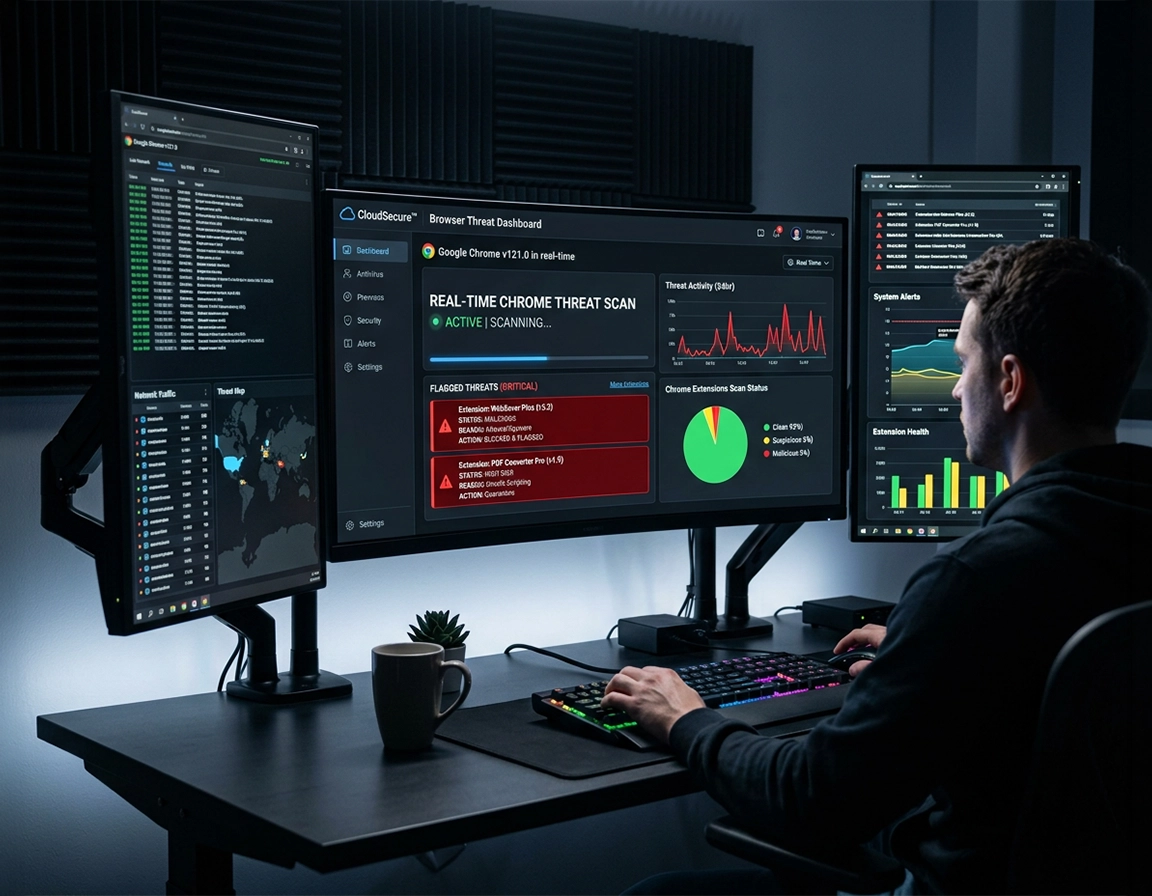
What cloud antivirus for Chrome covers .
Chrome can warn, block, isolate, and limit damage. It cannot vacuum every infected file off a compromised operating system.
“Cloud antivirus for Chrome” is one of those phrases that attracts commercial traffic because it sounds simple, yet the underlying security stack has several layers. In practice, the phrase can point to four different things: Chrome Safe Browsing checks against malicious URLs and downloads; a security extension that inspects pages, scripts, or categories in real time; an operating system control that evaluates files downloaded through Chrome using cloud reputation; or a full endpoint product that ships browser telemetry back to a cloud console and makes decisions there.
The confusion matters because buyers often expect a browser add-on to solve a device compromise. If the damage is limited to a bad site, a malicious ad chain, or a suspicious extension asking for broad host permissions, cloud-assisted browser protection can stop the problem early. If a user already ran a trojanized installer, granted remote desktop access after a fake support alert, or allowed a stealer to persist in the user profile, Chrome is only one small part of the cleanup path.
The strongest use case for cloud antivirus around Chrome is speed. Cloud reputation services can score a URL or file hash in near real time, flag patterns seen across many devices, and push verdict changes without waiting for a full signature update on every endpoint. That model is useful when a phishing kit rotates domains every few hours, when an extension update adds risky permissions, or when a newly hosted installer has almost no reputation and should be treated with suspicion.
The weak spot is depth. A browser-facing cloud control sees browsing activity, downloads, extension permissions, and sometimes DNS or network metadata. It does not automatically see persistence outside the browser, scheduled tasks, registry abuse, kernel drivers, lateral movement, or post-execution behavior unless it is backed by a broader endpoint product. That is the line many landing pages blur, and it is where poor buyer decisions start.
Related: If your main worry is malicious add-ons rather than downloaded files, read Best Chrome Malware Protection Extensions and Chrome Extension Permission Abuse Detection.
Key terms you should separate before comparing products .
- URL reputation: a cloud service checks whether the destination site, redirect chain, or download host has been associated with phishing, malware delivery, abuse, or suspicious behavior.
- File reputation: the system evaluates a downloaded file using hash prevalence, signing status, age, cloud detections, and behavioral signals gathered from other endpoints.
- Extension risk: the browser or admin tooling evaluates permission requests, update changes, install source, publisher history, and runtime behavior patterns.
- Post-execution detection: the antivirus watches what happens after a file runs, which is where browser-only protection usually stops and endpoint security takes over.
Before you buy or enable anything .
The quickest way to waste money in this category is to solve the wrong problem. A freelancer who only wants safer downloads in Chrome needs a very different stack from a remote company trying to stop credential harvesting, control extension sprawl, and explain security posture to an auditor.
Start with the failure mode you are seeing. If the complaint is “Chrome warned me before a download,” you are dealing with preventive reputation controls. If the complaint is “Chrome opens strange tabs on startup and my search engine keeps switching back,” you may already be dealing with a hijacker or policy abuse. If the complaint is “our staff keep installing sketchy extensions that can read and change data on all sites,” the buying conversation shifts toward extension governance, allowlisting, and admin visibility.
Related: If you are mapping browser protection against broader device coverage, compare this page with Endpoint Security for Chrome Users and Antivirus Extension vs Desktop Antivirus.
- Check the enforcement layer: browser extension, browser setting, operating system feature, secure web gateway, or full endpoint suite.
- Check the target platforms: many “Chrome protection” claims quietly rely on Windows-only reputation features or separate agent installs on macOS.
- Check how suspicious files are handled: blocked before download, warned before opening, detonated in a sandbox, or only flagged after execution.
- Check extension governance: products aimed at business fleets should cover permission review, install controls, and reporting on risky changes.
- Check offline behavior: some protections lose teeth when a device is away from the internet because the cloud verdict is the product.
- Check privacy posture: cloud protection often means some browsing or download metadata leaves the device for analysis.
One more practical question: do you need cleanup or only prevention? If Chrome is already throwing fake support alerts, forcing a new homepage, or reinstalling an add-on after removal, treat the session like an incident. A cloud antivirus subscription can still help later, but the current need is evidence collection, extension review, profile reset, account hardening, and an operating-system scan.
Recommended setup for browser-level protection .
A solid Chrome setup uses the browser’s own protective checks first, then lets the operating system or endpoint product inspect what gets downloaded, and only adds a separate extension when it solves a specific gap. That order matters because it avoids overlapping tools that all want to intercept browsing while giving you better coverage at the point where files leave the browser sandbox.
- 1 Open Chrome and go to Settings → Privacy and security → Security. Review your Safe Browsing level and make sure the browser is not left in a weaker state after previous troubleshooting.
- 2 Use Enhanced Safe Browsing if you are comfortable with the stronger cloud-assisted model and want faster protection against dangerous sites, downloads, and extensions. This is the clearest built-in example of cloud-backed browser protection in Chrome.
- 3 Audit installed extensions at chrome://extensions. Remove anything unused, anything installed outside your normal workflow, and anything whose permission scope is broader than its feature set justifies.
- 4 Keep OS-level reputation and antivirus checks enabled so files downloaded by Chrome are evaluated after they land on the device. Browser prevention without post-download inspection leaves a gap for disguised installers and archive-based payloads.
- 5 On business devices, enforce browser policies centrally. Extension allowlists, install source restrictions, and reporting beat one-off user education every time.
What success looks like: risky sites are blocked before the page fully loads, suspicious downloads draw warnings before users run them, unknown extensions do not spread unchecked, and your security team can explain which control stopped what.
Related: For broader preventive hardening, continue with Chrome Secure Download Settings, Chrome Safe Browsing Best Practices, and How to Prevent Malware in Chrome.
Where each step pays off in daily use .
Step one catches the common case where someone disabled protections to download a cracked utility, a game mod, or an unsigned “browser speed booster” months ago and forgot. Step two matters when phishing pages rotate domains too fast for old-school local lists to keep up. Step three is essential because many browser compromises begin with users granting an extension access to every site they visit, not with an obvious virus pop-up. Step four is where compressed archives, office documents with payloads, and low-prevalence installers are more likely to be evaluated beyond the browser. Step five is what prevents the same incident from hopping between machines in a team.
Common variations by platform .
- Windows: the strongest “Chrome plus cloud antivirus” story usually combines Chrome’s web protections with Microsoft Defender or another endpoint suite doing reputation and behavioral analysis on downloaded files.
- macOS: browser-side protection remains important, but vendor coverage and post-download inspection models differ more widely than on Windows, so product fit matters.
- ChromeOS: the browser and operating environment are closer together, which reduces some attack surface, but extension risk, phishing, and account compromise remain front-line concerns.
- Android and iPhone: “Chrome antivirus” language is often oversold here; most real value comes from safe browsing, risky-site blocking, and safer account or app behavior rather than desktop-style antivirus workflows.
Advanced controls, tradeoffs, and enterprise fit .
High-intent buyers are usually not asking whether Chrome can warn on a bad page. They are asking whether a cloud-managed product can make browser risk visible at scale, reduce investigation time, and cut off obvious user-driven mistakes before they become tickets or breaches. That is where the better products differentiate: policy enforcement, reputation intelligence, extension governance, incident timelines, and integration with the rest of the endpoint stack.
Related: For managed-browser scenarios, keep nearby Chrome Enterprise Endpoint Security, Chrome Enterprise Threat Removal Guide, and Remove Malware from Managed Chrome Devices.
When cloud antivirus for Chrome makes sense .
- Remote teams: staff download tools, attachments, invoices, media packs, and installers from unmanaged home networks all day, so cloud verdict speed matters.
- Fast-moving phishing exposure: your users click links from email, chat, CRM notifications, and ad platforms where short-lived domains are common.
- Extension sprawl: your organization needs visibility into which extensions request broad host permissions and whether those installs are still justified.
- Small security teams: you need a cloud console and clearer browser-related telemetry because there is no time for manual triage on every machine.
- Compliance pressure: auditors do not care about marketing terms, but they do care that risky browser activity can be controlled, logged, and explained.
When the phrase is hiding a thin product .
- The “solution” is only a Chrome extension with vague promises and no explanation of download handling or file execution.
- There is no clear admin story for policy, reporting, or response beyond uninstalling the extension.
- The vendor talks about AI scanning but never states whether verdicts occur before download, after download, or only after a file runs.
- There is no coverage discussion for macros, archives, script droppers, or persistence beyond the browser profile.
There is also a performance angle buyers should not ignore. Browser-based security layers can affect page load timing, SSL inspection behavior, extension overhead, and support volume on sites that run aggressive scripts or unusual login flows. When users say “the security software broke Chrome,” the root cause is often a compatibility choice rather than a bad product. URL filtering, content inspection, download detonation, extension enforcement, and identity checks each add friction in different places. Your goal is not zero friction. Your goal is well-placed friction that blocks expensive mistakes without making staff bypass the tool.
Common alternatives buyers compare .
Privacy, telemetry, and security implications .
Cloud protection works because the product sees enough context to ask the cloud a useful question. That usually means URL details, download metadata, file hashes, publisher information, extension identifiers, and in some cases browsing events that help a vendor spot abuse patterns early. Users and admins should understand that stronger cloud verdicts often require stronger telemetry.
Impact: better detection against phishing, malicious downloads, and abusive extensions, but more browser or file metadata may be transmitted for analysis and reputation checks.
Related: If your concern is browser hardening after the antivirus discussion, go next to Chrome Security Hardening for Malware, Chrome Secure Browser Configuration, and Chrome Anti-Phishing Settings.
Recommended baseline choices .
- Option A (balanced): Chrome Enhanced Safe Browsing plus OS-level antivirus and a strict extension diet. This is strong enough for most individual users and many small teams.
- Option B (higher-control business setup): managed Chrome policies, cloud-managed endpoint security, extension governance, and central reporting on risky browsing events.
- Option C (compatibility-first environment): standard Safe Browsing with post-download antivirus scanning and careful exceptions for legacy line-of-business sites that break under heavier inspection.
Recommended setup by goal .
| Goal | Recommended setup | Main tradeoff | Best for |
|---|---|---|---|
| Balanced daily protection | Chrome Enhanced Safe Browsing + built-in OS antivirus + extension cleanup | Less central visibility than a full managed suite | Home users, freelancers, small teams |
| Maximum managed coverage | Cloud-managed endpoint security + Chrome policies + extension allowlisting + threat reporting | Higher cost, more admin work, more telemetry | Businesses, remote fleets, regulated teams |
| Compatibility-sensitive setup | Standard Safe Browsing + post-download scans + selective browser controls | Weaker early blocking against some new threats | Legacy apps, fragile web workflows, support-heavy environments |
Three privacy questions smart buyers ask .
First, what data leaves the browser or device when a file is checked? Second, how long is it retained and for what security purpose? Third, can the organization tune protections without collecting more than it needs? Those questions separate mature security vendors from landing pages built around buzzwords.
Troubleshooting when Chrome still looks infected .
Related: Use these deeper cleanup guides where needed: Chrome Browser Hijacker Removal, Chrome Remove Malicious Extensions, Chrome Profile Reset Guide, Chrome Browser Hacked: How to Fix.
If Chrome keeps opening random tabs or your search engine changes back .
Treat that as a hijacker or policy problem, not a simple “bad site” event. Review installed extensions, pinned policies, startup pages, search engine settings, and shortcuts. Then run a full device scan because a browser symptom can be driven by something living outside the browser. Cloud antivirus aimed at download reputation helps prevent the next incident; it does not guarantee the current persistence is gone.
If a downloaded file was blocked and users want to bypass the warning .
Slow the workflow down before anyone clicks through. Ask where the file came from, whether the publisher is expected, whether the download host is new, and whether the file is signed. Low-prevalence business tools sometimes trigger warnings, but that is not evidence of safety. In a team setting, route the sample through IT or security instead of training staff to normalize download overrides.
If the browser feels slow after adding a security extension .
Measure before you blame. Disable overlapping security add-ons one by one, inspect extension permissions, and note which pages break. Some users install a DNS filter extension, an ad blocker, a script blocker, a shopping plugin, a coupon add-on, and a “safe browsing” extension at the same time, then call the slowdown an antivirus problem. The browser stack itself becomes the issue.
If you need to reset safely .
Export or sync only what you trust, remove unknown extensions, sign out if account compromise is suspected, reset Chrome settings, and inspect the operating system afterward. Resetting the browser without checking the device can leave the trigger behind. On work devices, preserve evidence first if the event could matter for incident reporting or insurer questions.
If a cloud antivirus product says you are safe but symptoms remain .
Look at scope mismatch. The product may be excellent at blocking phishing domains and low-reputation downloads while missing persistence in scheduled tasks, launch agents, profile scripts, or policy abuse. That does not mean the product failed at its job. It means the job was narrower than the symptom set.
FAQ .
-
helpDoes Chrome have its own cloud antivirus?Chrome has cloud-assisted security features rather than a classic standalone antivirus engine. Safe Browsing can check sites, downloads, and some extension-related risks against Google’s protective systems, but deep file disinfection and post-execution malware response usually come from the operating system or a separate endpoint product.
-
helpIs a browser extension enough for malware protection in Chrome?It can help with page reputation, category filtering, script blocking, or extension-specific controls, but it is not enough for every threat path. Once a harmful file runs outside the browser, you need operating-system or endpoint-level detection to catch behavior that a Chrome extension cannot see.
-
helpWhat is the main advantage of cloud antivirus for Chrome?Speed and shared intelligence. Cloud systems can learn from many observed events, score new domains or files quickly, and update verdicts without waiting for every endpoint to pull a traditional signature package.
-
helpWhat is the biggest limitation?Scope. Browser-focused cloud protection is strong against risky sites, downloads, and extension abuse, but it does not replace full incident cleanup when a device has already been compromised outside Chrome.
-
helpShould businesses rely only on Chrome settings?No. Chrome settings are an important front-line layer, especially for blocking malicious pages and reducing unsafe browser behavior, but business environments usually need policy management, extension governance, logging, and endpoint response beyond the browser.
Sources & further reading .
- Google Chrome Help: Safe Browsing protection levels
- Google: Enhanced Safe Browsing for your account
- Google: how Safe Browsing protects browsing data
- Chrome for Developers: permission warning guidelines
- Chrome for Developers: declare permissions
- Chrome Enterprise: understanding extension permission risk
- Microsoft Defender SmartScreen overview
- Microsoft: App & browser control in Windows Security
- CISA: securing web browsers and defending against malvertising
Disclosure: This page explains browser-security approaches and buying considerations. It does not claim that one browser setting can replace full device remediation after a serious malware event.