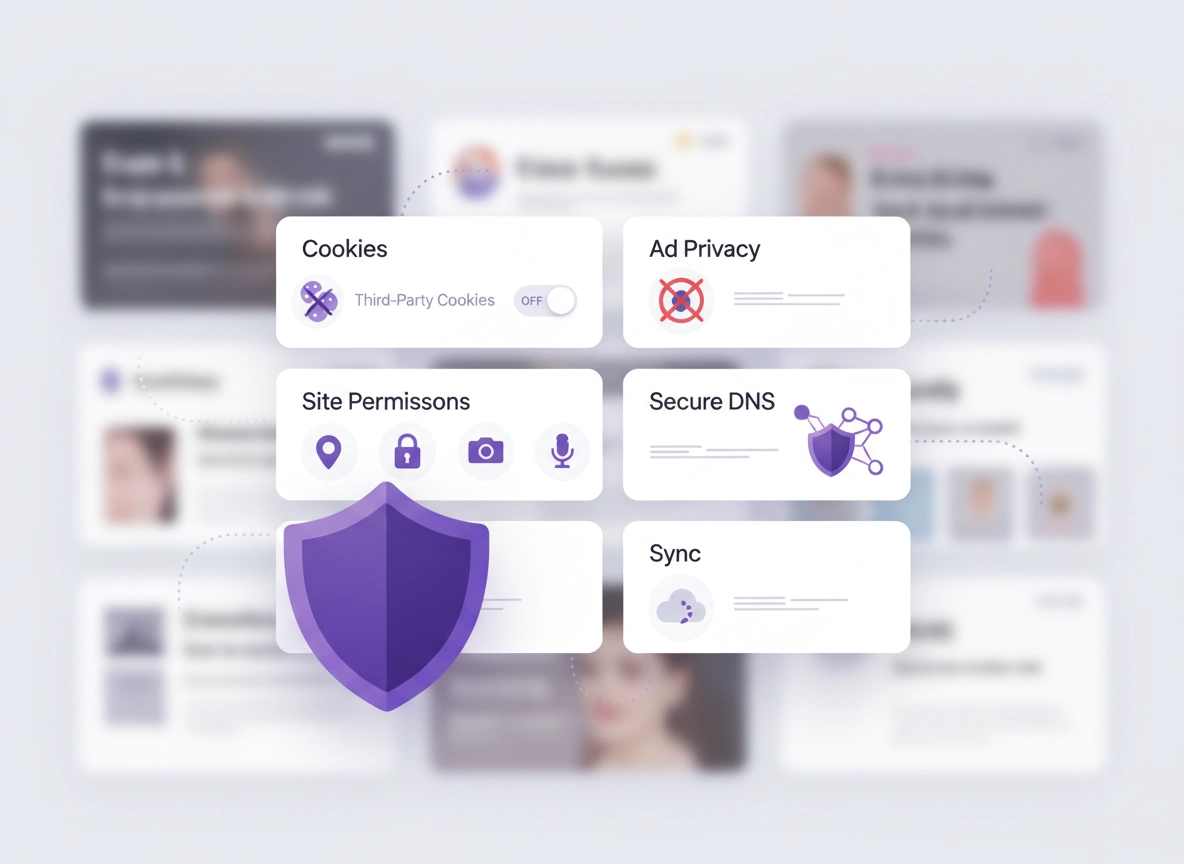
What “best practices” means (and what it doesn’t) .
This guide is designed for real life: strong privacy defaults, clear tradeoffs, and enough compatibility that you don’t abandon the setup after a week.
“Chrome privacy best practices” isn’t one magic toggle. It’s a small set of decisions that reduce the most common kinds of tracking: cookie-based tracking (especially third-party cookies), permission-based tracking (location, notifications, camera/mic), account-level data sharing (sync and Google services), network-level metadata (DNS lookups, Wi-Fi threats), and extension-based data access (the #1 privacy foot-gun for many users).
Also: privacy is not the same as anonymity. Chrome privacy settings reduce tracking and data exposure, but they don’t make you invisible to websites, employers, schools, your ISP, or advanced fingerprinting on their own. If your goal is anonymity or bypassing surveillance, you’ll likely need a different tool stack (and a different threat model). For most people, the goal is simpler and extremely valuable: reduce unnecessary data collection while still using banking, email, and work apps without constant breakage.
Think of this guide as a privacy budget: you want the maximum protection per minute of effort and per unit of website compatibility. The baseline steps below hit the biggest wins first, then the advanced section lets you layer on protection as needed.
Related: Want the full menu tour? Start with Chrome Privacy Settings and then go deeper with Advanced Chrome Privacy Settings.
Key terms (quick definitions) .
- Third-party cookies: Cookies set by a domain other than the site you’re visiting (often used for cross-site tracking). See third-party cookies settings.
- Site permissions: Access requests (location, camera, mic, notifications, clipboard, popups) stored per site. See site permissions.
- Tracking protection: Chrome features that reduce known tracking behaviors (cookie controls, certain anti-tracking features, and protection layers). See tracking protection.
- Browser profile: A separate Chrome “container” with its own cookies, extensions, history, saved passwords, and settings. See profile privacy setup.
- Sync: Uploading browser data (bookmarks, passwords, history, settings) to a Google account so it appears on other devices. See sync settings and disable sync.
- Secure DNS / DoH: Encrypting DNS queries so your network can’t easily see every domain you request. See DNS over HTTPS settings and Secure DNS setup.
Before you start (fast checks) .
These quick checks prevent the two biggest causes of “privacy setup failed”: (1) you’re changing the right settings but in the wrong profile/device, or (2) an extension or policy is overriding you.
- Confirm your profile: Click your profile icon (top right). Make sure you’re changing settings in the profile you actually use for daily browsing.
- Check if Chrome is managed: In some environments, an admin enforces policies (school/work). If you see “Managed by your organization,” some toggles may be locked.
- Update Chrome first: UI labels and locations shift. Update safely if needed: Get or Update Chrome.
- Run a quick security scan: Use Chrome Security Checkup and Password Checkup to remove obvious risks.
- Audit extensions: Privacy setups often fail because of one over-permissive extension. Start here: privacy extensions guide and extension security check.
Related: If you’re doing this because Chrome feels “off” (popups, redirects, hijacks), first read Remove Malware from Chrome and remove unwanted extensions.
Decide your privacy goal (30 seconds) .
Your “best practices” depend on what you’re protecting against. Pick the closest match:
- Goal A — Balanced daily privacy: Reduce ads + tracking while keeping shopping, banking, and logins smooth.
- Goal B — Maximum privacy on a normal browser: Accept some breakage (especially on login flows) for stronger tracking resistance.
- Goal C — Work/enterprise hygiene: Reduce risk, data leakage, and extension exposure with stable defaults and audit trails.
Step-by-step baseline (recommended) .
This baseline is intentionally “boring” and effective. It focuses on the settings that (a) produce real privacy wins and (b) don’t require constant babysitting. If you complete this section, you’ll have a privacy configuration that’s stronger than what most people run—even many “privacy extension” stacks.
- 1 Block (or limit) third-party cookies in Chrome settings and keep a short allowlist for sites that need them (payments, SSO, embedded tools).
- 2 Lock down site permissions (especially notifications, location, camera/mic) and remove stale “Allow” entries you don’t recognize.
- 3 Review ad privacy / measurement settings and turn off personalization features you don’t want.
- 4 Limit sync and account sharing (or separate profiles) so browsing data doesn’t automatically travel everywhere.
- 5 Enable Secure DNS (DoH) for network privacy, and avoid “leaky” setups on public Wi-Fi.
- 6 Audit extensions and remove anything that can “read and change data on all sites” unless you truly need it.
- 7 Set a data hygiene routine: auto-delete cookies (or clear browsing data) on a schedule for high-risk profiles.
What “success” looks like: You see fewer cross-site ads that “follow you,” sites stop asking for random permissions, you have a clean profile for sensitive work, and your browser feels more predictable. Some sites may ask you to re-authorize sign-ins after cookie changes—that’s normal.
Related (baseline path helpers): Third-party cookies · Site permissions · Ad privacy settings · Sync settings · DNS over HTTPS
1) Cookies: reduce cross-site tracking first .
Cookies are still one of the most widely used tracking mechanisms because they’re simple, durable, and work across huge parts of the web. The good news: the privacy win from controlling cookies is massive—and you can do it without breaking most sites.
Start with the focused guides: Chrome third-party cookies settings and how to block third-party cookies. If you want stricter hygiene, add auto-delete cookies in Chrome.
Why it works: Cross-site tracking largely depends on third parties being able to set/read identifiers across many sites. Blocking them breaks that loop.
Cookie hygiene quick rules .
- Don’t nuke all cookies globally unless you enjoy logging in every 10 minutes. Be precise: target third-party cookies first.
- Use “clear on exit” for a sensitive profile (banking/health/admin), not your daily profile.
- Watch for “embedded” failures: If a login box inside another site fails, it’s often third-party cookies. Add a per-site exception instead of turning tracking back on everywhere.
- Keep a short exception list: If your exception list keeps growing, the problem is usually an extension or a broken identity flow, not “privacy settings.”
2) Site permissions: remove the “silent data leaks” .
Many users think privacy is mostly cookies. In reality, permissions can leak far more sensitive information—especially location, notifications, camera/mic, and background sync. The best practice is simple: set strict defaults and grant permissions only when you’re using the feature right now.
Use this as your main reference: Chrome site permissions settings. Then tighten the high-risk ones: location, camera, microphone, notifications, and background sync.
| Permission | Best-practice default | Why | Grant only to… |
|---|---|---|---|
| Notifications | Block / Ask (strict) | Abused for spam, scams, and persistent tracking prompts | Calendar/chat tools you trust |
| Location | Ask | High-sensitivity data, often unnecessary | Maps, ride-hailing, local delivery |
| Camera / Mic | Ask | Direct access to audio/video devices | Video meeting tools |
| Background sync | Block or limit | Can refresh data even when you’re not on the site | Mail/task tools where needed |
| Pop-ups / redirects | Block | Common in adware and scam flows | Specific sites you trust |
Practical move: Open your permissions list and remove anything you don’t recognize. “Allow” entries accumulate over years and quietly expand your exposure.
3) Safe Browsing: pick the right protection level .
This is where privacy and security overlap. Safe Browsing helps protect you from malicious sites, dangerous downloads, and phishing. The tradeoff is that stronger protection features may share more data (or send more telemetry) to detect threats. For most people, the best practice is to choose a setting that matches your risk level and workflow.
Start here: Safe Browsing settings and Enhanced Safe Browsing. If you often open unknown links (social media, email, Discord, unfamiliar downloads), stronger protection is usually worth it.
Recommended default (higher risk): Enhanced protection if you’re frequently exposed to unknown links/files, use public Wi-Fi, or manage sensitive accounts. Combine it with a clean profile and tight extensions for best results.
If your goal is privacy first, you can still run strong anti-malware habits without turning your browser into a data firehose: keep Chrome updated, avoid risky extensions, and use the built-in Security Checkup.
4) Ad privacy & “topics” style features .
Chrome includes ad-related settings that influence personalization and measurement. Depending on your region and Chrome version, labels can vary (for example, “Ad privacy,” “Privacy Sandbox,” “Topics,” “Measurement,” or “Site-suggested ads” style toggles). The best practice is consistent: disable ad personalization features you don’t want, and keep measurement minimal.
Follow this guide for the exact path: Chrome ad privacy settings, plus Privacy Sandbox explained. If you want a quick reality check on what’s myth vs. real risk, read Chrome privacy myths and Chrome privacy risks.
Best-practice approach: Turn off personalization features that build interest profiles. Keep necessary site functionality (logins, payments) working by focusing on cookies/permissions first.
5) Sync and account-level privacy: stop “data spreading” .
Sync is convenient—and it’s also where privacy leaks multiply. If your browsing history, open tabs, passwords, and settings are synced across devices, you’ve expanded your “blast radius.” That doesn’t mean sync is bad, but best practice is to be intentional.
Start with Chrome account sync settings. If you want the privacy-first route, see disable Chrome sync. If you want a more nuanced approach, keep sync for bookmarks and passwords but limit history/open tabs.
Recommended default (sensitive work): Separate profile not signed into a personal Google account, with minimal extensions and strict cookies/permissions.
If you’re managing multiple people/devices, treat your Google account like a security perimeter: read account security settings, 2FA guide, and sync security risks. Privacy best practice is meaningless if an attacker can sign into your account and pull your entire browsing life.
6) Network privacy: Secure DNS (DoH) and HTTPS-first browsing .
Even if you lock down cookies and permissions, your network can still observe a lot through DNS and traffic metadata. Secure DNS (DNS over HTTPS) helps encrypt DNS queries so that your local network (and sometimes your ISP) can’t trivially see every domain lookup. This is one of the highest ROI privacy settings in Chrome—especially on public Wi-Fi.
Use these guides: DNS over HTTPS settings, Secure DNS setup, and for deeper context DNS privacy guide. If you want a structured comparison, see Private DNS vs Secure DNS.
Public Wi-Fi best practice: Combine Secure DNS with cautious browsing habits. If you regularly work in cafes/hotels, also read public Wi-Fi security tips and secure Wi-Fi browsing.
For transport security, ensure Chrome is set up for secure connections and avoid downgrade risks: secure connection settings and HTTPS-Only Mode.
7) Extension hygiene: the privacy multiplier (or destroyer) .
Extensions are both the best and worst part of Chrome privacy. The best privacy extensions can reduce tracking, enforce good defaults, and help you audit what’s happening. The worst extensions have permission to read everything you do in your browser—including passwords typed into websites (depending on the extension and permissions).
Best practice isn’t “install 12 privacy extensions.” It’s: (1) install fewer extensions, (2) keep permissions minimal, and (3) audit regularly. Use these guides: privacy extensions guide, extension permissions guide, and extension risk analysis.
If you want a more formal workflow, use extension audit checklist and consider a dedicated “clean” profile with only essential extensions.
Common variations (desktop vs mobile) .
- Windows / ChromeOS: Most settings are in Settings → Privacy and security. Enterprise policies may appear as “Managed.”
- macOS: Similar layout, but some security integrations (like keychain behavior) are OS-tied. Treat profiles as your main control surface.
- Android / iPhone: Mobile Chrome exposes fewer extension controls. Privacy best practices on mobile lean heavier on permissions, cookies, and safe browsing choices.
Advanced privacy hardening (power users & business) .
This section is for readers who want stronger control, better compartmentalization, or a security posture that stands up in business environments. These steps can produce large privacy gains, but they also have more tradeoffs. If you’re short on time, do the baseline first.
Related: If you’re in a managed environment, start here: Enterprise Chrome privacy settings and secure enterprise configuration best practices.
Advanced best practice #1: separate profiles by risk .
The most underrated privacy strategy is compartmentalization. A separate Chrome profile creates a hard boundary between cookies, site data, extensions, permissions, and history. It’s the closest thing to “containers” most users will actually maintain.
- Daily profile: normal browsing, shopping, socials, video, general work.
- Sensitive profile: banking, tax, medical portals, admin dashboards, password manager, identity flows.
- Testing profile: install new extensions here first; do not add passwords; keep minimal bookmarks.
Use: Chrome profile privacy setup and profile security settings. If you share devices (family, coworkers, school labs), this is non-negotiable hygiene.
Advanced best practice #2: reduce fingerprinting & passive identifiers .
Fingerprinting is where sites identify you without cookies, using device/browser traits (fonts, canvas rendering, GPU, screen size, installed extensions signals, and more). Chrome isn’t a dedicated anti-fingerprinting browser, but you can still reduce exposure by limiting what makes your profile “unique.”
- Keep extensions minimal (extensions can create unique fingerprint surfaces).
- Avoid random “tweak” flags that make your browser stand out unless you truly need them.
- Use common settings and avoid exotic combinations that only 0.01% of users have.
Read: fingerprint protection and privacy flags (with caution), plus security flags guide if you’re experimenting.
Advanced best practice #3: data encryption + device security .
Browser privacy isn’t only about websites. It’s also about what happens if someone gets your laptop for 10 minutes, or if malware runs under your user account. Best practice: encrypt local data, lock your OS, and avoid leaving browsers “logged in everywhere.”
Start with Chrome data encryption settings. If your concern is credential exposure, read password storage security, autofill security, and payment method security.
Advanced best practice #4: make privacy measurable (audit template) .
A privacy setup is only “best practice” if you can keep it clean over time. The web changes, extensions update, permissions creep back, and exceptions accumulate. The fix is a lightweight audit routine.
- Monthly: review permissions list and remove anything you don’t recognize.
- Monthly: review extensions; uninstall anything unused; check for permission changes after updates.
- Quarterly: review sync and account security; ensure 2FA and recovery methods are current.
- After any incident: rotate passwords, clear sessions, review downloads, and reset the affected profile.
Use Chrome privacy audit template and security audit guide. If you’re doing this for compliance or business, pair it with privacy compliance setup.
Common alternatives users compare (and why) .
- Chrome built-in settings vs third-party privacy extensions (see extensions guide)
- Chrome password manager vs dedicated password managers (start at best password manager for Chrome)
- Secure DNS vs VPN (start at VPN vs private DNS comparison)
- Chrome vs other browsers (see Chrome vs Edge privacy and Chrome vs Firefox privacy)
Reality check: You can get extremely strong privacy in Chrome with good practices—especially with profiles + minimal extensions. If you need a different privacy posture (high anonymity), treat that as a separate tool choice, not a “settings tweak.”
Privacy & security notes (threat model) .
Privacy best practices work best when you’re clear about what you’re protecting against. Here are the most common “threats” this setup addresses: cross-site advertising trackers, permission abuse, extension overreach, account over-sharing, and network snooping (especially on public Wi-Fi).
Impact: Affects cookies, tracking behavior, ad personalization, extension permissions, account sync, and network metadata.
Related: If you suspect infection, hijacking, or scams, start here: Remove Malware from Chrome, redirect virus fix, and tech support scam removal.
Recommended baseline settings .
- Option A (balanced): Block third-party cookies, strict notifications, Ask for location/camera/mic, Secure DNS on, minimal extensions, limited sync.
- Option B (maximum privacy): Separate sensitive profile, clear cookies on exit for that profile, very strict permissions, extra extension scrutiny, tighter ad privacy.
- Option C (compatibility): Limit third-party cookies (not fully block), keep a small allowlist for SSO/payment sites, standard protection, careful permissions review.
Recommended settings by goal .
| Goal | Recommended setting | Tradeoff | Best for |
|---|---|---|---|
| Balanced | Block/limit third-party cookies + strict permissions + Secure DNS | Occasional login/embed friction | Most users |
| Maximum privacy | Separate profile + clear on exit (sensitive) + minimal extensions + limited sync | More re-logins; more setup time | Tracking-sensitive users |
| Compatibility | Limit third-party cookies + allowlist + standard protection | More cross-site tracking than Option B | Banking / enterprise sites |
If you want a structured “one-page” version, also see: privacy settings checklist and security & privacy checklist.
Troubleshooting .
Related: For permission-related problems, start here: site permissions. For cookie breakage, start here: third-party cookies settings.
If sites keep logging you out .
This usually happens after blocking third-party cookies, enabling aggressive cookie clearing, or using multiple profiles. Fix it by: (1) confirming you’re in the right profile, (2) disabling “clear cookies on exit” in your daily profile, and (3) adding a per-site exception only for the site that breaks. Use auto-delete cookies as a targeted strategy for the sensitive profile instead of your daily profile.
If embedded logins or payment widgets fail .
Embedded widgets often rely on third-party contexts. If a payment window, identity provider, or embedded form refuses to authenticate, temporarily allow third-party cookies for that site only (or add a narrow exception). Then remove the exception later if it’s no longer needed. Guide: block third-party cookies.
If you keep getting spam notifications .
You likely clicked “Allow” on a shady notification prompt. Go to notification permissions and remove the site(s). Then set notifications to Block or Ask. Guide: notification permissions. If popups continue, check for adware: remove malware from Chrome.
If settings keep changing back .
Common causes: (1) Chrome is managed by an organization, (2) a “privacy/security” extension is overriding settings, or (3) you’re changing settings on one device while sync re-applies settings from another. Best practice: turn off sync temporarily while you configure, audit extensions, and confirm policy status. Start here: sync settings and extension security check.
If you need to reset safely .
If your browser is unstable (redirects, popups, unknown extensions reappearing), don’t keep “tweaking settings.” Remove suspicious extensions, run the security checkup, and consider a profile reset. Start with: Chrome security reset and how to reset Chrome after malware. If you can’t trust the device, prioritize account security (passwords + 2FA) first.
FAQ .
-
helpIs Incognito mode enough for privacy?Incognito mostly prevents local history and cookies from being saved after you close the window. It does not make you anonymous, and websites can still track you during the session. For practical privacy, use cookie controls, permission hygiene, and a separate profile for sensitive tasks. See Incognito mode guide and private browsing alternatives.
-
helpShould I turn off Chrome Sync for privacy?If you want maximum privacy (or you share devices), limiting sync can reduce how widely your browsing data spreads. A balanced approach is to sync only what you need (bookmarks/passwords) and avoid syncing history/open tabs. Guide: sync settings and disable sync.
-
helpDo I need a VPN if I use Secure DNS (DoH)?Secure DNS encrypts DNS lookups, which helps prevent simple domain-level snooping on networks. A VPN changes traffic routing and can hide browsing metadata from local networks, but it introduces a trust tradeoff (you’re trusting the VPN provider). For everyday privacy, Secure DNS is a great baseline; add a VPN if your threat model needs it. Start here: DNS over HTTPS and VPN vs private DNS.
-
helpWhat’s the biggest privacy mistake in Chrome?Installing too many extensions (or one extension with broad permissions) is the biggest mistake. Extensions can access what you see and do on websites, depending on permissions. Best practice is minimal extensions + regular audits. Guides: permissions guide and audit checklist.
Sources & further reading .
- Official Chrome Help Center
- Google Safety Center
- Chrome: Manage cookies and site data (official help)
- Chrome: Manage site permissions (official help)
- Chrome: Safe Browsing protection (official help)
Disclosure: Some pages may mention tools or services. Recommendations are editorial and based on practical testing and common threat models.