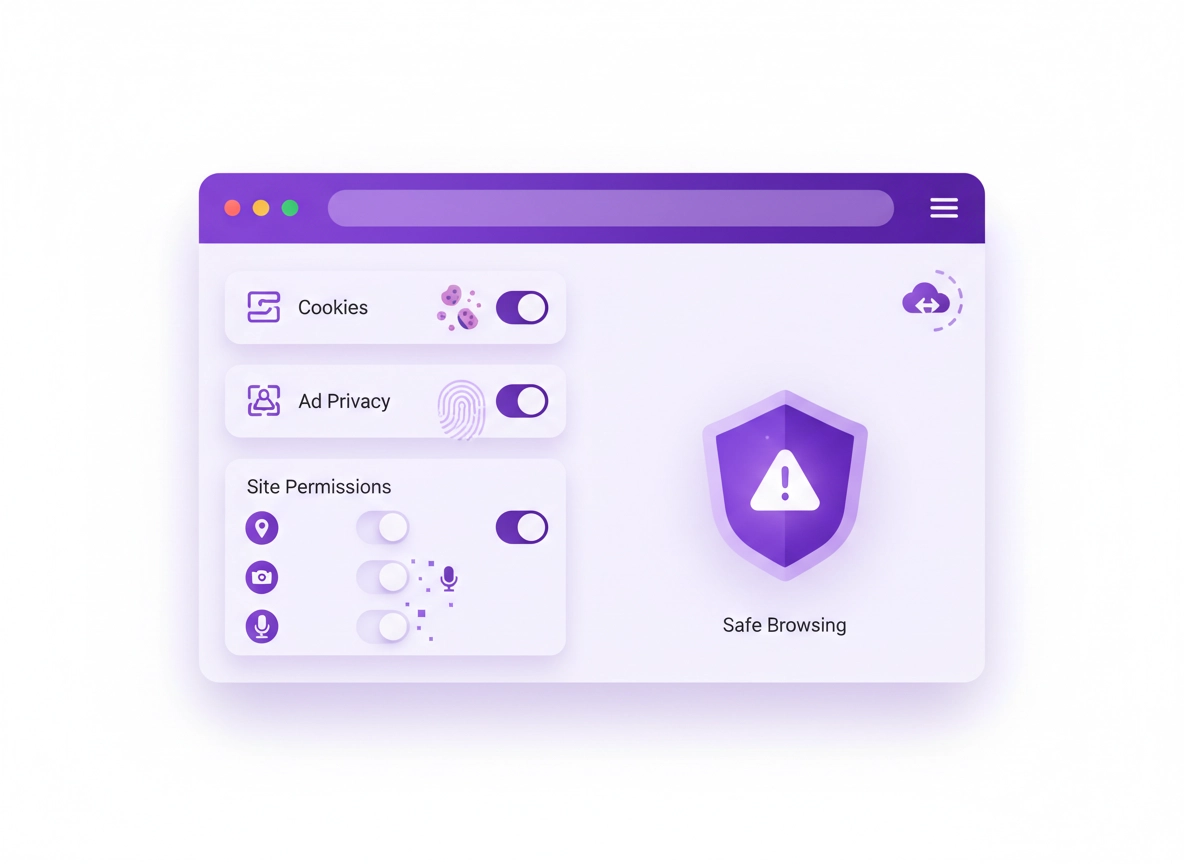
What “Chrome privacy risks” actually means .
Privacy risk in Chrome is rarely one “scary setting.” It’s usually the combined effect of identity, storage, permissions, and observability.
When people say “Chrome isn’t private,” they’re often mixing together three different ideas: (1) tracking risk (ads, analytics, cross-site profiling), (2) account risk (your Google account and sync linking activity across devices), and (3) local/device risk (someone with access to your device, profile, or browser data). Chrome can be configured to reduce all three—but you have to be clear about what you’re trying to protect.
In practice, “Chrome privacy risks” means: what Chrome can reveal about you—to websites, to ad networks, to your employer/school (on managed devices), to your ISP/network, to installed extensions, and to anyone who can access your device or browser profile. Some of this exposure is “normal web stuff” (websites need some data to function), and some is optional.
The goal of this guide is not to turn Chrome into a completely anonymous browser (that’s a different toolset). The goal is to help you build a practical, high-signal privacy baseline: less tracking, fewer leaks, fewer surprise permissions, and fewer “oops, my account synced everything.”
Start here: If you want the full menu walkthrough first, use Chrome Privacy Settings and then come back here to prioritize the risks.
Key terms (quick definitions) .
- Third-party cookies: Cookies set by a domain other than the site you’re actively visiting—commonly used for cross-site tracking.
- First-party cookies: Cookies set by the site you’re visiting—often required for logins, carts, preferences, and fraud prevention.
- Fingerprinting: Using device/browser characteristics (fonts, screen size, APIs, timing signals) to identify you without cookies.
- Site permissions: Access you grant to location, camera, microphone, notifications, clipboard, etc.
- Chrome profile: A separate container for history, cookies, extensions, passwords, and settings (profiles are a big privacy lever).
- Sync: Copying browser data between devices via your Google account (helpful—but can increase account-linked exposure).
Threat model: who are you protecting from? .
Privacy recommendations only make sense when you name the “observer.” The same setting can be a win against tracking… and a loss for convenience… and neutral for local privacy. Use the checklist below to choose the right baseline.
- Tracking & profiling: Ad networks, data brokers, cross-site analytics, retargeting.
- Account linkage: Your Google account connecting activity across devices, apps, and logins.
- Local privacy: Shared computer, stolen laptop, family device, workplace device visibility.
- Extension risk: Overpowered extensions reading pages, keystrokes, and browsing data.
- Network privacy: ISP, school/work Wi-Fi, captive portals, DNS visibility, traffic metadata.
If you’re on a managed device (work, school, enterprise), your privacy boundaries change. Admin policies can force settings, install extensions, and log activity for security/compliance. That’s not “good” or “bad”—it’s a different environment. If that’s you, read Enterprise Chrome Privacy Settings and Secure Configuration (Enterprise).
Reality check: Private browsing (Incognito) mainly helps with local privacy (it reduces saved history/cookies). It does not make you invisible to websites, networks, employers, or your ISP. If you want alternatives and when they matter, see Incognito Mode Guide and Private Browsing Alternatives.
Before you start (fast checks) .
Do these quick checks first. They prevent the two most common problems: (1) you lock down privacy settings but forget a powerful extension is still watching everything, or (2) you “fix” privacy but break logins/banking sites because cookies/permissions were doing real work.
- Check your profile situation: If you do personal + work in one profile, you’re creating accidental linkage. Consider splitting profiles first (guide below).
- Check installed extensions: If you have any “Read and change all your data on all websites” extensions, treat that as a top-tier risk.
- Check if you’re signed in: Signed-in Chrome plus Sync can change what data is stored locally vs copied to other devices.
- Check third-party cookies status: Many changes in modern web behavior depend on how cookies are handled.
- Check permissions that matter: Location, notifications, clipboard, camera/mic—these are “high leverage.”
Related: For an extension safety audit, use Chrome Extension Security Check and How to Check if a Chrome Extension is Safe.
If you want a clean starting point, you can also do a safe cleanup: clear old site data and review what’s stored. Use Clear Browsing Data and (if you want automation) Auto-Delete Cookies in Chrome.
The Chrome privacy risk map (top 10 risks) .
Here are the most common privacy risks in real-world Chrome setups—ranked by how often they matter and how much data they can expose. Think of this as your “where to spend your effort” map.
1) Overpowered extensions High
Extensions can see pages, form fields, and sometimes even “read everything everywhere.” If one is compromised (or simply too curious), it bypasses many privacy wins elsewhere. Start with Privacy Extensions Guide and Permissions Guide.
2) Third-party tracking (cookies + pixels) High
Cross-site tracking still exists in many forms. Blocking third-party cookies reduces a large chunk of classic tracking. See Third-Party Cookies Settings and Block Third-Party Cookies.
3) Account sync scope (history, tabs, passwords) High
Sync is convenience, but it can link activity across devices and persist it longer. Learn the tradeoffs in Account Sync Settings and Sync Security Risks.
4) Fingerprinting & passive identification Medium–High
Some sites can identify you even without cookies. You can reduce exposure, but you can’t fully “turn it off” without changing browsing behavior/tools. Start with Fingerprint Protection.
5) Site permissions (location, mic/cam, notifications) Medium
Permissions leaks often happen because users click “Allow” to stop pop-ups. Then months later, they forget it’s enabled. Use Site Permissions Settings.
6) Ad privacy controls & topics Medium
Chrome offers controls for ad personalization and related features. These don’t affect all tracking, but they can reduce interest-based ad signals. See Ad Privacy Settings and Privacy Sandbox Explained.
7) Network privacy (DNS, Wi-Fi, metadata) Medium
Your network can often see domain lookups and traffic patterns. Use secure DNS intentionally: DNS-over-HTTPS and Secure DNS Setup.
8) Telemetry & “help improve” signals Low–Medium
Some data is used to improve performance, security, and diagnostics. You can often reduce optional sharing. Start with Telemetry Settings and Data Collection Settings.
9) Saved passwords & autofill exposure Low–Medium
Passwords are more of a security risk than tracking risk, but they matter for privacy outcomes (account takeovers leak everything). Use Password Checkup and Password Storage Security.
10) Shared device / profile reuse Variable
If someone else uses your profile—even “just once”—cookies, saved logins, and history become a privacy liability. Fix with separate profiles: Profile Privacy Setup.
Step-by-step baseline (recommended) .
This baseline is designed for high privacy impact with low breakage. If you want maximum privacy, you can push harder in the Advanced section.
-
1
Create (or clean up) separate Chrome profiles for different identities.
Go to the profile icon → Add → create Work and Personal (at minimum).
Why this matters: profiles separate cookies, history, extensions, and logins—reducing accidental cross-tracking and account leakage. Guide: Chrome Profile Privacy Setup.
-
2
Block third-party cookies (and allow exceptions only when needed).
Open Settings → Privacy and security → Third-party cookies → select Block.
If a site breaks, add a site exception (see troubleshooting). Guides: Third-Party Cookies Settings · Block Third-Party Cookies.
-
3
Review Ad privacy controls and turn off what you don’t want.
Settings → Privacy and security → Ad privacy (wording may vary).
Disable interest-based ad settings if you prefer minimal profiling.
Guides: Ad Privacy Settings · Privacy Sandbox Explained.
- 4 Tighten site permissions (especially notifications, location, mic/cam). Settings → Privacy and security → Site settings. Set Notifications to “Don’t allow” or “Ask” and clean out old allowed sites.
- 5 Minimize extensions and remove “all sites” permissions where possible. Go to Extensions → Manage Extensions → remove what you don’t need. Prefer extensions that support “On click” or “On specific sites.”
- 6 Decide how you want Sync to behave. If you need Sync, reduce scope: only sync passwords/bookmarks, not full history/tabs (where possible). If you don’t need it, disable Sync for that profile.
-
7
Turn on Secure DNS if you want less DNS visibility on many networks.
Settings → Privacy and security → Security → Use secure DNS.
Choose your provider intentionally (or keep the default).
Guides: DNS-over-HTTPS · Secure DNS Setup.
- 8 Run Chrome’s safety checks and fix obvious security leaks (because privacy depends on security). Use Chrome Security Checkup and password checks.
What “success” looks like: You have separate profiles for different identities, fewer extensions, third-party cookies are blocked with only a few exceptions, notifications aren’t allowed by default, and Sync is either reduced or disabled.
Common variations .
- Windows / ChromeOS: Secure DNS + profile separation tends to deliver the biggest practical privacy improvements quickly.
- macOS: Watch “helper” apps and VPN/proxy tools—some add certificates or system-level proxies that change privacy assumptions.
- Android / iPhone: Menu names vary. On mobile, prioritize: third-party cookies controls, site permissions, and extension-like apps (content blockers / VPN apps).
Advanced hardening (power users + enterprise) .
The baseline above is “high impact, low pain.” The upgrades below are for people who want to reduce exposure further, accept more tradeoffs, or operate in higher-risk environments (journalism, activism, compliance, finance, healthcare, enterprise).
Related: For a full hardened setup guide, use Chrome Hardening Guide and Browser Hardening Checklist.
1) Reduce fingerprinting surface (practical steps) .
Fingerprinting is tricky because many signals are “normal browser features.” You can’t flip one switch and stop it. What you can do is make your browser less unique and reduce unnecessary signals:
- Keep Chrome updated: Newer builds often tighten security and change APIs that attackers rely on. Use Get or Update Chrome.
- Avoid rare extension combos: A unique set of extensions can make you more identifiable than cookies.
- Limit “smart” features you don’t use: Some prediction/preload behaviors can increase background requests. Keep it conservative if you’re sensitive.
- Use per-site permissions: Don’t grant mic/cam/location broadly—those permissions create additional signals and attack surface.
Best starting point: Chrome Fingerprint Protection (what’s real, what’s marketing, and what helps without breaking everything).
2) Treat extensions like installed software (because they are) .
The #1 privacy risk for many users is still extensions. If you want “serious” privacy: keep your extension count low, prefer reputable publishers, and avoid broad host permissions.
- Audit host permissions: Remove “all sites” access unless it’s truly required.
- Watch permission changes: Updates can expand access quietly. Re-check after big updates.
- Use a separate profile for risky browsing: One profile for “clean work,” one for “random web.”
Deep dives: Host Permissions Explained · All Sites Permission Risk · Extension Data Access.
3) Harden “who can access what” in site settings .
Site permissions are both privacy and security controls. A good “power user” stance: default-deny noisy permissions, default-ask for sensitive ones, and use allowlists.
- Notifications: Strongly consider “Don’t allow.” Most notification prompts are spammy.
- Location: Set to ask, then allow only maps/ride apps you trust.
- Camera/Mic: Ask. Allow only meeting tools you use.
- Pop-ups/redirects: Block unless needed for SSO flows.
- Background sync: Disable if you don’t need it (it can keep a site “alive” in the background).
Guides: Site Permissions · Background Sync.
4) Choose Safe Browsing mode intentionally .
Safe Browsing is primarily a security feature, but it has privacy implications because it can involve sharing information about suspicious pages/downloads to protect you. Your choice is a tradeoff between protection and data sharing. If you’re high-risk for phishing or malware, stronger protection is often worth it.
- Standard protection: Good baseline for most people.
- Enhanced protection: More proactive defenses, potentially more data used for protection.
- No protection: Not recommended for most users (security failures become privacy failures fast).
If you want to go deep: Safe Browsing Settings · Enhanced Safe Browsing.
5) Enterprise & compliance: treat privacy as governance .
In business environments, “privacy” includes data retention, access control, auditability, and policy enforcement. Your best privacy wins often come from: separate managed profiles, extension allowlists, and strict permission policies.
- Use policies to block risky extensions: allowlist only approved tools.
- Control data sharing: reduce sync scope and disable personal sign-in on managed profiles where appropriate.
- Standardize baseline security: secure DNS, Safe Browsing, HTTPS-only mode where supported.
Start here: Secure Configuration (Enterprise) · Chrome Enterprise Management · Security Policy Setup.
Common alternatives users compare .
- Chrome built-in settings vs third-party privacy extensions
- Chrome password manager vs dedicated password managers
- Free VPN extensions vs premium VPN services
- Manual hardening vs enterprise policy management
If you’re comparing browsers specifically: Chrome vs Edge (Privacy) · Chrome vs Firefox (Privacy).
Privacy & security notes (tradeoffs) .
Privacy changes often have side effects. The trick is to avoid “all or nothing” thinking: you can block third-party cookies but keep a short allowlist; you can tighten permissions but allow Zoom/Meet; you can reduce Sync scope rather than deleting it. This section explains what each major control affects, so you can decide with confidence.
Impact: Affects cookies, cross-site tracking, extension visibility, account linking, and site compatibility.
Plain-English summary: Chrome privacy risk is usually not one “spy feature.” It’s mostly about what you allow to be stored (cookies), what you allow to run everywhere (extensions), and what you attach to your identity (account sign-in + sync). Reduce those, and you reduce the majority of practical privacy exposure.
Recommended baseline settings .
- Option A (balanced): Block third-party cookies, review ad privacy controls, keep Standard Safe Browsing, minimize extensions, keep Sync but reduce scope.
- Option B (maximum privacy): Block third-party cookies, disable interest-based ad controls, strict permission defaults, separate profiles, disable Sync on “sensitive” profile, keep extension count near zero.
- Option C (compatibility): Block third-party cookies but allow “related sites”/exceptions for key services, keep permissions on Ask, keep Safe Browsing Standard, keep Sync if you rely on multi-device.
Recommended settings by goal .
| Goal | Recommended setting | Tradeoff | Best for |
|---|---|---|---|
| Balanced | Block third-party cookies + clean permissions + minimal extensions | Some sites may need cookie exceptions | Most users |
| Maximum privacy | Separate profiles + disable/reduce Sync + strict permissions + near-zero extensions | More friction, more “allowlist” work | Tracking-sensitive users |
| Compatibility | Block third-party cookies but allow exceptions for SSO/banking/embedded services | More cross-site tracking possible on allowlisted sites | Banking / enterprise sites |
Troubleshooting (when privacy settings break sites) .
When you tighten privacy, some sites will break. Usually it’s not “Chrome is broken”—it’s a dependency on cookies, embedded third-party content, or an authentication flow (SSO) that expects cross-site state. Use the fixes below to keep privacy strong without living in frustration.
Related: If you think you have malware or a hijacker (popups, redirects, “new tab” changes), jump to Remove Malware from Chrome.
If a site won’t let you sign in (or keeps logging you out) .
This is commonly caused by blocked third-party cookies or strict site data rules. Fix it without disabling privacy everywhere:
- Step 1: Open the broken site in a new tab.
- Step 2: Go to Settings → Privacy and security → Third-party cookies.
- Step 3: Add a site exception for the service you need (start narrow, expand only if needed).
- Step 4: Reload and retry login.
Guides: Third-Party Cookies Settings · Clear Browsing Data (if sessions are corrupted).
If embedded video/chat/support widgets stop working .
Embedded content often comes from a third-party domain and may rely on third-party storage. If it’s critical, allow the specific third-party domain for that site only (not globally). Also review any content blockers or privacy extensions that might be blocking scripts.
- Try Incognito as a test: If it works there, an extension is a likely cause.
- Disable extensions temporarily: Turn off one-by-one to find the culprit.
- Allow only what’s needed: Prefer per-site allowances over global toggles.
Extension help: Check if an Extension is Safe · Suspicious Extension Behavior.
If notifications keep popping up (even after you “blocked them”) .
There are two common causes: (1) you blocked “ask” prompts but didn’t remove already-allowed sites, or (2) a site used an alternate permission flow. Go to Site settings → Notifications and remove any allowed entries you don’t trust.
Guide: Chrome Notification Permissions.
If you need to reset safely (without nuking everything) .
Do the least-destructive reset first: clear site data for the broken site, remove suspicious extensions, and re-run Security Checkup. Only do a full reset if you’re seeing persistent hijacking or severe instability.
- Clear site data (targeted): Site settings → View permissions and data stored across sites → remove the site.
- Extension cleanup: Remove anything you don’t recognize. Restart Chrome.
- Security check: Run Chrome Security Checkup.
FAQ .
-
helpDoes Incognito mode stop websites from tracking me?Incognito mainly reduces local traces (like saved history and some cookies after you close the session). Websites can still see your activity while you browse, and your network (ISP/work/school) can still observe traffic. If you need privacy beyond local cleanup, use stronger settings and separate profiles.
-
helpWhat is the biggest privacy risk in Chrome for most people?For many users, it’s extensions—especially those with broad “all sites” permissions—followed by cross-site tracking (third-party cookies + pixels) and account Sync scope. Reducing extension power and blocking third-party cookies usually delivers the fastest real-world improvement.
-
helpWill blocking third-party cookies break websites?Some sites may break—especially SSO logins, embedded widgets, and older flows that rely on third-party state. The fix is usually to add a site exception for the specific service you need, not to re-enable third-party cookies globally.
-
helpIs Chrome “unsafe” or “bad for privacy” compared to other browsers?Chrome can be configured to reduce many common risks, but outcomes depend on your setup (extensions, Sync, cookies, permissions). If you’re comparing browsers for privacy controls and defaults, see Chrome vs Edge and Chrome vs Firefox comparisons and pick the one that fits your threat model and workflow.
Sources & further reading .
- Google Chrome Help: Manage Chrome safety and security
- Google Chrome Help: Delete, allow, and manage cookies
- Google Safe Browsing (overview)
- Privacy Sandbox: Topics API overview
- Privacy Sandbox: Protected Audience API overview
- Google Chrome Safety (product overview)
- Chrome privacy information (links to Chrome Help “Privacy in Chrome”)
Disclosure: Some pages may mention tools or services. Recommendations are editorial and based on testing.