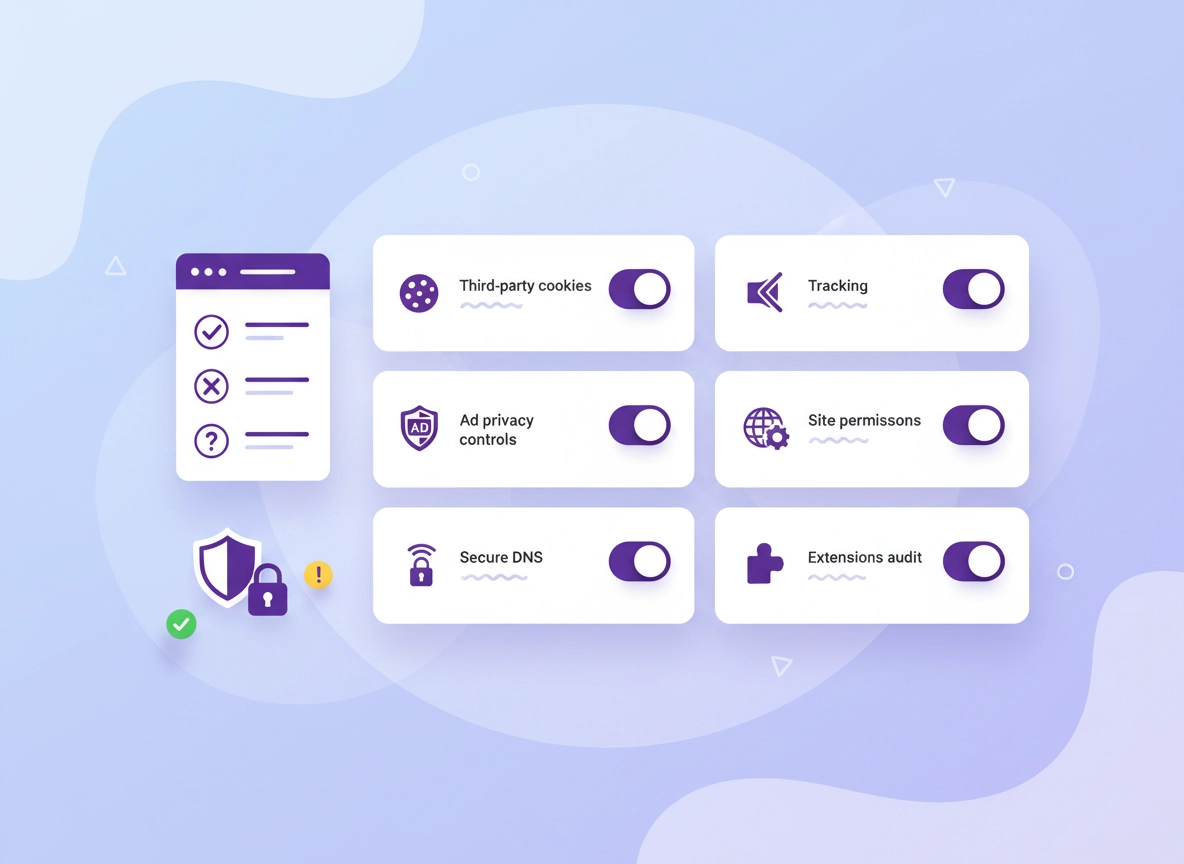
What “privacy compliance setup” means in Chrome .
This guide is practical by design: we’re controlling data flows in Chrome, not pretending your browser alone can “make you compliant.”
“Compliance” is a policy and governance outcome (legal + security + process). Chrome is only one part of that system—but it’s an important one, because your browser is a high-frequency data broker: it stores identifiers (cookies), transmits headers, grants permissions (camera, mic, location), runs third-party code (extensions), and can sync browsing data to accounts you don’t control.
A Chrome privacy compliance setup is a consistent, documented configuration that: (1) limits unnecessary tracking and data retention, (2) makes access to sensitive capabilities explicit (permissions), (3) reduces third-party risk (extensions, unknown scripts), and (4) creates evidence you can show in an audit (screenshots, exports, policy baselines, and logs where applicable). In other words: predictable behavior + least privilege + demonstrable controls.
This page is written for both individual users and organizations. If you’re an individual, you want a setup that protects you on public Wi-Fi, reduces ad tracking, and keeps personal data from leaking into random services. If you’re an organization, you want the same privacy posture, but enforced via policy and measurable via reporting.
Related: If you want the “bigger picture” privacy baseline first, start here: Chrome Privacy Settings. If you’re in a managed environment, also bookmark privacy controls for managed devices.
Key terms (quick definitions) .
- Third-party cookies: Cookies set by a domain other than the site you’re visiting—commonly used for cross-site tracking, ad tech, and embedded widgets.
- First-party cookies: Cookies set by the site you’re visiting—often needed for logins, carts, preferences, and security tokens.
- Site permissions: Browser-granted capabilities like camera, microphone, location, notifications, clipboard, USB/Bluetooth access, and pop-ups.
- Ad privacy controls: Chrome settings that affect personalization signals (e.g., topics/measurement controls), separate from cookies.
- Sync: Optional feature that can copy browsing history, passwords, and settings to a Google account (great for convenience, risky for policy).
- Managed browser policies: Admin-enforced Chrome settings delivered through Google Admin Console, Group Policy/registry, or MDM—used to standardize and audit behavior.
Before you start: define scope + do fast checks .
“Compliance setup” fails when the scope is vague. Take two minutes to decide what you’re actually trying to achieve. That prevents the classic mistake: enabling “maximum privacy” and then disabling everything again because a payroll site breaks.
1) Pick your compliance posture .
- Balanced baseline (recommended): Blocks cross-site tracking, locks down permissions, keeps critical sites working with allowlists.
- Strict baseline: Aggressively blocks tracking signals and reduces data retention; requires more allowlisting and troubleshooting.
- Managed enterprise baseline: Same goals as above, but enforced via policy with audit evidence (exports + reporting/logging).
2) Fast checks that prevent wasted time .
- Update Chrome: Many privacy menus move across versions. Use Update Chrome first.
- Use the right profile: If you mix personal and work accounts, create separate profiles (work policy is easier to enforce).
- List “must work” sites: banking, SSO portals, payroll, learning platforms, and internal tools—these become your allowlist candidates.
- Inventory extensions: Extensions are often the real compliance risk because they can read/modify page content and transmit data.
- Decide on Sync: If policy requires “no personal accounts,” you may need to disable or restrict sign-in/sync on managed devices.
Related: For extension risk and permission sanity checks, read Chrome Extension Security. For a broader hardening posture, see Chrome Hardening Guide.
3) What evidence should you keep? .
If you’re doing this for an organization, collect proof as you go. Even if you’re an individual, having a “baseline screenshot pack” makes it easy to restore your setup later.
- Screenshots: Third-party cookie setting, ad privacy toggles, permissions overview, extension list, Safe Browsing level.
- Exports: Managed policy export (if you’re an admin), list of approved extensions, and allowlisted cookie exceptions.
- Change log: A simple note: date, what changed, why, and who approved it (this is gold during audits).
Step-by-step: the recommended compliance baseline .
This baseline is built around least privilege and minimum necessary data retention. You’ll lock down the high-impact areas first (cookies, permissions, extensions), then refine for compatibility (allowlists).
Step 1 — Block third-party cookies (with a controlled allowlist) .
- 1 Open Chrome → Settings → Privacy and security.
- 2 Choose Third-party cookies (or Cookies and other site data, depending on version).
- 3 Select Block third-party cookies.
- 4 Under allowed exceptions, add your business-critical sites only (SSO portals, payroll, banking, approved SaaS tools).
What “success” looks like: Most sites still work, but cross-site ad tracking is significantly reduced. If a site breaks, you don’t undo the baseline—you allowlist that site with intent and documentation.
Related: If you want an even stricter cookie posture, see auto-delete cookies and this companion guide on private browsing alternatives.
Step 2 — Tighten site permissions (camera, mic, location, notifications) .
- 1 Settings → Privacy and security → Site settings.
- 2 Review high-risk permissions: Camera, Microphone, Location, Notifications, Clipboard, Pop-ups and redirects.
- 3 Set defaults to “Ask” or “Blocked” where possible, then allowlist only trusted sites (video conferencing, internal tools).
- 4 Use “View permissions and data stored across sites” (if shown) for a quick audit view.
For compliance, permissions matter because they represent capability risk: once a site has microphone access, you’ve crossed a line from “tracking” to “sensitive data exposure.” Your goal is not to break collaboration tools—it’s to make permission grants intentional and reviewable.
Step 3 — Review Ad privacy controls (Topics / measurement / personalization signals) .
Cookies aren’t the whole story anymore. Chrome also includes ad privacy settings that influence how personalization is performed inside the browser. In strict environments, your policy may require these to be disabled or controlled.
- 1 Settings → Privacy and security → Ad privacy (or similar wording).
- 2 Review each toggle and decide policy: On for a balanced consumer setup, or Off for strict enterprise privacy posture.
- 3 If you turn features off, capture a screenshot for evidence (and to speed up future audits).
Practical guidance: If you’re a regular user optimizing privacy, turning these off can reduce ad personalization signals. If you’re an organization, treat this as a policy decision: document the choice and enforce it consistently on managed devices.
Step 4 — Choose Safe Browsing level (security vs data sharing) .
Compliance is not “privacy only.” Many frameworks are privacy + security. Safe Browsing settings are a good example: higher protection can reduce malware risk (good), but may involve additional telemetry (requires policy clarity).
- 1 Settings → Privacy and security → Security.
- 2 Choose a Safe Browsing mode (often: Enhanced / Standard / No protection).
- 3 For most people and most organizations: choose Standard unless your security team explicitly recommends Enhanced with an approved data-sharing posture.
- 4 Keep “Always use secure connections” / “HTTPS-First” enabled where available (best-effort upgrade to HTTPS).
Compliance note: If you enable Enhanced Protection, make sure your privacy policy and internal documentation reflect the data-sharing implications. If you’re unsure, Standard Protection is the safest default for “privacy + security balance.”
Step 5 — Secure DNS (reduce ISP-level visibility) .
DNS is often overlooked in compliance conversations. Even if your web traffic is encrypted, DNS requests can reveal which domains were requested. Using secure DNS (DNS over HTTPS) can reduce passive network observers’ visibility, especially on public Wi-Fi.
- 1 Settings → Privacy and security → Security (or search “DNS”).
- 2 Enable Use secure DNS.
- 3 Choose a provider consistent with your policy (or “Current service provider” in some environments).
- 4 If you’re on a corporate network, confirm your organization’s DNS policy—some companies require internal DNS for security controls.
Related: Step-by-step walkthroughs: Secure DNS setup and DNS over HTTPS settings.
Step 6 — Audit extensions (the #1 hidden compliance risk) .
Extensions can read data on the pages you visit, modify content, intercept forms, and transmit information to third parties. In audits, extensions are one of the first places reviewers look, because they create “shadow IT” inside the browser.
- 1 Open chrome://extensions.
- 2 Remove anything you don’t actively use (compliance loves minimalism).
- 3 For extensions you keep: review permissions and switch “Site access” to On click or On specific sites where possible.
- 4 For organizations: maintain an “approved extension list” and block everything else via policy.
Related: Extension Security and Privacy Extensions Guide.
Step 7 — Decide on Sync, sign-in, and profile separation .
Sync is extremely convenient. It’s also a compliance landmine if you have policies like “no personal accounts on corporate devices” or “no cross-border transfer of browsing history without approval.” The browser doesn’t know your policy—you must decide.
- Best practice: Separate Work and Personal profiles. Keep work tools inside the work profile.
- Strict enterprise: Disable or restrict sign-in/sync and enforce managed accounts only.
- Individual privacy: If you sync, confirm what’s being synced (history, passwords, settings) and use strong account security (2FA).
Related: For profile hygiene and privacy: Chrome Profile Privacy Setup and Chrome Profile Security Settings.
Common variations .
- Windows / ChromeOS: Enterprise enforcement is typically via Google Admin Console, Group Policy (Windows), or device management on ChromeOS.
- macOS: Policy enforcement is usually via MDM profiles. Some menus have slightly different wording, but the “data flows” are the same.
- Android / iPhone: Cookies and permissions exist, but enterprise policy controls can be more limited depending on management tooling.
Advanced: enterprise policies, logging, and audit evidence .
If you’re configuring Chrome for an organization, your goal is not just “secure browsing.” Your goal is: standardized configuration + enforceable policy + measurable outcomes + audit evidence. This section turns the baseline into an admin-ready approach.
Related: If you’re building a full enterprise program, start with Chrome Enterprise Guide, then bookmark Chrome Enterprise Compliance.
1) Translate privacy compliance into browser controls .
Most compliance frameworks can be expressed in a few browser control themes. Here’s how that mapping usually looks:
- Data minimization: Block third-party cookies by default, reduce retention, and limit personalization signals.
- Access control: Restrict sign-in to approved accounts, use profile separation, and enforce device posture if applicable.
- Least privilege: Lock down permissions and extensions; allow only what’s required for business.
- Security safeguards: Keep Safe Browsing active, enforce secure connections, and reduce phishing/malware exposure.
- Accountability: Maintain policy exports, change logs, and (where supported) audit logs and reporting.
2) A practical enterprise baseline (what to enforce) .
Below is a pragmatic baseline you can enforce and explain. This is not legal advice—think of it as a “reasonable controls set” that lines up with common audit expectations.
Cookies & tracking controls .
- Block third-party cookies globally, then allowlist specific required site pairs.
- Standardize “clear on exit” posture only if your apps tolerate it (strict environments, shared devices).
- Document exceptions with business justification (SSO, embedded video, finance systems, etc.).
Extensions (software supply chain inside the browser) .
- Block unapproved extensions; allow only an approved list.
- Restrict extension “site access” where possible (specific sites or on-click).
- Require periodic reviews: remove stale extensions and re-approve only what’s still needed.
Identity, sign-in, and data boundaries .
- Restrict browser sign-in to managed accounts (or disable sign-in where policy requires).
- Disable/limit sync if it violates data residency or internal policy; otherwise enforce secure account controls (MFA, device posture).
- Separate “work profile” from “personal profile” to prevent accidental data mixing.
Security controls .
- Keep Safe Browsing enabled (typically Standard), and document telemetry posture if using Enhanced.
- Enforce HTTPS-first behavior where available.
- Use secure DNS if aligned with corporate DNS policy; otherwise enforce internal DNS requirements.
Related: If you want a checklist format for auditing your current posture, use Chrome Privacy Audit Template.
3) Logging & reporting (what auditors actually ask for) .
Auditors often ask two uncomfortable questions: (1) Can users bypass this? and (2) How do you know it’s working? You answer those with policy enforcement and evidence.
- Policy enforcement evidence: Export your Chrome policy configuration and store it in your compliance repository.
- Reporting evidence: Use whatever reporting your environment supports to show adoption, policy compliance, or security posture changes.
- Audit logs (where applicable): If you use enterprise browser tooling that provides audit logs, enable them and retain them per policy.
Related (enterprise): Audit logging, Compliance reporting, and Security reporting.
4) Data loss prevention (DLP) and sensitive workflows .
Many compliance programs are really “data handling programs.” If your workflows include regulated data (health, finance, legal, HR), browser-based DLP becomes a major upgrade because it can reduce accidental exfiltration (copy/paste, uploads, printing, personal accounts). Even if you don’t have enterprise DLP tooling, you can emulate the intent with stricter permissions, extension restrictions, and profile controls.
- Baseline approach: Lock down uploads to unapproved destinations, restrict clipboard access where available, and enforce managed accounts.
- Advanced approach: Use enterprise secure browsing solutions with DLP, URL filtering, and context-aware access controls (policy-driven).
Practical recommendation: If your organization is serious about compliance, consider a managed browser program (policy + reporting) before you add complex endpoint agents. The browser is where most modern work happens—so controls here often deliver the fastest risk reduction per hour invested.
Common alternatives users compare .
- Chrome built-in settings vs third-party privacy extensions
- Manual configuration vs enterprise policy management
- Consumer “privacy browsers” vs managed Chrome for regulated workflows
- Free VPN extensions vs premium VPN services (for off-network privacy needs)
Related: If privacy compliance includes remote staff, also review VPN strategy: Best VPN for Chrome and VPN + corporate compliance.
Privacy & security notes (tradeoffs and risk) .
Compliance is full of tradeoffs. Your job is not to eliminate all data (impossible). Your job is to limit unnecessary data, control sensitive capabilities, and prove you did it intentionally.
Impact: Affects cookies, tracking behavior, sign-in and sync boundaries, extension permissions, and site compatibility.
Best practice: “Default deny” + allowlists + documented exceptions.
Related: If you suspect hijacking or malware-like behavior (redirects, unknown extensions, fake search), read Remove Malware.
Recommended baseline settings .
- Option A (balanced): Block third-party cookies, permissions set to Ask/Block by default, Standard Safe Browsing, secure DNS enabled where policy allows.
- Option B (maximum privacy): Block third-party cookies + stricter ad privacy toggles off + auto-delete cookies on exit (only if your “must work” list can tolerate it).
- Option C (compatibility): Block third-party cookies but expand allowlists for business sites; keep security protections high.
Recommended settings by goal .
| Goal | Recommended setting | Tradeoff | Best for |
|---|---|---|---|
| Balanced | Block third-party cookies + permission defaults tightened | Some embeds/SSO may need allowlists | Most users + most teams |
| Maximum privacy | Turn off ad privacy signals + aggressive cookie cleanup | More broken sites + more troubleshooting | High-sensitivity environments |
| Compatibility | Block by default, broaden allowlists for critical tools | More exceptions to document | Banking / enterprise portals |
Troubleshooting (when websites break) .
If a website breaks after a privacy compliance baseline, don’t panic—and don’t immediately disable the baseline. Treat it like a controlled exception: identify what the site needs, allow it explicitly, and document it.
Golden rule: Fix a broken site by allowlisting that site, not by reopening tracking for the entire internet.
If a login loop happens (SSO keeps redirecting) .
Login loops are commonly caused by blocked third-party cookies or cross-site storage used by identity providers (IdPs). Fix it by allowlisting the SSO/IdP domain pair (only for the affected service), or temporarily allowing third-party cookies for that specific site. After confirming it works, record the exception and keep it narrow.
If embedded content fails (videos, chat widgets, payment frames) .
Many embeds are hosted on third-party domains that expect cookie or storage access. If the embed is required for business, allowlist the embed provider domain for that top-level site. If it’s not required, consider the break a success—an unnecessary third party is no longer running in your browser.
If push notifications keep appearing .
Set Notifications to “Don’t allow sites to send notifications” (or equivalent) and clear any existing allowed sites. This is both a privacy and security improvement because notification abuse is a frequent malware/affiliate redirect tactic.
If a site demands location/camera/mic .
Only grant these permissions to trusted domains, and prefer “Allow while visiting” if available. For compliance, capture a screenshot of the permission grant list and review it periodically. If a random website requests microphone access, that’s usually a red flag.
If Chrome feels slow after changes .
Privacy changes rarely slow Chrome directly—extensions and heavy sites do. Audit extensions first, then follow performance hygiene. This guide can help: Performance Optimization.
If you need to reset safely (without losing everything) .
A “safe reset” for compliance means: remove risky extensions, clear site data for problem domains, review permissions, and re-apply your cookie baseline. Avoid blanket “reset everything” unless you’re treating the device as compromised, because it destroys your evidence trail and can reintroduce risk.
FAQ .
-
helpDoes this setup make me “GDPR compliant” automatically?No. GDPR/CCPA compliance is an organizational and legal outcome. This setup helps you control browser data flows (cookies, permissions, extensions, sync) and produce evidence of controls, which supports compliance—but it doesn’t replace legal requirements, consent management, or organizational policy.
-
helpWhat is the single most important Chrome setting for privacy compliance?For most people and most teams, it’s blocking third-party cookies by default and handling exceptions with a documented allowlist. That one control reduces cross-site tracking dramatically while still letting you keep critical business sites working.
-
helpWhy are extensions treated as a compliance risk?Extensions can access content on websites you visit, including sensitive information. They can also transmit data externally. In compliance and security reviews, unapproved extensions are “shadow IT” because they bypass normal procurement and risk review. The clean approach is: allow only approved extensions and restrict site access where possible.
-
helpShould I turn off Chrome Sync for compliance?It depends on your policy. Sync can move browsing history, passwords, and settings into accounts outside your control if unmanaged. In strict enterprise environments, restrict sync to managed accounts or disable it. For individuals, sync can be acceptable if you understand what’s synced and you secure the account (strong password + MFA).
Sources & further reading .
- Google Chrome Help: Manage cookies (including third-party cookies)
- Google Chrome Help: Manage your ad privacy in Chrome
- Google (Admin): Security and privacy policies for Chrome
- Chrome Enterprise: Policy list (official)
- Google Safe Browsing overview
- Privacy Sandbox: privacy-related compliance FAQs
Disclosure: Some pages may mention tools or services. Recommendations are editorial and based on testing.