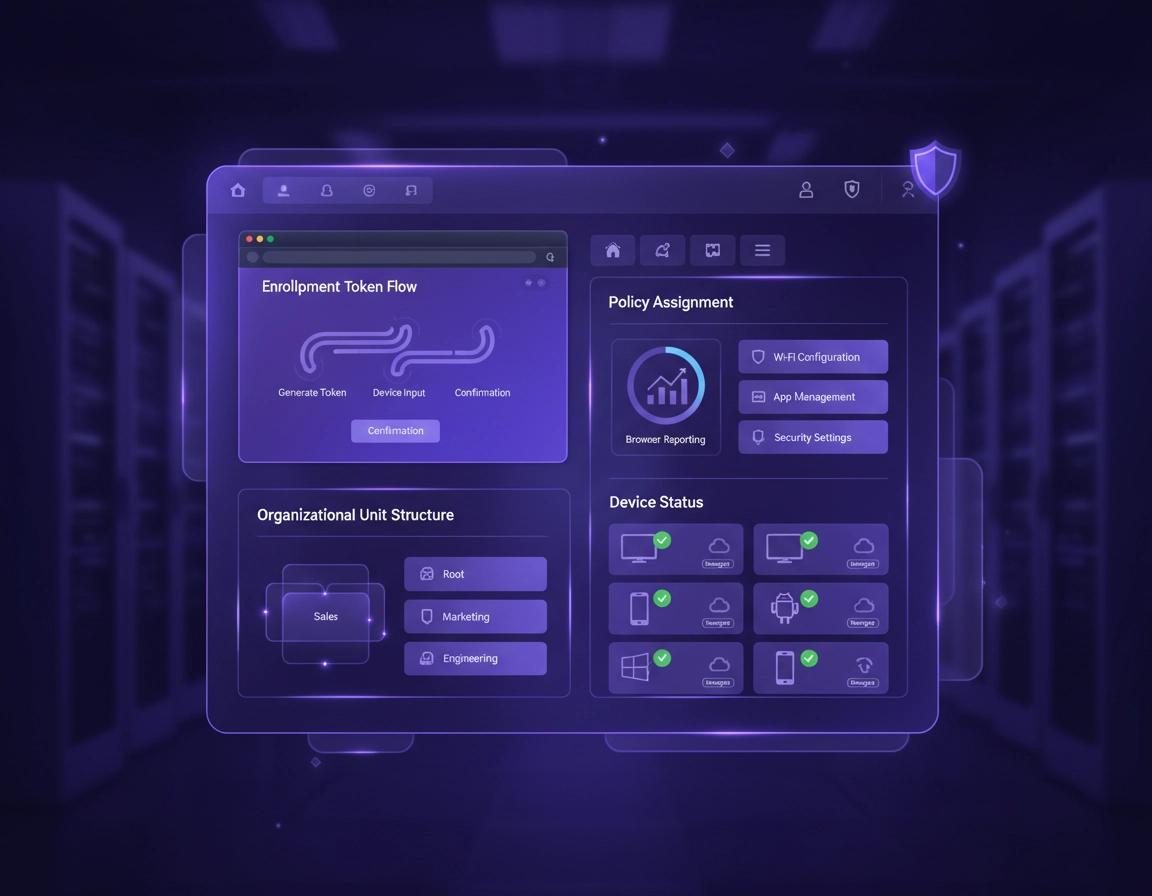
Browser enrollment in Chrome Enterprise Core.
On this page, device enrollment refers to enrolling the Chrome browser, not enrolling ChromeOS hardware. That distinction matters. In enterprise conversations, the phrase often gets used loosely, and that is where deployment confusion starts. ChromeOS device enrollment, managed Chrome profiles, and cloud-managed browser enrollment are related parts of the Google admin ecosystem, but they solve different problems and apply at different layers.
Chrome Enterprise Core browser enrollment is the step that turns a standard Chrome installation into a managed browser object. Once that happens, the browser can receive machine cloud policies from the Admin console, appear in browser inventory, and participate in reporting workflows that expose browser versions, extension state, and device-level browser details. For organizations with mixed Windows, macOS, Linux, Android, and iPhone estates, that is the practical foundation for browser governance.
This is why enrollment has become strategically important. The browser is no longer just a user app. It is the front end for identity, SaaS access, file movement, shadow IT via extensions, and a growing share of enterprise work. If Chrome is installed everywhere but governed nowhere, you have a policy gap. Enrollment closes that gap by giving IT and security teams a browser-native control layer that sits above the operating system and below the user workflow.
In mature environments, the immediate value is not only control. It is also evidence. Once a browser is enrolled, you can answer basic operational questions much more cleanly: which browsers are managed, which versions are drifting, which extensions are present, which OUs the browsers belong to, and whether browser policies are being delivered through the right management channel.
Related: Chrome Enterprise Guide, Chrome for Enterprise Overview, Chrome Enterprise Cloud Management
Core terms admins should separate before rollout.
- Managed browser: Chrome itself is enrolled and can receive machine cloud policies.
- Managed profile: a signed-in managed user profile with user- or profile-level controls.
- ChromeOS device enrollment: management of ChromeOS hardware, not just the browser.
- Enrollment token: the registration value used when the browser first enrolls into the organization and OU.
- Machine cloud policies: policies that apply to enrolled browsers, regardless of whether the user is signed into a managed account.
- Reporting: the browser and profile telemetry surfaces in the Admin console that show versions, extensions, and device details.
Why enterprises adopt browser enrollment instead of relying on OS controls alone.
Windows GPOs, macOS managed preferences, Linux management tooling, and mobile app configuration can all influence Chrome behavior. But they do not give the same centralized browser inventory and browser-native cloud policy workflow that Chrome Enterprise Core gives you. In other words, you can manage Chrome from the operating system, but you cannot assume that is the same as managing Chrome from the browser management plane.
For enterprise teams, that difference matters most in hybrid environments. The messiest fleets are rarely the perfectly standardized ones. They are the ones with contractors, acquired teams, remote staff, mixed laptop ownership, and inconsistent local admin realities. Browser enrollment lets you standardize the browser layer even when the endpoint layer is not perfectly uniform.
Pre-deployment decisions that determine rollout quality.
Most failed enrollment projects were already failing before the first token was deployed. The technical mechanics are not the hard part. The hard part is deciding where browsers should land, which policies should hit first, how tokens will be distributed, and how you will prove that enrollment succeeded without causing needless disruption.
Start with the OU model. If your pilot browsers land in an OU that already has strict extension rules, homepage controls, sign-in restrictions, or update-channel policies, the user experience can break instantly even though enrollment itself worked perfectly. That is why serious teams create a pilot OU or staging OU instead of treating production as a lab.
Next, decide whether your rollout goal is visibility first or control first. Visibility-first teams enroll browsers, enable reporting, and prove inventory quality before tightening anything. Control-first teams try to stack enrollment and hardening together. The second approach can work, but it raises the chance that a clean enrollment gets misread as a failed rollout simply because a policy side effect upset users.
Token delivery also deserves more planning than many teams give it. The right question is not “How do we paste the token somewhere?” The right question is “Which endpoint workflow gives us repeatable, auditable, scoped delivery with an easy rollback?” In practice, that usually means Intune, Jamf, Mosyle, Workspace ONE, BigFix, or another endpoint platform that your team already trusts.
Related: Chrome Enterprise Admin Console, Chrome Enterprise MDM Configuration, Chrome Enterprise Deployment Guide
Pre-rollout checklist that actually matters.
- Admin access: confirm the admins handling browser rollout have permissions for managed browsers, reporting, and OU management.
- Pilot OU: create a dedicated OU for enrolled browser testing instead of using a broad production OU.
- Device mix: include at least one standard employee device, one remote device, one heavily used browser with normal extensions, and one admin test machine.
- Install consistency: reduce surprises by checking that Chrome is installed in the expected way on pilot machines.
- Relaunch communications: tell users that Chrome must fully restart; minimizing and reopening is often not enough.
- Rollback path: define what “stop managing” means in your environment before the pilot begins.
Documentation your help desk will wish you had prepared.
- Which OU each pilot group belongs to
- Which token belongs to which scope
- Which endpoint system delivers the token
- What the expected “browser is managed” user message looks like
- What success looks like in the Admin console
- Which low-risk policies should appear first after enrollment
Pre-deployment errors that create fake “Chrome problems”.
- Using one token broadly without planning OU separation
- Assuming managed sign-in proves browser enrollment
- Skipping reporting and then calling the pilot inconclusive
- Testing only on a pristine lab machine with no real-world extension load
- Deploying strict browser controls before validating baseline enrollment
Enrollment workflow for production rollouts.
The best rollout process is controlled, repetitive, and easy to explain to another admin. If it depends on tribal knowledge, one senior engineer, or undocumented exceptions, it will not scale. Enrollment itself is straightforward; production quality comes from the order in which you do things.
- 1 In the Google Admin console, choose the organizational unit where the enrolled browsers should live. Do not generate a token casually without already knowing the target OU and intended policy posture.
- 2 Generate or retrieve the enrollment token for that OU and store it inside your normal controlled admin process. Treat it like deployment configuration, not a chat message.
- 3 Push the token through your endpoint platform. The exact mechanism differs by platform, but the goal is the same: Chrome must receive the enrollment configuration in a predictable machine- or app-management path.
- 4 Close Chrome completely and relaunch it. If background Chrome processes remain, the browser may not initialize with the new enrollment state when you expect.
- 5 Confirm that the browser appears in the managed browser list and that it landed in the intended OU. If it did not, stop and fix scoping before broadening the pilot.
- 6 Enable or verify browser reporting. Inventory visibility is part of the value proposition; without it, your pilot is only half-tested.
- 7 Apply a small number of low-risk policies first. Use enrollment to prove the policy channel works before layering in strict security controls.
Post-enrollment success criteria: the browser is visible as managed, attached to the intended OU, contributing useful reporting data, and receiving the expected machine-level policies without creating avoidable user issues.
Related: Chrome Enterprise Policy Templates, Chrome Enterprise Security Settings, Chrome Enterprise Update Management
What a proper validation sequence looks like.
Good validation happens in layers. First verify registration. Then verify OU placement. Then verify reporting. Then verify at least one low-risk machine cloud policy. Only after those steps should you make claims about the browser being operationally managed. Teams that stop at token deployment or token delivery often misdiagnose their own rollout.
A low-risk validation policy should be visible enough to prove policy delivery but not disruptive enough to create support noise. A bookmark set, a homepage value, or another non-destructive browser preference is usually a better first proof than an aggressive sign-in or extension restriction.
Platform notes admins should think through.
- Windows: usually the largest enterprise target and the environment where clean endpoint orchestration matters most, especially when legacy local management and newer cloud management coexist.
- macOS: often smoother when Chrome browser configuration is delivered through a disciplined Jamf or Mosyle profile workflow rather than ad hoc scripting.
- Linux: works best when browser installation and config delivery are already standardized through enterprise management tooling.
- Android: useful when the organization wants Chrome governance at the mobile app layer in addition to broader endpoint controls.
- iPhone and iPad: relevant in environments where managed browsing, work access, and browser-level policy consistency matter on mobile devices.
First-week rollout discipline.
- Do not jump from zero to full-fleet enrollment without at least one clean pilot OU.
- Do not treat reporting lag as proof of enrollment failure.
- Do not stack browser enrollment, profile governance, extension blocking, and sign-in enforcement into one change ticket unless you enjoy noisy pilots.
- Do not call the project complete until you validate both browser presence and policy behavior.
Policy scope, token lifecycle, and platform architecture.
The most important technical concept in this entire topic is policy scope. Chrome environments can have multiple management layers at the same time: machine cloud policies for enrolled browsers, user or profile policies for managed profiles, and operating-system-specific policy layers such as Windows or macOS controls. When admins say “the policy didn’t work,” the real problem is often not the policy at all. It is that the wrong scope was expected.
Browser enrollment primarily activates the machine cloud policy path. That is what makes it valuable in mixed-device environments. It gives you a browser-level baseline that applies because the browser is enrolled, not because the user happened to sign into a certain profile. This distinction becomes critical in remote work, contractor access, and environments where user identity alone is too weak as a control anchor.
The second concept teams often misunderstand is token lifecycle. The enrollment token matters most at the time the browser first registers. It is a registration mechanism, not a daily operational leash. Rotating or revoking a token affects future enrollment paths much more directly than the state of already-enrolled browser objects. Admins who panic-rotate tokens hoping to rewire existing browsers are usually solving the wrong problem.
A third concept worth separating is architecture layering. Enrollment does not replace your endpoint platform. It complements it. Your UEM or MDM still matters for delivery, device posture, and platform-specific settings. Chrome Enterprise Core adds a browser-native management layer that gives you centralized browser inventory, browser reporting, and cloud-managed browser policy enforcement.
Related: Chrome Enterprise Security Architecture, Chrome Enterprise Directory Integration, Chrome Enterprise SSO Configuration, Chrome Enterprise Access Control, Chrome Enterprise Zero Trust
When browser enrollment is the right architectural move.
- Your organization runs Chrome widely but has weak browser inventory and poor policy consistency.
- You need cross-platform browser control without waiting for a full endpoint standardization project.
- You want extension visibility and browser reporting from the Admin console.
- You need machine-level browser governance, not only user-level profile controls.
- You are building toward stronger browser security, audit support, or risk review maturity.
When enrollment is necessary but not sufficient.
- If your main goal is identity-aware profile governance, managed profiles and sign-in strategy still matter.
- If your project is actually about Chromebooks or ChromeOS Flex, browser enrollment is only one piece of the stack.
- If you need endpoint telemetry, threat response, or device health controls, keep your EDR and endpoint tooling in the design.
- If you need DLP, connector-based reporting, or deeper security event export, treat enrollment as the base layer, not the whole program.
Recommended enterprise rollout pattern.
Start with one pilot OU and one token scope. Enroll a device mix that reflects reality rather than idealized lab conditions. Validate browser registration, OU placement, reporting, and one or two non-destructive policies. Then expand to a wider visibility-first phase. Only after that should you broaden extension governance, harder sign-in rules, stricter update posture, or more opinionated security controls.
This sequencing matters because it separates enrollment quality from policy side effects. When teams skip that separation, they end up debating whether “Chrome enrollment is unstable” when the actual issue is that they delivered a strict browser policy bundle to a fleet they had not yet validated.
Comparison table: the options admins usually weigh.
| Approach | Primary control plane | Strength | Weakness | Best use case |
|---|---|---|---|---|
| Browser enrollment | Chrome Enterprise Core | Machine cloud policies, reporting, browser inventory | Needs clean OU design and token delivery | Cross-platform browser governance |
| Managed profiles only | Profile / user layer | User-centric controls across devices | Not a substitute for browser enrollment | Identity-focused browser policies |
| OS policy only | Windows / macOS / Linux management | Strong device-native control | Less browser-native inventory and cloud workflow | Legacy or tightly standardized fleets |
| Endpoint suite only | UEM / MDM / EDR | Broad device control and compliance posture | Can leave browser-specific blind spots | Endpoint-led environments adding browser governance later |
Security, reporting, and audit implications.
Browser enrollment becomes much more valuable once you stop viewing it as a deployment chore and start viewing it as a control surface. A managed browser can be reported on, scoped, and governed in a way an unmanaged browser cannot. That matters because the browser is now one of the main operating environments for knowledge workers, finance staff, contractors, sales teams, and support teams.
From a security perspective, enrollment is not the final safeguard. It is the condition that makes browser safeguards manageable at scale. Without enrollment, you may still have browser settings, but they are harder to prove, harder to inventory, and harder to apply consistently across a mixed fleet. With enrollment, you can begin treating Chrome as an auditable enterprise asset instead of a loose user app.
Related: Chrome Enterprise Endpoint Security, Chrome Enterprise Audit Logging, Chrome Enterprise Compliance Reporting, Chrome Enterprise Security Best Practices, Chrome Enterprise Security Reporting
What enrollment gives security and compliance teams.
- Proof that a browser is managed and attached to an organizational scope
- Central visibility into browser versions and extension presence
- A dependable delivery channel for machine cloud browser policies
- Cleaner operational support for audits, risk reviews, and governance discussions
- A more defensible story for browser posture in hybrid and contractor-heavy environments
What changes after enrollment if you run the program well.
- Visibility improves: admins stop guessing which browsers are governed.
- Drift gets reduced: policy baselines become easier to standardize across platforms.
- Extension governance gets real: inventory and policy work together instead of existing as separate conversations.
- Browser incidents are easier to investigate: the browser is no longer a black box.
- Audit conversations become calmer: you can point to managed-browser controls, not just hoped-for device policy.
Recommended baseline after enrollment.
- Visibility baseline: enable reporting first and confirm clean inventory before hardening.
- Security baseline: review update management, extension posture, and selected browser policies once enrollment quality is proven.
- Change-control baseline: separate enrollment from aggressive restrictions so help desk noise does not pollute your pilot data.
Enrollment strategy by business objective.
| Objective | Recommended sequence | Immediate gain | Main tradeoff | Best fit |
|---|---|---|---|---|
| Fast browser inventory | Enroll pilot OU, enable reporting, review inventory | Immediate browser visibility | Minimal hardening at first | Teams coming from unmanaged Chrome |
| Policy standardization | Enroll, validate, then layer machine cloud policies | Cleaner browser baseline | Needs staged testing | Distributed Windows and Mac estates |
| Extension governance | Enroll, report, review extension footprint, then enforce | Better control over browser risk surface | Can create user friction if rushed | Security-conscious organizations |
| Audit readiness | Enroll, document OU scope, confirm reporting discipline | Stronger evidence and control mapping | Requires process maturity | Regulated or review-heavy environments |
Why this topic lands in high-value enterprise conversations.
Chrome enrollment is rarely purchased or approved as a purely browser feature. It is usually justified through adjacent needs: extension security, browser hardening, managed work access, reporting, audit readiness, or cleaner SaaS governance. That makes this topic relevant not just to endpoint admins, but also to security architects, IT managers, compliance leads, and consultants designing cross-platform access strategies.
Troubleshooting failed enrollment and policy drift.
Related: Chrome Enterprise Device Management, Chrome Enterprise Policy Hardening, Chrome Enterprise IT Dashboard Guide
The browser never appears in managed browsers.
Start with token delivery and relaunch behavior. The most common causes are simple: the token never reached Chrome in the intended management path, Chrome was not fully restarted, or the pilot device did not actually receive the endpoint profile you thought it did. Verify the delivery mechanism first, not just the token string.
The browser shows up, but no expected policy lands.
This is usually a scope problem, not an enrollment problem. Check which OU the browser landed in. Then verify whether the policy you are expecting is a machine cloud policy, a user-based policy, or an operating-system policy. A browser can be enrolled correctly and still appear “wrong” because the wrong policy channel was assumed.
The browser is enrolled, but reporting is sparse or empty.
Reporting has to be enabled and then given time to populate. Enrollment and reporting belong to the same rollout sequence, but they are not the same step. If the browser object exists but the inventory data is thin, confirm reporting configuration before reworking the entire deployment.
Users complain that Chrome now says it is managed.
That is partly a communication problem. Employees often interpret the word managed more broadly than administrators intend. Before rollout, explain what the organization is managing at the browser layer, what the user should expect to change, and what remains private or outside the scope of browser administration.
You need to stop managing browsers after a bad pilot.
Do not treat rollback as a vague “just remove it” action. Decide whether you are preventing future enrollments, cleaning up current enrolled browsers, or removing platform-level configuration that originally pushed the token. On Windows in particular, stopping browser management can involve clearing the relevant Chrome registry settings and then restarting Chrome, so rollback should be documented before the pilot starts.
Windows works, but Mac or mobile does not.
When one platform succeeds and another fails, focus on the delivery path rather than assuming the token itself is broken. The same token can be valid while the Jamf configuration, mobile app config, or endpoint assignment logic is wrong on a specific platform. Cross-platform rollout failures are more often deployment-profile failures than Chrome Enterprise failures.
FAQ.
-
helpIs Chrome Enterprise browser enrollment the same as ChromeOS device enrollment?No. ChromeOS device enrollment governs ChromeOS hardware such as Chromebooks and ChromeOS Flex devices. This page is about enrolling the Chrome browser itself so it becomes a managed browser in Chrome Enterprise Core.
-
helpWhat does enrollment actually unlock for admins?Enrollment makes Chrome eligible for machine cloud policies, managed browser inventory, and browser reporting in the Admin console. That is what turns Chrome from a deployed app into a governed browser layer.
-
helpDo I need an MDM or UEM to enroll browsers?Not in every tiny environment, but most serious production rollouts use one because token delivery, scoping, staged deployment, and rollback are much easier to control when the endpoint platform handles distribution.
-
helpWhat is the difference between a managed browser and a managed profile?A managed browser is enrolled at the browser level and can receive machine cloud policies. A managed profile is tied to a signed-in managed account and receives user- or profile-level controls. Many enterprises eventually use both, but they are not interchangeable.
-
helpDoes rotating the token reconfigure every browser that already enrolled?No. The token matters primarily during registration and future enrollment events. Already-enrolled browsers are not normally “re-driven” day to day by the token itself.
-
helpWhy does reporting still look incomplete after the browser enrolled?Because enrollment and reporting are separate checks in the rollout sequence. Confirm that reporting is enabled, relaunch Chrome fully, and allow time for inventory data to populate before assuming the enrollment failed.
Sources & further reading.
- Google Help: Set up Chrome Enterprise Core
- Google Help: Enroll cloud-managed Chrome browsers
- Google Help: Turn on Chrome browser and profile reporting
- Google Help: Understand Chrome policy management
- Google Help: Set Chrome policies for users or browsers
- Google Help: Stop managing or delete Chrome browsers and profiles
- Chrome Enterprise Core overview
- Chrome Enterprise policy list
Editorial note: the practical details of deployment still depend on your current Google Admin console layout, endpoint stack, OU design, and change-control process. Treat browser enrollment as a controlled rollout with validation and rollback, not as a one-line token exercise.