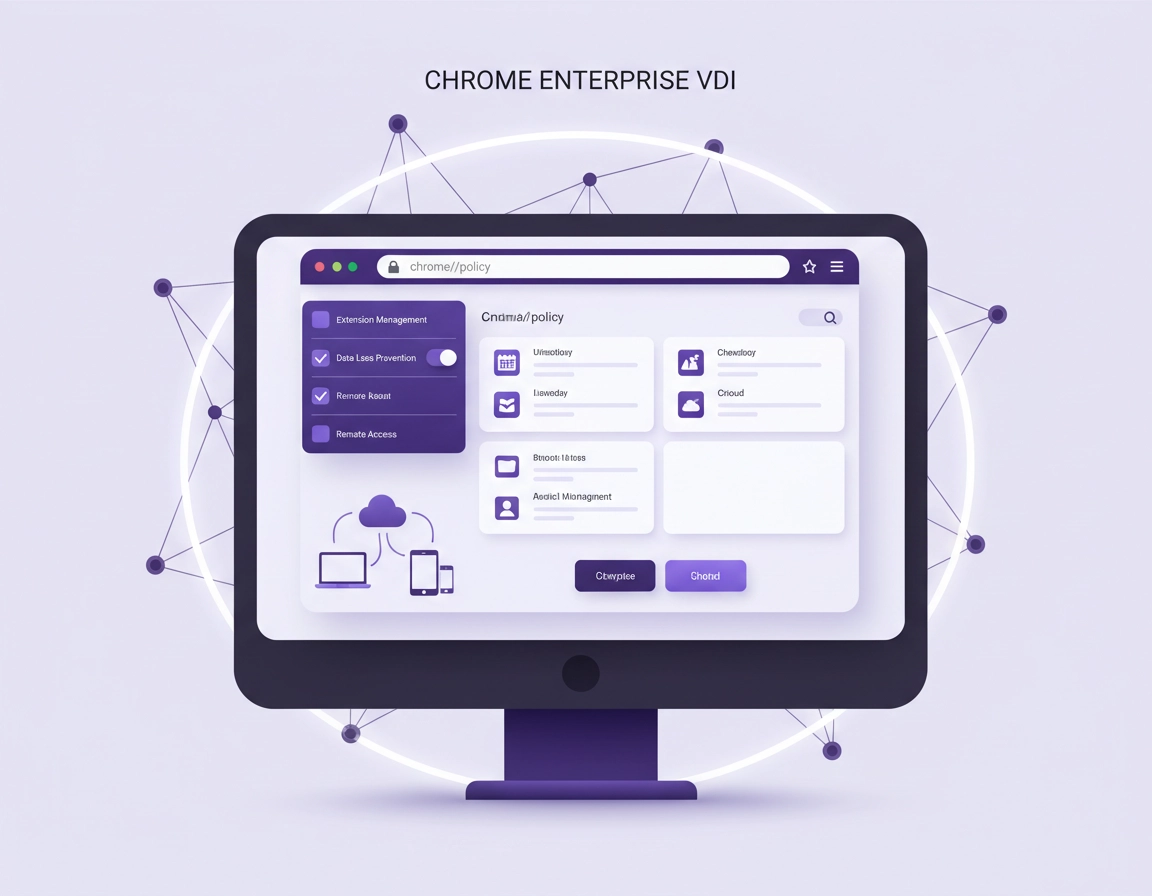
Where Chrome fits in a VDI architecture .
Chrome inside VDI is not just another packaged application. In most enterprise estates, the browser is the front door to SaaS, identity providers, internal dashboards, legacy intranets, call-center tooling, reporting platforms, and remote support workflows. That makes Chrome part of the access layer, the session layer, and the support model at the same time.
The critical design mistake is assuming that a browser behaves like a small stateless app just because the desktop is virtualized. Chrome carries profile data, extension state, cached content, sign-in context, certificates, browsing protections, and policy enforcement. The moment users expect continuity between sessions, the browser stops being a simple executable and becomes a managed workspace component.
In Citrix and VMware-style environments, the browser experience is shaped by the delivery model, storage responsiveness, session persistence, identity flow, security tooling, and host oversubscription. That is why successful Chrome Enterprise VDI deployments are usually designed jointly by endpoint admins, virtualization admins, and security teams rather than by one team working in isolation.
This is also where Chrome Enterprise VDI support becomes commercially valuable as a topic. Organizations searching for it are not looking for a consumer browser tip. They are usually solving one of these problems: how to publish Chrome safely, how to keep user state portable without bloating login times, how to control extensions in shared infrastructure, how to standardize browser settings across OUs, or how to stop repeated complaints about slow startup and unstable sessions.
Related: Start with Chrome Enterprise Guide, then layer in Chrome Enterprise Deployment Guide, Chrome Enterprise Cloud Management, and Chrome Enterprise Secure Remote Access.
Best fit
Shared desktops, pooled desktops, published browser apps, remote workers, call centers, contractors, and teams that need consistent browser governance.
High-risk zone
Large profiles, weak extension control, mixed persistence models, legacy web apps, and update rings with poor rollback discipline.
Support objective
Make Chrome look boring from a helpdesk perspective: same launch path, same policy scope, same approved extensions, same user expectation every time.
Published app versus full virtual desktop .
Google’s enterprise documentation explicitly supports running Chrome as a virtual application, including Citrix Virtual Apps and Desktops scenarios. That matters because many organizations still rely on old forum guidance written for much older XenApp-era environments. Modern Chrome versions detect remote desktop environments automatically, which makes current deployment behavior much cleaner than the workarounds many admins still remember.
The choice between a published application and a full desktop should be based on support cost, user workflow, and profile complexity. A published app model is usually stronger when the organization wants tight control, predictable launch behavior, and minimal variation between users. A full desktop model is usually better when users need several applications in one session, broader file interaction, or a more personal-desktop-like experience.
When published Chrome is the better design .
- Users mainly need browser access to SaaS, intranet tools, and line-of-business web apps.
- You want to keep the desktop image lean and standardized.
- You need tighter control over downloads, local state, and extension installation.
- You want the helpdesk to troubleshoot one browser delivery pattern instead of multiple desktop patterns.
- The user base is task-oriented, shared-device heavy, or compliance-sensitive.
When a full desktop is the better design .
- Users need Chrome alongside desktop apps, file handlers, PDFs, intranet launchers, or internal helper tools.
- Workflow depends on multi-app context inside the same Windows session.
- The organization accepts broader user flexibility in exchange for more profile and desktop complexity.
- Chrome must behave closer to a normal workstation browser for knowledge-worker workloads.
The hidden cost of the full desktop model is not installation. It is expectation drift. Once users perceive the session as “my desktop,” they expect their browser state, extensions, tabs, downloads, passwords, and profile behavior to act like a persistent local machine. If the underlying desktop pool does not actually support that expectation, dissatisfaction rises quickly.
Related: If your environment overlaps with remote and hybrid access planning, see Chrome Enterprise for Distributed Teams, Chrome Enterprise for Hybrid Work, and Chrome Enterprise Device Enrollment.
Profile persistence, roaming profiles, and sync boundaries .
In practice, profile strategy is the hardest part of running Chrome in VDI. It is also the part that determines whether the deployment will stay supportable after the first wave of tickets. Google’s official guidance on roaming user profiles is clear: once you enable roaming profile support, user behavior changes in ways that must be communicated properly. Chrome cloud sync is not available to those users in the normal way, simultaneous Chrome sessions on multiple machines become a problem, and large profiles can slow the browser and increase memory usage.
That means the right question is not, “How do I preserve everything?” The right question is, “Which pieces of browser state are operationally worth preserving?” In most enterprise VDI environments, the answer is smaller than many teams expect. Bookmarks, a defined set of work settings, approved extensions, and required identity continuity usually matter. Gigantic histories, multiple side profiles, stale cache, and years of accumulated personal clutter usually do not.
Practical profile design for VDI .
- Use one work profile per user where possible: multiple Chrome profiles inside VDI multiply confusion around persistence and policy scope.
- Keep persisted profile data intentionally small: the more state you preserve, the more login time, storage overhead, and corruption risk you inherit.
- Do not casually mix persistence methods: roaming profile support and cloud sync solve different problems and should not be treated as interchangeable.
- Plan for session exclusivity: with roaming profiles, users should not assume they can run Chrome simultaneously across multiple machines and get clean sync behavior.
- Document where the roaming file lives: if the location is redirected, understand the operational effect on profile continuity and concurrency.
This is especially important in pooled and non-persistent desktops. If users land on a different VM frequently, you have two choices: design a clear persistence mechanism for the parts of Chrome they truly need, or teach users to expect a lighter, cleaner, more disposable browser session. The worst design is sitting in the middle, where neither persistence nor statelessness is properly implemented.
Profile size matters more than many admins realize. Large numbers of bookmarks, autofill entries, and extensions increase memory use and can slow Chrome down. In VDI, those effects become visible quickly because many users share the same host resources. A browser profile that feels slightly untidy on a local PC can feel expensive when multiplied across dozens or hundreds of concurrent sessions.
Related: Pair this section with Chrome Enterprise Policy Templates, Chrome Enterprise Group Policy Setup, and Chrome Enterprise Version Control.
Policy baseline for a supportable VDI browser .
A VDI browser without clear policy boundaries turns into a support lottery. Some users will install extra extensions, some will keep large profiles, some will move between pools, and some will inherit different settings than they should. The answer is not to lock down everything indiscriminately. The answer is to decide which behaviors must stay consistent in order to protect performance, security, and helpdesk efficiency.
Chrome Enterprise policy is where that consistency comes from. Whether you manage settings through the Google Admin console or on-prem Windows policy templates, the important thing is to assign policies deliberately by organizational unit, user segment, or browser group. A pilot pool, a contractor pool, a regulated workforce, and a standard knowledge-worker pool should not always inherit the same browser design.
Baseline policy areas to lock down first .
- Extension installation rights: force-install required tools, allowlist approved options, block everything else by default where practical.
- Browser update behavior: keep a documented production ring and a smaller pilot ring, especially where legacy apps matter.
- Sign-in expectations: decide whether browser sign-in is encouraged, restricted, or tightly standardized for the workforce.
- Password handling: define whether credentials are stored, synced, or delegated to an enterprise password model.
- Safe Browsing posture and download controls: align browser risk posture with the sensitivity of the VDI environment.
- Hardware acceleration behavior: do not leave graphics handling inconsistent across the same virtual pool.
The most expensive policy failure in VDI is usually not a security breach. It is inconsistency. When the same user gets one browser behavior in one pool and another behavior in a different session, the helpdesk sees “random Chrome problems” even though the root cause is fragmented policy application.
Related: See Chrome Enterprise Management, Chrome Enterprise Policy Hardening, Chrome Enterprise Security Settings, Chrome Extension Management Enterprise, and Chrome Extension Allowlist Policy.
Performance engineering: RAM, vCPU, extensions, and graphics .
Performance tuning for Chrome in VDI is mostly about eliminating predictable waste. Google’s virtual desktop guidance gives admins a useful planning baseline of around 1 GB RAM and roughly 2 to 4 vCPUs per virtual desktop for Chrome browser workloads. That is not a promise that every user fits neatly into the same box. It is a starting point for sizing, testing, and reality-checking concurrency.
Where teams get into trouble is assuming light office work on paper equals light browser work in practice. Modern browser sessions are rarely light. They carry SSO, dashboards, web apps, chat clients, PDF rendering, scripts, streaming analytics, embedded video, and extension logic. Once dozens of users hit that workload at the same time, oversubscription becomes visible fast.
Server sizing and concurrency .
The right sizing question is not “How much does Chrome need?” The right question is “How many real user sessions can this host sustain while running our actual browser workload?” That means testing with normal tabs, identity flows, intranet apps, conferencing tools, and dashboards, not just measuring launch time from a clean desktop.
Extensions are a performance variable, not just a governance variable .
Google explicitly recommends limiting the number of extensions users can install in virtual desktop environments. That advice matters because extensions increase startup time, consume memory, create background activity, and turn one clean browser profile into ten different support cases. In many VDI estates, removing five unnecessary extensions does more for user experience than an hour of obscure browser tweaking.
Graphics and hardware acceleration .
Graphics handling should be a deliberate policy choice. If the virtual infrastructure does not support GPU acceleration appropriately, Google recommends setting the hardware acceleration policy to false rather than allowing inconsistent rendering behavior. That does not mean acceleration is always bad. It means the environment must justify it. In a properly GPU-backed pool, acceleration may help. In a constrained or uneven pool, it can introduce instability that users describe as random slowness, flicker, or poor media behavior.
Performance checklist that actually moves the needle .
- Reduce extension count before blaming Chrome itself.
- Keep profile size under control, especially for pooled desktops.
- Validate host RAM and vCPU against your real tab and app mix.
- Standardize graphics behavior across the pool.
- Measure login-to-usable-browser time, not just session launch time.
- Separate browser version drift from image drift during testing.
Fastest performance win
Trim extensions and shrink persisted browser state before changing deeper infrastructure settings.
Most common hidden bottleneck
Hosts sized for light office sessions but used like full SaaS workstations with many tabs and scripts.
Most overlooked decision
Whether hardware acceleration should stay enabled consistently for the entire pool or be disabled by policy.
Related: Read Chrome Performance for VDI Environments, Chrome Enterprise Performance Optimization, Chrome Resource Management Settings, and Chrome Performance Troubleshooting Guide.
Operational standards, pilot design, and rollback discipline .
Technical compatibility is only the first milestone. The real test is whether Chrome stays supportable six months later. That depends on how you run pilots, how you document changes, and how cleanly you can roll back when a browser version, extension update, or image change collides with production reality.
How to structure a pilot that tells you something useful .
- Pilot normal users first: not only power users, developers, or edge-case exception holders.
- Test business-critical flows: SSO, intranet apps, downloads, PDF handling, dashboards, printing, conferencing, clipboard behavior, and reconnect scenarios.
- Measure the same metrics every time: browser launch time, time to first usable tab, memory after 15 minutes, media behavior, and reconnect consistency.
- Track image version, Chrome version, and extension version together: otherwise you will never know which layer caused the change.
Why version control matters more in VDI .
In a shared virtual desktop estate, a small browser issue can affect an entire pool quickly. That makes controlled rollout, version pinning discipline, and rollback planning much more valuable than they are in loosely managed local fleets. If persisted profile data is involved, version changes deserve even more care because Chrome profiles are not backward-compatible with older browser versions. An undisciplined downgrade path can damage a pool faster than an undisciplined upgrade path.
Related: See Chrome Enterprise Update Management, Chrome Enterprise Rollback Guide, Chrome Enterprise Version Control, and Chrome Enterprise Usage Analytics.
Troubleshooting recurring VDI browser issues .
The fastest way to troubleshoot Chrome in VDI is to stop treating every complaint as a browser mystery. Most cases fall into a handful of patterns: profile growth, extension drag, poor host sizing, inconsistent graphics handling, version drift, or a mismatch between what users expect to persist and what the environment actually preserves.
Slow browser launch .
Start with profile size, extension count, and host resource availability. If launch time worsens gradually, profile growth is a likely suspect. If new users are slow from day one, check the base image, the storage path, and host oversubscription before changing browser settings.
Users lose bookmarks, sessions, or settings between desktops .
Confirm the persistence model first. In pooled desktops, users may land on different machines and expect local state to follow them. If roaming profiles are enabled, verify the policy is active, the profile file location is correct, and users are not relying on simultaneous Chrome sessions across multiple machines.
Video, dashboards, or conferencing feel inconsistent .
Check graphics policy and host contention together. If the environment cannot support GPU acceleration cleanly, leaving hardware acceleration behavior inconsistent across the same pool will create instability. Standardize it, then retest with the actual workload that users complain about.
Problems appear after updates .
Compare Chrome version, image version, and extension version at the same time. In VDI, any one of the three can be the real change. If profile persistence is involved, approach downgrades carefully because older Chrome versions are not a safe fallback path for newer profile data.
Older Citrix estates behave differently .
Be careful with old registry tweaks copied from legacy Citrix guidance. Some of that guidance applies to far older environments than a current Citrix Virtual Apps and Desktops deployment. Validate whether your estate really matches the old condition before pasting in workarounds that can create new variables.
Related: For adjacent fixes, see Chrome Enterprise Risk Management, Chrome Enterprise Device Visibility, Chrome Enterprise Security Reporting, and Chrome Enterprise Endpoint Security.
FAQ .
-
helpDoes Chrome Enterprise officially support VDI environments?Yes. Google documents Chrome in virtual desktop environments, including published virtual application scenarios, roaming profile support for Windows, and browser optimization on virtual desktops. That makes VDI a supported enterprise use case, but supportable results still depend on profile design, host sizing, and policy discipline.
-
helpShould I use roaming profiles or Chrome Sync for VDI users?Choose deliberately. Roaming profile support changes how Chrome behaves and users cannot use Chrome cloud sync in the usual way under that model. It is better to define one persistence strategy clearly than to leave users guessing which part of their browser state should follow them.
-
helpWhy does Chrome feel heavier in VDI than on a local PC?Because VDI magnifies the cost of browser state and concurrency. Large profiles, many extensions, storage latency, host oversubscription, and inconsistent graphics behavior all become more obvious when many sessions share the same infrastructure.
-
helpWhat is the fastest way to improve Chrome performance in a pooled desktop?Trim extensions, reduce the amount of browser state you persist, and validate RAM and vCPU against your real workload instead of a light synthetic test. Those three steps usually produce faster gains than obscure browser flags or one-off registry tweaks.
-
helpIs published Chrome better than a full virtual desktop?It is usually better for standardization and control, especially for task-based browsing. A full virtual desktop is usually better for broader multi-app workflows, but it raises user expectations around persistence, customization, and desktop-style continuity.
Sources & further reading .
- Google Chrome Enterprise Help: Optimize Chrome browser on virtual desktops
- Google Chrome Enterprise Help: Use Chrome browser with Roaming User Profiles
- Google Chrome Enterprise Help: Run Chrome as a virtual application
- Google Chrome Enterprise Help: Set Chrome policies for users or browsers
- Chrome Enterprise Policy List & Management
- ChromeThemer: Chrome Enterprise Guide
Editorial note: This page is written from an enterprise operations perspective. Always validate Chrome policy changes, profile changes, image changes, and update-ring decisions in a pilot pool before broad rollout.