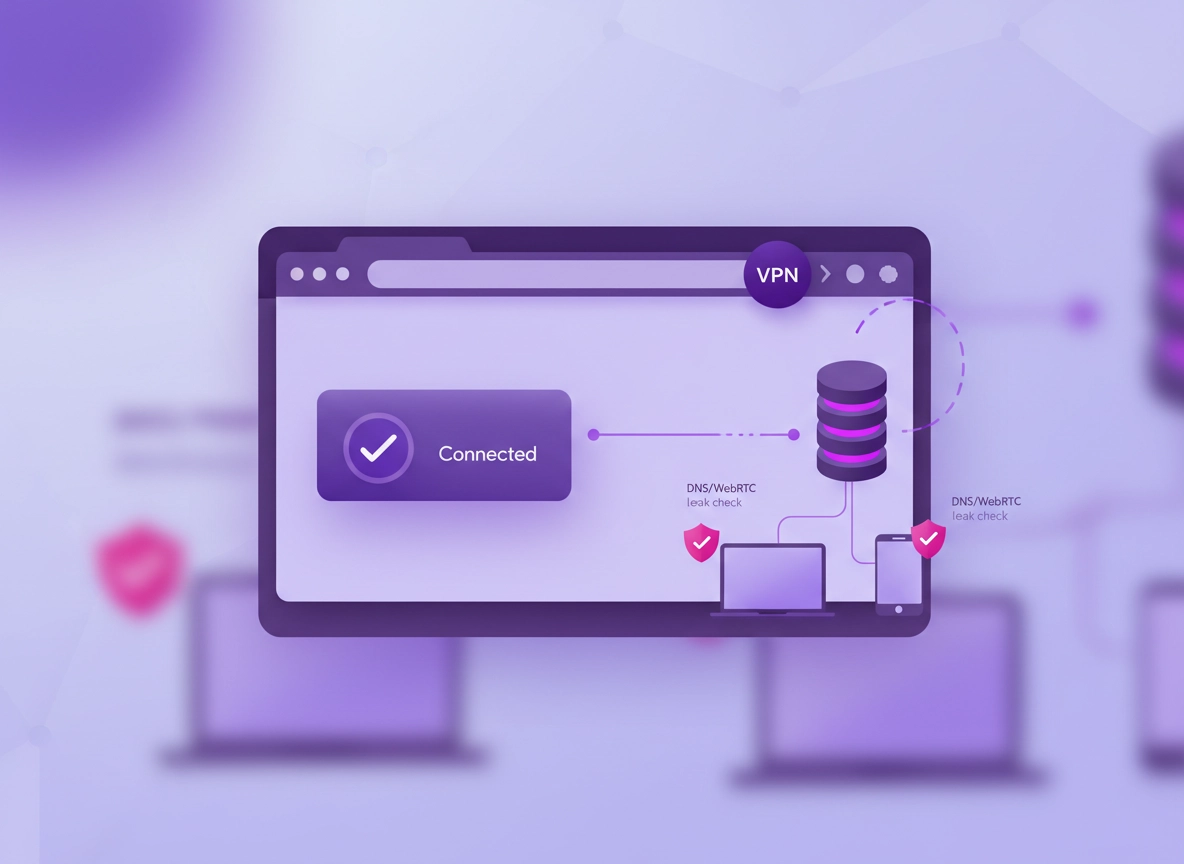
What a business VPN for Chrome really is (and what it isn’t) .
Important idea: “VPN for Chrome” can mean two very different things, and picking the wrong one is the #1 reason teams end up with a false sense of security.
A business VPN for Chrome is a VPN setup designed for team use: consistent sign-in, predictable behavior across devices, the ability to support security controls (like always-on protection), and documentation that stands up to audits. In practice, it usually means a VPN service plus an approved deployment method (desktop client, Chrome extension, ChromeOS VPN app, or a combination), and a clear playbook for verification and troubleshooting.
What it isn’t: a random “free VPN extension” that claims to protect everything. Many browser-only VPN extensions only tunnel traffic inside the browser (and sometimes only certain requests), leaving other apps and background services untouched. That may be fine for a single use-case (like protecting browsing on café Wi-Fi), but it is not automatically “business-ready.”
Business environments usually care about three outcomes: (1) confidentiality on untrusted networks, (2) access control to internal resources, and (3) consistent policy across many users. A good VPN setup supports these goals with clear admin controls and strong defaults.
Start here: If you’re still deciding which VPN category to use, read Best VPN for Chrome and (for high-intent business buyers) compare options in Best Business VPN for Chrome.
Key terms (quick definitions) .
- Browser VPN extension: A Chrome add-on that routes some or all browser traffic through a VPN tunnel. Convenient, but it may not protect other apps.
- Desktop VPN client: A system-level app that routes device traffic through the VPN tunnel (browser + non-browser apps). Best baseline for business.
- DNS leak: When DNS requests go to your ISP (or other resolver) instead of through the VPN, revealing the domains you visit.
- WebRTC leak: When WebRTC exposes network interfaces or IP details that can bypass the VPN tunnel in certain scenarios.
- Split tunneling: Routing only some traffic via VPN while the rest uses the normal connection (can be useful, but increases complexity).
- Dedicated IP: A fixed IP address assigned to your account/team (useful for allowlists, admin portals, and reducing login challenges).
- Kill switch: Blocks network traffic if VPN drops, preventing accidental “open internet” sessions.
When a Chrome VPN extension makes sense (and when it doesn’t) .
Use a Chrome VPN extension when you need convenience and the main risk is browser browsing on untrusted networks. Common examples: short-term contractors, BYOD laptops where you can’t install software, or teams that need quick “secure browsing” on public Wi-Fi.
Use a desktop VPN client when you need strong coverage: SaaS apps, background sync, email clients, dev tools, VoIP apps, and anything that can leak data outside Chrome. In many businesses, the best answer is: desktop client as baseline, plus a hardened Chrome configuration for safer browsing.
Related: If you want the exact differences spelled out, see VPN Chrome vs Desktop VPN and (for privacy angles) VPN Chrome Privacy Review.
Before you start: choose your deployment model .
If you try to “just install something” across a team, you’ll usually end up with inconsistency: different settings, different behaviors, and unclear support ownership. Instead, decide your deployment model first. This section looks long, but it saves hours later.
Choose one of these 3 patterns .
-
verified_user
Pattern A: Desktop VPN client (recommended baseline)
Best coverage and fewer leaks. Ideal for company-managed devices and serious compliance requirements.
Best for: most businesses, remote staff, finance/legal/healthcare workflows. -
extension
Pattern B: Chrome VPN extension (browser-only)
Quick rollout for BYOD or limited environments. Strongly depends on extension trust + permissions.
Best for: contractors, shared devices, “secure browsing” use-cases. -
layers
Pattern C: Hybrid (desktop client + managed Chrome hardening)
Best overall security posture: full-device tunnel plus safer Chrome behavior and extension governance.
Best for: IT-managed fleets, high-risk teams, repeatable audits.
Fast checks (do these before you touch Chrome) .
- Account readiness: Do you have a business plan with team provisioning (SSO/SCIM if needed), admin console access, and device limits?
- Network constraints: Are you behind a corporate proxy, captive portal, or restrictive firewall? (This affects protocols and ports.)
- Device scope: Windows/macOS only, or do you need Android/iOS/ChromeOS too?
- Access goals: Are you protecting internet browsing only, or do you also need access to internal apps, admin portals, and private resources?
- Compliance goals: Do you need logs, dedicated IPs, data residency, or always-on mode?
Related: If Chrome is managed in your org, read VPN Chrome Enterprise and VPN for Chrome IT Admin Guide.
Security reality check: extensions need trust + least privilege .
A VPN extension often needs powerful permissions to route traffic and read/modify requests. That doesn’t automatically make it “bad,” but it does mean you should treat VPN extensions like security software: approve them intentionally, review what they can access, and standardize what the team uses.
Do this next: before you deploy any VPN extension, read VPN Extension Permissions in Chrome and the broader Chrome Extension Security Check.
Step-by-step: set up a business VPN for Chrome .
This walkthrough is written so it works whether you’re an individual business user or an IT admin rolling out to a team. Where it matters, I’ll call out “individual setup” vs “team rollout.”
Step 1: decide your “coverage level” (browser-only vs device-wide) .
- 1 If you need full device protection, install the VPN desktop client and enable its kill switch (if available).
- 2 If you only need Chrome browsing protection (BYOD / restricted installs), plan for a Chrome VPN extension and stronger verification tests.
- 3 If you’re unsure, choose the desktop client. It reduces “leak surface area” and simplifies support.
What “success” looks like: You can explain, in one sentence, which traffic is protected (Chrome only vs whole device) and why that matches your business risk.
Step 2: install the VPN extension in Chrome (if you’re using one) .
- 1 Open Chrome and go to the Chrome Web Store listing for your chosen VPN provider (don’t install “lookalike” extensions).
- 2 Click Add to Chrome → confirm permissions.
- 3 Pin the extension: click the puzzle icon → pin the VPN so users can see connection status.
- 4 Sign in using your business account (SSO if your plan supports it). Avoid sharing logins across employees.
Step 3: connect using the right server location (business logic, not vibes) .
For personal VPN use, server choice is often “closest = fastest.” For business, you also care about login friction, geo-sensitive SaaS, and data residency expectations.
- General productivity: Choose the closest region to your employees for speed and stability.
- Admin portals (high security): Consider a dedicated IP so your allowlists and alerts stay predictable.
- Traveling employees: Choose a region that reduces MFA resets and suspicious login triggers.
- Compliance needs: If your policy requires regional processing, use the plan’s recommended region.
Related: If speed is a deciding factor, see VPN Chrome Speed Comparison and VPN Chrome Performance Test.
Step 4: verify it’s actually working (IP, DNS, and WebRTC) .
In business, “Connected” is not proof. Verification is what turns a VPN setup into an operational standard. Run these checks on at least one device per OS type (Windows, macOS, ChromeOS, Android, iOS).
- 1 IP check: confirm your public IP changes after connecting (and matches the server region you selected).
- 2 DNS leak check: confirm DNS is handled by the VPN (or an approved secure DNS provider), not your ISP.
- 3 WebRTC leak check: confirm WebRTC isn’t exposing local/private IP interfaces unexpectedly.
- 4 Browser behavior check: open a few work-critical sites (banking, HR, CRM, admin portals) and note any breakage.
Go deeper: Use these dedicated guides for the two most common “it says connected, but…” cases: VPN Chrome DNS Leak Test Guide and VPN Chrome WebRTC Leak Fix.
Step 5: set Chrome’s Secure DNS baseline (reduces “quiet leakage”) .
DNS is where many teams leak browsing intent. Even if your VPN handles DNS, setting a clear Chrome baseline helps reduce “mixed resolver” surprises (especially on roaming laptops, captive portals, and networks that intercept DNS).
- 1 Open Chrome → Settings → Privacy and security → Security.
- 2 Find Use secure DNS and enable it (or set the provider according to your business policy).
- 3 If your VPN specifies a DNS mode, choose the approach that avoids conflicts (some VPNs want “use VPN DNS,” others work fine with DoH).
Related: For the cleanest walkthrough (and when to use a custom provider), see Chrome Secure DNS Setup and DNS over HTTPS Settings.
Step 6: standardize the user experience (so support doesn’t implode) .
If you’re deploying to a team, create a standard: one approved VPN, one expected connection flow, one troubleshooting checklist, and one place to report issues.
- Pin the extension (if used) so connection state is visible.
- Write a one-page playbook: when to connect, what “connected” means, and what to do when a site breaks.
- Define “exceptions”: banking/admin portals that should use dedicated IP, split tunneling rules, or bypass rules (if your VPN supports it).
- Limit extension installs: reduce risk by controlling what can be installed (see advanced policy section).
Related: For remote-team context, see VPN for Chrome Remote Workers and VPN for Chrome Remote Work Security.
Common variations .
- Windows / ChromeOS: Captive portals can block the VPN handshake. Authenticate on the Wi-Fi first, then connect the VPN.
- macOS: Some security tools (DLP/EDR) inspect traffic and can interfere with VPN connections. If the VPN fails only on managed Macs, check security agent policies.
- Android / iPhone: Mobile OS VPN settings can override browser behavior. Prefer the OS-level VPN profile for consistent protection.
ChromeOS users: If you need a true device-level VPN on Chromebooks, see VPN Chrome Enterprise and VPN Chrome Secure Public WiFi.
Advanced settings: policy controls, leak prevention, and hardening .
This is the section most “VPN setup” articles skip — and it’s the section businesses actually need. Here’s how to make your Chrome VPN setup repeatable, auditable, and less fragile.
Related: Managed environments should also review Chrome Enterprise Guide and Chrome Enterprise Security Settings.
1) Extension governance: allowlist, blocklist, and “no random VPNs” .
If you allow users to install anything, sooner or later you’ll get: (a) “free VPNs” with questionable data practices, (b) proxy tools that bypass monitoring, or (c) broken extensions causing performance issues. A business VPN rollout is much cleaner when you define what’s allowed.
- Allowlist: Only approved extensions can be installed (best practice for business devices).
- Blocklist: Prevent known risky categories (VPN/proxy/“unblocker” tools) unless explicitly approved.
- Force-install (optional): If your environment supports it, you can deploy the approved VPN extension automatically so everyone uses the same tool.
Related: If you’re building an extension policy posture, start with Chrome Extension Security Policy and Chrome Extension Installation Policy.
2) WebRTC leaks: what matters for business (and what doesn’t) .
WebRTC is used for real-time communication (calls, conferencing, collaboration tools). Some “leak prevention” advice online is too blunt: it blocks WebRTC entirely and breaks meeting tools. Business needs a more careful approach: reduce leak risk without wrecking collaboration.
- If your team relies on Google Meet / Teams / Zoom web: avoid heavy-handed blocking unless you have an alternative.
- If your team rarely uses web-based calls: you can tighten WebRTC settings more aggressively.
- Verification matters: don’t assume. Run the WebRTC leak check after every major change.
Do this: Follow the targeted guide: VPN Chrome WebRTC Leak Fix. For deeper security hardening, combine with Chrome Network Privacy Settings.
3) DNS strategy: choose one “source of truth” .
Business DNS decisions get messy fast: VPN DNS, Chrome Secure DNS (DoH), OS DNS, security DNS filtering, and network appliance DNS. The goal is not “enable everything.” The goal is: one predictable path that matches your policy.
- If your VPN provides secure DNS filtering: prefer VPN DNS (simplest) and configure Chrome DoH carefully to avoid conflicts.
- If you rely on a corporate DNS filter: ensure the VPN doesn’t bypass required filtering (or explicitly route filtering via VPN’s secure gateway feature).
- If you want privacy + modern encryption: use Secure DNS intentionally and test DNS leaks.
Recommended reads: DNS Leak Test Guide, Chrome DNS Privacy Guide, and VPN vs Private DNS for Chrome.
4) Split tunneling: powerful, but easy to misconfigure .
Split tunneling can be great for performance and compatibility, especially when you only need the VPN for specific internal apps, but it increases the chance that sensitive traffic goes “outside the tunnel” by mistake.
- Use it when: you must access internal resources but want local internet performance for everything else, or you have apps that break over VPN.
- Avoid it when: you handle regulated data, work on public Wi-Fi often, or can’t reliably document “what is tunneled.”
- Rule of thumb: if you can’t explain your split rules to a new hire in 30 seconds, they’re too complex.
Related: VPN for Chrome with Split Tunneling and VPN Policy Enforcement.
5) Dedicated IP for business: when it’s worth paying for .
Dedicated IP is one of those “sounds unnecessary” features… until you run a business. It makes allowlisting and alerting cleaner, reduces unexpected login challenges, and can simplify access to admin systems.
- Worth it for: finance portals, admin consoles, internal dashboards, vendor allowlists, and stable remote access.
- Not always worth it for: casual browsing privacy. If you only need encryption on public Wi-Fi, shared IP can be fine.
Related: VPN for Chrome with Dedicated IP.
Common alternatives users compare .
- VPN vs Proxy for Chrome: differences
- Smart DNS for Chrome explained
- VPN vs Zero Trust Browser Security
- Zero Trust Network Access vs VPN
Privacy & security notes (risk-based recommendations) .
A VPN is a security tool — but it’s also a trust tool. You’re shifting trust from the local network/ISP to the VPN provider (and to the way you configure Chrome). This section gives you a practical way to reason about that tradeoff.
Impact: Affects browsing confidentiality, metadata exposure (DNS), extension permissions, and operational consistency across teams.
Related: For a security-first Chrome baseline, see Chrome Privacy & Security Settings Overview and Chrome Hardening Guide.
Recommended baseline settings (business-friendly) .
- Option A (balanced): Desktop VPN client + kill switch on, Chrome Secure DNS set to your policy, minimal extension allowlist.
- Option B (maximum privacy): Desktop VPN always-on (where supported), tighter WebRTC handling (without breaking meetings), strict extension governance, DNS leak checks as routine.
- Option C (compatibility): VPN on-demand + dedicated IP for sensitive portals, careful split tunneling (documented), and an exception process for sites that break.
Recommended settings by goal .
| Goal | Recommended setting | Tradeoff | Best for |
|---|---|---|---|
| Balanced | Desktop VPN baseline + Secure DNS policy + extension allowlist | Some sites may need re-authentication / location checks | Most teams |
| Maximum privacy | Always-on VPN + tighter WebRTC handling + routine DNS/WebRTC verification | Potential conferencing breakage if over-restricted | High-risk roles |
| Compatibility | On-demand VPN + dedicated IP for critical portals + limited split tunneling | More complexity and “edge-case” support | Teams with legacy systems |
The 5 business VPN mistakes that cause real problems .
- Assuming “connected” means “protected”: skipping DNS/WebRTC verification.
- Using browser-only VPN where device-level is required: background apps leak outside Chrome.
- Allowing any extension install: employees add risky VPN/proxy tools that bypass policy.
- Over-blocking WebRTC: collaboration tools break, and users disable protections to “fix calls.”
- No exception process: when one banking portal fails, everyone starts making their own settings.
Related: If you’re building a broader secure browsing posture, see Chrome Zero Trust Browser Setup and VPN for Chrome Zero Trust Security.
Troubleshooting: the fixes that actually work .
VPN troubleshooting is usually about finding the real failure layer: account/auth, extension, browser settings, DNS, network restrictions, or device security tools. Use the sections below like a decision tree.
Related: If the problem smells like “Chrome is acting weird,” you might be dealing with a bad extension or infection. See Remove Malware from Chrome and Remove Unwanted Chrome Extensions.
If the VPN connects but your IP doesn’t change .
This usually means one of three things: (1) you’re on a browser-only extension and only some traffic is tunneled, (2) the extension is failing silently due to permissions or conflicts, or (3) you’re connected to a “smart” endpoint (like split tunneling or dedicated routing) that doesn’t change what you’re checking.
- Confirm you’re checking from a normal Chrome tab (not a locked-down internal page or cached result).
- Disable other network-altering extensions (ad blockers, proxy tools) and re-test.
- If your VPN supports “bypass” rules, confirm the test domain isn’t excluded.
- For business: test from a second device to rule out local machine conflicts.
If DNS leaks (your ISP shows up) .
DNS leaks are common when Secure DNS (DoH) and VPN DNS fight each other, or when the VPN is browser-only and the OS still handles DNS in the background.
- Decide your DNS “source of truth”: VPN DNS, Secure DNS provider, or corporate DNS filtering.
- Apply the decision consistently and re-test.
- Check if your VPN has a “DNS leak protection” toggle or “use VPN DNS” mode.
Fix guide: VPN Chrome DNS Leak Test Guide.
If WebRTC leaks or meetings break .
Over-blocking WebRTC can break conferencing. Under-blocking can expose network interfaces. The “business-safe” approach is to apply targeted mitigation and then validate your collaboration tools.
- Make one change at a time, then test: Meet/Teams/Zoom web + a WebRTC leak test.
- Avoid stacking multiple “WebRTC blocker” extensions. One is usually enough (and fewer moving parts = fewer bugs).
- If you’re in a managed environment, align the approach with your broader security posture (policy over ad-hoc tools).
Fix guide: VPN Chrome WebRTC Leak Fix.
If the VPN won’t connect on corporate networks .
Corporate networks often block VPN protocols or require proxies. This is not a Chrome issue — it’s network policy.
- Try a different VPN protocol in your VPN app (many providers offer multiple options).
- If you’re behind a proxy, review Chrome proxy settings and your IT policy.
- Test from a mobile hotspot to confirm the VPN works outside the corporate network.
Related: Chrome Proxy Settings Guide and VPN for Chrome Connection Issues Fix.
If Chrome becomes slow after installing the VPN extension .
VPN extensions can add latency and CPU overhead. If the slowdown is severe, it’s often an extension conflict or a server choice issue.
- Switch to a closer VPN server region.
- Disable unnecessary extensions and re-test.
- Check whether the extension is set to filter ads/malware (useful, but can increase overhead).
Related: VPN for Chrome Performance Impact and Speed Up Google Chrome.
If you need to reset safely (without losing everything) .
If you suspect Chrome is “stuck” after multiple changes, reset strategically: remove the VPN extension, restart Chrome, then re-install and re-test before you change anything else. In business environments, prefer documented policy over repeated manual tweaks.
Related: Chrome Security Reset and Chrome Profile Reset Guide.
FAQ .
-
helpIs a Chrome VPN extension enough for business security?Sometimes, but not always. A Chrome extension often protects browser traffic, not the entire device. For business, the safest baseline is a desktop VPN client (device-wide), then use a Chrome extension only when installs are restricted or you need a browser-only workflow.
-
helpHow do I know my business VPN in Chrome is actually working?Don’t trust the “Connected” label alone. Verify with three checks: your public IP changes, DNS doesn’t leak to your ISP, and WebRTC isn’t exposing unexpected network interfaces. Use the DNS leak and WebRTC fix guides linked in this article for repeatable validation.
-
helpShould I turn on Secure DNS (DoH) if I’m using a VPN?It depends on your policy. Secure DNS can improve privacy, but it can also conflict with VPN DNS modes or corporate DNS filtering. Choose one “source of truth” (VPN DNS, Secure DNS provider, or corporate DNS) and test for DNS leaks after changes.
-
helpWhat’s the safest way to deploy a VPN to a team using Chrome?Use a business VPN plan with team provisioning and deploy a desktop VPN client wherever possible. Then lock down Chrome extension installs with an allowlist so users can’t install random VPN/proxy tools. Finally, document a standard verification checklist and a support process for broken sites.
Sources & further reading .
- Google Chrome Help: Manage safety and security (desktop + mobile variants)
- Chrome Enterprise: policy list (enterprise management reference)
- Chrome Enterprise policy: ExtensionInstallForcelist (force-install extensions)
- Chrome Enterprise policy: WebRtcIPHandling (WebRTC IP handling)
Disclosure: Some pages may mention tools or services. Recommendations are editorial and based on practical setup and verification workflow, not hype.