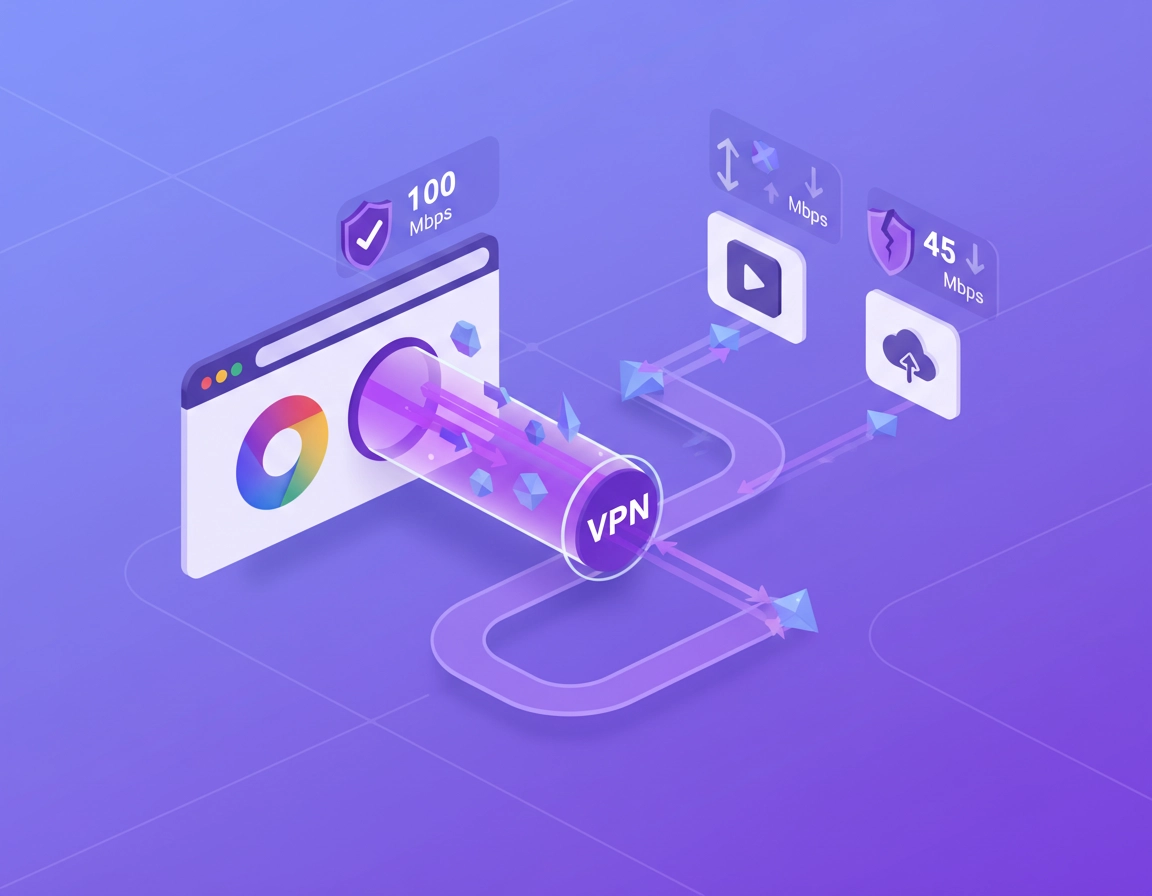
What split tunneling for Chrome actually means .
Important distinction: Chrome itself does not ship with a native “split tunneling” control the way a full VPN client does. That is why this topic confuses so many users. When someone says they want a VPN for Chrome with split tunneling, they usually mean one of three very different things.
The first meaning is browser-only protection. In this model, a Chrome VPN extension proxies traffic from the browser while the rest of your system continues using your normal connection. That behaves like split tunneling from the user’s perspective because Chrome is tunneled and other apps are not. For many people, that is enough. If your goal is protecting searches, webmail, dashboards, logins, or region-sensitive browsing inside Chrome, an extension can be a clean solution.
The second meaning is app-based split tunneling from the desktop VPN client. Here, the VPN app on Windows or macOS lets you choose which programs use the VPN tunnel and which programs bypass it. Chrome can be included while Teams, Zoom, a printer utility, a game launcher, or a sync client stays outside the tunnel. This is often the best answer for people who need stronger privacy than an extension alone can provide, but still want performance or local-network convenience.
The third meaning is site-based or domain-based routing. Some VPN products or enterprise secure web gateways can route only selected destinations through a protected path while other sites go direct. This is more advanced and less common for ordinary consumer Chrome setups, but it matters in business environments where internal apps, cloud apps, and public browsing may need different treatment.
Why does any of this matter? Because pushing all traffic through a VPN is not always the best experience. Full-tunnel mode can create unnecessary latency, break local printer discovery, trigger extra location checks, upset streaming or banking logins, and slow down high-bandwidth apps you did not care to protect. Split tunneling is the compromise layer. Done well, it protects what matters while reducing friction. Done badly, it creates privacy gaps that look secure on the surface but leak in practice.
There is also a Chrome-specific nuance worth understanding: browser traffic is not only “web pages.” Chrome can interact with extensions, service workers, site permissions, DNS lookups, WebRTC connections, signed-in Google services, profile sync, and identity cookies. So when you route Chrome differently from the rest of the device, you are not just changing your public IP. You are potentially changing how websites profile your session, how location mismatches appear, how SSO behaves, and whether internal or local resources remain reachable.
Related: If you are still deciding whether a browser extension is enough, compare the tradeoffs in VPN Chrome vs Desktop VPN and the broader Best VPN for Chrome guide.
Key terms you should understand first .
- Full tunnel: All device traffic goes through the VPN.
- Split tunnel: Only selected apps, destinations, or traffic types use the VPN while the rest bypasses it.
- Browser extension VPN: Usually protects or proxies browser traffic only, not the entire system.
- App-based split tunneling: A desktop VPN feature that includes or excludes specific applications, such as Chrome.
- DNS leak: Your browsing traffic may go through the VPN, but domain lookups still reach your normal network resolver.
- WebRTC leak: Real-time browser features can sometimes expose local or public IP details unless correctly handled.
- Local network bypass: The ability to keep access to printers, NAS devices, or internal office resources while the VPN is active.
Before you start: quick checks that prevent bad setups .
Before you choose a routing model, get clear on your actual use case. Split tunneling is powerful, but it is also one of the easiest ways to accidentally create a false sense of security. These checks save time and stop you from solving the wrong problem.
Related: If speed is your main concern, read VPN Chrome Speed Comparison and VPN Chrome Performance Test.
- Check 1: Decide what must be protected. Is it only browser activity, or do you also want downloads, other browsers, cloud clients, chat apps, or desktop tools inside the VPN?
- Check 2: List what must stay outside the tunnel. Common examples include printers, local servers, video calls, backups, gaming apps, or region-sensitive services.
- Check 3: Identify whether you need one Chrome profile or several. Mixing personal browsing, work SaaS, and region-switching inside one signed-in profile can create messy results even if the VPN itself works.
- Check 4: Confirm whether your VPN offers extension-only mode, app-based split tunneling, or both. Not all providers expose the same routing controls across platforms.
- Check 5: Think about DNS and WebRTC before you test. Users often confirm the public IP changed and assume the setup is complete. It is not.
- Check 6: Be careful with websites that dislike route changes. Banking, corporate SSO, anti-fraud systems, streaming sites, and some account security workflows can react badly when Chrome appears in one region while the device or DNS appears elsewhere.
There is another important question: are you trying to access local resources while the VPN is on? If yes, split tunneling is often the right approach. A common home-office example is wanting Chrome protected while keeping your printer, NAS, or local admin panel reachable. A common business example is tunneling Chrome for safer SaaS access while keeping voice/video tools or internal desktop management agents on the ordinary network path.
Also check whether you are using Chrome Sync, a Google account session, or profile-specific extensions that inject their own requests. Split tunneling changes the network path, but it does not magically separate all browser identity signals. If you sign into the same account in the same profile across different regions or routing modes, websites may still correlate activity. Split tunneling helps with routing; it does not automatically produce anonymity.
Related: If you want fewer browser identity surprises, also review Disable Chrome Sync, Chrome DNS over HTTPS settings, and Chrome fingerprint protection.
Step-by-step: the best ways to use split tunneling with Chrome .
There are two main ways to achieve the outcome most users want. Start with Method A if your goal is simply “protect Chrome, not my whole device.” Start with Method B if you want stronger control and a more complete privacy posture.
Method A: Use a Chrome VPN extension for browser-only protection .
- 1 Choose a reputable VPN provider that offers a real Chrome extension, not just a generic proxy add-on with unclear ownership or weak privacy promises.
- 2 Install the extension from the Chrome Web Store, sign in, and choose a location close to your needs. Nearby servers usually reduce latency.
- 3 Open a new tab and verify that browser traffic shows the VPN location while other device apps still use your normal connection.
- 4 Test a normal website, a login-heavy site, and a site that uses media or real-time features so you catch breakage early.
- 5 If the extension includes WebRTC protection, tracker blocking, or location controls, review those settings before assuming the browser is fully sealed.
What success looks like: Chrome tabs reflect the VPN route, but system-wide apps such as email clients, gaming apps, backup software, and file sync continue using your standard connection.
This method is often the simplest path for people who want split-tunnel behavior without configuring a desktop client. It is especially useful for web research, region-specific browsing, privacy on public Wi-Fi, and SaaS access when you do not want the VPN touching every background process on your machine.
Its limitation is scope. A browser extension typically does not protect other applications, downloads handled outside the browser, or some deeper system traffic. That is why extension-only setups are convenient but not always ideal for users who need more comprehensive device security.
Method B: Use a desktop VPN client with app-based split tunneling .
- 1 Install your VPN provider’s desktop app and connect once in full-tunnel mode to confirm the base connection works.
- 2 Open the split tunneling or routing section in the VPN app. Some providers call this “App routing,” “Bypass VPN,” “Route via VPN,” or similar.
- 3 Choose whether Chrome should be included in the VPN or whether all apps should use the VPN except selected exclusions. The wording matters.
- 4 Add Chrome to the correct list. On some systems you may need to point the app to the Chrome executable rather than selecting by name.
- 5 Reconnect the VPN, then test Chrome, a non-Chrome app, and access to local resources such as your printer or NAS.
- 6 Review DNS, WebRTC, and local network settings so your chosen route matches the security level you expect.
What “success” looks like: Chrome consistently uses the VPN path, excluded apps do not, and the setup remains stable after reboots, profile changes, Chrome updates, and network switching.
This is the better method when you need stronger control, want Chrome protected even beyond simple extension-level routing, or want the VPN vendor’s kill switch, DNS handling, and device-level policies to matter. It is also the better fit for many professionals reading internal dashboards or customer data in Chrome while keeping video meetings or local-office workflows outside the tunnel.
Related: If kill-switch behavior matters, pair this page with VPN for Chrome with Kill Switch. If you care about remote work protection, also read VPN for Chrome Remote Workers.
Method C: Use separate Chrome profiles for cleaner routing logic .
Even if your VPN product handles split tunneling correctly, your browser workflow can still be chaotic if everything lives in one Chrome profile. A cleaner structure is often:
- Profile 1: Personal browsing, normal connection, everyday extensions.
- Profile 2: Work or secure browsing, launched only when the VPN route is active.
- Profile 3: Region-specific testing or research, ideally with minimal extensions and no unnecessary sign-ins.
This reduces cookie collisions, account-security alerts, odd location jumps, and site breakage caused by mixing incompatible browsing tasks in one environment. It is not mandatory, but it is one of the highest-value upgrades you can make if you are serious about using split tunneling well.
Platform notes and common variations .
- Windows: Usually offers the richest app-based split tunneling support, but you need to confirm the VPN rules survive updates and network changes.
- macOS: Support varies by provider and OS networking method. Some VPN apps expose fewer split-tunnel options on macOS than on Windows.
- ChromeOS: Extension-only or Android-app-based behavior can differ from desktop Windows/macOS routing. Test carefully if you rely on corporate accounts or school management policies.
- Android and iPhone: Mobile VPN apps may support per-app routing, but the behavior is not the same as a traditional Chrome desktop workflow.
Advanced settings, routing logic, and enterprise tradeoffs .
This is where split tunneling becomes a high-value topic rather than just a checkbox. The real benefit is not merely “some traffic through VPN, some not.” The real benefit is aligning route decisions with business risk, browser identity, application sensitivity, and user experience.
At an advanced level, you should think about four separate layers: transport, identity, DNS, and local reachability. Transport is the obvious part: where the packets go. Identity is the browser-level story: accounts, cookies, geolocation, and login reputation. DNS determines whether your requests are truly resolved through the protected path or leak back to the normal network. Local reachability decides whether the VPN breaks access to printers, file shares, smart devices, or office infrastructure.
Many users only evaluate transport. They see a new public IP in Chrome and conclude the setup is perfect. But a mature setup checks whether Chrome still leaks hints through DNS behavior, whether WebRTC reveals the local interface, whether signed-in sessions now look suspicious, and whether extensions continue to function as expected. That is why split tunneling has both upside and operational complexity.
Related: For broader privacy implications, also read VPN Chrome Privacy Review, VPN Chrome Encrypted Browsing, and VPN Chrome No-Logs Policy.
When split tunneling makes sense .
- You want Chrome protected on hotel, airport, coffee-shop, school, or coworking Wi-Fi without sending every background app through the tunnel.
- You want SaaS dashboards, admin tools, or webmail in Chrome on the VPN, but need video conferencing or sync clients to keep their direct path.
- You need access to local resources like printers, NAS boxes, routers, or device-control panels while Chrome remains tunneled.
- You are optimizing performance and do not want high-bandwidth or latency-sensitive apps competing with tunneled browser traffic.
- You operate in a mixed work environment where internal apps and public browsing require different controls.
When split tunneling is a bad idea .
- You assume it provides full-device privacy. It does not.
- You are doing high-sensitivity work and cannot tolerate routing gaps, inconsistent logs, or accidental bypass traffic.
- You frequently move between networks and do not re-test after switching Wi-Fi, docking, sleeping, or waking your device.
- You use security tools that expect a uniform route. Partial routing can confuse endpoint controls, identity checks, or compliance monitoring.
Three advanced route designs that work well .
Design 1: Browser-only secure browsing. Use a Chrome VPN extension or isolate Chrome in the desktop client. Best for research, logins, SaaS, and privacy-minded browsing when you want minimal system disruption.
Design 2: Work-browser over VPN, collaboration apps outside. This is popular for remote teams. Chrome carries customer portals, admin dashboards, CRM tools, and reporting tools through the tunnel, while Teams, Zoom, or Slack take the normal route for better media stability.
Design 3: Default VPN with explicit exclusions. This is the safer variant if you would rather assume protection by default. Put most traffic on the VPN, then exclude only the apps or services that genuinely fail or degrade under tunneling.
Common alternatives users compare .
- Chrome extension vs desktop VPN app: extensions are simpler; desktop apps usually offer stronger routing control.
- Full tunnel vs split tunnel: full tunnel is simpler to reason about; split tunneling is usually better for performance and local-network usability.
- Consumer VPN vs business secure access stack: consumer tools suit individuals, while managed environments may need policy-based access and auditability.
- Single browser profile vs multi-profile workflow: separate profiles reduce cross-contamination and location weirdness.
Enterprise and managed-browser considerations .
In enterprise settings, Chrome is rarely just “a browser.” It may be the front end to identity providers, customer data, internal admin panels, reporting tools, password managers, and sensitive extensions. Split tunneling can be useful here, but it should be deliberate. Security teams may prefer consistent logging, DNS control, and policy enforcement over raw user convenience.
That does not mean split tunneling is off the table. It means the design should be documented. If Chrome is routed through the VPN while other apps bypass, the team should know which identities live in Chrome, how DNS is handled, whether corporate extensions are involved, whether local network access is allowed, and what happens when the VPN disconnects. In many small businesses, the risk is not the concept of split tunneling itself. The risk is unmanaged exceptions that nobody revisits.
Related: For business readers, continue with Business VPN for Chrome Setup, VPN Chrome Corporate Compliance, and Best Business VPN for Chrome.
Privacy & security notes .
Split tunneling is not automatically less secure than full tunnel, but it is less forgiving. The challenge is not that split tunneling always leaks. The challenge is that it creates a mixed-trust environment where mistakes are easier to make and harder to notice.
Impact: Split tunneling can improve performance and usability, but it can also expose DNS behavior, local-network paths, non-tunneled applications, or identity mismatches if you do not test thoroughly.
Related: If you are worried about leaks specifically, also review VPN Chrome DNS Leak Test Guide, VPN Chrome WebRTC Leak Fix, and VPN Chrome IP Leak Protection.
Recommended baseline settings .
- Option A (balanced): Route Chrome through the VPN, keep trusted local network access available, and verify DNS plus WebRTC behavior.
- Option B (maximum privacy): Use the desktop VPN client, include Chrome in the tunnel, minimize sign-ins, disable unnecessary sync, and prefer separate browser profiles for sensitive work.
- Option C (compatibility): Use browser-only protection or exclude known-problem apps from the tunnel while keeping Chrome routed through the VPN.
Recommended settings by goal .
| Goal | Recommended setting | Tradeoff | Best for |
|---|---|---|---|
| Balanced | Chrome through VPN, other selected apps direct, local network access allowed | Some non-browser traffic remains outside the tunnel | Most home users and remote workers |
| Maximum privacy | Desktop VPN app with Chrome included, leak checks completed, separate secure profile | More setup effort and more potential site friction | Security-conscious users and sensitive work sessions |
| Compatibility | Extension-only browser protection or VPN exclusions for unstable apps | Less total coverage than a full-device tunnel | Banking, collaboration tools, streaming, local-device access |
| Performance | Tunnel only Chrome and other critical browser tasks; keep media-heavy apps outside | Mixed route model requires extra testing | Users on slower lines or crowded Wi-Fi |
Security mistakes to avoid .
- Assuming a Chrome extension equals full device protection.
- Checking only the public IP but ignoring DNS and WebRTC.
- Using one signed-in Chrome profile for personal, work, and region-jumping activity.
- Forgetting that downloads, helper apps, or external open-in-app actions may leave the browser path.
- Letting “temporary” split-tunnel exceptions accumulate until the security model is impossible to understand.
Troubleshooting .
Related: For wider browser-safety context, see Chrome Extension Security and Privacy Settings.
If Chrome still shows your normal location .
This usually means either the extension is not actually connected, Chrome was not properly added to the VPN app’s routing list, or the site is using more than IP data to infer location. Check the VPN status inside the extension or desktop app, restart Chrome completely, and test in an Incognito window with unnecessary extensions disabled. Remember that websites can also use account history, cookies, browser language, and location permissions.
If websites break only when Chrome is tunneled .
Some sites react badly to changed network paths, especially banking platforms, SSO systems, streaming services, or anti-bot protected pages. Try a nearby server, clear the site cookies for that domain only, or use a dedicated Chrome profile for tunneled sessions. If the site is truly sensitive, you may need a compatibility exception rather than forcing it through the VPN.
If DNS tests do not match the VPN route .
This points to DNS leakage or split DNS behavior. Check whether the VPN client handles DNS for included apps, whether your system is using secure DNS outside the tunnel, and whether the browser extension offers its own DNS or privacy mode. Split tunneling without clear DNS handling can leave you with a new browser IP but old resolver behavior.
If WebRTC exposes the wrong network details .
This is common in browser-based calling, conferencing, or real-time collaboration apps. Review any WebRTC protection in your VPN extension, test with media features enabled, and reduce extension conflicts. If your work depends on real-time web apps, you may prefer a desktop VPN client plus explicit tests rather than relying on a lightweight extension alone.
If local printers, NAS devices, or router pages disappear .
You are probably tunneling too much or local network access is disabled. Revisit the VPN’s local-network or LAN access setting, or exclude the relevant app from the tunnel. This is one of the classic reasons users adopt split tunneling in the first place.
If Chrome updates or reboots break your split-tunnel rule .
Some VPN apps match applications by executable path or process pattern. After updates, verify the route still applies to the correct Chrome binary. Do not assume yesterday’s split-tunnel rule survived today’s patch. Re-test after major browser or VPN client updates.
If you need to reset safely .
Start simple. Turn off split tunneling, confirm the VPN works in full-tunnel mode, then rebuild the rule set one item at a time. Test Chrome first, then add one exception at a time. A clean reset is usually faster than guessing which old exclusion or extension conflict caused the problem.
FAQ .
-
helpDoes Chrome have built-in split tunneling?No. Chrome itself does not provide a native split-tunneling control like a desktop VPN client. What most users call “split tunneling for Chrome” is either browser-only VPN extension routing or app-based split tunneling configured in the operating-system VPN app.
-
helpIs a Chrome VPN extension the same as a full VPN app?Not usually. A Chrome extension commonly protects browser traffic only, while a full VPN app can route the whole device or apply app-based split tunneling. Extensions are convenient, but they are not a full replacement for device-wide VPN protection in every case.
-
helpWhat is the safest split-tunnel setup for Chrome?For most serious users, the safest practical setup is a reputable desktop VPN app with Chrome explicitly routed through the tunnel, DNS behavior checked, WebRTC tested, and a separate Chrome profile used for sensitive activity. That gives you stronger control than an extension-only setup.
-
helpCan split tunneling improve speed?Yes. It can reduce unnecessary VPN overhead by keeping only the traffic you care about inside the tunnel. That often helps when Chrome needs privacy, but video calls, gaming, or high-bandwidth background apps perform better on the direct connection.
-
helpCan split tunneling cause privacy leaks?Yes, if you misunderstand what is and is not inside the tunnel. A mixed route design can leak DNS behavior, expose non-browser apps, or create misleading results if you only check the browser IP and skip broader testing.
-
helpShould remote workers use split tunneling with Chrome?Often yes, but only with a clear policy. It can be excellent for routing work browsing through the VPN while keeping collaboration apps or local resources outside. In higher-security environments, though, the organization may prefer full-tunnel consistency over convenience.
Sources & further reading .
- Chrome Developers: proxy API reference
- Chromium project: network settings and proxy behavior overview
- OpenVPN: VPN and routing reference materials
- Cloudflare WARP documentation
- Google Chrome Help
Disclosure: This guide is editorially written to help readers understand routing choices, compatibility risks, and privacy tradeoffs. Product capabilities vary by provider and operating system, so test your setup after every major VPN or Chrome update.