What a VPN kill switch for Chrome actually means .
The most important thing to understand upfront is that “VPN for Chrome with kill switch” can describe two very different setups, and they do not provide the same level of protection.
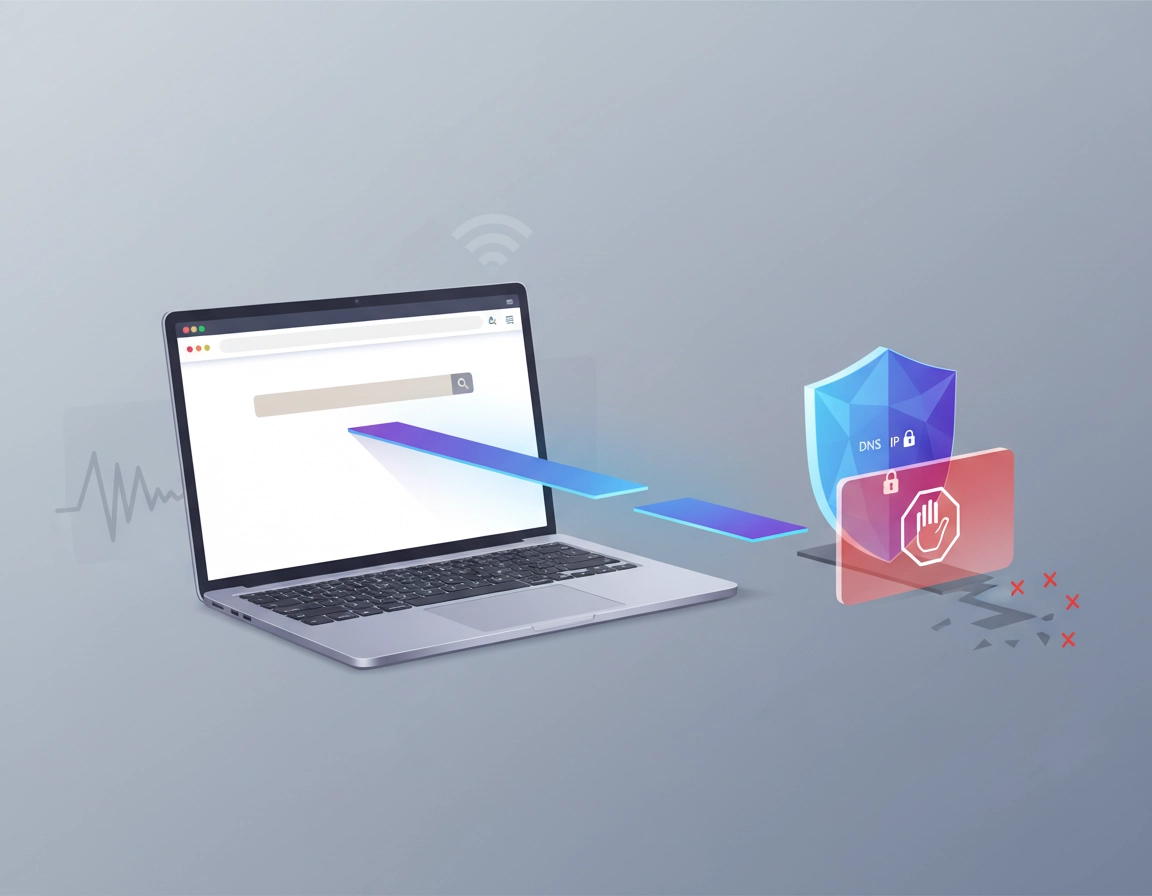
In the strongest setup, Chrome traffic travels through a full VPN tunnel created by a desktop or mobile VPN application. If that tunnel goes down, the kill switch blocks traffic at the device or network level. In plain English, Chrome cannot quietly continue browsing through your normal connection while the VPN reconnects. That is the behavior most users expect when they hear the phrase kill switch.
In the weaker setup, a Chrome VPN extension protects only browser traffic that the extension can control. Some extensions act more like encrypted proxies for browser sessions rather than full-device VPN tunnels. That can still improve privacy for web traffic inside Chrome, but it is not the same as protecting the whole device. More importantly, extension-only setups may not enforce a true operating-system-level traffic block when the secure route fails.
This difference matters because Chrome is not a sealed island. Your browser interacts with the wider system constantly: DNS resolution, certificate checks, updates, sign-in flows, media paths, and network handoffs can expose behavior users assume is hidden. A real kill switch reduces the chance of those gaps turning into accidental leaks. That is why security-conscious users, remote workers, and businesses generally prefer a full VPN app with kill switch over a browser-only add-on.
There is also a second misunderstanding worth clearing up. A kill switch does not make you invisible, anonymous, or “unhackable.” Its job is narrower and more practical: it prevents your traffic from failing open when the secure tunnel drops. That is valuable, especially on café Wi-Fi, hotel networks, airport connections, mobile hotspots, shared accommodation internet, and corporate travel setups where signal stability is poor.
Related: Start with the cluster hub at Best VPN for Chrome, then compare this guide with VPN Chrome vs Desktop VPN and How VPN Works in Chrome.
Key terms you should know before choosing one .
- Kill switch: A safety control that blocks traffic if the VPN disconnects so your real connection does not take over silently.
- VPN tunnel: The encrypted connection between your device and the VPN server.
- DNS leak: When domain lookups escape outside the intended secure path, revealing what sites you are trying to visit.
- WebRTC leak: A browser-related exposure path where local or public IP details can sometimes be revealed in real-time communication scenarios.
- Extension-based VPN: Usually browser-scoped protection that may affect only Chrome traffic, not the entire device.
- System-level VPN: A VPN connection established by the operating system or provider app, covering more than one browser tab.
Before you start: the checks that matter .
Before enabling anything, decide what problem you are actually trying to solve. Many people say they want “a VPN for Chrome with kill switch” when what they really mean is one of four goals: safer public Wi-Fi browsing, reduced IP exposure, cleaner separation between work and personal sessions, or stronger fail-safe behavior during disconnects. The right setup depends on the goal.
If your main concern is just browsing lightly in Chrome while hiding your IP from websites, a browser-scoped tool may be enough. If you are logging into banking panels, client dashboards, admin consoles, ad accounts, analytics tools, password managers, or medical and legal platforms, you should lean toward a full VPN app with kill switch. In those cases, “pretty good in the browser” is usually not good enough.
Related: If speed matters as much as safety, compare your options with Fastest VPN for Chrome, VPN for Chrome Performance Impact, and VPN for Chrome Speed Optimization Tips.
- Check 1: Is this a full VPN app or just a Chrome extension? Read the provider wording carefully. Many users assume extension = complete VPN protection, which is often inaccurate.
- Check 2: Where is the kill switch enforced? The strongest answer is at the app or operating-system network layer, not only inside a browser tab.
- Check 3: What happens when Chrome reconnects after sleep or Wi-Fi changes? This is a practical stress point where weak implementations fail.
- Check 4: Are you using Chrome Secure DNS or provider DNS routing? Poor alignment here can create confusing behavior or leak fears.
- Check 5: Do you use video calls, WebRTC apps, or browser-based collaboration tools? These can behave differently than normal page loads.
- Check 6: Do you need the whole device protected? If Slack, email, sync, cloud drives, and background processes matter too, choose a full tunnel approach.
Another fast check is session sensitivity. Ask yourself what is open in Chrome when the VPN drops. A news site is low risk. A password reset flow, finance portal, admin console, remote access dashboard, healthcare platform, or customer database is not. The more sensitive the browser session, the stronger your case for a real kill switch backed by a full VPN client.
Related: For public-network risk reduction, also read VPN Chrome Secure Public WiFi and Chrome Public WiFi Security Tips.
Step-by-step: the safest recommended setup for Chrome users .
For most users who specifically want a VPN for Chrome with kill switch, the best setup is not “install a random extension and hope.” The best setup is to treat Chrome as one protected application inside a properly secured system tunnel. That means the VPN app does the heavy lifting, and Chrome benefits from it.
- 1 Choose a VPN provider that offers a true kill switch in its desktop or mobile app, not only in the browser extension marketing page.
- 2 Install the provider’s main app on your device and sign in there first. Enable the kill switch before opening sensitive Chrome sessions.
- 3 Connect to a suitable server location based on your goal: nearby for speed, region-specific for access, or business-approved for policy reasons.
- 4 Open Chrome only after the VPN connection is active. This reduces the chance of existing tabs or background requests using the normal route first.
- 5 In Chrome, review extension permissions and remove duplicate “privacy tools” that may conflict with routing, filtering, or DNS behavior.
- 6 Test the setup by temporarily disconnecting the VPN while Chrome is open. Your browser should stop loading pages until the secure connection returns.
- 7 Reconnect, then verify your browsing resumes normally. That confirms the kill switch is failing closed rather than failing open.
What success looks like: when the VPN drops, Chrome cannot continue browsing over your ordinary connection. Pages stall, connections fail safely, and only resume once the VPN tunnel is restored or you intentionally disable the kill switch.
If you insist on using a Chrome extension as your primary VPN tool, be more conservative about what you call a kill switch. Some browser extensions may stop proxying or block certain browser requests when disconnected, but that is not identical to a whole-device network cutoff. Extension-only setups can still be useful for lighter browsing, but they should not be oversold to yourself or to your team.
Related: If you are comparing tool types, read Chrome VPN Extension Comparison, VPN vs Proxy for Chrome Differences, and VPN vs Browser Extension Security Tools.
How to test whether the kill switch is doing its job .
A kill switch is one of those features people trust without testing. That is a mistake. Open Chrome, start a few tabs, then disconnect the VPN manually from the app. Watch what happens. If pages keep loading normally and your session continues without interruption, the behavior is not acting like a strong kill switch for your browser traffic.
You should also test less obvious situations: close the laptop lid and reopen it, move from one Wi-Fi network to another, toggle airplane mode briefly on a mobile device, or wake the system from sleep. Some VPN clients behave well during manual disconnects but fail more loosely during real-world network transitions. Chrome users who travel a lot often discover this only after the fact.
Common variations by device and workflow .
- Windows and macOS: Best option for most power users because full VPN apps typically provide the strongest kill switch behavior here.
- ChromeOS: Protection depends on the VPN app type, extension design, and network integration available on the device.
- Android and iPhone: Mobile VPN apps can be very effective, but background app behavior, battery policies, and network handoffs still need testing.
- Remote work: Combine kill switch protection with profile hygiene and browser extension restraint. More security tools are not always more secure if they conflict.
For business or contract work, you should also decide whether split tunneling is acceptable. If Chrome is the application handling sensitive tasks, a split tunnel that excludes other apps may be fine. But if security expectations are strict, full-device coverage is cleaner to reason about and easier to audit.
Advanced notes: leaks, protocols, DNS, WebRTC, and enterprise use .
This is where most low-quality VPN content falls apart. It talks about “military-grade encryption” and “secure browsing” in broad language without explaining the actual leak paths Chrome users care about. In practice, kill switch value is tied to what happens during failure states. It is not just about encryption while everything is working. It is about what breaks, what gets exposed, and what continues routing when conditions are imperfect.
DNS behavior matters more than most users realize .
Chrome depends on domain lookups before it can load most sites. If your VPN tunnel is up but DNS behavior is inconsistent, you may see confusing symptoms: sites fail intermittently, geolocation looks wrong, or traffic appears to “leak” in tests even though your main page content is still passing through the VPN. Some of this comes from Chrome security features, some from provider DNS design, and some from misaligned local network settings.
The practical takeaway is simple: a kill switch is strongest when the VPN app handles both traffic routing and the provider-approved DNS path. Mixing too many network privacy tools can create false confidence or unnecessary instability. For Chrome users who like tuning settings manually, restraint often beats complexity.
Related: Go deeper with VPN Chrome DNS Leak Test Guide, Chrome DNS over HTTPS Settings, and Chrome Secure DNS Setup.
WebRTC is a Chrome-specific concern that deserves real attention .
Chrome supports rich browser communication features such as video calling, screen sharing, and peer-to-peer media paths. In some scenarios, WebRTC can reveal network information that privacy-conscious users did not expect to expose. A kill switch does not automatically solve every WebRTC privacy issue because WebRTC behavior is about how the browser negotiates connections, not only whether the main VPN tunnel is present.
That does not mean WebRTC is “bad.” It means that if you use collaboration tools, meetings, browser calling platforms, or real-time support tools, your VPN and browser privacy model need to be thought through together. Many users only test normal page loads and never test the tools they actually use for work.
Related: Read VPN Chrome WebRTC Leak Fix and VPN Chrome IP Leak Protection.
Protocols, reconnect behavior, and perceived stability .
Users often judge a VPN solely by raw speed, but for kill switch reliability, reconnect behavior is just as important. A fast protocol that reconnects sloppily under network churn can feel worse than a slightly slower one that fails safely. In Chrome, that difference shows up as stalled tabs, partial page loads, broken media, or a brief window where requests try to leave through the ordinary path.
This is one reason seasoned users test on the networks they actually use: home fiber, office Wi-Fi, café hotspots, hotel internet, tethered phones, and shared workspaces. The kill switch feature lives or dies in those edge conditions. A provider can look perfect on a landing page and still behave awkwardly when your laptop wakes from sleep three times a day.
Related: Compare VPN Protocols for Chrome Compared and VPN for Chrome Best Settings Guide.
When split tunneling and kill switches clash .
Split tunneling lets some apps use the VPN while others use the normal connection. That can be useful for streaming, local devices, or performance tuning. But the more exceptions you add, the more complicated your privacy story becomes. If Chrome is meant to stay protected while other traffic bypasses the tunnel, test that specific policy carefully. A kill switch with too many exceptions can become a feature that sounds stronger than it behaves.
For privacy-sensitive Chrome sessions, simplicity is usually best: full VPN app, kill switch on, minimal conflicting extensions, and no unnecessary bypass rules. The more pieces you stack, the harder it is to predict failure behavior.
Related: Compare this with VPN for Chrome With Split Tunneling.
Enterprise and compliance environments .
In business use, a kill switch is not only a privacy feature. It can also support policy consistency. If employees use Chrome to access customer data, support dashboards, internal admin tools, payment portals, or regulated environments, the organization may prefer that sessions fail closed rather than silently continue on whatever network is available.
That does not automatically make a VPN sufficient for compliance. A kill switch is only one control in a larger stack that may include browser policy management, managed profiles, SSO, endpoint protection, extension allowlists, and logging. But it is still a meaningful operational safeguard in remote and hybrid work.
Related: For business readers, continue with VPN Chrome Corporate Compliance, Best Business VPN for Chrome, Best Enterprise VPN for Chrome, and VPN for Chrome Zero Trust Security.
Common alternatives users compare before buying .
- Chrome extension with “kill switch” messaging vs a full desktop VPN app with network-level enforcement
- Free VPN extension vs paid VPN service with stronger reconnect control and better operational support
- VPN with split tunneling vs full-tunnel policy for sensitive browser workflows
- VPN plus Chrome hardening vs relying only on Chrome’s built-in security settings
- VPN for remote workers vs broader zero-trust or managed browser approaches
Privacy and security tradeoffs .
A VPN kill switch is one of the few privacy features that becomes more valuable the moment something goes wrong. That alone makes it different from cosmetic “security” toggles. But its real value depends on how honestly you define the risk you are trying to reduce. For most Chrome users, the core benefit is preventing accidental exposure during disconnects. It is not a complete substitute for browser hardening, safe extensions, secure passwords, or careful sign-in practices.
Impact: A good kill switch can materially reduce accidental traffic exposure during VPN failure, but poor implementations, extension-only protection, and overcomplicated setups can create false confidence.
Related: Strengthen the rest of your browser posture with Secure VPN for Chrome, Most Secure VPN for Chrome, and Chrome Hardening Guide.
Recommended baseline setups by user type .
- Option A — Balanced: Full VPN app with kill switch enabled, nearby server, minimal Chrome extensions, and normal browsing hygiene.
- Option B — Maximum privacy: Full VPN app, kill switch enabled, careful DNS alignment, WebRTC awareness, separate Chrome profile for sensitive work, and fewer logged-in background services.
- Option C — Compatibility-first: Full VPN app with tested server choices and a measured approach to browser extensions, keeping support tools and business web apps working reliably.
Recommended approach by goal .
| Goal | Recommended setup | Main tradeoff | Best for |
|---|---|---|---|
| Balanced safety | Full VPN app + kill switch + Chrome kept clean of conflicting network tools | Small speed and convenience cost | Most users |
| Maximum privacy | Full-device VPN tunnel, kill switch, leak testing, tighter Chrome profile discipline | More setup effort and possible site friction | Tracking-sensitive users, frequent travelers |
| Light browser-only use | Extension-based protection with realistic expectations | Weaker failure protection than a system-level kill switch | Casual browsing only |
| Remote work control | Full VPN app with kill switch plus policy-managed Chrome practices | Needs testing with business tools | Teams, contractors, client-facing work |
One final tradeoff is usability. A strict kill switch can feel annoying when the VPN server is unstable because Chrome simply stops working until the secure connection returns. That annoyance is not necessarily a flaw. It is often the feature doing what you asked it to do. The real question is whether the provider reconnects quickly and predictably enough for that strictness to remain practical.
Troubleshooting kill switch problems in Chrome workflows .
Related: For more general fixes, also see VPN for Chrome Troubleshooting Guide and VPN for Chrome Connection Issues Fix.
If Chrome keeps loading pages even after the VPN disconnects .
The most likely explanation is that you are not using a true device-level kill switch, or the feature is disabled in the main VPN app. Another possibility is that you are relying on a Chrome extension that protects browser traffic only while its proxy route is active, without enforcing a full traffic stop during tunnel failure. Check the provider app first, not just the extension settings.
If pages fail permanently after a disconnect instead of reconnecting cleanly .
This can happen when the kill switch is working but the client does not recover gracefully. Reconnect the VPN manually, refresh affected tabs, and test a different server or protocol choice. If the problem happens mostly after laptop sleep or Wi-Fi roaming, you may be dealing with a reconnection weakness rather than a Chrome problem.
If certain sites break only when the kill switch is enabled .
Some business tools, banking sites, anti-bot systems, or region-sensitive platforms respond badly to rapid IP changes, stricter routing, or blocked fallback traffic. Test a nearby server, simplify your Chrome extension stack, and avoid running multiple privacy layers that all try to inspect or reroute traffic.
If you see DNS leak warnings or mixed test results .
Mixed results often mean your DNS path, browser settings, and VPN configuration are not aligned cleanly. Review whether the VPN is meant to supply its own DNS, and whether Chrome secure DNS settings are helping or complicating the picture. Do not panic over one odd test page result; verify behavior across multiple reconnect scenarios and use cases that match your real workflow.
If video calls, screen sharing, or browser collaboration tools act strangely .
Check for WebRTC-related behavior, extension conflicts, or VPN server paths that add too much latency. Kill switches protect failure states, but they do not automatically optimize real-time communication. In some workflows, you may need a different server location or a more deliberate browser profile setup.
If you need to reset safely .
Start simple. Disconnect Chrome extensions that alter traffic. Reconnect the main VPN app. Restart Chrome. Then test again with only the core VPN protection enabled. If the issue disappears, add other privacy tools back one at a time. This method is boring, but it is the fastest way to find conflicts without weakening your security model more than necessary.
FAQ .
-
helpDoes a Chrome VPN extension with kill switch protect my whole device?Usually no. Many Chrome VPN extensions protect browser traffic only and may not enforce a full operating-system-level traffic block. For stronger protection, use the provider’s main VPN app with kill switch enabled and let Chrome run inside that secured connection.
-
helpIs a kill switch worth it if I mainly use Chrome on public Wi-Fi?Yes, especially if you open accounts, dashboards, payment pages, or client tools while traveling or working remotely. Public and unstable networks are exactly where tunnel drops and reconnect events happen, and that is where a kill switch can prevent your traffic from failing open.
-
helpWill a kill switch stop DNS leaks and WebRTC leaks automatically?Not always. A kill switch mainly protects against traffic escaping when the VPN disconnects. DNS and WebRTC behavior can require separate attention depending on your provider design, browser settings, and the tools you use inside Chrome.
-
helpWhy does Chrome stop loading completely when my VPN drops?That is often what a strong kill switch is supposed to do. It blocks traffic until the secure tunnel is restored, which can feel inconvenient but is safer than silently letting your real connection take over. The real quality test is how quickly and cleanly your VPN client reconnects.
Sources & further reading .
- Official Chrome Help
- Google Chrome Help: Security and privacy controls
- Google Chrome Help: Browse more privately with Incognito
- CISA guidance on safer internet and network use
Editorial note: This guide focuses on how kill switches behave in Chrome-centered workflows. It intentionally avoids copying provider marketing language and instead emphasizes realistic risk, browser behavior, and setup tradeoffs.