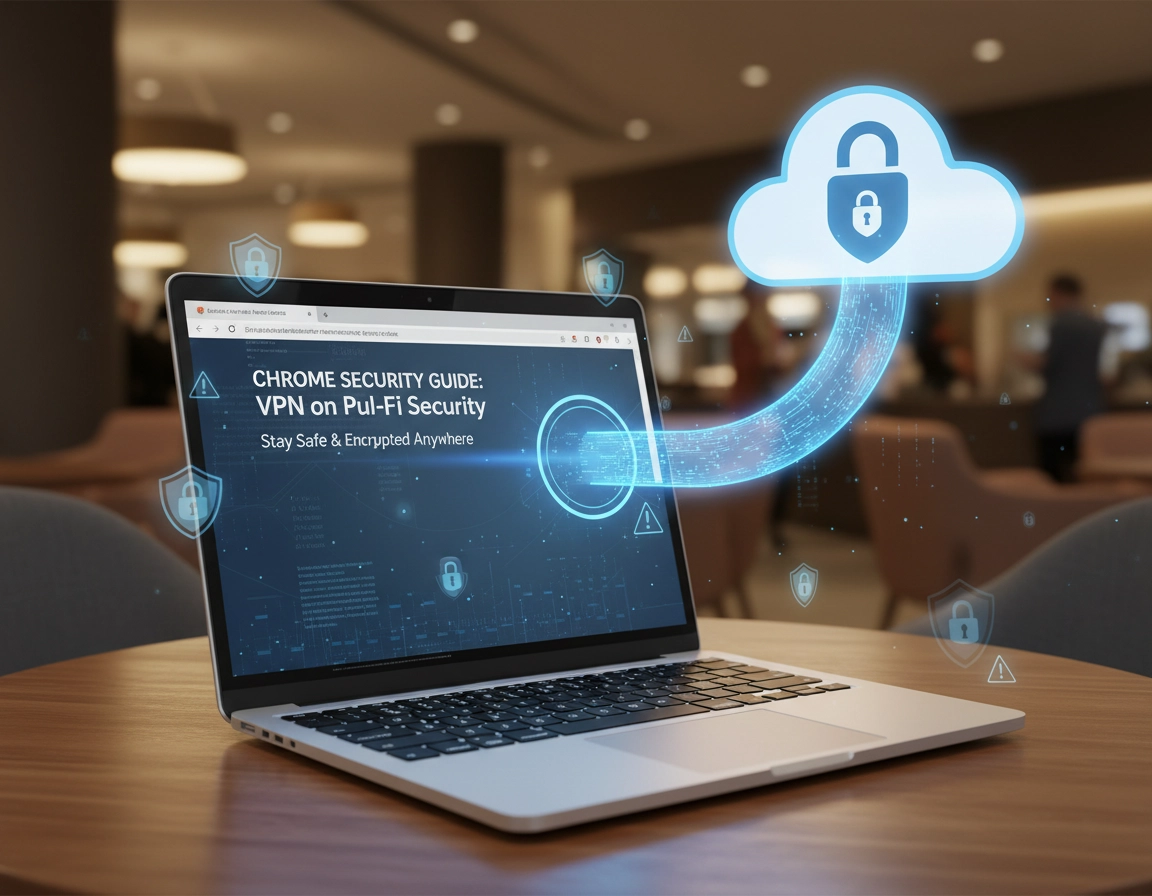
What secure public Wi-Fi use in Chrome actually means .
“Use a VPN on public Wi-Fi” is good advice, but it is also incomplete advice. Public Wi-Fi risk does not come from one single problem. It comes from a messy combination of things: open or weakly protected wireless networks, fake hotspots with convincing names, captive portal pages that temporarily interrupt encrypted browsing, shared local networks full of untrusted devices, aggressive tracking on public landing pages, and user habits like logging into sensitive accounts before the connection is actually stable.
For Chrome users, the biggest mistake is assuming the browser extension version of a VPN provides the same protection as the full desktop VPN client. In many cases it does not. A Chrome VPN extension usually protects Chrome traffic inside the browser session. It may not protect system DNS queries, other apps, auto-updaters, messaging tools, cloud sync, or background traffic from the operating system. On a hostile hotspot, that difference matters.
The second mistake is assuming that a VPN replaces Chrome security settings. It does not. A VPN encrypts traffic between your device and the VPN server. Chrome still controls how websites load, whether HTTPS protections are enforced, which sites can use camera or microphone access, whether extensions can see site data, and whether features like Safe Browsing and Security Check are catching obvious risk. Secure browsing on public Wi-Fi is a layered setup, not a single toggle.
The third mistake is ignoring leak paths. Even when the tunnel is active, your setup can still expose information through DNS behavior, WebRTC handling, browser profile sync, sloppy extension permissions, or logging into highly sensitive services on an unstable connection. That is why this page is not a generic “VPN is great” article. It is a practical guide to reducing exposure in Chrome while you are on untrusted networks.
Related: Start with the broader cluster at Best VPN for Chrome, then compare this page with DNS leak testing, WebRTC leak fixes, and VPN vs Private DNS for Chrome.
Key terms you actually need here .
- Public Wi-Fi: Any shared network you do not control, including coffee shops, airports, hotels, guest SSIDs, campus Wi-Fi, and coworking spaces.
- Captive portal: The sign-in or accept-terms page that appears before the hotspot allows full internet access.
- Evil twin hotspot: A fake wireless network with a name designed to mimic the real one, such as “Airport_Free_WiFi” instead of the official SSID.
- DNS leak: When DNS requests reveal browsing intent outside the VPN tunnel.
- WebRTC leak: When browser real-time communication features expose local or public IP information unexpectedly.
- Browser-only VPN: A Chrome extension that protects browser traffic but may not protect the rest of the device.
What the VPN helps with
Encrypting browser traffic over an untrusted hotspot, reducing ISP or hotspot visibility, and protecting against easier interception on open networks.
What Chrome still needs to handle
HTTPS protections, permissions, unsafe site warnings, extension access, cookies, and profile-level privacy choices.
What no tool can fix automatically
User mistakes like joining the wrong SSID, ignoring portal weirdness, reusing bad passwords, or entering sensitive credentials on fake pages.
Before you connect: fast checks that matter .
The quality of your setup before you join the hotspot often matters more than anything you do after. Public Wi-Fi sessions go wrong because users connect first and think later. A few fast checks can eliminate the most common mistakes.
- Verify the hotspot name with a trusted source. Ask staff or read official signage. Do not trust similar-looking network names.
- Update Chrome first. Outdated browsers increase exposure to known bugs and weaker defaults. Use Get or Update Chrome before you travel or start remote work.
- Know whether you have a full VPN app or only a Chrome extension. This changes what is protected and what is not.
- Turn off auto-join for random networks. You do not want your laptop reconnecting automatically to old guest SSIDs.
- Remove unused or high-risk extensions. Public Wi-Fi is the wrong place to let a dozen data-hungry extensions observe your session.
- Check your Chrome profile posture. If you use a shared or travel device, consider a cleaner profile with fewer saved logins, payment methods, and synced data.
Related: If you want to reduce Chrome exposure before the trip, read Chrome Secure Profile Setup, Autofill security settings, and Chrome sign-in security settings.
The three best pre-connection decisions .
- Prefer your own hotspot over public Wi-Fi. If mobile data or a trusted tether is available, that is usually the better choice for banking, identity verification, or work admin tasks.
- Prefer the full VPN client over the extension. The desktop app protects more traffic and usually handles DNS and reconnection better.
- Avoid “just for a minute” sensitive logins before the VPN is active. That one minute is where users get sloppy.
Best practice setup: VPN + Chrome on public Wi-Fi .
This is the workflow I would actually recommend for a remote worker, traveler, student, or contractor using Chrome on an untrusted hotspot. It is realistic, fast, and much safer than the usual “open Chrome and hope for the best” pattern.
- 1 Join the correct public Wi-Fi network, but do not immediately start browsing sensitive sites.
- 2 If a captive portal appears, complete only the minimum connection step required. Do not log into important accounts on the portal page.
- 3 Start your full VPN app. Choose a nearby, reputable server for better stability unless your work policy requires a specific region.
- 4 Confirm the VPN tunnel is active. If your provider has leak protection, secure DNS options, or auto-reconnect, enable them.
- 5 Open Chrome and go to Settings → Privacy and security → Security. Make sure Safe Browsing is not disabled, and enable secure DNS if your workflow supports it.
- 6 Consider enabling Always Use Secure Connections if you want stronger HTTPS behavior on public sites.
- 7 Go to Settings → Privacy and security → Site settings and review camera, microphone, notifications, and location defaults. Public Wi-Fi sessions are not the time to grant noisy permissions casually.
- 8 Open only the tabs you need. Avoid loading an entire synced tab set or dozens of background services on an untrusted network.
- 9 If you use only a Chrome VPN extension, test for DNS and WebRTC leaks immediately because the protection boundary is narrower.
- 10 When finished, disconnect, forget the public network if you do not plan to reuse it, and clear or review any risky temporary permissions you granted during the session.
What “success” looks like: the hotspot portal is completed, the VPN is visibly connected, Chrome is loading HTTPS pages normally, you are not seeing repeated portal hijacks, and your browsing session is using only the permissions and accounts you intentionally allowed.
Recommended Chrome settings for public hotspot sessions .
Security
Keep Safe Browsing on. Standard is better than off; Enhanced is stronger if you are comfortable with the tradeoff.
Secure DNS
Useful for reducing obvious DNS exposure, but test compatibility because some hotspots and VPNs behave differently.
Always Use Secure Connections
Good for public browsing because it nudges HTTPS use first instead of silently accepting weaker site behavior.
Permissions
Keep camera, microphone, notifications, and location tight. Public Wi-Fi plus lazy permissions is a bad combination.
Related: Deepen the setup with VPN for Chrome best settings, Chrome secure connection settings, and Chrome public Wi-Fi security tips.
Browser extension vs full VPN app on public Wi-Fi .
This distinction deserves its own section because it is where many “VPN for Chrome” pages become lazy. A browser extension can still be useful, especially for quick browser-only browsing and location switching. But on public Wi-Fi, browser-only protection leaves more room for leakage and unprotected system traffic. The full app is usually the safer answer because it covers more than just what happens inside Chrome tabs.
| Setup | What it protects well | Main limitation | Best fit |
|---|---|---|---|
| Chrome VPN extension | Browser traffic in Chrome tabs | May not protect system-wide traffic or DNS behavior fully | Light browsing, quick sessions, low-sensitivity use |
| Desktop VPN client | More device traffic, stronger leak control, better reconnection behavior | Can consume more battery and may need admin access to install | Remote work, travel, banking, shared networks |
| Enterprise managed access path | Policy-controlled routing, identity checks, auditability | Usually requires admin setup and organization controls | Business and regulated environments |
Common variations by device .
- Windows: Often the best platform for using the full VPN app plus Chrome because desktop VPN clients are mature and easy to verify.
- macOS: Strong option too, but watch for app permission prompts, private relay overlaps if relevant, and split-tunnel differences by provider.
- ChromeOS: Usually cleaner as a travel setup, but still verify whether your VPN implementation is full-device or browser-only.
- Android or iPhone: Mobile Chrome inherits more from the device networking stack, so public Wi-Fi safety is heavily influenced by the phone’s VPN and network behavior, not the browser alone.
Advanced hardening: leaks, extensions, work accounts, and policy controls .
This is the part generic articles usually skip. A public hotspot session can still expose more than you expect, even after the VPN is on. If your use case includes sensitive work tools, shared devices, journalism, legal work, finance, healthcare access, or frequent travel, this section is where the real value is.
1) DNS leaks are a real public Wi-Fi problem .
DNS requests reveal what domains you are trying to reach. If the hotspot, ISP path, or an unprotected resolver sees them outside the tunnel, that weakens your privacy and can complicate trust on hostile networks. On public Wi-Fi, I prefer the full VPN app with its own DNS handling, then I test. If you are using Chrome’s secure DNS at the same time, validate that the combination behaves the way you think it does instead of assuming the labels mean safety.
Related: Run a proper check with VPN Chrome DNS Leak Test Guide and compare it with Chrome DNS over HTTPS settings.
2) WebRTC can expose IP-related details unexpectedly .
WebRTC is useful for browser-based voice, video, and peer connections, but it has long been part of the “does my browser leak information around the VPN?” conversation. Whether it matters in your setup depends on browser behavior, the VPN design, your device, and your use case. But on public Wi-Fi, it is smart to test, especially if you use conferencing, browser communications, or privacy-sensitive sessions.
Related: Go deeper with VPN Chrome WebRTC Leak Fix and VPN Chrome IP leak protection.
3) Public Wi-Fi is the wrong place for sloppy extension permissions .
Chrome extensions that can read and change data on sites, inspect network activity, manage cookies, or interact broadly with pages increase the sensitivity of your browsing session. That does not mean every extension is unsafe. It means a public hotspot session is not where you want five coupon tools, two abandoned productivity add-ons, and a mystery “shopping assistant” observing your tabs. Audit what is installed. Keep only what you trust and need.
Related: Review VPN extension permissions in Chrome, Chrome extension permissions guide, and Chrome extension security checks.
4) Work accounts and SSO increase the stakes .
Signing into Google Workspace, Microsoft 365, admin dashboards, payroll portals, legal platforms, internal chat, cloud consoles, or password managers on public Wi-Fi raises the impact of every mistake. If your organization has a managed browser, zero-trust browser, secure web gateway, or required business VPN, use that path. Consumer-grade behavior on a business account is how risk creeps in.
At a minimum, do not mix personal and work browsing in one noisy travel profile. Use separate browser profiles, keep sign-ins intentional, and avoid letting consumer extensions live inside the same Chrome session as corporate SSO.
5) Enterprise and regulated environments should not rely on vibes .
If you are writing policy or advising a team, public Wi-Fi safety should be documented, not improvised. That means approved VPN tools, clear rules for guest networks, browser profile standards, extension allowlists, conditional access where available, and instructions for what must never be done on uncontrolled networks. A VPN is part of the control stack, not the whole stack.
Related: For managed environments, read VPN for Chrome remote work security, VPN policy enforcement, VPN for Chrome IT admin guide, and Chrome Enterprise guide.
When you should change your public Wi-Fi workflow completely .
- If you are accessing financial systems, legal matter systems, healthcare records, or admin consoles
- If the hotspot is behaving strangely, reauthing repeatedly, or redirecting beyond a normal captive portal
- If your only protection is a dubious free VPN extension
- If your device has too many extensions, stale updates, or a messy mixed-use profile
- If you cannot verify whether your traffic is going through the path you expect
Common alternatives users compare .
Privacy and security tradeoffs you should understand .
A public hotspot is not only a security problem. It is also a trust problem. Without a VPN, the hotspot operator and upstream network path may see more of your browsing metadata and possibly more, depending on site behavior. With a VPN, you reduce exposure to the hotspot but shift some trust toward the VPN provider and its infrastructure. That is why the question is not “VPN or no VPN?” but “Which trust boundary is safer for this session?”
Impact: Affects network confidentiality, browser identity exposure, login safety, DNS visibility, extension risk surface, and work account exposure.
Related: If you want a stronger browser baseline, pair this page with Chrome browser hardening checklist, Chrome security and privacy checklist, and Chrome Safe Browsing settings.
Recommended baseline settings by goal .
- Balanced: Full VPN app, Standard or Enhanced Safe Browsing, Secure DNS enabled if stable, tight site permissions, and no unnecessary extensions.
- Maximum privacy: Full VPN app, hardened profile, minimal extensions, strict permissions, HTTPS-first behavior, no sensitive sign-ins until connection is verified.
- Compatibility-first: Full VPN app if possible, Standard Safe Browsing, careful testing of Secure DNS and HTTPS-first on captive portals and legacy sites.
Recommended settings by goal .
| Goal | Recommended setup | Tradeoff | Best for |
|---|---|---|---|
| Balanced safety | Full VPN app + Chrome Secure DNS + Safe Browsing + careful permissions | May require testing on some hotspot portals | Most travelers and remote workers |
| Maximum privacy | Minimal travel profile + full VPN + leak testing + no casual extensions | Less convenience, fewer saved logins, more friction | High-sensitivity browsing |
| Highest compatibility | Full VPN + cautious feature tuning if the hotspot breaks with secure DNS or HTTPS-first | Potentially weaker privacy if settings are loosened too much | Hotels, captive portals, legacy enterprise portals |
What a VPN does not fix on public Wi-Fi .
- Fake hotspot names and trick connections
- Malicious or over-permissioned Chrome extensions
- Poor password hygiene or missing MFA
- Entering credentials on phishing pages
- Browser profile oversharing through sync, saved cards, or bad permission sprawl
- Risk created by using the browser extension when you really needed system-wide protection
Troubleshooting public Wi-Fi + VPN + Chrome issues .
Related: If the session is unstable, also check VPN for Chrome troubleshooting, connection issue fixes, and speed optimization tips.
If the hotspot login page will not load after you turn on the VPN .
Some captive portals need to complete first before normal routed traffic is allowed. Temporarily pause the VPN, finish only the hotspot authorization, then reconnect the VPN before real browsing begins. Do not use that temporary portal window to sign into unrelated accounts or open sensitive tabs.
If Chrome keeps redirecting back to the hotel or airport portal .
This usually means the captive portal session was not completed properly, timed out, or the network is trying to force reauthentication. Disconnect and reconnect cleanly. If it keeps happening, the hotspot may simply be unstable. That is a sign to avoid high-sensitivity activity on that network.
If websites break when Secure DNS is enabled .
Public hotspots and certain portals do not always behave nicely with every secure DNS configuration. On Chrome, go to Settings → Privacy and security → Security and test whether changing the secure DNS provider or temporarily disabling it resolves the issue. If you do this, keep the VPN active and turn secure DNS back on later when you are off the problematic hotspot.
If your VPN extension says “connected” but leaks are still happening .
Treat this as a product boundary issue, not a cosmetic issue. The extension may only be protecting browser traffic, while DNS or other flows are still escaping. Test with the provider’s full desktop app if available. This is one of the clearest reasons public Wi-Fi users should not assume the extension equals the app.
If Chrome becomes slow on public Wi-Fi with the VPN on .
Slowdowns can come from hotspot congestion, distant VPN servers, overloaded background tabs, or heavy browser extensions. First reduce tab noise, then switch to a nearer VPN location, then test again. If the hotspot itself is saturated, no browser tweak will fully solve that.
If you need to reset safely after a bad public hotspot session .
Disconnect from the network. Forget the Wi-Fi profile if you do not trust it. Review Chrome’s site permissions, recent sign-ins, extension list, and saved session state. If the session felt suspicious, change passwords for anything sensitive you used, especially if you did not have MFA enabled. If the browser behaved abnormally, inspect extensions and run a broader security check rather than assuming the Wi-Fi was the only issue.
FAQ .
-
helpIs a Chrome VPN extension enough for public Wi-Fi?Sometimes for light browser-only use, yes, but it is not the safest default. A Chrome extension usually protects only browser traffic, while a full VPN app protects more of the device and handles DNS and reconnection more reliably. For airports, hotels, remote work, and sensitive browsing, the full VPN client is the better choice.
-
helpShould I use a VPN and Chrome Secure DNS together?You can, but you should test the combination on the networks you use. In some cases it works well. In others, hotspot portals or specific providers create odd behavior. The right answer is not ideology; it is verified behavior with your VPN, your hotspot, and your Chrome configuration.
-
helpIs public Wi-Fi safe for banking if I use a VPN?Safer, yes. Ideal, no. A VPN reduces network exposure, but banking still deserves your most trusted connection path. If you have mobile data or a personal hotspot, use that instead. If you must use public Wi-Fi, use the full VPN app, verify the hotspot carefully, and avoid doing anything sensitive until the connection is stable.
-
helpWhat is the biggest public Wi-Fi mistake Chrome users make?Connecting first and thinking later. Users join a hotspot, let Chrome open lots of synced tabs, sign into sensitive accounts immediately, and only then remember the VPN. The safe workflow is the opposite: verify the network, complete the captive portal minimally, connect the VPN, confirm protections, then browse intentionally.
-
helpCan Chrome’s own security features replace a VPN on public Wi-Fi?No. Chrome security features help with HTTPS behavior, unsafe site warnings, permissions, and browser-level protections. They do not replace the network encryption and routing privacy a VPN can provide on an untrusted hotspot. The strongest setup uses both appropriately.
Sources & further reading .
- Google Chrome Help: Manage Chrome safety and security
- Google Chrome Help: Change site settings permissions
- Google Chrome Help: Choose your Safe Browsing protection level
- FTC: Public Wi-Fi networks security tips
- CISA: Using wireless technology securely
- Chrome for Developers: Extension permissions
Editorial note: This page is written as practical guidance, not provider marketing. VPN products vary in how they handle DNS, WebRTC, reconnects, and browser-only versus device-wide protection.