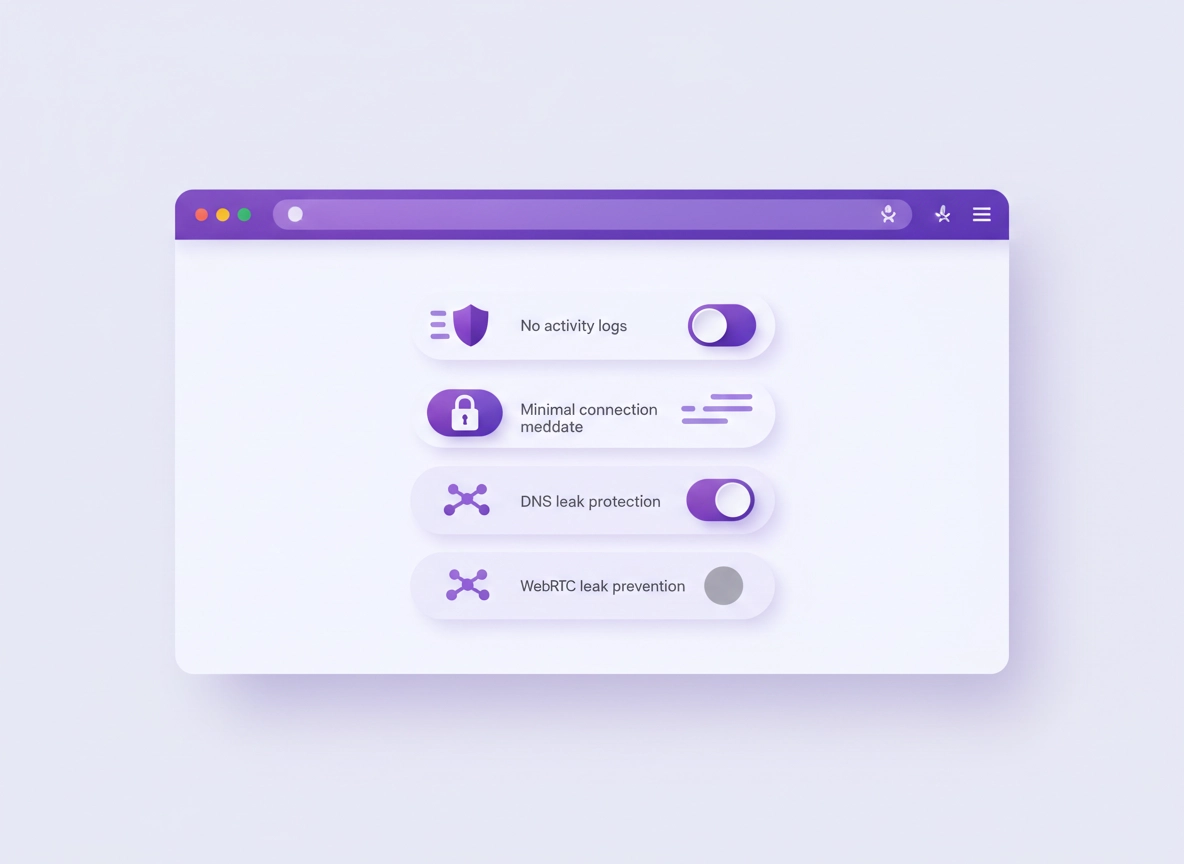
What a no-logs policy is (and what it’s not) .
“No logs” is not one universal standard. It’s a set of claims—some strong, some weak—written in legal language.
A VPN no-logs policy is a promise about data retention: what the provider stores (or refuses to store) about your usage. The privacy outcome you want is simple: there should be no stored record that can link you (your account, device, or real IP address) to what you did online (sites visited, DNS queries, downloaded files, or timestamps tied to browsing history).
But here’s the nuance: a VPN can avoid logging activity and still keep operational data to run the service—things like aggregated performance metrics, server load, or temporary diagnostic logs. The key question is whether anything stored is identifying (ties back to you) and actionable (can reconstruct your activity or prove “this person did this thing”).
Also important: “no logs” does not mean “no data ever touches the provider.” Your traffic still passes through their servers. A strong no-logs posture is about not writing sensitive data to disk, not keeping metadata long-term, and building systems that make retention difficult by design.
Start here: If you’re still deciding which VPN to use, read Best VPN for Chrome and then come back to this page to validate the “no logs” claims.
Key terms (quick definitions) .
- Activity logs: Records of what you do online (sites visited, DNS queries, traffic contents, downloads). This is the most privacy-sensitive category.
- Connection logs: Metadata about the VPN session (timestamps, connection duration, bandwidth totals, server used). Can be harmless if aggregated, but risky if tied to an account or IP.
- Source IP address: Your real IP address before the VPN. If stored with timestamps, it can enable correlation.
- Assigned VPN IP: The IP address the VPN gives you. If stored with session times, it can also enable correlation.
- DNS queries: The domain lookups your device makes. DNS is often the “silent leak” even when browsing appears protected.
- Jurisdiction: The legal environment where the VPN company is based and where servers operate—this influences disclosure obligations and data requests.
- Independent audit: A third-party review that checks whether the provider’s systems match its stated policy (scope matters a lot).
Why this matters specifically for Chrome users .
Many people use a VPN for Chrome in one of two ways: (1) a browser extension that protects traffic inside the browser, or (2) a full VPN app that protects the entire device (including Chrome). The privacy risks differ:
- Extensions can be convenient, but they rely on browser permissions and may not cover non-browser traffic. They also create a “trust boundary” around extension code.
- Full VPN apps typically provide stronger leak protections (DNS, IPv6 handling, kill switch, system-wide routing), which matters if you’re aiming for minimal metadata exposure.
Related: If you’re not sure which approach is safer, read VPN Chrome extension vs desktop VPN and VPN extension permissions in Chrome.
Before you start: the 60-second “trust scan” .
If you only have a minute, do this quick scan before you deep-dive. The goal is not perfection—it’s to avoid the common traps: vague policies, “free VPN” monetization, and claims that don’t survive basic questions.
- Scan the policy for specifics: Look for explicit statements about activity logs, DNS, source IP, and timestamps.
- Look for proof beyond promises: Are there independent audits with public reports (or at least named auditors and scope)?
- Check the business model: “Free” often means data monetization or aggressive upsell. A free tier can be okay if it’s backed by a paid product with clear privacy posture.
- Check the extension permissions: If a VPN extension asks to “read and change all your data on all websites,” you need a very strong reason to trust it.
- Check for leak protection language: DNS leak protection and WebRTC handling matter for Chrome users.
Fast rule: The strongest no-logs story usually looks like a triangle: clear policy wording + technical design that reduces logging + third-party verification (audits, transparency reports, or credible incident history).
Related: Want the bigger “VPN in Chrome” picture first? Start with How VPN works in Chrome and VPN Chrome privacy review.
What you’re really trying to prevent .
Most people think “no logs” is about hiding from websites. In reality, it’s mostly about reducing correlation: preventing any stored dataset that can connect your real identity (account, payment, email, device fingerprint, real IP) to your browsing behavior (domains, timestamps, session identifiers).
A VPN does not make you “invisible,” and it does not fix unsafe browsing habits. But a strong no-logs policy can reduce the damage if a company is compelled to produce data, is breached, or is sloppy with retention.
Step-by-step: how to evaluate a no-logs claim .
This is the practical workflow I use when reviewing “no logs” claims. It’s designed to work even if you’re not a lawyer and you don’t want to read 20 pages of policy text. Your output at the end should be one of three conclusions: (A) strong privacy posture, (B) unclear/needs more proof, or (C) red flags—avoid.
- 1 Locate the policy + privacy FAQ and search for:
logs,activity,metadata,source IP,DNS,timestamp. - 2 Classify what they don’t log: activity logs vs connection logs vs diagnostic logs (write it down in one sentence).
- 3 Find the “minimum necessary” data: account info, payment handling, crash reports, support tickets, abuse prevention. Identify what is optional vs required.
- 4 Check for verification: independent audit, named auditor, scope, and date. Bonus: public reports or transparency reports.
- 5 Confirm Chrome-specific protections: DNS leak protection, WebRTC leak behavior, and extension permission footprint.
- 6 Decide “fit for purpose”: streaming, banking, remote work, travel, or enterprise—your use case changes what “good enough” looks like.
What “success” looks like: You can point to exact policy statements that rule out activity logging, understand what minimal operational data exists, and you can reference at least one form of third-party validation (audit, credible testing, or strong transparency practices).
Related: If you’re comparing products, use Chrome VPN extension comparison and Best VPN extension for Chrome (2026).
The “no-logs checklist” you can copy .
When you read a no-logs policy, you’re looking for explicit “no” statements in the right places. Copy this checklist into your notes:
- Activity logging: Do they explicitly say they do not log browsing activity, traffic contents, DNS queries, or files downloaded?
- Identifiers: Do they say they do not store source IP addresses (your real IP) or do not link IPs to accounts?
- Timestamps: Do they avoid storing precise session timestamps tied to accounts (or do they store only broad/aggregated time windows)?
- Connection metadata: If they store connection logs, are they aggregated (non-identifying) or per-user (risky)?
- Retention period: If any logs exist, is the retention window stated (minutes/hours) and justified?
- Audit proof: Is there an independent audit that specifically covers logging and operational controls (not just marketing statements)?
- Support exceptions: Do “support logs” require your opt-in (you enabling debug logs) rather than always-on retention?
- Abuse prevention: How do they handle spam/abuse? Strong providers do it without identity-linked logs.
Common variations: Chrome extension vs full VPN app .
- Windows / ChromeOS: A full VPN app can cover system DNS behavior more consistently. Extensions are convenient but depend on browser routing choices.
- macOS: System network settings (and iCloud Private Relay, if enabled) can interact with DNS behavior. Be clear what’s doing what.
- Android / iPhone: OS-level VPNs are usually the most consistent. Browser-only VPNs can be limited if other apps still leak DNS or connect outside the tunnel.
Related: If your main goal is “no leaks,” read VPN Chrome DNS leak test guide and VPN Chrome IP leak protection.
Advanced verification: audits, architecture, jurisdiction .
If you’re making a high-stakes decision (remote work, finance, regulated environments, travel through restrictive networks), you should go beyond “policy reading” and evaluate the provider’s ability to keep the promise. This is where high-quality VPNs separate themselves from “just another extension.”
Related: For business contexts (and the reality of audit trails), see VPN Chrome corporate compliance and VPN Chrome enterprise.
1) Independent audits: what they prove (and what they don’t) .
An audit is the closest thing you can get to “proof” without being inside the company. But not all audits are equal. When a VPN claims “audited no-logs,” you want to know:
- Who audited? A named cybersecurity firm is more meaningful than “third-party verified” without details.
- What was the scope? Did it cover server configuration, logging pipelines, authentication systems, and operational procedures—or just a paper review?
- When? A very old audit is less meaningful because infrastructure changes. Recent audits matter more.
- Where’s the report? Public reports (even partial) are a strong trust signal.
2) Technical design that reduces logging risk .
Policies are promises. Architecture is enforcement. Look for design choices that make it harder to log sensitive data:
- Ephemeral infrastructure: Systems designed to avoid writing sensitive data to disk. “Diskless” or “RAM-only” server language is a strong signal when backed by real details.
- Minimal metadata design: Authentication systems that don’t require session-to-user mapping beyond what’s necessary for account validity.
- Modern protocols: Providers that clearly explain protocol choices (and offer modern options) tend to be more transparent overall.
- Clear separation of concerns: Billing systems should be separated from traffic handling systems; support tooling should be opt-in for diagnostics.
Related: If you want the “tech layer” explained in plain English, read VPN encryption explained for Chrome and VPN protocols for Chrome compared.
3) Jurisdiction & legal language: what to watch .
Jurisdiction matters because it shapes what a company may be compelled to do (or disclose), and it influences how transparent they can be about requests. But jurisdiction is not a cheat code: a provider in a “privacy-friendly” place can still log; a provider in a stricter environment can still be privacy-respecting if they don’t retain data.
What you want to see is consistency: the policy explains what the provider can and cannot produce because the data is not retained. Look for language that clearly separates: account data (billing, email, support tickets) vs traffic data (activity and metadata).
4) “No logs” vs enterprise needs: don’t confuse the goals .
In business environments, security teams often need access logs for incident response and compliance. That’s a different objective from consumer “no logs.” If you’re evaluating a VPN for a company, be explicit:
- Consumer privacy VPN: prioritizes minimal retention and avoids user-attributable logs.
- Enterprise access platform: may require identity-linked audit trails, device posture checks, and policy enforcement logs.
Both can be valid—just not interchangeable. If your organization requires logs, you may be looking for a different class of product (or different deployment settings) than a strict no-logs consumer VPN.
Common alternatives users compare .
- VPN vs proxy: what changes and what doesn’t
- VPN vs Smart DNS: speed vs privacy tradeoffs
- VPN vs Private DNS: which privacy layer solves which problem
- VPN vs Tor: realistic anonymity expectations
Chrome privacy notes: DNS, WebRTC, and extension permissions .
Even the best no-logs VPN can’t protect you from everything if your browser setup leaks the wrong signals. For Chrome users, the biggest practical gaps are: DNS leaks, WebRTC behavior, and over-permissive extensions. Fixing these improves real-world privacy more than obsessing over one marketing phrase.
Impact: Misconfigured DNS/WebRTC or risky extension permissions can reveal your network identity even when you “use a VPN.”
Related: If you suspect shady extensions or hijacking, see Chrome Extension Security Check and Remove Malware from Chrome.
1) DNS: the most common “silent leak” .
DNS requests are the phone book lookups your device makes to find websites. If DNS isn’t routed through the VPN (or isn’t handled correctly), your ISP or network operator can still see which domains you’re visiting—even if the page content is encrypted.
- What to look for in a VPN: Explicit DNS leak protection, private DNS resolvers (or secure handling), and clear documentation.
- What to do in Chrome: Understand Chrome’s “Secure DNS” (DoH) settings and how they interact with VPN DNS handling.
Do this next: Run a DNS leak test, then review Chrome DNS over HTTPS settings and Secure DNS setup.
2) WebRTC: why “my IP leaked” sometimes happens .
WebRTC is a browser technology used for real-time communication (calls, video, screen sharing). In some setups, WebRTC can reveal network details that defeat the “I’m behind a VPN” expectation—especially when using browser-only VPN solutions.
- What to look for: VPN extension features that mitigate WebRTC leaks, or guidance that recommends a full VPN app when you need stronger protection.
- What to do: Test for WebRTC leaks and apply fixes that match your needs (don’t break legitimate WebRTC use if you rely on it).
Do this next: Read VPN Chrome WebRTC leak fix and VPN Chrome IP leak protection.
3) Extension permissions: the privacy cliff edge .
A VPN extension can only do what Chrome allows it to do. That’s why permissions matter. If an extension can read and change data on all sites, it can potentially observe browsing behavior (depending on how it’s coded), which makes “no logs” less comforting if the extension itself becomes the weak link.
- Prefer minimal permissions: Only what’s necessary for networking/proxy control and user interface.
- Avoid unnecessary “all sites” access: Unless the vendor can justify it in a transparent, technical way.
- Watch for extra features: Ad blockers, anti-fingerprinting, and tracker blocking can be useful—but they also expand the code surface area.
Related: VPN extension permissions in Chrome and Chrome extension permissions guide.
Recommended baseline settings (realistic + high privacy) .
- Option A (balanced): Full VPN app + DNS leak protection on + WebRTC leak mitigation if needed + Chrome Secure DNS set thoughtfully.
- Option B (maximum privacy): Full VPN app with strong leak handling + minimize extension footprint + avoid unknown “free” VPN extensions.
- Option C (compatibility): VPN app/extension configured to avoid breaking banking/enterprise sites + carefully scoped split tunneling (if used).
Recommended settings by goal .
| Goal | Recommended setup | Tradeoff | Best for |
|---|---|---|---|
| Balanced | Paid VPN with clear no-logs policy + DNS leak protection + basic Chrome privacy hardening | Some sites may require re-login or extra verification | Most users |
| Maximum privacy | Strong no-logs posture + independent audits + full VPN app + minimal extensions + WebRTC/DNS tested | More setup effort; occasional compatibility tuning | Tracking-sensitive users, journalists, travelers |
| Compatibility | Reliable provider + stable servers near your region + conservative WebRTC settings + careful split tunneling (if necessary) | Slightly more metadata exposure (depending on configuration) | Banking, enterprise apps, strict sign-in systems |
Troubleshooting & red flags .
Related: If you need a full VPN troubleshooting flow, see VPN for Chrome troubleshooting guide and VPN connection issues fix.
If a provider says “no logs” but the policy feels vague .
Vague language is the #1 red flag. If you can’t find explicit statements about activity logs, DNS, source IP, and timestamps, you can’t test the claim, and you can’t meaningfully compare providers. In that case:
- Look for an audit that specifically covers no-logs implementation.
- Check whether the provider publishes transparency reports or clearly explains data handling.
- If the provider is a “free VPN extension” with unclear monetization, treat it as high risk.
If you’re using a VPN extension and still seeing your real region/IP sometimes .
This usually comes down to leaks or traffic not being routed through the VPN. Common causes:
- WebRTC behavior: Real-time communication features can reveal network details in certain setups. Apply the WebRTC leak fix path.
- DNS routing: DNS requests may still use the ISP resolver depending on configuration. Run a DNS leak test.
- Split tunneling: If enabled, some traffic intentionally bypasses the VPN. Make sure you understand what’s excluded.
- Multiple privacy tools: Secure DNS + VPN DNS + security software can conflict. Change one thing at a time.
Fix path: WebRTC leak fix → DNS leak test → Best VPN settings guide
If you need a “no-logs” decision without reading everything .
Use this quick scoring approach (not scientific, but practical):
- +2 points: Policy explicitly rejects activity logs, DNS logs, source IP logging, and identifies limited operational data.
- +2 points: Independent audit with clear scope and recent date.
- +1 point: Transparent security posture (clear documentation, responsible disclosure, bug bounty, open-source apps).
- -2 points: “Free VPN” with unclear monetization or aggressive permission footprint.
- -2 points: Vague language about data collection with no retention window.
If a provider scores 3+, it’s worth deeper evaluation. If it scores 0 or below, don’t use it for anything sensitive.
If you need to reset safely .
If Chrome is behaving strangely while you’re testing (redirects, odd extensions, suspicious pop-ups), pause the VPN evaluation and do a clean baseline: remove suspicious extensions, run a Chrome security check, and reset settings if needed. Then re-test the VPN setup from a clean state.
Clean baseline: Chrome Security Checkup · Security check · Reset Chrome after malware
FAQ .
-
helpDoes “no logs” mean a VPN can’t identify me at all?No. A VPN can still have account information (like an email address, payment record, or subscription status) depending on how you sign up. “No logs” is primarily about not storing data that links your identity to your browsing activity (sites visited, DNS queries, traffic contents). The best providers minimize what they collect and separate billing from traffic handling.
-
helpIs a Chrome VPN extension “no-logs” the same as a full VPN app?Not necessarily. A browser extension may only protect browser traffic and may behave differently with DNS and WebRTC. A full VPN app usually provides stronger system-wide protections (DNS handling, kill switch, IPv6 controls) and is often better if your goal is “no leaks.” If you do use an extension, check permissions and confirm leak protection.
-
helpWhat’s the strongest evidence a VPN really keeps no logs?The strongest evidence is a combination of clear policy language, privacy-focused system design (minimized retention), and an independent audit that confirms the policy matches implementation. Audits vary in scope, so always check what was reviewed and when. Transparency reports and mature security practices are strong supporting signals.
-
helpCan I test “no logs” myself in Chrome?You can’t directly prove what a provider stores internally, but you can validate the basics that often undermine privacy: run DNS and IP leak tests, check WebRTC leak behavior, and review extension permissions. These tests won’t confirm provider logging, but they do confirm whether your setup is actually routing traffic as expected.
Sources & further reading .
- Google Chrome Help: Manage safety and security (includes Secure DNS)
- Cloudflare: Configure DNS over HTTPS (Chrome steps)
- VPN provider explainer: what “no logs” claims usually mean (read critically)
- Example of a public no-logs audit announcement (audit scope still matters)
Disclosure: Some pages may mention tools or services. Recommendations are editorial and based on practical testing and policy analysis.