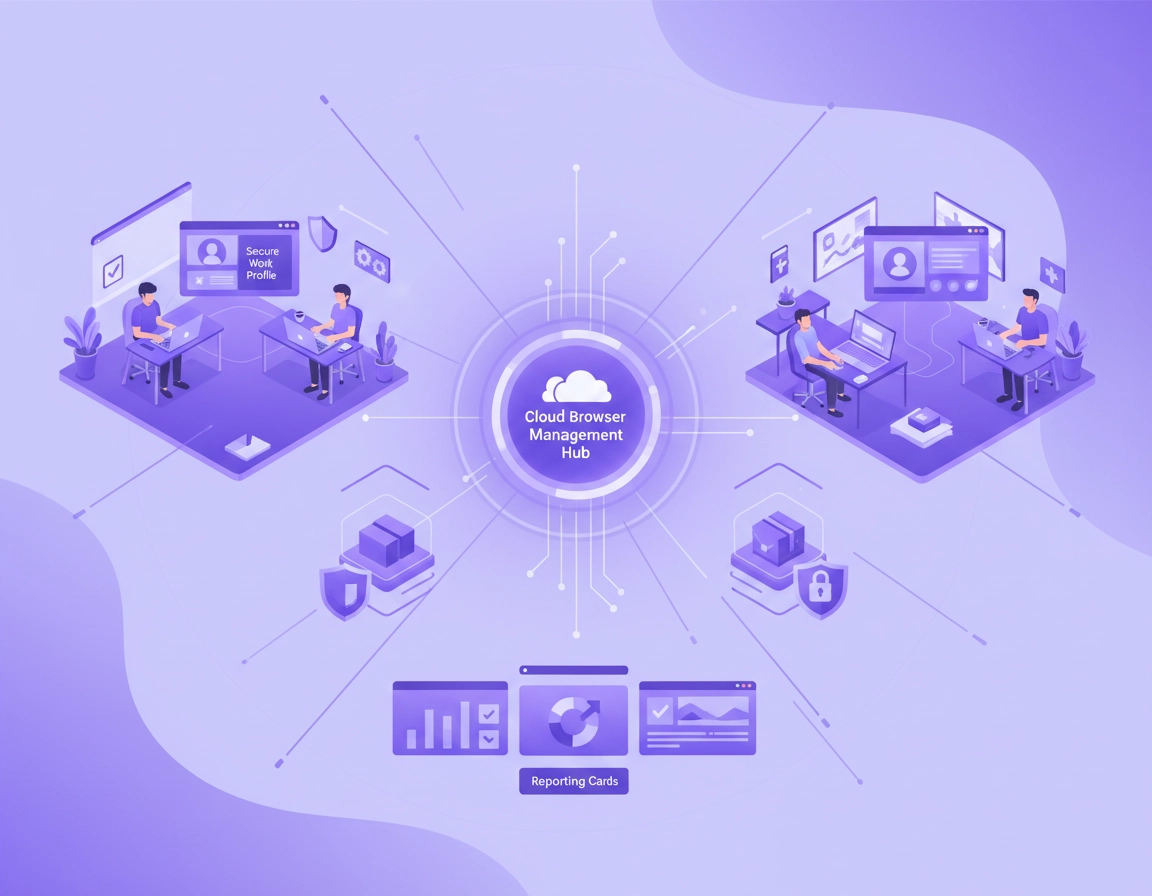
How Chrome Enterprise Enables Secure Remote Workforce Operations .
Remote browser management is not about the browser alone. It is about how the browser becomes the place where work actually happens.
When people search for Chrome Enterprise remote workforce, they are usually not asking whether Chrome can open business websites from home. Of course it can. What they are really asking is whether Chrome can become a controlled work surface across home offices, personal laptops, contractor machines, managed Windows fleets, Macs, and shared environments where the corporate network no longer gives IT the safety net it used to have.
That question matters because remote work changed where business risk sits. In a traditional office setup, administrators could rely on on-site networks, physically managed devices, and a narrower working environment. In a remote setup, the browser becomes the center of gravity. Employees sign in to web apps, move between work accounts and personal accounts, install extensions to fix workflow annoyances, sync bookmarks, upload documents to SaaS tools, and access increasingly sensitive resources from wherever they happen to be. The browser is no longer a neutral window. It is a business endpoint in its own right.
Chrome Enterprise is relevant because it adds centralized management, reporting, policy enforcement, extension control, and secure enterprise browsing options on top of Chrome itself. That makes it useful for remote organizations that need consistency across different operating systems and device ownership models. The important distinction is that Chrome Enterprise is not just “Chrome for companies.” It is Chrome plus a management and security model that can be applied across remote working conditions.
In real-world terms, this means an admin can define which browsers are enrolled, which users or browsers receive policy, which extensions are approved, what reporting is visible, and which business resources should be treated differently depending on browser context. For some companies, that starts and ends with Chrome Enterprise Core. For others, especially those dealing with sensitive data movement or stronger access conditions, Chrome Enterprise Premium becomes more relevant.
Related: Start with Chrome Enterprise Guide if you want the broader product picture, then compare this page with Chrome Enterprise for Hybrid Work and Chrome Enterprise for Distributed Teams.
Enrollment
Remote Chrome management starts once the browser is enrolled or attached to a management model you can actually govern.
Policy
Good remote setups do not dump one policy profile on everyone. They define which users, browsers, and contexts should receive which controls.
Reporting
If you cannot see versions, extensions, or state, you are supporting remote Chrome blind.
Separation
The cleanest remote environment is the one where work browsing is visibly separate from personal browsing.
Why this topic has real buying intent behind it .
This page sits in a high-CPC area because the problem is operational, security-related, and budget-backed. Businesses that research remote browser management are often already dealing with one or more costly issues: unmanaged BYOD access, extension risk, policy inconsistency, poor visibility, weaker audit posture, or rising support friction. They are not looking for a cosmetic tweak. They are looking for a browser strategy that fits a distributed operating model.
Key terms that matter here .
- Cloud-managed browser: a Chrome instance enrolled so the organization can manage policies centrally.
- Cloud-user policy: policy that follows a user signed into Chrome with a managed account or verified domain setup.
- Cloud-machine policy: browser-level policy tied to the enrolled browser itself rather than only the signed-in user.
- Managed work profile: a separate Chrome context for work activity that helps isolate company browsing from personal browsing.
- Extension governance: controlling which browser add-ons are allowed, forced, reviewed, or blocked.
The policy-scope detail that most remote rollouts get wrong .
One of the easiest ways to waste time on a remote Chrome rollout is to misunderstand where policy actually applies. Many admins assume that once a user signs into Chrome with a company account, the entire browser is now being managed in the same way on every device. That is not always true. Chrome policy design has layers, and if you do not understand the layer you are using, your remote rollout will feel inconsistent.
Why scope matters so much
A user-based remote policy model is different from a browser-based remote policy model. If you want settings and restrictions to follow the signed-in work profile, that is one approach. If you want policy tied to enrolled browsers regardless of which user opens them, that is another. Hybrid environments often need both.
This matters most in distributed teams because the working environment is messy. A salesperson may use a company Windows laptop. A contractor may use a personal MacBook. A finance user may sign into Chrome on a managed machine, while a consultant may only access work systems from a corporate profile inside an otherwise personal browser environment. If you apply the wrong policy type, the experience can break in subtle ways: extensions behave differently, policies appear missing, reporting is partial, or the user thinks the browser is managed when only a narrow part of the work context really is.
From an implementation perspective, the first expert-level question is not “what policy should we set?” It is “do we want this policy to follow the user, the browser, or the OS/device context?” That question separates mature remote deployments from messy ones.
- User-following model: useful when the managed work profile is the core control boundary.
- Browser-following model: useful when enrolled browsers themselves must remain in a defined state across remote use.
- Mixed model: common in real organizations where some users are fully managed and others are accessing work from personal devices.
Related: This is where Chrome Enterprise Policy Templates, Chrome Enterprise Cloud Management, and Chrome Enterprise Management become important companion pages.
Before rollout: how to assess your remote environment properly .
Before you enroll anything, map the remote environment you actually have, not the one you wish you had. This is where a lot of templated content falls apart. It says “identify users and devices” and stops there. In reality, remote workforce planning needs to account for ownership, identity, privilege, sensitivity, support capacity, and extension behavior. If you skip that and go straight to policy, you will either under-control the risky areas or create enough friction that users route around your design.
Start by grouping workers in operational terms, not HR terms. Your “remote workforce” is not one audience. It is usually a combination of full-time staff on company devices, BYOD employees on unmanaged machines, contractors with narrow access, privileged admins with higher blast radius, and hybrid workers moving between locations. Those groups should not inherit the same Chrome assumptions.
- Device ownership: company-owned, lightly managed BYOD, unmanaged BYOD, shared systems, contractor-owned devices.
- Access sensitivity: low-risk collaboration tools, normal SaaS apps, finance systems, HR records, internal admin portals, developer or security tooling.
- User privilege: standard staff, managers, contractors, help desk, administrators, executives.
- Extension behavior: minimal and standardized, moderate but justifiable, or chaotic and risky.
- Support maturity: do you have a real browser support playbook or are tickets still handled as one-off guesswork?
The second step is to decide what outcome you want first. Some organizations need visibility immediately. Others need cleaner app access boundaries. Others need to reduce extension risk. Others are trying to make BYOD workable without buying full endpoint management for everyone. Chrome Enterprise can help in all of those situations, but the rollout order changes depending on which pain point is costing you the most.
Related: If your priority is governance and setup, continue with Chrome Enterprise Device Management, Chrome Enterprise Admin Console, and Chrome Enterprise Deployment Guide.
Questions worth answering before you touch Chrome policy .
- Which remote users are allowed to use personal devices for work at all?
- Which apps are safe from a managed work profile, and which should require a stronger browser state?
- Which extensions are business-critical, which are optional, and which are obvious risk?
- Do you need browser-level consistency, or is work-profile consistency enough for the first phase?
- Can your support team verify enrollment, reporting, policy state, and extension status quickly?
How to roll out Chrome Enterprise for remote teams .
The best remote-work rollout is staged. Not because staged rollouts sound sensible, but because the browser is too central to remote work to harden blindly. Start with control that improves visibility. Then add enforcement. Then add tighter access logic for the teams or apps that justify it.
- 1 Sign up and establish the management baseline. Decide whether Chrome Enterprise Core gives you enough browser management and reporting to start, or whether the remote environment already demands Premium-level protections and tighter secure enterprise browsing controls.
- 2 Enroll the browsers you actually intend to govern. Remote rollout quality depends on enrollment discipline. If only half the browsers are enrolled, the other half become your blind spots.
- 3 Turn on browser and profile reporting early. Reporting should come before aggressive enforcement so you can see versions, installed extensions, and managed state without guessing.
- 4 Define the work browser context. This can be a managed profile, a clearly named work profile, or another consistent browser pattern. Users need to know where work belongs.
- 5 Standardize extensions. Force-install what is essential, allow approved tools, and block or phase out the extension categories that expose the business to unnecessary data risk.
- 6 Apply the right policy layer. Use user policies when work identity is the center of control, browser policies when the enrolled browser itself must remain in a known state, and a mixed model when your remote estate is mixed.
- 7 Differentiate sensitive access. HR, finance, legal, IT admin, and contractor workflows should not all be treated the same.
- 8 Build a remote support routine. Support should know how to verify enrollment, policy status, update status, extension state, and when remote commands are appropriate.
A realistic “phase one” remote browser baseline
- Cloud-managed browsers or managed work profile strategy in place
- Browser and profile reporting enabled
- Extension review completed for the pilot group
- Approved extension list created
- Work-profile naming and usage instructions published
- Update management expectations defined
- Support knows how to confirm policy scope and browser state
This is the point where many remote teams discover that extension control is one of the highest-return tasks in the whole rollout. Unmanaged extension sprawl is a quiet problem in distributed teams because people self-install tools to patch workflow gaps. The result is a browser full of overlapping permissions, clipboard access, page access, stored data, or opaque third-party sync behavior. Chrome Enterprise gives admins a way to bring that back under control without pretending every employee uses exactly the same workflow.
Related: For deeper rollout detail, pair this page with Chrome Enterprise Update Management, Chrome Enterprise Extension Management, Chrome Enterprise Security Settings, and Chrome Enterprise Monitoring Tools.
Where Core is enough, and where Premium starts to matter .
Chrome Enterprise Core is often enough for organizations that need centralized browser management, apps and extensions control, reporting, and a cloud-based policy model at low friction. That alone can dramatically improve remote workforce hygiene. Premium becomes more interesting when the organization needs stronger data protections, more advanced access conditions, or a broader secure enterprise browsing posture around sensitive web activity. The key is not to buy more than you need too early, but also not to pretend a lightweight management layer solves advanced data risk by itself.
How to handle BYOD without creating distrust .
BYOD is where remote browser strategy gets real. It is also where weak guidance destroys trust. Employees hear “managed browser” and assume the company can now see everything they do on a personal laptop. Security teams hear “personal device” and assume nothing meaningful can be secured. Both views are too blunt.
In practice, Chrome Enterprise gives organizations a more nuanced BYOD model than full device takeover. The cleanest version is to define and protect the work browsing context instead of trying to become the owner of the employee’s entire machine. That means managed accounts, managed work profiles, clear extension rules, and app access tied to the work context rather than vaguely trusting whichever Chrome window happens to be open.
What good BYOD design looks like .
- Work and personal browsing are visibly separated. Users should not have to guess which profile holds corporate access.
- Access rules are tied to work context. Sensitive apps should not accept every browser state equally.
- Extension policy is narrower inside the work context. This reduces silent data exposure from unnecessary add-ons.
- User expectations are documented. Employees should know what the company can manage and what remains personal.
- Support can diagnose by state, not by assumption. Enrollment, profile state, browser version, and extension inventory should be visible where possible.
BYOD is also where “agentless” browser-centric control becomes commercially attractive. Some organizations simply do not want full endpoint tooling on every personal laptop. Others cannot justify it for contractors. Chrome Enterprise makes more sense in those environments because it can improve browser-level governance without demanding the same deployment model everywhere.
Related: For adjacent pages in this cluster, see Chrome Enterprise Privacy Controls, Chrome Privacy for Remote Work, Chrome Enterprise Access Control, and Chrome Enterprise Conditional Access.
Advanced operating model for distributed teams .
Once the baseline works, the next step is not “add more policies.” It is to build a remote browser operating model. That means using browser data and real workflow patterns to decide where to tighten controls, where to preserve flexibility, and where to treat the browser as part of the trust decision for business systems.
Mature remote teams usually converge on a model like this: general staff get a balanced managed work browsing experience; higher-risk teams get tighter extension and access rules; contractors get narrower access surfaces; and the most sensitive systems depend on a more trusted browser context than ordinary collaboration tools.
Five remote-work areas where Chrome governance pays off most .
- Extension governance: view which apps and extensions are installed, then reduce overlap and risky permissions over time.
- Version discipline: remote teams are prone to browser drift; governance reduces stale browser pockets.
- Policy evidence: support and security can confirm whether the browser was in the state it should have been in.
- Access differentiation: sensitive business apps can be treated differently from ordinary SaaS usage.
- Remote response: remote commands and centralized browser administration shorten the time between “something looks wrong” and “we know what the browser state actually was.”
What remote support teams should actually check first .
Managed state
Is this the browser or profile that should be receiving policy at all?
Policy scope
Should the restriction follow the user, the browser, or the device context in this case?
Extension inventory
Is a newly installed extension or stale approved extension affecting the experience?
Version/update status
Is the browser behind, misconfigured, or out of line with your remote update posture?
This is also where Chrome Enterprise begins to intersect with adjacent high-value categories: password managers, zero trust, DLP, endpoint visibility, contractor access, secure remote access, and app-aware session design. That is why remote workforce browser content performs best when it is part of a serious internal cluster instead of a one-off “how to work from home” article.
Related: Good next steps from here are Chrome Enterprise Zero Trust, Chrome Enterprise Data Loss Prevention, Chrome Enterprise Compliance, Password Manager Chrome Remote Teams, and VPN for Chrome Remote Workers.
Troubleshooting .
Policies are missing on remote devices .
This is usually a scope problem, not a mystery. Check whether the browser is actually enrolled, whether the user is in the work profile you intended, whether the domain and account assumptions match your policy model, and whether the setting was meant for the user layer or the browser layer. Remote teams often misread partial management as full management.
Users keep opening business apps from personal profiles .
That is not just a compliance issue. It is a design issue. Work profiles need to be visually obvious, easier to use than the personal path, and explained in human terms. If the supported path is confusing, remote staff will default to convenience every time.
Extension blocking causes complaints .
Resist the urge to open the floodgates. Instead, review whether the blocked extension solves a legitimate workflow gap, whether its permissions are broader than necessary, and whether an approved alternative already exists. Good remote browser governance needs a fast review path, not a blanket yes or blanket no.
Remote staff say Chrome is “managed” but nothing seems consistent .
That usually means the organization has not explained which part of the browser experience is managed. “Managed” can refer to policy applied to the browser, a signed-in profile, or a broader device context. If users and support teams do not know which one applies, the rollout feels random.
Sensitive sites fail after hardening .
Older line-of-business tools, brittle SSO flows, banking portals, and custom legacy apps are often the first casualties of a stricter browser stance. Pilot those systems first, document narrow exceptions carefully, and avoid weakening the whole browser baseline for one legacy dependency.
Support is too slow for remote browser issues .
Create a fixed first-response checklist: confirm enrollment, confirm work profile, confirm version, inspect extension state, verify policy scope, then decide whether remote commands or escalation are needed. Once that routine exists, remote browser support becomes far more predictable.
FAQ .
-
helpIs Chrome Enterprise a good fit for remote and hybrid work?Yes. It is especially useful when employees do most of their work in web apps and the organization needs centralized browser management, reporting, extension controls, and clearer work-context boundaries across different devices and operating systems.
-
helpCan Chrome Enterprise help on personal devices?Yes. That is one of its most practical use cases. The strongest approach is usually to manage the work browsing context rather than pretending the company fully owns the employee’s personal laptop.
-
helpWhat is the biggest mistake in remote Chrome rollouts?Confusing user policy, browser policy, and work-profile policy. When admins do not understand which layer should receive control, the remote experience becomes inconsistent and support becomes reactive.
-
helpDo I need full endpoint management for remote Chrome security?Not always. Full endpoint control is stronger in highly regulated environments, but many organizations get substantial value from browser-centric governance, especially when the workforce includes BYOD users and contractors.
-
helpWhen is Chrome Enterprise Core enough?Core is often enough when your main goals are centralized browser management, reporting, policy administration, and app or extension governance. Premium becomes more compelling when you need more advanced security and data protection controls around enterprise browsing.
Sources & further reading .
- Chrome Enterprise Core
- Chrome Enterprise Premium
- Chrome Enterprise BYOD solution
- Chrome Enterprise hybrid work solution
- Set up Chrome Enterprise Core
- Enroll cloud-managed Chrome browsers
- Turn on Chrome browser and profile reporting
- Set Chrome policies for users or browsers
- Understand Chrome policy management
- Use remote commands for Chrome browser
- View app and extension usage details
Editorial note: This page is written for ChromeThemer’s enterprise browser cluster and is intentionally focused on real admin choices, operational tradeoffs, and remote-work browser design rather than generic consumer Chrome advice.