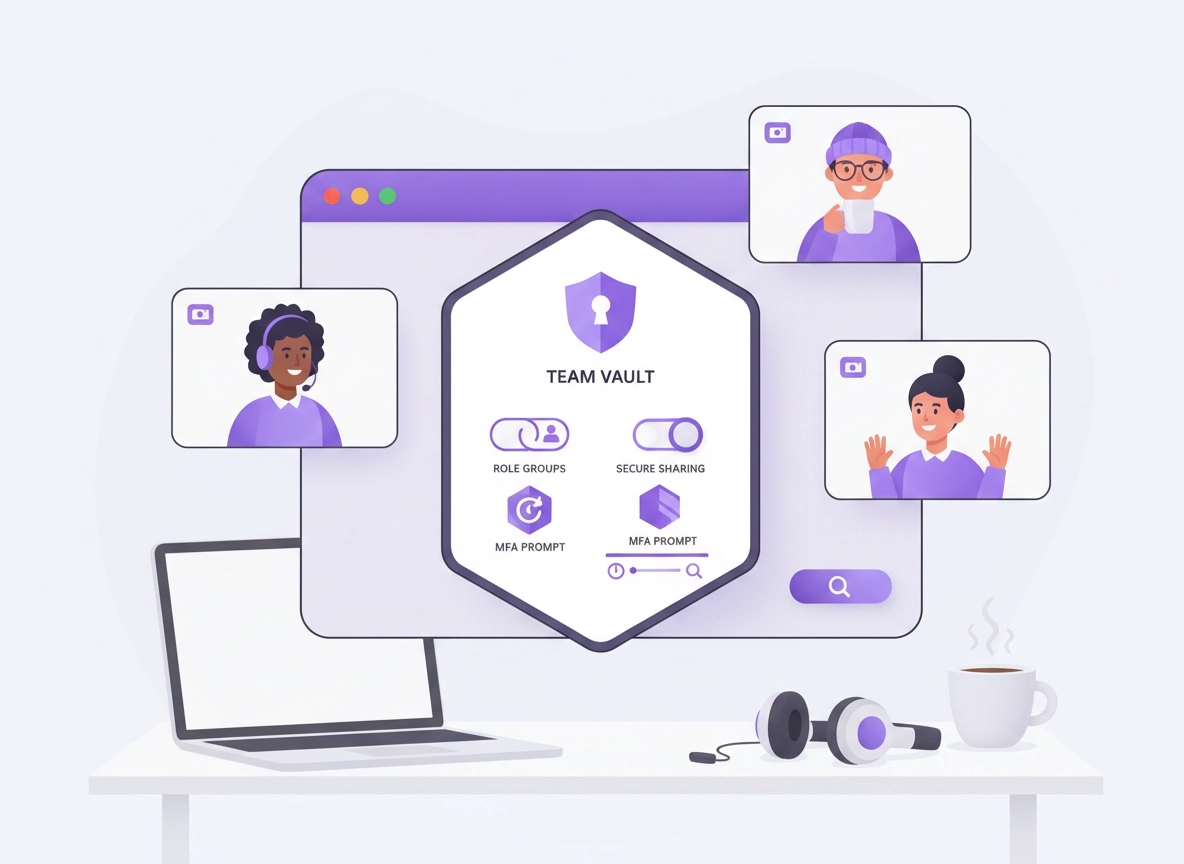
What a remote-team password manager is (and why Chrome changes the game).
Remote work doesn’t just change where people log in from. It changes how access gets shared, revoked, audited, and protected.
A remote-team password manager is a credential system designed for teams who don’t share an office network. It centralizes login secrets in a secure vault, provides browser-based autofill for speed, and adds controls that matter when people are distributed: role-based access, shared vaults, approval workflows, audit logs, and instant offboarding.
Chrome is the “front door” for most remote work. Your team signs into email, HR, finance tools, cloud dashboards, and customer portals through the browser. That’s why the best remote-team password manager setup is Chrome-native: a reliable extension, safe autofill rules, device-aware security, and a rollout plan that reduces friction. If autofill feels flaky, people fall back to insecure habits (copy/paste, screenshots, notes, or “just DM it to me”).
The goal is not just to store strong passwords. It’s to make the secure path the easiest path. When the vault is easier than Slack/WhatsApp sharing, and when removing access takes seconds instead of a late-night scramble, you’ve upgraded security and operations at the same time.
Start here: If you’re building the overall cluster, the hub page is Best Password Manager for Chrome. For a basic extension primer, see Password Manager Extension for Chrome.
Key terms (quick definitions).
- Team vault: A shared container where a group can access credentials without revealing or exporting them casually.
- RBAC (Role-Based Access Control): Access rules based on roles (e.g., Support, Finance, Engineering) rather than individuals.
- SSO (Single Sign-On): Signing into the password manager using your identity provider so access can be centrally controlled and revoked.
- MFA (Multi-Factor Authentication): A second factor (authenticator app or security key) required to sign in—critical for remote account protection.
- Passkey: A phishing-resistant sign-in method (often device-based) that can replace or supplement passwords in compatible services.
- Audit log: A record of access and changes—who accessed a vault item, who shared what, and when.
Remote-team threats this solves.
Remote work introduces predictable failure points. The best password manager rollout is the one that targets these specific problems (not vague “security improvements”).
1) “We share passwords in chat” (the silent breach multiplier).
Teams often share credentials via Slack/Teams, email, or a doc. Even if the tool is “secure,” the workflow is not: messages get forwarded, accounts get reused, and ex-employees keep access. A team password manager replaces this with permissioned vault access and a record of who accessed what.
2) Contractor access that never gets removed.
Contractors rotate frequently. If a contractor had access to a shared “Marketing” login, you need a way to revoke access instantly without changing 40 passwords. Vault sharing + groups + offboarding rules make this routine instead of scary.
3) Phishing, token theft, and “password reuse” across SaaS apps.
Remote teams log in everywhere. That creates more chances for phishing and reuse. A good manager enforces unique passwords, flags weak/reused credentials, and makes MFA adoption easier—without adding daily friction.
4) Unknown access (no audits, no owners, no source of truth).
If you can’t answer “Who has access to our billing portal?” you have an operations problem and a compliance problem. A remote-team password manager gives you: owners, groups, audit logs, and consistent naming so access questions are answerable.
5) Browser sprawl (multiple profiles, unmanaged extensions, risky autofill).
Chrome is powerful—especially with extensions. But unmanaged extensions and sloppy profiles create risk. Your rollout should include an extension policy and a clean browser-profile approach, especially if you manage devices or use Google Workspace.
Related: If your rollout involves locking down extensions or reducing permission risk, read Chrome Extension Security Check and Chrome Extension Permissions Guide.
Before you start (fast checks).
These checks prevent the two common rollout failures: choosing tools that don’t fit your workflows, and migrating secrets without cleanup.
- Inventory what you share: list every shared service (billing, social, hosting, analytics, ads, CRM, client portals) and who needs access.
- Decide your identity approach: will the password manager use SSO (recommended) or a standalone login?
- Pick your MFA standard: decide “minimum MFA” (authenticator) and “strong MFA” (security key) for admins.
- Define groups first: Remote teams win by managing access through groups (roles) rather than individuals.
- Choose your “shared account” strategy: ideally reduce shared accounts by using per-user logins; when you must share, share via vault items only.
- Plan offboarding: document what happens when someone leaves (disable SSO account, revoke vault groups, rotate critical credentials).
Related: For business and enterprise setups, see Password Manager for Chrome Business and Best Enterprise Password Manager for Chrome.
Export it, move it offline, and treat it as sensitive data. When you import into your new manager, delete the export file afterward and remove access to the old doc. (If a shared doc ever leaked, you’ll never get a clean “breach date.”)
How to choose the right password manager for remote teams.
“Best password manager” depends on your team shape: contractors vs employees, regulated vs non-regulated, and how centralized your identity is. Here’s a practical selection framework that works for remote teams using Chrome.
Non-negotiables for remote teams.
- Strong Chrome extension: fast autofill, clear domain matching, safe save prompts, and predictable behavior across profiles.
- Team vaults + groups: share via roles, not individuals. Your future self will thank you.
- RBAC: admin roles separated from regular users; ideally “vault admin” vs “org admin” separation.
- Auditing: at least item-change logs; ideally access logs and sharing logs.
- Recovery options: emergency access or admin recovery that doesn’t require unsafe “master password sharing.”
- MFA support: authenticator apps and security keys; bonus points for passkeys support where available.
- Cross-platform: Windows + macOS + mobile support if your team uses phones for MFA or approvals.
Decision points that change everything.
1) Do you want SSO?
If your team already uses Google Workspace or another identity provider, SSO is usually the cleanest security upgrade: disable a user once and access collapses everywhere. If you don’t have SSO, you can still be secure—but you must be stricter about recovery, admin roles, and MFA enforcement.
2) How many shared accounts do you have?
Remote teams often share “one login” for tools that charge per seat. That’s risky and often violates terms. Where possible, switch to per-user accounts. Where you must share (legacy systems, vendor portals), use a shared vault item with limited access and a rotation plan.
3) Do you need compliance-friendly controls?
If your work touches healthcare, payments, or sensitive customer data, prioritize managers with strong auditing and admin controls. See your compliance pages for more: GDPR, HIPAA, SOC 2.
4) Are you managing devices or just users?
If you manage devices, you can enforce policy-level guardrails in Chrome: extension allowlists, password manager settings, safer browsing settings, and profile controls. If you don’t manage devices, you must rely more on education and lightweight, repeatable checklists.
Step-by-step rollout in Chrome (recommended).
This rollout is designed for remote teams who want results fast without a full IT project. It assumes Chrome is your primary browser and your team uses a shared set of SaaS apps.
- 1 Create your access groups first. Build role groups like “Finance,” “Marketing,” “Support,” “Engineering,” and “Admins.” Avoid sharing vault access directly with individuals unless it’s a one-off exception.
- 2 Enable MFA immediately. Require MFA for every user. Require stronger MFA (security key) for admins and anyone who can change billing, payroll, domains, hosting, or password policies.
- 3 Install the Chrome extension. Make it the default autofill tool. Ensure the extension has a clear “save password” flow and that your team can recognize the vault pop-up.
- 4 Create a “Shared Services” vault. Add shared items like hosting, DNS, analytics, ads, and vendor portals. Assign an owner per item (not just per vault).
- 5 Migrate credentials safely. Import from your old manager or CSV only once. After importing, delete the export file and remove access to any old shared docs.
- 6 Standardize naming. Use consistent naming like “Service — Environment — Team” (Example: “Analytics — Production — Marketing”). Standard names prevent duplicate entries and wrong autofill.
- 7 Set sharing rules. Make a team rule: “No passwords in chat.” Sharing happens via vault items only. Add a short “how to request access” process.
- 8 Offboarding test. Pick a test user (or a dummy account), remove them from groups, and confirm they instantly lose access. Fix gaps before your first real offboarding event.
- 9 Lock the browser basics. Review Chrome profile usage, extension safety, and privacy/security settings so the vault isn’t undermined by a risky browser environment.
What “success” looks like: Your team can log into every daily tool using Chrome autofill, shared credentials are no longer being sent in messages, and you can answer “who has access?” using groups and vault permissions—without hunting through old docs.
Related: For hands-on Chrome guidance, see How to Use a Password Manager in Chrome and Are Password Managers Safe for Chrome?.
Common variations (by device).
- Windows / ChromeOS: consider OS login protection, screen lock enforcement, and disk encryption. Remote devices get lost.
- macOS: ensure FileVault is enabled and the browser profile is separate from personal browsing if the device is shared.
- Android / iPhone: treat phones as security devices (MFA + approvals). Require screen lock + biometric unlock. Avoid SMS-based MFA when possible.
Team vaults, sharing models, and “shared accounts” done right.
The biggest remote-team failure pattern is confusing “sharing access” with “sharing a password.” Your password manager should make it easy to share access without encouraging secret sprawl.
The three vault models you’ll actually use.
- Personal vault (default): each user stores their own accounts (email, tools, personal logins). This reduces helpdesk noise and prevents accidental cross-team access.
- Team vaults (role-based): “Marketing,” “Support,” “Sales,” “Ops.” Team vaults hold credentials and secure notes used by that role. This is where RBAC shines.
- Shared services vault (high-risk): DNS registrar, hosting, payroll, finance, ads manager, and anything that can cause major damage if compromised. Keep this vault small and tightly controlled.
Every shared credential must have: (1) a clear owner, (2) a reason for sharing, (3) a group-based access rule, and (4) a rotation plan.
Shared accounts: reduce them first, then control them.
If you can switch shared accounts to per-user accounts, do it. Shared accounts kill accountability and make incident response painful. But when you must share, use these patterns:
- Share via vault item only: no copy/paste into docs, no screenshots, no chat messages. Vault-only sharing means access removal is real.
- Use domain matching: store the correct URL so autofill triggers only on the real site (reduces phishing risk).
- Protect high-risk items with stronger MFA: require re-auth to view/export sensitive passwords where the manager supports it.
- Rotate when a role changes: if someone leaves a high-risk group, rotate the credentials for that vault item (especially billing/admin tools).
Related: If you’re building a secure storage approach, see Password Vault for Chrome and Secure Password Storage in Chrome.
Secure sharing: what to allow, what to forbid.
| Sharing method | Verdict | Why | Better alternative |
|---|---|---|---|
| Sending passwords in chat | No | Forwardable, searchable, often retained | Share vault access via group |
| Shared spreadsheet or doc | No | Copies proliferate, hard to audit, hard to rotate | Import once then delete export |
| Vault sharing with groups | Yes | Access revocation is real and scalable | Use RBAC + owners |
| One-time share link (time-limited) | Sometimes | Useful for vendors, but risky if misused | Prefer vendor accounts or per-user access |
| Exporting vault items to CSV | Rarely | Creates a high-risk file on disk | Use admin migration tools; delete exports |
MFA, SSO, passkeys, and device trust.
Remote teams are exposed to phishing and session theft more than office-bound teams, simply because logins happen everywhere. A password manager should be paired with MFA and (where possible) passkeys and SSO to reduce “single credential compromise” risk.
MFA policy that works for real teams.
- Everyone: MFA required (authenticator app minimum).
- Admins + finance + domain/hosting owners: security key MFA preferred (phishing-resistant).
- Recovery: define what happens when someone loses a phone—use formal recovery flows, not “send me the code.”
SSO: the cleanest remote-team control.
If your password manager supports SSO, you get a huge advantage: disabling a user at your identity provider removes their access to the vault. This is the remote-team version of “taking back the badge.” It also makes onboarding faster because new team members use the same sign-in as the rest of your stack.
Passkeys: where they fit today.
Passkeys reduce phishing risk and can simplify sign-in for compatible services, but they don’t eliminate the need for a team vault. Remote teams still need shared access controls, secure notes, software license keys, recovery codes, and a clear audit trail. Treat passkeys as an upgrade for individual accounts and critical admin accounts—not as a complete replacement for team credential management.
Related: If you’re comparing approaches, see Password Manager with 2FA for Chrome, Password Manager with Biometrics, and Password Manager Two-Factor Authentication Guide.
Chrome controls: policies, profiles, and safer browser settings.
A password manager is only as safe as the environment around it. For remote teams, the browser is the environment. You don’t need enterprise tooling to improve your baseline, but if you do manage Chrome, you can enforce guardrails that prevent common failures.
Use a dedicated work Chrome profile.
Remote workers often mix personal browsing with work logins. A dedicated “Work” Chrome profile reduces cross-contamination: fewer risky extensions, fewer saved credentials in the wrong place, and cleaner debugging when something breaks. Make the work profile the only one where the team password manager extension is installed.
Extension safety: enforce a “small list” approach.
Extensions can read and modify content, and some request broad permissions. Keep your extension list minimal and intentional. For remote teams, aim for: password manager, approved ad-blocker (if required), and essential productivity tools—nothing else by default.
Related: If you want a practical baseline for safety, see Safe Chrome Extensions and Chrome Extension Risk Analysis.
Chrome built-in password manager vs team vaults.
Chrome’s built-in manager (Google Password Manager) is convenient for individuals, but remote teams typically need more: shared vaults, fine-grained RBAC, audit trails, and admin-level enforcement. If your team is tempted to “just use Chrome passwords,” decide deliberately how you want that handled: do you allow it for personal accounts but require a team tool for shared services? Or do you standardize on one system?
Read next: Chrome Password Manager vs Third-Party, Chrome Password Manager Limitations, and Chrome Password Manager Security Risks.
Baseline Chrome settings that help remote teams.
- Keep Chrome updated: remote teams can’t rely on “IT will patch it.” Make updates routine.
- Use safer browsing protections: helps reduce malicious site risk during daily work browsing.
- Review site permissions: remote teams use many tools; permission creep happens.
- Limit sync sprawl: ensure work credentials stay in work contexts.
Related: For broader remote-work privacy and browser hardening, see Chrome Privacy for Remote Work and Chrome Hardening Guide.
Rollout checklist for remote teams.
Use this as your “do it once, do it right” rollout template. The goal is a system that survives hiring waves, contractor churn, and busy weeks.
Week 1: Establish the system.
- Pick the manager: confirm team vaults, RBAC, auditing, MFA, and a solid Chrome extension.
- Create groups + vault structure: personal vaults, team vaults, shared services vault.
- Define your “no passwords in chat” rule: make it policy, not preference.
- Set naming conventions: consistent service naming + URLs to prevent wrong autofill.
- Create an “Emergency & Recovery” vault area: backup codes, vendor recovery contacts, and recovery processes with limited access.
Week 2: Migrate and train.
- Migrate shared accounts first: hosting, DNS, analytics, billing—anything that would hurt if locked out.
- Train on browser autofill: show how to detect the vault prompt and how to avoid saving credentials to the wrong system.
- Enforce MFA: verify every user actually enabled it; handle holdouts early.
- Reduce shared accounts: migrate tools to per-user logins where possible.
Week 3+: Lock in “operational security”.
- Offboarding runbook: one checklist, every time. Remove from SSO, remove from groups, rotate high-risk shared services.
- Quarterly access review: who has access to what? prune stale access.
- Audit habits: review logs when incidents happen, and use them to improve policies.
- Password health: fix weak/reused credentials and adopt stronger defaults (passphrases, generator, unique logins).
Can you remove a contractor’s access in under 60 seconds without changing 20 passwords? If not, your groups/vault structure needs work.
Privacy & security notes.
Remote-team password management is not just “security.” It’s also privacy and operational reliability. Poor credential practices cause breaches, lost accounts, vendor lockouts, and messy handovers. A good vault setup reduces all of that.
Impact: Changes how credentials are stored, shared, recovered, and audited across the entire team.
Related: If you suspect compromise, prioritize breach response and checks: Password Breach Monitoring, Password Security Audit, and Chrome Password Leak Detection.
Recommended baseline settings.
- Option A (balanced): Team vaults + MFA for everyone + strong generator + role-based groups for shared apps.
- Option B (maximum security): SSO + security keys for admins + strict RBAC + audit logs + restricted export/view controls for critical vaults.
- Option C (compatibility-first): Team vaults + MFA + minimal policy enforcement (best if your team is small and tools are changing rapidly).
Recommended settings by goal.
| Goal | Recommended setup | Tradeoff | Best for |
|---|---|---|---|
| Balanced | Team vaults + MFA for all + role groups + named owners | Some training required | Most remote teams |
| Maximum security | SSO + security keys for admins + strict RBAC + audit logs + restricted exports | More setup time | Security-conscious or regulated teams |
| Fast rollout | Extension + shared services vault + MFA + “no passwords in chat” rule | Less policy enforcement | Startups, small teams |
Troubleshooting.
Related: If Chrome’s behavior is part of the problem, read Chrome Password Manager Limitations and Chrome Browser Security Basics.
If autofill keeps choosing the wrong account.
This usually comes down to duplicate entries, inconsistent URLs, or weak naming. Fix by: (1) ensuring each vault item has the correct login URL, (2) deleting duplicates, and (3) adopting a consistent naming scheme. If a tool uses multiple subdomains, store the exact URL your team uses to sign in.
If your team keeps saving passwords to the wrong place.
People often save to Chrome’s built-in manager out of habit. Solve it with a simple policy: “Work credentials go in the team vault.” Then train your team to recognize the vault save prompt. If you manage devices, standardize on one approach and remove ambiguity.
If “shared accounts” keep leaking into personal vaults.
This happens when someone logs into a shared service from their personal Chrome profile. Fix by using a dedicated work profile and by storing shared accounts only in the shared services vault. Shared access should be granted via groups, not by sending passwords.
If offboarding still feels risky.
Offboarding risk usually means your shared services vault is too large and your access model is not group-based. Reduce the vault to high-value shared items, move role-specific items to team vaults, and ensure every shared credential has an owner and rotation plan. For high-risk services (billing, domain, hosting), rotate credentials when a privileged person leaves.
If you suspect compromise.
Start with the accounts that can cause the most damage: email admin, domain/DNS, hosting, billing, payroll, and ads accounts. Rotate credentials, enforce MFA, and review recent login activity if your services support it. Then run a password health check and remove unused accounts.
FAQ.
-
helpIs Chrome’s built-in password manager good enough for remote teams?For individuals, Chrome’s built-in manager can be convenient. For remote teams, you usually need more: shared vaults, RBAC, auditing, and admin enforcement. A common approach is personal accounts in the built-in manager, but all shared services and business-critical access in a dedicated team password manager.
-
helpWhat’s the safest way to share passwords with contractors?Don’t share the password itself. Share access via a vault group, then remove that access when the contract ends. Use MFA and limit contractor permissions to only what’s required. For high-risk tools, prefer per-user accounts instead of shared logins.
-
helpHow do we handle MFA backup codes and recovery info?Store backup codes and recovery procedures as vault items with restricted access (ideally in your shared services vault). Avoid storing codes in chat or docs. Make sure there’s a defined process for phone loss and emergency recovery that doesn’t depend on one person being online.
-
helpWhat’s the single best policy for remote-team password security?“No passwords in chat.” Replace informal sharing with vault-based sharing and role groups. Pair that with MFA for everyone and stronger MFA for admins, then enforce offboarding (remove groups + rotate critical shared credentials).
Sources & further reading.
- Google Password Manager (official)
- Chrome Enterprise policy list (official)
- NIST SP 800-63B digital identity guidelines (password guidance)
- CISA: Use strong passwords (includes password manager guidance)
- Google Chrome Help: Passkeys in Chrome (official)
Disclosure: Some pages may mention tools or services. Recommendations are editorial and based on practical security/rollout needs for Chrome-first workflows.