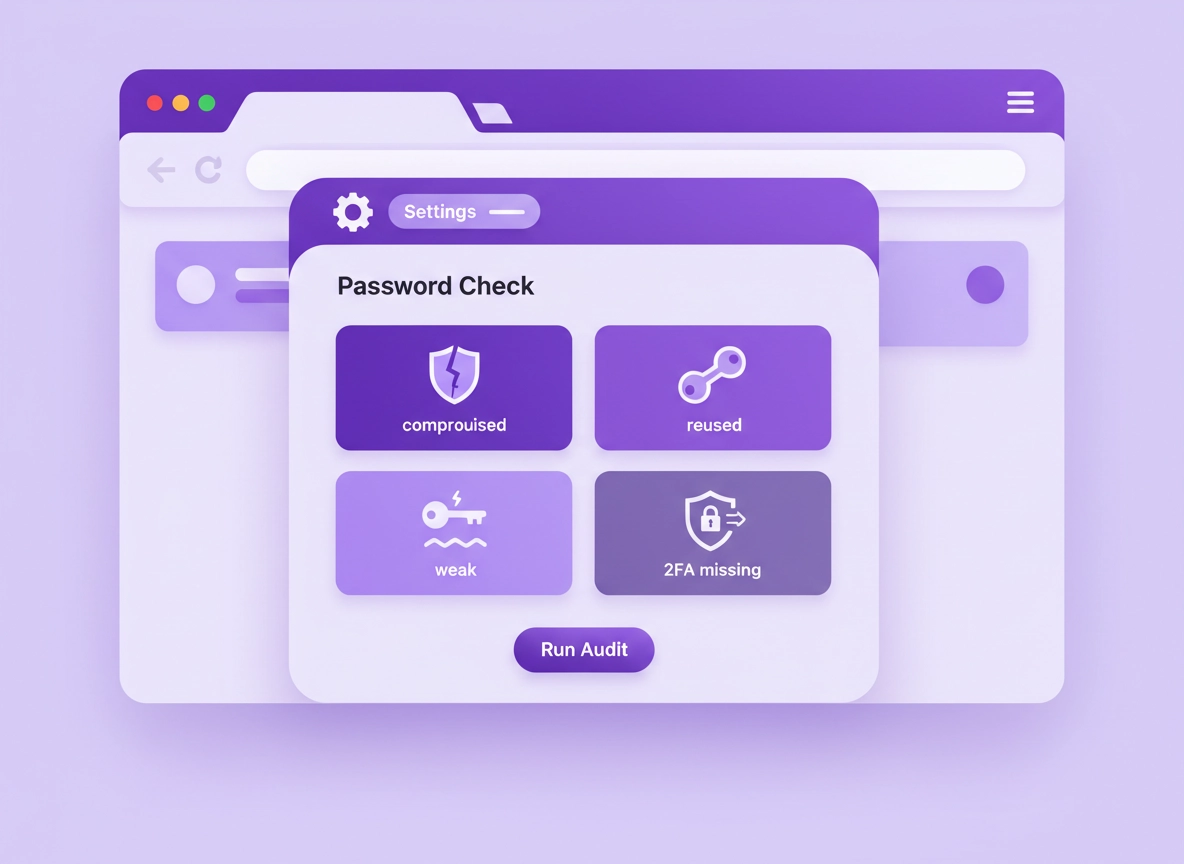
What a password security audit is (and why Chrome is a good place to start) .
This guide focuses on the practical, high-impact checks you can actually complete in one sitting—without turning your life into an Excel sheet.
A password security audit is a structured way to find the logins most likely to get you hacked, then fix them in a specific order so you reduce risk fast. It’s not just “change a few passwords.” A proper audit answers four questions:
- Were any of my passwords exposed? (Compromised/breached credentials)
- Am I reusing passwords? (One breach can unlock multiple accounts)
- Are any passwords too guessable? (Weak length, predictable patterns, old passwords)
- Is my browser setup helping or hurting? (Autofill, sync, device security, and sign-in protections)
Chrome is a useful starting point because it sits where the action happens: sign-in pages, autofill flows, and saved credentials. Chrome (and Google Password Manager) can highlight compromised, reused, and weak passwords, which gives you an “audit shortlist” instead of guessing.
But here’s the key: an audit is only valuable if it ends with remediation. That means you don’t stop at “compromised found.” You change passwords, upgrade the logins that matter, and harden the browser and account so you get fewer alerts next month.
Start here (cluster hub): Best Password Manager for Chrome (and when the built-in option is enough).
Key terms (quick definitions) .
- Compromised password: A saved password that appears in breach data. Treat it as “assume known by attackers.”
- Reused password: The same (or near-same) password used on multiple sites. One breach becomes many breaches.
- Weak password: Too short, predictable, or pattern-based (names + numbers, seasons, keyboard walks).
- Password manager vs browser storage: A dedicated manager typically offers stronger sharing, vault controls, and admin features than browser-only storage.
- Passkey: A phishing-resistant sign-in method (device-backed credential) that replaces passwords on supported sites.
Before you start (fast checks that prevent audit mistakes) .
These checks stop the most common audit failures: changing the wrong account, breaking your access, or leaving the real risk untouched (like a compromised email inbox that can reset everything).
- Confirm which Google Account Chrome is using: If you have multiple accounts (work + personal), make sure you’re auditing the right one before you start changing passwords.
- Identify your “Tier 1” accounts: Email, banking, Apple/Google/Microsoft account, password manager itself, and anything with admin access (domains, hosting, ads, analytics).
- Turn on a recovery safety net: Verify recovery email/phone on your main identity account before you change passwords or add 2FA.
- Update Chrome first: Audit flows and security features change; staying current reduces weird UI mismatches.
- Pick a clean device: If you suspect malware, do the audit on a trusted machine (or at least scan/clean first).
Related: If you suspect a hijack, start with Remove Malware from Chrome before you rotate passwords—otherwise you may “hand” the new password right back to the attacker.
Related: If you’re trying to decide whether Chrome’s built-in manager is enough, read Chrome password manager vs third-party.
Your audit “order of operations” (do this in order) .
This order is deliberate. It reduces the chance you lock yourself out, and it reduces real-world risk fastest:
Step-by-step: run the audit in Chrome and fix the highest risks first .
You can do this audit using Chrome’s password tools and Google Password Manager. The names vary slightly by platform (desktop vs Android vs iOS), but the flow is the same: open password manager → run checkup → fix items by severity.
- 1 Open Google Password Manager in Chrome:
Menu (⋮) → Passwords and autofill → Google Password Manager. - 2 Run “Checkup” (the audit scan):
Look for categories like Compromised, Reused, and Weak. These are your audit buckets. - 3 Fix Compromised first:
Open the compromised list → for each site, click through to change your password. Use a unique password (don’t just “edit the old one”). - 4 Secure your identity account (email/Google):
Change the password for your main inbox and your Google account, then add 2-factor authentication (or passkeys where available). - 5 Fix Reused passwords:
Any reused password must be replaced everywhere it’s used. Start with accounts that can spend money, access data, or reset other accounts. - 6 Fix Weak passwords:
Upgrade weak passwords to long, random ones (16–24+ characters). If you can’t upgrade everything today, focus on accounts that store personal info or saved payment methods. - 7 Lock in “prevention” settings:
Enable breach warnings, review autofill settings, and tighten Chrome security so the next audit is smaller.
What “success” looks like: Your compromised list is empty, reused is reduced (ideally zero), weak is addressed on high-value accounts, and you’ve enabled breach alerts + stronger sign-in protections.
Related (Chrome audit tools): Chrome Password Checkup and Chrome Password Leak Detection.
What to do for each finding (exact remediation) .
1) Compromised passwords .
A compromised password is not a “maybe.” Treat it as burned. Even if the breached site “was years ago,” breached credential lists are traded and reused for automated attacks. Your goal is to remove the attacker’s certainty.
- Change the password on the site itself (not only inside Chrome).
- Log out other sessions on the site if the option exists (“sign out of all devices”).
- Enable 2FA or passkeys immediately for Tier 1 accounts.
- Check the email tied to that account: if the inbox is compromised, fixing the site won’t stick.
2) Reused passwords .
Reuse is where most real-world takeovers happen. Attackers don’t need to “hack you”—they just take leaked credentials from one site and try them on everything else. If Chrome flags a password as reused, you should assume it will eventually be tested.
- Make every reuse instance unique. Don’t “rotate the shared password” to a new shared password.
- Start with accounts that can reset other accounts (email, identity providers, cloud services).
- Don’t rely on password tweaks (Summer2024! → Summer2026!). Attack tools guess these patterns.
Related: If you’re building a better system around unique passwords and safer autofill, see Secure Password Storage in Chrome and Password Autofill in Chrome.
3) Weak passwords .
“Weak” usually means too short or too predictable. Length matters because it blocks brute force and credential stuffing variants that try common patterns. The easiest upgrade is to use generated passwords and let a manager store them.
- Use 16–24+ characters for important accounts (longer is better, within site limits).
- Avoid patterns: names, birthdays, seasons, keyboard walks, repeated words.
- Prefer random generation (manager-generated) over “memorable phrases” unless you understand the tradeoffs.
Audit checklist you can actually finish today .
If you want a simple completion standard, use this checklist. It’s designed to be realistic for normal humans (and busy founders).
- Compromised list: empty for Tier 1 accounts (email, banking, Google, hosting, ads)
- Reused: eliminated on Tier 1 and Tier 2 accounts (finance tools, work tools, shopping accounts)
- Weak: upgraded on Tier 1 accounts
- 2FA/passkeys: enabled on Tier 1 accounts
- Chrome breach alerts: enabled (so you find future issues early)
- Autofill: reviewed (payment + address autofill aligned with your risk comfort)
Common variations .
- Windows / ChromeOS: Password features are usually under Passwords and autofill. On Chromebooks, device login security matters a lot because the browser is the OS.
- macOS: If you also use iCloud Keychain, decide which system is your “source of truth” so you don’t create conflicts.
- Android / iPhone: Menus move more often. If you can’t find it, search Chrome Settings for “password” or “manager.”
What if you’re using a third-party password manager? .
If you use 1Password, Bitwarden, Dashlane, Keeper, NordPass, etc., you can still use this exact audit logic. The difference is where you run “health” checks and how you handle sharing, admin controls, and reporting.
- Still run Chrome Checkup? Yes—because Chrome can still store credentials (and autofill can still expose risk). You want to know what Chrome is holding.
- Best practice: choose one primary vault system. If you store the same credentials in multiple systems, audits become messy and mistakes go up.
- Migration strategy: if you’re moving away from Chrome storage, do it safely (export/import is the riskiest moment).
Related: If you’re comparing storage models, start here: Cloud Password Manager for Chrome, Encrypted Password Manager for Chrome, Password Vault for Chrome.
Advanced hardening (autofill, device security, and enterprise-style controls) .
Once you’ve handled the obvious risks (compromised/reused/weak), hardening is what keeps your future audit small. This is also where “high-CPC” security work actually lives: account security, phishing resistance, device integrity, and policy-style controls.
Related: For the bigger security context, see Chrome Security Checkup and Chrome Browser Security Basics.
Autofill audit: convenience vs exposure .
Autofill saves time, but it also changes the “blast radius” of a bad day. If someone gains local access to your device, or if a malicious site tricks you into filling, autofill can become a liability.
- Passwords: keep autofill on if you trust your device security. Turn on prompts/biometrics where available.
- Payment methods: consider turning off card autofill if you don’t need it. It reduces accidental exposure.
- Addresses & personal info: keep minimal. The more stored data, the more you can leak with one wrong click.
Related: Chrome Autofill Security Settings and Chrome Payment Method Security.
Upgrade sign-ins: 2FA and passkeys where it matters .
A password audit without 2FA/passkeys is like installing a better lock but leaving the window open. Your “Tier 1” accounts should have stronger sign-in methods enabled:
- Email + Google account: strongest available option (2FA, passkeys, security keys).
- Banking + payments: MFA, alerts, and device recognition.
- Admin services: domain registrar, hosting, email provider admin, AdSense/ads accounts, analytics tools.
Related: Password Manager with 2FA and Chrome Two-Factor Authentication Guide.
Secure Chrome profiles (the overlooked attack surface) .
Your passwords don’t live in a vacuum. They live inside a Chrome profile that can store cookies, session tokens, extensions, and synced data. A strong audit includes a quick profile review:
- Separate profiles: keep work and personal browsing separate. It reduces cross-contamination from risky extensions and random logins.
- Review extensions: any extension that can “read and change data on all sites” deserves scrutiny.
- Sync decisions: sync is convenient, but it expands where your data exists. If you’re highly risk-sensitive, reduce what you sync.
Related: Chrome Profile Security Settings, Chrome Profile Privacy Setup, Chrome Account Sync Settings.
Enterprise-style audit mindset (even if you’re solo) .
Businesses don’t “hope” password hygiene works—they create repeatable checks. You can steal the same mindset:
- Cadence: run your audit monthly for Tier 1, quarterly for everything else.
- Change tracking: when you rotate a password, note why (compromised vs reused vs routine).
- Standard: “Unique per site + 2FA on Tier 1” becomes the baseline, not a special project.
Related: If you manage multiple users/devices, see Password Policy for Chrome Enterprise and Chrome Password Manager Deployment Guide.
Common alternatives users compare .
Privacy & security notes (what Chrome can see, what it can’t, and your tradeoffs) .
A good audit is honest about tradeoffs. Password safety isn’t only about strong passwords—it’s about where they’re stored, how they sync, and how easily a mistake or compromise can expose them.
Impact: Changes your saved credentials posture, breach alerting, autofill behavior, and account recovery safety.
Related: For a wider “secure browsing” baseline, see Chrome Security & Privacy Checklist and Chrome Secure Browser Setup Guide.
Recommended baseline settings .
- Option A (balanced): Use Google Password Manager + unique passwords + 2FA on Tier 1 + breach alerts enabled.
- Option B (maximum security): Third-party manager with strong vault controls + hardware security keys on identity accounts + minimized sync footprint.
- Option C (compatibility-first): Use a manager but keep autofill conservative; focus on Tier 1 hardening and minimal stored personal data.
Recommended settings by goal .
| Goal | Recommended setting | Tradeoff | Best for |
|---|---|---|---|
| Balanced | Unique passwords + breach alerts + 2FA on Tier 1 | Some setup time | Most users |
| Maximum security | Passkeys/security keys + strict device hygiene + vault controls | More friction + more planning | High-risk accounts, founders, admins |
| Compatibility | Selective upgrades + conservative autofill + focus on Tier 1 | Some weaker accounts remain | Users with legacy sites/tools |
Related: If you’re concerned about where passwords live and how they sync, read Chrome Password Storage Security and Chrome Sync Security Risks.
Troubleshooting .
Related: If your Chrome setup feels “off” (weird redirects, popups, new tabs), start with Chrome Browser Hijacker Removal or Chrome Extension Malware Removal.
If you can’t find “Google Password Manager” in Chrome .
Chrome labels change by platform and version. Try: Menu (⋮) → Passwords and autofill → Passwords / Password Manager. On mobile, it may appear as Password Manager inside Settings. If it still doesn’t show, update Chrome and search settings for “password”.
If Checkup shows issues but you can’t change the password .
Some sites don’t provide a clean “change password” flow, or they require verifying via email/phone. Open the site directly, navigate to Account/Security settings, and change it there. If you’re locked out, prioritize regaining access to the email account first.
If breach warnings keep popping up even after you changed passwords .
Two common causes: (1) you changed the password on the site but Chrome is still storing the old credential entry, or (2) the account exists on multiple sites with the same password (reuse). Delete the old saved entry, sign in once with the new password, and then re-run Checkup.
If you need to reset safely (without losing everything) .
If Chrome is behaving strangely, a safe approach is: remove suspicious extensions, scan for malware, confirm your Google account security, then consider a profile cleanup or reset. Don’t export passwords to “back them up” unless you understand the risk of a CSV file.
Related: Chrome Security Reset and How to Reset Chrome After Malware.
FAQ .
-
helpIs Chrome’s password checkup “good enough” for most people?For many users, yes—if you actually fix compromised/reused passwords and enable 2FA on your important accounts. Where Chrome-only setups fall short is advanced sharing, admin reporting, and vault controls. If you manage a team or need strict governance, consider a dedicated password manager.
-
helpWhat’s the single biggest mistake people make during a password audit?Fixing “weak” passwords first and ignoring compromised/reuse. Weak is a long-term quality problem; compromised and reuse are immediate takeover paths. Always clear compromised → secure your email/identity account → eliminate reuse → then upgrade weak.
-
helpShould I export my Chrome passwords to a CSV as part of an audit?Only if you’re migrating to another manager—and only if you can secure and delete the CSV immediately after import. A CSV file is basically a “keys to the kingdom” document. If you don’t delete it (and any cloud copies/backups), it can become your biggest risk.
-
helpHow often should I run a password security audit?Monthly for your Tier 1 accounts (identity/email, banking, admin tools) and quarterly for everything else. Any time you get a breach alert or you suspect phishing, run the audit immediately and rotate the affected credentials.
Sources & further reading .
- Google Help: Manage passwords in Chrome (Desktop)
- Google Help: How Chrome protects your passwords
- Google Help: Manage Chrome safety and security (Desktop)
- Google Help: Manage Chrome safety and security (Android)
- Google Password Manager
- Google Account Security Checkup
Disclosure: Some pages may mention tools or services. Recommendations are editorial and based on testing.